Repository navigation
L4-Notchbar v1.1.0

Install: download L4-Notchbar_1.1.0_x64-setup.exe below and run it. No admin rights or developer tools needed.
Already installed? The app offers this version under Settings → General → Updates.
Windows SmartScreen may warn because the installer is not code-signed yet: More info → Run anyway.
New: Vault for passwords and 2FA
Passwords and two-factor codes, right in the Notch. Everything is encrypted on your PC and never goes anywhere else.
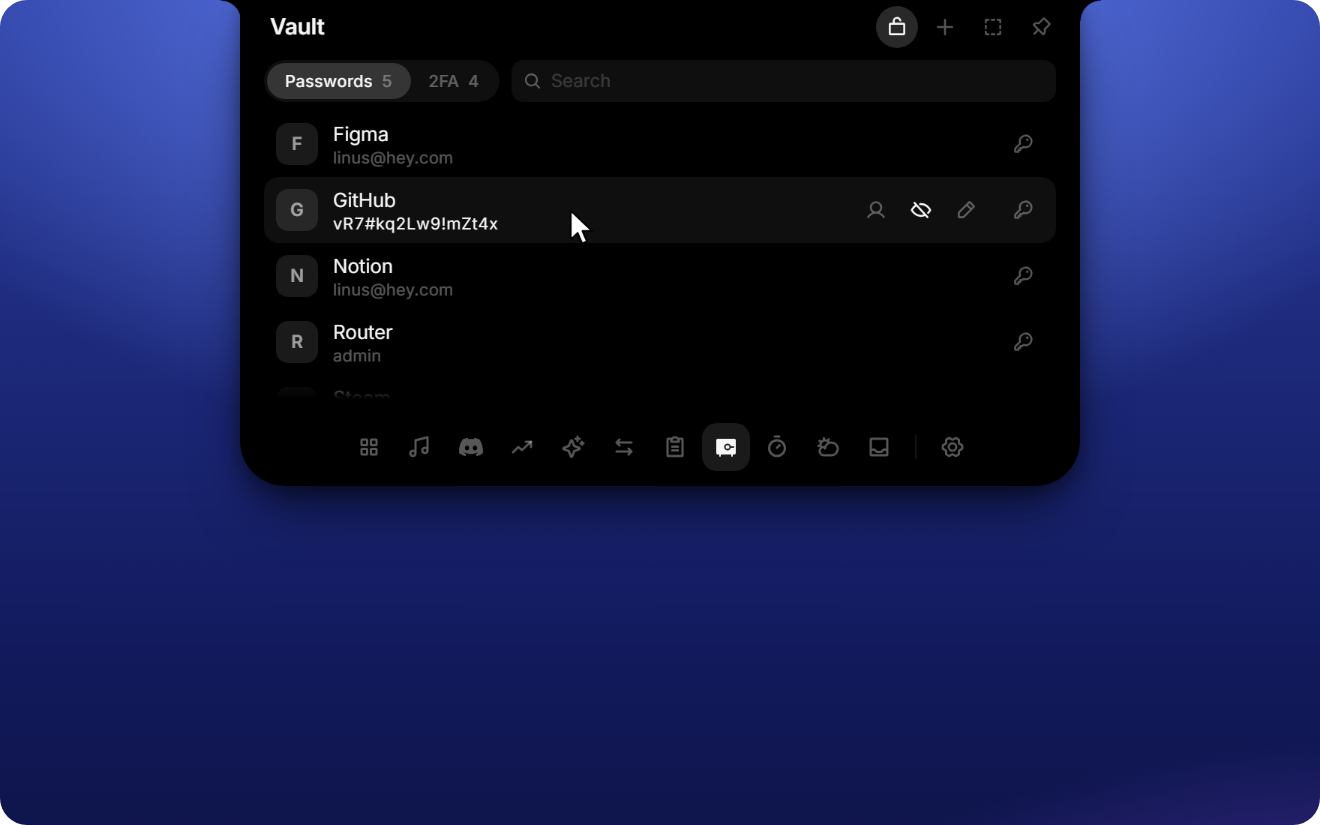
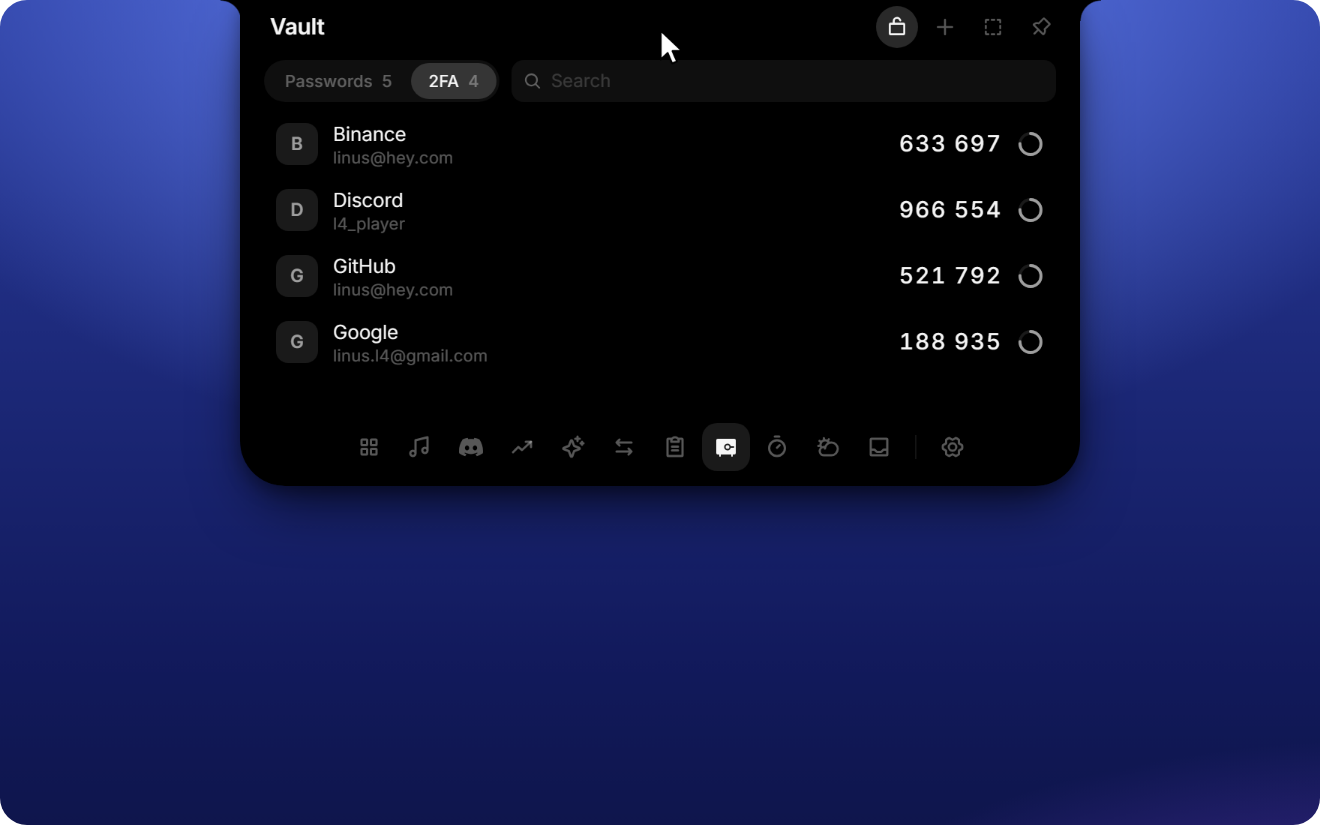
- Passwords with name and username or email. Copy either one with a click, show the password, edit it, or create a strong one with the built-in generator.
- 2FA codes (TOTP) with a live countdown. Add one by taking a screenshot of the QR code (Win + Shift + S) and pressing Ctrl + V, or type the key by hand. Then give it a name.
- 4-digit PIN before a password or code is shown or copied. You can turn it off for passwords or for 2FA separately in Settings → Tools → Vault; turning it off needs the PIN. After five wrong tries the vault locks for 30 seconds, and the lock doubles from there.
- Kept out of clipboard history. Copied passwords and codes don't show up in the Notch clipboard or in Windows' Win + V history, and they are cleared from the clipboard after 30 seconds.
- Local only. The vault is encrypted with Windows DPAPI and bound to your Windows account. 2FA keys never leave the app's backend; only the six-digit codes reach the interface.
The vault is off by default. Turn it on under Settings → Tools.
Changes
- release 1.1.0
- docs: vault in README, release notes with screenshots
- feat: vault for passwords and 2FA codes