Repository navigation
L4-Notchbar v1.5.0

Install: download L4-Notchbar_1.5.0_x64-setup.exe below and run it. No admin rights or developer tools needed.
Already installed? The app offers this version under Settings → General → Updates.
Windows SmartScreen may warn because the installer is not code-signed yet: More info → Run anyway.
New: volume per app, right in the player
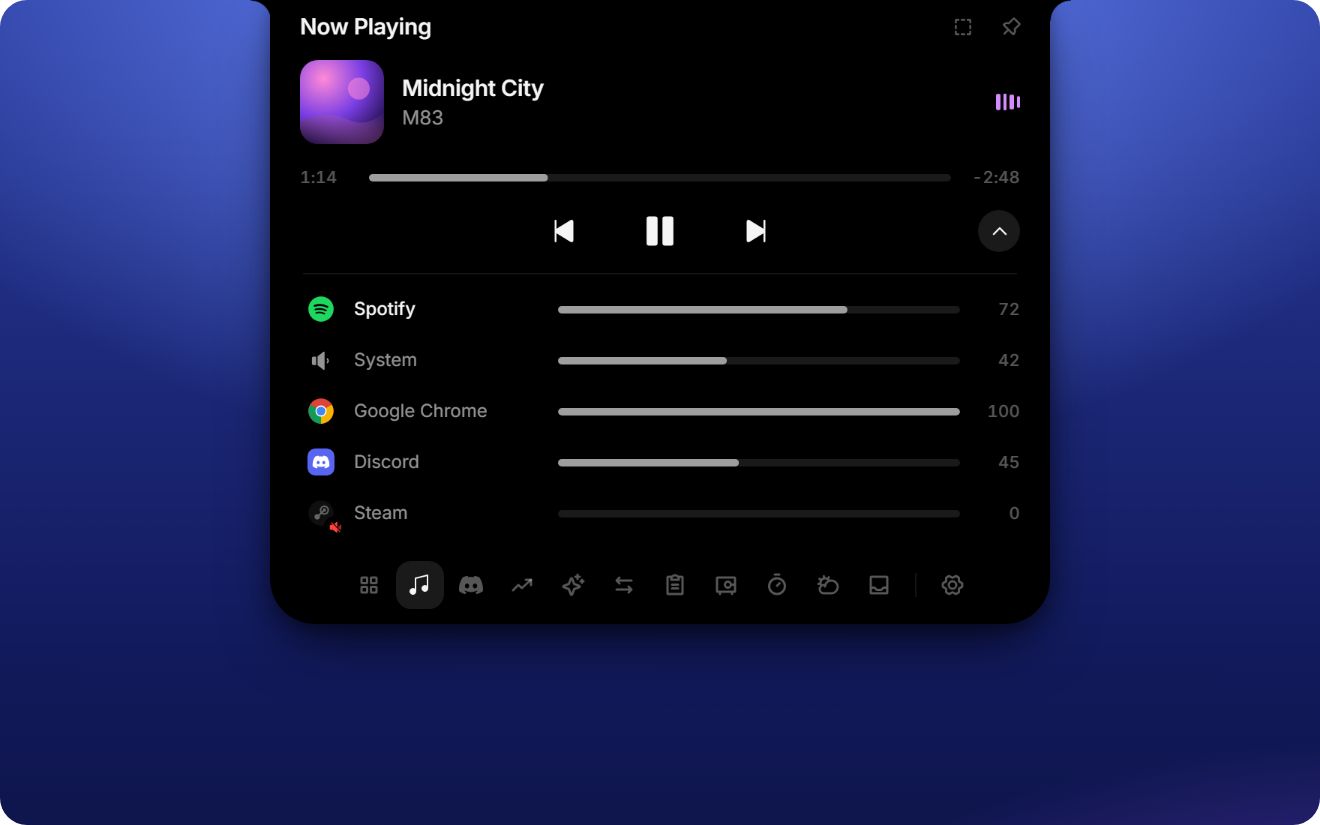
- Mixer like in Windows. The arrow next to the playback controls opens a list of every app that plays sound, plus the system volume. Drag a bar or scroll on it to change the level (hold Shift for bigger steps), click an app's icon to mute it. The app that's playing sits on top; when another app takes over, the rows slide into place. (#4)
- Jump to the playing app. Click the cover or the title to bring Spotify, Spotifast, your browser or whatever is playing to the front. For browsers, the window showing the track wins. An app closed to the tray (like Spotify) opens its window again. (#5)
Also new
- °C or °F, 24 h or 12 h. Pick the temperature unit under Settings → General → Weather and the clock format under Settings → General. On first start both follow your Windows region. With °F, wind is shown in mph.
- Presentation mode. Hides clipboard previews, portfolio amounts and the vault while you share or record your screen. Timer, music and the mic/camera dots stay visible. Switch it with the eye in the Overview, or let it turn on by itself while a screen recording is detected (Teams, Discord, OBS and others that use Windows screen capture). Settings live under Settings → Display.
- Focus mode as a thin line. Focus mode can now shrink the notch to a thin line at the screen edge instead of making it half transparent. Music and other activities are hidden then; click the line three times to get the notch back. Pick the look under Settings → Display → Focus look. (#7)
- Focus mode in the tray menu. Right-click the tray icon to turn focus mode on or off. The check mark always matches the notch, however you switched it.
- What's new, inside the app. Settings → General → Updates lists what changed in each version. After an update, a dot on the gear shows what's new since the version you had before, including versions you skipped. Before you install an update, you see what it brings.
Fixes
- Clicks right below the notch work again. Pressing the mouse anywhere near the notch made its invisible drop zone grow, so clicks on tabs or toolbars just below it were swallowed. The zone now only grows while you actually drag something towards the notch. (#7)
- Much lower memory use with images in the clipboard history. Copied images and screenshots are now kept compressed instead of as raw pixels. A 4K screenshot takes about 2.5 MB instead of 31 MB, so a history full of screenshots no longer adds hundreds of MB.
Polish
- Smooth cover changes. When the song or the app changes, the new cover fades in over the old one, in the closed notch and in the player. No more hard swap or flash of the note icon.
- Calmer player. Next track, play and previous sit centered; volume lives in the mixer instead of an extra slider.
Changes
- release 1.5.0
- release 2.5.0
- docs: release notes and mixer still for 2.5.0
- feat: per-app mixer, open the playing app, presentation mode and more
- docs: draft notes for 1.2.2
- fix: keep clipboard images as PNG instead of raw RGBA