3.0_Settings
Markup-by-Attribute's settings can be found on the WooCommerce → Settings page, Products tab.
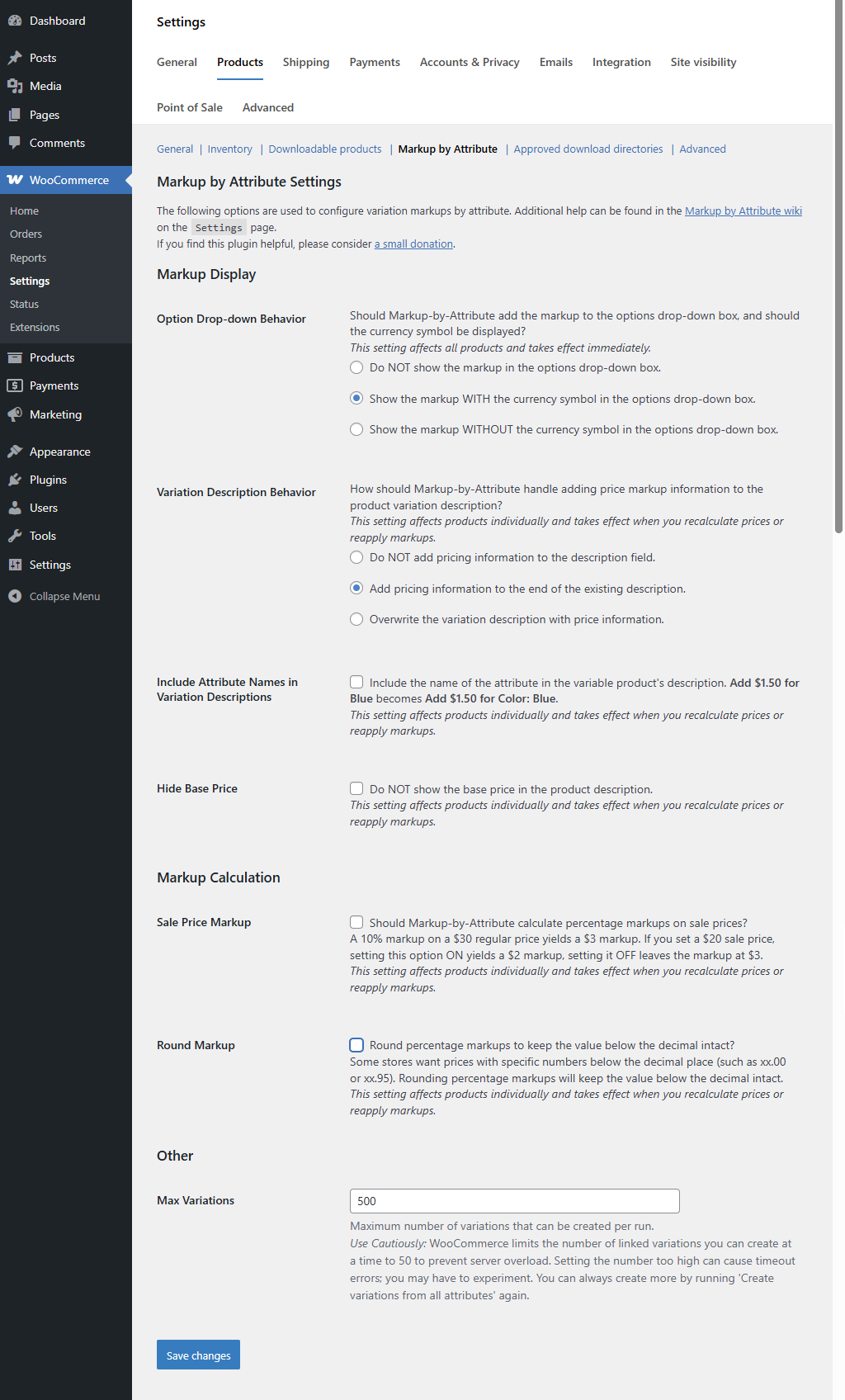
Should Markup-by-Attribute add the markup to the options drop-down box, and should the currency symbol be displayed?
- Do NOT show the markup in the options drop-down box.
- Show the markup WITH the currency symbol in the options drop-down box.
- Show the markup WITHOUT the currency symbol in the options drop-down box. (Default)
This setting gives the option to not include the markup at all,
X-Small
Small
Medium
Large
X-Large
XX-Large
Or display the markup with the currency symbol,
X-Small (-$2.25)
Small
Medium
Large
X-Large (+$2.25)
XX-Large (+$4.50)
Or without the currency symbol.
X-Small (-2.25)
Small
Medium
Large
X-Large (+2.25)
XX-Large (+4.50)
Because the product options drop-down box is generated when the product page is loaded, changes to this setting take place immediately.
How should Markup-by-Attribute handle adding price markup information to the variation description?
- Do not add pricing information to the description field.
- Add pricing information to the end of the existing description. (Default)
- Overwrite the variation description with price information.
Assume the description of a variation with a markup contains the following text before the prices are set.
Aenean ultricies mi vitae est. Mauris placerat eleifend Leo.If Overwrite is chosen, the description would look something like the following after the prices are set.
<span id="mbainfo">Product price $39.95
Add $5.00 for Logo
</span>
If Add pricing information is selected, the description would look something like the following after the prices are set.
Aenean ultricies mi vitae est. Mauris placerat eleifend Leo.
<span id="mbainfo">Product price $39.95
Add $5.00 for Logo
</span>
And, if Do not add pricing information is selected, the description will remain untouched.
Aenean ultricies mi vitae est. Mauris placerat eleifend Leo.Since the variation description is changed when the regular price of a product is updated, this setting does not have effect until new regular prices are generated. Note that changing the sale price of a product will not update the description.
Do NOT show the base price in the product description.
With this option OFF (the default), the variation description will look similar to this in your shop.
Product price $44.95
Subtract $2.25 for X-Small
Add $5.00 for Logo
$47.70
With Hide Base Price set ON, the variation description will not include the product's base price.
Subtract $2.25 for X-Small
Add $5.00 for Logo
$47.70
This setting affects products individually and takes effect when you recalculate the regular price for the product. (Default: OFF)
Should Markup-by-Attribute calculate percentage markups on sale prices?
When Markup-by-Attribute calculates a percentage markup for a product, it uses the regular price regardless of the sale price, if there is one. For instance, assume you have a product that you have priced at $44.95 USD and extra-small is marked down by 5%. The product is on sale for $39.95 USD. But, since 5% of $44.95 is $2.25, the final sale price will be $37.70 USD.
Product price $44.95
Subtract $2.25 for X-Small \
$42.70$37.70
But, you may want the markdown calculated on the sale price instead of the regular price. If you select the Sale Price Markup option, the 5% markdown above will be calculated on the $39.95 USD sale price, rather than the $44.95 USD regular price. The resulting markdown will be $2.00 instead of $2.25.
Product price $44.95
Subtract $2.25 for X-Small \
$42.70$37.95
Notice that the variation description contains regular price information. The $2.00 markdown is reflected only in the sale price. Since the customer does not know how the markdown or sale price was calculated, this could become confusing for customers that try to reverse engineer the sale price.
Note, also, this setting has no effect on fixed price markups. For instance, if Sale Price Markup is selected and a $5.00 logo is added, the X-Small shirt above would result in a $47.70 USD regular price and a $42.95 USD final sale price.
Product price $44.95
Subtract $2.25 for X-Small
Add $5.00 for Logo
$47.70$42.95
This setting affects products individually and takes effect when you recalculate the sale price for the product. (Default: OFF)
Some stores want prices with specific numbers below the decimal place (such as xx.00 or xx.95). Rounding percentage markups will keep the value below the decimal.
Assume it is essential to you that all prices end in '95'. You have a product that you have priced at $44.95 USD, and extra-small is marked down by 5%. Since 5% of $44.95 is $2.25, the final price will be $42.70 USD, and you will lose the '95' at the end.
Product price $44.95
Subtract $2.25 for X-Small
$42.70
With Round Markup set ON, $2.25 becomes $2.00. When subtracted from $44.95, the final price is $42.95 USD. Therefore, the '95' after the decimal point is retained.
Product price $44.95
Subtract $2.00 for X-Small
$42.95
This setting affects products individually and takes effect when you recalculate the sale price for the product. (Default: OFF)
Use Cautiously: WooCommerce limits the number of linked variations you can create at a time to 50 to prevent server overload. To create more, you can run 'Create variations from all attributes' again, but this creates variations out of order. If you have more than 50 variations of a product AND the order in the admin console is important, then set this number higher. (Default: 50)
Before version 4.2, Markup by Attribute incorrectly ignored markups on zero-priced variations. Version 4.2 fixed that but added a Preserve Zero Prices setting for stores that wanted to retain the errant behavior. This setting has been removed.
Does this affect you? All three of the following must be true:
- You had the Preserve Zero Prices option enabled (you would have been notified on upgrade)
- You have variable products with a base price of zero that you intend to keep at zero
- Those products use global attributes with fixed-amount markups (not percentages) that could raise the price above zero
To avoid accidentally raising the price of a free product, set the base regular price to a large negative number (e.g., -99999) instead of zero. The negative base price ensures that markups are absorbed without the final price ever going above zero, and the product remains in stock.
For settings that apply to individual attributes (like "Do Not Overwrite Theme" and "Add Markup to Name"), see Per-Attribute Settings.