Repository navigation
AllInOneIME 0.6.2

Note: not yet signed or notarized by Apple. Install: open the DMG and double-click "Install AllInOneIME"; if macOS won't open it, click Open Anyway in System Settings → Privacy & Security. Download it only from this page.
注意:还没有 Apple 签名和公证。安装:打开 DMG,双击「Install AllInOneIME」;macOS 提示无法打开时,到 系统设置 → 隐私与安全性 点「仍要打开」。只从这个页面下载。
SHA-256: d995d9a36b1a9ed910a9a66c397f14d2984e49d95cfbf02ce1053ea7f7f62235
English
Docs: https://allinoneime.com/docs · The script extension protocol: docs/extensions.md · License: from this version on, FSL-1.1-ALv2 (see Changed).
Added
-
Script extensions: @ commands that are programs outside the app, in any language, with a few lines of metadata in their comments (docs/extensions.md, protocol 1). Put them in
~/.config/allinoneime/extensionsor a folder you add under Settings → Custom Commands, andflights.shis@flights; arguments go after it, commas between them (@flights beijing, new york).- What they print can be inserted (
insert), shown as it comes with nothing inserted (show, a progress), offered as a list to pick from as you type (list, Alfred's Script Filter JSON: picking a row inserts, opens, copies or runs a second step), or said near the cursor (silent); a JSONsummarywith adetailshows both. - A command can take no input (⏎ on its name runs it), run in the background and notify you when it's done (the menu bar panel lists it; a
showleft running when you leave the field goes on too), show a status beside its name in the command list, or ask first. - Scripts get
ALLINONEIME_*environment variables: the interface and input language, the app you're typing in, the text. - Bundles: a folder with
extension.jsonholds several commands that share code and preferences; Settings shows the preferences (passwords go to the keychain). - Raycast Script Commands work as they are, and folders holding them are found with Spotlight (on by default; hide the ones you don't want).
- Settings lists the folders, the bundles, every command with a switch, and the scripts left out with why (a protocol newer than the app's among them). Examples of each kind are in Examples/extensions.
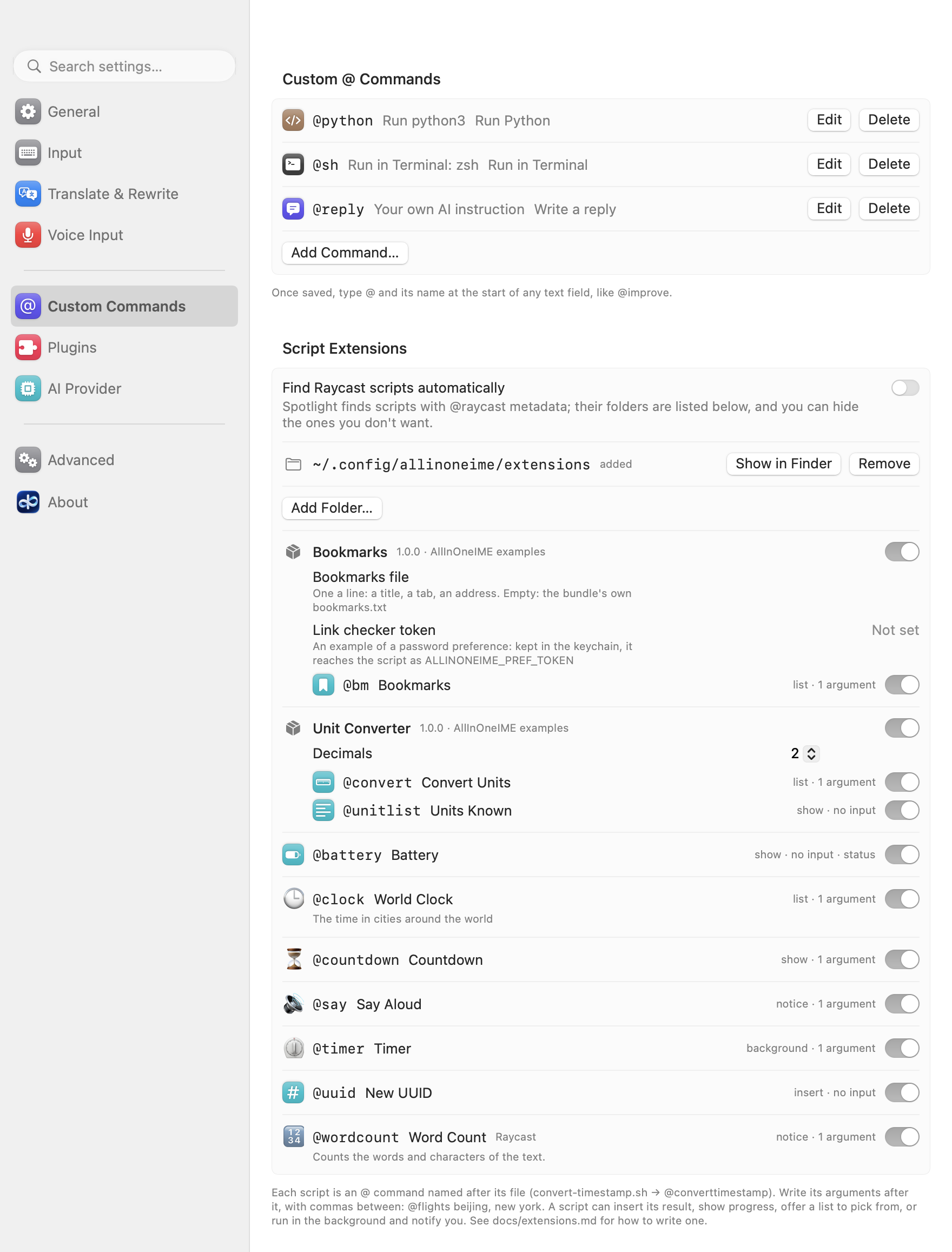
- What they print can be inserted (
-
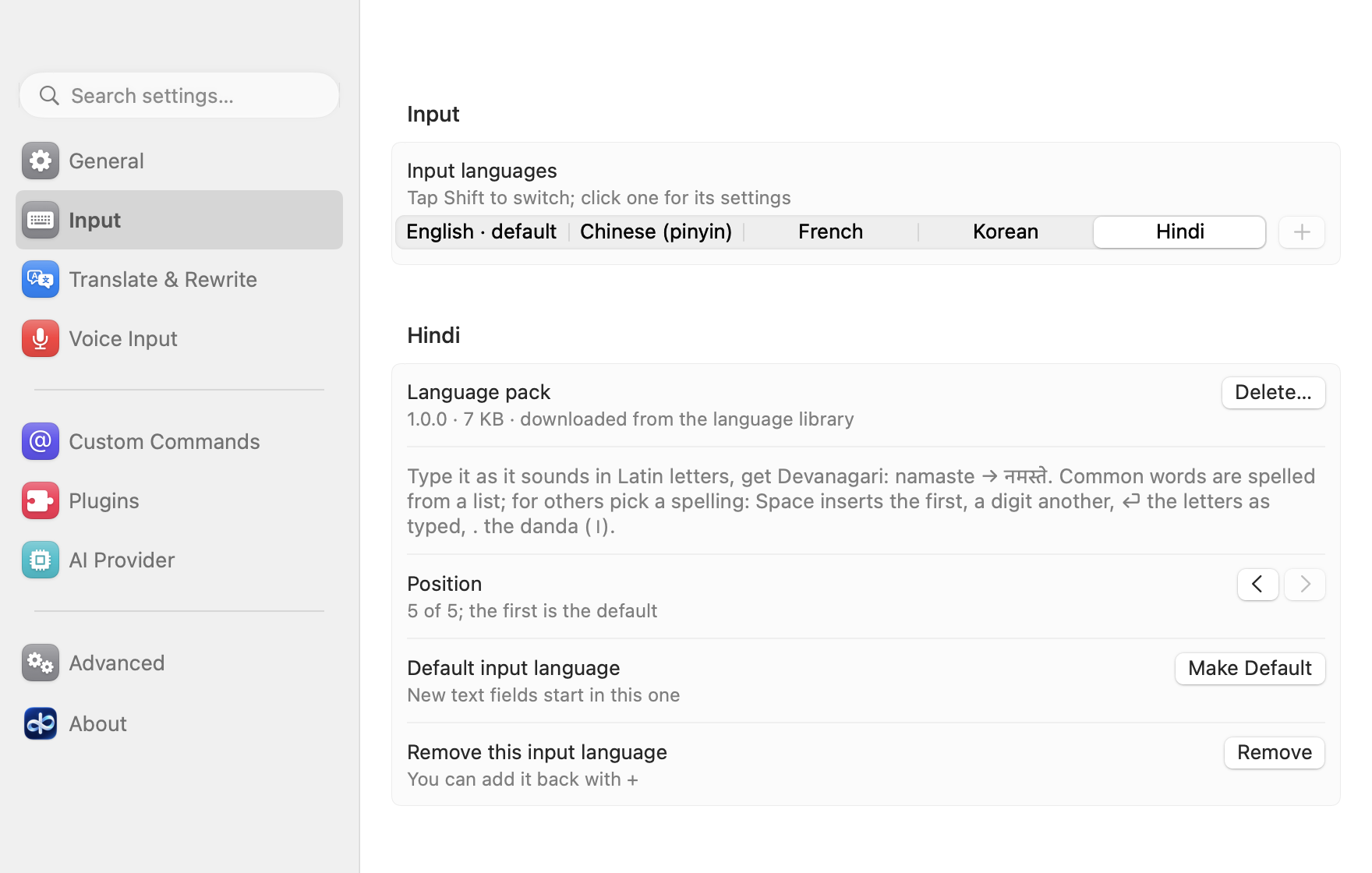
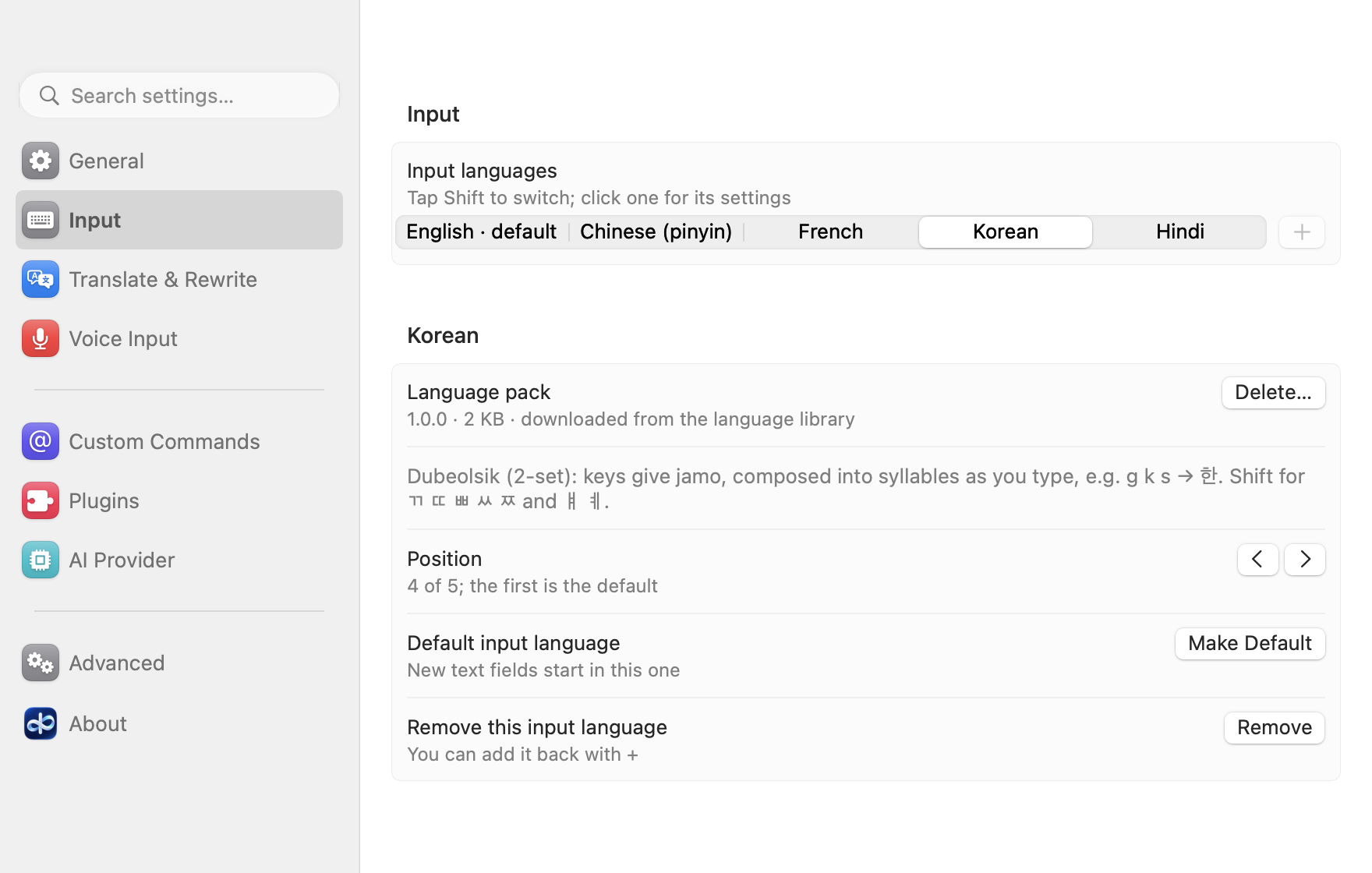
French, Korean and Hindi as input languages, next to English and Chinese: add them under Input → +.
- French types with its own keyboard layout: AZERTY unless you pick another on its card (
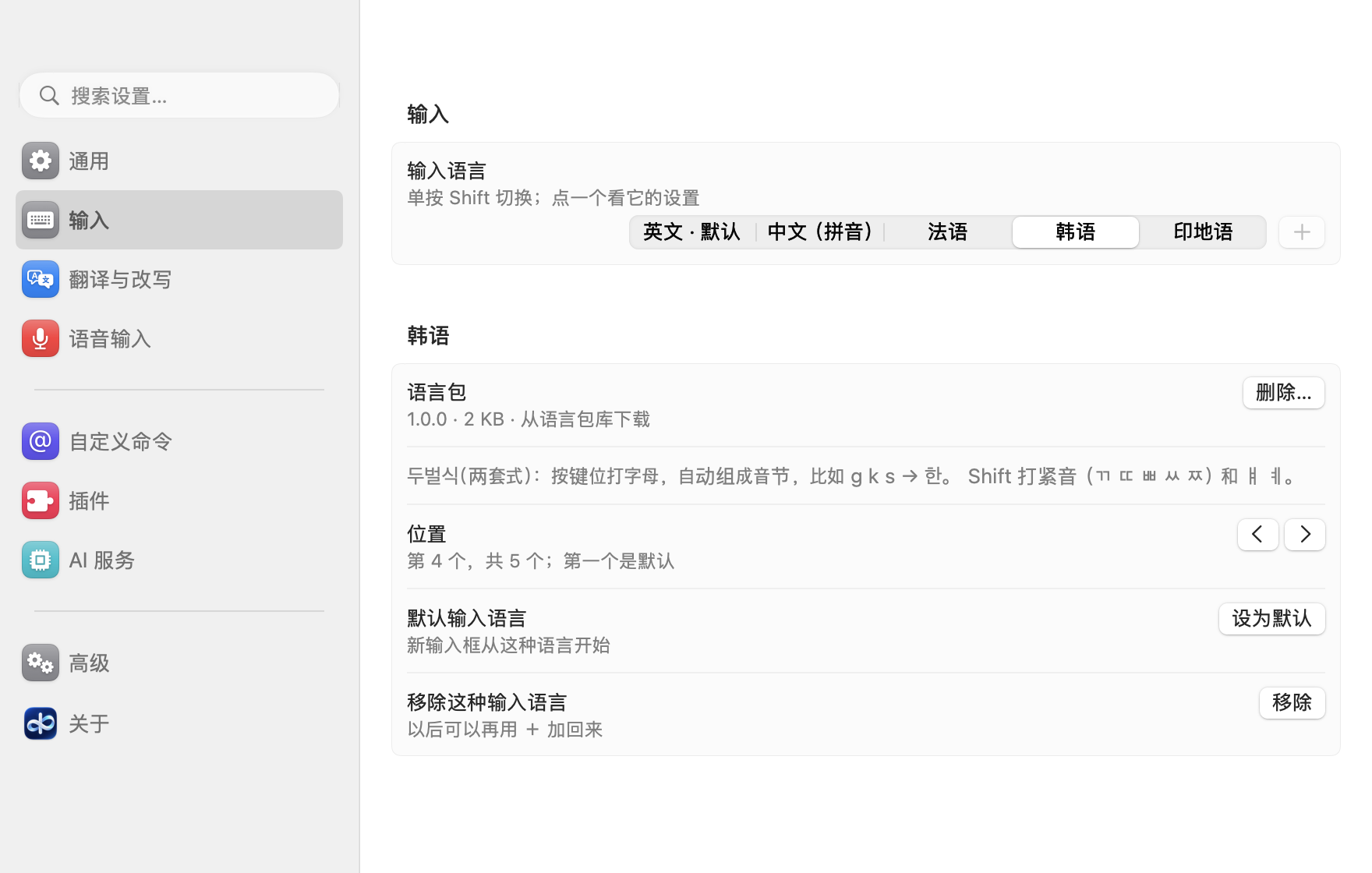
keyboardLayoutsin the config), its dead keys (^, ¨, `, ´, ~) too. The other languages keep the layout you use in the system. - Korean types Hangul in the 2-set (Dubeolsik) layout, putting each syllable together as you type (g k s → 한); Shift gives ㄲ ㄸ ㅃ ㅆ ㅉ and ㅒ ㅖ. It works in a command's text too.
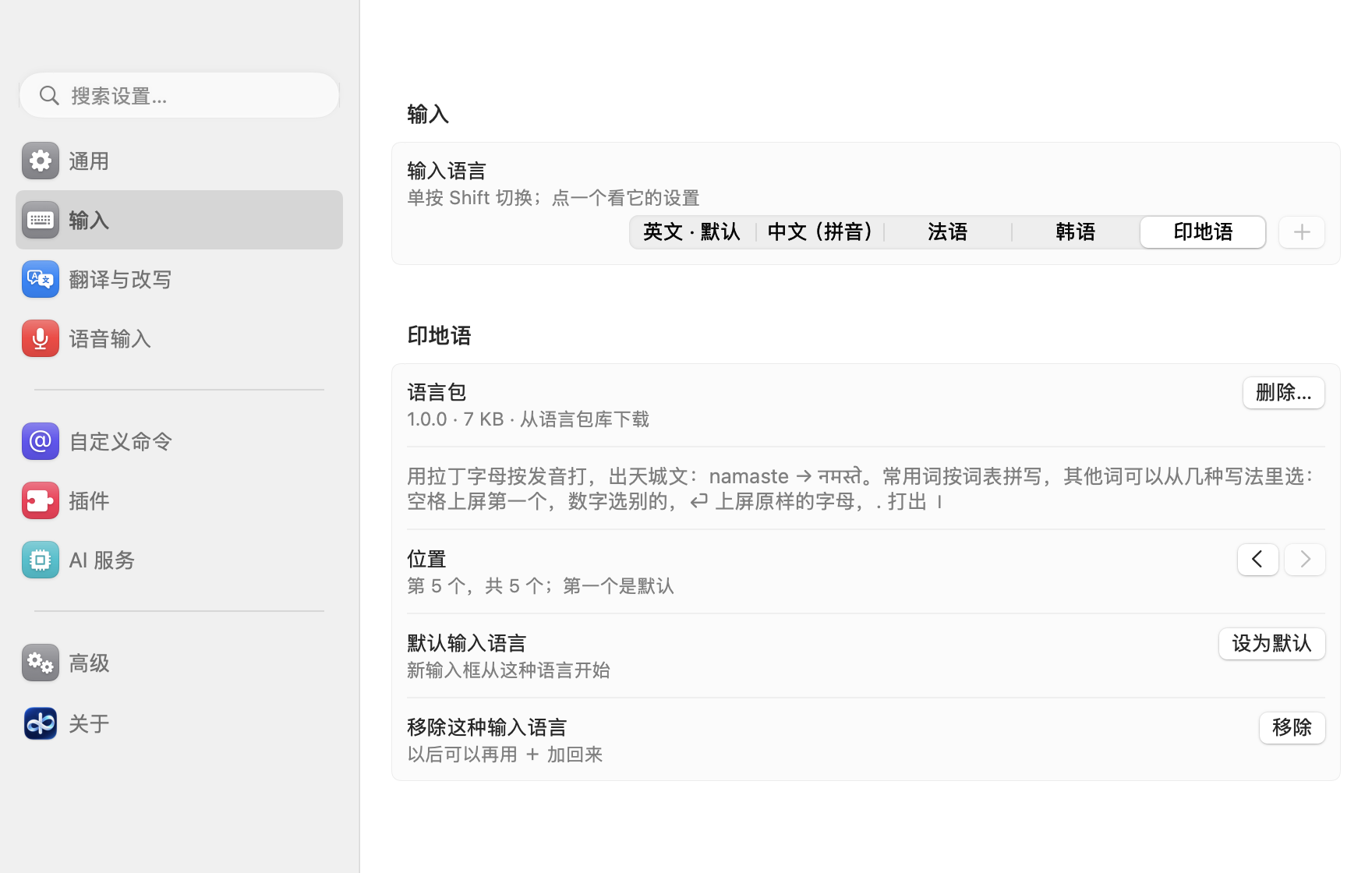
- Hindi: type the words as they sound in Latin letters and get Devanagari (namaste → नमस्ते). Common words are spelled as Hindi writes them (karna → करना, nahi → नहीं); otherwise pick a spelling: Space inserts the first and a space, a digit another, ⏎ the letters as typed, and "." types the danda (।).
- Dictation (hold right ⌥) listens in the language you're typing.
@improvekeeps a Korean, Hindi or French sentence in its own language, and@translatetranslates it into each of your languages but its own (English and Chinese both, with those two). (French is told apart from English when French is one of your input languages.)
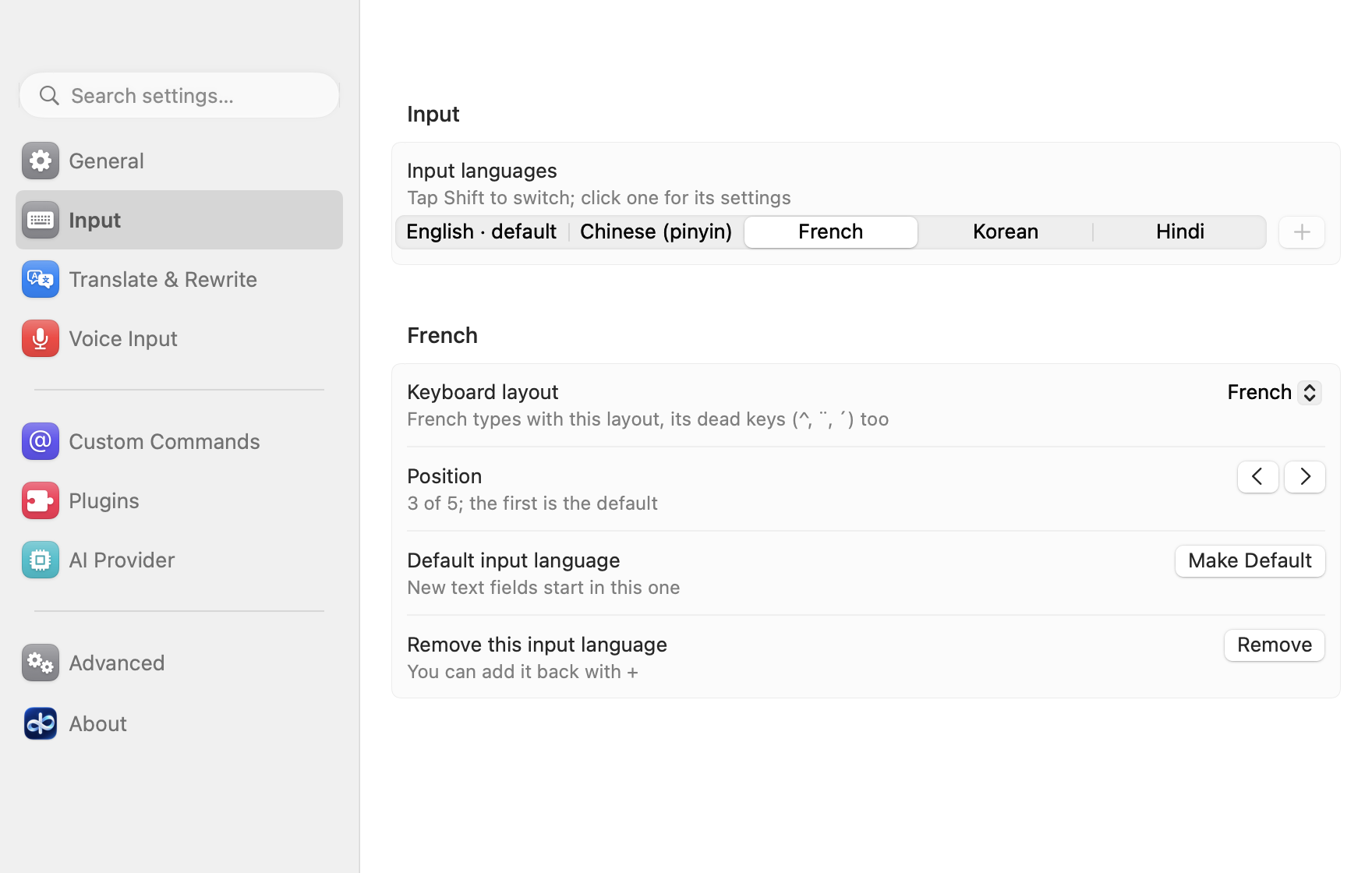
- French types with its own keyboard layout: AZERTY unless you pick another on its card (
-
Hindi, Bengali, Telugu, Marathi, Tamil, Gujarati, Kannada, Malayalam, Punjabi and Urdu as translation languages. Hindi typed in Latin letters ("aap kaise ho") is translated into Devanagari, each in its own script; a Mac set to one of them (hi-IN …) translates into it from the start.
-
← → move the cursor in a command's text (
@question …), as in any text field: type, pinyin, ⌫, a paste or speech go in where it is. ⌘← ⌘→ (or Home, End) go to the start or end of the text, ⌥← ⌥→ a word at a time, fn⌫ deletes after the cursor. The cursor never goes into the command itself; ⏎ runs the whole text.
Changed
-
Korean and Hindi are language packs, like Chinese: adding either downloads its small pack (Korean's key table and how jamo make syllables; Hindi's letters and common words), data only, signed and checked like the Chinese pack. Their cards show the pack with Delete…. French needs no pack: its layout is macOS's.
-
A tap of Shift goes through your input languages in their order (English → French → Korean → …, then back to the first), as they're ordered under Input; with one, Shift doesn't switch.
-
One to five input languages: the + under Input is always shown, its menu ending with "More input languages are coming", and greyed out once there are five.
-
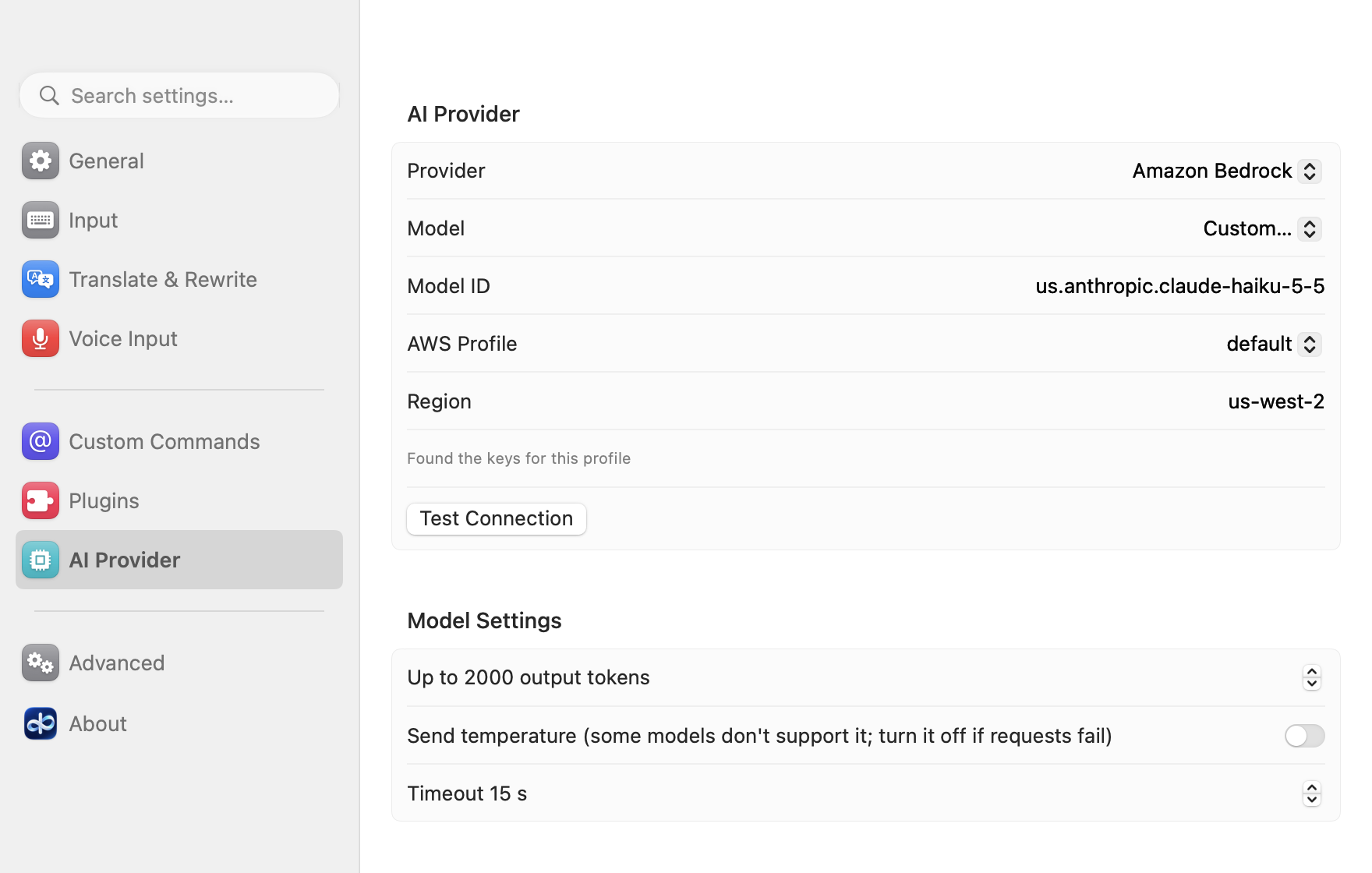
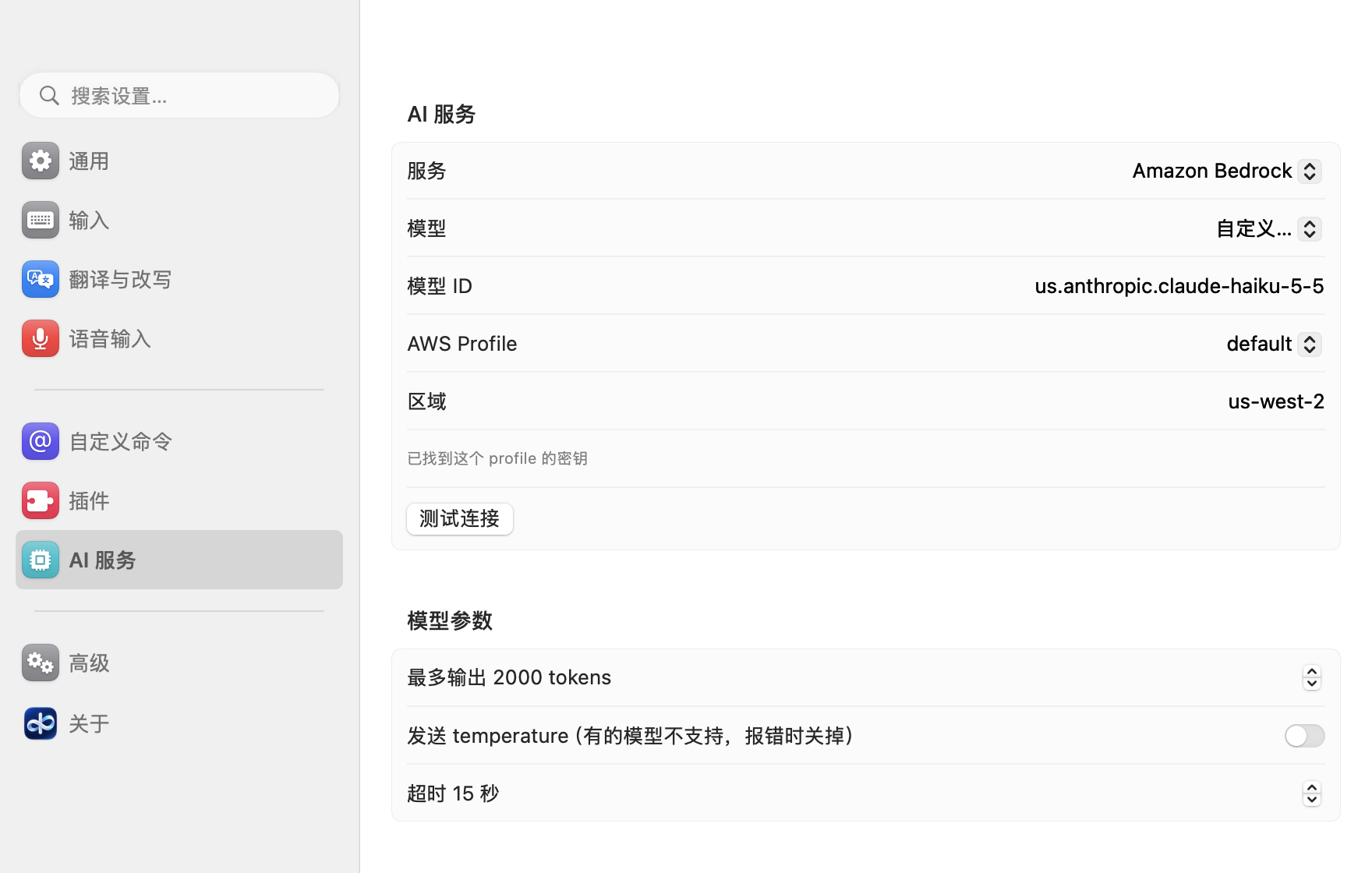
The model's settings (output tokens, temperature, timeout) are a Model Settings card on the AI Provider page now, no longer under Advanced; "Send temperature" shows only for Bedrock, the one provider it applies to. Advanced keeps the config file and the Rime user folder.
-
License: from this version on, AllInOneIME is source available under the Functional Source License 1.1 (FSL-1.1-ALv2) instead of the GPL-3.0. It's still free, and you can read, change and share the source for anything but a competing product; each version becomes Apache-2.0 two years after its release. 0.6.1 and earlier stay available under the GPL-3.0. rime-ice's Lua scripts and the Chinese pack are still GPL-3.0, with their license.
-
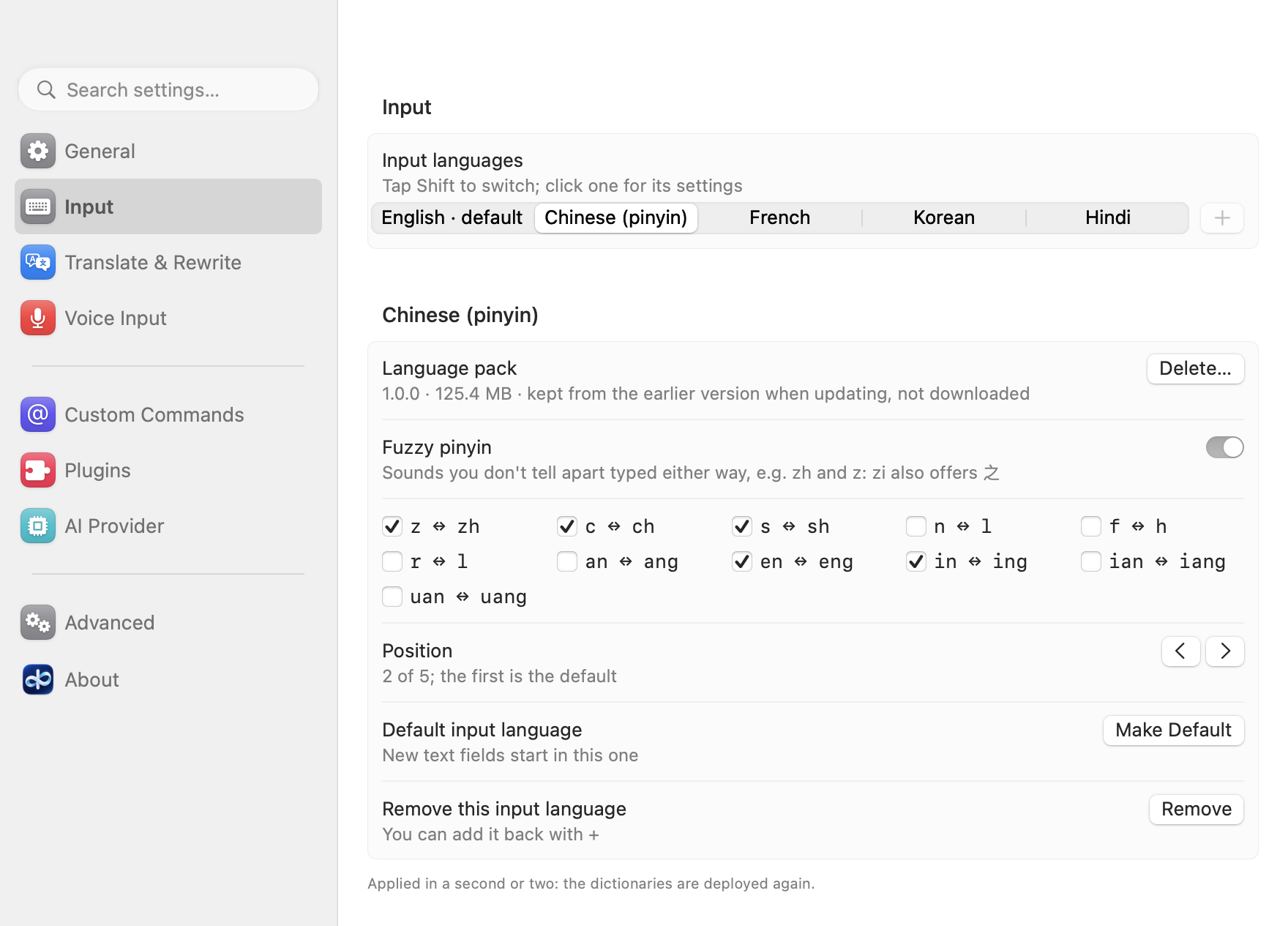
Chinese (pinyin) is a language pack now: the app comes with English only (about 120 MB smaller), and adding Chinese (pinyin) under Input → + downloads its dictionaries with a progress bar; pinyin works when it's done, without a restart. The pack is data only, listed in a signed index and checked against its SHA-256, like plugins. Its card under Input shows the pack (version, size, where it came from) with Delete…; removing Chinese also offers to delete the pack. Updating keeps Chinese without a download: the installer keeps the dictionaries the previous version came with (if it can't, the input method downloads them once by itself).
-
AllInOneIME is now an English input source: to add it by hand, it's under English (no longer Chinese, Simplified) in System Settings → Keyboard → Input Sources → +. Installing the update changes it in place: it stays in your input sources and nothing needs to be added again. Password fields still switch to the system's keyboard (U.S. or ABC) and back, as before.
-
A new install starts with English as its input language; add Chinese (pinyin) with + under Input. Existing settings don't change. The settings window's language follows the system until you pick one.
-
A new install translates into the first of the Mac's preferred languages that isn't English (Chinese, Japanese, French…). With English alone,
@translateon an English sentence sends nothing: it says so and opens the settings on Translate & Rewrite to add a language. -
⏎ on a command with nothing after it no longer takes the clipboard's text: it only says to write something. Paste into a command with ⌃V (or ⌘V outside terminals), as before. A stray ⏎ no longer puts whatever was copied into the command.
-
The README is in 17 languages now (English, 简体中文, and 15 more in docs/readme), with a new header. The Say Aloud example speaks Chinese, Korean, Japanese and Hindi in a voice of that language. (Docs only, added after the release; the app is the same.)
Fixed
- Dead keys work under the input method: ⌥E then E (US), ^ then e (AZERTY), ' then a (US International) typed only "e" (or "´e" in a command's text), since macOS doesn't compose them for an input method. They are composed from your keyboard layout now, with the accent shown while it waits, outside commands in English mode and in a command's text (
@translate où est la gare,@improve Übermorgen). Pinyin is unchanged. - Switching the interface language in the settings window left some controls (the action key's name, the language chips) in the old language until the page was opened again; the page redraws at once now.
中文
使用说明:https://allinoneime.com/docs · 脚本扩展协议:docs/extensions.md · 许可证:从这个版本起改为 FSL-1.1-ALv2(见「改动」)。
新增
-
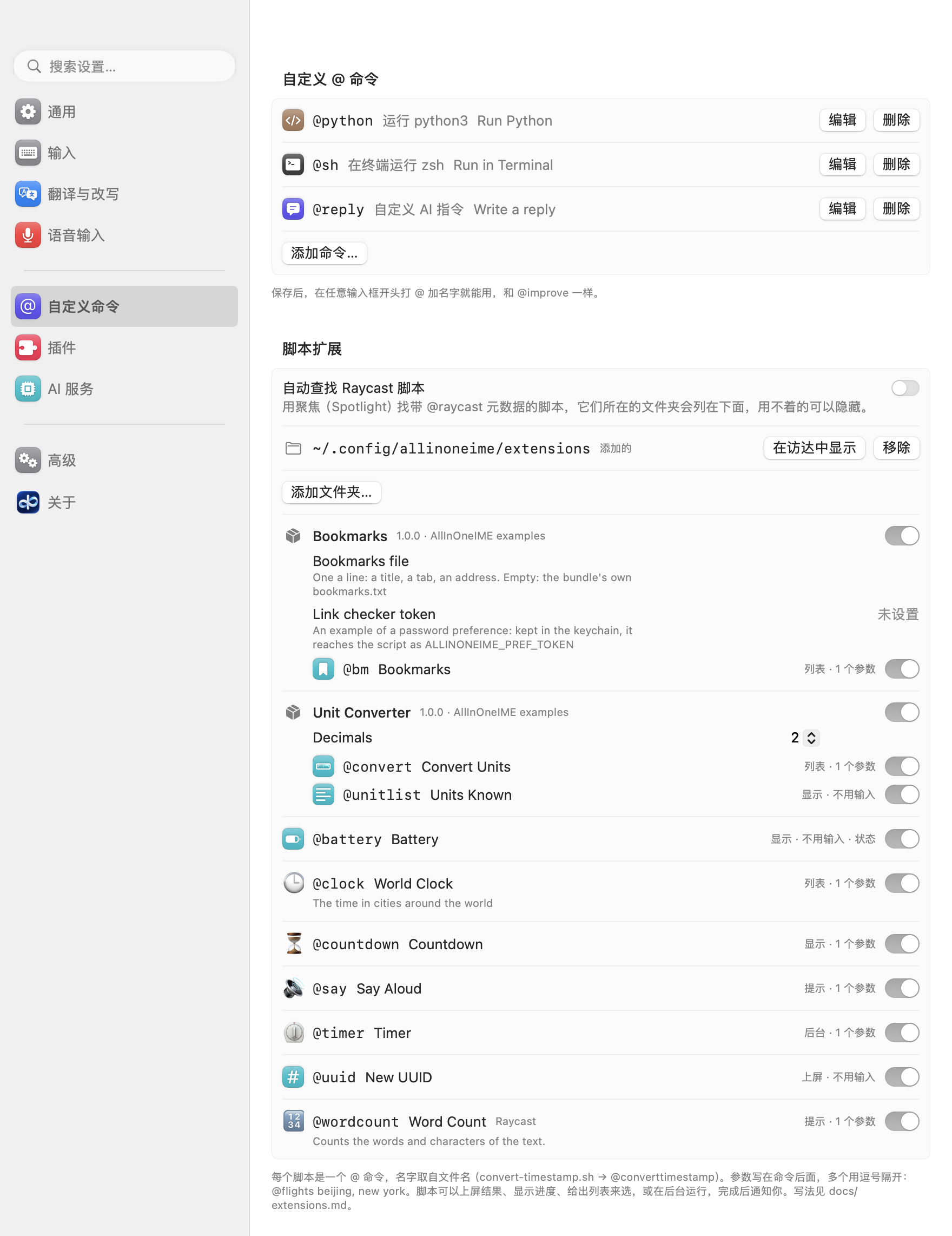
脚本扩展:用 App 之外的程序加 @ 命令,任何语言,注释里写几行元数据(docs/extensions.md,协议版本 1)。放进
~/.config/allinoneime/extensions或在 设置 → 自定义命令 里添加的文件夹,flights.sh就是@flights;参数写在后面,用逗号隔开(@flights beijing, new york)。- 输出可以上屏(
insert)、边运行边显示而不上屏(show,进度)、边打字边给出列表来选(list,Alfred Script Filter 格式:选中一项可以上屏、打开、复制或运行下一步),或在光标旁边提示(silent);输出 JSON 的summary和detail会一起显示。 - 命令可以不要输入(在列表里按 ⏎ 就运行)、在后台运行完成后通知你(菜单栏面板里能看到;离开输入框时还在跑的
show也会转到后台)、在命令列表里名字旁边显示状态,或运行前先确认。 - 脚本能拿到
ALLINONEIME_*环境变量:界面和输入的语言、正在打字的 App、命令后面的文字。 - 扩展包:带
extension.json的文件夹放几个命令,共用代码和偏好设置;设置里能填偏好(密码存在钥匙串里)。 - Raycast 的脚本命令不用改就能用,放着它们的文件夹会用聚焦自动找到(默认打开,不想要的可以隐藏)。
- 设置里列出文件夹、扩展包、每个命令(各有开关),以及没加载的脚本和原因(包括协议版本比 App 新的)。每种的例子在 Examples/extensions。
- 输出可以上屏(
-
输入语言新增法语、韩语、印地语,和英文、中文并列:在「输入」里用 + 添加。
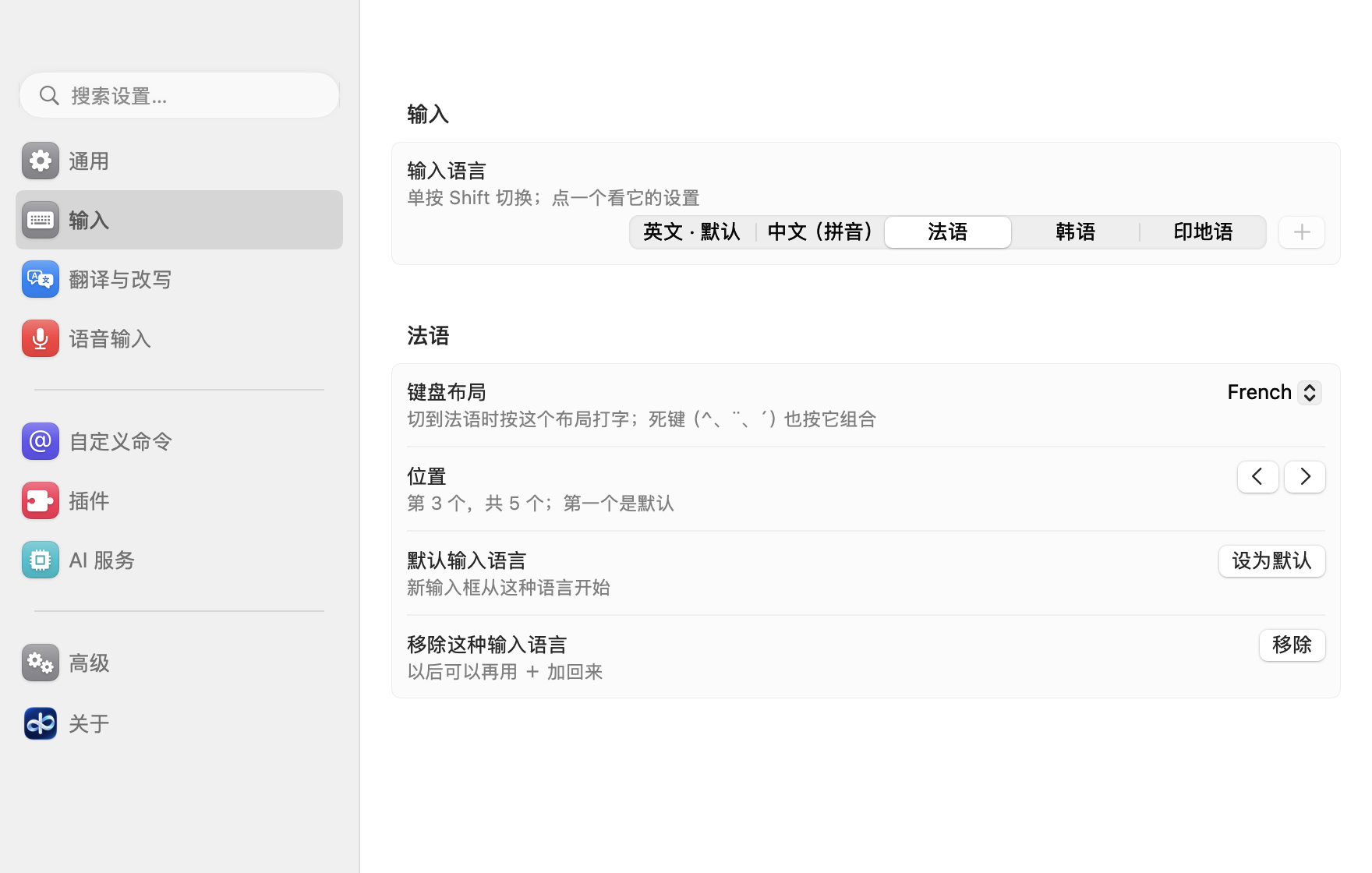
- 法语用它自己的键盘布局打字:默认 AZERTY,也可以在它的卡片里换一种(配置里的
keyboardLayouts),死键(^、¨、`、´、~)也按它组合。其他语言还是用你在系统里用的布局。 - 韩语用两套式(두벌식)键盘打韩文,边打边组成音节(g k s → 한);按住 Shift 打紧音 ㄲ ㄸ ㅃ ㅆ ㅉ 和 ㅒ ㅖ。命令的文字里也能打。
- 印地语:用拉丁字母按发音打,出天城文(namaste → नमस्ते)。常用词按印地语的写法拼(karna → करना、nahi → नहीं);其他词可以选写法:空格上屏第一个并加空格,数字选别的,⏎ 上屏原样的字母,「.」打出句号 ।。
- 语音输入(按住右 ⌥)按你正在打的语言识别。
@improve润色韩语、印地语、法语句子时保留原来的语言,@translate把它们翻译成你加的每种语言(它自己的除外;加了英文和中文就两种都翻)。(法语是你的输入语言时,才会把法语和英文区分开。)
- 法语用它自己的键盘布局打字:默认 AZERTY,也可以在它的卡片里换一种(配置里的
-
翻译语言新增印地语、孟加拉语、泰卢固语、马拉地语、泰米尔语、古吉拉特语、卡纳达语、马拉雅拉姆语、旁遮普语、乌尔都语。用拉丁字母打的印地语("aap kaise ho")翻成天城文,每种都用它自己的文字;系统语言是其中一种(hi-IN 等)时,新装默认就翻译成它。
-
在命令的文字里(
@question …)可以用 ← → 移动光标,和普通输入框一样:打字、拼音、⌫、粘贴、语音都在光标处。⌘← ⌘→(或 Home、End)到开头或结尾,⌥← ⌥→ 一次一个词,fn⌫ 删光标后面的字。光标不会进到命令本身里;按 ⏎ 执行的是整段文字。
改动
-
韩语和印地语和中文一样是语言包:添加时下载它的小语言包(韩语是键位表和字母组成音节的规则,印地语是字母和常用词),只有数据,和中文语言包一样签名、核对。它们的卡片显示语言包,可以「删除…」。法语不需要语言包:它的键盘布局是 macOS 自带的。
-
单按 Shift 按顺序在你的输入语言之间切换(英文 → 法语 → 韩语 → …,再回到第一个),顺序就是「输入」里排的顺序;只有一种时 Shift 不切换。
-
输入语言可以有一到五种:「输入」里的 + 一直显示,菜单最后一项是「更多输入语言即将支持」,加满五种后变灰。
-
模型的设置(输出 token 数、temperature、超时)挪到了「AI 服务」页的「模型参数」卡片里,不再在「高级」里;「发送 temperature」只在 Bedrock 时显示,只有它用得上。「高级」里留下配置文件和 Rime 用户目录。
-
许可证:从这个版本起,AllInOneIME 改为源码公开的 Functional Source License 1.1(FSL-1.1-ALv2),不再是 GPL-3.0。仍然免费,除了做竞品,源码可以读、改、分享;每个版本发布满两年后转为 Apache-2.0。0.6.1 及以前的版本仍可按 GPL-3.0 使用。雾凇拼音的 Lua 脚本和中文语言包仍是 GPL-3.0,附带它们的许可证。
-
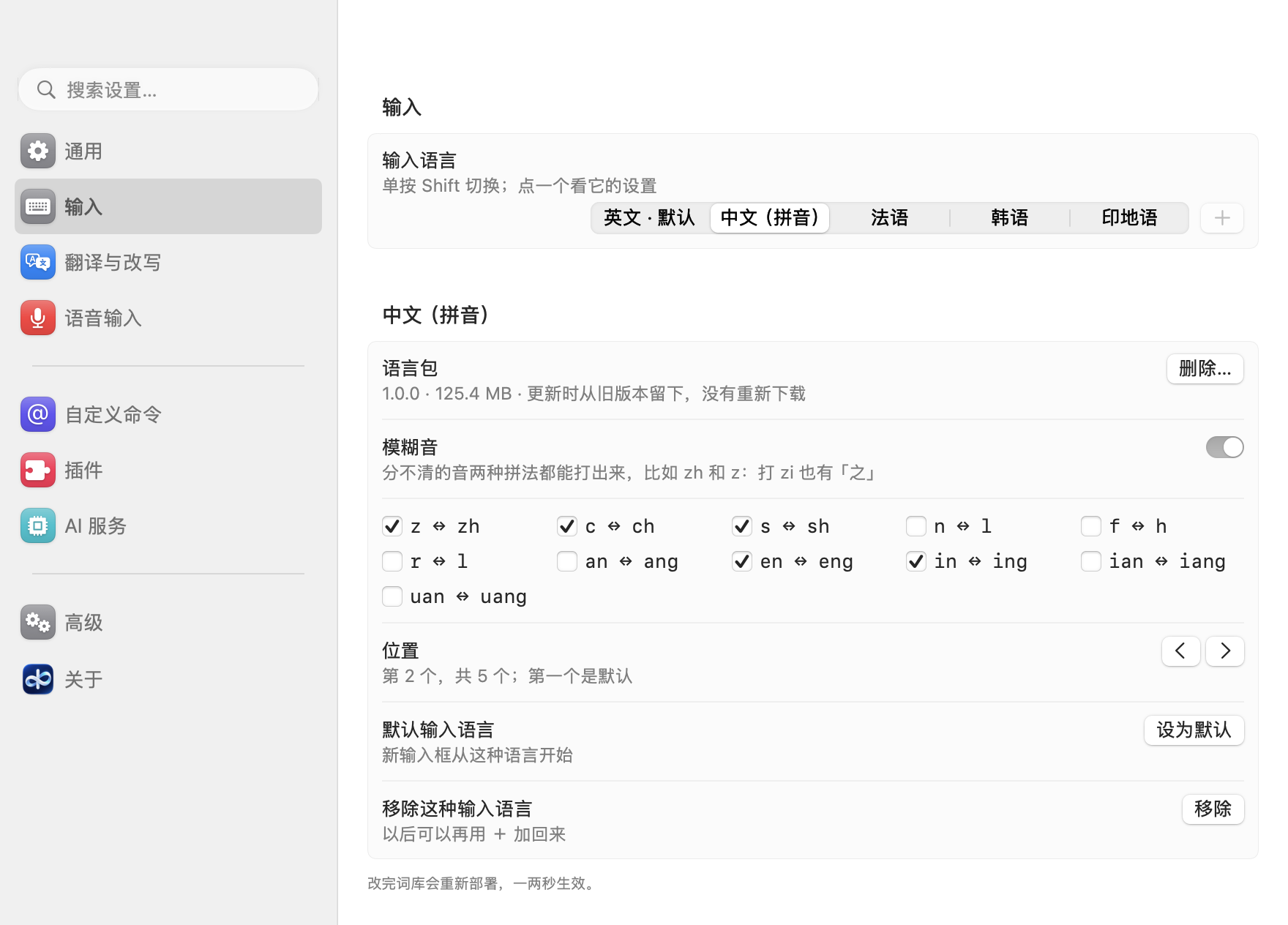
中文(拼音)改成了语言包:App 本身只带英文(小了约 120 MB),在「输入」里用 + 加「中文(拼音)」时下载它的词库,有进度条,下载完就能打拼音,不用重启。语言包只有数据,和插件一样列在签名的索引里,并核对 SHA-256。「输入」里中文的卡片显示语言包(版本、大小、来源),可以「删除…」;移除中文时也会问要不要把语言包一起删掉。升级时中文不用重新下载:安装程序会留下旧版本自带的词库(万一没留下,输入法会自己下载一次)。
-
AllInOneIME 现在登记为英语输入法:手动添加时,在 系统设置 → 键盘 → 输入法 → + 里的「英语」下面找(不再在「简体中文」下面)。装上更新后原地生效:它还在你的输入法列表里,不用重新添加。密码框照旧临时切到系统键盘(U.S. 或 ABC),离开后切回来。
-
新装时默认输入语言是英文;要打中文,在「输入」里用 + 加上「中文(拼音)」。已经在用的设置不变。设置窗口的界面语言默认跟随系统,直到你自己选。
-
新装时默认翻译成系统偏好语言里第一个不是英文的语言(中文、日语、法语等)。系统里只有英文时,用
@translate翻英文句子不会发请求,而是提示一下,并打开设置的「翻译与改写」页,让你加一种语言。 -
命令后面没写内容时按 ⏎,不再读剪贴板,只提示先写内容。要把剪贴板的文字放进命令,照旧按 ⌃V(终端以外也可以按 ⌘V)。这样误按 ⏎ 不会把刚复制的东西放进命令。
-
README 现在有 17 种语言(English、简体中文,另外 15 种在 docs/readme),开头换成了新版式。示例 Say Aloud 读中文、韩文、日文和印地文时用对应语言的语音。(发布后补充的文档,App 不变。)
修复
- 用这个输入法时死键不起作用:⌥E 再按 E(美式)、^ 再按 e(法语 AZERTY)、' 再按 a(美国国际)只打出「e」(命令的文字里是「´e」),因为 macOS 不替输入法组合死键。现在按你的键盘布局组字,等下一个键时先显示重音符号;英文模式下命令外、命令的文字里(
@translate où est la gare、@improve Übermorgen)都可以。拼音不变。 - 在设置窗口里切换界面语言时,有些控件(执行键的名字、语言标签)还是旧的语言,要重新打开这一页才刷新;现在马上就重画。