Repository navigation
Releases: MicroZ-LLC/AllInOneIME
Release list
AllInOneIME 0.6.4

Update from 0.6.3 inside the app: Settings → About → Check for Updates. New here, or coming from 0.6.2 or earlier? Download the disk image below; it's signed with a Developer ID (MicroZ LLC) and notarized by Apple.
从 0.6.3 直接在应用里更新:设置 →「关于」→「检查更新」。新安装,或者从 0.6.2 及更早的版本升级?下载下面的磁盘映像;它用 Developer ID(MicroZ LLC)签名,并经过 Apple 公证。
SHA-256: 0dc3410752606dde271faf4adebebd40f8064eac5de0f944a86ee60f0d886e18
English
Docs: https://allinoneime.com/docs · Changelog: CHANGELOG.md
Highlights
-
Conversations with
@question, carried on in any coding agent installed or on the web. Once an answer is in, type the next question and press ⇧⏎: the panel grows into the conversation, and every round's answer can be inserted. After the last round (5 by default), ⌘1, ⌘2 … carry it on in each coding agent installed on this Mac (the one@agenthands to first: Claude Code, Gemini CLI, Kiro CLI or your own command), in Claude or ChatGPT on the web, in Gemini, or copy it as Markdown; ⌘⏎ shows the same choices at any round. Recent questions keep the whole conversation.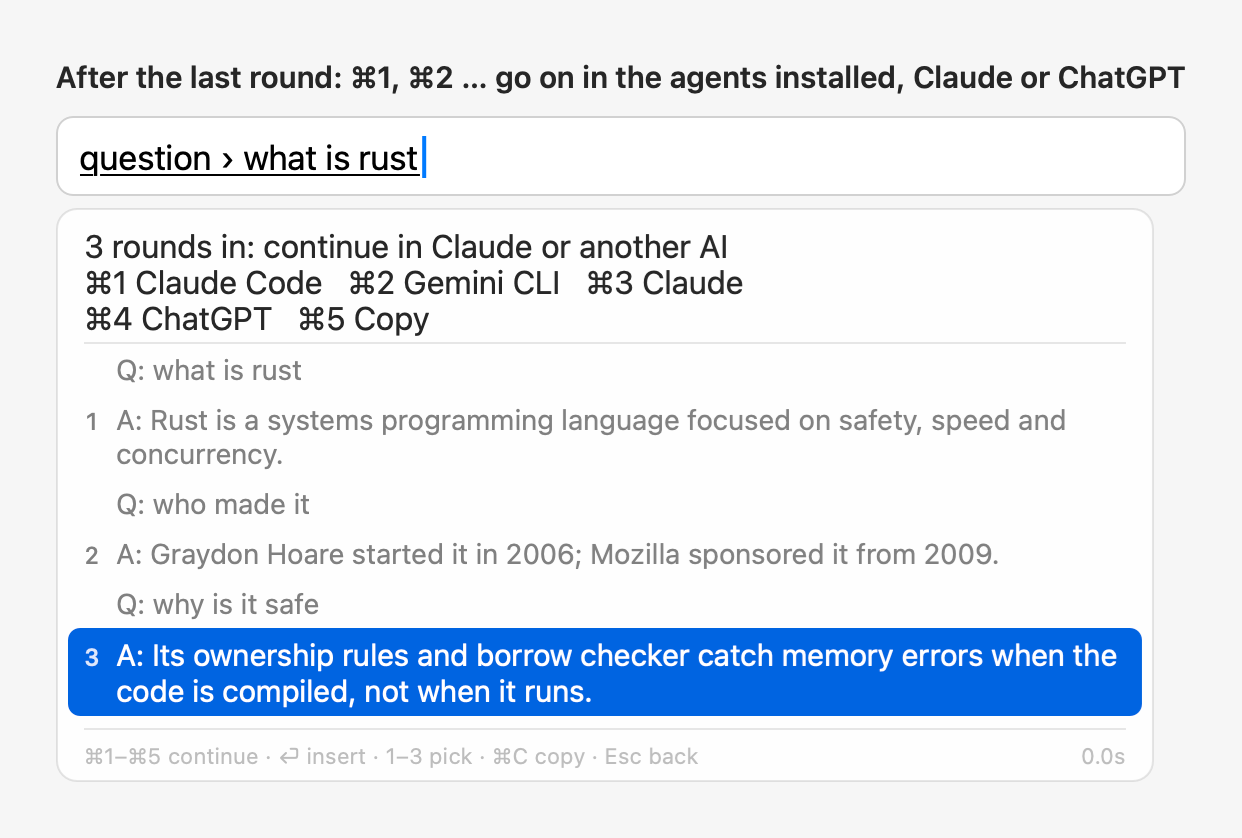
-
⇧⏎ follows up, ⏎ inserts, everywhere. After any AI result, what you type is a follow-up: the next question after
@question, an instruction after@improve, a prompt command or the rewrite of a selection. ⇧⏎ sends it; ⏎ always inserts the selected result, even with a follow-up half typed.@translateno longer refines: type to edit the sentence, and ⏎ translates it again.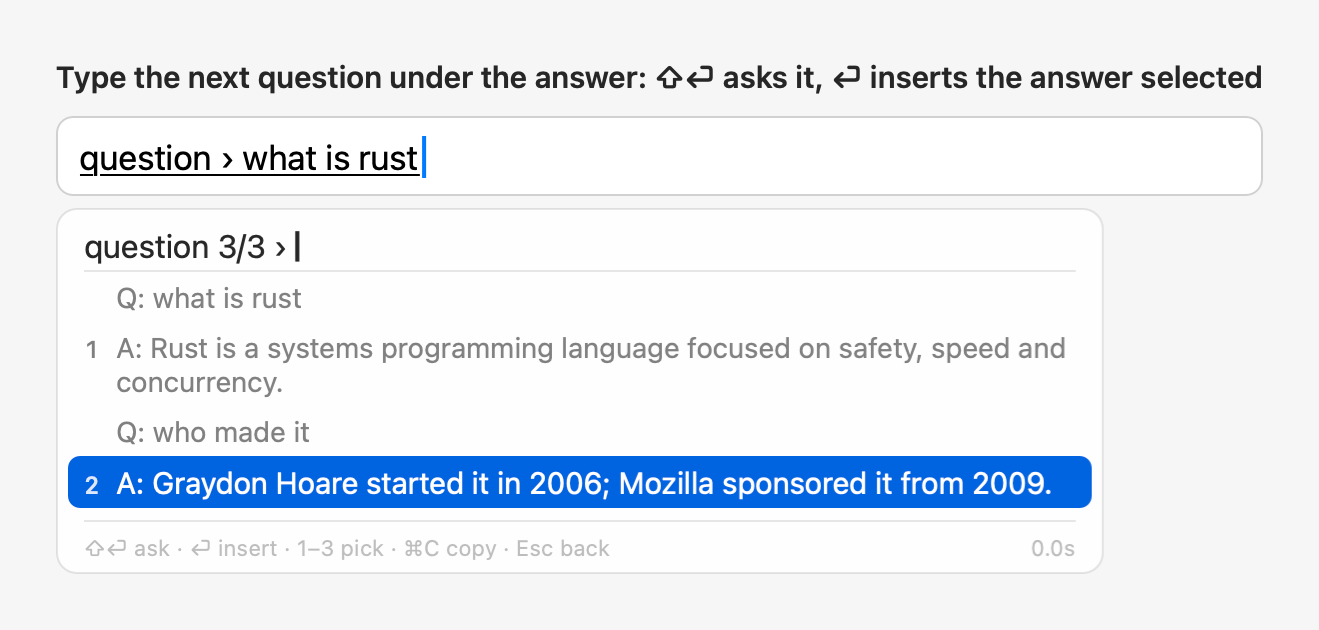
-
@config: change settings by describing them.@config output languages English and French,@config Chinese in WeChat, more formal in Mail,@config candidates in a column,@config use Claude: ⏎ shows each change, old → new, with the labels Settings uses; ⏎ applies them, and ⌘Z (or@config undowithin 10 minutes) puts back exactly what changed. It runs on Apple Intelligence on this Mac whenever it can, else on your provider, and only an allowlist of settings can change: never keys, custom commands, extensions or plugins.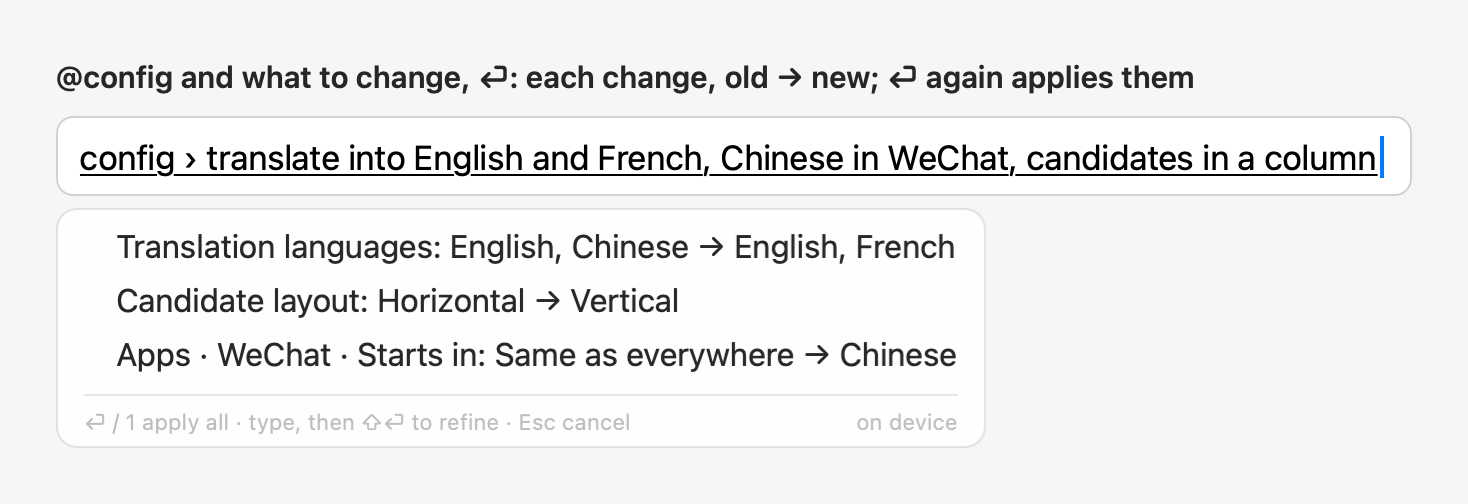
-
@doctor. Checks the setup on this Mac: the input method, the AI provider, permissions, secure input, language packs,config.json, extensions and plugins, updates, and recent errors in the logs; problems first, each with a short fix. A digit previews that fix and ⏎ applies it; ⏎ on the list fixes the safe ones. Nothing deletes your data or touches a key.@doctor <question>has the AI explain the likely cause, sending only the check results.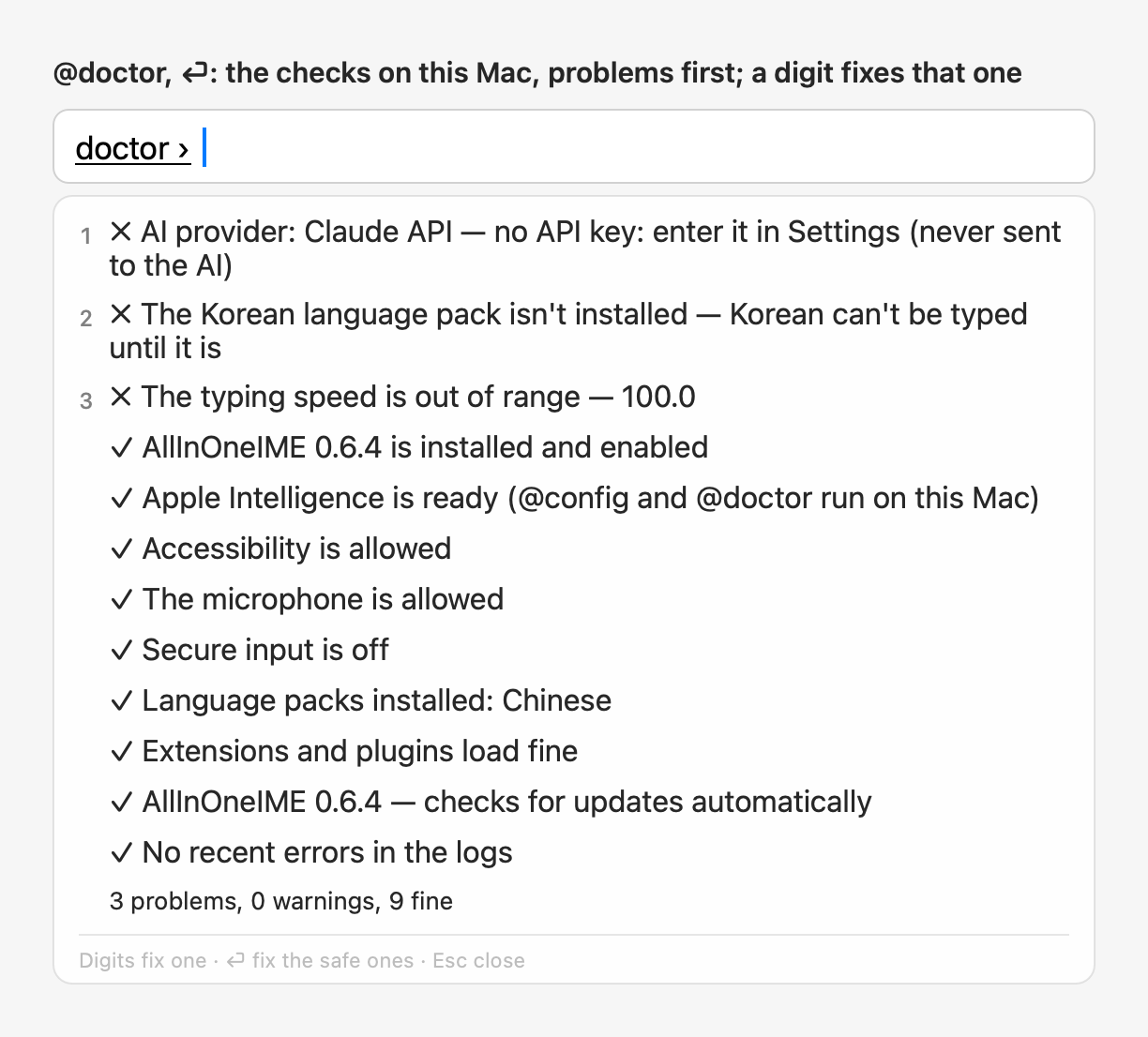
-
@agent, formerly@claude: the coding agent is your pick. Settings → Agent, a page of its own, picks what@agenthands the text to: Claude Code (the default, as before), Gemini CLI, Kiro CLI, or a command of your own. The page shows whether each one is installed and what runs in Terminal. Claude Code can still work in the background (@tasks); the others open in Terminal with what you typed as their first message. How often you used@claudecarries over.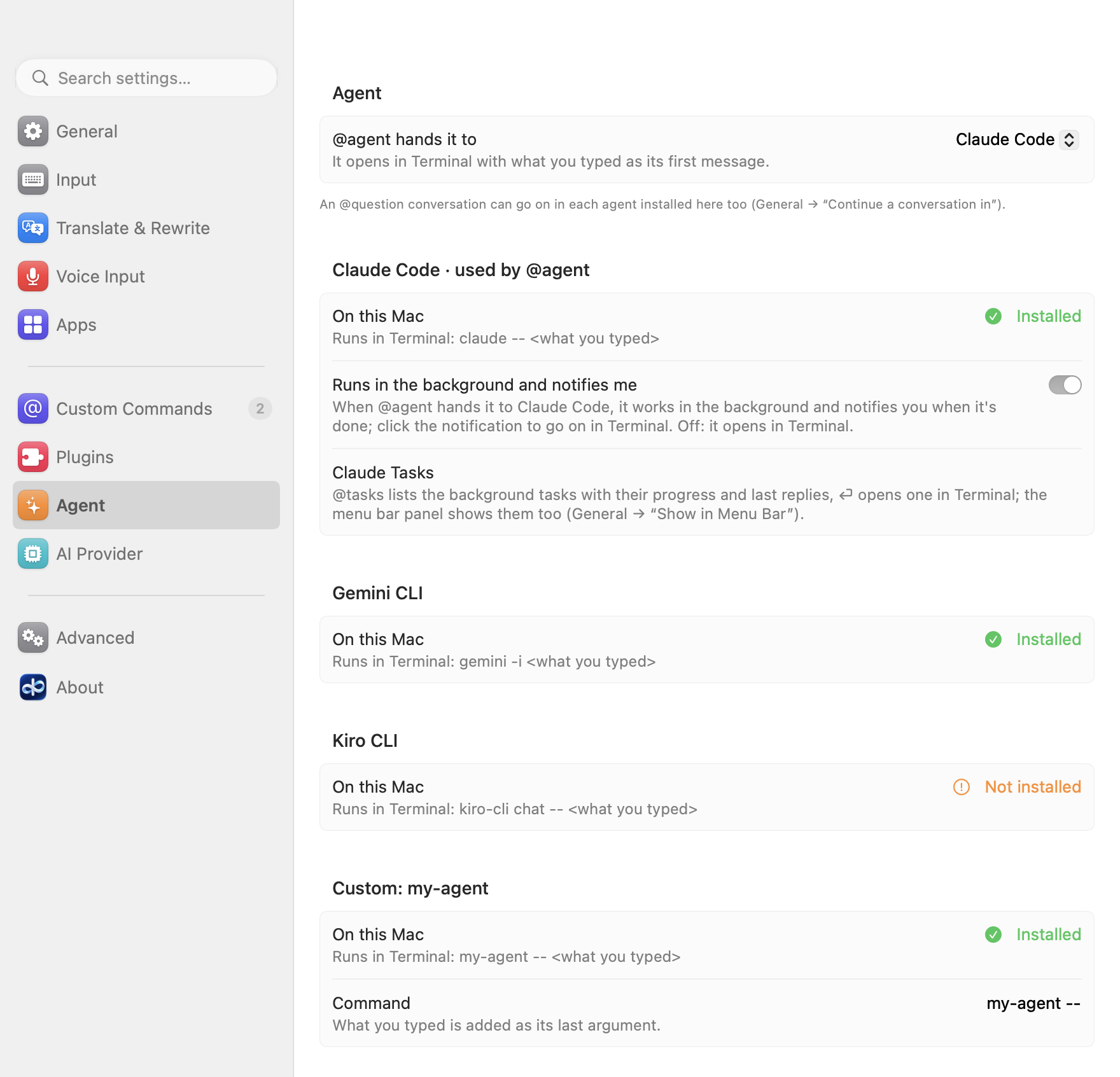
-
Extension sources. Install a script-extension bundle from a Git repository: Settings → Custom Commands → Extension Sources → "Add from Link…" (
ssh://,git@host:,https://). It clones with your own git and SSH setup (keys, agent,~/.ssh/config), shows the bundle's commands and the programs they run before anything loads, and enables it only when you click Enable. Sources are checked once a day, and nothing changes until you click Update.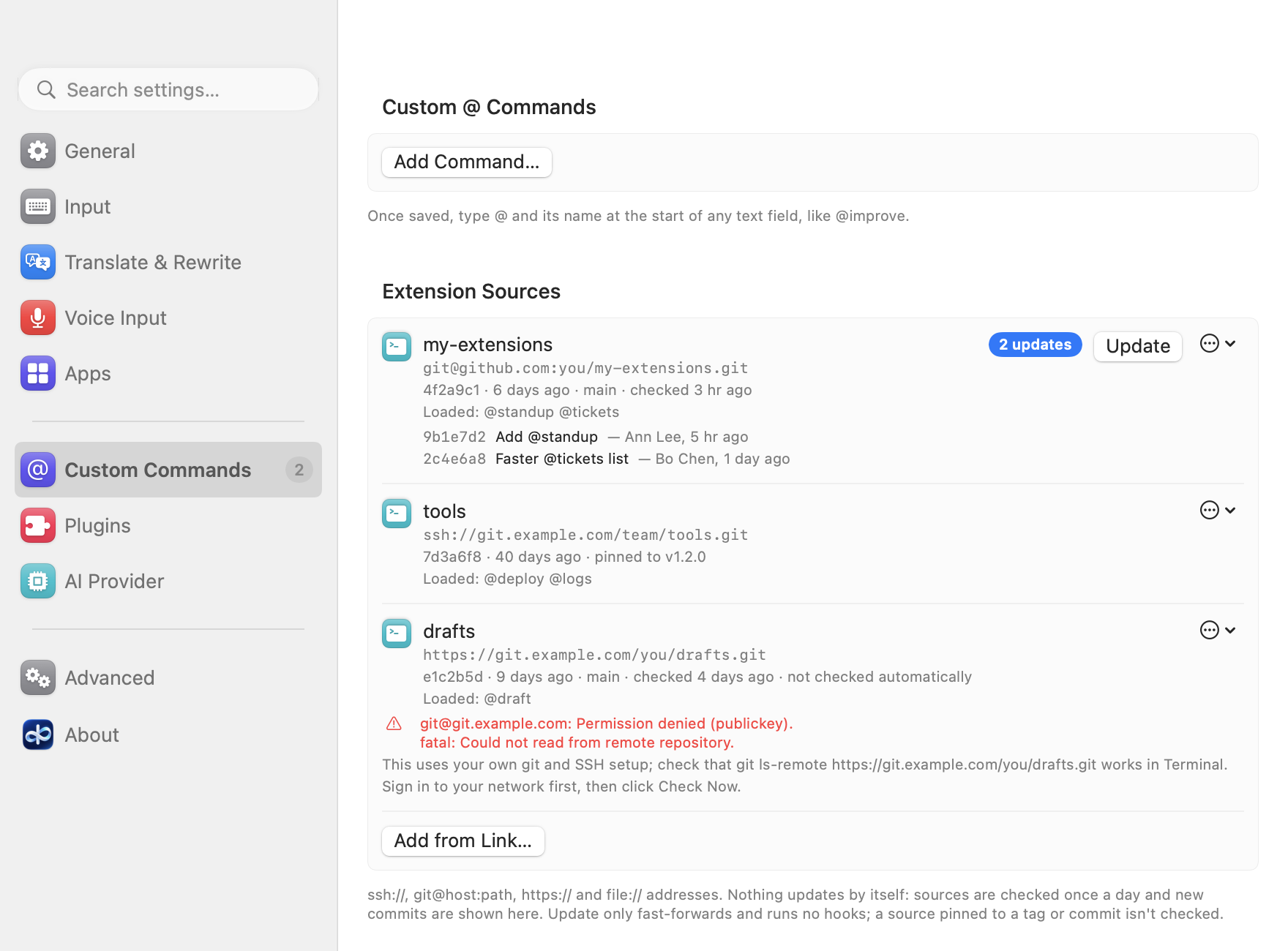
-
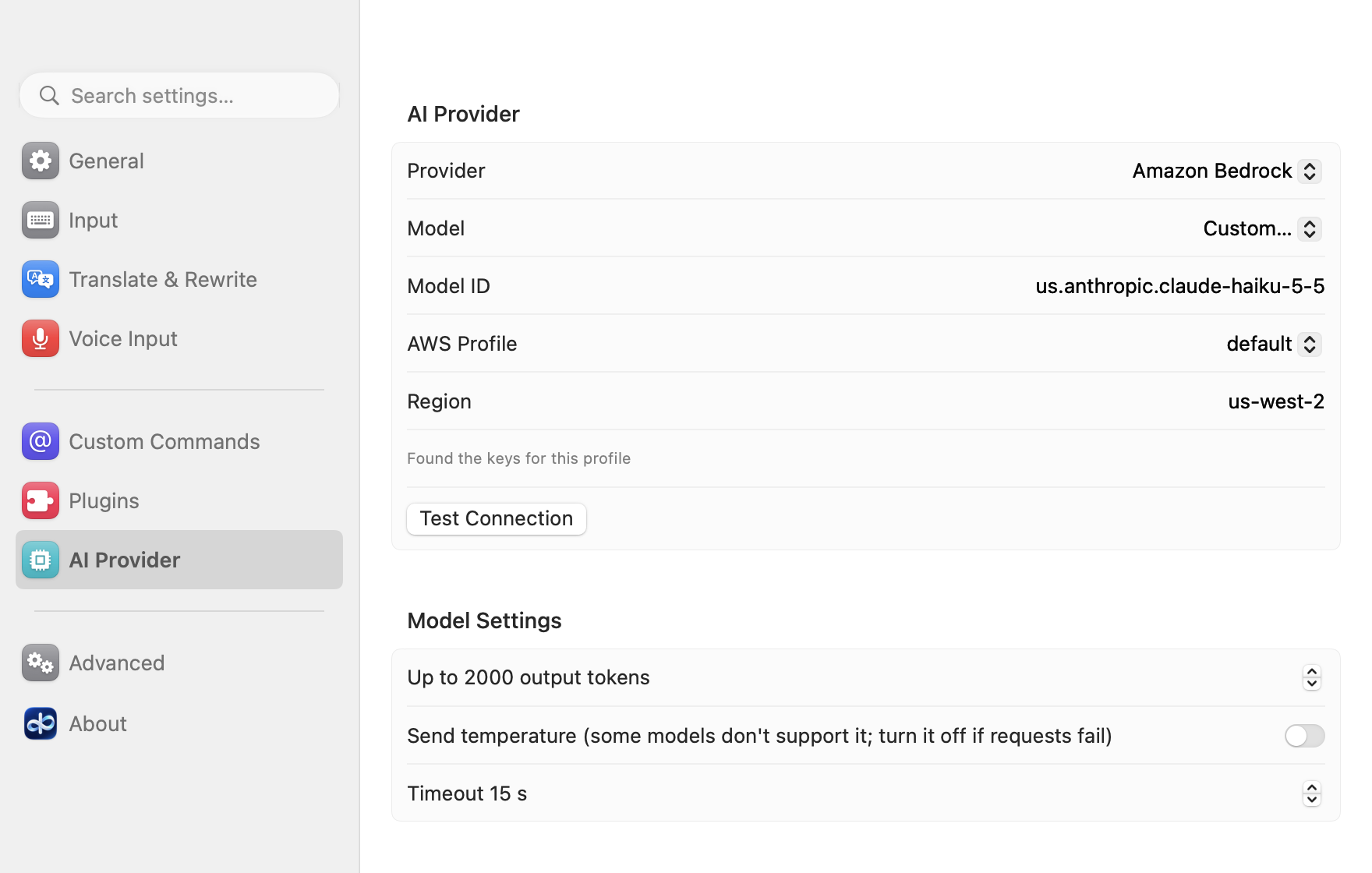
AWS profiles that refresh themselves. Amazon Bedrock works with a role (
role_arnwithsource_profile), SSO andcredential_processas well as static keys: credentials are fetched when a request needs them, kept in memory only and renewed before they expire, so there are no temporary keys to copy into~/.aws/credentialsby hand. Settings → AI Provider shows each profile's kind ("dev — Role via base") and when the chosen one's credentials expire; when an SSO sign-in has ended, it gives theaws sso logincommand to run.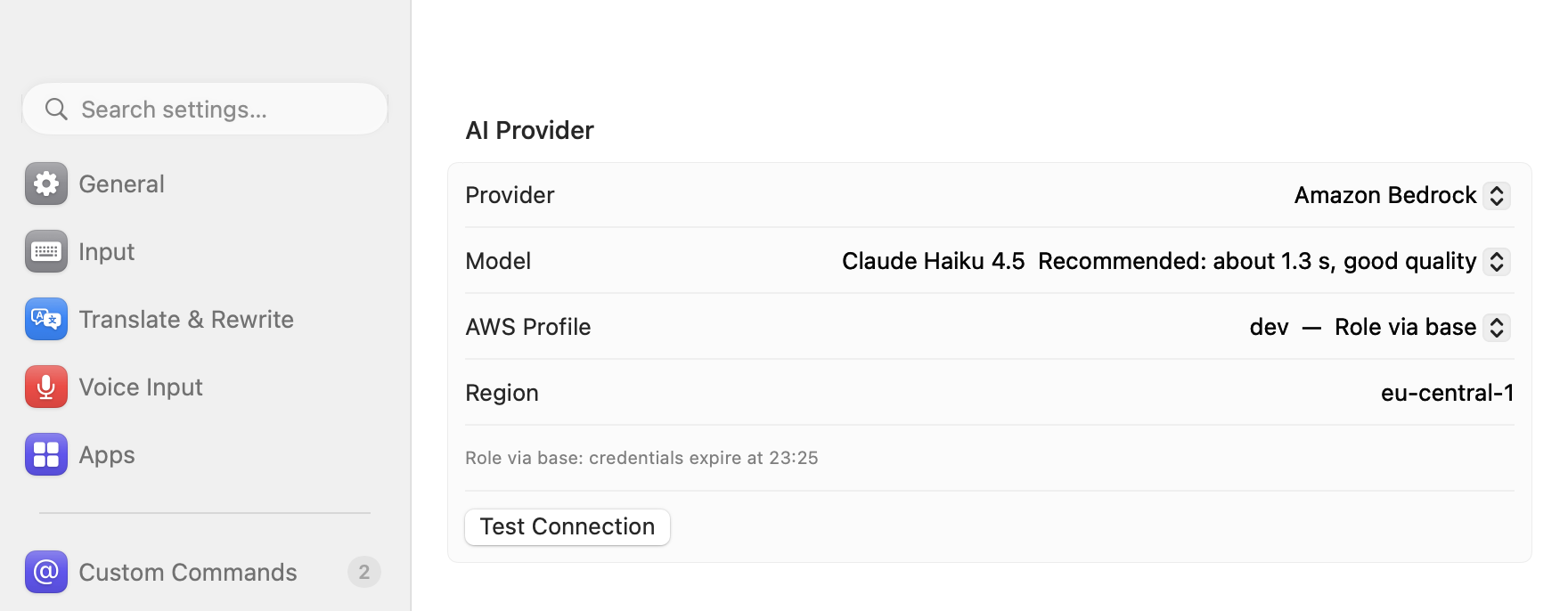
-
Clearer API key status. Every key row says whether a key is set: "✓ Saved · ends in a1b2" with Replace… and Remove…, "✓ From $OPENAI_API_KEY" for a key in your shell, or "No API key yet" with the field to paste one. Remove… asks first. A key for another provider (when
@configor@doctorasks for one) opens a small sheet: Save, or Save and Use.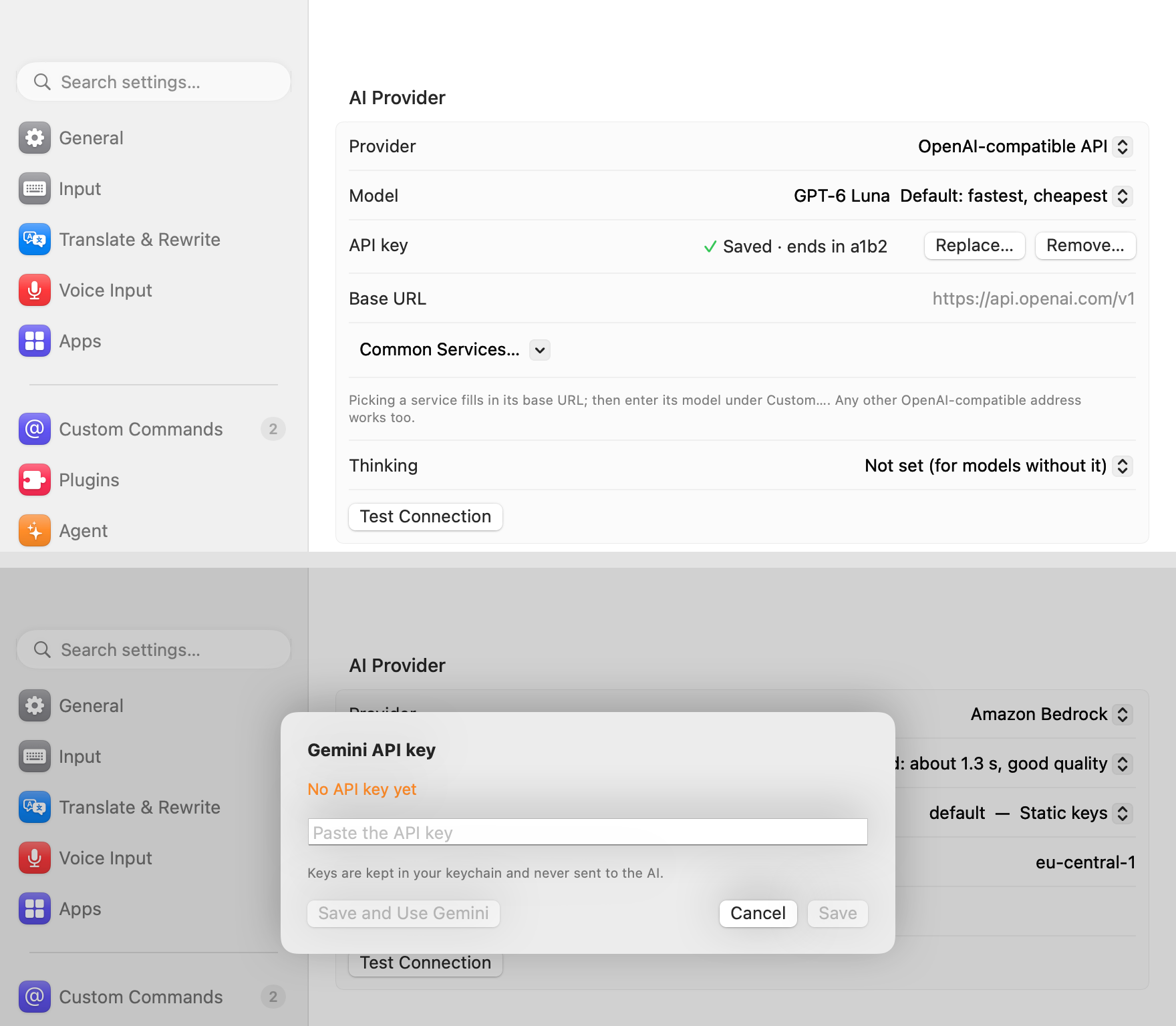
-
Also:
@typed right after a word is plain text (bob@example.com,ssh user@host), terminals included; Settings writes only what you changed, so what@configor a hand edit changed meanwhile is kept; and@questionno longer makes up live information (the weather, news, prices, scores).
Added
- Amazon Bedrock with every common kind of AWS profile, refreshed by itself, in the AWS CLI's order within a profile (a role, SSO, the credentials file's keys,
credential_process, the config file's keys): static keys as before,credential_process(credential_process = /usr/local/bin/my-creds --profile dev: split like a shell command and run without a shell, with your login shell's PATH, in your home folder, 60 s at most), a role (role_arnwithsource_profile, chains too, a profile naming itself with its own keys, orcredential_source = Environment;role_session_name,external_id,duration_seconds; STS in the profile's region), SSO (sso_sessionor the oldersso_start_url, with the sign-in the AWS CLI cached, only read), and for the profile "default" (or none) the keys in your shell's environment first, as the AWS CLI takes them (never for a profile you name);AWS_CONFIG_FILEandAWS_SHARED_CREDENTIALS_FILEare followed. Credentials that expire are kept in memory only and fetched again 5 minutes before they do, in the background when a request comes with less than 10 minutes left; requests at the same time wait for one fetch; Bedrock answering that they expired gets them fetched again and the request sent again, once. Settings → AI Provider lists each profile with its kind ("dev — Role via base") and says of the chosen one when its credentials expire ("Role via base: credentials expire at 15:30", "SSO (signed in until 18:00)"); Test Connection fetches fresh ones through the whole chain;@doctorreports the kind, the expiry and a failed refresh. An SSO sign-in that ended says "SSO sign-in expired: run aws sso login --profile X" (Copy Command and Open in Terminal in Settings, the command to copy in@doctor); a profile withmfa_serialsays to usecredential_processor SSO instead, since an input method can't ask for an MFA code;credential_source = Ec2InstanceMetadataorEcsContainersays why it can't work on a Mac. Programs run and AWS is asked only when a request or Test Connection needs credentials, never to list profiles or for@config; nothing secret is logged or shown. @config: change settings by describing them (@config output languages English and French,@config 微信里用中文,邮件里语气正式一点,@config candidates in a column,@config use Claude). ⏎ shows the changes in the candidate panel, a row each, old → new, with the labels Settings uses; ⏎ (or 1) applies them, Esc cancels, typing more and ⇧⏎ refines them, and ⌘Z on the confirmation or@config undowithin 10 minutes puts back exactly what changed. Only an allowlist can change: the languages, rewrite styles, candidate layout, typing out, the selection, recent questions, hiding sensitive information (words only added), updates, per-app settings (apps found by name) and the provider's non-secret settings (provider, Bedrock profile and region,...
Contributors


Assets 5
AllInOneIME 0.6.3
First notarized release: AllInOneIME is now signed with a Developer ID (MicroZ LLC) and notarized by Apple, so there's no more Open Anyway in System Settings → Privacy & Security. The first time, macOS only asks whether to open an app downloaded from the internet: click Open. Coming from 0.6.2 or earlier? Read "Updating from 0.6.2 or earlier" below first: macOS asks for your login password once for each saved key.
首个经过公证的版本:AllInOneIME 现在用 Developer ID(MicroZ LLC)签名,并经过 Apple 公证,不用再去 系统设置 → 隐私与安全性 点「仍要打开」。第一次打开时 macOS 只问一句要不要打开从互联网下载的 App:点「打开」。从 0.6.2 或更早的版本升级?先看下面的「从 0.6.2 或更早版本升级」:每个保存过的 key,macOS 会问一次登录密码。
SHA-256: 264870be5fd238fb07c8228feb6f6f6ac86996e2118870877a6ba9c390d82e79
English
Docs: https://allinoneime.com/docs · Changelog: CHANGELOG.md
Highlights
-
Candidates side by side. Pinyin and Hindi candidates are in a row by default now, like the system's own input methods: ← → choose, ↑↓ turn the page. Prefer the column? Settings → Input → Candidate layout → Vertical.
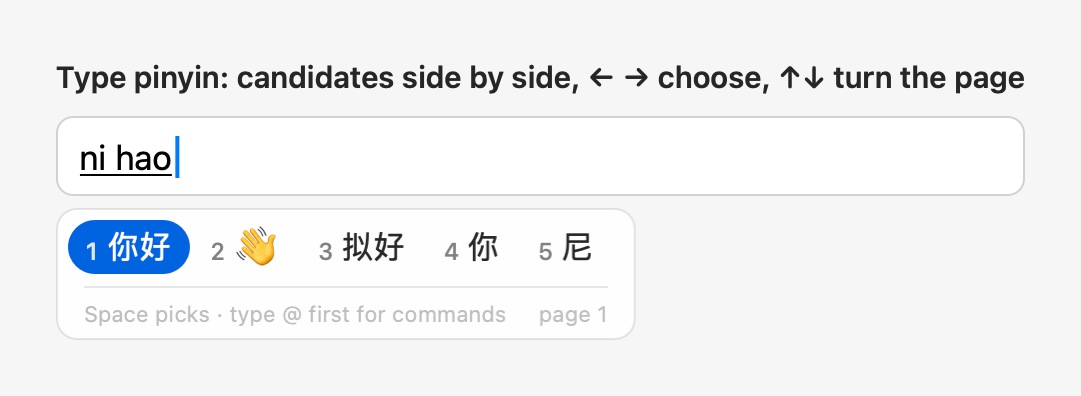
-
Refine the results. With the results of
@improve,@translate,@questionor a prompt command up, type what to change (shorter,more formal,in Japanese) and press ⏎: the new results replace them in the same panel. Refine again and again; Esc steps back.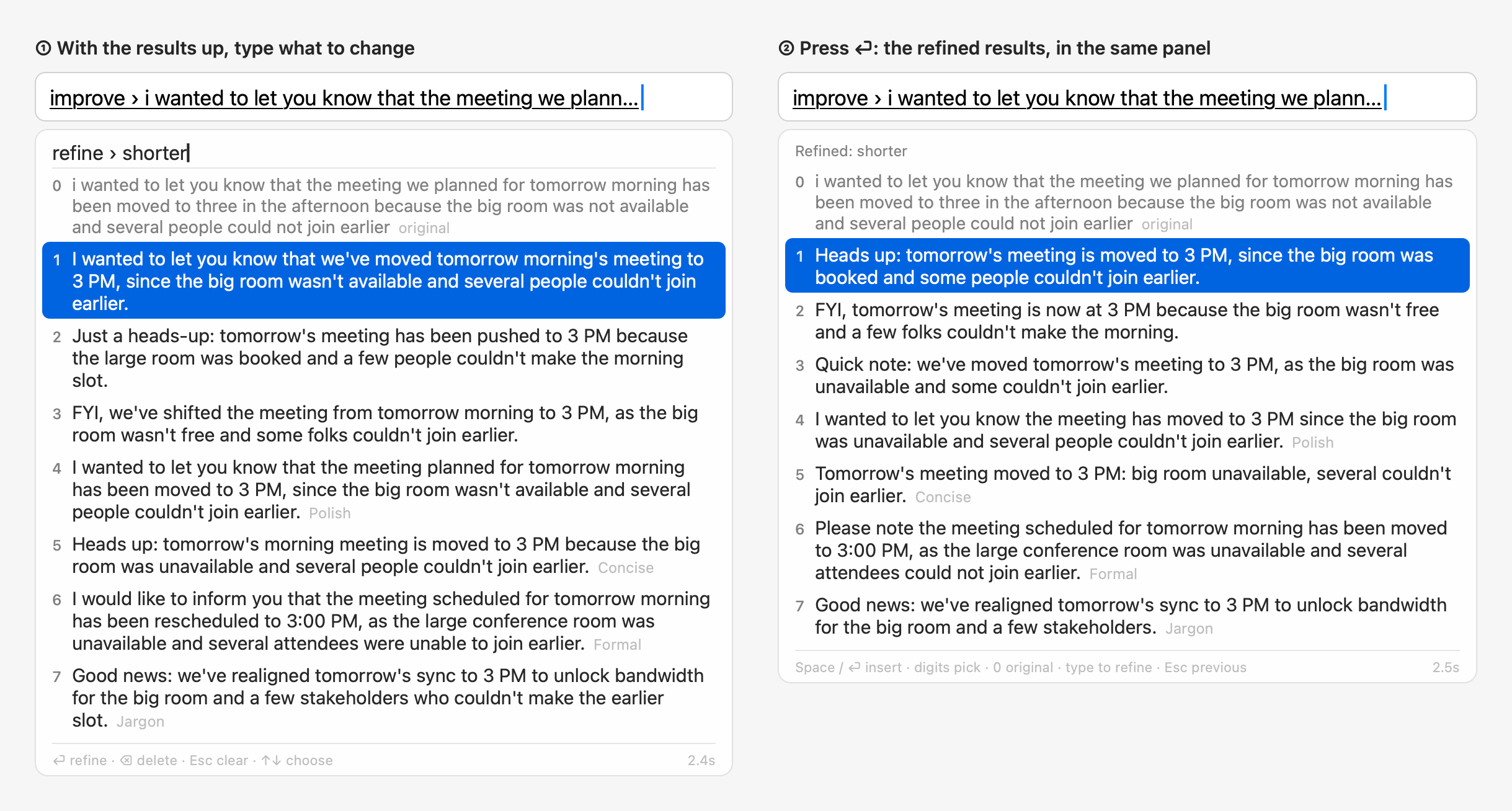
-
Commands on the selected text. Select text in any app, type
@improve,@translateor@questionand press ⏎: the command works on the selection, and the result you pick replaces exactly it.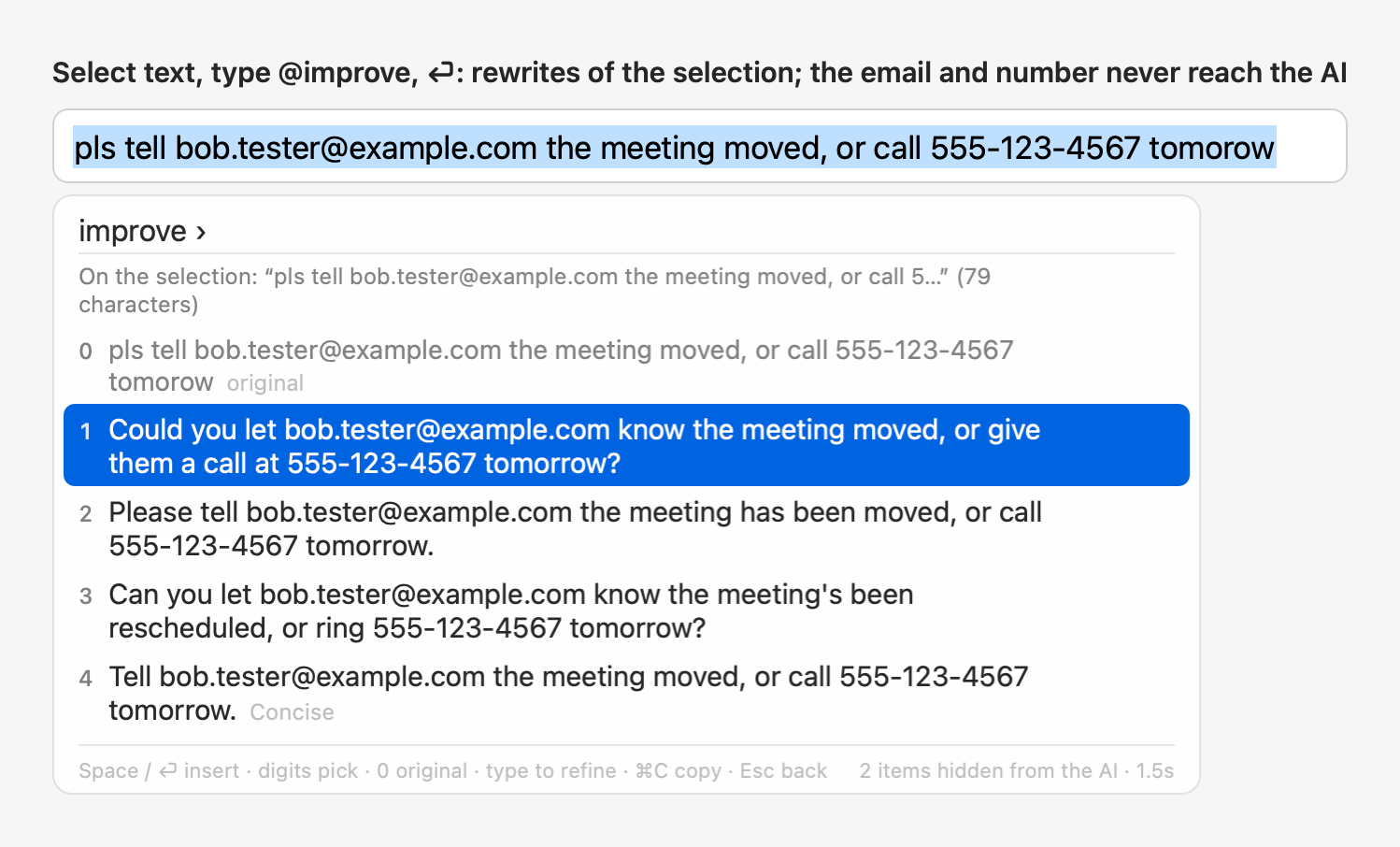
-
Recent questions.
@questionwith nothing after it lists your last 5 questions; pick one to see its saved answer at once, without going online. Kept only on this Mac.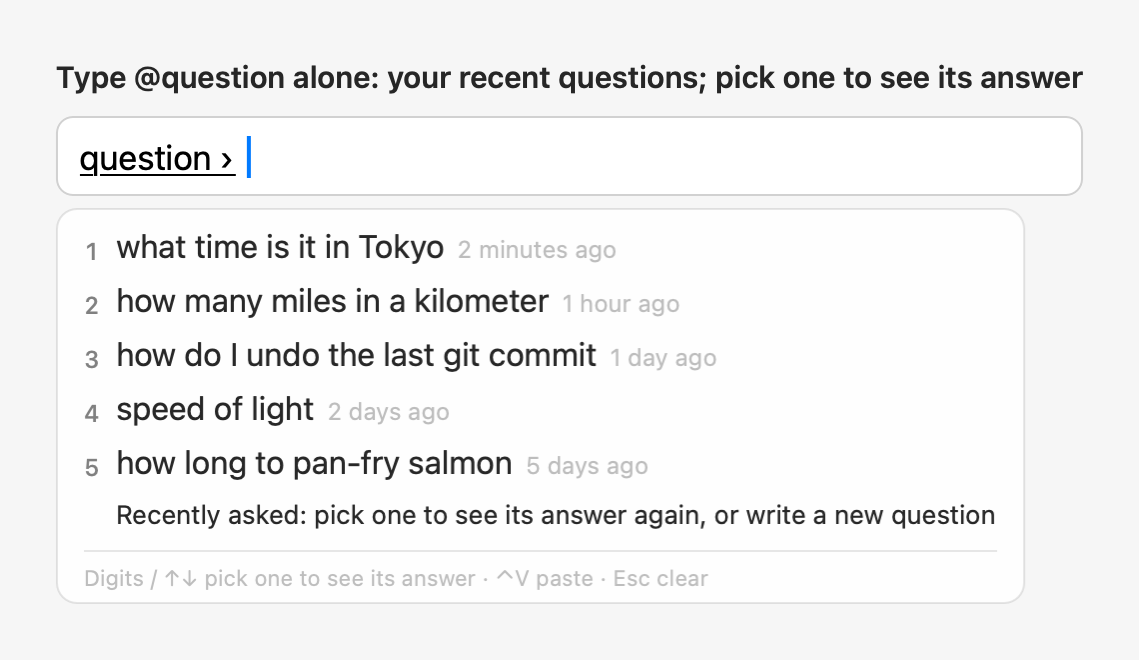
-
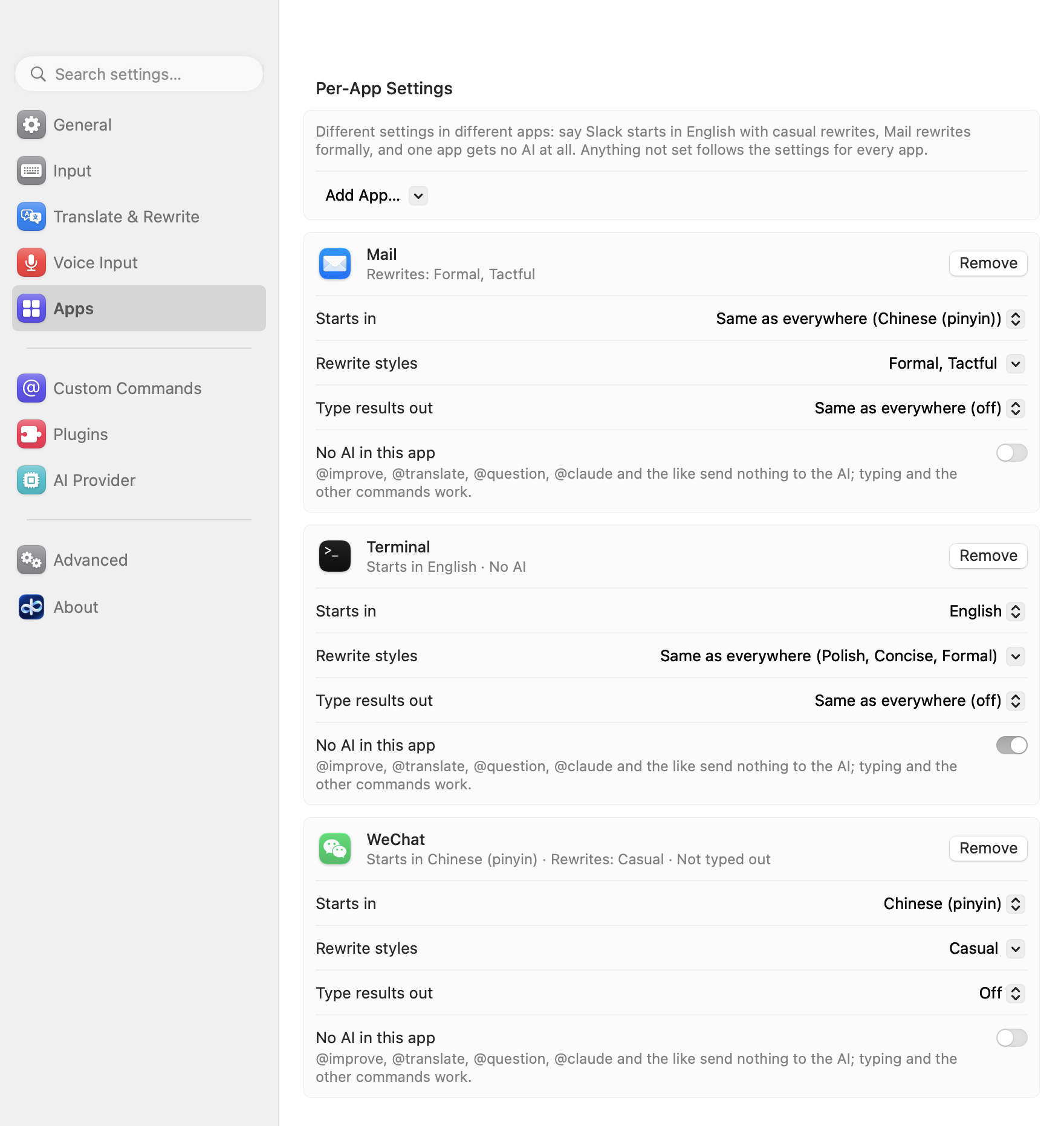
Per-app settings. Settings → Apps gives an app its own starting input language, its own rewrite styles, typing results out on or off, and "No AI in this app".
-
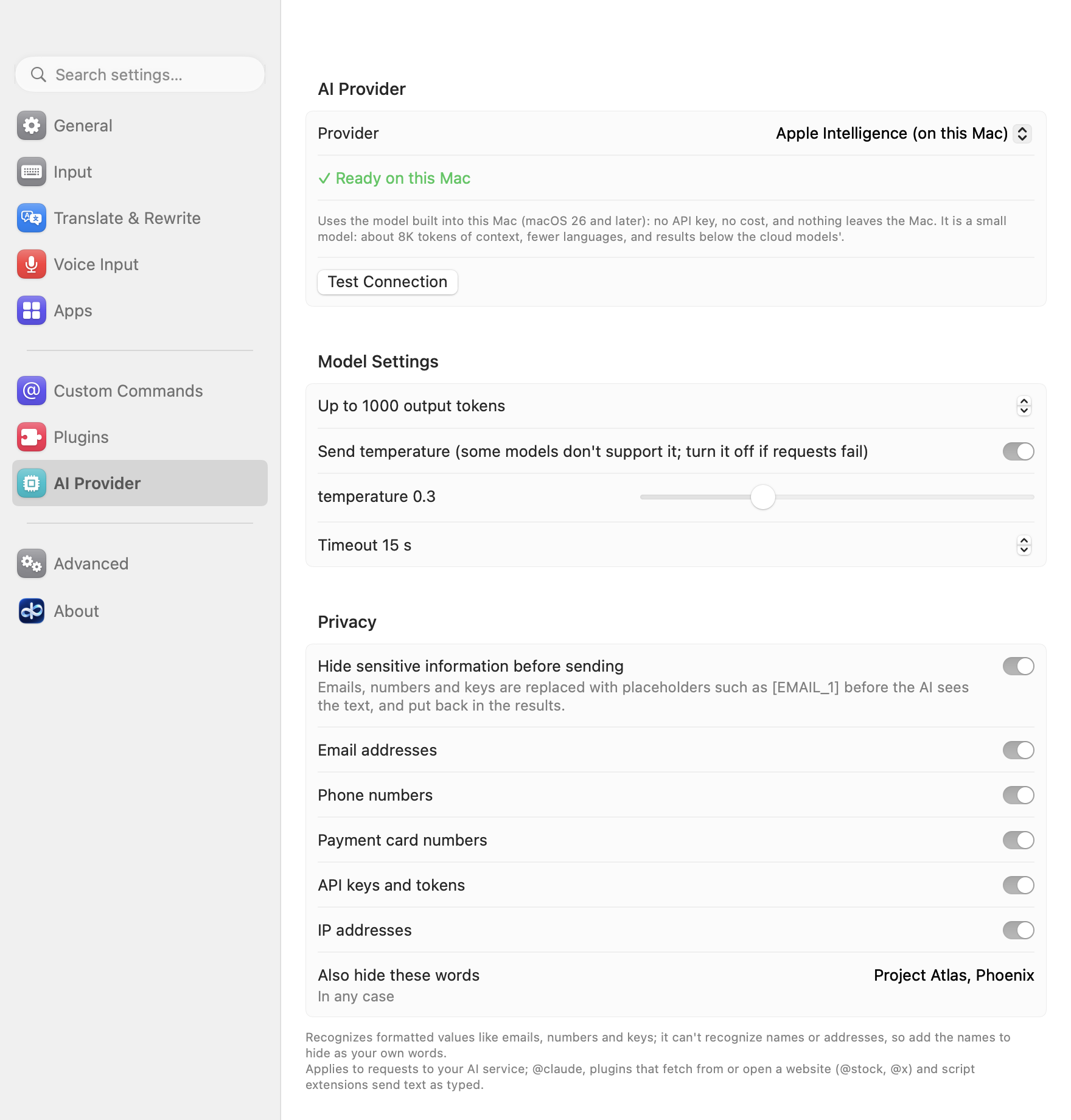
Apple Intelligence and privacy. Choose Apple Intelligence (on this Mac, macOS 26 and later) as the AI provider: no key, no cost, nothing leaves the Mac. And with any provider, turn on Privacy → "Hide sensitive information before sending": emails, phone numbers, card numbers, keys, IP addresses and words you list are replaced with placeholders before a request goes out, and put back in the results.
-
Also new: in-app updates (Settings → About → Check for Updates),
@reportissue(Report an Issue), clicking a candidate to pick it, and occasional typos when typing results out.
Thanks to @jiwenwumc for the feedback behind side-by-side candidates, clicking a candidate to pick it, and Report an Issue.
Added
- Refine the results: while the results of
@improve,@translate,@question, a prompt command or the rewrite of a selection are up, type a follow-up instruction (shorter,warmer,more formal,add a joke,in Japanese,用更口语的说法; pinyin works, Shift switches languages) and press ⏎: the AI gets the original request, the results shown and your instruction, and the new results replace them in the same panel, in the same rows. Refine again and again; the panel's top line lists the steps ("Refined: shorter · more formal"), and a row can be picked at any time as usual. A letter starts the instruction ("refine › …" at the top of the panel) once the results are complete (typing while the first results stream in continues the sentence, as before); with none typed, digits, Space and ⏎ pick as before. While a refine runs, the next instruction can already be typed: the refine goes on, and ⏎ runs the next one once its results are in. Esc clears the instruction, then goes back one step to the results before the last refine (during a refine, it stops it), then to the sentence; ⌫ on an empty line steps back the same way. On selected text the pick still replaces exactly the selection, untouched until then. A refine that fails, or is refused during secure input, leaves the results as they were with the instruction ready to try again; the same refine of the same results comes from the cache. The requests for everything else are unchanged. - Commands on the selected text: select text in any app, type
@improve,@translate,@question(or another command that takes text) and ⏎, and the command works on the selection; the result you pick replaces exactly it. The selection stays as it is, still selected, while you type: the command is written in the candidate panel instead of the text field, its first line what you type (pinyin too) and the next what it works on ("On the selection: “…” (N characters)"). Esc, ⇧⏎, clicking elsewhere or secure input turning on leave the text as it was, with no@improvetyped over it; changing the selection meanwhile cancels the command. Text typed after@improve/@translateis an instruction (@translate ja,@improve more formal), answered as one rewrite that keeps the text's paragraphs (as is a selection of several lines); after@questionit's the question about the selection.@open,@claude,@tasks,@settings,@reminder,@imessageand script extensions don't use it. Read through the text input system, or with the Accessibility permission where an app doesn't tell it (only if AllInOneIME already has it; it never asks); up to 5000 characters; never during secure input or in a terminal; only how it was read and its length are logged. On by default: Settings → General → "Use the selected text" (useSelectionin the config). - Updates from inside the app: Settings → About → Check for Updates, and "Check for Updates…" in the input menu. When a new version is out, About says so with what's new (and one quiet line in the menu bar panel; never a dialog); "Update to " downloads it, checks it, installs it and restarts the input method, keeping your settings, language packs, learned words and extensions. AllInOneIME looks once a day by itself, in the background, and never goes online because of a key you press ("Check for updates automatically" under About,
checkForUpdatesin the config, on by default); nothing is installed until you click.- The update information (https://allinoneime.com/update.json) is signed with a key of its own, for releases only, and checked with the public key built into the app before it's read; the download comes only over https from allinoneime.com or the GitHub release, and is installed only once its size and SHA-256 match, both apps' bundle IDs, versions and code signatures check out, and the new input method starts. An older or the same version is never installed.
- The old apps are moved aside, not deleted, until the new ones work: if anything goes wrong on the way, the version you had is put back and registered again, and About says what happened.
@reportissue: report a problem without leaving the keyboard. It opens GitHub's page for a new issue in your browser, what you typed after it as the title, with "What happened / What you expected" to fill in and the details that help: the app and macOS versions, the Mac's architecture, the interface and input languages, the language packs installed, the kind of AI provider (and the model, if it's a public one), the action key, and how many custom commands, plugins and extensions you have (never their names, your text, paths or keys). ⏎ shows all of it in the candidate panel first, ⏎ again opens the page, Esc goes back; you submit it on GitHub. Also "Report an Issue…" in the input menu and in Settings → About. (thanks @jiwenwumc)- "Candidate layout: Vertical / Horizontal" on the Input page of the settings, under the input languages (
candidateLayoutin the config). Horizontal, the default, puts pinyin and Hindi candidates in a row, the highlighted one in a pill; Vertical is the column of 0.6.2 and earlier. The @ command list and the results are always vertical. (thanks @jiwenwumc) - "Make occasional typos and fix them" under "Type results out" in Settings → General (
typeOutMistakesin the config, off by default): a result typed out now and then hits the key next to the right one on your keyboard layout and notices a few letters later, types a letter or a space twice, or takes a short word back and types it again, each deleted at once and typed right. A few in 100 characters, never two close together, never at the start of a line; in code, web and email addresses and numbers only a wrong letter or digit, fixed at ...
AllInOneIME 0.6.2
Note: not yet signed or notarized by Apple. Install: open the DMG and double-click "Install AllInOneIME"; if macOS won't open it, click Open Anyway in System Settings → Privacy & Security. Download it only from this page.
注意:还没有 Apple 签名和公证。安装:打开 DMG,双击「Install AllInOneIME」;macOS 提示无法打开时,到 系统设置 → 隐私与安全性 点「仍要打开」。只从这个页面下载。
SHA-256: d995d9a36b1a9ed910a9a66c397f14d2984e49d95cfbf02ce1053ea7f7f62235
English
Docs: https://allinoneime.com/docs · The script extension protocol: docs/extensions.md · License: from this version on, FSL-1.1-ALv2 (see Changed).
Added
-
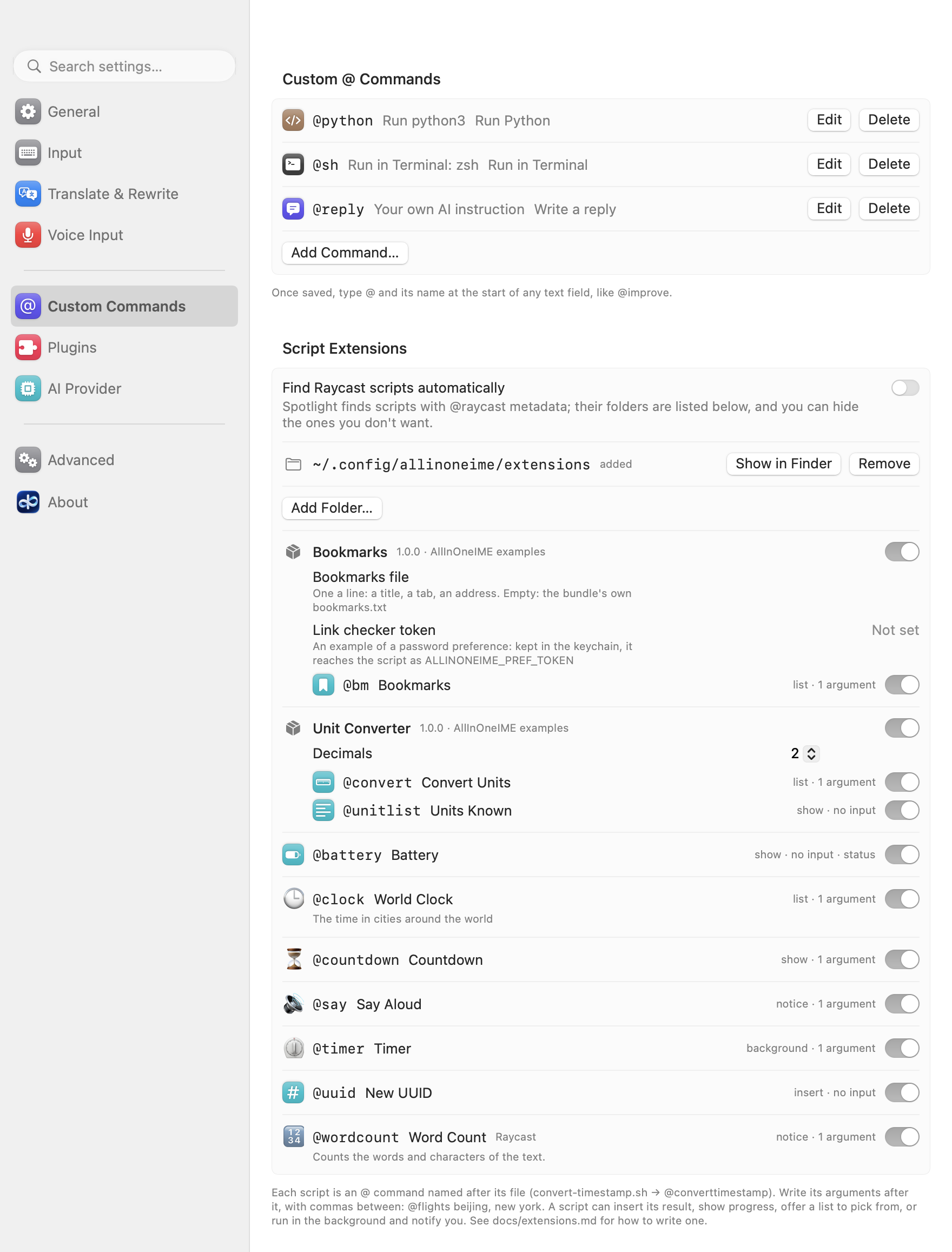
Script extensions: @ commands that are programs outside the app, in any language, with a few lines of metadata in their comments (docs/extensions.md, protocol 1). Put them in
~/.config/allinoneime/extensionsor a folder you add under Settings → Custom Commands, andflights.shis@flights; arguments go after it, commas between them (@flights beijing, new york).- What they print can be inserted (
insert), shown as it comes with nothing inserted (show, a progress), offered as a list to pick from as you type (list, Alfred's Script Filter JSON: picking a row inserts, opens, copies or runs a second step), or said near the cursor (silent); a JSONsummarywith adetailshows both. - A command can take no input (⏎ on its name runs it), run in the background and notify you when it's done (the menu bar panel lists it; a
showleft running when you leave the field goes on too), show a status beside its name in the command list, or ask first. - Scripts get
ALLINONEIME_*environment variables: the interface and input language, the app you're typing in, the text. - Bundles: a folder with
extension.jsonholds several commands that share code and preferences; Settings shows the preferences (passwords go to the keychain). - Raycast Script Commands work as they are, and folders holding them are found with Spotlight (on by default; hide the ones you don't want).
- Settings lists the folders, the bundles, every command with a switch, and the scripts left out with why (a protocol newer than the app's among them). Examples of each kind are in Examples/extensions.
- What they print can be inserted (
-
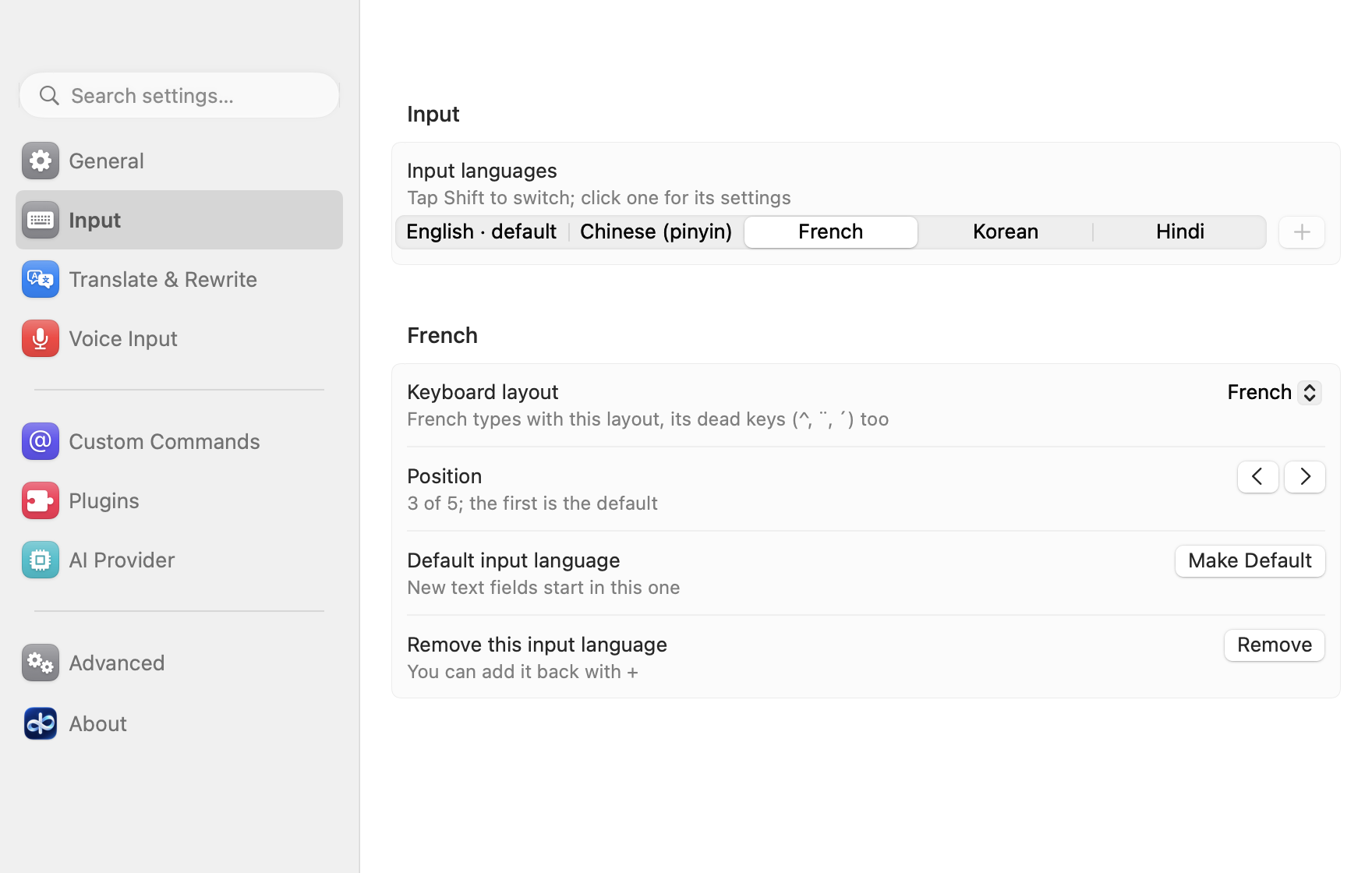
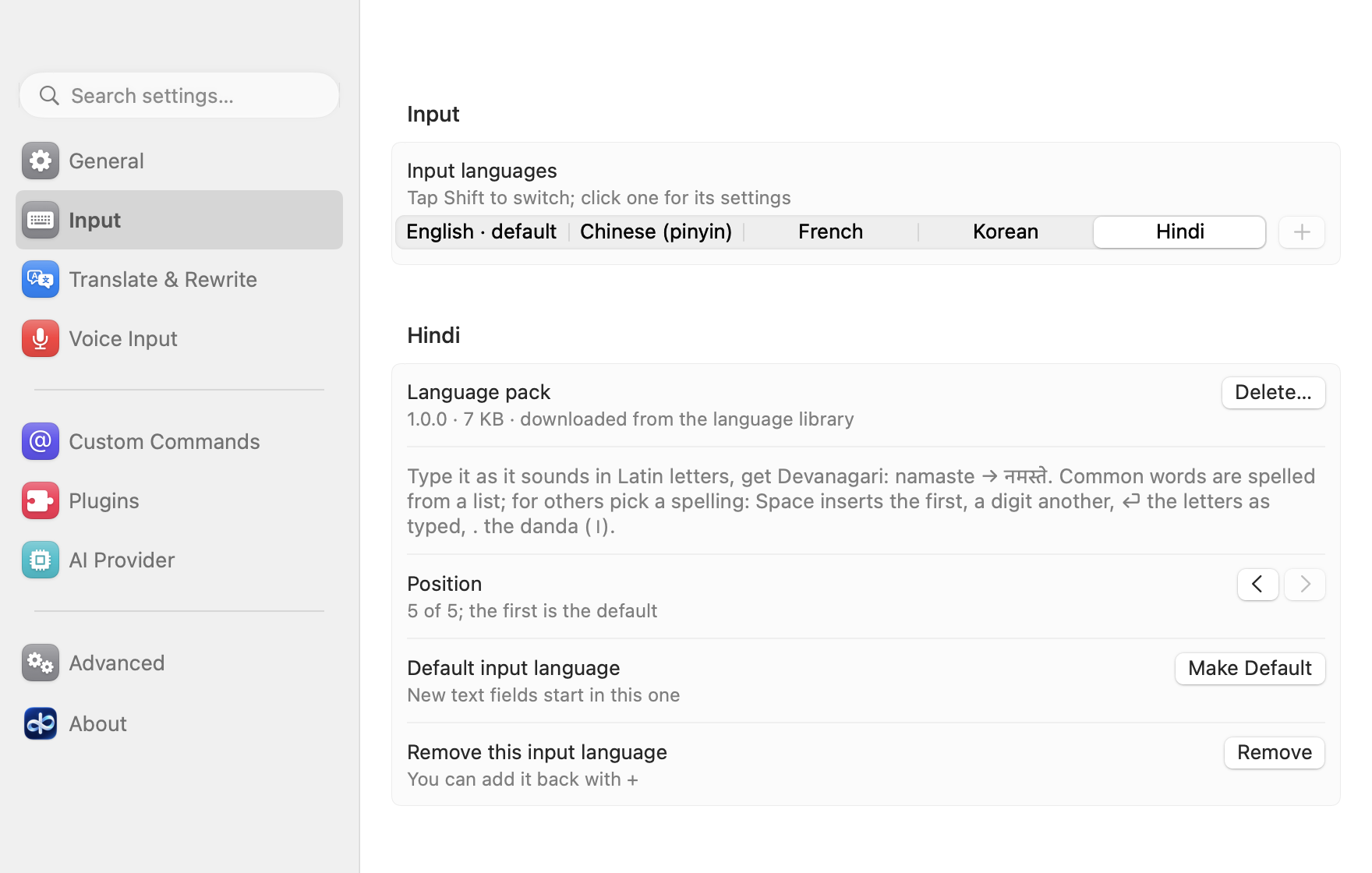
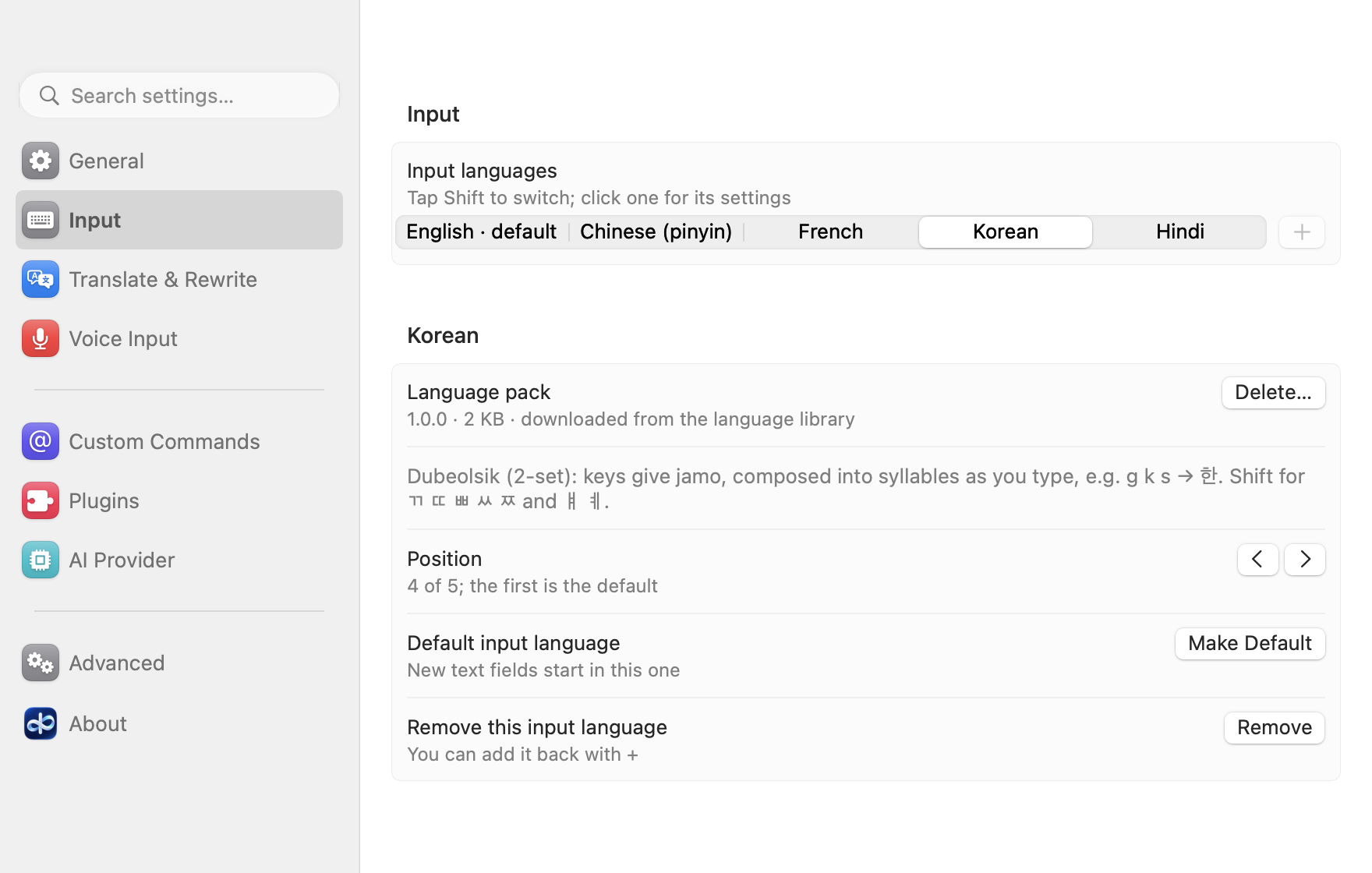
French, Korean and Hindi as input languages, next to English and Chinese: add them under Input → +.
- French types with its own keyboard layout: AZERTY unless you pick another on its card (
keyboardLayoutsin the config), its dead keys (^, ¨, `, ´, ~) too. The other languages keep the layout you use in the system. - Korean types Hangul in the 2-set (Dubeolsik) layout, putting each syllable together as you type (g k s → 한); Shift gives ㄲ ㄸ ㅃ ㅆ ㅉ and ㅒ ㅖ. It works in a command's text too.
- Hindi: type the words as they sound in Latin letters and get Devanagari (namaste → नमस्ते). Common words are spelled as Hindi writes them (karna → करना, nahi → नहीं); otherwise pick a spelling: Space inserts the first and a space, a digit another, ⏎ the letters as typed, and "." types the danda (।).
- Dictation (hold right ⌥) listens in the language you're typing.
@improvekeeps a Korean, Hindi or French sentence in its own language, and@translatetranslates it into each of your languages but its own (English and Chinese both, with those two). (French is told apart from English when French is one of your input languages.)
- French types with its own keyboard layout: AZERTY unless you pick another on its card (
-
Hindi, Bengali, Telugu, Marathi, Tamil, Gujarati, Kannada, Malayalam, Punjabi and Urdu as translation languages. Hindi typed in Latin letters ("aap kaise ho") is translated into Devanagari, each in its own script; a Mac set to one of them (hi-IN …) translates into it from the start.
-
← → move the cursor in a command's text (
@question …), as in any text field: type, pinyin, ⌫, a paste or speech go in where it is. ⌘← ⌘→ (or Home, End) go to the start or end of the text, ⌥← ⌥→ a word at a time, fn⌫ deletes after the cursor. The cursor never goes into the command itself; ⏎ runs the whole text.
Changed
-
Korean and Hindi are language packs, like Chinese: adding either downloads its small pack (Korean's key table and how jamo make syllables; Hindi's letters and common words), data only, signed and checked like the Chinese pack. Their cards show the pack with Delete…. French needs no pack: its layout is macOS's.
-
A tap of Shift goes through your input languages in their order (English → French → Korean → …, then back to the first), as they're ordered under Input; with one, Shift doesn't switch.
-
One to five input languages: the + under Input is always shown, its menu ending with "More input languages are coming", and greyed out once there are five.
-
The model's settings (output tokens, temperature, timeout) are a Model Settings card on the AI Provider page now, no longer under Advanced; "Send temperature" shows only for Bedrock, the one provider it applies to. Advanced keeps the config file and the Rime user folder.
-
License: from this version on, AllInOneIME is source available under the Functional Source License 1.1 (FSL-1.1-ALv2) instead of the GPL-3.0. It's still free, and you can read, change and share the source for anything but a competing product; each version becomes Apache-2.0 two years after its release. 0.6.1 and earlier stay available under the GPL-3.0. rime-ice's Lua scripts and the Chinese pack are still GPL-3.0, with their license.
-
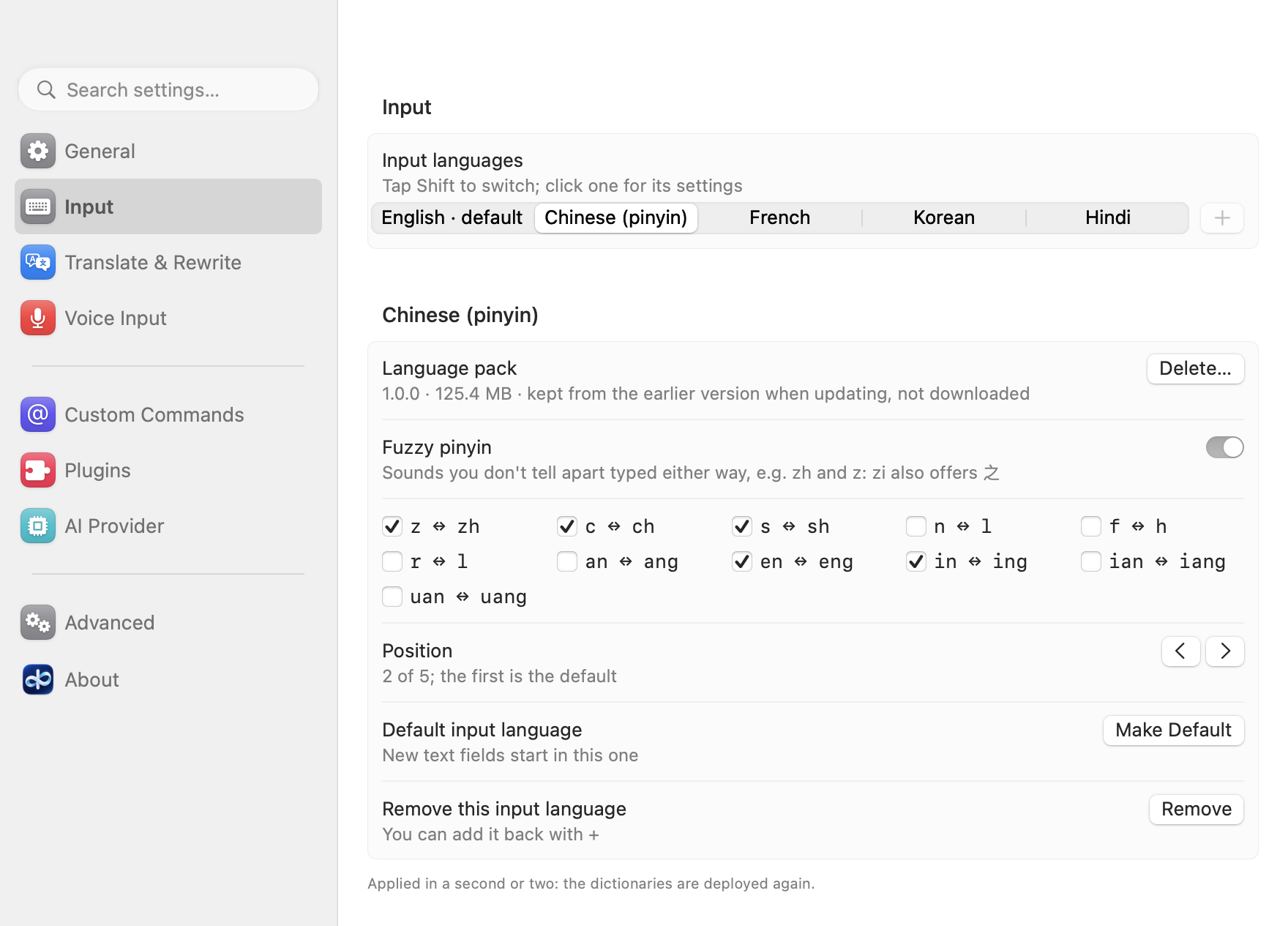
Chinese (pinyin) is a language pack now: the app comes with English only (about 120 MB smaller), and adding Chinese (pinyin) under Input → + downloads its dictionaries with a progress bar; pinyin works when it's done, without a restart. The pack is data only, listed in a signed index and checked against its SHA-256, like plugins. Its card under Input shows the pack (version, size, where it came from) with Delete…; removing Chinese also offers to delete the pack. Updating keeps Chinese without a download: the installer keeps the dictionaries the previous version came with (if it can't, the input method downloads them once by itself).
-
AllInOneIME is now an English input source: to add it by hand, it's under English (no longer Chinese, Simplified) in System Settings → Keyboard → Input Sources → +. Installing the update changes it in place: it stays in your input sources and nothing needs to be added again. Password fields still switch to the system's keyboard (U.S. or ABC) and back, as before.
-
A new install starts with English as its input language; add Chinese (pinyin) with + under Input. Existing settings don't change. The settings window's language follows the system until you pick one.
-
A new install translates into the first of the Mac's preferred languages that isn't English (Chinese, Japanese, French…). With English alone,
@translateon an English sentence sends nothing: it says so and opens the settings on Translate & Rewrite to add a language. -
⏎ on a command with nothing after it no longer takes the clipboard's text: it only says to write something. Paste into a command with ⌃V (or ⌘V outside terminals), as before. A stray ⏎ no longer puts whatever was copied into the command.
-
The README is in 17 languages now (English, 简体中文, and 15 more in docs/readme), with a new header. The Say Aloud example speaks Chinese, Korean, Japanese and Hindi in a voice of that language. (Docs only, added after the release; the app is the same.)
Fixed
- Dead keys work under the input method: ⌥E then E (US), ^ then e (AZERTY), ' then a (US International) typed only "e" (or "´e" in a command's text), since macOS doesn't compose them for an input method. They are composed from your keyboard layout now, with the accent shown while it waits, outside commands in English mode and in a command's text (
@translate où est la gare,@improve Übermorgen). Pinyin is unchanged. - Switching the interface language in the settings window left some controls (the action key's name, the language chips) in the old language until the page was opened again; the page redraws at once now.
中文
使用说明:https://allinoneime.com/docs · 脚本扩展协议:docs/extensions.md · 许可证:从这个版本起改为 FSL-1.1-ALv2(见「改动」)。
新增
- 脚本扩展:用 App 之外的程序加 @ 命令,任何语言,注释里写几行元数据(docs/extensions.md,协议版本 1)。放进
~/.config/allinoneime/extensions或在 设置 → 自定义命令 ...
AllInOneIME 0.6.1
Note: not yet signed or notarized by Apple. Install: open the DMG and double-click "Install AllInOneIME"; if macOS won't open it, click Open Anyway in System Settings → Privacy & Security. Download it only from this page.
注意:还没有 Apple 签名和公证。安装:打开 DMG,双击「Install AllInOneIME」;macOS 提示无法打开时,到 系统设置 → 隐私与安全性 点「仍要打开」。只从这个页面下载。
SHA-256: 7f2776296cade581652d902304b8159d9815012c4bba3519013563618cabf197
English
Added
-
Fuzzy pinyin: on the Input page, pick Chinese (pinyin) in the bar of input languages, turn on "Fuzzy pinyin" and pick the pairs you don't tell apart (z ↔ zh, c ↔ ch, s ↔ sh, n ↔ l, f ↔ h, r ↔ l, an ↔ ang, en ↔ eng, in ↔ ing, ian ↔ iang, uan ↔ uang): either spelling then finds the word. Applied in a second or two; a
rime_ice.custom.yamlof your own in the Rime user folder is never written over.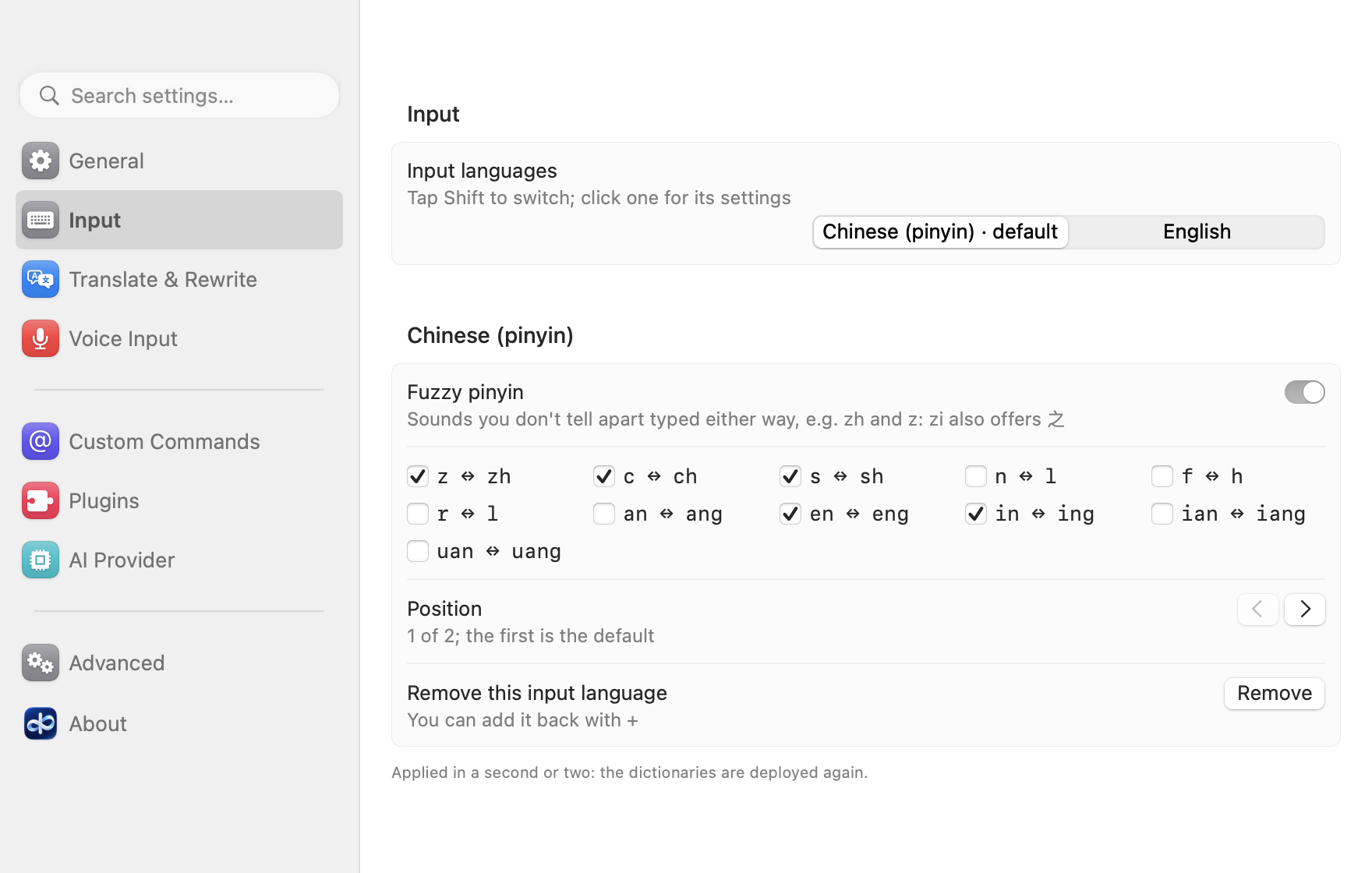
Changed
-
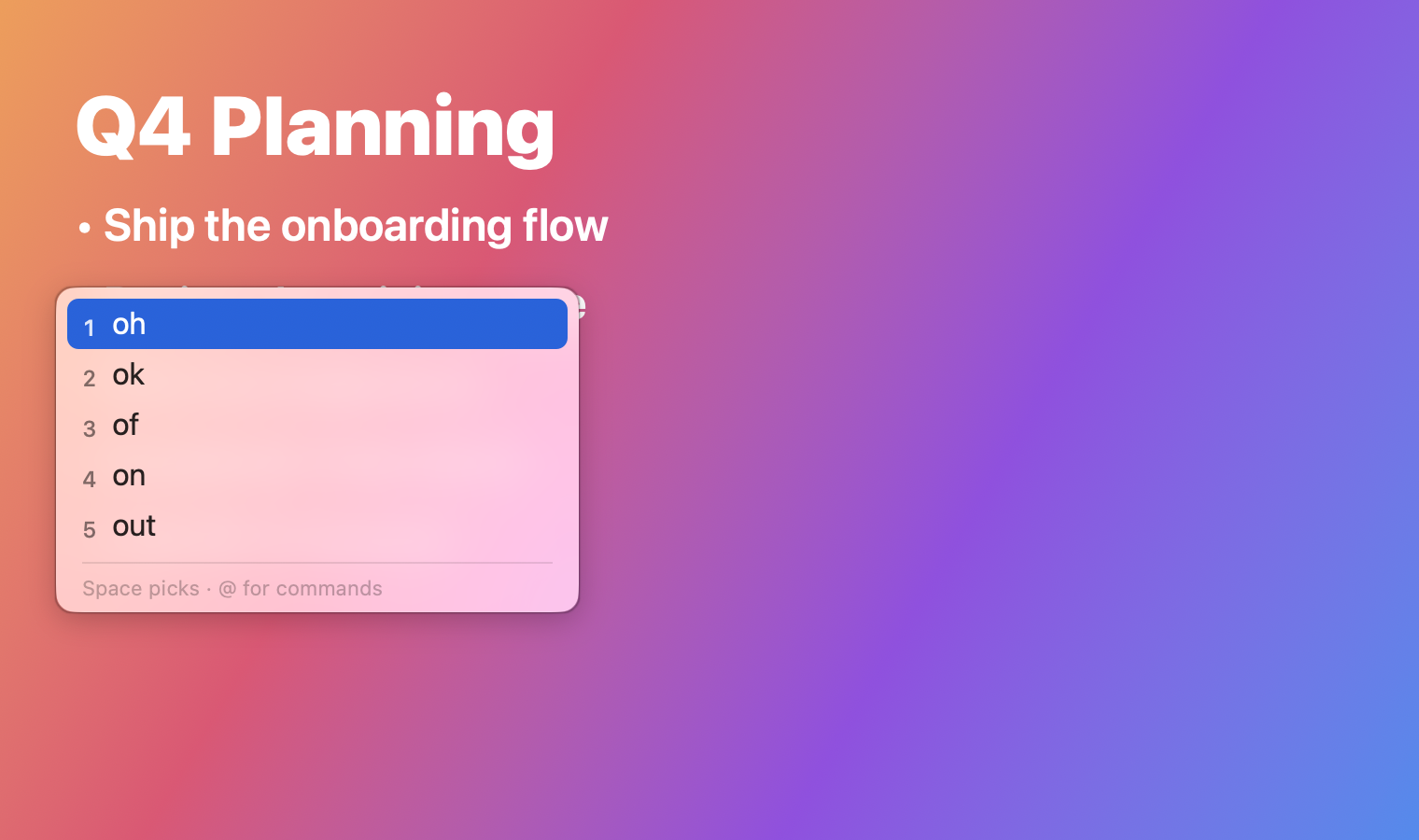
The candidate panel and the menu bar panel use the system's own glass, as its menus do: Liquid Glass on macOS 26 and later (Clear or Tinted, as set in System Settings → Appearance), a frosted material before; both turn solid with Reduce Transparency (Accessibility → Display).
-
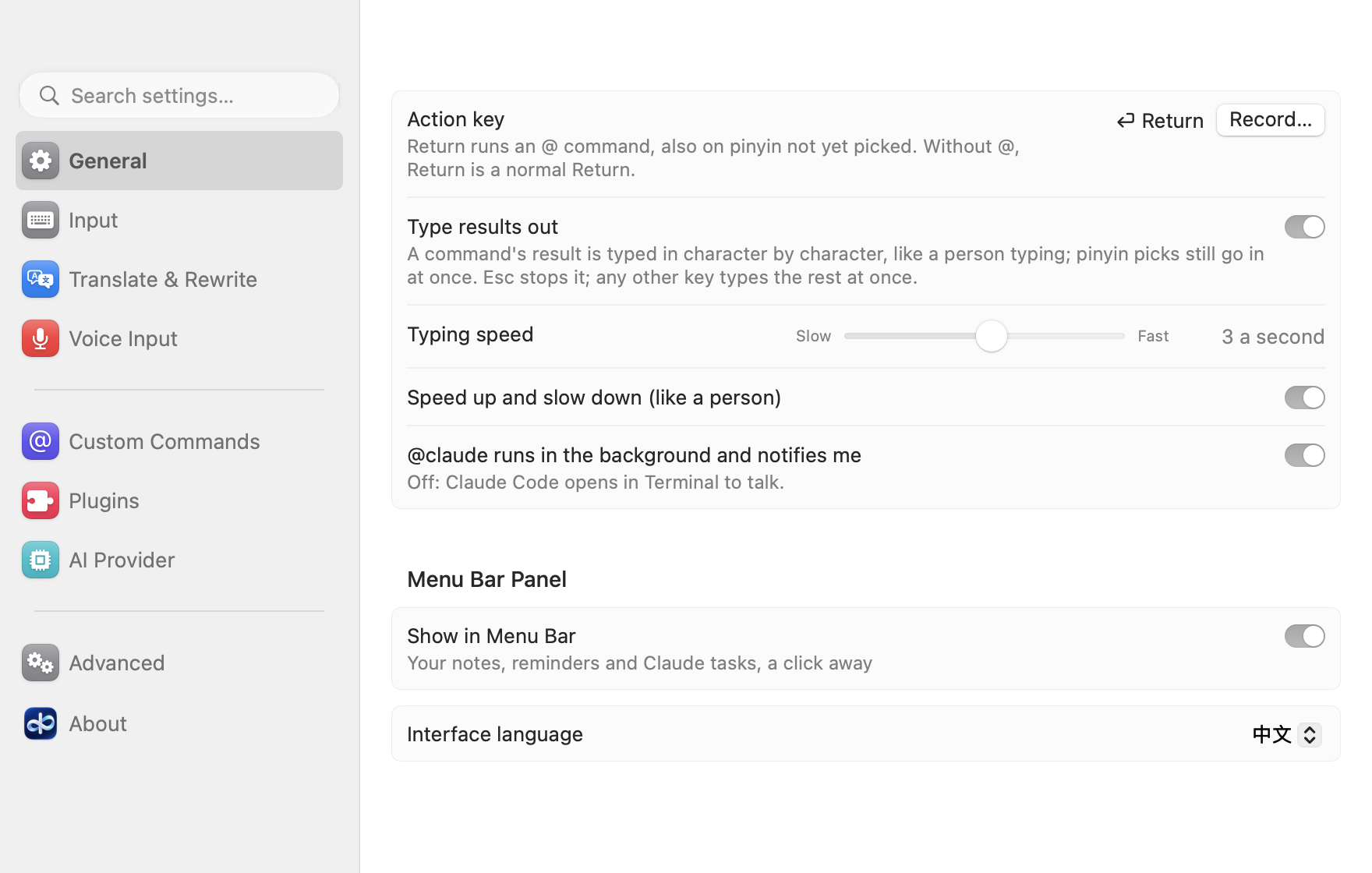
The settings window is laid out like System Settings: a sidebar with a search field and pages (General, Input, Translate & Rewrite, Custom Commands, Plugins, Voice Input, AI Provider, Advanced, About), each page's settings in grouped cards. It opens on the page you had last.
-
The plugin library comes from
plugins.allinoneime.com(the same signed files as before), and the settings window and the DMG's read-me link to allinoneime.com. -
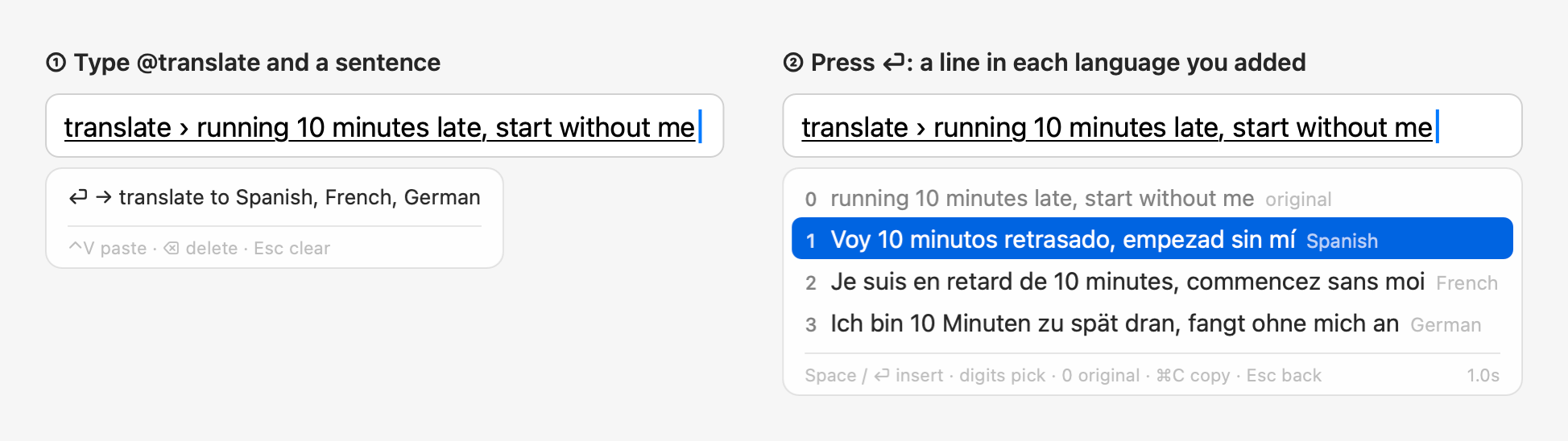
The English README and its screenshots are in English throughout: typing English, translating into Spanish, French and German.
Fixed
@imessagestill ran@py,@jsand custom run commands inside pasted or dictated text; they stay text there now, as everywhere else, with a notice.- With
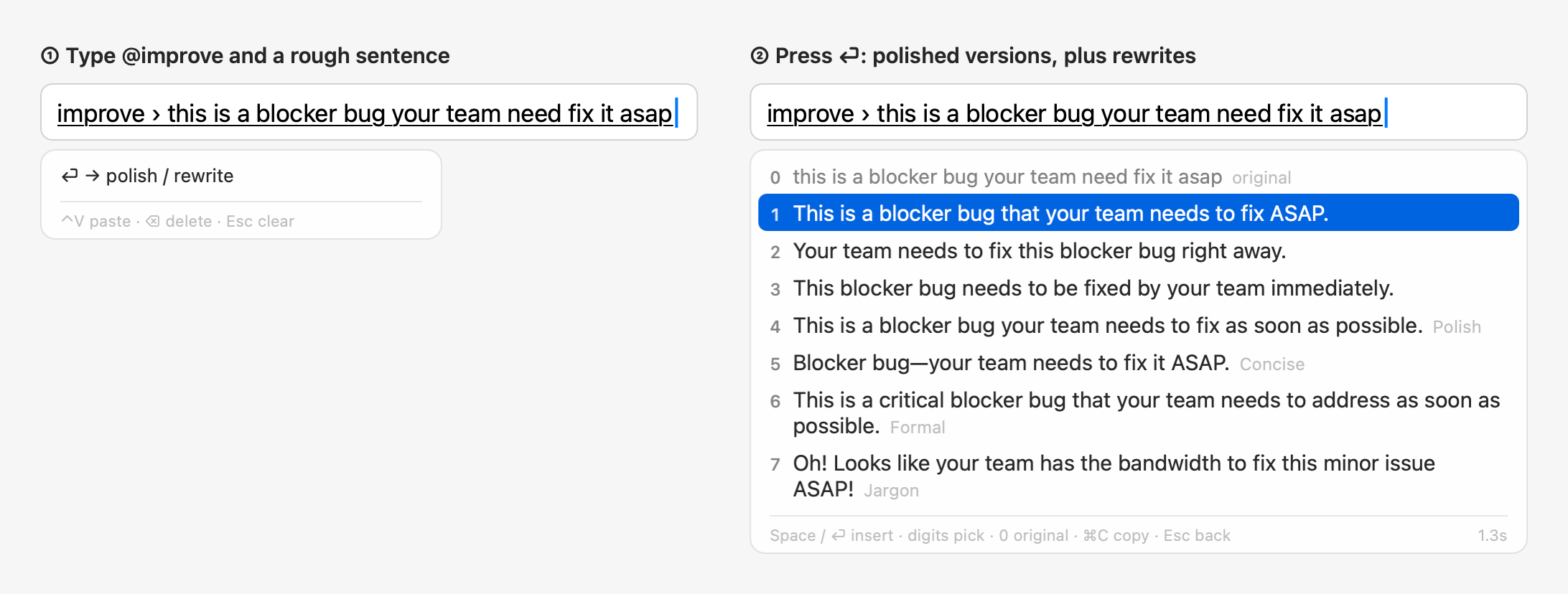
@translate @improve(or "@improve also translates") into languages such as Spanish, French and German, the rewrites came back translated: the Polish style even in the Polish language. They're in the language you wrote again. - With English as the only input language, the settings window no longer calls itself a pinyin input method, and Test Connection tries an English sentence.
- In an English interface, the Jargon line's note on your terms uses plain punctuation ("bandwidth = time and energy").
中文
新增
-
模糊音:在设置的「输入」页,在输入语言的分段条里点「中文(拼音)」,打开「模糊音」,勾上你分不清的几组(z ↔ zh、c ↔ ch、s ↔ sh、n ↔ l、f ↔ h、r ↔ l、an ↔ ang、en ↔ eng、in ↔ ing、ian ↔ iang、uan ↔ uang),两种拼法都能打出来。一两秒生效;Rime 用户目录里你自己的
rime_ice.custom.yaml不会被覆盖。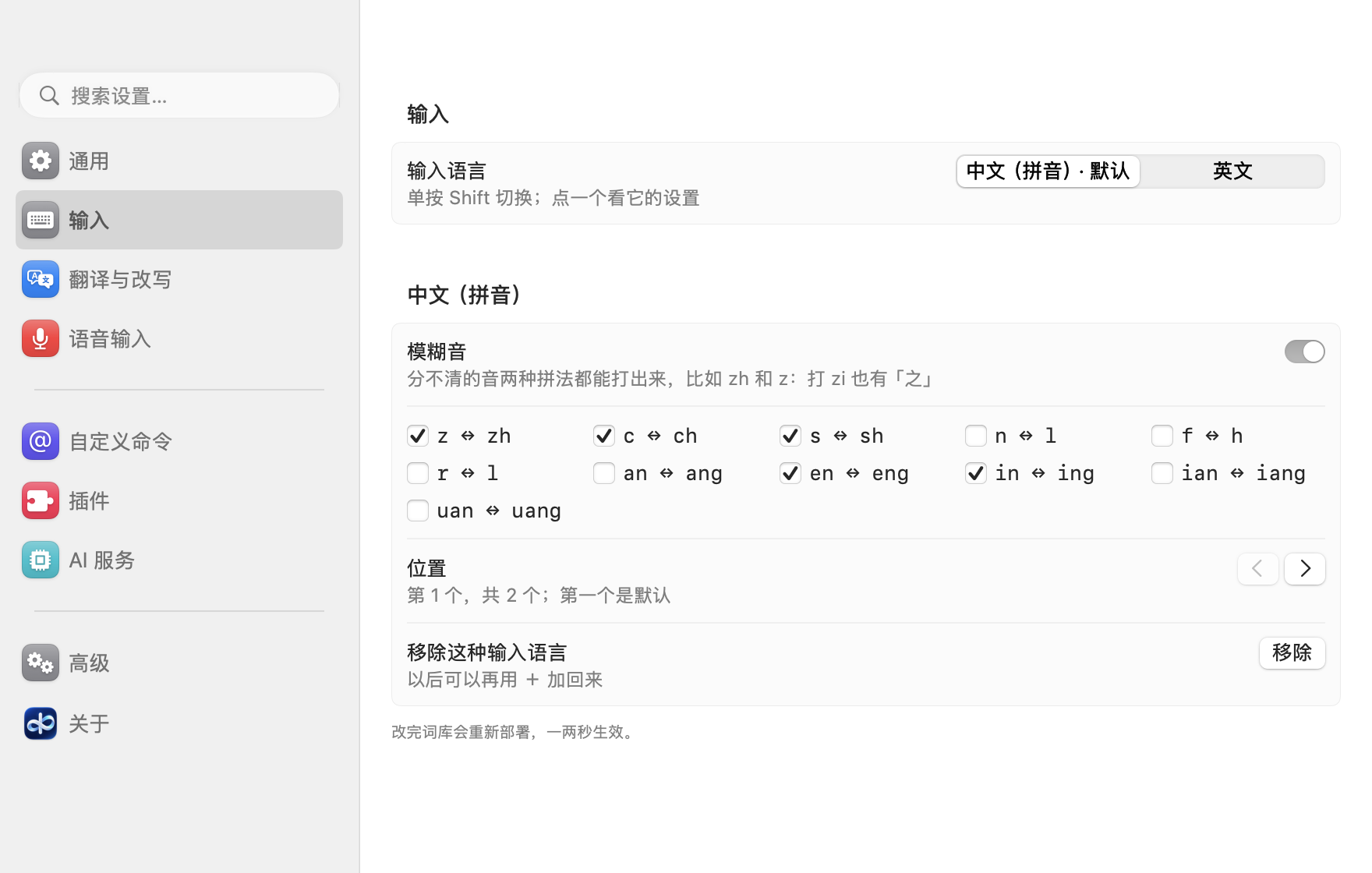
改动
-
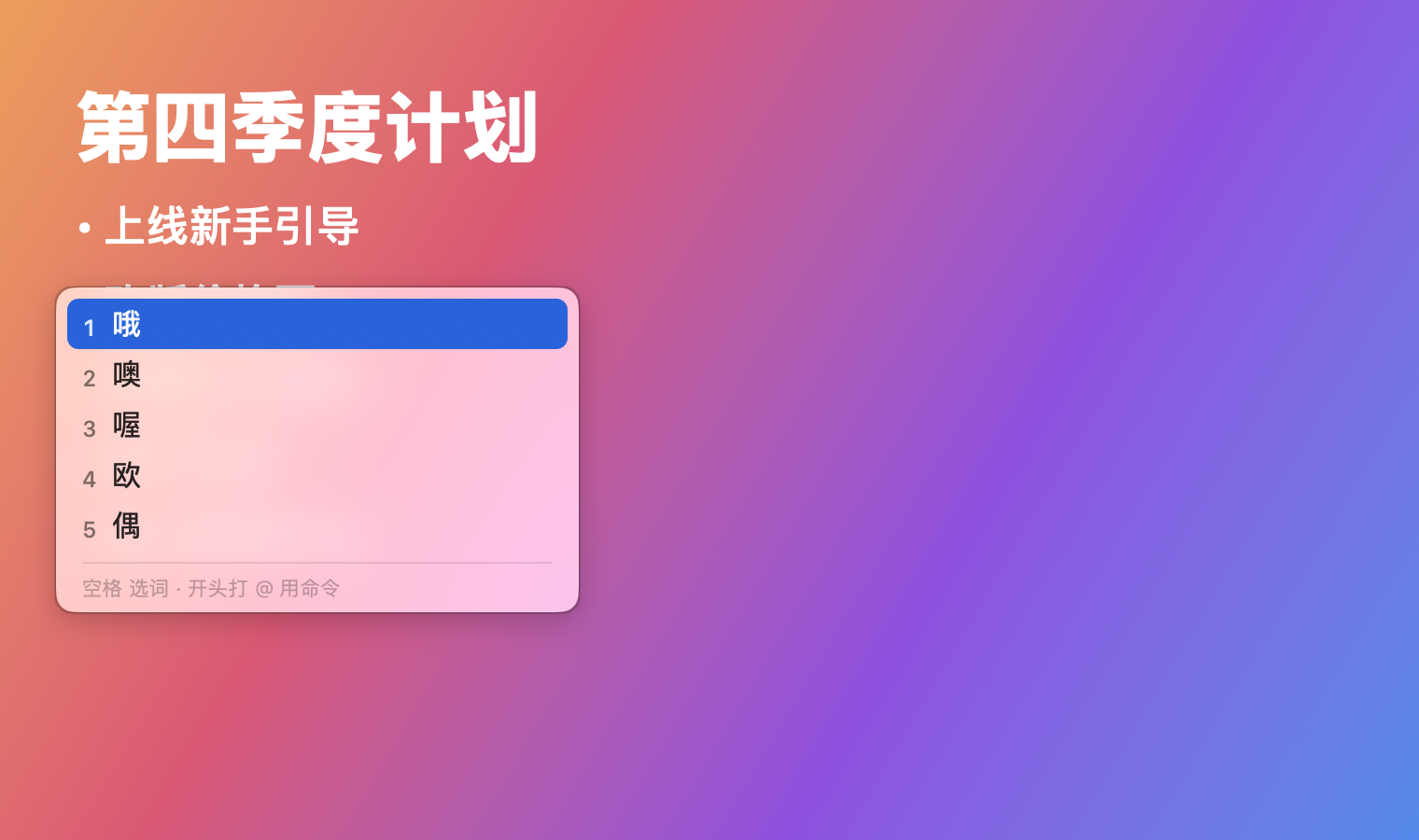
候选词面板和菜单栏面板改用系统自己的玻璃效果,和系统菜单一样:macOS 26 及以后是 Liquid Glass(跟着「系统设置 → 外观」里的「透明」或「着色」走),更早的系统是毛玻璃;打开「辅助功能 → 显示 → 降低透明度」两者都变成不透明。
-
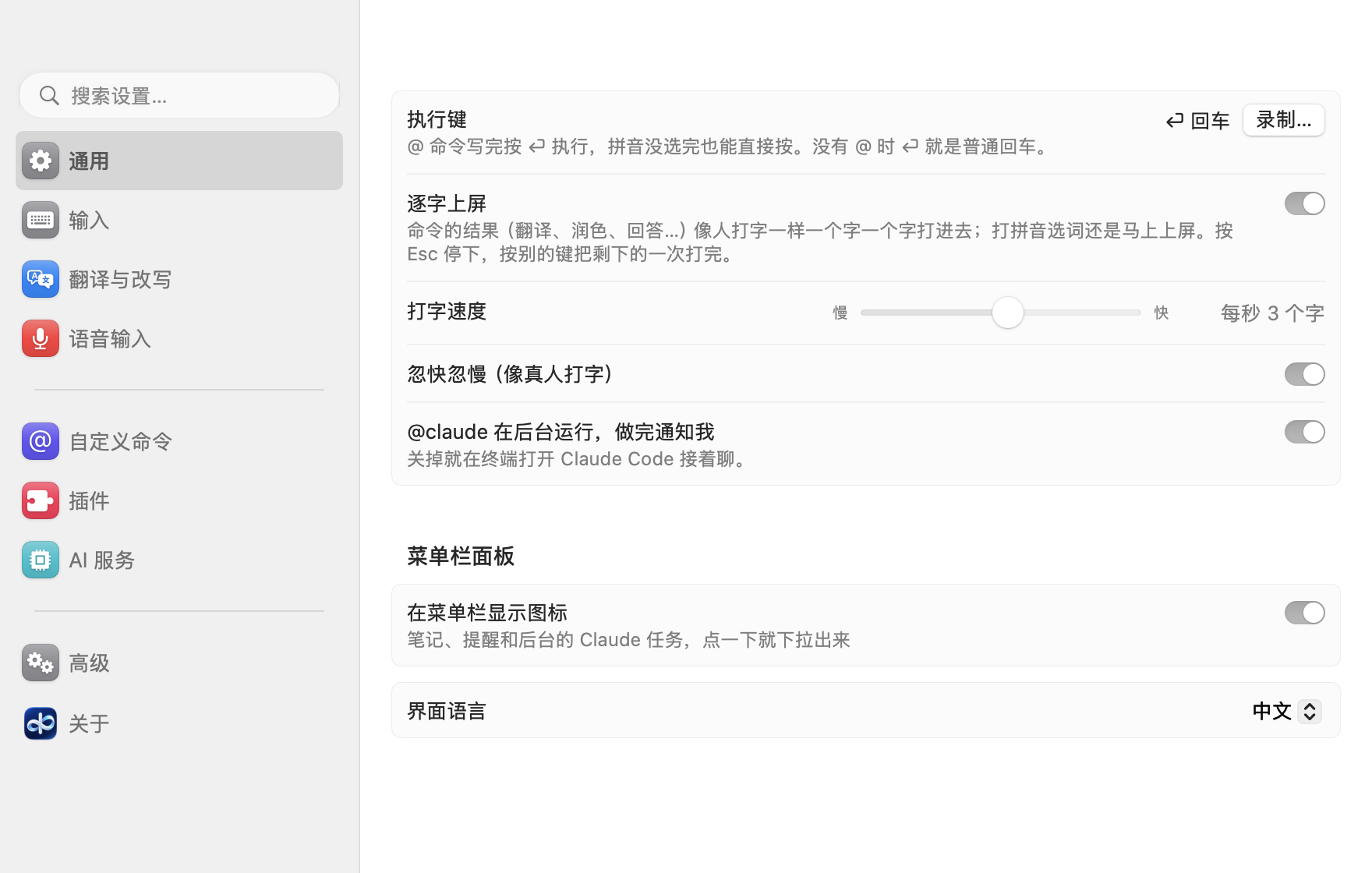
设置窗口改成「系统设置」那样的布局:左边是搜索框和分页(通用、输入、翻译与改写、自定义命令、插件、语音输入、AI 服务、高级、关于),右边每页的设置分组放在卡片里。下次打开停在你上次看的那一页。
-
插件库改从
plugins.allinoneime.com下载(还是原来那些签过名的文件),设置窗口和 DMG 说明里的链接改成 allinoneime.com。 -
英文 README 和截图全部改成英文:打英文,翻译成西班牙语、法语、德语。
修复
@imessage里粘贴或语音输入的文字中的@py、@js和自定义运行命令还是会运行;现在和别的地方一样当成普通文字,并提示一下。@translate @improve(或打开「@improve 同时翻译」)翻译成西班牙语、法语、德语等语言时,改写也被翻译了,「润色」甚至变成了波兰语(Polish)。现在改写又回到你写的那种语言。- 只把英文设为输入语言时,设置窗口不再说自己是拼音输入法,「测试连接」也改用英文句子。
- 英文界面里,黑话那行对你词表里术语的注释改用英文标点(「bandwidth = time and energy」)。
Contributors

Assets 4
AllInOneIME 0.6.0
Note: not yet signed or notarized by Apple. Install: open the DMG and double-click "Install AllInOneIME"; if macOS won't open it, click Open Anyway in System Settings → Privacy & Security. Download it only from this page.
注意:还没有 Apple 签名和公证。安装:打开 DMG,双击「Install AllInOneIME」;macOS 提示无法打开时,到 系统设置 → 隐私与安全性 点「仍要打开」。只从这个页面下载。
SHA-256: f8291d3b5691bc3391fd768acca8c1d33c70e47e03a1513ee792448b4851cb2a
English
Added
-
"Type results out" in the settings (off by default): a command's result (a translation, a polish, an answer…) is typed into the app character by character, like a person typing, at a speed set with a slider, from 6 seconds a character to 40 a second (16 a second by default), optionally speeding up and slowing down in short bursts like a person, with breaks after punctuation; pinyin picks still go in at once. Esc stops it; any other key types the rest at once and then goes on as usual; moving to another field stops it.
-
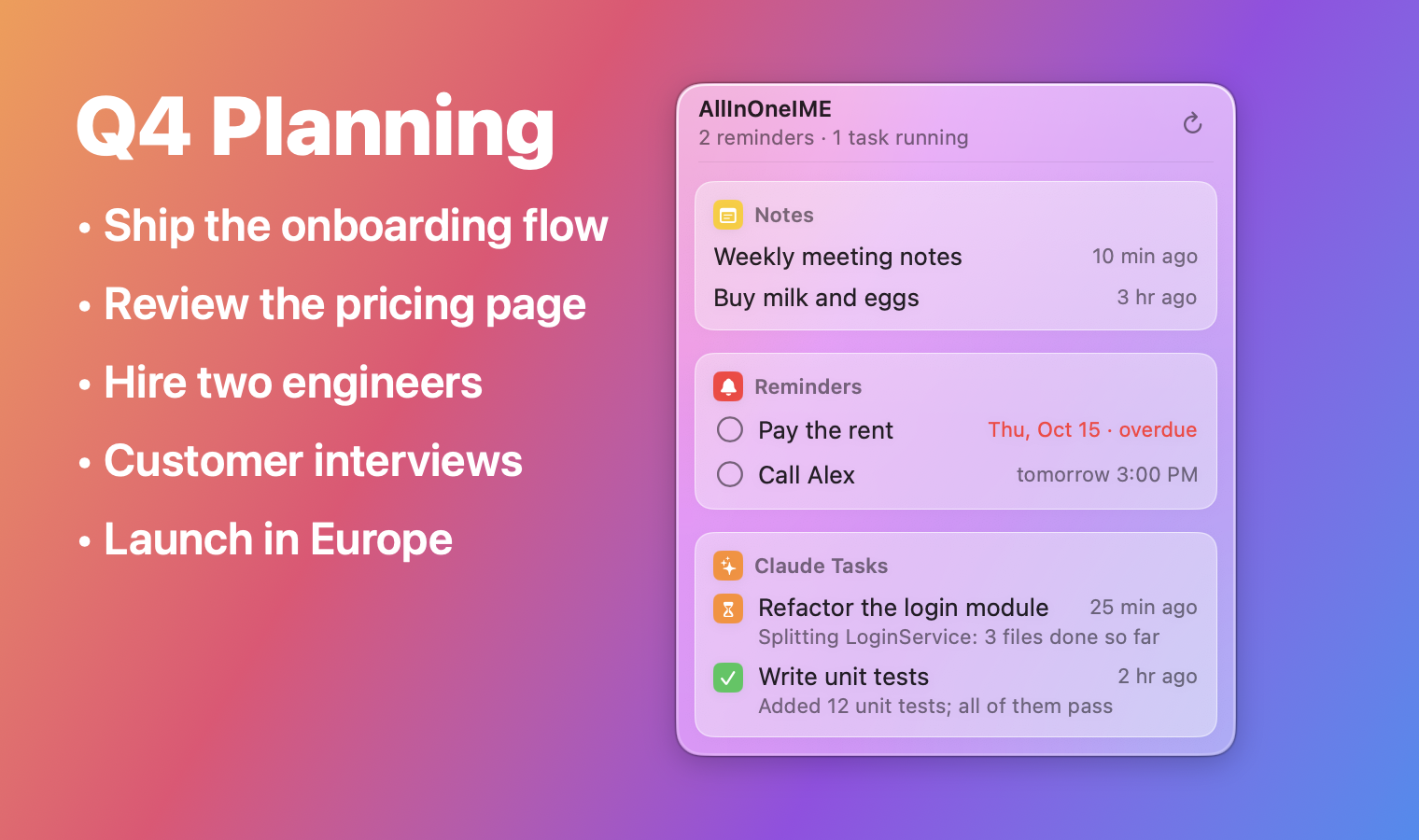
The menu bar panel is frosted glass: what's behind it shows through blurred, in light and dark mode; notes, reminders and tasks each sit on a card of their own, and rows light up under the pointer.
-
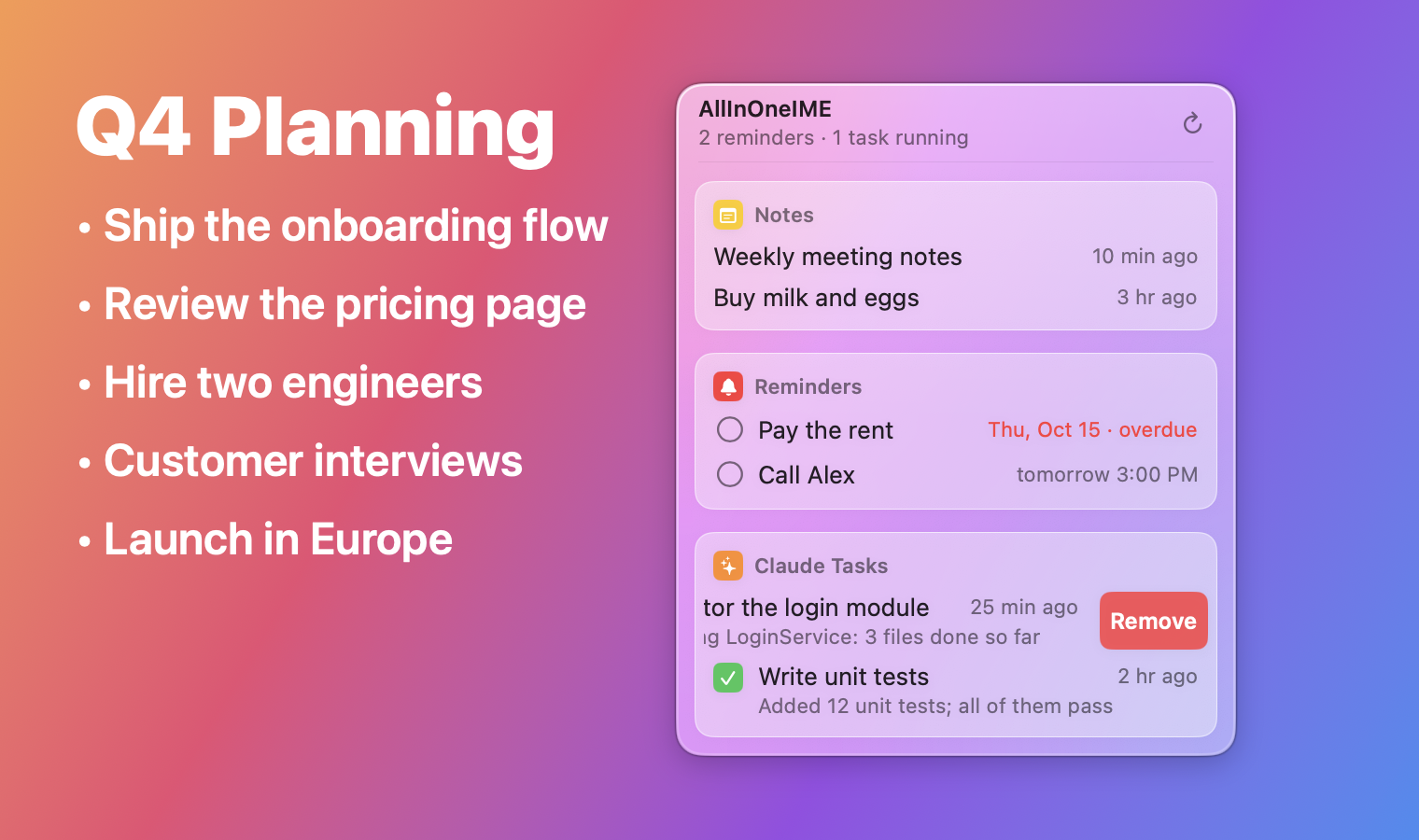
Swipe a row of the menu bar panel to the left with two fingers to show its Remove button, or swipe it all the way to remove it at once; with a mouse, right-click it. Removing only takes it off the panel: the note stays in Notes, the reminder in Reminders (not completed), the task in Claude Code.
Changed
- An API key goes only to the service it was saved for: switching a provider's base URL to another service (a relay) no longer sends it the key saved for the one before; save the key again for the new one. A key saved before this version is tied to the first service it's used with. A base URL over plain
http://is refused unless it's this Mac or the local network (Ollama, LM Studio). - Commands that run code (
@py,@js, custom run commands) inside pasted, dictated or given-back text stay text, with a notice: copying a web page with@py …in it no longer runs it.@calculateand plugin commands still run.
Fixed
@question(and custom AI commands) put every answer on one line, so code lost its line breaks and indentation; answers keep their lines now (code as plain lines, no Markdown fences). In a terminal (Ghostty, iTerm2, Terminal…) the answer goes in as a paste, so the shell or Claude Code takes the line breaks as text instead of running or sending each line; typed out, the characters are typed and each line break is pasted. This posts ⌘V, which needs the Accessibility permission (macOS asks the first time); without it the answer still goes in on one line there.@translateinto several languages highlighted the original (row 0), so ⏎ at once inserted the untranslated sentence; the first translation is highlighted now.- Tapping Shift with text selected deleted the selection in some apps; a Shift-click or ⌥-click that extends a selection switched between Chinese and English. Both leave the text alone now.
- Holding ⏎ or Space ran the command and then, with the key's repeat, inserted the result or sent the message
@imessageshowed; repeats are ignored now while a draft or result is up. - ⏎ in an empty API key field removed the saved key; it does nothing now, and Remove asks first.
@reminderhung on a long run of spaces after a number, and read a span (3-4点,三到四点) as the end time; it's due at the start now.- In Chinese mode,
@and a name in pinyin (@lisi) typed "@l" and the rest as letters; it types@李四now. - The settings window undid a change made from the input method's menu meanwhile; it reads the settings again, and fields saved on ⏎ are also saved when the window closes.
- A background Claude task that failed was looked at every 8 seconds for good; failed tasks count as done, and tasks only waiting for you are looked at less often.
中文
新增
-
设置里的「逐字上屏」(默认关):命令的结果(翻译、润色、回答…)像人打字一样一个字一个字打进 App,速度用滑块调,从「6 秒一个字」到「每秒 40 个字」(默认每秒 16 个),还可以打开「忽快忽慢」:一小段一小段像真人那样时快时慢;标点后面会停顿一下;打拼音选词还是马上上屏。打的时候按 Esc 停下,按别的键就把剩下的一次打完再接着处理这个键;切到别的输入框也会停。
-
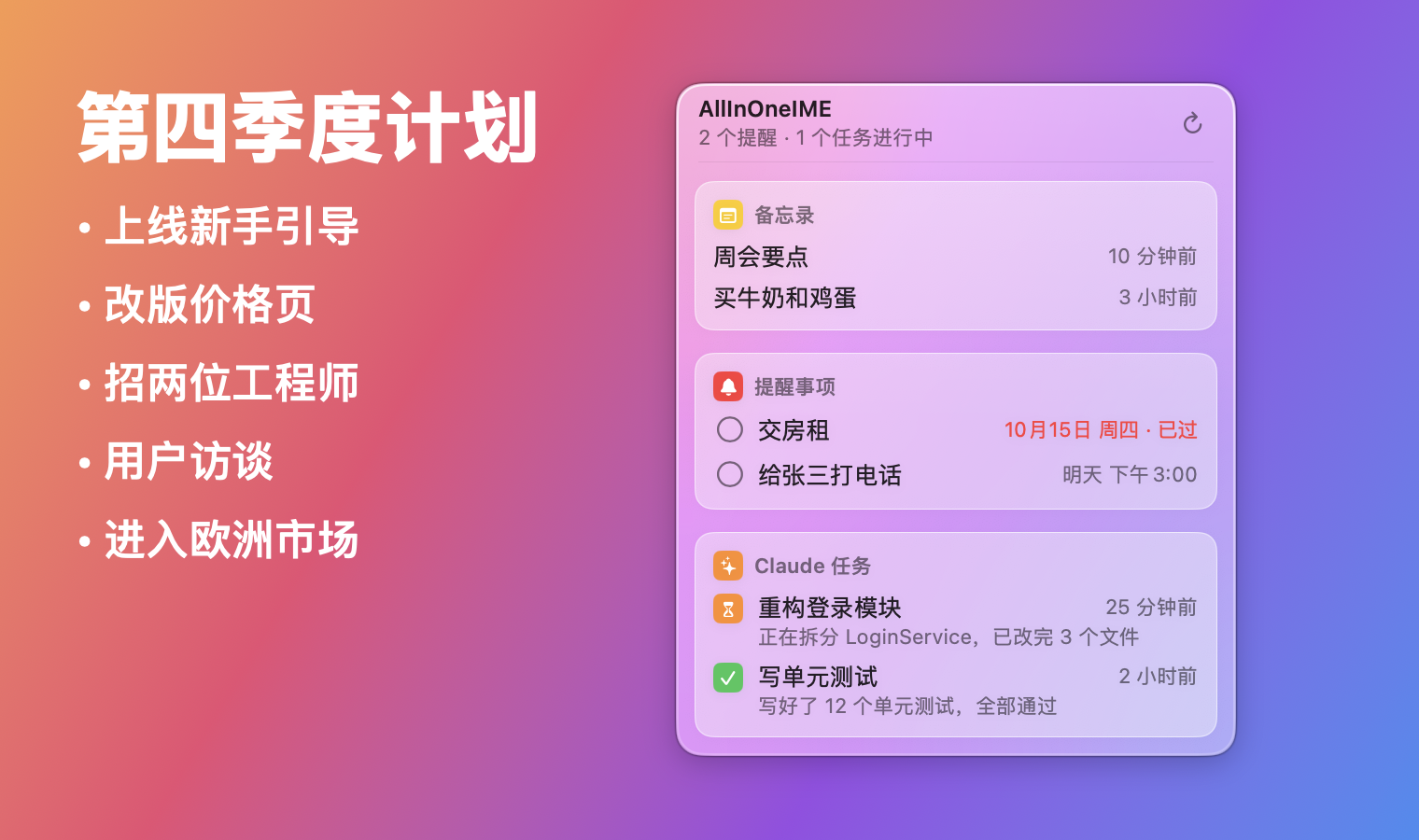
菜单栏面板改成毛玻璃:后面的内容模糊透出来,跟着浅色、深色模式走;笔记、提醒、任务各放在一张卡片上,鼠标移到一行上会高亮。
-
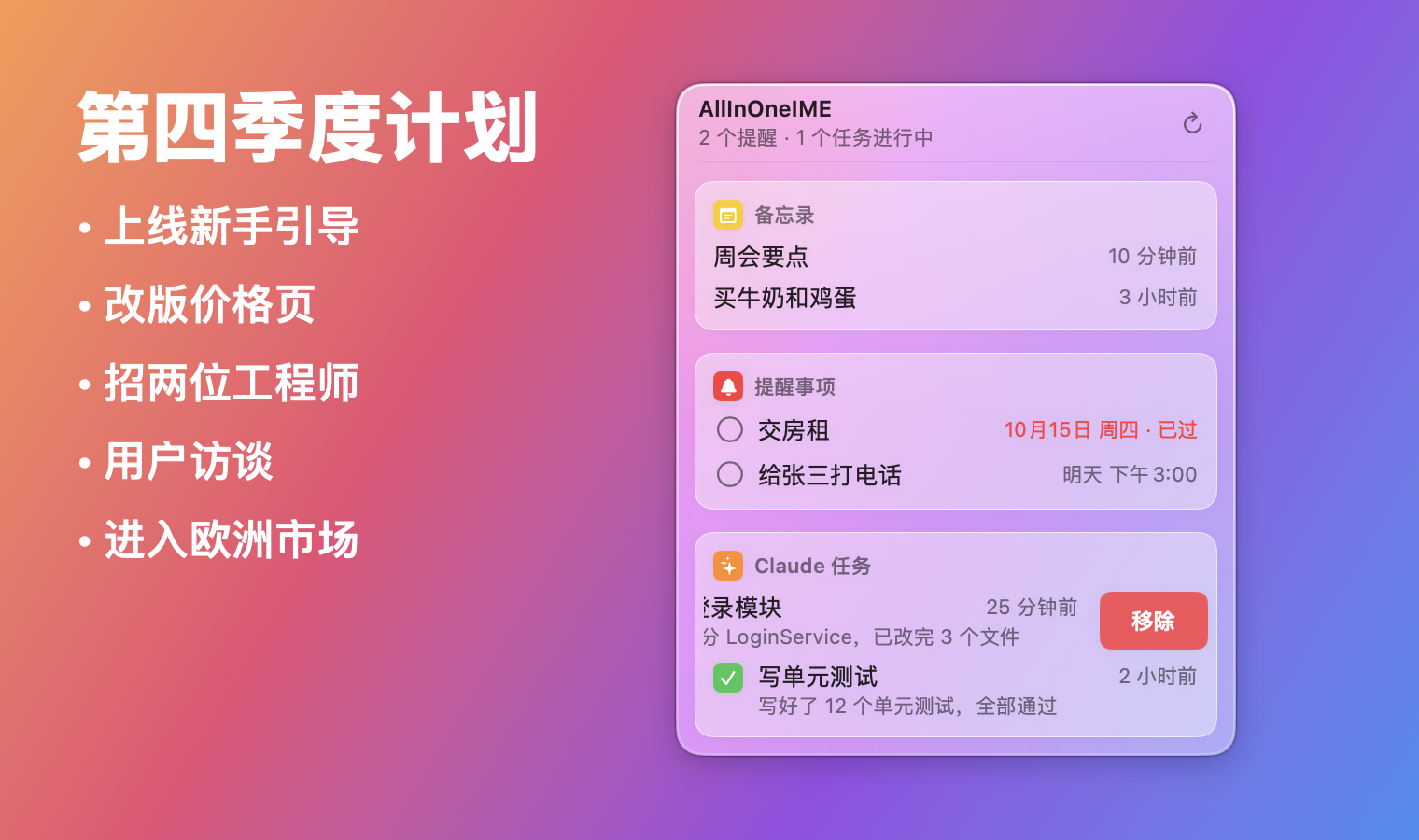
菜单栏面板里的一行,用两指往左滑露出「移除」按钮,一直滑到底就直接移除;用鼠标的话右键它。移除只是不在面板里显示:笔记还在「备忘录」里,提醒还在「提醒事项」里(不会被勾完成),任务还在 Claude Code 里。
改动
- API 密钥只发给保存时的那个服务:把某个服务商的地址换成别的服务(中转)后,不会再把之前那个服务的密钥发过去,需要为新的服务重新保存密钥。这个版本之前存的密钥,会绑定到第一次用它的服务。普通
http://的地址只允许本机和局域网(Ollama、LM Studio)。 - 粘贴、语音输入或退回来的文字里如果有运行代码的命令(
@py、@js、自定义的运行命令),会当成普通文字,并提示一下:复制的网页里带@py …不会再被运行。@calculate和插件命令照常运行。
修复
@question(和自定义的 AI 命令)的回答以前全压成一行,代码的换行和缩进都没了;现在保留换行(代码照原样分行,不带 Markdown 代码块标记)。在终端里(Ghostty、iTerm2、终端…)回答以「粘贴」的方式进去,shell 和 Claude Code 会把换行当成文字,不会一行一行执行或直接发送;逐字上屏时字照样一个个打,换行用粘贴。这要模拟按 ⌘V,需要「辅助功能」权限(第一次会弹出请求);没给权限时终端里还是合成一行。@translate翻译成几种语言时,高亮在第 0 行(原文)上,直接按 ⏎ 上屏的是没翻译的原句;现在高亮第一个翻译。- 选中文字时轻按 Shift,有的 App 里选中的文字会被删掉;Shift 加点击、⌥ 加点击扩展选区时,会切换中英文。现在都不会动文字了。
- 按住 ⏎ 或空格,命令运行后按键的连发会把结果直接上屏,或者把
@imessage等你确认的消息发出去;现在有草稿或结果时会忽略连发。 - 在空的 API 密钥框里按 ⏎ 会删掉已保存的密钥;现在什么都不做,点「删除」也会先确认。
@reminder遇到数字后面一长串空格会卡住;时间段(3-4点、三到四点)以前按结束时间算,现在按开始时间提醒。- 中文模式下
@加拼音名字(@lisi)会打出「@l」和剩下的字母;现在打出@李四。 - 设置窗口会把同时在输入法菜单里改的设置改回去;现在会重新读取设置,按 ⏎ 保存的输入框在关窗口时也会保存。
- 后台的 Claude 任务失败了,会一直每 8 秒查一次;现在失败的任务算作结束,只是在等你的任务也查得少一些。

AllInOneIME 0.5.0
Note: not yet signed or notarized by Apple. Install: open the DMG and double-click "Install AllInOneIME"; if macOS won't open it, click Open Anyway in System Settings → Privacy & Security. Download it only from this page.
注意:还没有 Apple 签名和公证。安装:打开 DMG,双击「Install AllInOneIME」;macOS 提示无法打开时,到 系统设置 → 隐私与安全性 点「仍要打开」。只从这个页面下载。
SHA-256: f1e7c7e22de97da20d2655bd24fcc1f0169aaca086760e1ddc3b91a0be87518b
English
Added
@translate: translates into every language you added, in the order dragged in the settings, a line each (three versions when there is only one); the sentence's own language is skipped.@translate @improve …together (either order) translates and rewrites in one request; to make@improvealways do that, turn on "@improve also translates" in the settings or the menu.- The menu bar panel: click AllInOneIME's icon in the menu bar (the ∞-and-cursor mark) for the notes saved with
@note, the reminders not done yet in the AllInOneIME list of Reminders (click the circle to tick one off) and the background Claude tasks (5 shown at a time, with scrolling and a search box when there are more); click a row to open it, a click elsewhere closes it. It never takes the focus from the app you're typing in (only its search box, once clicked, takes the keyboard); Notes is never launched; access to Reminders is asked for only from its "Allow Access to Reminders" button;claude agentsruns only while it's down. The icon is shown by default and can be turned off in the settings. - Languages are added, not fixed:
@translatecan translate into Japanese, Korean, French, German, Spanish, Traditional Chinese and more, and input languages are added the same way: Chinese (pinyin) only, English only, or both. Drag them into order under "Input" and "Translate" in the settings: new text fields start in the first input language, and translations come in that order; with two input languages Shift switches, with one it doesn't. A new user starts with one of each: Chinese in, English out. @notesaves the text to the Notes app, in a folder named AllInOneIME (made when missing); nothing is inserted. Pasted text keeps its line breaks, up to 20000 characters.@reminderadds a reminder to the Reminders app, in a list named AllInOneIME, with the time written in the text and read on the Mac (明天下午3点,明晚7点,3点半,30分钟后,下周一 9:30,15号,下个月,年底,tomorrow at 3pm,in 2 hours,next month). A row shows what was read; ⏎ or Space adds it, with an alarm at its time, or all day for a date alone. Neither@notenor@remindergoes to the AI; when a save fails, the text comes back into the command (onto the clipboard if you've moved to another text field), so nothing is lost.@opensearches by keywords: several words, separated by spaces; apps by their Chinese names too (计算器, 系统设置), and Finder and the standard folders (访达, 下载, 桌面, 文稿;下载 pdffinds the PDFs in Downloads), shown that way in a Chinese interface; what you opened with@openand recently used files first; and when the names find hardly anything, the contents of the files in your home folder, marked "content" (with only those, ⏎ lists them to pick from).@openwith a web address (github.com,localhost:3000,https://…,www.…): the first result opens it in the default browser, after a file named exactly that (MANIFEST.in).@imessagesends an iMessage. Type a name, its pinyin (in full or the initials), a phone number or an email and pick the recipient in the candidate panel (the ones you messaged lately come first), write the message and press ⏎: the panel shows what will be sent, and ⏎ again sends it (Esc goes back to editing). Nothing is typed into the text field. Commands inside the message such as@stock AAPLrun first. The first time, macOS asks for two permissions: access to Contacts (only names, phone numbers and emails are read) and control of Messages to send.- A new plugin type,
link: no code; the text after the command goes into a web address that opens in the default browser, and nothing is inserted. Commands inside the text (@stock …) run first and their output goes in; it doesn't run during secure input; 4000 characters at most. - Custom commands can open a web page too (
"type": "link"with aurlcontaining{input}), say@googleto search. Plugins/in the repository:@x,@threads,@bskyand@weiboopen each site's composer with the text filled in. They aren't installed with the app: install them from the plugin library.- The
@xeplugin converts currencies:@xe 100 USD CNYgives100 USD = 670.69 CNY (1 USD = 6.7069 CNY · 2026-10-11). No amount means 1; codes in any case, and100usd,100 USD to CNY,100美元 人民币,$,€,¥work too; one currency converts to CNY (CNY to USD); several targets at once. Rates by ExchangeRate-API (daily), or the ECB's through Frankfurter when it can't be reached. Also inPlugins/, installed from the library. - The plugin library: "Browse Library…" under Plugins in the settings lists the plugins of the plugin library (icon, summary, version, the websites each contacts) and installs them in one click. The library's index is signed (Ed25519, the public key built into the app) and read only once the signature checks out; a plugin is installed only when every file matches its sha256, downloaded to a temporary folder first, so a failure changes nothing. A newer version shows "Update", updated by hand; the network is used only when the library is opened or refreshed. Local plugins in the plugins folder are never overwritten.
@calculate <expression>: calculates on this Mac and offers the result to insert, e.g.@calculate 23*17→391.+ - * /(also× ÷),^or**for powers, parentheses,50%, the functionssqrt,abs,round,floor,ceil,ln,log,exp,sin,cos,tan,min,maxandpow, the constantspi(π) ande, and full-width digits and signs; arithmetic is exact in decimal (0.1+0.2is0.3). It also works inside a sentence:@reply 总价是 @calculate 23*17 元. Nothing goes online and no other program runs.@pyand@js: run a line of Python or JavaScript and insert the result. When the code ends with an expression, its value is inserted (@py 2**100,@js [1, 2, 3].map(x => x * 2)), otherwise what it printed; on an error, the error's first line is shown. The code runs in a separate process (10-second timeout, Esc stops it), only when you press the action key and only as you typed or pasted it; it works inside a sentence too:@reply 答案是 @py 2**100.@pyuses the Mac'spython3and isn't offered without one (without Xcode's command line tools,/usr/bin/python3only offers to install them, so it doesn't count; the same goes forpython3,gitand the like in custom commands);@jsuses macOS's built-in JavaScriptCore and can't read files, reach the network or run other programs.
Changed
- The action key is Return by default; "Record…" in the settings takes the key you press next (⌃⏎, ⌘⏎, F5, a tap of ⌥…), "Use ⏎" goes back.
- The settings regrouped: Input, Translate (@translate, "Languages"), Rewrite Styles (@improve) and the jargon list each have a section; the interface language is at the bottom, following the system by default.
- Rewrite styles are a list like the languages: "Add…" to add, ⓧ to remove, drag to reorder (the candidates follow that order); the jargon list has its own section.
- A shorter input menu: rewrite styles, output languages and input languages are submenus whose titles show what's set (e.g. "Rewrite Styles: Polish, Concise, Formal").
Removed
@read(a web page's text) is gone for now:@openwith a web address opens it in the browser.- Sentence mode is gone (the flow where, without
@, a sentence went into a draft and the action key produced the results). To translate or polish, start the sentence with@improve(@i⏎). ⇧Space no longer toggles anything; it's now the same as Space. "Sentence mode (⇧Space)" in the settings window ("Sentence Mode (⇧Space)" in the input menu), "Sentence mode: English too" in the settings, andenglishAIin the config are gone too; leaving that key in an old config.json does no harm.
Fixed
- In a terminal (Ghostty, Terminal, iTerm2 and others), a command's output with several lines (custom
runcommands, plugins,@read) used to go in as printed, and the terminal ran every line but the last; now it goes in as one line, for@pyand@jstoo. Other apps still get the lines as printed.
Upgrading
@improvenow polishes and rewrites only, without translating: Chinese stays Chinese. Use@translateto translate, or@translate @improvefor both as before.- Sentence mode is gone: without
@, ⏎ is a plain Return and picked words go straight in; to translate or polish, start the sentence with@improve(@i⏎). If you had sentence mode on, there's nothing to do: the setting is cleared. - Existing settings stay as they were: both input languages remain, and the translation languages are English and Chinese (Chinese is translated into English, English into Chinese); remove one under "Input" or "Translate" in the settings to keep just one.
- The first time,
@notemakes macOS ask whether AllInOneIME may control Notes, and@reminderwhether it may access Reminders: allow them. If you didn't, allow AllInOneIME in System Settings → Privacy & Security → Automation, or → Reminders. - The new built-in commands
translate,note,reminder,imessage,calculate,pyandjshide a custom command or plugin with the same name (such as@pyadded from the examples in the settings), so yours no longer shows up: "Custom @ Commands" in the settings marks a custom command hidden this way ("Same name as a built-in command: rename it to use it"); rename it there to keep using it.
中文
新增
@translate:翻译成你加的所有语言,按设置里拖好的顺序,每种一行...
Contributors

Assets 4
AllInOneIME 0.4.0
Note: not yet signed or notarized by Apple. Install: open the DMG and double-click "Install AllInOneIME"; if macOS won't open it, click Open Anyway in System Settings → Privacy & Security. Download it only from this page.
注意:还没有 Apple 签名和公证。安装:打开 DMG,双击「Install AllInOneIME」;macOS 提示无法打开时,到 系统设置 → 隐私与安全性 点「仍要打开」。只从这个页面下载。
SHA-256: 5ffc7062d34d22734c775a1f3d91dca19159ecb3a1f1187ab80092fa56d2f058
English
Added
@clauderuns in the background by default (a Claude Code background session) instead of opening Terminal, with a notification when it's done; click it to open the session in Terminal. The new@tasksshows the background tasks' progress and replies. The settings switch it back to Terminal.- Icons in the command list: a colored square with an SF Symbol for each command (like iOS Settings), and in
@tasksfor done / working / waiting for you. Custom commands and plugins can set their own withicon(an SF Symbol name) andcolor. @settingsopens the settings window.
Changed
- The command list has every command, 5 shown at a time: ↑↓, the wheel or the trackpad scroll it (the position shows on the right), digits pick among the rows shown, and a click picks one.
Fixed
- Opening Claude Code or a command in Terminal did nothing when the login shell starts a wrapper first (such as the Kiro CLI's
kiro-cli-term): the command was dropped, leaving an empty prompt. The command is now typed once the shell is ready (asking once for permission to control Terminal). @tasksopens a task whose process has ended withclaude --resume.
Upgrading
@claudenow runs in the background and notifies you when it's done; to open Terminal as before, turn off "@claude runs in the background and notifies me" in the settings.- The first time a Terminal window is opened (
@claudein Terminal mode, a notification,@tasks, "run in Terminal" commands), macOS asks whether AllInOneIME may control Terminal: click OK. Without it things still work, except that a shell which starts a wrapper first (like the Kiro CLI's) may not run the command.
中文
新增
@claude默认在后台运行(Claude Code 的后台会话),不再打开终端;做完弹系统通知,点通知在终端里打开那个会话接着聊。新命令@tasks查看后台任务的进度和回复。设置里可以改回在终端打开。- 命令列表加了图标:每个命令一个彩色小方块配 SF Symbols 图标(像 iOS 设置那样),
@tasks里用图标表示完成 / 进行中 / 等你。自定义命令和插件可以用icon(SF Symbol 名)和color指定自己的图标。 @settings:直接打开设置窗口。
改动
- 命令列表里有全部命令,一次显示 5 个,用 ↑↓、滚轮或触控板往下滚(右下角显示位置),数字选当前看到的那几行;也可以直接点。
修复
- 在终端里打开 Claude Code 或命令时,如果登录 shell 会先启动一层包装(比如 Kiro CLI 的
kiro-cli-term),命令会被吞掉,只剩一个空的提示符。现在等 shell 准备好再输入命令(第一次会请求「控制终端」的权限)。 @tasks打开一个进程已经结束的任务时,改用claude --resume重新打开那个会话。
升级须知
@claude现在默认在后台跑、做完通知你;想要以前那样直接打开终端,在设置里关掉「@claude 在后台运行,做完通知我」。- 第一次打开终端(
@claude的终端模式、点通知、@tasks、「在终端运行」命令)时,macOS 会问是否允许 AllInOneIME 控制「终端」,点「好」。不允许也能用,只是遇到 Kiro 这类会先包一层的 shell 时命令可能不执行。
Contributors

Assets 4
AllInOneIME 0.3.0
Note: not yet signed or notarized by Apple. Install: open the DMG and double-click "Install AllInOneIME"; if macOS won't open it, click Open Anyway in System Settings → Privacy & Security. Download it only from this page.
注意:还没有 Apple 签名和公证。安装:打开 DMG,双击「Install AllInOneIME」;macOS 提示无法打开时,到 系统设置 → 隐私与安全性 点「仍要打开」。只从这个页面下载。
SHA-256: 3c4cbbf0b9c847a8a150fa20f7d49cba9f69a1efe3f8fe7ec04b7bc5dfffb900
English
Added
- An installer: download
AllInOneIME-<version>.dmgfrom Releases and double-click "Install AllInOneIME" in it to install, update or uninstall; no more building with Xcode. Universal: it works on Macs with Apple silicon and Intel. It installs for the current user only, with no administrator password. The installer isn't notarized by Apple yet: the first time, click Open Anyway in System Settings → Privacy & Security; download it only from Releases. @read <address>: a web page's title and text (web pages, plain text, PDFs) as context for the AI inside a sentence, e.g.@question 用一句话总结 @read https://….- Commands that fetch something work inside a sentence:
@reply 告诉他 @stock AAPL 现在多少钱runs @stock first and puts its output in place. - Plugins: ready-made
@commands (JavaScript in a separate process that can reach only the sites it declares); the first is@stockfor stock quotes. A "Plugins" section in the settings. - The command list shows at most 5, the most used lately first; type letters for the others.
- AllInOneIME Cloud: sign up with an email for 20 free requests a day, or subscribe for 3000 a month at $3 (Stripe), without an AWS account or API key of your own. The service is run by the developer (not in this repository).
- Besides Amazon Bedrock: the Claude API, the Gemini API and OpenAI-compatible services (DeepSeek, Qwen, Ollama, …), chosen under "AI Provider" in the settings; API keys are kept in the keychain.
- Your own
@commands, added under "Custom @ Commands" in the settings (or in the config'scustomCommands), of three types:prompt(goes to the AI with your instruction),run(runs a program in the background, e.g.python3 -c; its output can be inserted) andterminal(runs in Terminal). See "Your own commands" in the README. - ⌃V in a command (or in a sentence-mode draft) appends the clipboard text after what you've typed, in any app, terminals included. In terminals (Ghostty etc.) and Notes, the app takes ⌘V and pastes it itself; use ⌃V there.
- Development:
make dmgbuilds the release installer (signed if there's a Developer ID certificate, and notarized too ifNOTARY_PROFILEis set).
Changed
- The input method carries its licenses (
LICENSE,THIRD_PARTY_NOTICES.md).THIRD_PARTY_NOTICES.mdnow has the full license texts of the libraries compiled into librime (Boost, glog, LevelDB, yaml-cpp, OpenCC, Lua and others).
Fixed
- In Slack and similar apps, an @ command being typed ("@improve …") was taken into a mention and then shown again, doubled. Commands being typed are now shown without their
@(improve › 你好; any other@in a draft full-width), and a composition the app takes starts over instead of doubling; what runs and what is inserted are unchanged. - An
@claudeprompt starting with-(like--dangerously-skip-permissions) was read by Claude Code as an option; it's always the first message now. - A very long row in the candidate panel (such as a long
@questionanswer) could lose its last line; it is shown in full now. - The settings window explains
@improvemore clearly: "Chinese → translate to English / rewrite; English → polish the English / rewrite".
Upgrade notes
- A copy installed from source (
make install) can be updated with the installer, and the other way round: the bundle ID hasn't changed, so settings, learned words and the entry in your input sources are kept. - The apps in the installer are ad-hoc signed: after switching to the installer, and after each update, macOS may ask for the microphone permission again.
中文
新增
- 安装包:从 Releases 下载
AllInOneIME-<版本>.dmg,双击里面的「安装 AllInOneIME」就能安装、更新或卸载,不用再装 Xcode 编译。通用版,Apple 芯片和 Intel 的 Mac 都能用。只装给当前用户,不需要管理员密码。安装包还没有经过 Apple 公证,第一次打开要在 系统设置 → 隐私与安全性 里点「仍要打开」;只从 Releases 下载。 @read 网址:读网页的标题和正文(网页、纯文本、PDF),放在句子中间给 AI 当上下文,比如@question 用一句话总结 @read https://…。- 句子中间也能用查数据的命令:
@reply 告诉他 @stock AAPL 现在多少钱,里面的先运行,结果替换回原文,再交给外面的命令。 - 插件:别人写好的
@命令(JavaScript,在单独的进程里运行,只能访问它声明的网站),第一个是@stock查股价。设置里有「插件」一栏。 - 命令列表最多显示 5 个,最近常用的排在前面;其他命令打字母找。
- AllInOneIME 云:用邮箱注册登录,每天免费 20 次,订阅 $3/月 3000 次(Stripe),不需要自己的 AWS 或 API key。服务端是开发者自己运行的服务(不在这个仓库里)。
- 除了 Amazon Bedrock,也能用 Claude API、Gemini API 和兼容 OpenAI 的服务(DeepSeek、Qwen、Ollama 等):在设置的「AI 服务」里选,API key 存在钥匙串里。
- 自己加
@命令:在设置的「自定义 @ 命令」里添加(也可以直接写配置文件的customCommands),三种:prompt(发给 AI,用你的指令)、run(在后台运行程序,比如python3 -c,输出可以上屏)、terminal(在终端里运行)。见 README 的「自己加命令」。 - 在命令里(或整句模式的草稿里)按 ⌃V,把剪贴板里的文字接到已经打的字后面,哪个 App 里都能用,终端也行。⌘V 在终端(Ghostty 等)和备忘录里会被 App 自己拿去粘贴,在那里用 ⌃V。
- 开发:
make dmg生成发布用的安装包(有 Developer ID 证书时签名,设了NOTARY_PROFILE时顺便公证)。
改动
- 输入法里带上了许可证(
LICENSE、THIRD_PARTY_NOTICES.md)。THIRD_PARTY_NOTICES.md补上了编进 librime 的库(Boost、glog、LevelDB、yaml-cpp、OpenCC、Lua 等)的许可证全文。
修复
- Slack 等 App 里用 @ 命令时,App 会把正在输入的「@improve …」当成提及收走,接着草稿又显示一遍,文字重复。现在输入中的命令不显示
@(显示为improve › 你好,草稿里其他的@显示成全角),App 自己收走输入时就从头开始,不再重复;执行和上屏的内容不变。 @claude的内容以-开头时(比如--dangerously-skip-permissions),会被 Claude Code 当成命令行选项;现在一律当作第一句话。- 候选框里很长的一行(比如
@question的长答案)有时会少画最后一行,现在完整显示。 - 设置窗口里
@improve的说明改得更清楚:「打中文 → 翻译成英文 / 改写;打英文 → 英文润色 / 改写」。
升级须知
- 从源码装的(
make install)可以直接用安装包更新,反过来也一样:bundle ID 没变,设置、学到的词和输入法列表里那一项都保留。 - 安装包里的 App 是临时(ad-hoc)签名,换成安装包、或者以后每次更新后,macOS 可能会再问一次麦克风权限。
Contributors

Assets 4
AllInOneIME 0.2.0
English
Added
@commands: type@at the start of a sentence for the command list (type letters to filter), and press the action key (⏎ by default) when done to run the command. When@isn't followed by a command (e.g.@张三, a name), it's inserted as usual.@improve: translates or polishes, plus a few rewrites (Amazon Bedrock); what every sentence used to get.@question: asks a question. The answer appears in the candidate panel; when inserted, it's joined into one line with control characters removed, so it's safe in a terminal too.@claude: opens Claude Code in Terminal with what you wrote as the first message (needs theclaudecommand installed on the Mac).@open: lists matching files, folders and apps as you type (Spotlight); text starting with~/or/is listed as a path, Tab completes, ⏎ opens.
- Once the results are up, ⌘C copies the highlighted one (for
@open, the path). - ⌘V in a command (or in a sentence-mode draft) appends the clipboard text, up to 2000 characters at a time; ⏎ after a command with nothing written yet uses the clipboard text (this works in terminals too). Content that password managers mark as concealed isn't read.
- The version number is shown at the bottom of the settings window, in
make statusand byallinoneime-cli --version.
Changed
- Without
@, it's a regular pinyin input method: picking a word inserts it, ⏎ is Return, in English mode letters are typed directly, what you say while holding right ⌥ is inserted directly too, and nothing goes online. - "Translate key" is now "Action key": ⏎ (the new default), Tap ⌥, ⌥Space or Space; it only applies to
@commands and sentence mode. ⇧⏎ inserts as typed. - The old behavior, where every sentence went into a draft and a key press produced the results, is now "Sentence mode", off by default. Turn it on in the settings, or toggle it with ⇧Space in Chinese mode (⇧Space used to turn the AI on and off).
Fixed
- AllInOneIME had no name in the input source list in System Settings; it now shows AllInOneIME. The microphone and speech recognition permission prompts also follow the system language (Chinese / English).
- Ctrl+Space didn't get to AllInOneIME, or it switched back to U.S. after a while:
make installnow adds AllInOneIME to your input sources (only this one; other input sources are left alone),make uninstallremoves only this one, and thelisted:line ofmake statusshows whether it's in the list.
Upgrade notes
- To upgrade, run
make installas usual, without uninstalling first; it adds AllInOneIME to your input sources, so you usually don't need to add it by hand. translateKeyin the config is no longer read;actionKeyreplaces it, ⏎ by default. If you used Tap ⌥, ⌥Space or Space, choose it again under "Action key" in the settings.- The old "AI translation and rewrites" switch (
aiEnabled) is no longer read, and sentence mode (sentenceMode) is off by default: after upgrading, you get no results without@. For the old behavior, turn on sentence mode. - Upgrading from an AIPinyin (AI 拼音) version:
make installremoves the old AIPinyin.app and "AI 拼音设置"; the added input source and the microphone permission are kept. On first launch, settings, the jargon list and learned words move to~/.config/allinoneimeand~/Library/Application Support/AllInOneIME, logs to~/Library/Logs/AllInOneIME, and each old folder is left as a link to the new one.
Full changelog: CHANGELOG.en.md. To install from source, git clone and run make install; see the README.
中文
新增
@命令:句子开头打@弹出命令列表(打字母筛选),写完按执行键(默认 ⏎)执行。@后面不是命令时(比如@张三)照常上屏。@improve:翻译或润色,再给几种改写(Amazon Bedrock),也就是以前每句话的用法。@question:提问。答案出现在候选框里,上屏时合成一行、去掉控制字符,在终端里也安全。@claude:在「终端」里打开 Claude Code,你写的话就是第一句(需要本机装好claude命令)。@open:边打边列出匹配的文件、文件夹和 App(聚焦搜索);~/、/开头按路径列出,Tab 补全,⏎ 打开。
- 出结果后按 ⌘C 复制高亮项(
@open复制路径)。 - 在命令里(或整句模式的草稿里)按 ⌘V,把剪贴板里的文字接上去,一次最多 2000 字;命令后面还没写内容时按 ⏎,用剪贴板里的文字(终端里也能用)。密码管理器标成隐藏的内容不读。
- 设置窗口底部、
make status和allinoneime-cli --version显示版本号。
改动
- 不打
@时就是普通拼音输入法:选词直接上屏,⏎ 就是回车,英文模式下字母直接上屏,按住右 ⌥ 说的话也直接上屏,不联网。 - 「出结果的键」改为「执行键」:⏎(新的默认)、单按 ⌥、⌥空格 或空格,只对
@命令和整句模式起作用;⇧⏎ 原样上屏。 - 以前每句话都进草稿、按键出结果的用法改为「整句模式」,默认关闭。在设置里打开,或在中文模式下按 ⇧空格 切换(⇧空格 以前是开关 AI)。
修复
- 系统设置的输入法列表里 AllInOneIME 没有名字,现在显示 AllInOneIME。麦克风和语音识别的权限提示也跟随系统语言(中文 / 英文)。
- Ctrl+空格 切不到 AllInOneIME,或切过去一会儿又变回 U.S.:
make install现在会把 AllInOneIME 加进你的输入法列表(只加这一项,其他输入法不动),make uninstall只移除这一项,make status的listed:一行显示它在不在列表里。
升级须知
- 升级照常运行
make install,不用先卸载;它会把 AllInOneIME 加进输入法列表,一般不用再手动添加。 - config 里的
translateKey不再读取,改用actionKey,默认 ⏎。以前用单按 ⌥、⌥空格 或空格的,在设置的「执行键」里重新选一次。 - 以前的「AI 翻译和改写」开关(
aiEnabled)不再读取,整句模式(sentenceMode)默认关闭:升级后不打@就不会出结果。想要原来的用法,打开整句模式。 - 从 AIPinyin(AI 拼音)时期的版本升级:
make install会删掉旧的 AIPinyin.app 和「AI 拼音设置」,已添加的输入法和麦克风权限保留。设置、黑话库和学到的词第一次启动时搬到~/.config/allinoneime和~/Library/Application Support/AllInOneIME,日志搬到~/Library/Logs/AllInOneIME,旧目录留一个指向新目录的链接。
完整的更新记录见 CHANGELOG.md。从源码安装:git clone 后 make install,见 README。