Repository navigation
AllInOneIME 0.6.3

First notarized release: AllInOneIME is now signed with a Developer ID (MicroZ LLC) and notarized by Apple, so there's no more Open Anyway in System Settings → Privacy & Security. The first time, macOS only asks whether to open an app downloaded from the internet: click Open. Coming from 0.6.2 or earlier? Read "Updating from 0.6.2 or earlier" below first: macOS asks for your login password once for each saved key.
首个经过公证的版本:AllInOneIME 现在用 Developer ID(MicroZ LLC)签名,并经过 Apple 公证,不用再去 系统设置 → 隐私与安全性 点「仍要打开」。第一次打开时 macOS 只问一句要不要打开从互联网下载的 App:点「打开」。从 0.6.2 或更早的版本升级?先看下面的「从 0.6.2 或更早版本升级」:每个保存过的 key,macOS 会问一次登录密码。
SHA-256: 264870be5fd238fb07c8228feb6f6f6ac86996e2118870877a6ba9c390d82e79
English
Docs: https://allinoneime.com/docs · Changelog: CHANGELOG.md
Highlights
-
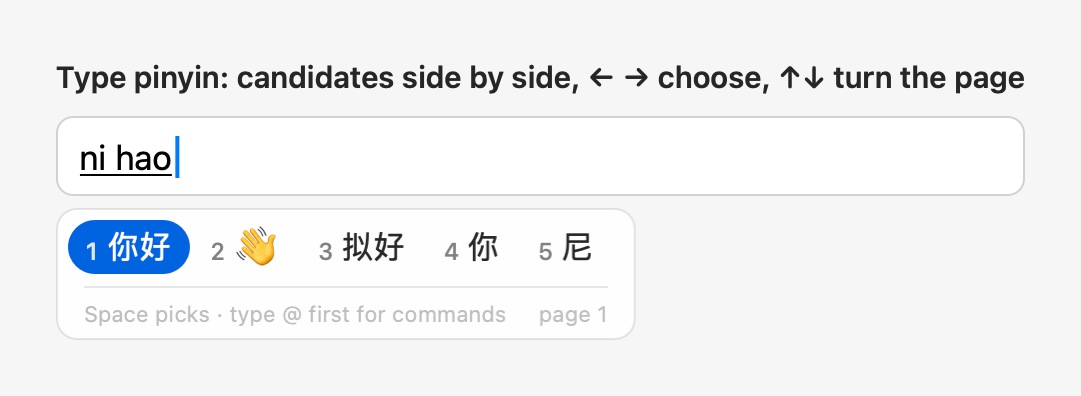
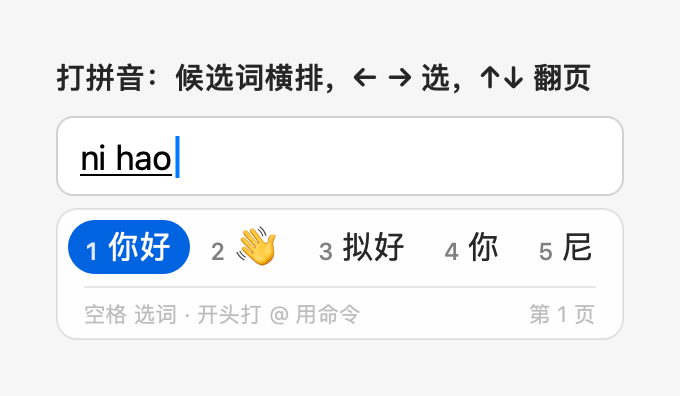
Candidates side by side. Pinyin and Hindi candidates are in a row by default now, like the system's own input methods: ← → choose, ↑↓ turn the page. Prefer the column? Settings → Input → Candidate layout → Vertical.
-
Refine the results. With the results of
@improve,@translate,@questionor a prompt command up, type what to change (shorter,more formal,in Japanese) and press ⏎: the new results replace them in the same panel. Refine again and again; Esc steps back.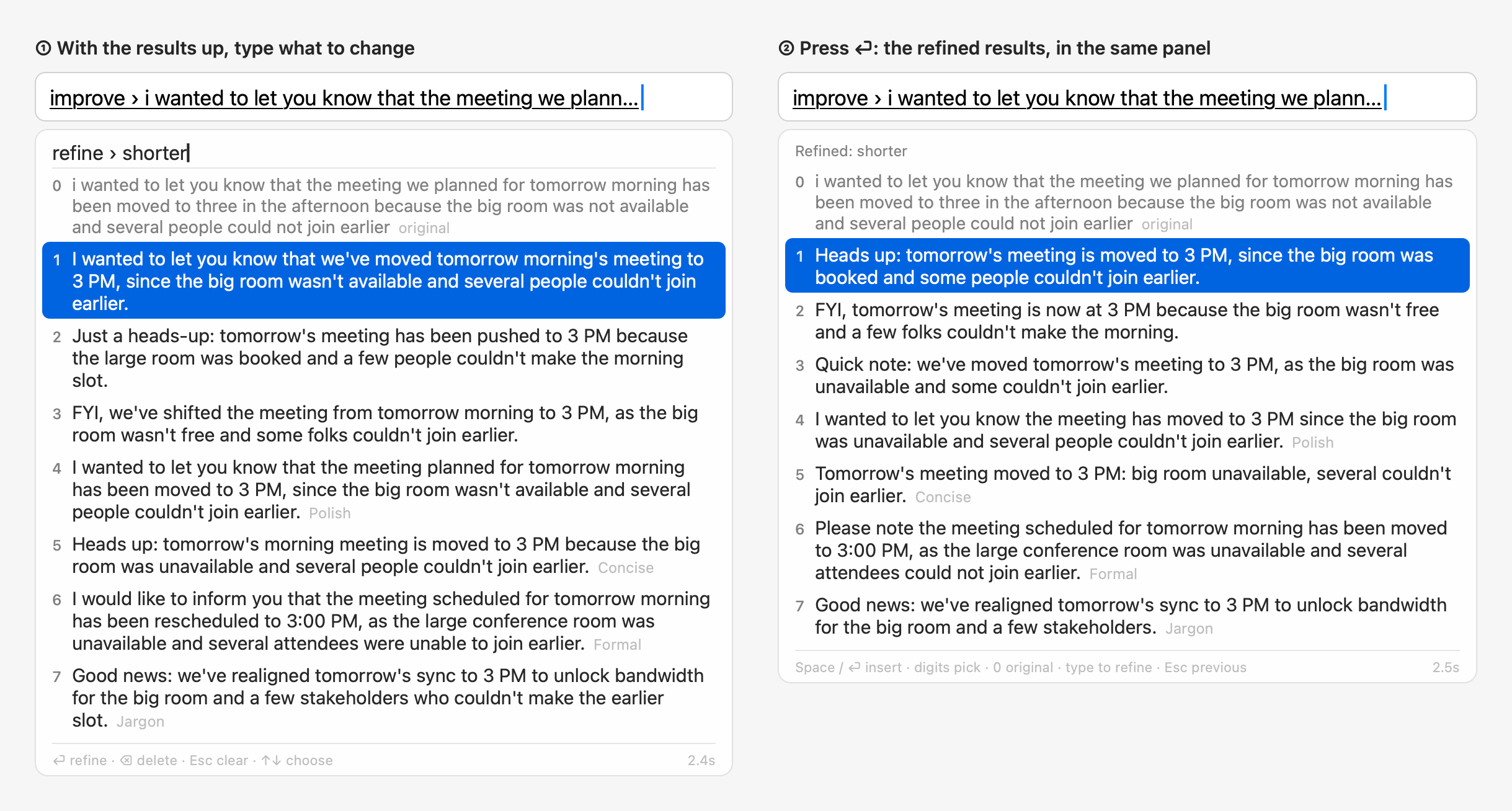
-
Commands on the selected text. Select text in any app, type
@improve,@translateor@questionand press ⏎: the command works on the selection, and the result you pick replaces exactly it.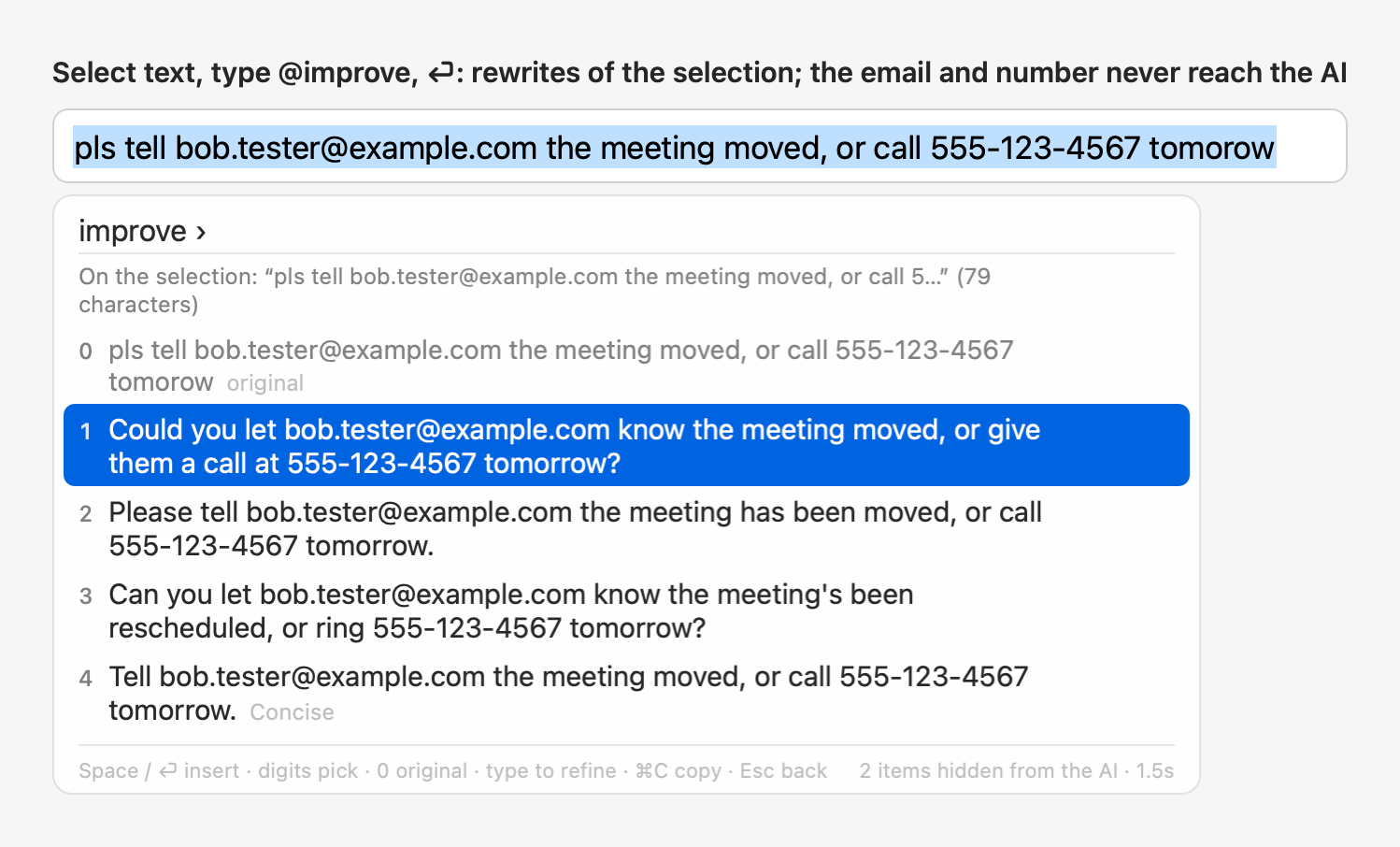
-
Recent questions.
@questionwith nothing after it lists your last 5 questions; pick one to see its saved answer at once, without going online. Kept only on this Mac.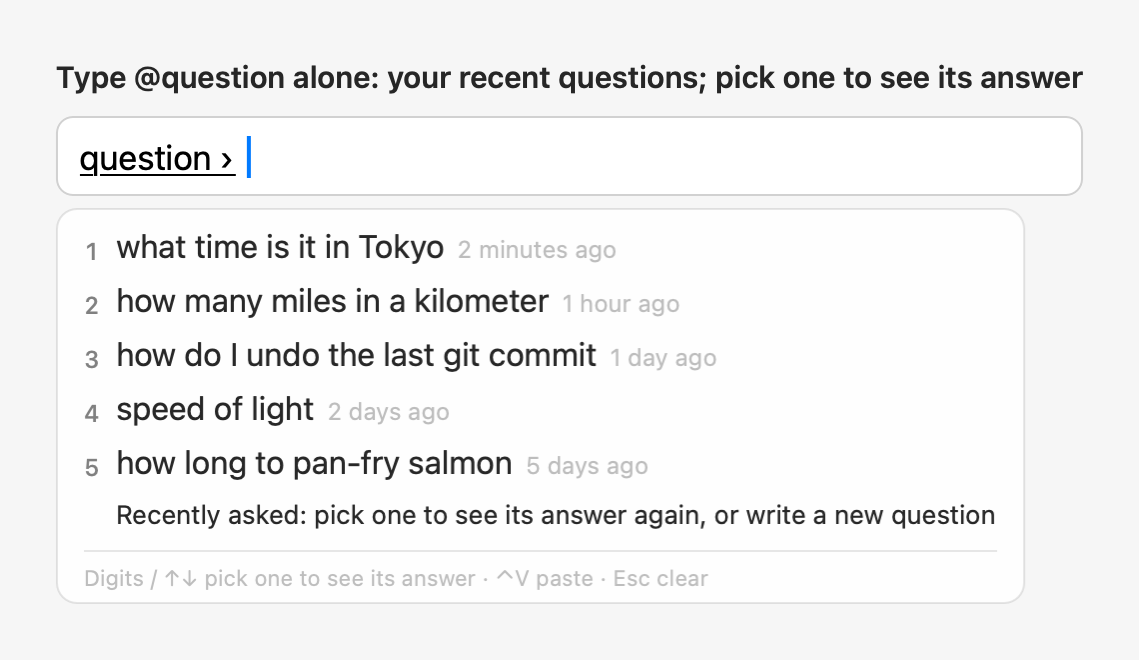
-
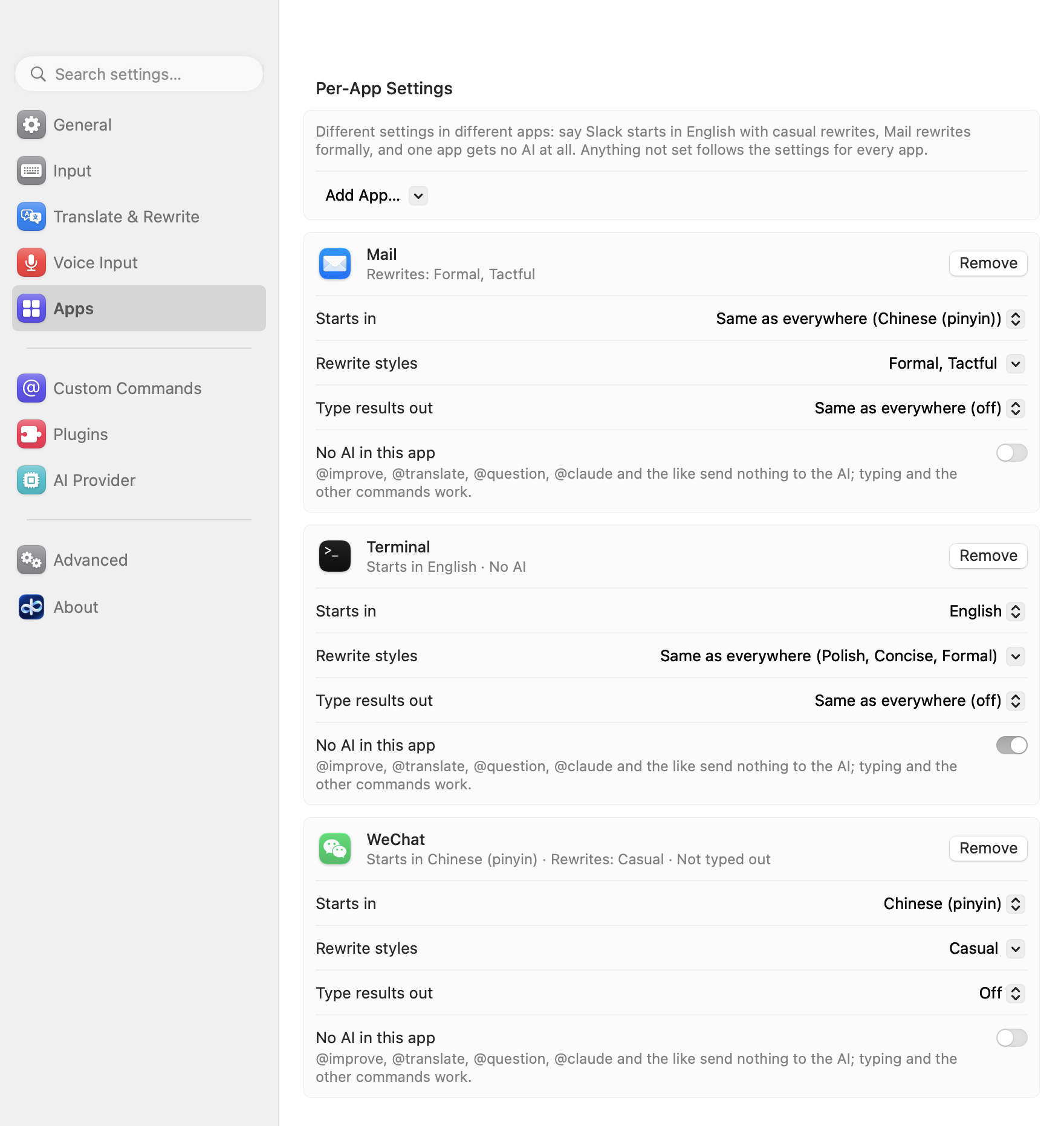
Per-app settings. Settings → Apps gives an app its own starting input language, its own rewrite styles, typing results out on or off, and "No AI in this app".
-
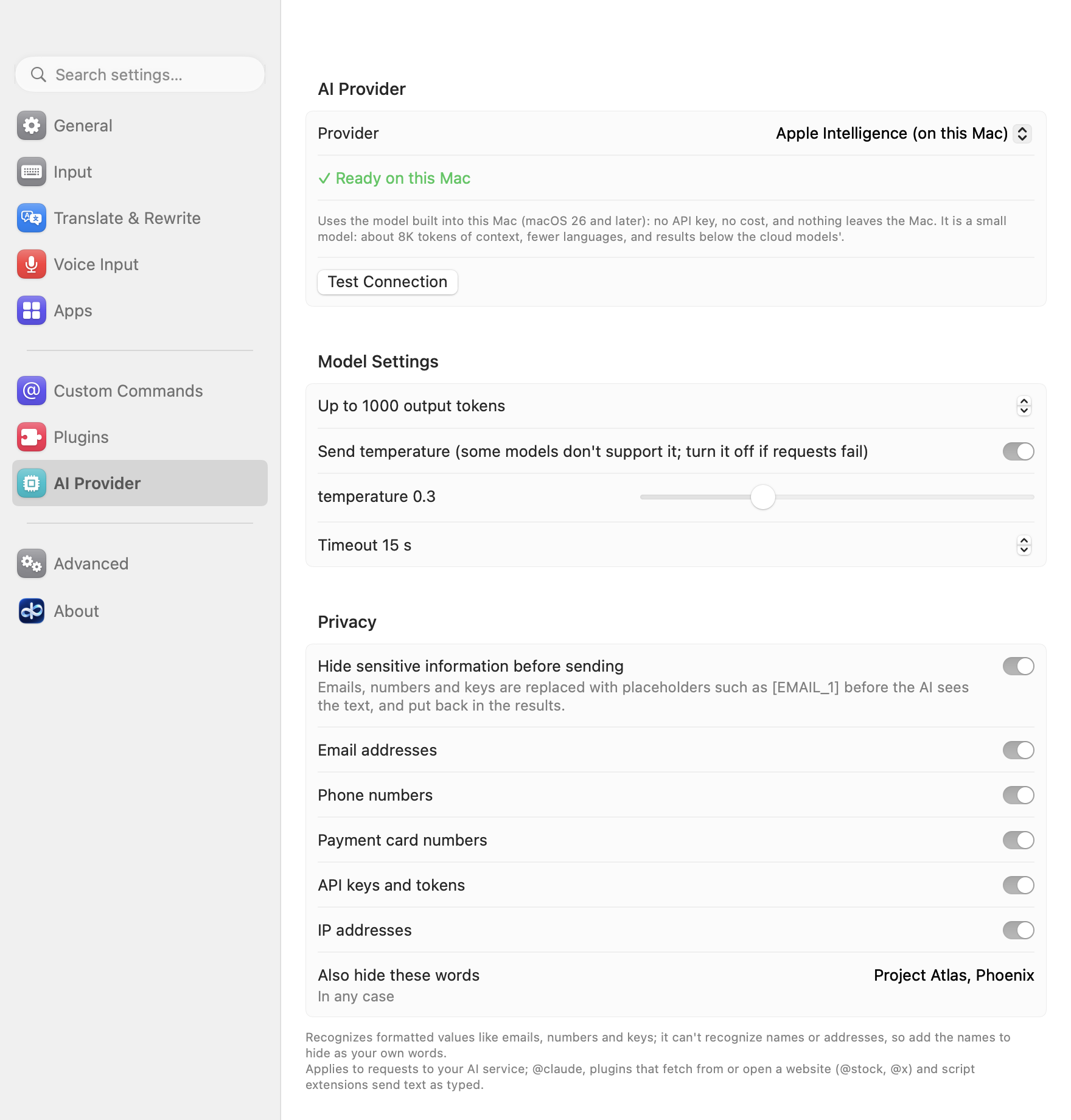
Apple Intelligence and privacy. Choose Apple Intelligence (on this Mac, macOS 26 and later) as the AI provider: no key, no cost, nothing leaves the Mac. And with any provider, turn on Privacy → "Hide sensitive information before sending": emails, phone numbers, card numbers, keys, IP addresses and words you list are replaced with placeholders before a request goes out, and put back in the results.
-
Also new: in-app updates (Settings → About → Check for Updates),
@reportissue(Report an Issue), clicking a candidate to pick it, and occasional typos when typing results out.
Thanks to @jiwenwumc for the feedback behind side-by-side candidates, clicking a candidate to pick it, and Report an Issue.
Added
- Refine the results: while the results of
@improve,@translate,@question, a prompt command or the rewrite of a selection are up, type a follow-up instruction (shorter,warmer,more formal,add a joke,in Japanese,用更口语的说法; pinyin works, Shift switches languages) and press ⏎: the AI gets the original request, the results shown and your instruction, and the new results replace them in the same panel, in the same rows. Refine again and again; the panel's top line lists the steps ("Refined: shorter · more formal"), and a row can be picked at any time as usual. A letter starts the instruction ("refine › …" at the top of the panel) once the results are complete (typing while the first results stream in continues the sentence, as before); with none typed, digits, Space and ⏎ pick as before. While a refine runs, the next instruction can already be typed: the refine goes on, and ⏎ runs the next one once its results are in. Esc clears the instruction, then goes back one step to the results before the last refine (during a refine, it stops it), then to the sentence; ⌫ on an empty line steps back the same way. On selected text the pick still replaces exactly the selection, untouched until then. A refine that fails, or is refused during secure input, leaves the results as they were with the instruction ready to try again; the same refine of the same results comes from the cache. The requests for everything else are unchanged. - Commands on the selected text: select text in any app, type
@improve,@translate,@question(or another command that takes text) and ⏎, and the command works on the selection; the result you pick replaces exactly it. The selection stays as it is, still selected, while you type: the command is written in the candidate panel instead of the text field, its first line what you type (pinyin too) and the next what it works on ("On the selection: “…” (N characters)"). Esc, ⇧⏎, clicking elsewhere or secure input turning on leave the text as it was, with no@improvetyped over it; changing the selection meanwhile cancels the command. Text typed after@improve/@translateis an instruction (@translate ja,@improve more formal), answered as one rewrite that keeps the text's paragraphs (as is a selection of several lines); after@questionit's the question about the selection.@open,@claude,@tasks,@settings,@reminder,@imessageand script extensions don't use it. Read through the text input system, or with the Accessibility permission where an app doesn't tell it (only if AllInOneIME already has it; it never asks); up to 5000 characters; never during secure input or in a terminal; only how it was read and its length are logged. On by default: Settings → General → "Use the selected text" (useSelectionin the config). - Updates from inside the app: Settings → About → Check for Updates, and "Check for Updates…" in the input menu. When a new version is out, About says so with what's new (and one quiet line in the menu bar panel; never a dialog); "Update to " downloads it, checks it, installs it and restarts the input method, keeping your settings, language packs, learned words and extensions. AllInOneIME looks once a day by itself, in the background, and never goes online because of a key you press ("Check for updates automatically" under About,
checkForUpdatesin the config, on by default); nothing is installed until you click.- The update information (https://allinoneime.com/update.json) is signed with a key of its own, for releases only, and checked with the public key built into the app before it's read; the download comes only over https from allinoneime.com or the GitHub release, and is installed only once its size and SHA-256 match, both apps' bundle IDs, versions and code signatures check out, and the new input method starts. An older or the same version is never installed.
- The old apps are moved aside, not deleted, until the new ones work: if anything goes wrong on the way, the version you had is put back and registered again, and About says what happened.
@reportissue: report a problem without leaving the keyboard. It opens GitHub's page for a new issue in your browser, what you typed after it as the title, with "What happened / What you expected" to fill in and the details that help: the app and macOS versions, the Mac's architecture, the interface and input languages, the language packs installed, the kind of AI provider (and the model, if it's a public one), the action key, and how many custom commands, plugins and extensions you have (never their names, your text, paths or keys). ⏎ shows all of it in the candidate panel first, ⏎ again opens the page, Esc goes back; you submit it on GitHub. Also "Report an Issue…" in the input menu and in Settings → About. (thanks @jiwenwumc)- "Candidate layout: Vertical / Horizontal" on the Input page of the settings, under the input languages (
candidateLayoutin the config). Horizontal, the default, puts pinyin and Hindi candidates in a row, the highlighted one in a pill; Vertical is the column of 0.6.2 and earlier. The @ command list and the results are always vertical. (thanks @jiwenwumc) - "Make occasional typos and fix them" under "Type results out" in Settings → General (
typeOutMistakesin the config, off by default): a result typed out now and then hits the key next to the right one on your keyboard layout and notices a few letters later, types a letter or a space twice, or takes a short word back and types it again, each deleted at once and typed right. A few in 100 characters, never two close together, never at the start of a line; in code, web and email addresses and numbers only a wrong letter or digit, fixed at once; Chinese, Japanese and Korean only hesitate, never with a wrong character. In a field that takes typos back (Apple's text views, browsers, most editors), typed to the end (or the rest at once with another key) the text is exactly the result; Esc or leaving the field mid-typo takes the typo out first, leaving an exact start of it; a cursor moved mid-typo gets the typo taken out where it was. Never in terminals, nor in apps that don't tell the input method where the cursor is; the first typo each time is a plain one (a wrong letter, corrected in one go) until the field has taken one back, and while a typo shows, the field is checked before every key. A field that ignores where to replace text keeps that first typo (the text one character off, also after Esc or another key), and its app gets no typos again, until "Forget apps where typos couldn't be fixed" under the switch. - Per-app settings: Settings → Apps gives an app its own starting input language (Slack in English, WeChat in pinyin), its own rewrite styles for
@improve(Mail formal, Slack casual), typing results out on or off, and "No AI in this app", where@improve,@translate,@question,@claudeand prompt commands send nothing and say so, while typing and the other commands work. Each is optional and follows the setting for every app when unset. "Add App…" lists the apps typed in lately or picks one in /Applications; the input menu has "This App: " with No AI, Type Results Out and the starting language. In the config:appProfiles, by bundle ID;@reportissuecounts them, never naming the apps. - Click a row of the candidate panel to pick it, as its digit would: a pinyin or Hindi word, a command in the @ list, a result, a file
@openfound (as you type too), a recipient, a row an extension listed. The row under the pointer is highlighted, and the text field keeps the focus. (thanks @jiwenwumc) @questionlists your recent questions: with nothing typed after it, the candidate panel shows the last 5 you asked, newest first, and typing narrows them down (words anywhere in the question, any case, Chinese too). A digit, ↑↓ then ⏎, or a click shows a question's saved answer at once, without going online, to insert (⏎, Space) or copy (⌘C) as any answer; R there asks it again for a fresh answer, which takes the old one's place. With no match, or nothing picked, ⏎ asks what you typed, as before. The questions, answers and times are kept only on this Mac, in~/Library/Application Support/AllInOneIME/recent-questions.json(readable only by you), 5 at most; nothing is kept during secure input, and questions asked on selected text aren't kept (their answer is about the selection). Settings → General → "Remember recent questions" (rememberQuestionsin the config, on by default) turns it off and deletes them; "Clear" deletes them.- Apple Intelligence on this Mac as an AI provider (macOS 26 and later): choose "Apple Intelligence (on this Mac)" under Settings → AI Provider and
@improve,@translateand@questionrun on the model built into macOS, with no key, no cost, and nothing leaving the Mac ("provider": "apple"in the config). It gets the same prompts as the other providers, with only the examples in the sentence's own language. The model is small (about 4K tokens of context, 8K on macOS 27; fewer languages): a text too long for it or a language it doesn't speak says so, and its results are below the cloud models'. On a Mac where it can't be used it is greyed out with the reason (not supported, turned off, model not ready) and a button to System Settings → Apple Intelligence & Siri; before macOS 26 it isn't listed. Test Connection works with it, and@reportissuereports the provider as "apple". - Hide sensitive information from the AI (Settings → AI Provider → Privacy, off by default): before any request goes out, with every provider including AllInOneIME Cloud, email addresses, phone numbers, payment card numbers (Luhn-checked), API keys and tokens (
sk-,sk-ant-,AKIA…,ghp_,xox…, long random strings), IP addresses and words you list (a codename, a name) are replaced on the Mac with placeholders such as[EMAIL_1]; the results get the real values back before they're shown or inserted, and the panel says "2 items hidden from the AI". A result whose placeholder the model changed beyond recognition is marked "⚠ placeholder changed". Each kind has its own switch; names and addresses aren't recognized (list them as your own words). Applies to requests to your AI service (prompt commands and prompt plugins included);@claude, plugins that fetch from a website (@stock) or open one (@x) and script extensions send text as typed.@reportissuesays only whether it's on. In the config:redaction.
Changed
- AllInOneIME is signed with a Developer ID (MicroZ LLC) and notarized by Apple: the installer opens like any app downloaded from the internet (macOS asks once whether to open it), with no more allowing it in System Settings → Privacy & Security → Open Anyway. The disk image is notarized and stapled, and the apps in it and in the in-app update are signed with the same Developer ID.
- Pinyin and Hindi candidates are side by side by default now (Horizontal), like the system's own input methods: ← → choose, ↑↓ (or - =) turn the page. This also applies after updating, unless you choose otherwise: for the column as before, choose Vertical under Settings → Input → "Candidate layout" (
"candidateLayout": "vertical"in the config). - In the @ command list, a command whose name is exactly what you typed comes first:
@replists your own@repbefore@reportissueand@reply, however often those are used.
Fixed
- Opening Settings no longer asks the keychain ("AllInOneIME wants to use your confidential information…") for the keys of services you don't use: whether a key is saved is told without reading it, a key is read only when a request needs it, and once allowed it isn't asked for again until the input method restarts or the key changes.
- Settings → Custom Commands no longer fills with orange "the name is taken" and "Another bundle with this name is loaded" warnings when several copies of a folder are on the Mac (git worktrees, a copied repository): from a folder Spotlight found, only its Raycast Script Commands are loaded now (not its
@allinoneimescripts or bundles; add the folder to use all of it), byte-identical copies of a script or bundle are skipped with one grey line ("Skipped N identical copies"), and found folders since removed drop out of the list.
Updating from 0.6.2 or earlier
- 0.6.3 is signed differently from earlier versions (with a Developer ID instead of ad hoc), so the keychain doesn't yet know it as the app that saved your keys: the first time it needs each one (an API key, the AllInOneIME Cloud sign-in, an extension's password), macOS asks for your login password. Enter it and click "Always Allow"; it isn't asked again, also after later updates. Amazon Bedrock's keys in
~/.aws/credentialsaren't affected. - For the same reason macOS may ask once more for permissions you gave the earlier version (the microphone, controlling Notes, Terminal or Messages, Reminders, Contacts): allow them again.
- Accessibility (System Settings → Privacy & Security → Accessibility), which pasting into terminals and reading the selection use: if AllInOneIME is listed, remove it and turn it on again when asked.
- Install 0.6.3 from its disk image (over the old version, without uninstalling); updates after it can come from Settings → About.
Download
- New install, or updating from 0.6.2 or earlier: download
AllInOneIME-0.6.3.dmgbelow (only from this page), open it, double-click "Install AllInOneIME" and click Install. Install over the old version; there's no need to uninstall first. macOS asks once whether to open an app downloaded from the internet: click Open. - From 0.6.3 on, later versions can be installed from inside the app: Settings → About → Check for Updates (or "Check for Updates…" in the input menu). AllInOneIME also checks once a day by itself; nothing is installed until you click.
- Needs macOS 14 or later (voice input and Apple Intelligence: macOS 26 or later). Universal: Apple silicon and Intel.
中文
使用说明:https://allinoneime.com/docs · 更新日志:CHANGELOG.zh-CN.md
亮点
-
候选词横排。 拼音和印地语的候选词现在默认并排,和系统自带的输入法一样:← → 选词,↑↓ 翻页。想要竖排:设置 →「输入」→「候选排列」→「竖排」。
-
修改结果。
@improve、@translate、@question或提示词命令的结果出来后,直接打修改要求(「更短」「更正式」「用日语」)按 ⏎:新结果在同一个候选框里替换旧的。可以一直改下去,Esc 退回上一步。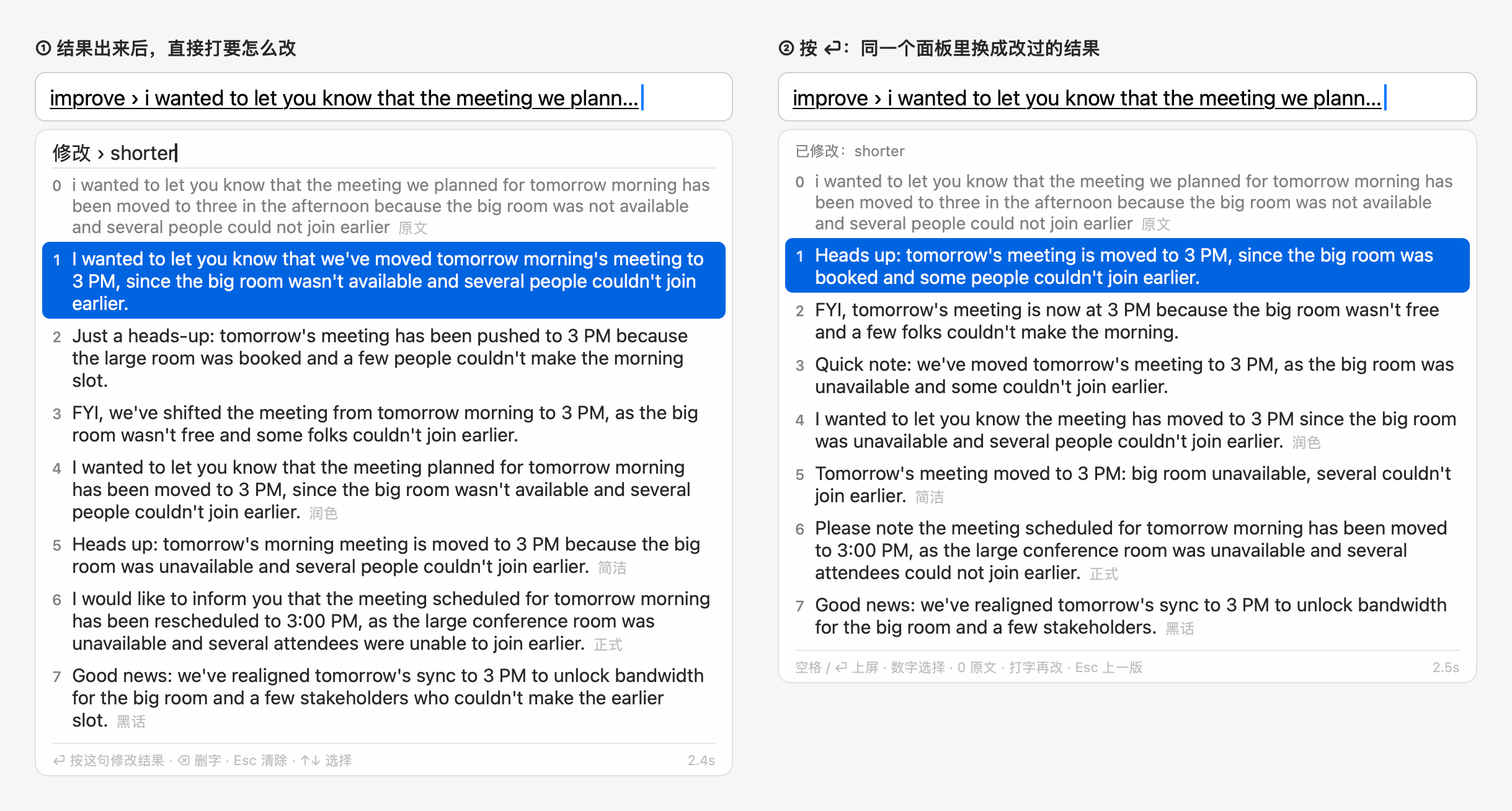
-
对选中的文字用命令。 在任何 App 里选中文字,打
@improve、@translate或@question按 ⏎:命令处理选中的文字,你选好的结果正好替换它。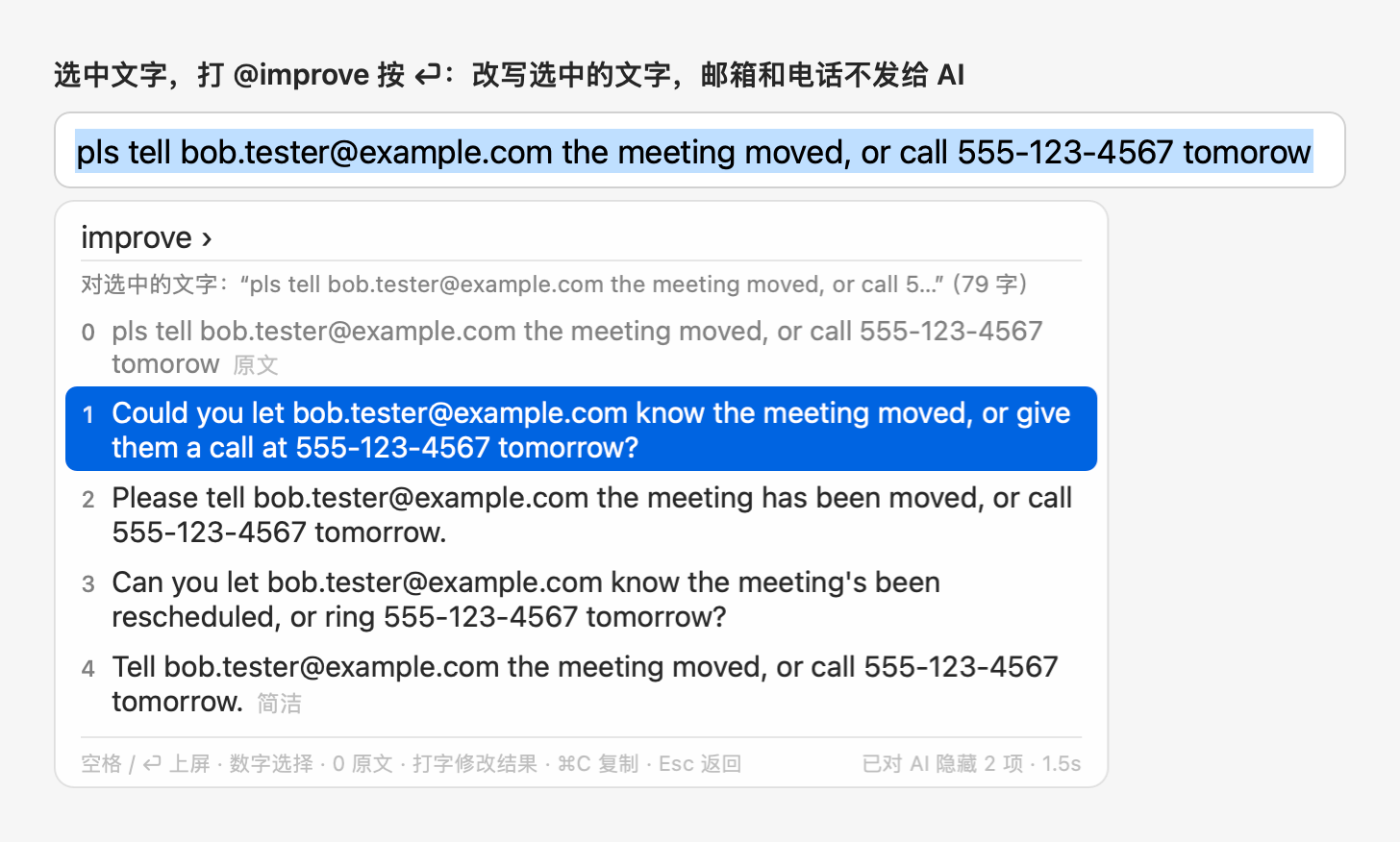
-
最近的问题。 只打
@question时列出最近问过的 5 个问题;选一个马上显示当时的答案,不联网。只存在这台 Mac 上。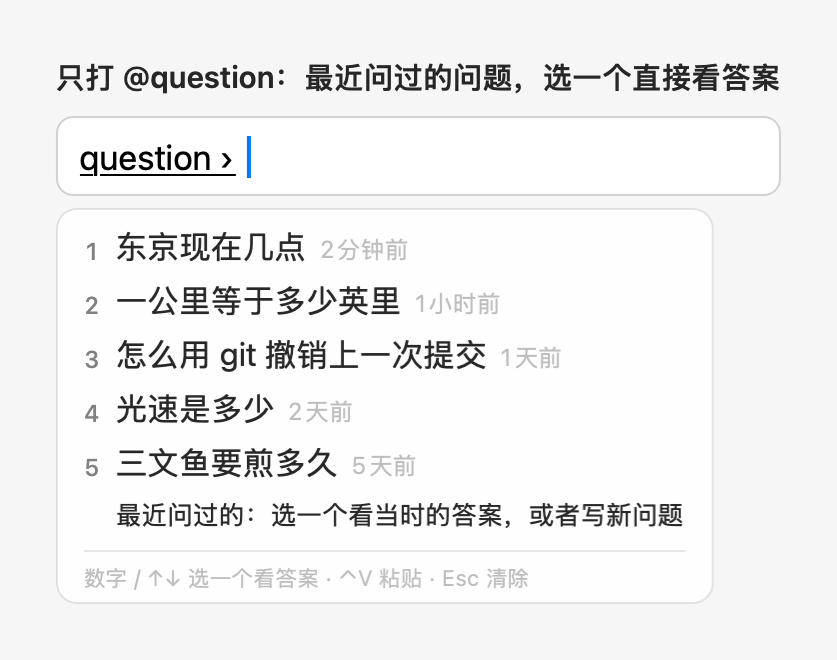
-
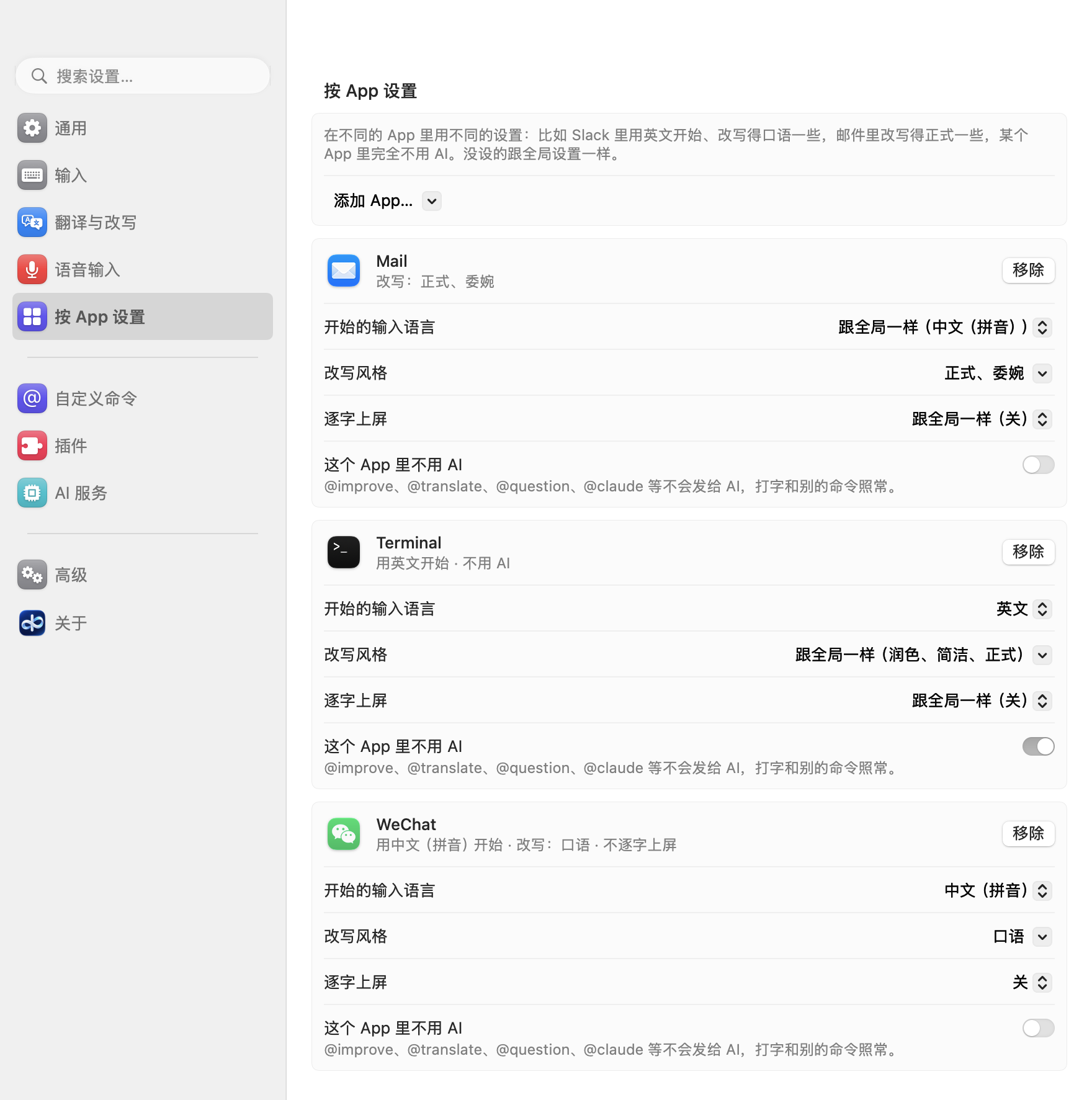
按 App 设置。 设置 →「按 App 设置」可以给某个 App 单独设开始的输入语言、改写风格、逐字上屏开关,以及「这个 App 里不用 AI」。
-
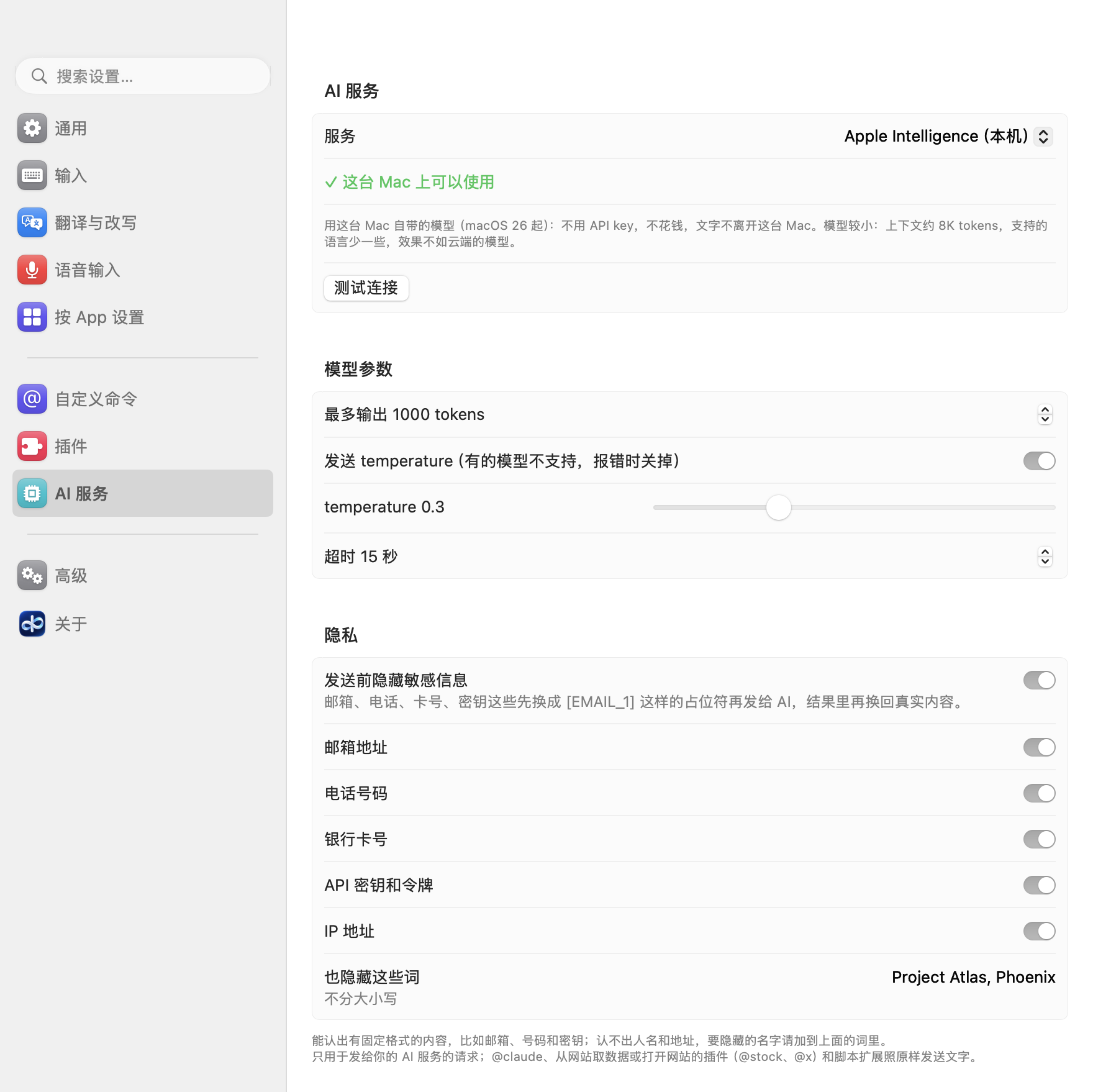
Apple Intelligence 和隐私。 可以选本机的 Apple Intelligence 作为 AI 服务(macOS 26 起):不用 key,不花钱,文字不离开这台 Mac。不论用哪个服务,都可以打开「隐私」→「发送前隐藏敏感信息」:邮箱、电话、卡号、密钥、IP 地址和你列出的词在请求发出前换成占位符,结果里再换回来。
-
另外还有:在应用里更新(设置 →「关于」→「检查更新」)、
@reportissue(报告问题)、鼠标点选候选词、逐字上屏时偶尔打错再改。
感谢 @jiwenwumc 的反馈,促成了候选词横排、鼠标点选候选词和「报告问题」。
新增
- 修改结果:
@improve、@translate、@question、提示词命令或对选中文字的改写出结果后,直接打修改要求(「更短」「语气再热情点」「更正式」「加个笑话」「用日语」「用更口语的说法」;可以打拼音,Shift 换中英文),按 ⏎:AI 拿到原来的请求、现在的结果和你的要求,新结果在同一个候选框里、按同样的行替换旧的。可以一直改下去;候选框最上面一行列出改过的步骤(「已修改:更短 · 更正式」),随时照常选一行上屏。结果全部出来后,打第一个字母就开始写要求(候选框顶上显示「修改 › …」;第一次的结果还在出来时打字,和以前一样是接着写这句话);没写要求时,数字、空格、⏎ 照常选结果。修改进行中也可以先打下一步要求,正在进行的修改不受影响,结果出来后按 ⏎ 再改。Esc 先清掉要求,再按退回最后一次修改之前的结果(修改进行中按就是停下),再按回到这句话;要求是空的时候按 ⌫ 也一样退回。对选中的文字用时,选好的结果照样正好替换选中的文字,在那之前文字不动。修改失败或系统安全输入时被拒绝,结果保持原样,要求还在,可以再试;同样的结果按同样的要求再改,直接用缓存。其他请求一字未变。 - 对选中的文字用命令:在任何 App 里选中文字,打
@improve、@translate、@question(或别的处理文字的命令)按 ⏎,命令就处理选中的文字,你选好的结果正好替换它。打字时选中的文字原样留着、一直选中:命令写在候选框里而不是输入框里,第一行是你打的字(拼音也在这里),下一行写着处理的是什么(「对选中的文字:“…”(N 字)」)。按 Esc、⇧⏎、点到别处或系统安全输入打开时,文字都不变,不会有@improve打在上面;中途改了选区,命令就取消。@improve/@translate后面再写的字是要求(@translate ja、@improve 更正式),按要求改写成一个结果,保留原来的分段(选中好几行时也这样);@question后面写的是关于这段文字的问题。@open、@claude、@tasks、@settings、@reminder、@imessage和脚本扩展不用它。通过系统的输入法接口读取,App 不提供时用辅助功能权限读(只在 AllInOneIME 已经有这个权限时,从不弹窗要);最多 5000 字;系统安全输入时、终端里不读;日志里只记读取方式和长度。默认打开:设置 →「通用」→「使用选中的文字」(配置里的useSelection)。 - 在应用里更新:设置 →「关于」→「检查更新」,输入法菜单里也有「检查更新…」。有新版本时,「关于」里会写出来,附上更新内容(菜单栏面板里也有安安静静的一行,不弹窗);点「更新到 <版本>」就下载、核对、安装,再重启输入法,设置、语言包、学到的词和扩展都保留。AllInOneIME 每天在后台自己看一次,不会因为按键而联网(「关于」里的「自动检查更新」,配置里的
checkForUpdates,默认开);不点就不会安装。- 更新信息(https://allinoneime.com/update.json)用发布专用的密钥签名,App 先用内置的公钥核对再读;只通过 https 从 allinoneime.com 或 GitHub release 下载,大小和 SHA-256 对上、两个 App 的 bundle ID、版本和代码签名都没问题、新输入法能启动,才会安装。不会装更旧或一样的版本。
- 新版本能用之前,旧的 App 只是挪开不删:中途出错就把原来的版本放回去、重新注册,「关于」里会说发生了什么。
@reportissue:不离开键盘就能报告问题。它在浏览器里打开 GitHub 的新问题页,命令后面写的就是标题,「What happened / What you expected」留给你填,还附上有用的信息:App 和 macOS 的版本、Mac 的架构、界面语言和输入语言、装了的语言包、AI 服务的种类(和模型,公开的模型才写名字)、执行键,以及自定义命令、插件、扩展各有几个(不带它们的名字、你打的字、路径和密钥)。按 ⏎ 先在候选框里列出这些,再按 ⏎ 才打开网页,Esc 返回;在 GitHub 上由你点提交。输入法菜单和设置 →「关于」里也有「报告问题…」。(感谢 @jiwenwumc)- 设置的「输入」页、输入语言下面新增「候选排列:竖排 / 横排」(配置里的
candidateLayout)。默认横排:拼音和印地语的候选词并排,选中的那个是一个圆角胶囊;竖排就是 0.6.2 及以前的样子。@ 命令列表和结果总是竖排。(感谢 @jiwenwumc) - 设置 →「通用」的「逐字上屏」下面多了「偶尔打错再改」(配置里的
typeOutMistakes,默认关):逐字打结果时偶尔按到你键盘布局上旁边的键,过几个字母才发现;或者一个字母、一个空格多打一次;或者一个短词打了又删掉重打;都马上删掉改回来。每 100 个字几处,不会挨着出现,也不在一行的开头;代码、网址、邮箱和数字里只会打错一个字母或数字,马上就改;中文、日文、韩文只会犹豫,不会打出错字。在能删掉打错的输入框里(苹果自己的文本框、浏览器、大多数编辑器),打完(或按别的键把剩下的一次打完)文字和结果一字不差;打错时按 Esc 或离开输入框,先删掉打错的,留下结果开头的一段,一字不差;打错时光标被移走,打错的在原处删掉。终端里不打错,不告诉输入法光标在哪的 App 里也不打错;每次第一处打错都是最简单的一种(打错一个字母,一下就改对),直到输入框删掉过一次;有错字时每按一个键前都核对。不管替换哪里的输入框会留下那第一处打错(文字差一个字,按 Esc 或别的键停下也一样),这个 App 以后不再打错,直到在开关下面点「忘掉改不回来的 App」。 - 按 App 设置:在设置 →「按 App 设置」里,可以给某个 App 单独设开始的输入语言(Slack 里英文、微信里拼音)、
@improve的改写风格(邮件里正式、Slack 里口语)、逐字上屏开或关,还有「这个 App 里不用 AI」:那里@improve、@translate、@question、@claude和提示词命令都不发给 AI,并提示一下,打字和别的命令照常。每一项都可以不设,不设就跟全局设置一样。「添加 App…」列出最近打过字的 App,也可以在「应用程序」里选;输入法菜单里有「这个 App:<名字>」,可以切换「不用 AI」「逐字上屏」和开始的输入语言。配置里是appProfiles,按 bundle ID 写;@reportissue只写有几个,不写是哪些 App。 - 鼠标点候选框的一行就选中它,和按它的数字一样:拼音或印地语的词、@ 命令列表里的命令、结果、
@open找到的文件(边打边出的也行)、收件人、扩展列出的行。鼠标指着的那一行会高亮,输入框不会失去焦点。(感谢 @jiwenwumc) @question列出最近的问题:后面不打字时,候选框里列出最近问过的 5 个问题,最新的在前;接着打字就按问题里任何位置的字筛选(不分大小写,中文也行)。按数字、↑↓ 再按 ⏎,或者点一下,马上显示当时保存的答案,不联网,和别的答案一样能上屏(⏎、空格)或复制(⌘C);在那里按 R 重新问一遍,新的答案替换旧的。没有匹配的、或者没选时,⏎ 照常问你打的问题。问题、答案和时间只存在这台 Mac 上的~/Library/Application Support/AllInOneIME/recent-questions.json(只有你能读),最多 5 个;系统安全输入时不存,对选中文字的提问也不存(答案说的是选中的文字)。设置 →「通用」→「记住最近的问题」(配置里的rememberQuestions,默认开)可以关掉,关掉时删掉已存的;「清除」删掉已存的。- 可以用本机的 Apple Intelligence 作为 AI 服务(macOS 26 起):在 设置 →「AI 服务」里选「Apple Intelligence(本机)」,
@improve、@translate、@question就用 macOS 自带的模型,不用 key,不花钱,文字不离开这台 Mac(配置文件里是"provider": "apple")。提示词和其他服务一样,只是示例只用和这句话同一种语言的。模型较小(上下文约 4K tokens,macOS 27 上 8K;支持的语言少一些):内容太长或语言不支持时会直接说明,效果也不如云端模型。用不了的 Mac 上它是灰的,后面写着原因(不支持、未打开、模型还没准备好),并有按钮打开 系统设置 → Apple 智能与 Siri;macOS 26 以前不显示。「测试连接」可以用,@reportissue里的服务类型是「apple」。 - 发送前对 AI 隐藏敏感信息(设置 → AI 服务 → 隐私,默认关):任何请求发出前,不论用哪个 AI 服务(包括 AllInOneIME 云),邮箱、电话号码、银行卡号(做 Luhn 校验)、API 密钥和令牌(
sk-、sk-ant-、AKIA…、ghp_、xox…、长串随机字符)、IP 地址和你列出的词(项目代号、名字)先在本机换成[EMAIL_1]这样的占位符;结果在显示和上屏前换回真实内容,候选框里说一句「已对 AI 隐藏 2 项」。模型把占位符改得认不出来的那一行标上「⚠ 占位符被改动」。每一类都有自己的开关;认不出人名和地址(请把它们列成自己的词)。只用于发给你的 AI 服务的请求(包括提示词命令和提示词插件);@claude、从网站取数据(@stock)或打开网站(@x)的插件和脚本扩展照原样发送文字。@reportissue只写它开没开。配置文件里是redaction。
变更
- AllInOneIME 用 Developer ID(MicroZ LLC)签名,并经过 Apple 公证:安装程序和别的从互联网下载的 App 一样打开(macOS 问一次要不要打开),不用再去 系统设置 → 隐私与安全性 里点「仍要打开」。磁盘映像经过公证并装订(staple),里面的 App 和应用内更新的 App 也用同一个 Developer ID 签名。
- 拼音和印地语的候选词现在默认横排,像系统自带的输入法一样:← → 选词,↑↓(或 - =)翻页。更新后也是横排,除非你另外选过:想和以前一样竖排,在设置 →「输入」→「候选排列」里选「竖排」(配置里的
"candidateLayout": "vertical")。 - @ 命令列表里,名字和你打的完全一样的命令排第一:
@rep会先列出你自己的@rep,再是@reportissue、@reply,不管它们用得多不多。
修复
- 打开设置时,不再为你没在用的服务弹出钥匙串密码框(「AllInOneIME 想要使用你的机密信息…」):看 key 有没有保存不再读取 key 本身,只有请求真的要用时才读,允许一次之后,在输入法重启或 key 改动之前不会再问。
- Mac 上有一个文件夹的好几份副本时(git worktree、复制的仓库),设置 →「自定义命令」里不再满是橙色的「名字已经被占用」「已经有一个同名的扩展包」警告:聚焦(Spotlight)自动找到的文件夹现在只加载其中的 Raycast 脚本命令(不加载
@allinoneime脚本和扩展包;要全部用上,就添加这个文件夹),一模一样的脚本或扩展包副本直接跳过,只显示一行灰字(「跳过了 N 个完全相同的副本」),已经删掉的自动找到的文件夹也会从列表里去掉。
从 0.6.2 或更早版本升级
- 0.6.3 的签名和以前的版本不一样(用 Developer ID,不再是临时签名),钥匙串还认不出它就是当初存 key 的那个 App:它第一次用到每个 key(API key、AllInOneIME 云的登录、扩展的密码)时,macOS 会问登录密码。输入后点「始终允许」;之后不会再问,以后更新也不会。Amazon Bedrock 放在
~/.aws/credentials里的密钥不受影响。 - 同样的原因,macOS 可能会再问一次以前给过旧版本的权限(麦克风、控制备忘录、终端或信息、提醒事项、通讯录):再允许一次就行。
- 辅助功能(系统设置 → 隐私与安全性 → 辅助功能),往终端里粘贴和读取选中的文字会用到:如果列表里有 AllInOneIME,把它移除,等再问时重新打开。
- 0.6.3 要用它的磁盘映像安装(直接装在旧版本上,不用先卸载);之后的更新可以在 设置 →「关于」里完成。
下载
- 新安装,或从 0.6.2 及更早的版本升级:下载下面的
AllInOneIME-0.6.3.dmg(只从这个页面下载),打开,双击「Install AllInOneIME」,点「安装」。直接装在旧版本上,不用先卸载。macOS 会问一次要不要打开从互联网下载的 App:点「打开」。 - 从 0.6.3 起,以后的版本可以在应用里更新:设置 →「关于」→「检查更新」(输入法菜单里也有「检查更新…」)。AllInOneIME 每天也会自己看一次;不点就不会安装。
- 需要 macOS 14 或更高版本(语音输入和 Apple Intelligence 需要 macOS 26 或更高)。通用版本:Apple 芯片和 Intel 都能用。