Repository navigation
Releases: Multron-Community/Multron-Download-Manager
Release list
Multron Download Manager v0.0.6

Multron Download Manager v0.0.6
A portable Windows version and the Multron Cloud scan.
Portable Windows version
Next to the installer there is now Multron-Download-Manager-0.0.6-x64-portable.zip. Extract it anywhere, for example on a USB stick, and run multron-download-manager.exe. Nothing is installed:
- Settings, the download list, torrents and updates are kept in the
datafolder next to the program, not in your user folder. - The portable copy updates itself in place with the signed portable package, and your
datafolder is kept. Every update is checked with the same signature as the installer. - Delete
portable.txtto make the copy use the normal per-user folders instead. - A browser extension that is already installed, for example from the installed version, connects to the portable copy too: Multron Download Manager asks you once to Allow it.
Multron Cloud scan (testing)
Finished downloads can now also be scanned with Multron Cloud, the cloud scan from Multron Win Cleaner (viruskov.com OPEN-EDR engine). It runs separately from your antivirus on Windows, macOS and Linux, and its result is shown on the download as its own Multron Cloud badge next to the antivirus result.
- Off by default. Turn it on under Options › Security › Multron Cloud scan after you accept the Cloud Malware Scan License Agreement.
- Hash first. The SHA-256 of each file is checked first. Only a file the cloud has not seen yet is uploaded for analysis.
- Upload limit. Files up to 15 MB are uploaded by default; you can raise the limit to 100 MB. Larger files are only checked by their hash and are never uploaded.
- Private folders stay private. Your user name is replaced with
%USERPROFILE%in the folder that is sent with a file, and the full path is not sent. - The cloud scan is a test version and may report false positives, so check a detection before you delete a file.
Safer opening and clearer scan results
- Programs no longer start with a double-click. Double-clicking a downloaded program (.exe, .msi, scripts, installers) used to run it right away, which was easy to do by accident. Now it does nothing unless you turn on Options › Security › Start programs with a double-click. The open button still opens it, and other files open as usual.
- See why a file was not scanned. Click the antivirus or Multron Cloud badge on a download to see the reason, for example that no antivirus is turned on or that the file is over the upload limit. The details panel at the bottom shows both results as well.
Updating
Earlier versions update themselves to this version the next time they start.
For signed updates see the v0.0.5 release; for the browser extension that updates itself the v0.0.4 release; and for everything that came with the first release the v0.0.1 release.
Downloads
| Platform | File |
|---|---|
| Windows 10/11 (x64) | Multron-Download-Manager-*-x64-Setup.exe |
| Windows 10/11 (x64), portable | Multron-Download-Manager-*-x64-portable.zip → extract anywhere (for example a USB stick) and run multron-download-manager.exe; settings stay in its data folder |
| macOS Apple Silicon | *_aarch64.dmg |
| macOS Intel | *_x64.dmg |
| Ubuntu 24.04+ / Mint 22+ / Debian 13+ (apt) | *_amd64.deb / *_arm64.deb → sudo apt install ./file.deb |
| Debian 12 bookworm / LMDE 6 (apt) | *_debian12_amd64.deb / *_debian12_arm64.deb → sudo apt install ./file.deb |
| Fedora 43+ (dnf) | *_fedora_x86_64.rpm / *_fedora_aarch64.rpm → sudo dnf install ./file.rpm |
| openSUSE Leap 16 / Tumbleweed (zypper) | *_opensuse_x86_64.rpm / *_opensuse_aarch64.rpm → sudo zypper install --allow-unsigned-rpm ./file.rpm |
| Any Linux | *.AppImage |
| Browser extension | multron-browser-extension-chromium-*.zip (Chrome, Edge, Brave, Opera, Vivaldi) / multron-browser-extension-firefox-*.zip |
Every file is listed with its SHA-256 in update.json, which is signed with the Multron Download Manager release key (update.json.sig). Verify a download with node scripts/verify-update.mjs update.json update.json.sig <file> from the repository, or check its build provenance with gh attestation verify <file> --repo Multron-Community/Multron-Download-Manager. SHA256SUMS.txt lists the same hashes without a signature.
macOS builds are not notarized: right-click → Open the first time, or run xattr -cr "/Applications/Multron Download Manager.app".
Multron Download Manager v0.0.5
Multron Download Manager v0.0.5
A security release for automatic updates.
Signed updates
Until now an update was checked only against the SHA256SUMS.txt published next to it on GitHub. That catches a broken download, but anyone who could change the files of a release could have changed that list too. From this version on, updates are signed:
- Signed manifest. Every release has an
update.jsonwith its version and the SHA-256 of every file, signed with the Multron Download Manager release key (update.json.sig). The public half of the key is built into the app, and an update is installed only when the signature matches. Changing a file on the release without the private key no longer works. - No going back. The signed version must be exactly the release being installed and newer than the installed one, so an old signed release cannot be replayed to install an older version.
- Official source only. The update, its manifest and its signature must come from GitHub over a verified TLS connection; anything else is refused.
- Checked again before installing. The downloaded package is hashed once more right before it is installed, so a file changed on disk in the meantime is refused.
- Private download folder. Updates now go into the app's own cache folder instead of a shared temporary folder. On Linux this closes a way for another user on the same computer to swap a
.debor.rpmpackage before it is installed with administrator rights. - Fail closed. A release without a valid signature is not installed.
- Build provenance. Every file of the release has a GitHub build attestation that shows which workflow run and commit built it.
- Only what was built gets signed. The build jobs no longer upload anything to the release. The signing job takes the files built in the same run, removes anything else that was put on the draft, signs and uploads them itself, and stops if the draft changes while it works. A file slipped onto a release by someone else can therefore never end up in the signed manifest.
- Pinned build tools. The GitHub Actions used to build releases are pinned to exact commits, and the WebView2 installer bundled with the Windows setup is checked for Microsoft's signature before it is included.
- The macOS
.app.tar.gzarchives are no longer attached to releases; use the.dmg.
You can check any download yourself:
node scripts/verify-update.mjs update.json update.json.sig <file>from the repository checks the signature and the file's SHA-256.gh attestation verify <file> --repo Multron-Community/Multron-Download-Managerchecks where it was built.
SHA256SUMS.txt is still published for older versions and for quick manual checks.
Updating
v0.0.4 and earlier update themselves to this version the next time they start; they check it with SHA256SUMS.txt. Updates after this one are verified with the signature.
For the browser extension updating itself see the v0.0.4 release; for update progress, the extension's hide button and Flatpak browsers the v0.0.3 release; for the Linux FFmpeg changes the v0.0.2 release; and for everything that came with the first release the v0.0.1 release.
Downloads
| Platform | File |
|---|---|
| Windows 10/11 (x64) | Multron-Download-Manager-*-x64-Setup.exe |
| macOS Apple Silicon | *_aarch64.dmg |
| macOS Intel | *_x64.dmg |
| Ubuntu 24.04+ / Mint 22+ / Debian 13+ (apt) | *_amd64.deb / *_arm64.deb → sudo apt install ./file.deb |
| Debian 12 bookworm / LMDE 6 (apt) | *_debian12_amd64.deb / *_debian12_arm64.deb → sudo apt install ./file.deb |
| Fedora 43+ (dnf) | *_fedora_x86_64.rpm / *_fedora_aarch64.rpm → sudo dnf install ./file.rpm |
| openSUSE Leap 16 / Tumbleweed (zypper) | *_opensuse_x86_64.rpm / *_opensuse_aarch64.rpm → sudo zypper install --allow-unsigned-rpm ./file.rpm |
| Any Linux | *.AppImage |
| Browser extension | multron-browser-extension-chromium-*.zip (Chrome, Edge, Brave, Opera, Vivaldi) / multron-browser-extension-firefox-*.zip |
Every file is listed with its SHA-256 in update.json, which is signed with the Multron Download Manager release key (update.json.sig). Verify a download with node scripts/verify-update.mjs update.json update.json.sig <file> from the repository, or check its build provenance with gh attestation verify <file> --repo Multron-Community/Multron-Download-Manager. SHA256SUMS.txt lists the same hashes without a signature.
macOS builds are not notarized: right-click → Open the first time, or run xattr -cr "/Applications/Multron Download Manager.app".
Multron Download Manager v0.0.5
Multron Download Manager v0.0.5
A security release for automatic updates.
Signed updates
Until now an update was checked only against the SHA256SUMS.txt published next to it on GitHub. That catches a broken download, but anyone who could change the files of a release could have changed that list too. From this version on, updates are signed:
- Signed manifest. Every release has an
update.jsonwith its version and the SHA-256 of every file, signed with the Multron Download Manager release key (update.json.sig). The public half of the key is built into the app, and an update is installed only when the signature matches. Changing a file on the release without the private key no longer works. - No going back. The signed version must be exactly the release being installed and newer than the installed one, so an old signed release cannot be replayed to install an older version.
- Official source only. The update, its manifest and its signature must come from GitHub over a verified TLS connection; anything else is refused.
- Checked again before installing. The downloaded package is hashed once more right before it is installed, so a file changed on disk in the meantime is refused.
- Private download folder. Updates now go into the app's own cache folder instead of a shared temporary folder. On Linux this closes a way for another user on the same computer to swap a
.debor.rpmpackage before it is installed with administrator rights. - Fail closed. A release without a valid signature is not installed.
- Build provenance. Every file of the release has a GitHub build attestation that shows which workflow run and commit built it.
- Only what was built gets signed. The build jobs no longer upload anything to the release. The signing job takes the files built in the same run, removes anything else that was put on the draft, signs and uploads them itself, and stops if the draft changes while it works. A file slipped onto a release by someone else can therefore never end up in the signed manifest.
- Pinned build tools. The GitHub Actions used to build releases are pinned to exact commits, and the WebView2 installer bundled with the Windows setup is checked for Microsoft's signature before it is included.
- The macOS
.app.tar.gzarchives are no longer attached to releases; use the.dmg.
You can check any download yourself:
node scripts/verify-update.mjs update.json update.json.sig <file>from the repository checks the signature and the file's SHA-256.gh attestation verify <file> --repo Multron-Community/Multron-Download-Managerchecks where it was built.
SHA256SUMS.txt is still published for older versions and for quick manual checks.
Updating
v0.0.4 and earlier update themselves to this version the next time they start; they check it with SHA256SUMS.txt. Updates after this one are verified with the signature.
For the browser extension updating itself see the v0.0.4 release; for update progress, the extension's hide button and Flatpak browsers the v0.0.3 release; for the Linux FFmpeg changes the v0.0.2 release; and for everything that came with the first release the v0.0.1 release.
Downloads
| Platform | File |
|---|---|
| Windows 10/11 (x64) | Multron-Download-Manager-*-x64-Setup.exe |
| macOS Apple Silicon | *_aarch64.dmg |
| macOS Intel | *_x64.dmg |
| Ubuntu 24.04+ / Mint 22+ / Debian 13+ (apt) | *_amd64.deb / *_arm64.deb → sudo apt install ./file.deb |
| Debian 12 bookworm / LMDE 6 (apt) | *_debian12_amd64.deb / *_debian12_arm64.deb → sudo apt install ./file.deb |
| Fedora 43+ (dnf) | *_fedora_x86_64.rpm / *_fedora_aarch64.rpm → sudo dnf install ./file.rpm |
| openSUSE Leap 16 / Tumbleweed (zypper) | *_opensuse_x86_64.rpm / *_opensuse_aarch64.rpm → sudo zypper install --allow-unsigned-rpm ./file.rpm |
| Any Linux | *.AppImage |
| Browser extension | multron-browser-extension-chromium-*.zip (Chrome, Edge, Brave, Opera, Vivaldi) / multron-browser-extension-firefox-*.zip |
Every file is listed with its SHA-256 in update.json, which is signed with the Multron Download Manager release key (update.json.sig). Verify a download with node scripts/verify-update.mjs update.json update.json.sig <file> from the repository, or check its build provenance with gh attestation verify <file> --repo Multron-Community/Multron-Download-Manager. SHA256SUMS.txt lists the same hashes without a signature.
macOS builds are not notarized: right-click → Open the first time, or run xattr -cr "/Applications/Multron Download Manager.app".
Multron Download Manager v0.0.4
Multron Download Manager v0.0.4
The browser extension updates itself
Browsers do not reload an extension that was loaded with Load unpacked or Load Temporary Add-on when its files change, so until now the extension kept running its old version after Multron Download Manager updated.
- The extension now checks the version of Multron Download Manager every time it connects. When the app is newer, the extension reloads itself from the updated folder, once per version. Pages that were already open get the new buttons after a refresh.
- On Linux, the copies of the extension used by the AppImage and by Flatpak browsers are refreshed every time Multron Download Manager starts, so they update too.
One last manual step: the extension you have now does not contain this yet. Reload it once from your browser's extensions page (the circular arrow on the Multron Download Manager extension in Chromium browsers, Reload in Firefox's about:debugging), or run the setup assistant again from Browser extension in the sidebar. After that, it keeps itself up to date.
Updating
Earlier versions update themselves to this version the next time they start.
For the update progress bar, the button to hide the extension's download button and Flatpak browser support see the v0.0.3 release; for the Linux FFmpeg changes the v0.0.2 release; and for everything that came with the first release the v0.0.1 release.
Downloads
| Platform | File |
|---|---|
| Windows 10/11 (x64) | Multron-Download-Manager-*-x64-Setup.exe |
| macOS Apple Silicon | *_aarch64.dmg |
| macOS Intel | *_x64.dmg |
| Ubuntu 24.04+ / Mint 22+ / Debian 13+ (apt) | *_amd64.deb / *_arm64.deb → sudo apt install ./file.deb |
| Debian 12 bookworm / LMDE 6 (apt) | *_debian12_amd64.deb / *_debian12_arm64.deb → sudo apt install ./file.deb |
| Fedora 43+ (dnf) | *_fedora_x86_64.rpm / *_fedora_aarch64.rpm → sudo dnf install ./file.rpm |
| openSUSE Leap 16 / Tumbleweed (zypper) | *_opensuse_x86_64.rpm / *_opensuse_aarch64.rpm → sudo zypper install --allow-unsigned-rpm ./file.rpm |
| Any Linux | *.AppImage |
| Browser extension | multron-browser-extension-chromium-*.zip (Chrome, Edge, Brave, Opera, Vivaldi) / multron-browser-extension-firefox-*.zip |
Verify downloads with SHA256SUMS.txt.
macOS builds are not notarized: right-click → Open the first time, or run xattr -cr "/Applications/Multron Download Manager.app".
Multron Download Manager v0.0.3
Multron Download Manager v0.0.3
Update progress you can follow
- Settings → Updates & About: when you press Download and install, a progress bar now shows how far the download is, the downloaded and total size, the download speed and the time left.
- Update when the app starts: the update screen also shows the downloaded size and the speed next to the percentage.
- The progress is sent four times a second instead of on every piece of data, so the window stays smooth while an update downloads.
- Downloads of yt-dlp and FFmpeg report their speed the same way.
Browser extension: hide the download button
The Download button that the extension shows on videos and in the corner of a page now has a small ×. Click it to hide the button on that page. It comes back on the next page or the next video, for example when you open another YouTube video.
Linux: Flatpak browsers from Flathub
Browsers installed from Flathub are now found and listed as (Flatpak) in Settings → Browser Integration and in the setup assistant: Chrome, Chromium, Ungoogled Chromium, Edge, Brave, Opera, Vivaldi, Yandex, Firefox, LibreWolf, Waterfox, Floorp and Zen.
- The assistant opens them with
flatpak runand copies the extension into the browser's own folder (~/.var/app/<app id>/), which the sandboxed browser can always read. - Downloads work right away, because the extension talks to the app over
127.0.0.1. - To let the extension also start Multron Download Manager when it is closed, the browser needs permission to start programs outside its sandbox. The assistant shows the command to run once, for example
flatpak override --user --talk-name=org.freedesktop.Flatpak org.mozilla.firefox. Multron Download Manager does not change this on its own, because it loosens the browser's sandbox.
The browser extension is part of this release: reload it from your browser's extensions page, or run the setup assistant again from Browser extension in the sidebar.
Updating
v0.0.1 and v0.0.2 update themselves to this version the next time they start.
For the Linux FFmpeg changes see the v0.0.2 release, and for everything that came with the first release see the v0.0.1 release.
Downloads
| Platform | File |
|---|---|
| Windows 10/11 (x64) | Multron-Download-Manager-*-x64-Setup.exe |
| macOS Apple Silicon | *_aarch64.dmg |
| macOS Intel | *_x64.dmg |
| Ubuntu 24.04+ / Mint 22+ / Debian 13+ (apt) | *_amd64.deb / *_arm64.deb → sudo apt install ./file.deb |
| Debian 12 bookworm / LMDE 6 (apt) | *_debian12_amd64.deb / *_debian12_arm64.deb → sudo apt install ./file.deb |
| Fedora 43+ (dnf) | *_fedora_x86_64.rpm / *_fedora_aarch64.rpm → sudo dnf install ./file.rpm |
| openSUSE Leap 16 / Tumbleweed (zypper) | *_opensuse_x86_64.rpm / *_opensuse_aarch64.rpm → sudo zypper install --allow-unsigned-rpm ./file.rpm |
| Any Linux | *.AppImage |
| Browser extension | multron-browser-extension-chromium-*.zip (Chrome, Edge, Brave, Opera, Vivaldi) / multron-browser-extension-firefox-*.zip |
Verify downloads with SHA256SUMS.txt.
macOS builds are not notarized: right-click → Open the first time, or run xattr -cr "/Applications/Multron Download Manager.app".
Multron Download Manager v0.0.2
Multron Download Manager v0.0.2
A small update for Linux, and the first version that installs itself through automatic updates.
New: FFmpeg installs itself on Linux
FFmpeg is needed for most video downloads, because sites such as YouTube send video and audio separately, and for MP3 conversion. Until now Multron Download Manager installed it automatically only on Windows and macOS; on Linux you had to install it with the package manager, and the AppImage did not bring it at all.
- On Linux (x86_64 and arm64) FFmpeg is now downloaded automatically on the first video or music download, the same way as on Windows. It also works from the AppImage, so distributions without a
.debor.rpmpackage, such as Arch Linux and CachyOS, need nothing extra. - You can also install or reinstall it from Settings → Media.
- An FFmpeg that is already installed on the system is still used and left to the package manager. The copy that Multron Download Manager installed is checked for updates once a week.
- If FFmpeg cannot be installed automatically, the hint in Settings → Media now also shows the Arch Linux command (
sudo pacman -S ffmpeg).
Updating
- From v0.0.1: v0.0.1 updates itself to this version the next time it starts. On Linux, the
.deband.rpmpackages ask for your password once to install the update; the AppImage replaces itself. - New installs: pick the file for your system from the table below.
For everything that came with the first release, including the download engine, video and torrent downloads, the browser extension and the Linux packages for each distribution, see the v0.0.1 release.
Downloads
| Platform | File |
|---|---|
| Windows 10/11 (x64) | Multron-Download-Manager-*-x64-Setup.exe |
| macOS Apple Silicon | *_aarch64.dmg |
| macOS Intel | *_x64.dmg |
| Ubuntu 24.04+ / Mint 22+ / Debian 13+ (apt) | *_amd64.deb / *_arm64.deb → sudo apt install ./file.deb |
| Debian 12 bookworm / LMDE 6 (apt) | *_debian12_amd64.deb / *_debian12_arm64.deb → sudo apt install ./file.deb |
| Fedora 43+ (dnf) | *_fedora_x86_64.rpm / *_fedora_aarch64.rpm → sudo dnf install ./file.rpm |
| openSUSE Leap 16 / Tumbleweed (zypper) | *_opensuse_x86_64.rpm / *_opensuse_aarch64.rpm → sudo zypper install --allow-unsigned-rpm ./file.rpm |
| Any Linux | *.AppImage |
| Browser extension | multron-browser-extension-chromium-*.zip (Chrome, Edge, Brave, Opera, Vivaldi) / multron-browser-extension-firefox-*.zip |
Verify downloads with SHA256SUMS.txt.
macOS builds are not notarized: right-click → Open the first time, or run xattr -cr "/Applications/Multron Download Manager.app".
Multron Download Manager v0.0.1
Multron Download Manager v0.0.1
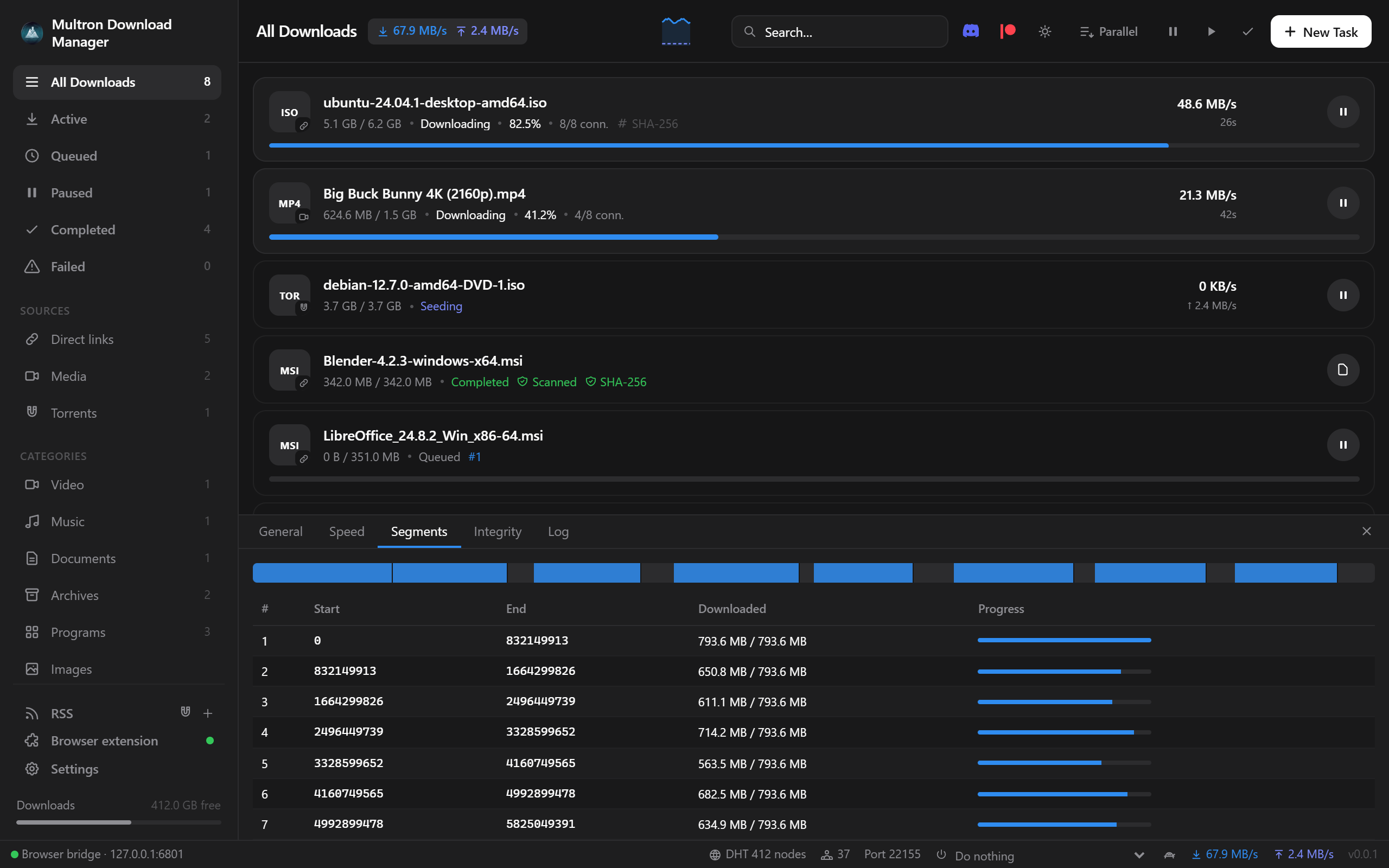
The first release of the new Multron Download Manager, rewritten from the ground up in Rust (Tauri v2) with a redesigned interface. One app for direct links, videos, cloud-drive files and torrents on Windows, macOS and Linux.
Highlights
- Faster downloads. Every file is split across 8 connections by default (1–64, changeable while the download runs). Idle connections take over the slowest remaining parts, and data is written straight into the final file at its offset, so there is no merge step at the end. Disk space is checked before a download starts, and resuming is safe: if the file changed on the server, Multron Download Manager notices (ETag / If-Range) and starts over instead of producing a broken file.
- Videos from 1,800+ sites. YouTube, Reddit, Instagram, X, TikTok, Facebook, Vimeo, Twitch and many more come through yt-dlp. Multron Download Manager downloads yt-dlp from GitHub and keeps it and FFmpeg up to date automatically (no Python needed). On Windows and macOS it also installs FFmpeg automatically, with the multi-connection engine; the download shows FFmpeg's own progress while it installs.
- Network changes do not break downloads. Turning a VPN or GoodbyeDPI on or off no longer fails a download: Multron Download Manager waits for the network, gets fresh links and continues. Broken video pieces are fetched again instead of ending with an FFmpeg error.
- MP4 videos play everywhere. MP4 downloads use H.264 video and AAC audio, so they show a picture in every player, not only in players with AV1 support.
- YouTube just works. Videos are downloaded without your browser cookies, which YouTube often rejects ("The page needs to be reloaded"). Cookies are only used when YouTube asks you to sign in. The real video title is shown right away.
- Download from anywhere. Google Drive (including large files and Docs/Sheets/Slides export), MEGA (decrypted while downloading), Dropbox, MediaFire, Pixeldrain and GitHub links work directly.
- Built-in torrent client. BiglyBT-style tabs: Speed, Files, Options, Sources, Peers, Pieces, Info, Privacy and Log. You also get custom trackers, seeding rules, a SOCKS5 proxy, interface binding, IP filters (block or allow, from a file or URL) and listen port 22155.
- SHA-256 verification. Optionally enter the expected hash for each download and have it checked automatically when the download finishes. Checksum files published next to the download are found automatically.
New in this release
Browser takeover
- The extension now catches every download in the browser:
- Clicks on file links go straight to Multron Download Manager, so the browser never starts them.
- Downloads that start some other way are paused instantly, moved to Multron Download Manager and removed from the browser.
- If Multron Download Manager is closed, the extension starts it in the tray and hands over the download. Only if it cannot be started does the browser download the file itself.
- The download buttons always show what will be downloaded — the video, song or file name — on every site, including YouTube Shorts; the name is also used for the download in Multron.
- A browser extension setup assistant:
- It finds your installed browsers: Chrome (incl. Beta, Dev, Canary), Edge (incl. Beta, Dev, Canary), Brave, Opera, Opera GX, Vivaldi, Chromium / Ungoogled Chromium, Arc, Dia, Yandex, Naver Whale, Thorium, Supermium, Cent, Comodo Dragon, Epic, Avast / AVG / CCleaner Secure Browser, Sidekick, Wavebox, Firefox (incl. Developer Edition and Nightly), LibreWolf, Waterfox, Floorp, Zen and Mullvad Browser, plus any other browser registered with Windows.
- It prepares a permanent extension folder and opens the browser's extensions page with the path already on your clipboard.
- The extension then connects by itself; you only press Allow in Multron.
- Manage the extension from Multron Download Manager: installed browsers are listed with an Install extension button, and each connected extension can be reinstalled or removed from its browser. Remove completely takes it out of every browser and removes Multron Download Manager’s browser registration.
Download from any page
- Download video sits on the video itself, on every site. In Reddit, Instagram, X, YouTube, TikTok and Facebook feeds, each video is resolved to its own post.
- Reddit videos download without signing in. Multron Download Manager takes them from the player's stream and names each file after the post title.
v.redd.itlinks work the same way. - Download all from this page collects every video, image, audio file, file link, magnet and post on the page:
- It can scroll infinite feeds for you.
- Galleries come as original-size images, and ads are skipped.
- On Reddit it also picks up videos, GIFs, images and video links posted in the comments, named after the post and the commenter.
- In Multron Download Manager you filter by type, search, select, pick one quality for all, and save into a folder named after the page.
Torrents
- Play video and audio while the torrent downloads, with seeking.
- Create torrents from your own files or folders and seed them right away.
- Force recheck, export the .torrent file, and copy the magnet link.
- Queue limits for active downloads and seeds; seeding limits by ratio or time (pause, remove, or remove with files).
- Watch folder for .torrent files, and RSS feeds with automatic download rules.
- Speed scheduler: a turtle button for slower limits, which can switch on automatically for chosen hours and days.
- After downloads: run a program for each finished file; when everything is done, sleep, shut down or quit.
Safer downloads
- SmartScreen. Finished files are marked as downloaded from the internet, so Windows SmartScreen checks them when they are opened (Gatekeeper on macOS). If SmartScreen is off or was removed from the system, Multron Download Manager shows a warning.
- Antivirus scan. Finished downloads are scanned with Microsoft Defender or with your installed antivirus (through AMSI, files up to 50 MB), and found threats are flagged.
- The result names the antivirus that did the scan.
- If no antivirus is turned on, the file is marked Not scanned instead of clean.
- If your antivirus blocks or removes a file, the download is marked Threat found.
- Every file of multi-file torrents and media downloads is checked.
Both are on by default and can be turned off in Settings → Security.
More protection:
- Redirects from HTTPS to unencrypted HTTP are blocked (on by default), and connections require TLS 1.2 or newer.
- File names are cleaned of right-to-left override and other invisible characters, so a program cannot disguise itself as a document.
- On Linux and macOS the data folder, which holds download history and cookies, is private to your user account.
Managing the list
- Select several downloads with Ctrl+click, Shift+click or Ctrl+A, then pause, resume or remove them together. Delete removes the selection.
- Clear the list from the ✓ button: Clear finished, Clear failed or Clear all….
- Delete from disk also removes the temporary pieces of unfinished video downloads, retries files that are still in use, and tells you if a file could not be deleted.
Queue and speed
- Sequential download. The Parallel / One at a time button in the toolbar switches between downloading side by side and one after another.
- Queue order. Queued downloads show their place (
#1,#2…) and can be moved with ↑ / ↓ (double-click moves to the top or bottom). - Speed limit per download. The gauge button gives one-click limits: Unlimited, 256 KB/s, 512 KB/s, 1, 2, 5 or 10 MB/s.
Appearance
- Light, dark or match the system theme. It follows Windows, macOS and Linux as they switch. The sun/moon button in the toolbar switches manually.
- Accent colors: Blue (default), Cyan, Green, Orange, Purple, Red, Pink, Teal and Gray.
- Transparency effects in three strengths (Light, Medium, Strong):
- Windows 11: Acrylic or Mica
- Windows 10: Blur
- macOS: vibrancy
- Linux: solid backgrounds; theme and colors still apply
System
- Mandatory updates:
- When Multron Download Manager starts and a new version is available, it downloads it (with progress), installs it and restarts before the app can be used.
- A file is installed only if its hash matches
SHA256SUMS.txt. - Without an internet connection Multron Download Manager starts normally and tries again next time.
- Start with the system. The option reads Start with Windows on Windows, Open at login on macOS, and Start when I log in on Linux (an autostart entry). Multron Download Manager starts hidden in the tray.
Also included
- Shows the overall download progress on the taskbar button, with a spinning ring in its corner (also on the tray icon), and in the tray tooltip, and flashes the taskbar button when a download finishes in the background.
- Runs in the background with a tray icon: closing the window keeps downloads, seeding and the browser connection alive.
- Drag and drop
.torrentfiles, paste any link to add it, and open.torrentfiles andmagnet:links with Multron. - Uses your system language by default — English, Turkish, German, French, Spanish, Italian, Portuguese (Brazil), Russian, Japanese, Chinese (Simplified), Chinese (Traditional) and Korean (English when there is no translation), and the installer follows the Windows language too. Translations are plain language files (
frontend/src/lang/<code>.json), so new languages are easy to add.
License
Multron Download Manager is source-available, proprietary software. You may install ...