HUD Format
🌎 Choose language: EN — English · RU — Русский
A HUD is put together across four kinds of folder:
| Folder | Purpose |
|---|---|
huds/ |
which layouts a HUD contains, and its X/Y on screen (%) |
layouts/ |
every element in it, and their X/Y relative to that spot (pixels) |
images/, texts/, heads/, compasses/
|
what each element is and what it does |
assets/, fonts/
|
the PNG and TTF files themselves |
Start by deciding which assets you need and putting them in assets/. Subfolders work, but then the
path has to be spelled out wherever the file is named.
Then describe an element in images/:
# images/panel.yml
panel:
  file: panel.png
  setting:
    scale: 1
Bars — type: listener — are covered further down.
Now register the layout in huds/, before it exists:
# huds/test.yml
test:
  layouts:
    1:
      name: test
      x: 2
      y: 2
x and y here are percentages of the screen, not pixels, so the HUD holds its place at any
resolution and any GUI scale. Horizontally:
0 — against the left edge 50 — centred 100 — against the right edge.
That is an origin, not an alignment: at x: 100 the HUD starts at the right edge and anything drawn
to the right of it goes off screen. To hang a HUD off the right edge, use x: 90 and negative offsets
on its elements.
Finally the layout, where the elements are gathered and spaced against each other:
# layouts/test.yml
test:
  x: 0
  y: 0
  images:
    1:
      name: panel
      x: 50
      y: 5
      layer: 0
  texts:
    1:
      name: default          # a font from texts/
      pattern: "Health"
      x: 20
      y: 5
      scale: 1
      color: green
      align: left
      layer: 1
    2:
      name: default
      pattern: "[health]/[max_health]"
      x: 20
      y: 10
      scale: 1
      color: white
      align: left
      layer: 1
layer decides what draws over what: the higher the number, the higher the priority. Ties keep config
order.
Three coordinate systems, nested, each measured from the one above it:
   x ──────────────────────────────────►
 y ┌───────────────────────────────────┐
 │ │        ┌╌╌╌╌╌╌╌╌╌╌╌╌╌╌╌╌╌╌╌╌╌╌╌╌╌╌╌  hud: x/y in PERCENT of the screen
 │ │        ╎   ┌───────────────────────  layout: x/y in PIXELS from the hud
 ▼ │        ╎   │  ████ 20/20   ┌────────  element: x/y in PIXELS from the layout
   │        ╎   │  ██████████   │
   │        ╎   │
   │
   │                                   │
   └───────────────────────────────────┘
-
huds/places a hud with percentages, so it holds its position at any resolution. -
layouts/and the elements inside them use pixels, so a bar and its label stay glued together no matter where the hud sits. -
Y grows downward.
y: 16is sixteen pixels lower, not higher. - Negative values are allowed and useful —
y: -10lifts an element above its layout origin.
For a HUD anchored to the bottom or the right, put the hud at x: 90 or y: 95 and give its
elements negative offsets, rather than trying to compute an absolute position.
align on a text element decides which part of the text sits at its x: left starts there,
center is centred on it, right ends there.
Anything in square brackets is a value. The engine resolves a lot of them by itself, with no other plugin installed:
| Group | Keys |
|---|---|
| Player |
name uuid world gamemode ping
|
| Position |
x y z x_exact y_exact z_exact yaw pitch direction direction_short
|
| Health |
health health_rounded max_health health_percent absorption
|
| Attributes |
armor armor_toughness attack_damage attack_speed movement_speed
|
| Hunger |
food saturation exhaustion
|
| Air |
air max_air air_percent
|
| Experience |
level xp_percent total_experience
|
| World |
world_time clock is_day is_raining is_thundering
|
| State |
on_ground is_sneaking is_sprinting is_flying is_swimming
|
Every name also accepts a player_ prefix, since that is how PlaceholderAPI spells them.
For anything else, [papi:some_placeholder] goes to PlaceholderAPI if it is installed, and another
plugin can publish its own values through the API.
texts:
  1:
    name: default
    pattern: "XP [level] — [x] [y] [z]"
    x: 0
    y: 0
    scale: 1
    color: white
    align: center      # left, center, right
    outline: 1         # 1 draws the vanilla text shadow as an outline
    layer: 1
§ colour codes work inside a value, so a plugin can colour part of a line by what it returns.
Watch the size: the height is the font's scale times this one, and under five pixels text stops being readable. The engine warns when that happens rather than letting you wonder why the numbers look like smudges. See Fonts.
An image is a sprite. Add type: listener and it becomes a bar: the engine slices it into split
steps and picks one from a value over a maximum.
# images/bars.yml
bar_health:
  file: bar_health.png
  type: listener
  split: 40            # how many fill steps
  split-type: left     # which end it fills from
  setting:
    scale: 1
    listener:
      value: "health"
max: "max_health" # either a value that holds the maximum ("max_health"), or a fixed number ("20")Any image or bar can carry a condition. It names a value, and the element only draws while that
value is true. Anything except empty, 0 and false counts as true, and the built-in state values
give exactly 1 or 0:
images:
  5:
    name: bar_air
    x: 20
    y: 16
    condition: is_swimming     # appears only while swimming
The basic values need nothing else: no code, no API, all handled inside the engine.
🎥 A condition in action
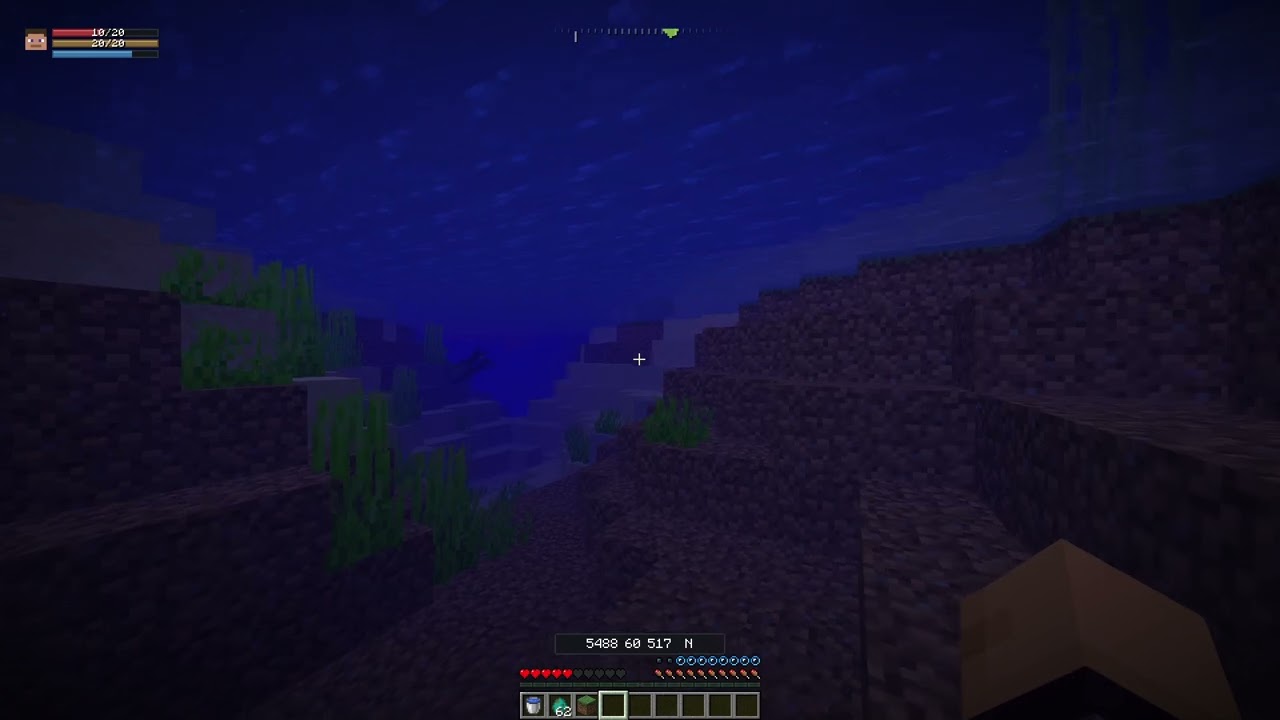
# heads/face.yml
face:
  pixel: 2       # screen pixels per skin pixel, so 2 gives a 16x16 face
The face comes from the player's own skin. On an offline-mode server there is no skin to fetch and a built-in face is drawn instead — unless something like SkinRestorer is providing one, in which case it works normally.
# compasses/simple.yml
simple:
  length: 30                  # columns wide
  space: 2
  scale: 1
  scale-equation: "1 - t/30"  # icons shrink towards the edges
  apply-opacity: true         # and fade
  file:
    n:     { name: compass_cardinal.png, scale: 1 }
    chain: { name: compass_chain.png, scale: 0.7, opacity: 0.6 }
    point: { name: compass_marker.png, scale: 1 }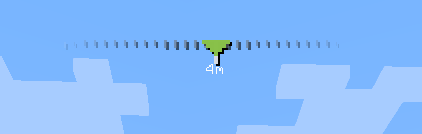
Fixed points go in points/:
# points/places.yml
spawn:
  world: world
  x: 0
  z: 0
  icon: bank      # a custom-icon key, or omit for the default marker
  radius: 300     # only within this many blocks; 0 means always
Moving points — quests, party members — come from other plugins through the API.