Repository navigation
User Guide
- Installation
- Opening TMDBCockpit
- The overview
- Details of a movie or series
- Crew and persons
- Seasons
- Trailers
- Saving descriptions and covers
- Settings
- Your own API key
- Troubleshooting
Install the package enigma2-plugin-extensions-tmdbcockpit and restart Enigma2. It needs an internet connection and these packages, which are installed with it:
| Package | Used for |
|---|---|
python3-requests |
talking to TMDB |
python3-yt-dlp |
downloading trailers from YouTube (see Trailers) |
enigma2-plugin-systemskins-fontcockpit |
the fonts of the screens |
There are three ways, and what you see depends on which one you use:
| From | What you get |
|---|---|
| Plugin menu or extensions menu, entry TMDBCockpit | The overview with the movies that are currently in cinemas. No search text, and nothing can be saved. |
| A movie list (for example the list of MovieCockpit) | The search for the movie you have selected, using the name of the recording as the search text. You can save the description, cover and backdrop next to the recording. |
| The programme guide | The search for the selected programme, using its title. Press the red key of the EPG, or open TMDB Infos from the event information. |
The red key of the EPG screens opens TMDBCockpit when the setting Red key for TMDB infos in EPGs is on (see Settings). The EPG then shows the key as TMDb Search. In the EPG screens whose red button you can configure (in the EPG settings of Enigma2), the TMDb search becomes the red button as long as you have not chosen another action for it yourself; a choice of yours is never changed. You can also select TMDb Search for the red button there. This is applied when Enigma2 starts, so restart Enigma2 after changing the setting.
The name of the recording or programme is cleaned first: text in brackets is removed, and punctuation such as : - _ , . + [ ] is replaced by spaces. If TMDB finds nothing, the plugin tries again with the last word removed, again and again, until there is a result or no word is left. When the search text differs from what you gave it, the line above the list shows both.
If there is exactly one result and Skip to movie details for single result is on (the default), the details open right away.
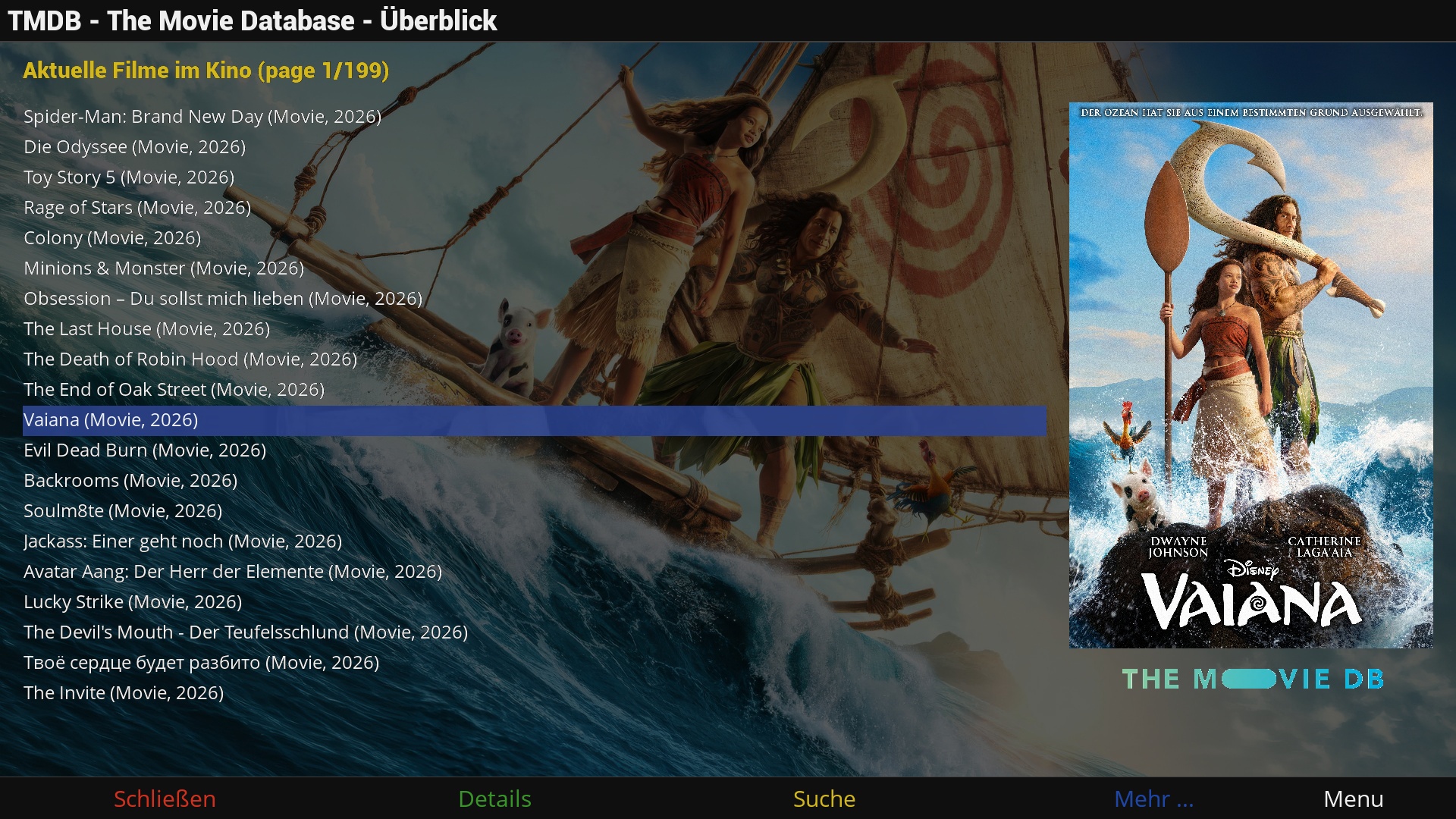
The overview lists the results: movies, series and persons, each with its year. The cover of the selected entry is shown on the right and its backdrop in the background. The line above the list says what you are looking at and, for the lists of TMDB, the page (for example page 1/199).
| Key | Action |
|---|---|
| UP / DOWN | Move in the list. At the first or last entry they go to the previous or next page. |
| CH+ / CH- | Previous / next page of results. |
| OK or GREEN | Details of the selected entry. |
| YELLOW or INFO | Edit the search text. |
| BLUE (more ...) | Choose a list, see below. |
| MENU | Settings. |
| RED or EXIT | Close. |
BLUE opens a menu to switch what the overview shows:
| Entry | Shows |
|---|---|
| TMDB Infos | The results of a search (use YELLOW to enter the text) |
| Current movies in cinemas | Movies that run in cinemas now |
| Upcoming movies | Movies that will be released soon |
| Popular movies | The most popular movies |
| Similar movies | Movies similar to the selected one |
| Recommendations | Movies TMDB recommends for the selected one |
| Best rated movies | The best rated movies |
Similar movies and Recommendations use the entry that is selected when you open the menu.
OK on a movie or series opens its details: cover and backdrop, the genres, the year, the countries, the rating and the number of votes, the runtime, the director, the author and the studios, and the German age rating (FSK) as a logo: 0, 6, 12, 16 or 18. The 0 logo is also shown when TMDB has no German rating for the entry. Below that are the tagline, the description, the cast, the crew and, for a series, the seasons. If TMDB has no description in your language, the English one is used.
| Key | Action |
|---|---|
| UP / DOWN / LEFT / RIGHT | Scroll the description. |
| OK or GREEN | The crew (see Crew and persons). |
| YELLOW | For a movie: the videos (Videos (n)), see Trailers. For a series: the seasons. |
| BLUE (more ...) | Save description, cover or backdrop. Only when TMDBCockpit was opened from a movie list. See Saving descriptions and covers. |
| INFO | Search for the movie with another plugin, if one is installed (for example a plugin that finds the movie in a media library). Without one you get the message No search provider registered. |
| MENU | Settings. |
| EXIT | Back to the overview. |
| RED | Close TMDBCockpit. |
GREEN or OK on the details opens the crew: the cast and the crew of the movie or series. OK or GREEN on a person opens their details: the birthday, the place of birth, the gender and other names, the popularity, the biography, and what the person is known for. UP / DOWN / LEFT / RIGHT scroll the text.
EXIT goes back one screen, RED closes TMDBCockpit.
A person can also be a result of a search in the overview: OK opens the person directly.
For a series, YELLOW in the details opens the seasons, each with its cover and description. UP / DOWN select a season, CH+ / CH- scroll its description. BLUE (more ...) saves the description or cover of the selected season, like for a movie (only from a movie list).
YELLOW in the details of a movie shows Videos with the number of videos TMDB knows on YouTube. With more than one you choose one from a list.
The trailer is not streamed: YouTube no longer allows that for a box. It is downloaded first (the message Downloading trailer ... is shown), merged with ffmpeg and played from the receiver's temporary storage in the Trailer Player. EXIT leaves the player. The download can take a while, depending on the resolution and your connection.
Only H.264 video is downloaded, because the hardware decoder of many receivers can't show the newer formats. Two settings influence the download: YouTube trailer best resolution and YouTube trailer use Dash MP4 (see Settings).
When TMDBCockpit was opened from a movie list, BLUE (more ...) in the details (and in the seasons) offers to save what you see next to the recording:
| Entry | Saves |
|---|---|
| Save movie description | The description as <recording>.txt
|
| Save movie cover | The cover as <recording>.jpg
|
| Save movie backdrop | The backdrop as <recording>.bdp.jpg
|
| Save movie backdrop as cover | The backdrop as <recording>.jpg
|
| 1+2 | Description and cover |
| 1+2+3 | Description, cover and backdrop |
| 2+3 | Cover and backdrop |
<recording> is the path of the recording without its extension. A message tells you what was saved. The resolution of the saved pictures is set by Cover resolution and Backdrop resolution.
Open them with MENU in any screen of TMDBCockpit.
| Setting | Meaning |
|---|---|
| Language | The language of the results (titles, descriptions, genres). Default: the language of the receiver. |
| Skip to movie details for single result | Open the details right away if the search finds only one result. Default: on. |
| Red key for TMDB infos in EPGs | Use the red key of the EPG screens to open TMDBCockpit (see Opening TMDBCockpit). Default: on. Restart Enigma2 after changing it. |
| Cover resolution | Size of the cover pictures: w92, w185, w500 or original. Default: original. A smaller size loads faster and saves less data to a recording. |
| Backdrop resolution | Size of the backdrop pictures: w300, w780, w1280 or original. Default: original. |
| YouTube trailer best resolution | The highest resolution to download a trailer in, from 176x144 up to 4096x3072. Default: 1280x720. |
| YouTube trailer use Dash MP4 | Download video and audio separately and merge them (better quality). Switch it off to use the combined streams only. Default: on. |
| Log level | The level of the debug messages (expert setting). |
TMDBCockpit comes with a key of its own for the TMDB service. If you want to use your own (for example because the shared one is limited), create the file /etc/enigma2/tmdb_key.txt with your TMDB API key (the 32 characters of the v3 key) as its only content. The first 32 characters of the file are used. The key is read whenever a screen opens, so no restart is needed. Remove the file to use the built-in key again.
No results, or the wrong movie. Press YELLOW and edit the search text: remove extra words (such as the name of the channel or episode titles) or enter the title in the language set in the settings. A title with a year in brackets is searched without it.
No pictures.
Check the internet connection. Pictures are loaded when you select an entry and kept in a temporary folder (/var/volatile/tmp/TMDBCockpit/) that is emptied when you close TMDBCockpit. Choosing a smaller Cover resolution helps on a slow connection.
The description is in English. TMDB has no description in your language for this entry. Check the setting Language.
A trailer does not play (Trailer playback failed).
YouTube changes often. Update python3-yt-dlp first. Then try a lower YouTube trailer best resolution, or switch YouTube trailer use Dash MP4 off. Check that ffmpeg is installed.
The red key of the EPG does not open TMDBCockpit. Check the setting Red key for TMDB infos in EPGs and restart Enigma2. If you set the red button of that EPG screen to another action in the EPG settings of Enigma2, it keeps that action: choose TMDb Search there. TMDB Infos in the event information works in any case.
I can't save anything. Saving is only offered when TMDBCockpit was opened from a movie list, for a recording. The key BLUE is empty otherwise.
Reporting a problem.
Set Log level to DEBUG (an expert setting), reproduce the problem and attach the Enigma2 debug log. Lines of the plugin start with TMD:. Set the level back afterwards.