Repository navigation
Arsys Cluster
Arsys Edge Clusters deployed through OneForm are based on Arsys Dedicated Severs and support KVM hypervisors.
An Edge Cluster in Arsys creates the following resources:
- Arsys Baremetal Server: Host to run VMs
- Arsys Firewall Policy: Traffic networking rules (allow-all by default)
- Arsys Private Network: For private networking within VMs
- Arsys Public Network: For public networking within VMs
- SSH Key: oneadmin public key, will be injected in the hosts
The network model is implemented in the following way:
- Public Networking: Relies on Elastic IPs from Scaleway and the IPAM driver from OpenNebula. When the Virtual Network is created in OpenNebula, the Elastic IPs are requested from Scaleway. Then, inside the Host, IP forwarding rules are applied so the VM can communicate over the public IP assigned by Scaleway.
- Private Networking: uses BGP-EVPN and VXLAN.

The following resources, which are associated with each Edge Cluster, are created in OpenNebula:
- Cluster: Containing all other resources.
- Hosts: For each Arsys Baremetal Device.
- Datastores: Image and system datastores with SSH transfer manager.
- Virtual Network: For public networking.
- Virtual Network Template: For private networking.
To create a Provision in Arsys, you must have a Arsys Provider already created.
The following processes demonstrate how to create a Arsys Provision in your OpenNebula installation. You can provision a Cluster in three different ways:
Step 1. Navigate to Infrastructure -> Clusters in the Sunstone sidebar:

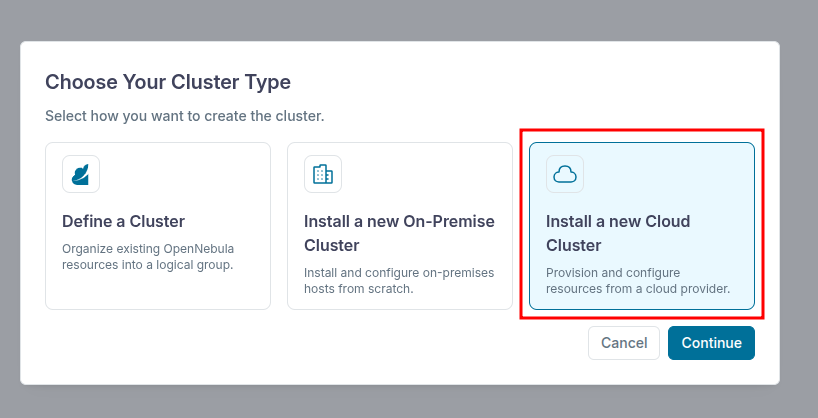
Step 2. Click Create and select Install a new Cloud Cluster:

Step 3. Select Arsys Provider and click Next:

Step 4. Enter a name and a description for the Cluster in the General page and click Next:

Step 5. Select the type of deployment and click Next:

Step 6. Commplete the User Inputs section to configure the Cluster and click Next:

Step 7. Optionally you can add tags to help identify your Cluster in OpenNebula and Arsys. Click Finish to start the Cluster deployment:

Step 8. You can observe the logs and the status of the Cluster deployment in the Cluster Logs view:

Step 9. After reaching the RUNNING state, a full cloud Cluster is available, ready to operate:

Now that you have created an Arsys Cluster, learn how to Manage your Provisioned Clusters.
Create an Arsys Provision using the oneprovision create <name> --provider-id <ID> command, specifying arsys as the Provider type and the ID of the associated Provider for this Provision (use oneprovider list to find the appropriate ID). This initiates an automated process in which OneForm prompts for all required input parameters and starts the deployment:
oneprovision create arsys --provider-id 1There are some parameters that require user input.
* (oneform_hosts) Number of instances to create [type: number, default: 1]
> 1
* (instance_type) Instance type [type: list: em_a115x_ssd]
> 0
* (instance_os_name) OS [type: list: ubuntu_2204, ubuntu_2404]
0: ubuntu_2204
1: ubuntu_2404
Press enter for default (ubuntu_2204). Please type the selection number: 0
* (instance_disk_size) Disk size in GB [type: number, min: 32, max: 1024]
> 128
* (instance_public_ips) Number of public IPs [type: number, min: 0, max: 5]
> 1
ID: 1
After you have created the Provision, list all the existing Provisions using the oneprovision list command:
oneprovision list ID USER GROUP NAME STATE REGTIME
1 oneadmin oneadmin Arsys SSH Cluster RUNNING 06/05 10:52:29
To inspect the details of a specific Provision, use the oneprovision show command. The output displays information about the generated OpenNebula objects such as Hosts, datastores, and networks:
oneprovision show 1PROVISION 1 INFORMATION
ID : 1
NAME : Arsys SSH Cluster
DESCRIPTION : It deploys a SSH cluster on Arsys
USER : oneadmin
GROUP : oneadmin
STATE : RUNNING
PROVIDER ID : 1
REGISTRATION TIME : 09/16 11:28:29
PERMISSIONS
OWNER : um-
GROUP : ---
OTHER : ---
PROVISION VALUES
cidr_block : 10.0.0.0/16
oneform_hosts : 0
instance_disk_size : 128
instance_os_name : ubuntu_2204
instance_public_ips : 0
instance_type : c5.metal
OPENNEBULA RESOURCES
CLUSTER
ID : 2
NAME : Arsys SSH Cluster
HOSTS
ID NAME RESOURCE_ID
3 3.74.216.118 i-006a01c592f849031
NETWORKS
ID TYPE NAME
6 vxlan private_arsys_network
7 elastic public_arsys_network
DATASTORES
ID TYPE NAME
101 system_ds arsys_system_ds
102 image_ds arsys_image_ds
Now that you have created an Arsys Cluster, learn how to Manage your Provisioned Clusters.
To create a new Arsys Provision using the OneForm API, use the following example request, replacing the appropriate parameters for your Provision:
curl -X POST "https://oneform.example.server/api/v1/provisions" \
  -u "username:password" \
  -H "Content-Type: application/json" \
  -d '{
    "driver": "arsys",
    "deployment_type": "ssh_cluster",
    "provider_id": 1,
    "user_inputs_values": {
      "oneform_hosts": 1,
      "instance_disk_size": 128,
      "instance_os_name": "ubuntu_2204",
      "instance_public_ips": 0,
      "instance_type": "em_a115x_ssd"
    },
    "name": "Arsys Cluster",
    "description": "Cluster provisioning in Arsys"
  }'
For further details about the API, see the OneForm API Reference.
Now that you have created a Scaleway Cluster, learn how to Manage your Provisioned Clusters.