Installing hMailServer
This page began as a chapter of the 6.2.10 manual and has been corrected against the 6.2.28 source tree. The Control Panel's pages are grouped differently now, so the paths below use today's groups; the TLS ports 465, 993 and 995 exist only after you create them on the TCP/IP ports page (a fresh install seeds 25, 587, 110 and 143); and everything added since 6.2.10 is in Changes-Since-6210. Where a value here disagrees with the Settings Reference, which is generated from the code, the reference is right.
Everything on this page is drawn from the installer script itself — hmailserver/installation/,
an Inno Setup project whose logic lives in hMailServerInnoExtension.iss. Where a claim
here matters, the file and function are named so you can check it.
Work through Before You Install first.
Get hMailServer-6.2.28-x64.exe from the
releases page.
Each release also carries:
| Asset | What it is | Do you need it? |
|---|---|---|
hMailServer-6.2.28-x64.exe |
The installer | Yes |
hmailserver.spdx.json |
SBOM in SPDX format | Only if you audit your supply chain |
hmailserver.cyclonedx.json |
SBOM in CycloneDX format | Only if you audit your supply chain |
<asset>.cosign.bundle |
A Sigstore signature and certificate bundle for every asset | Recommended — it is how you prove the file came from this repository's build |
Verifying the download. Signing is keyless Sigstore: the signature is bound to this repository's GitHub Actions identity through OIDC and recorded in the public Rekor transparency log, so there is no key for anyone to leak. With cosign installed:
cosign verify-blob \
  --bundle hMailServer-6.2.28-x64.exe.cosign.bundle \
  --certificate-identity-regexp '^https://github\.com/Progressiverobot/hmailserver/' \
  --certificate-oidc-issuer https://token.actions.githubusercontent.com \
  hMailServer-6.2.28-x64.exe
Verified OK
Signed from 6.3.1. The installer carries an Authenticode signature from Azure Artifact Signing, countersigned with an RFC 3161 timestamp, so the UAC prompt names Progressive Robot Ltd rather than Unknown publisher, and a policy that refuses unsigned binaries no longer refuses this one. SmartScreen still warns: it judges a file by reputation, and a new installer every few weeks never accumulates any, so expect Windows protected your PC with the publisher's real name on it. Releases before 6.3.1 are unsigned and stay so - a published release is immutable. Sigstore is unchanged and is the check that proves provenance for every asset, Linux packages included:
cosign verify-blobagainst the.cosign.bundlebeside each file (.github/workflows/sign-release.yml).
Right-click the installer and choose Run as administrator. PrivilegesRequired=admin
means it will ask anyway; starting elevated avoids a second prompt.
InitializeSetup() runs first, and can refuse to start. Knowing what it looks at saves a
puzzled five minutes:
| Check | What you see when it fires | Result |
|---|---|---|
/adminpassword shorter than 5 characters |
"The password given with /adminpassword must be at least 5 characters long." | Setup stops |
| A window titled hMailServer Control Panel is open | "…You must close down this application before starting the installation." | Setup stops |
| A window titled hMailServer Administrator is open (a legacy version's GUI) | the same message | Setup stops |
| A window titled hMailServer Database Setup, hMailServer Database Upgrader or DBSetup is open | the same message | Setup stops |
| Ports 25, 110 or 143 already in use while the hMailServer service is not running | "…one or several of the TCP/IP ports 25, 110 and 143 are already in use. This indicates that there already is an email server running on this computer." | Warning only — setup continues, and you will have two servers fighting over port 25 |
| Windows older than build 14393, or 32-bit | "hMailServer requires Windows 10 version 1607 (build 14393) / Windows Server 2016 or later, 64-bit." | Setup stops |
Every one of those dialogs is a SuppressibleMsgBox, so under /SUPPRESSMSGBOXES they take
their default button instead of waiting for a keyboard that is not there. That is deliberate:
in 6.2.19 a plain MsgBox on this path made a /VERYSILENT install wait ninety minutes in CI
for an answer nobody could give.
Screenshots on this page are from a 6.2.11-era build. The wording is current except where a caption says otherwise.
1. Licence agreement. hMailServer is AGPL-3.0. In short: you may use it freely,
including commercially; if you modify it and offer it to others over a network, you must
publish your changes. License.rtf is also copied to {app}\Bin so it is on the machine
afterwards.

The body text visible in this 6.2.11-era shot is the pre-AGPL preamble. The heading is
unchanged, but current releases show the GNU Affero General Public License v3 text beneath
it — verified in installation/License.rtf.
2. Destination folder. The default C:\Program Files\hMailServer is fine.
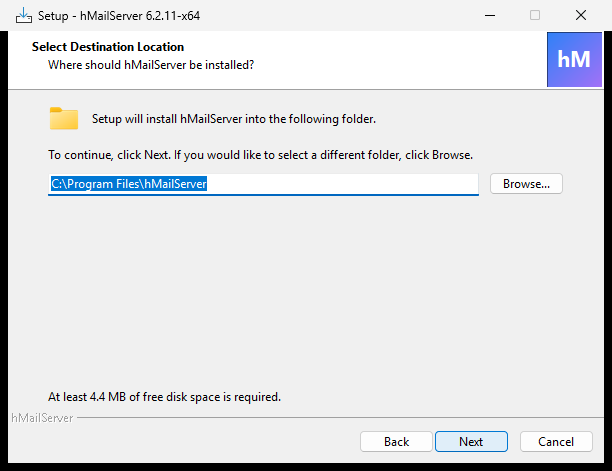
On a machine where hMailServer has been installed before,
OverrideInstallationFolder()readsHKLM32\SOFTWARE\Microsoft\Windows\CurrentVersion\Uninstall\hMailServer_is1\InstallLocationand puts that path in the box, so an upgrade returns to wherever the original install went. This is what makes an x86-to-x64 upgrade find the existing installation, which Inno does not do on its own.
3. Components. This page matters, so read it:
| Component | Internal name | Take it? | What it does |
|---|---|---|---|
| Server | server |
Yes | The mail server itself, the database tools, the add-ons, the DB scripts. Everything else is optional |
| Remote administration support | admintools |
Only if scripting from another machine | Registers the hMailServer COM type library on a machine that is not the server, so scripts and COM clients can administer a remote instance |
| Control Panel | controlpanel |
Yes | The administration application. Without it you have no GUI |
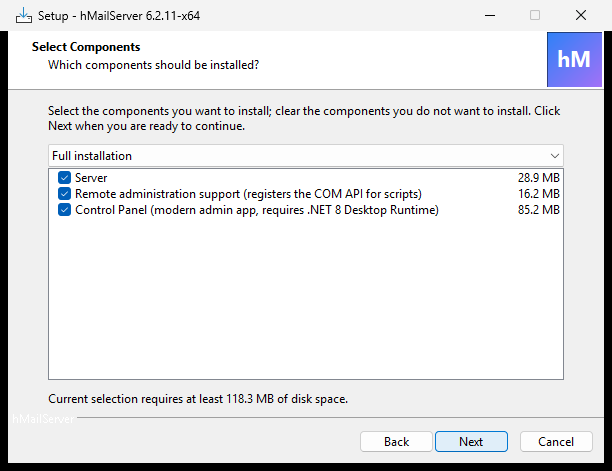
The component sizes shown are from a 6.2.11 build; the Control Panel line now reads ".NET 10 Desktop Runtime".
The Control Panel does not need "Remote administration support". It binds late, through
IDispatch, and connects to a remote host by itself. The component is only for other COM clients — your own scripts, monitoring tools — running on a machine that is not this one. Seesection_components.iss.
Note for upgraders: "Administrative tools" in older versions bundled the classic Administrator GUI and a PHP web interface. Both are gone. The component now does only what it always really did — register the COM type library.
4. Database type. Choose Use the built-in database engine unless you decided otherwise in Before You Install §3.5.
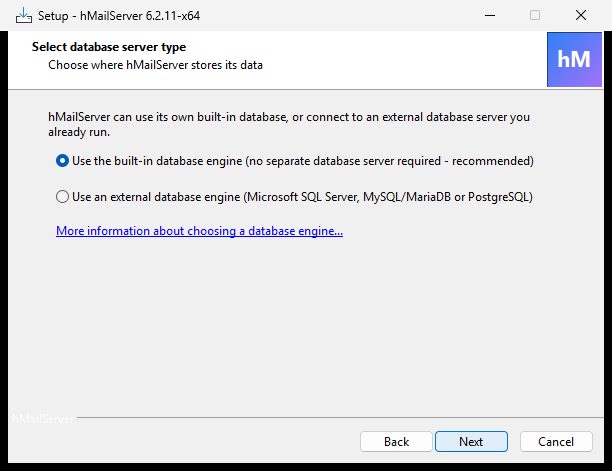
This page is skipped when [Database] Type is already set in an existing
hMailServer.ini — an upgrade never re-asks — or when the server component is not
selected (ShouldSkipPage).
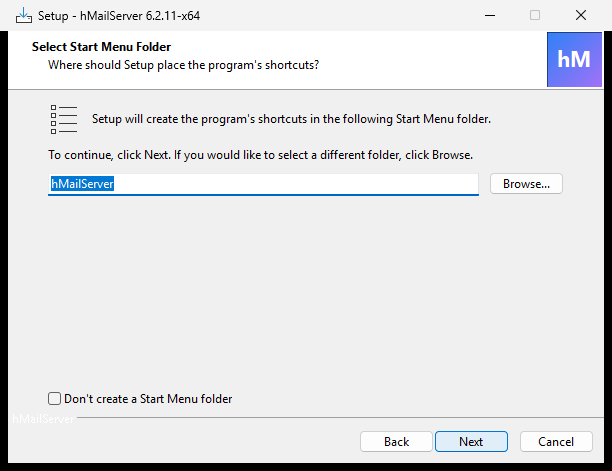
5. Start menu folder. hMailServer, and you can suppress the group entirely.
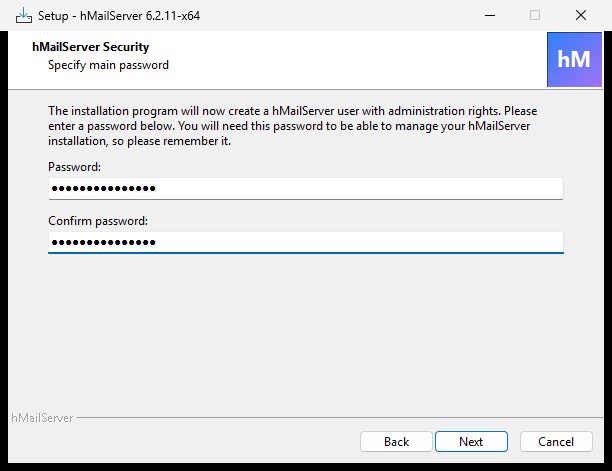
6. Administrator password. hMailServer asks you to set a password for the administration interface. This is not an email password — it is the master password for the whole server. Minimum five characters, and the two boxes must match.

This page is skipped when the server component is not selected, when a password is
already present in the ini (you cannot change it here — use the Control Panel), or when one
arrived on the command line with /adminpassword.
Set one. Use a long, unique password and store it in a password manager. Anyone with it owns every mailbox on the server. And an installation with no administrator password is not merely unprotected —
COMAuthentication::AttempAnonymousAuthenticationgrants server-administrator rights to any COM caller while the value is empty, andRestApiServer::Startrefuses to start the REST API at all. Leaving it unset is the installer's safest available state, not a good one.
7. Ready to install. This is the last page at which anything can still be stopped.

Pressing Install here does one thing before any file is touched: it stops the hMailServer service and waits for it to actually stop, with a bound. If it will not stop, setup refuses to go past this page:
The hMailServer service did not stop within 30 seconds.

Setup cannot continue: replacing the program files while the service is running
would leave the old server binary installed alongside an upgraded database, and
hMailServer would then refuse to start at all.

Stop the hMailServer service manually (services.msc), then run this installation
again.
The budget is ShutdownDrainSeconds + 30 seconds, read from the existing ini — so an
installation that deliberately holds its shutdown open to let sessions finish gets the time
it asked for. (StopHMailServerService.)
8. Install. Files are copied, then the six post-install steps below run.
flowchart TD
    START(["Setup starts"]) --> IS["InitializeSetup: password length, running GUIs, ports 25/110/143"]
    IS -->|refused| STOP(["Setup exits"])
    IS -->|ok| IW["InitializeWizard: read /useinternaldbms, OverrideInstallationFolder from HKLM32"]
    IW --> SILENT{"Silent install?"}
    SILENT -->|Yes| READY
    SILENT -->|No| PAGES["Licence, Destination, Components"]
    PAGES --> DBPAGE{"Database Type already in the INI, or server component not selected?"}
    DBPAGE -->|Yes| SKIP1["Database page skipped"]
    DBPAGE -->|No| ASKDB["Ask: built-in or external"]
    SKIP1 --> GROUP
    ASKDB --> GROUP["Start menu folder"]
    GROUP --> PWPAGE{"Password already set, given by /adminpassword, or server not selected?"}
    PWPAGE -->|Yes| SKIP2["Password page skipped"]
    PWPAGE -->|No| ASKPW["Ask for the administrator password, minimum 5 characters"]
    SKIP2 --> READY
    ASKPW --> READY["Ready page"]
    READY --> STOPSVC{"Stop the hMailServer service. Did it reach STOPPED within ShutdownDrainSeconds plus 30?"}
    STOPSVC -->|No| REFUSE["Refuse to continue. Stop it by hand and run setup again"]
    STOPSVC -->|Yes| INSTALL["ssInstall: MoveIni, copy files, write INI keys, write HKLM32 InstallLocation, create folders"]
    INSTALL --> POST["ssPostInstall"]
    POST --> SERVERSEL{"Is the server component selected?"}
    SERVERSEL -->|No| ADMINONLY{"admintools selected?"}
    ADMINONLY -->|Yes| REGTLB["RegisterTypeLib only"]
    ADMINONLY -->|No| DONE
    SERVERSEL -->|Yes| TASKS["RunPostInstallTasks, six steps"]
    TASKS --> RESULT{"Every step succeeded?"}
    RESULT -->|No| RAISE["RaiseException: the install FAILS with a non-zero exit code"]
    RESULT -->|Yes| RUNSEC["Run section: install the .NET runtime if still missing, offer to launch the Control Panel"]
    REGTLB --> DONE
    RUNSEC --> DONE(["Completed"])
RunPostInstallTasks() shows a progress page and runs these in order. Each one's failure is
checked — this is the part of the installer that used to report success regardless, and no
longer does.
| # | Step | What runs | If it fails |
|---|---|---|---|
| 1 | Install the .NET 10 Desktop Runtime |
windowsdesktop-runtime-10.0-win-x64.exe /install /quiet /norestart, only when DotNetDesktopMissing() says the shared framework has no Microsoft.WindowsDesktop.App\10.* directory |
Error dialog naming the exit code, and pointing at the download page and DBSetupQuick.exe. Exit codes 0, 3010 (reboot required) and 1638 (a newer build already present) are all treated as success |
| 2 | Initialise the database backend |
msiexec /I "{tmp}\SSCERuntime_x64-ENU.msi" /quiet /norestart, only for a fresh built-in install or an upgrade already on MSSQLCE
|
Error dialog; step 4 is then skipped entirely, because the tools cannot possibly succeed without it |
| 3 | Create the hMailServer service |
hMailServer.exe /Register, then sc failure and sc description
|
Error dialog naming the exit code; step 5 is skipped |
| 4 | Create or upgrade the database |
DBSetupQuick.exe for the built-in engine or an existing configuration, DBSetup.exe when an external engine is being chosen for the first time. /silent and password:<value> are forwarded |
Error dialog naming the exit code, and the install fails |
| 5 | Start the service |
net START hMailServer, then the verdict is taken from the SCM, not from net.exe
|
"The hMailServer service was installed but did not start." — check hMailServer.log and the ERROR log |
| 6 | Completed | — | — |
What a running service does and does not prove.
ServiceMainreportsSERVICE_RUNNINGbefore it connects to the database, so step 5 succeeding means the process started — not that the schema is usable. The schema is covered by step 4's exit code, which is why that one fails the install.
Open Services (services.msc) and find hMailServer. It should say Running,
startup type Automatic, logging on as Local System.

The Description column is blank in this 6.2.11-era shot. Current installers set it — see the
sc description call in ConfigureServiceRecovery() — so a fresh install reads "hMailServer
email server - SMTP, POP3 and IMAP."
Or from PowerShell:
Get-Service hMailServerStatus Name DisplayName
------ ---- -----------
Running hMailServer hMailServer
Check the recovery configuration too — this is set by the installer, not by the service itself, and it is the difference between a mail server that comes back after a crash and one that stays down until somebody notices:
sc.exe qfailure hMailServerSERVICE_NAME: hMailServer
RESET_PERIOD (in seconds) : 86400
FAILURE_ACTIONS : RESTART -- Delay = 60000 milliseconds.
RESTART -- Delay = 120000 milliseconds.
RESTART -- Delay = 300000 milliseconds.
Three restarts, escalating 1 → 2 → 5 minutes, with the counter cleared after a day without a failure. Deliberately not unbounded: a server that fails four times inside a day has a problem restarting will not fix, and by then the SCM has recorded four failures for whoever looks.
The installer does not open firewall ports for you. Until you do, nothing can reach your server. Run this in an elevated PowerShell:
New-NetFirewallRule -DisplayName "hMailServer SMTP"        -Direction Inbound -Protocol TCP -LocalPort 25  -Action Allow
New-NetFirewallRule -DisplayName "hMailServer Submission"  -Direction Inbound -Protocol TCP -LocalPort 587 -Action Allow
New-NetFirewallRule -DisplayName "hMailServer IMAP"        -Direction Inbound -Protocol TCP -LocalPort 143 -Action Allow
New-NetFirewallRule -DisplayName "hMailServer IMAPS"       -Direction Inbound -Protocol TCP -LocalPort 993 -Action Allow
New-NetFirewallRule -DisplayName "hMailServer POP3"        -Direction Inbound -Protocol TCP -LocalPort 110 -Action Allow
New-NetFirewallRule -DisplayName "hMailServer POP3S"       -Direction Inbound -Protocol TCP -LocalPort 995 -Action Allow
Your router or cloud firewall needs the same ports forwarded to this machine.
993 and 995 are in that list because you will want them, but a fresh install only listens on 25, 587, 110 and 143 — those four are the rows seeded into
hm_tcpipportsby the create script. Add the TLS ports on Connections & protocols → TCP/IP ports; see Encryption and Certificates.
The installer is Inno Setup, so the standard switches apply. Two are this installer's own, and one is used by the server's own update helper.
| Switch | Meaning | Notes |
|---|---|---|
/SILENT |
No wizard, but a progress window | |
/VERYSILENT |
Nothing on screen | |
/SUPPRESSMSGBOXES |
Dialogs take their default button | Use it with /VERYSILENT, always. Without it a failure waits for a keypress forever |
/LOG="<path>" |
Write a setup log | Use it. It is the only record of what happened |
/DIR="<path>" |
Destination folder | On a machine with a previous install, OverrideInstallationFolder() puts the recorded InstallLocation into the directory box during InitializeWizard, so an upgrade goes back to the original folder |
/COMPONENTS="…" |
Comma-separated: server, admintools, controlpanel
|
Omit to get the full installation |
/useinternaldbms=true|false |
true (the default) uses the bundled SQL Server Compact database; false when pointing at an existing MySQL, MariaDB, PostgreSQL or MS SQL server |
Read in InitializeWizard
|
/adminpassword=<password> |
Sets the administrator password the wizard page would have asked for | At least five characters, or setup refuses to start. Without it the key is left out of the ini entirely |
/upgradetoken=<token> |
The single-use token the server issues to its own update helper, forwarded to the database tool as password:token:<token>
|
Not something you pass by hand. It is never written to the ini |
hMailServer-6.2.28-x64.exe /VERYSILENT /SUPPRESSMSGBOXES /LOG="C:\Temp\hmail-install.log" ^
   /COMPONENTS="server,controlpanel" /useinternaldbms=true /adminpassword=<password>
if errorlevel 1 (
   echo Install FAILED - see C:\Temp\hmail-install.log
   exit /b 1
)
Always check the exit code. The installer checks that the database tool ran and its exit code, and raises on failure, so a failed database create or upgrade cannot report a successful install. The tools' own codes, which end up in the log:
| Tool | Code | Meaning |
|---|---|---|
DBSetupQuick.exe |
0 |
Database created, or already present and up to date |
1 |
The create failed, or DBUpdater.exe could not be started |
|
3 |
Authentication failed — the administrator password was wrong or missing | |
| other | Whatever DBUpdater.exe returned, forwarded unchanged |
|
DBUpdater.exe |
0 |
Upgraded, or already at the required schema version |
1 |
The upgrade failed, or the window was closed before it finished | |
2 |
Configuration error — settings could not be loaded, or no upgrade path exists between the two schema versions | |
3 |
Authentication cancelled or refused |
Why the password has to be forwarded on the upgrade path too.
DBUpdatermust authenticate before it can move the schema. Until 6.2.23,DBSetupQuickforwarded only/silent— so a silent upgrade had no password, fell through to a modal dialog nobody was there to answer, and hung the install indefinitely. Both paths forward it now, and the sharedAuthenticatorfails rather than prompting under/silent, so the worst case is a reported exit code instead of a wait with no end.
Worth knowing, because it is what you back up, and what you edit when something needs to change outside the Control Panel.
{app}\Bin\hMailServer.INI — the only configuration file. Everything else lives in the
database.
[Directories]
ProgramFolder=C:\Program Files\hMailServer
DatabaseFolder=C:\Program Files\hMailServer\Database
DataFolder=C:\Program Files\hMailServer\Data
LogFolder=C:\Program Files\hMailServer\Logs
TempFolder=C:\Program Files\hMailServer\Temp
EventFolder=C:\Program Files\hMailServer\Events

[GUILanguages]
ValidLanguages=english,swedish

[Security]
AdministratorPassword=5f4dcc3b5aa765d61d8327deb882cf99

[Database]
Type=MSSQLCE
Database=hMailServer
Server=
Username=
Password=<encrypted>
PasswordEncryption=6
Port=0
Internal=1| Key | Written by | Preserved on upgrade? |
|---|---|---|
[Directories] ProgramFolder |
[INI] in section_ini.iss
|
Overwritten every time — it must match where you just installed |
[Directories] DatabaseFolder, DataFolder, LogFolder, TempFolder, EventFolder
|
[INI], flag createkeyifdoesntexist
|
Preserved. A data folder you moved stays moved |
[GUILanguages] ValidLanguages |
[INI] |
Overwritten |
[Security] AdministratorPassword |
[INI], flag createkeyifdoesntexist, guarded by Check: HasAdministratorPassword
|
Preserved, and only written at all when a password was actually collected |
[Database] * |
DBSetup / DBSetupQuick through the COM API, not by the [INI] section |
Preserved |
Every [Settings] key in the Settings Reference
|
You, by hand | The installer never touches them |
The
HasAdministratorPasswordguard is load-bearing. Without it, an installation that never collected a password — every silent install, because the password page only exists in the interactive wizard — wroted41d8cd98f00b204e9800998ecf8427einto the ini: the MD5 of the empty string. That is not "no password set"; it is a valid entry the server authenticates an empty password against, becauseCrypt::GetHashTypetreats any 32-character value as MD5. It also silently disabled the two protections that key off an unset password. Leaving the key out is the safer state, and it is the one the rest of the product is written for.
The installer stores the password as MD5 (GetMD5OfString). Change it once from the Control
Panel — Access & abuse protection → Administrative access — and it is rewritten as
PBKDF2, which looks like $h1$<iterations>$<salt-hex>$<key-hex>. Doing that immediately
after installing is a good habit.
Registry. One value, in the 32-bit view, and that is not a mistake:
HKEY_LOCAL_MACHINE\SOFTWARE\WOW6432Node\hMailServer
    InstallLocation = C:\Program Files\hMailServer
Registry::GetStringValue opens the key with KEY_WOW64_32KEY, so the 64-bit server reads
the 32-bit view; writing to the 64-bit view would make the lookup fail on every machine. It
is declared in section_registry.iss rather than written from code so that the uninstaller
removes it, and so that it exists before the service is first started.
Service.
| Property | Value | Set by |
|---|---|---|
| Name / display name | hMailServer |
hMailServer.exe /Register |
| Binary | "…\Bin\hMailServer.exe" RunAsService |
ServiceManager::RegisterService |
| Start type | Automatic | the same |
| Dependencies | RPCSS |
the same |
| Log on as | Local System, unless ServiceAccountName is set in the ini |
the same |
| Recovery | restart after 60 s, 120 s, 300 s; counter reset after 86400 s |
sc.exe failure, from ConfigureServiceRecovery()
|
| Description | "hMailServer email server - SMTP, POP3 and IMAP." |
sc.exe description, from the same function |
Files that are never overwritten and never uninstalled. These carry the
onlyifdoesntexist uninsneveruninstall flags, so an upgrade cannot clobber your edits and an
uninstall cannot delete them:
-
{app}\Events\EventHandlers.vbsand the rest of{app}\Events - everything under
{app}\Addons -
%WINDIR%\System32\atl70.dll(shared with other products; hMailServer neither downgrades nor removes it)
sequenceDiagram
    autonumber
    participant U as You
    participant S as Setup
    participant SCM as Service Control Manager
    participant Q as DBSetupQuick.exe
    participant D as DBUpdater.exe
    U->>S: Run the new installer
    S->>S: OverrideInstallationFolder reads HKLM32 InstallLocation
    S->>S: GetCurrentDatabaseType reads the existing INI, so the DB page is skipped
    S->>S: An existing AdministratorPassword skips the password page
    U->>S: Install
    S->>SCM: Stop hMailServer, then poll until STOPPED
    SCM-->>S: STOPPED, or the wait expires and setup refuses to continue
    S->>S: Copy files, preserving Events, Addons and the INI keys marked createkeyifdoesntexist
    S->>Q: DBSetupQuick.exe /silent password:...
    Q->>Q: Database.DatabaseExists is true, so this is an upgrade
    Q->>D: DBUpdater.exe /SilentIfOk /silent password:...
    D->>D: Compare CurrentVersion with RequiredVersion, 6031 for 6.2.28
    D-->>Q: 0 up to date or upgraded, 1 failed, 2 no upgrade path, 3 auth refused
    Q-->>S: the same code, forwarded
    S->>SCM: net START hMailServer
    SCM-->>S: RUNNING, checked through the SCM rather than net.exe's exit code
Three things follow from that picture:
- The database is upgraded before the service starts, and after the binaries are replaced. That ordering is why setup refuses to proceed when the service will not stop: the old binary left in place against a new schema makes the server refuse to start at all ("The database is too new for this version of hMailServer").
-
The schema version for 6.2.28 is 6031.
DBUpdatercomparesDatabase.CurrentVersionwithDatabase.RequiredVersionand exits0immediately when they match, so re-running the installer over an up-to-date installation costs nothing. -
Back up first. See Backup and Restore and Upgrading hMailServer for the full
procedure; nothing on this page replaces taking a copy of
Data\,Database\andBin\hMailServer.INIbefore you start.
| What you see | What it means | What to do |
|---|---|---|
| "The hMailServer service did not stop within N seconds" | The old service is wedged or the stop failed | Stop it in services.msc, or net stop hMailServer, then run setup again. Do not work around this |
| "The hMailServer COM API could not be registered (… returned -1)" |
RegisterAppId or RegisterServer failed |
From an elevated prompt in {app}\Bin: hMailServer.exe /RegisterTypeLib
|
| "The hMailServer service could not be created (… returned -1)" |
CreateService or ChangeServiceConfig failed |
Check the hMailServer error log, then hMailServer.exe /Register from an elevated prompt in {app}\Bin
|
| "The SQL Server Compact 4.0 runtime installation failed (msiexec returned N)" | The bundled MSI would not install | Install SSCERuntime_x64-ENU.msi by hand, then run DBSetupQuick.exe
|
| "The hMailServer database could not be created or upgraded (exit code N)" | Step 4 failed; N is from the table in §4.5 |
Fix the cause, then DBSetupQuick.exe from {app}\Bin
|
| "The hMailServer service was installed but did not start" | The process would not come up | Read Logs\hmailserver_*.log and the ERROR log, then net start hMailServer
|
| "A post-installation step failed: …" | An exception escaped RunPostInstallTasks
|
The program files are installed. Finish by hand from {app}\Bin: hMailServer.exe /Register, then DBSetup.exe, then start the service |
Setup finishes but Get-Service hMailServer says nothing |
The server component was not selected |
Re-run setup and tick it |
ssPostInstall is past the point at which Inno can roll anything back, which is why these
messages tell you what to run rather than offering to retry.
Use Apps & features, or the Installation → Uninstall hMailServer start-menu shortcut.
The order matters and is set in section_uninstallrun.iss:
-
net.exe STOP hMailServer— synchronous, so the process is gone before anything is removed -
net.exe STOP hMailServerMySQL— for a very old installation that bundled MySQL -
hMailServer.exe /Unregister— removes the service and unregisters COM - three more entries for hMailServer 3- and 4-era files, all flagged
skipifdoesntexist
The stop comes first for a reason:
/UnregistercallsDeleteService, which on a running service only marks it for deletion and leaves the process alive — so the uninstaller then began deleting{app}withhMailServer.exeholding its own files open, and COM was unregistered from under a live server.
What is left behind, on purpose: {app}\Data, {app}\Events, {app}\Addons and
Bin\hMailServer.INI. Your mail and your configuration are not deleted by an uninstall.
Remove them by hand only when you are certain.
Next: The Control Panel, then Your First Domain and Mailbox.