Repository navigation
App Settings Speakers
Open Apps → Google Services → Settings → Speakers to set the default Sonos announcement mode and create speaker groups. These choices do not change a speaker's permanent Homey or Sonos grouping.
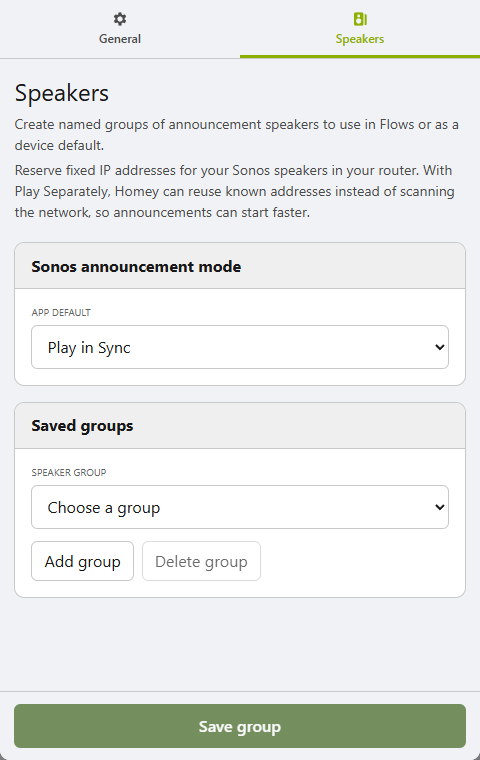
Live HP2023 capture: the Speakers tab contains the app-wide Sonos mode and saved speaker-group controls.
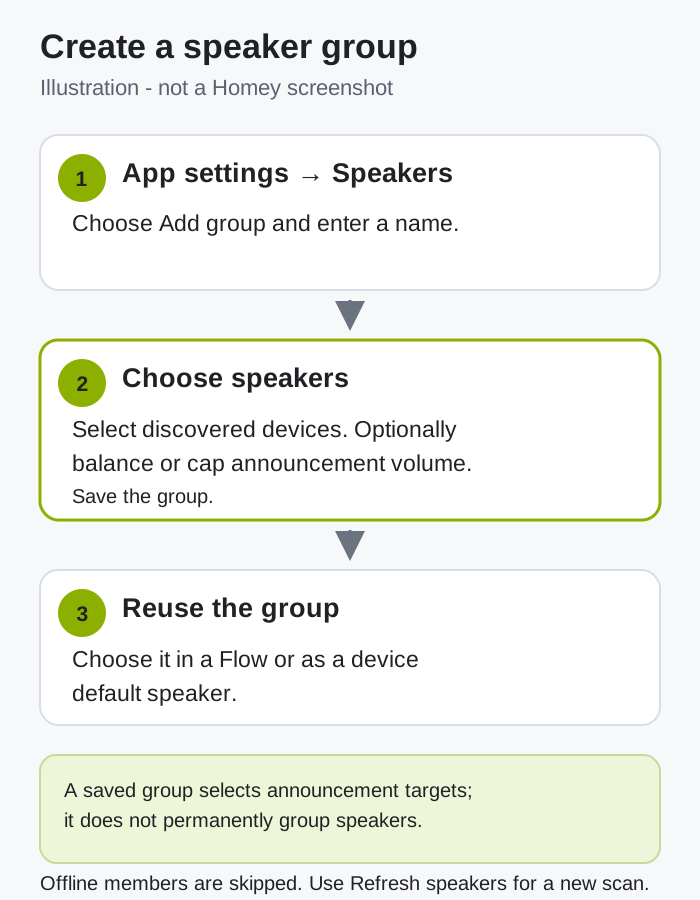
Illustration, not a Homey screenshot: create a named group once, then choose it in a Flow or as a device default.
The app default starts at Play in Sync. A speech device's Advanced Settings can override the app default, and an announcement Flow card can override both. A non-Sonos speaker ignores this setting.
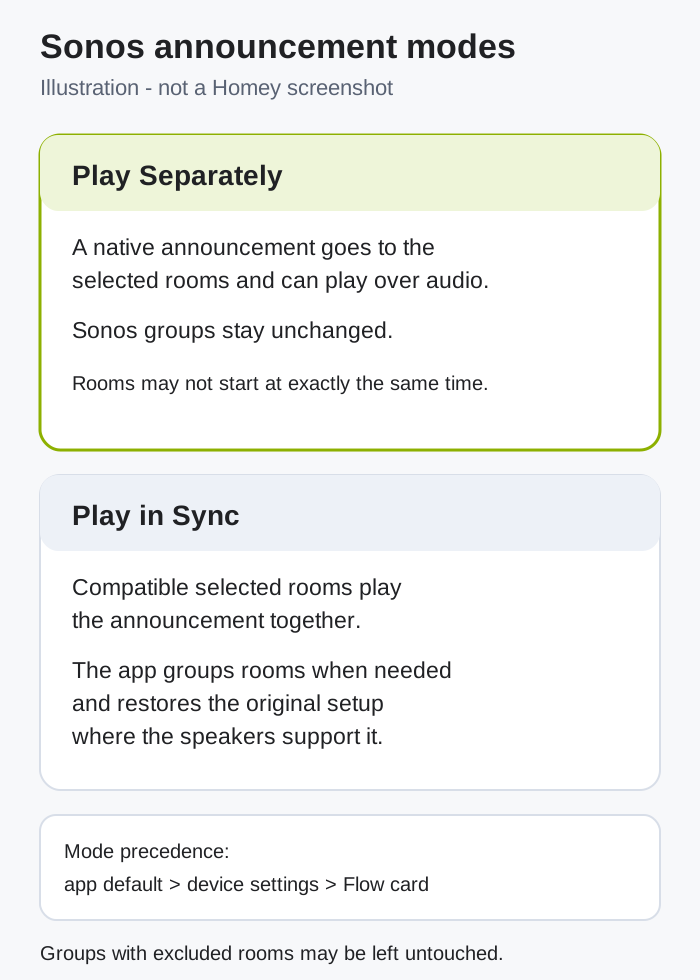
Illustration, not a Homey screenshot: Play Separately leaves groups untouched; Play in Sync plays compatible selected rooms together and restores their original groups where supported.
- Play Separately sends a native announcement directly to each selected Sonos room. It can play over current audio; other rooms in the same group do not hear it. Selected rooms may not start at exactly the same time. If a room cannot play this type of announcement, the Flow reports an error instead of switching modes.
- Play in Sync temporarily groups compatible selected rooms so they play together, then restores their original groups and playback where supported. Existing groups that include excluded rooms may be left alone to avoid playing outside your selection.
- Select Add group and enter a name.
- Select the speakers to include. Offline members are skipped during announcements.
- Optionally set a Volume adjustment and Maximum volume for each member. These apply only when the Flow sets a speaker volume. The adjustment adds or subtracts percentage points, then the result is limited to zero and that speaker's maximum.
- Select Save group. The group is then available in announcement-card pickers and as a device's default speaker.
Use Refresh speakers to request a new discovery scan. Pair, Repair and Saved groups can show the last discovered devices while a background scan runs. Flow pickers use a recent scan or wait for discovery before returning results.
Reserve fixed IP addresses for Sonos speakers in your router when possible. This can let Play Separately reuse a known address and start faster. It does not change or guarantee network discovery.
In a speech device's Pair or Repair screen, choose a default speaker or group if you want its ordinary speech or translation actions to play directly. An explicit speaker on an announcement card overrides that default; leaving the card's speaker input empty uses the device default.
The device setting Run When cards for speaker announcements is off by default. Turn it on when successful direct playback should also run the device's URL or translation trigger. It does not make a failed announcement successful. Cloud Finished is based on the generated audio duration and device delay, not a signal from the speaker.
Next: configure App settings, follow a direct announcement example, or browse the Flow-card inventory.