Repository navigation
Chat Window
The chat window opens by itself when your stream starts. To open it any other time: Start menu → CrossChat → Open chat, or the OBS hotkey.
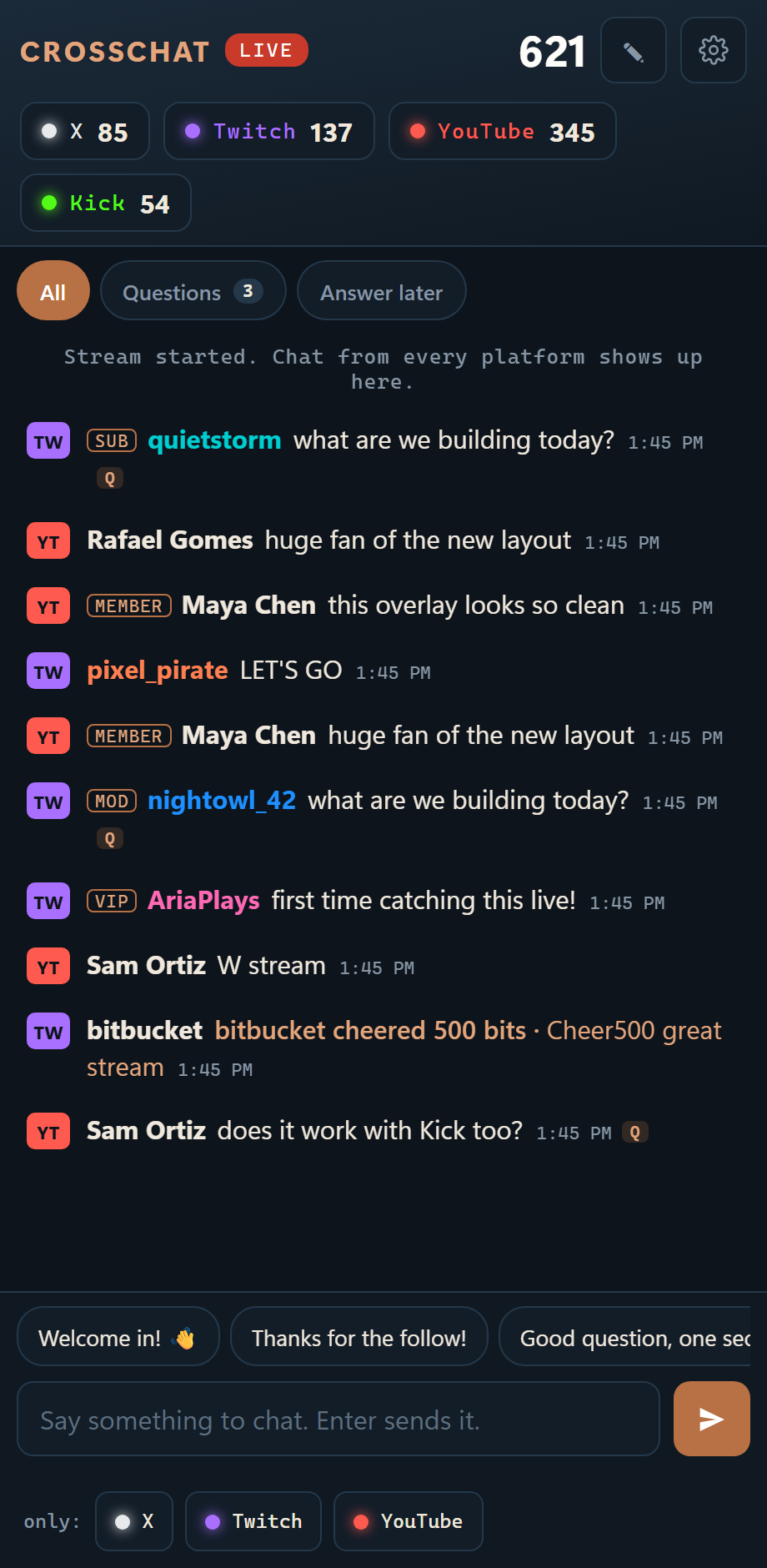
Put it somewhere your streaming app doesn't capture. By default it docks at the right edge of the main screen.
| To | Do this |
|---|---|
| Answer everyone | Type in the box and press Enter |
| Answer one platform | Press its button next to only:, then type |
| Answer one person | Hover their message → reply. On Twitch that's a threaded reply |
The counter warns when a message is too long for a platform: X takes 140 characters, TikTok 150, YouTube and Rumble 200, Twitch and Kick 500, Instagram 2200, Facebook 8000.
The row above the box holds your quick replies.
- Tap one to send it to every live chat at once.
- Hold or right-click one to put it in the box first, so you can add to it.
- ✎ opens the editor. You can have up to 30, each up to 100 characters.
Every device shares the same list.
Hover a message for reply, show, ☆ and ⋯. Tap it on a phone. From the menu:
- Reply
- Show on stream / Hide from stream: puts it in the featured-message widget.
- Answer later: stars it.
- Read aloud
- Copy text
- View viewer
- Filter this user: hides everything they write, here and on stream.
- Moderate
- Quick reply to name
| Delete a message | Timeout | Ban | |
|---|---|---|---|
| Twitch, connected | ✓ | 10 minutes, 1 hour, or any length up to 14 days | ✓ and unban |
| Kick, connected | ✓ | 10 minutes, 1 hour, or any length up to 7 days | ✓ and unban |
| YouTube, CrossChat window open | ✓ remove | 5 minutes | Hide user on this channel |
| Rumble | ✓ | Mute 5 minutes, for the stream, or forever | |
| ✓ delete comment |
A ban always asks first. Deleted messages and timed-out viewers are struck through.
- Questions shows only messages that ask something. CrossChat spots them by itself and marks them Q.
- Answer later shows the messages you starred. Stars are shared between devices.
- NEW, in green, marks a viewer's first message in your channel ever (Twitch says when). 1ST marks their first this stream.
Click a name to see that viewer's messages this stream and in earlier streams, with a search box. From there you can read their last message aloud, filter them, or moderate.
Settings → Filters hides messages by word or phrase, by viewer (name or @handle), !commands, and known chat bots.
Hidden messages never reach the on-stream widgets and are never read aloud. In the chat list they stay, dimmed, with the reason. Nothing is deleted.
Settings → Text to speech reads chat through the streaming PC's speakers: every message, questions only, events, messages that start with a command such as !tts, or just the message you show on stream. Pick the voice, speed and volume, whether to say who wrote it, and whether to skip links.
- Voices listed On this PC stay on the PC. Voices listed Online send the text to Microsoft or Google to make the audio. CrossChat never picks an online voice by itself.
- Lines are read one at a time. Stop reading stops and skips what's waiting.
- The CrossChat window must be open in Chrome or Edge. The copy docked inside OBS doesn't speak.
Every stream's chat is saved on the streaming PC for 90 days. Settings → Open chat history lists your streams. Open one to search it, show one platform or questions only, and Export it as CSV or HTML.
Settings → Connections shows how long each chat has been connected, when the last message came, and how often it reconnected. The same line is in the tooltip of each platform pill at the top.
| Key | Does |
|---|---|
| ↑ ↓ | Move between messages |
| Enter | Open the selected message's actions |
| r | Reply |
| s | Star |
| Esc | Cancel a reply |