Repository navigation
Phone and Second PC
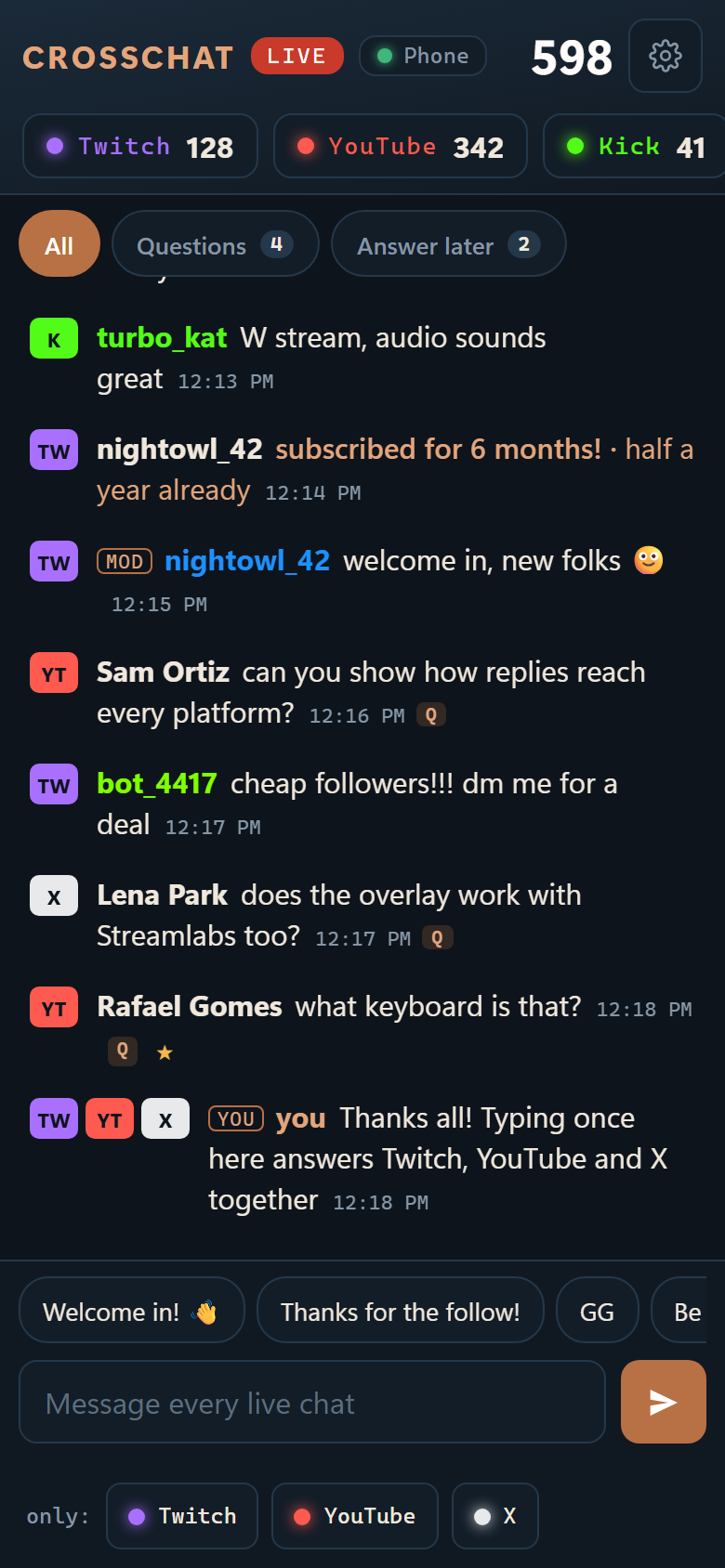
The CrossChat window can also be opened on a phone, tablet or second PC on your home network. Nothing is installed there: it's a web page.
From there you can reply, send quick replies, show a message on stream, star messages, have a message read aloud on the streaming PC, and moderate.
- On the streaming PC, open the CrossChat window → the gear (Settings) → Pair a device.
- A QR code, a 6-digit code and an address appear. The code works for 5 minutes.
- On a phone, scan the QR code with the camera. On another PC, type the address into its browser.
- The first time, Windows asks whether CrossChat may use the network. Choose Allow for private networks.
Add it to the home screen so it opens like an app:
- iPhone and iPad: Safari → Share → Add to Home Screen.
- Android: Chrome menu → Add to Home screen or Install app.
On a second PC, bookmark http://<streaming PC address>:4467/. For a window of its own:
- Chrome: ⋮ → Cast, save and share → Create shortcut… and tick Open as window.
- Edge: ⋯ → Apps → Install this site as an app.
Paired devices are listed under Settings → Paired devices on the streaming PC. Remove takes a device's access away at once.
macOS and Linux don't tell apps whether a network is a private one, so the companion stays off until you choose the address. On your home network, set this in config.json:
"remote": {"bind": "<your computer's address>"}The companion talks to CrossChat on the streaming PC, so that PC must be on and CrossChat running.
| Needs | |
|---|---|
| Reading chat, viewer counts, live status | CrossChat running |
| Show on stream, Answer later, quick-reply editing, test events | CrossChat running |
| Replies and moderation on Twitch | Twitch connected on the streaming PC |
| Replies and moderation on Kick | Kick connected on the streaming PC |
| Replies on YouTube, X, TikTok, Facebook, Instagram and Rumble; moderation on YouTube, Facebook and Rumble | The CrossChat window open on the streaming PC, in Chrome or Edge with the extension |
| Read aloud | The CrossChat window open on the streaming PC, in Chrome or Edge |
| Text-to-speech settings, filters, chat history | Only on the streaming PC |
When something isn't available, the companion says why.
The companion is for your home network. To use it from anywhere, use Tailscale: a private, encrypted network between your own devices, free for personal use.
- Install Tailscale on the streaming PC and on your phone, and sign in to the same account on both.
- In CrossChat: Settings → Paired devices → switch on Away from home too, with Tailscale.
- Press Pair a device and scan the QR code. A phone you paired before needs pairing once more.
Pairing is still required. When Tailscale stops, the companion stops listening there. Tailscale works on Windows and Linux, not on a Mac.
- Only paired devices get in. Each has its own key, kept by its browser.
- Pairing codes are random, 6 digits, last 5 minutes and allow 5 tries.
- The companion uses plain
httpon your local network, like a router's own page. Use it on a network you trust, not public or hotel Wi-Fi. - Don't forward its port on your router. For away from home, use Tailscale.
| Problem | Try |
|---|---|
| The address doesn't load on the phone | Same Wi-Fi as the PC, and not a guest network? Did Windows get Allow for private networks? If not, Windows Security → Firewall → Allow an app through firewall, and tick Private for Python. |
| It worked yesterday, not today | The PC may have a new address. Pair again. The new address is in the QR code and under Settings → About. |
| "This device is no longer paired" | It was removed, or its key was cleared with the browser's data. Pair it again. |
| "Needs the CrossChat window open on the streaming PC" | Open it there: Start menu → CrossChat → Open chat, or go live and it opens by itself. |
| "Connect Twitch in Settings to reply on Twitch" | Settings → Connections → Connect Twitch on the streaming PC. The same goes for Kick. |
| Nothing is read aloud | Is read-aloud on in Settings? Is the CrossChat window open on the streaming PC in Chrome or Edge? If it says "Click anywhere in this window once", do that: browsers only speak after a click. |
More detail: docs/COMPANION.md.