Repository navigation
Streaming Apps
CrossChat needs to know one thing from your streaming app: when you are live.
| Streaming app | What to do |
|---|---|
| OBS Studio | Nothing beyond Install. |
| Streamlabs Desktop | Choose Streamlabs Desktop in Settings. No token needed, and its Remote Control setting can stay off. |
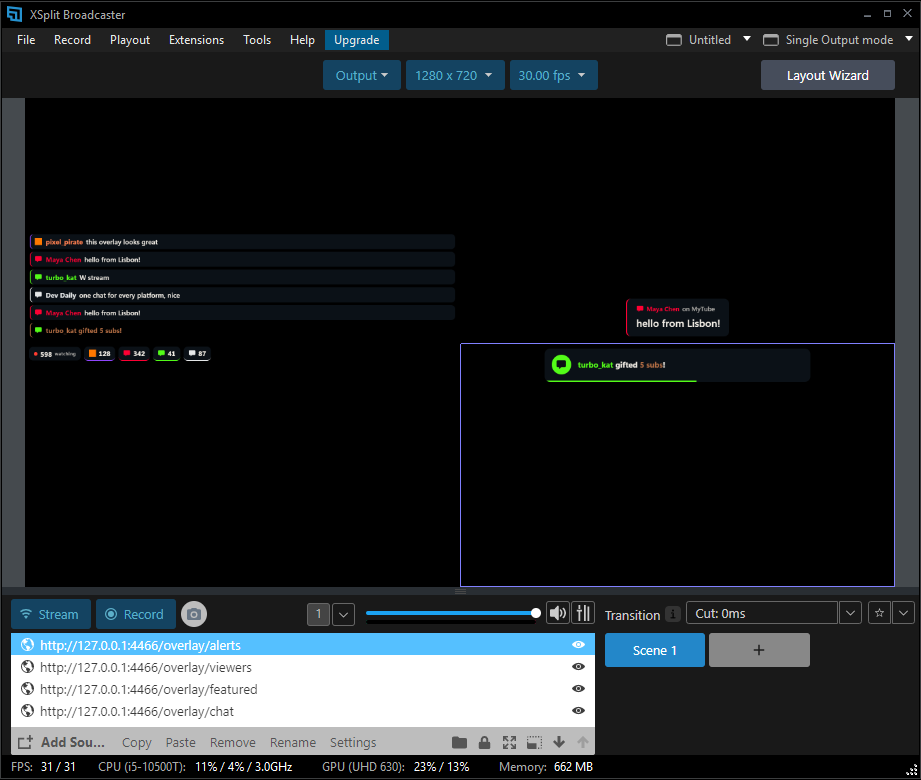
| Anything else (XSplit, vMix, Meld Studio and others) | Choose Another app: I press Start stream in Settings, and use the Start stream button. |
Choose in Settings → Channels & options → Streaming app, or set "broadcaster" in config.json.
The script in Tools → Scripts starts CrossChat with OBS and stops it when OBS closes. CrossChat reads its WebSocket settings from OBS itself, and portable OBS works too.
You get three hotkeys in Settings → Hotkeys, search "CrossChat":
- Open chat window
- Go live on X
- Hide featured message
A Stream Deck can trigger them with a Hotkey action.
The script's panel in Tools → Scripts → crosschat.lua has buttons for the same things, plus a dry run for X and Start the hub again.
- In OBS: Docks → Custom Browser Docks.
- Name it
CrossChat, set the URL tohttp://127.0.0.1:4466/, press Apply, and drag the dock where you want it.
Use 127.0.0.1, not localhost: localhost only serves the widgets.
The dock reads chat, replies, features messages and moderates Twitch and Kick. Keep the CrossChat window open in Chrome or Edge as well. That window does the work on the YouTube, X, TikTok, Facebook, Instagram and Rumble pages, and it is the one that reads chat aloud.
If the dock says "Couldn't load that page!", OBS opened it before CrossChat was ready. Press Click here to retry in the dock.
- Install CrossChat, then skip the step that adds the script to OBS.
- Open CrossChat before you stream: CrossChat → Open chat in the Start menu.
- In Settings → Channels & options, set Streaming app to Streamlabs Desktop.
- Add the widgets: Sources → + → Browser Source.
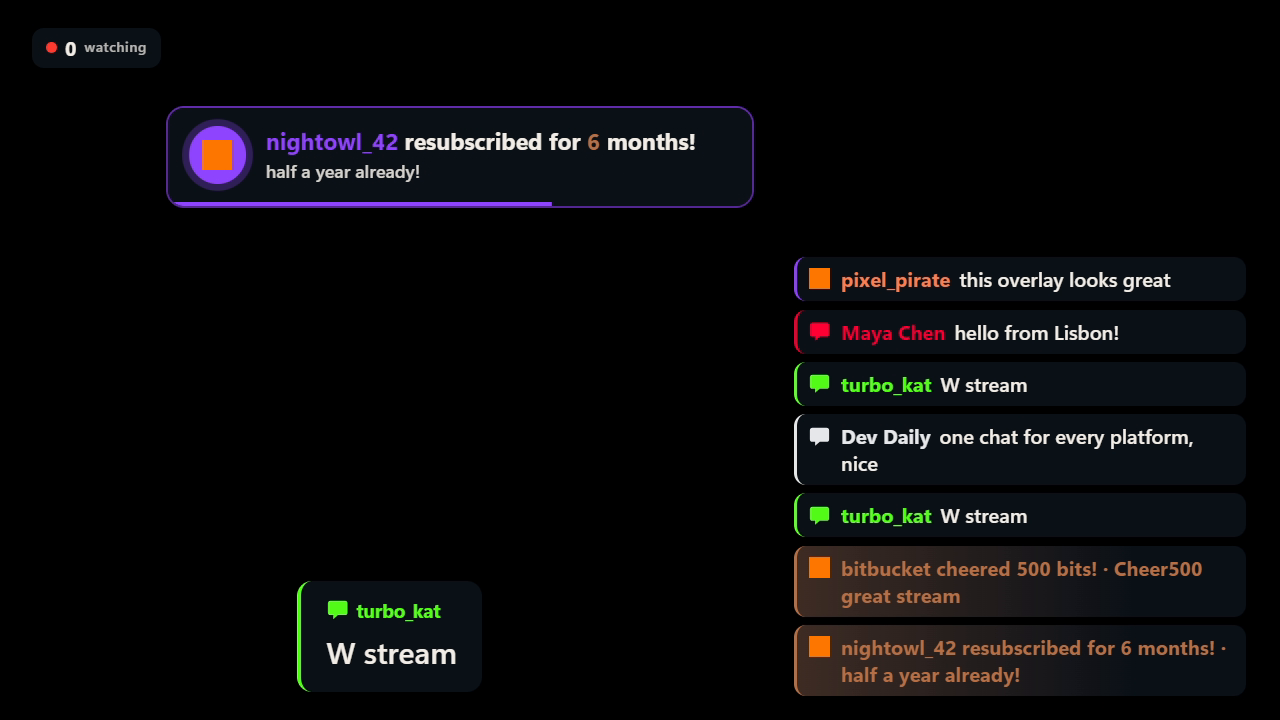
CrossChat then follows your stream by itself and closes when Streamlabs closes. This is the video a real Streamlabs Desktop sent, with all four widgets in Browser Sources and a test theme (an orange square as Twitch's logo, the plain bubble for the others):
On Find it by itself (OBS or Streamlabs), the default, CrossChat follows a Streamlabs Desktop that is already running when it starts. If you open CrossChat before Streamlabs, choose Streamlabs Desktop, and it waits as long as it takes.
- Install CrossChat, then skip the step that adds the script to OBS.
- Open CrossChat before you stream: CrossChat → Open chat in the Start menu.
- In Settings → Channels & options, set Streaming app to Another app: I press Start stream.
- Add the widgets the way your app adds a web page.
- Press Start stream at the top of the chat window when you go live, and End stream when you stop.
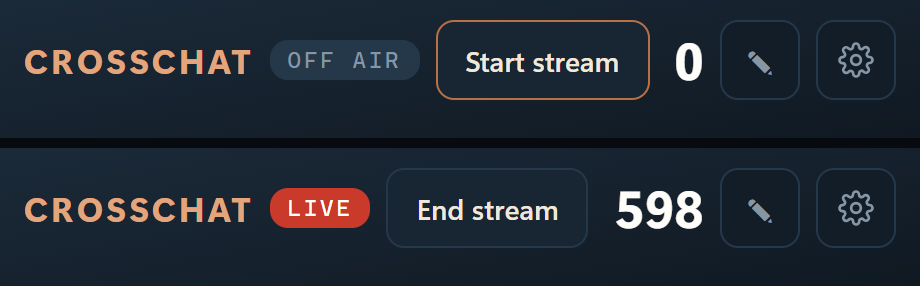
A Stream Deck or hotkey tool can press these for you. With the setup program, the commands are:
"%LOCALAPPDATA%\CrossChat\python\pythonw.exe" "%LOCALAPPDATA%\CrossChat\hub\control.py" stream-start
"%LOCALAPPDATA%\CrossChat\python\pythonw.exe" "%LOCALAPPDATA%\CrossChat\hub\control.py" stream-end
With Another app, X can only go live on your word: CrossChat can't see whether your video is really going out. See Known Limits for what was tested.
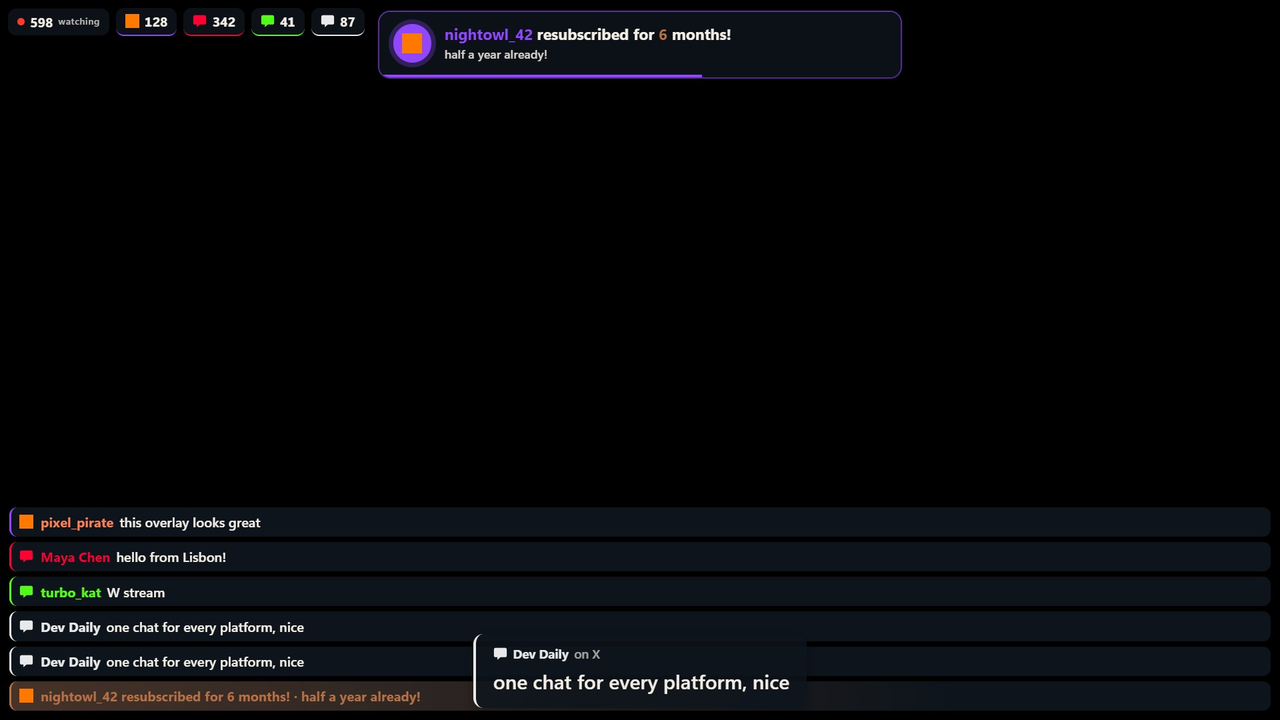
| vMix | XSplit Broadcaster | Meld Studio |
|---|---|---|
 |
 |
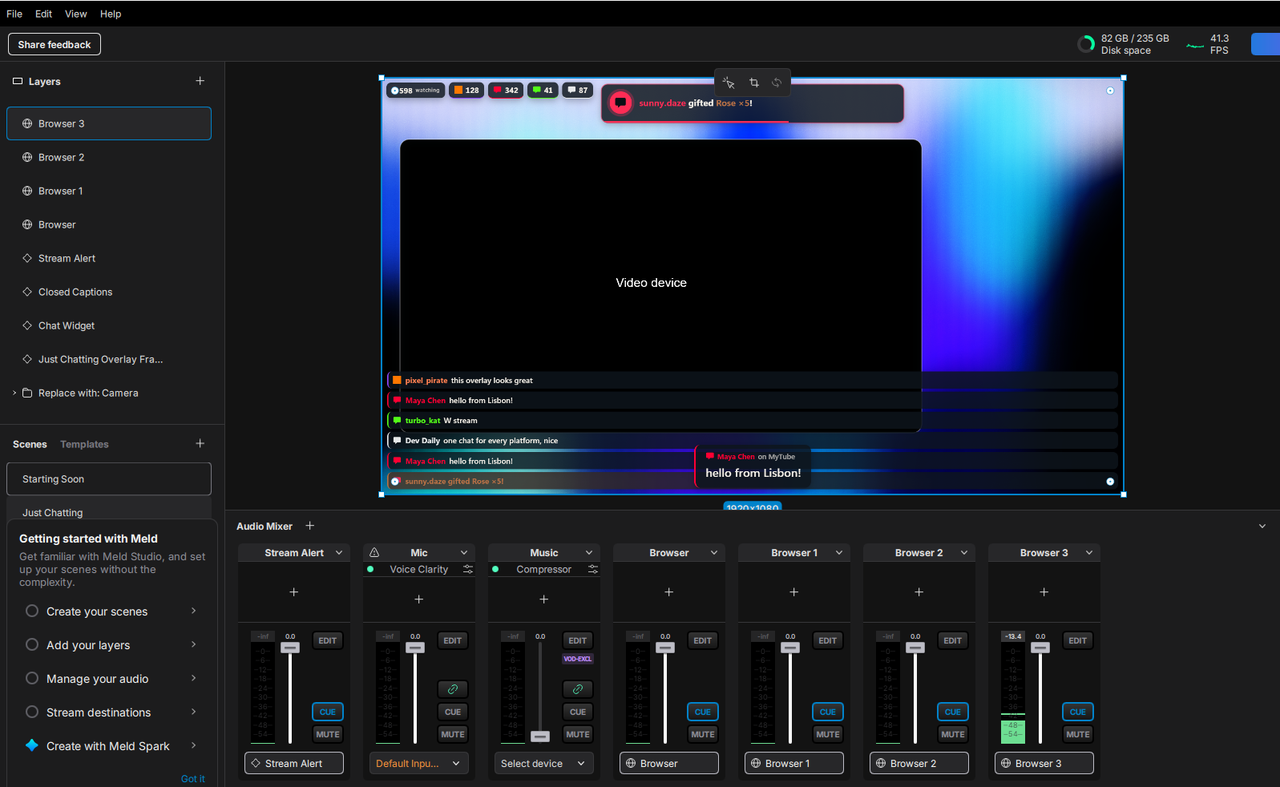 |
With OBS, CrossChat closes when OBS closes. With Streamlabs it closes when Streamlabs closes. To close it yourself when it follows Streamlabs or another app, use Settings → Channels & options → Close CrossChat.
The hotkeys, the buttons in Tools → Scripts and the docked chat are OBS's own. In other apps, use the chat window and control.py.