Repository navigation
Themes and Logos
Open the Theme Studio with ✎ in the chat window, from Start menu → CrossChat → Theme Studio, or at http://127.0.0.1:4466/studio.
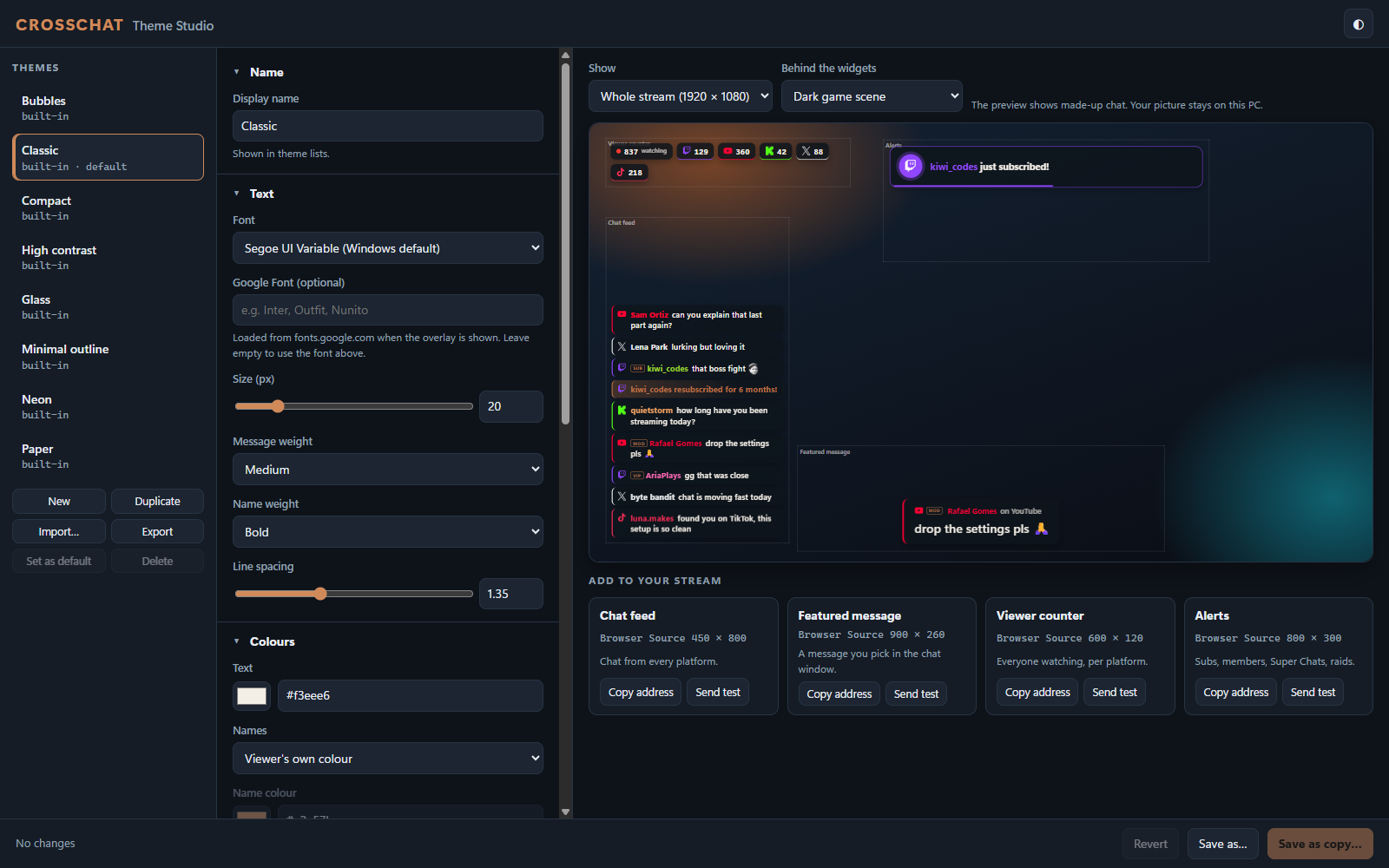
- Pick a theme on the left. The eight built-in themes can't be changed in place: edit one and press Save as copy….
- Change anything in the middle column. The preview updates as you go, with made-up chat on all four widgets.
- Check it over your scene. Under Behind the widgets, choose a dark scene, a light desktop, a transparency checkerboard, green screen, or your own picture. Your picture stays in your browser.
- Save. Every source using that theme updates within a second.
Set as default makes the theme the one used by sources that don't name one. Import… and Export share themes as files.
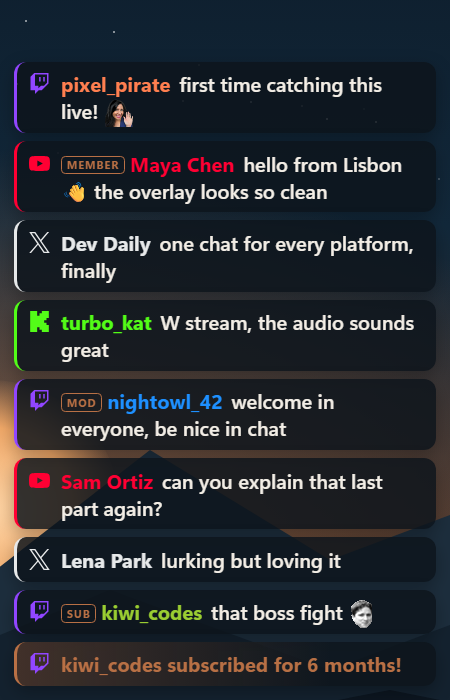
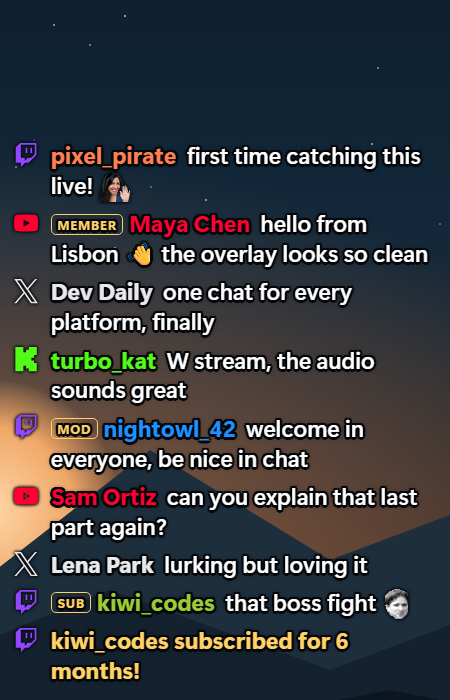
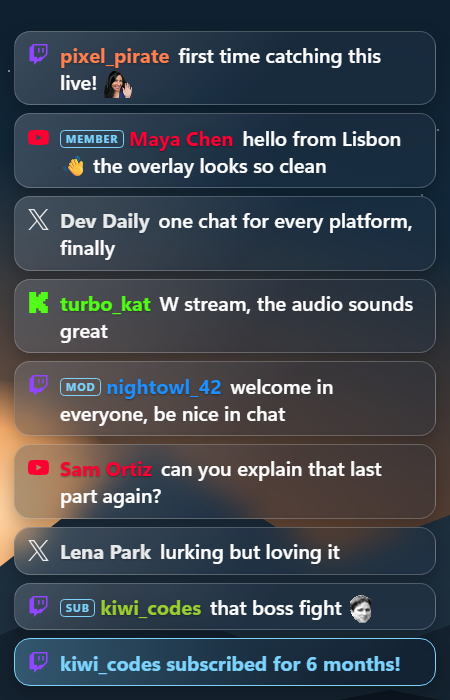
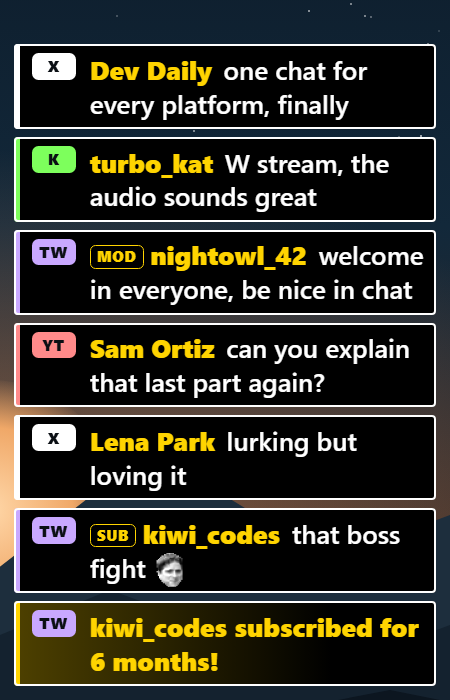
| Classic | Minimal outline | Glass | Bubbles |
|---|---|---|---|
 |
 |
 |
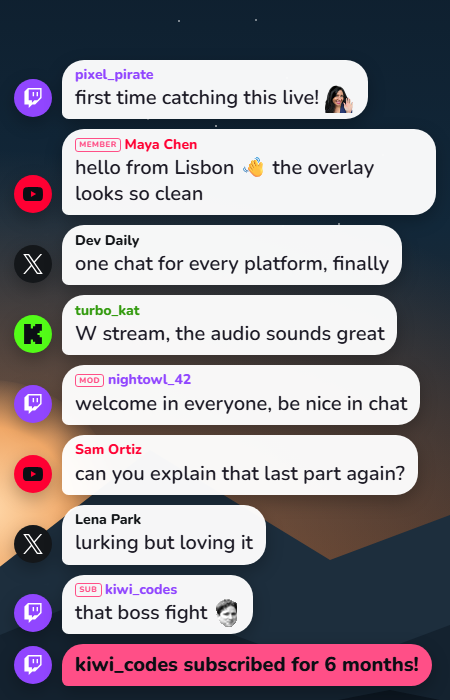 |
| Compact | Neon | Paper | High contrast |
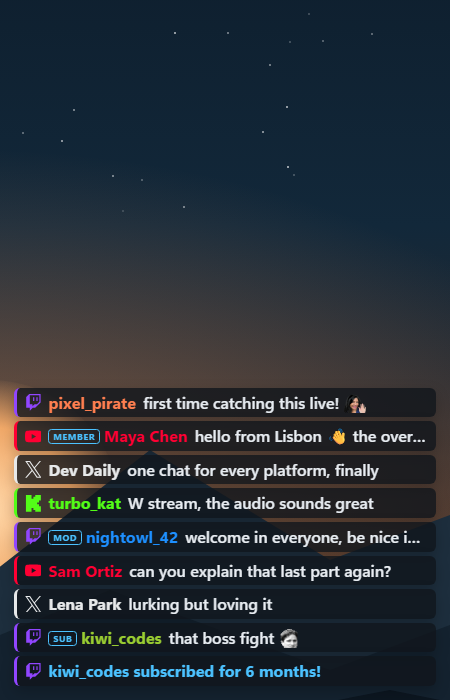 |
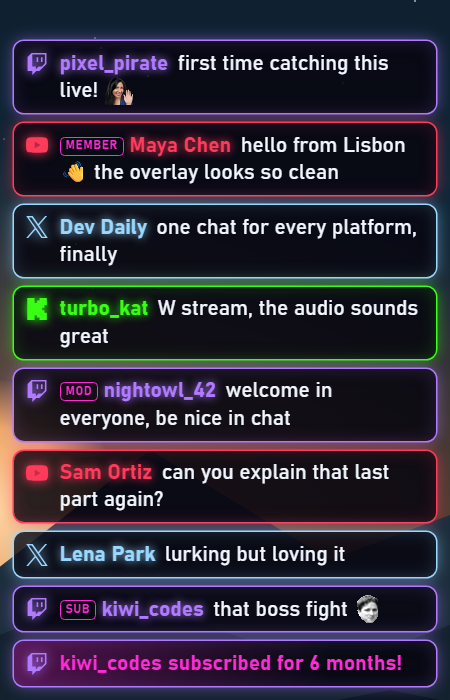 |
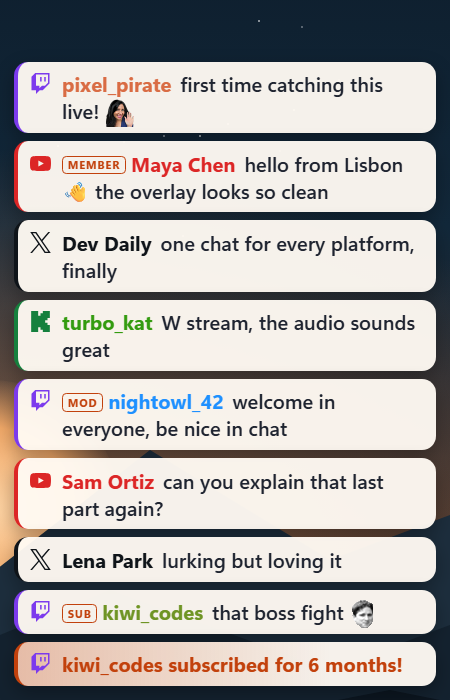 |
 |
Add ?theme=<file name> to a source's address. A source without it follows your default.
http://127.0.0.1:4466/overlay/chat?theme=minimal          gameplay scene
http://127.0.0.1:4466/overlay/chat?theme=bubbles          just-chatting scene
Open Platform logos and names in the Studio, to brand the widgets your way or to hide which platform a message came from.
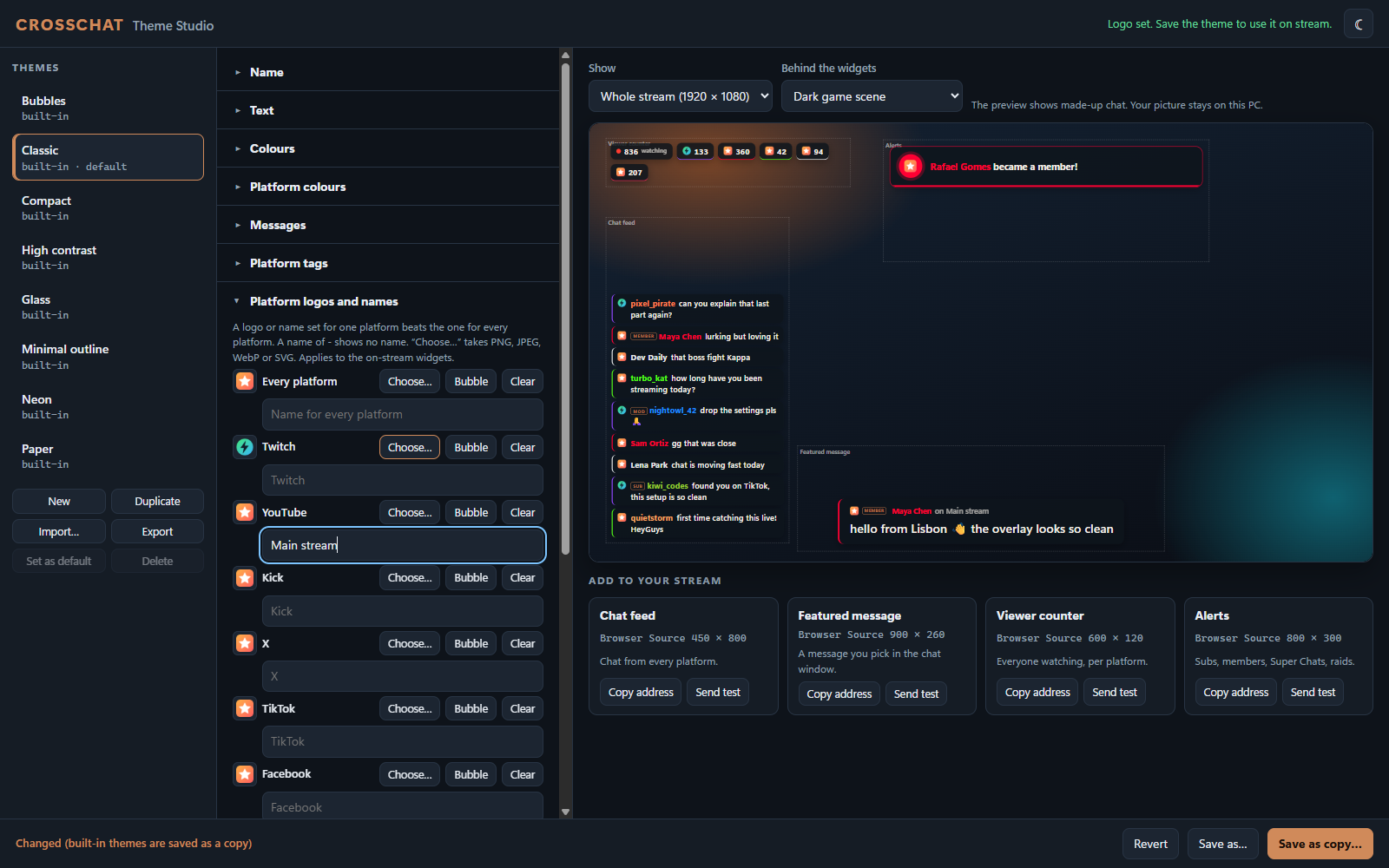
- Every platform sets one logo or name for all of them.
- A row for one platform beats it. With neither set, you get the built-in one.
- Choose… takes a PNG, JPEG, WebP or SVG of up to 8 MB. The Studio redraws it as a small picture inside the theme, so exporting a theme takes its logos along.
- Bubble uses CrossChat's plain speech bubble.
- Clear goes back to the built-in logo.
- Type a name to rename a platform, or a single
-to show no name.
Hide every platform does it all in one go: the bubble, no names, and every platform colour set to your accent colour. Use the brand colours under Platform colours brings the colours back, and Back to built-in logos and names brings the rest back.
Names appear in "on Twitch" on the featured message, in {platform} in alert wording, on viewer pills without icons, and as three letters on text tags. If your alert wording uses {platform}, reword it so it reads well without a name.
A custom logo keeps its own colours. Unlike the built-in logos, it doesn't take the platform colour.
This changes the on-stream widgets only. The chat window on your PC keeps its TW and YT tags.
Pick from the fonts on your PC, or name a Google Font such as Inter or Outfit. A Google Font needs an internet connection. If it can't load, the other font is used.
For anything the settings don't cover, write CSS in the Studio's Custom CSS section, or in one source's own Custom CSS box. Class names and variables are kept stable between versions, and are listed in docs/THEMES.md.
Custom CSS can't load anything from other servers. It can still change what your widgets show, so only import themes from people you trust.
Your themes are in %LOCALAPPDATA%\CrossChat\themes\, one JSON file each. To use a theme someone sent you, Import it in the Studio or drop the file in that folder. A theme only needs the settings it changes. Every setting is listed in docs/THEMES.md.