Guide
The Music Player is readily accessible from both the Title and Pause screens via the Music Player icon.
At first, the Home page will be opened, from which you can navigate to where you want to go via the middle section.
The right section contains a News button if you'd like to check out what's going on in Music & Melody, and you'll have a random composer listed whom you can click on to check out their work.
If you'd like, you can also support development to have your name added to the supporter list, and to add your own custom splash text below the title!
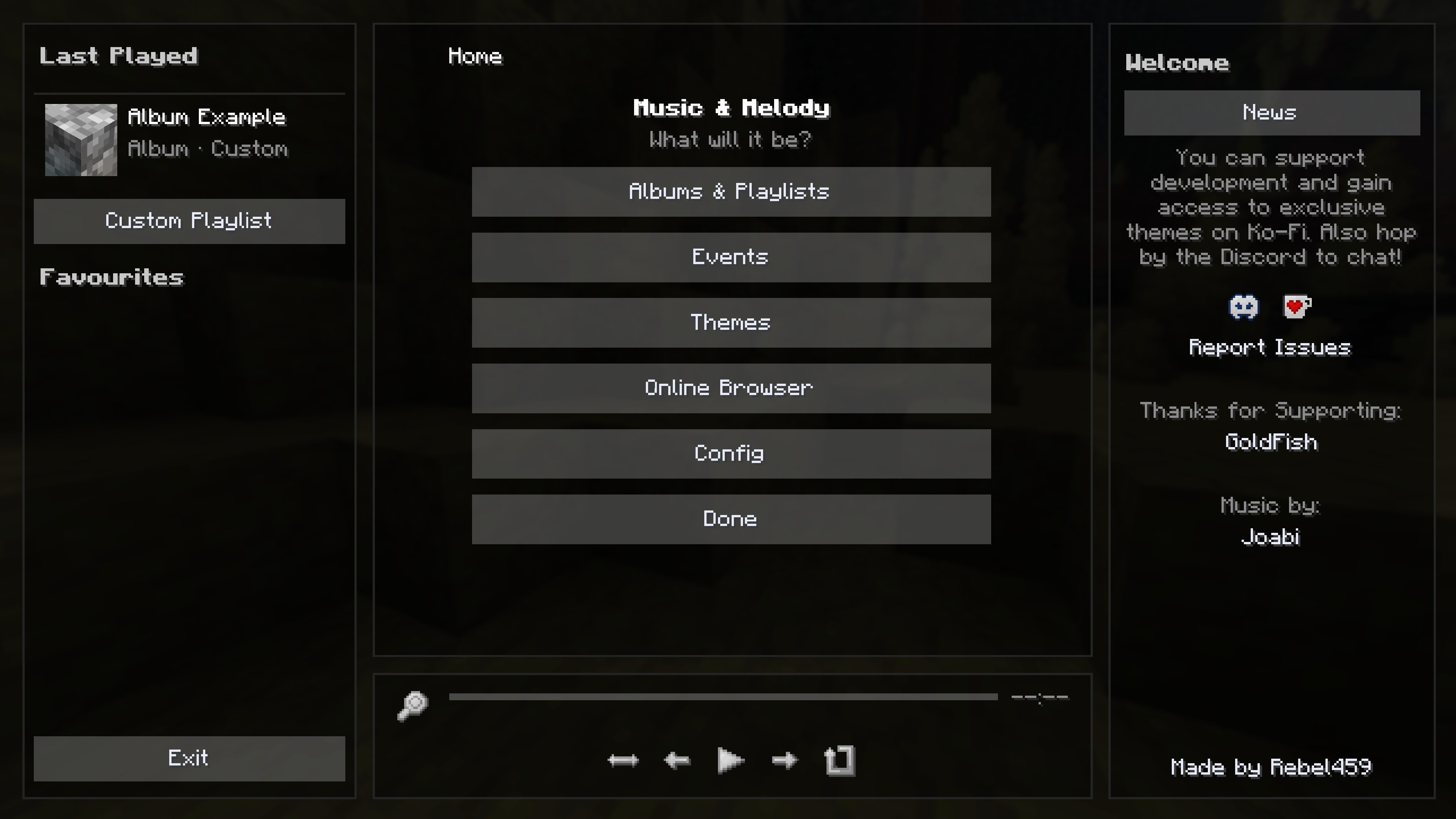
The Home -> bar at the top of most middle sections is actually interactive - much like a file manager, you can click on it to return to parent tabs.
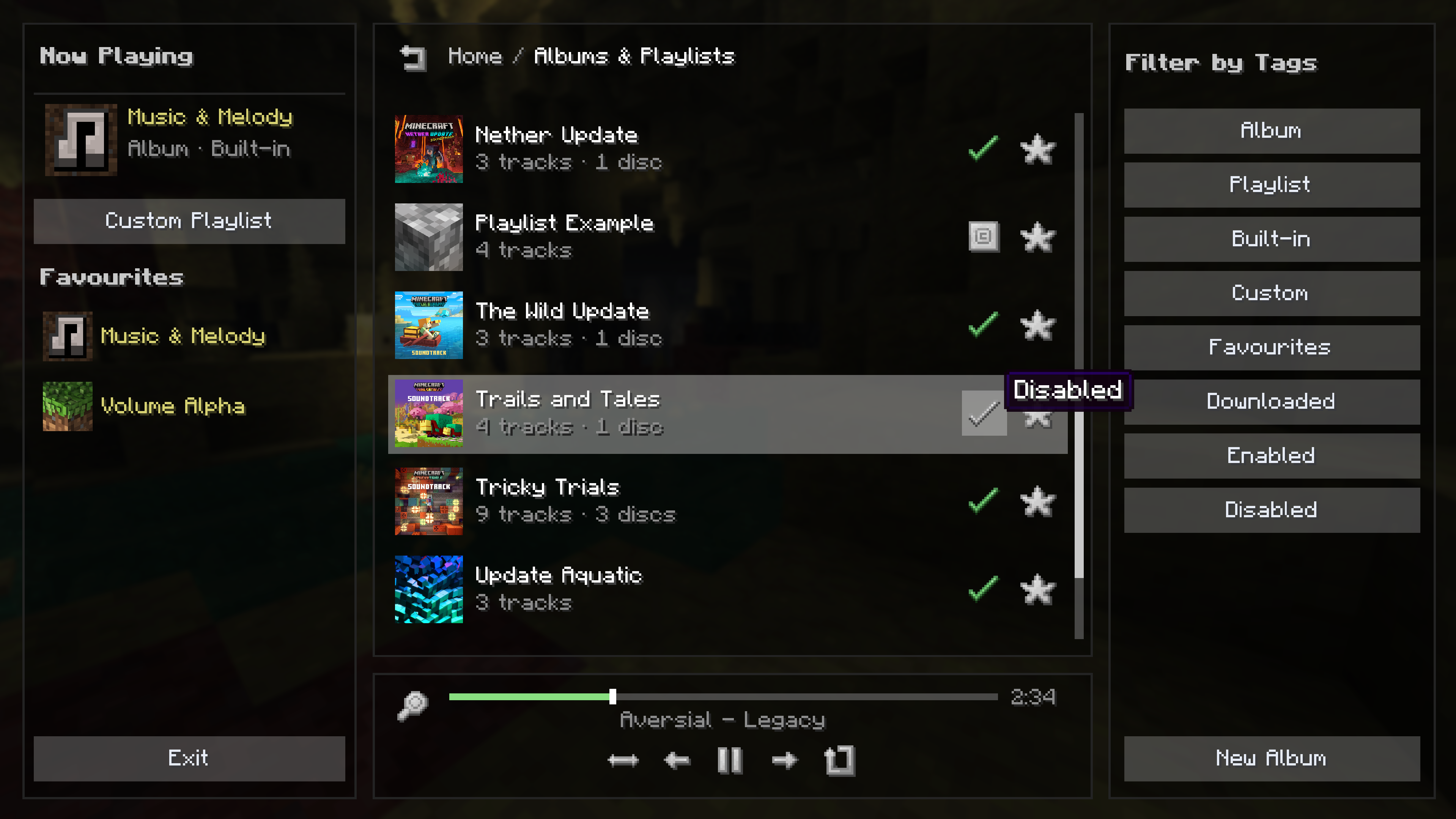
Albums are the primary way you are able to play, configure and even add your own music. Albums are collections of songs and/or discs, such as Volume Alpha or Chaos Cubed.
Every track within an Album can be disabled or re-enabled. Disabling a track (or an entire Album) will stop that track from playing throughout the game - whether it's from vanilla background music or custom Events. The only way a disabled track plays is if you choose to play it in your music player.
If you're in a world with Music & Melody on the server, with the disc_unlocking config option enabled and you haven't played a particular music disc in a jukebox at least once, you will be unable to play that disc via your music player and hear it through custom Events.
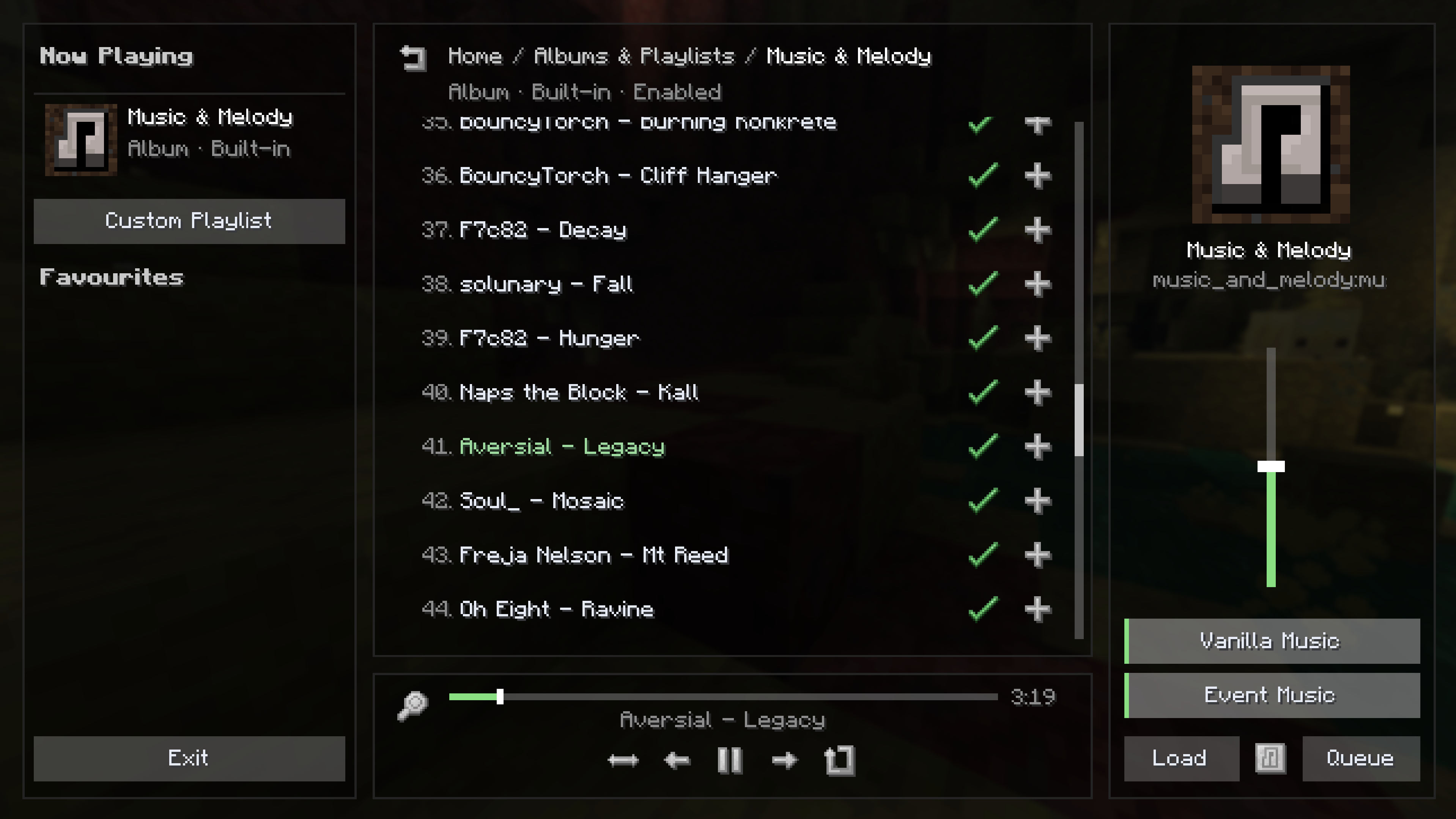
To begin playing music, just click on whichever track, from whichever Album or Playlist, you'd like to listen to.
The bar at the bottom of the screen indicates track progression, and you can click / drag along it to jump forwards / backwards. The icons below are respectively Shuffle, Previous Track, Play/Pause, Next Track and Loop.
On the right panel, you have a music-specific volume bar as well as the following:
- Vanilla Music button - determines whether normal music should play when you're not listening to something in the Music Player
- Event Music button - determines whether event music should play when you're not listening to something in the Music Player
- Load & Queue (if Album or saved Playlist) - overwrites the current Custom Playlist, or adds all tracks to the current Custom Playlist respectively
- Delete/Restore (if custom or downloaded content) - marks the currently opened content for deletion, which can be reversed anytime before you leave the music player
- Save & Replace & Clear (if Custom Playlist) - used to save, update and wipe playlists respectively
Playlists work as you'd expect - they allow you to have your own custom-curated music lists.
Your current playlist is always accessible via the Custom Playlist button on the left sidebar, below Now Playing. To add tracks to your Custom Playlist, simply select the + icon next to an Album track entry to queue it.
In your Custom Playlist, you can hover your mouse over the track number and click to drag, so that you can re-order your playlist.
If you'd like to save, update or clear your playlist, there are 3 buttons at the bottom right (green, yellow & orange icons respectively).
Save allows you to add your playlist to the browser, and store it in config/music_and_melody/playlists/. Replace allows you to select an existing Playlist to update, and clear simply wipes your current Custom Playlist.
A saved custom playlist has the identifier config:[playlist_name]
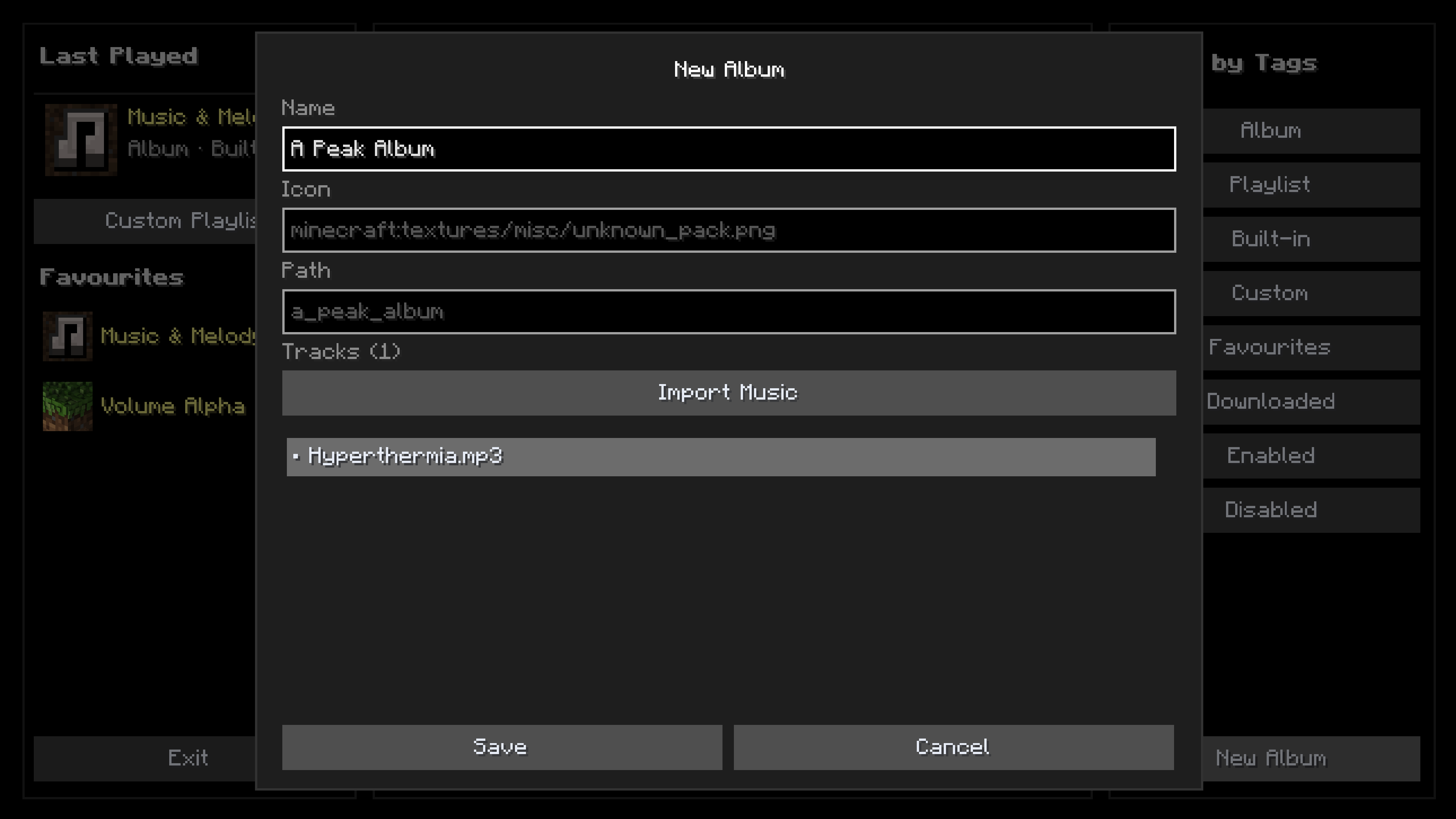
It's very possible you would like to be able to play your own, custom music. Music & Melody makes it incredibly easy to do so. At the bottom-right of the Albums & Playlists browser, there is a New Album button.
Here, you can import your own, custom music. Just give your Album a name and its file-id will auto-fill for you, though you can manually change it if you'd like. Hitting the Import Music button will open your file browser, allowing you to select what files from your computer you'd like to add to play through this album in-game.
Most common music files are supported - .ogg, .wav, .mp3 and .flac
Your saved custom albums, including their album.json and imported music, will be stored in config/music_and_melody/albums/[album_name]
A track added to this config-based album will have the identifier config:[album_name]/[track_name].[file_extension] - eg config:example_album/example_track.ogg
A config-based album has the identifier config:[album_name]
If you'd like to use your own icons with your created Albums, Playlists Events and/or Themes, you can add your own .png files (must be rectangular) to config/music_and_melody/icons.
An added icon will have the identifier config:[image_name].png
If you'd like to install more Albums, Events, Playlists and/or Themes, you can do so at the Online Browser.
The Online Browser consists of all added catalogs, which you can configure by clicking on Manage Repositories. Here, you will have a few options
- Official Catalogs - this is the list of all online content made officially by Music & Melody for you to download
- Community Catalogs - this is an updating list of online content catalogs made by the community. If you'd like to have yours added to the Community Catalogs, reach out on the Discord server!
- Add Repository - here you can add an explicit URL to a catalog json file hosted anywhere on the internet and it will populate in-game. Just make sure you trust where you're downloading from :)
From there, you can select an individual catalog, or simply chose All.
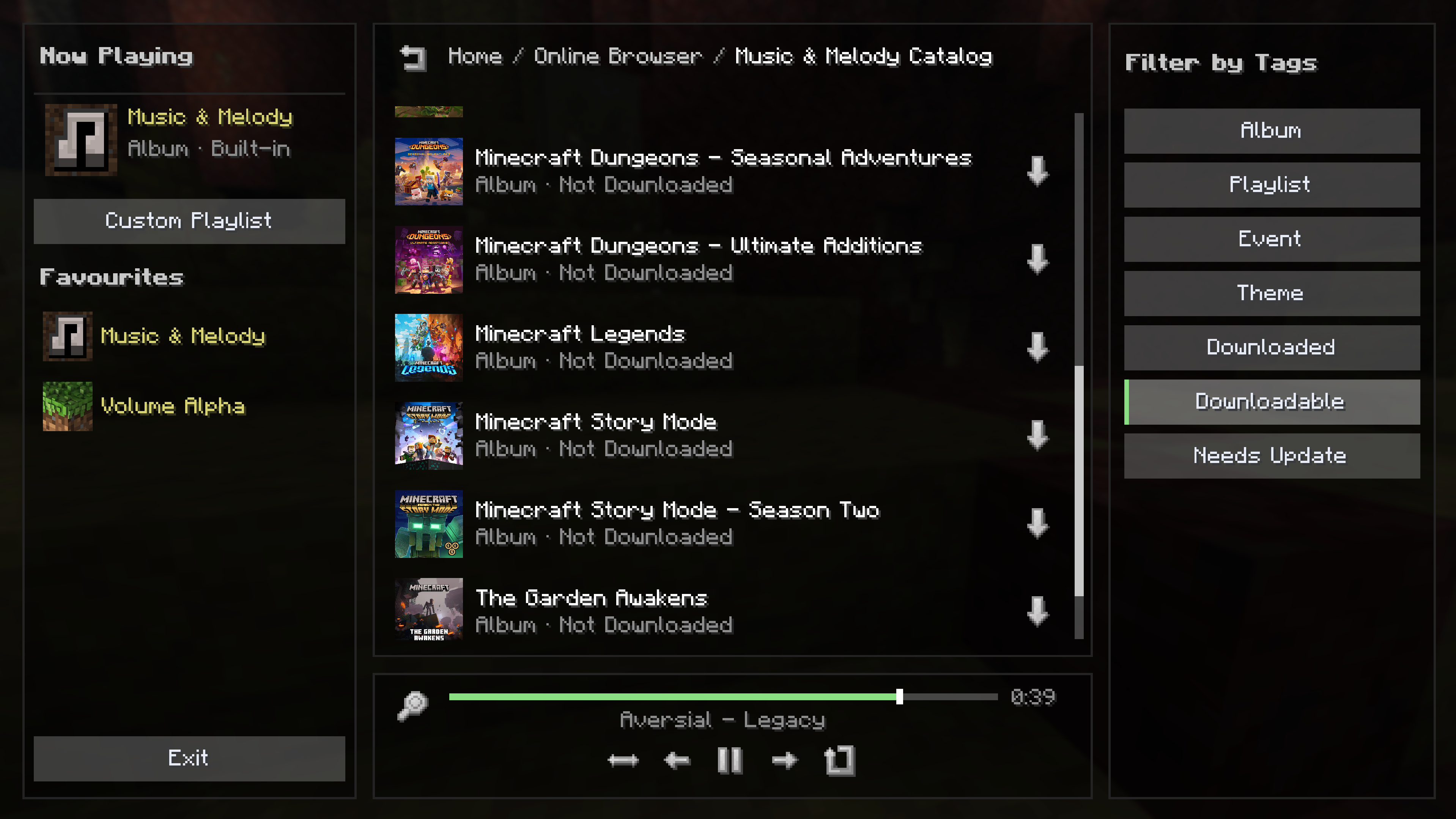
Now, you'll have a searchable (and filterable) list of content entries. You can click on them to view their full details - description, version, requirements, download progress etc.
If you haven't downloaded an online entry yet, you'll be able to click the download button to begin the install, and a progress bar will appear. Once complete, you will be prompted to reload your resources.
Check back here if you want to update or delete any installed content. Deleting is accident-safe and can be undone until you exit the music player.