Everyday Use
One-Bit Bureau adds mouse-friendly desktop landmarks without replacing Omarchy’s keyboard-first navigation.
The desktop shows the real files and folders from your configured XDG Desktop directory.
| Action | Result |
|---|---|
| Single click | Select the object |
| Control-click | Add or remove one object from the selection |
| Shift-click | Select a visual range from the selection anchor |
| Control+A | Select up to 64 visible objects |
| Control+I | Open the selected object's Inspector |
| Space | Preview the selected file with Omarchy's Quick Look |
| F2 | Rename one selected item without overwriting an existing name |
| Double-click | Open the object |
| Return | Open the selected object |
| Click empty desktop space | Clear selection |
| Drag across empty desktop space | Marquee-select every object inside the rectangle |
| Drag selected objects onto empty ground | Move the group and remember its positions |
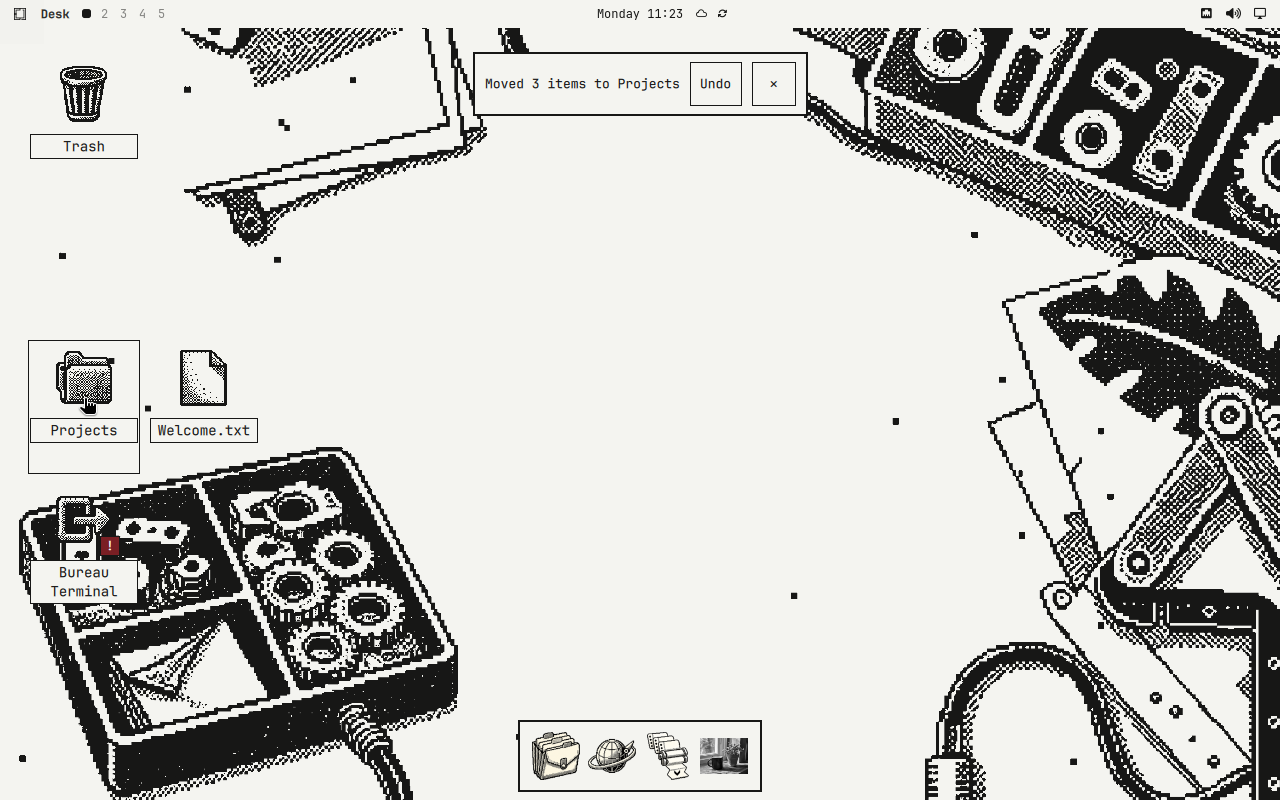
| Drag selected objects onto a folder | Show the exact Move route, then perform it on release |
| Delete | Move the selection to Trash |
| Control+Z | Undo the latest unchanged regular-file move when its receipt offers Undo |
| Right-click | Open the object menu |
Trash, folders, documents, archives, links, launchers, mounted volumes, and safe local images receive purpose-built desktop treatments. Trash reports its real empty/full state. Connected volumes expose only the Open, Unmount, or Eject actions the current mount actually supports, and every action revalidates the device before it runs.
If your XDG Desktop is explicitly disabled, One-Bit Bureau leaves it disabled and explains the state on the desktop and in the Desk menu. It never silently invents a replacement ~/Desktop folder.
PNG, JPEG, WebP, and BMP files up to 32 MiB can appear as grayscale desktop previews. The source file is never rewritten and opens in its original color. Unsupported, oversized, remote, or unsafe image inputs use the authored one-bit picture fallback.
Copied .desktop launchers remain untrusted unless they came from canonical application directories. One-Bit Bureau asks before trusting or running one, and Cancel is the safe default.
A pending route always names its source, verb, and destination before release. Invalid targets remain visible and explain why they cannot accept the selection. Escape cancels an armed route.
Completion, partial failure, and failure appear in a local receipt. Longer copy and move batches show real item progress and a Cancel action; cancellation waits for the current safe boundary and reports exactly what completed and what did not. Undo is intentionally narrow: it is offered only after a regular-file move when One-Bit Bureau has a durable journal and can prove every destination is unchanged. Copies, folder moves, launcher trust changes, and Trash never make a false Undo promise.
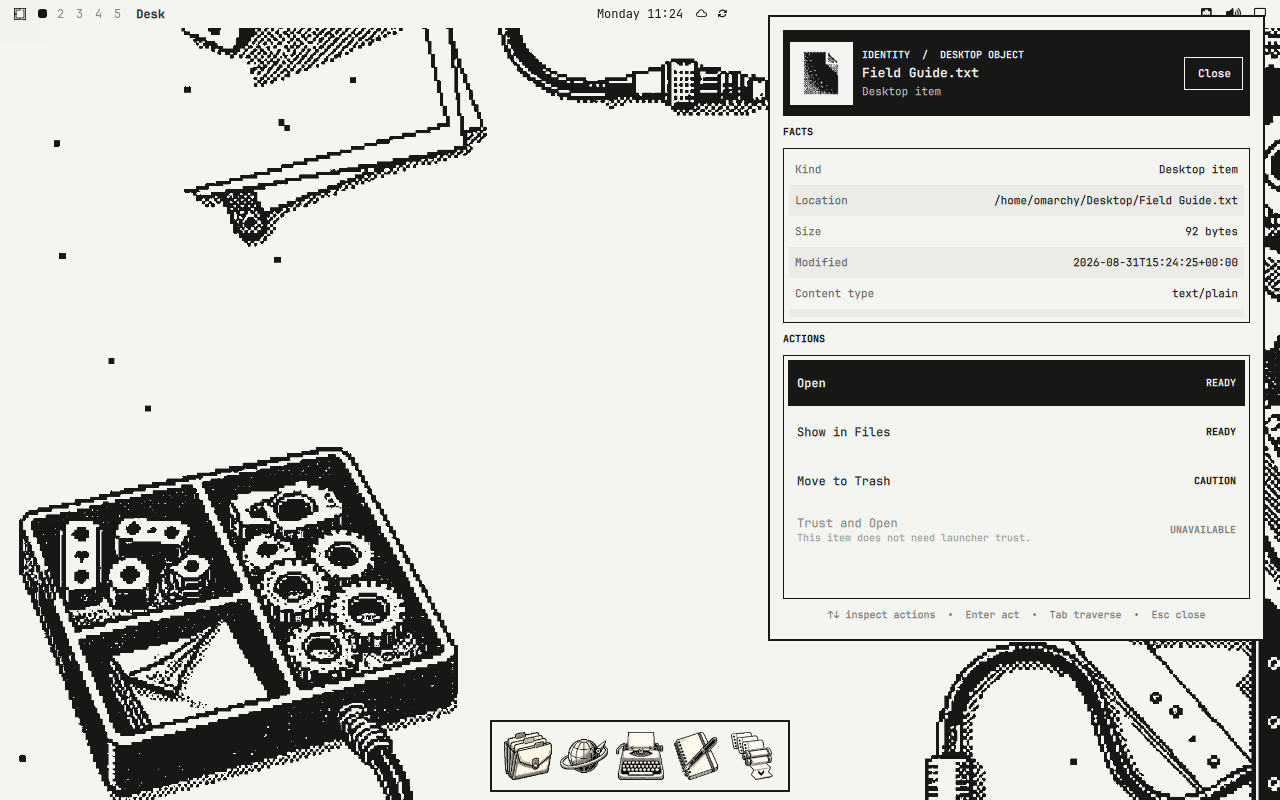
The shared Inspector keeps Identity, Facts, and Actions in the same positions for desktop objects, dock applications, and overview windows. Unavailable actions remain visible with a reason. Destructive Inspector actions require a second activation within four seconds.
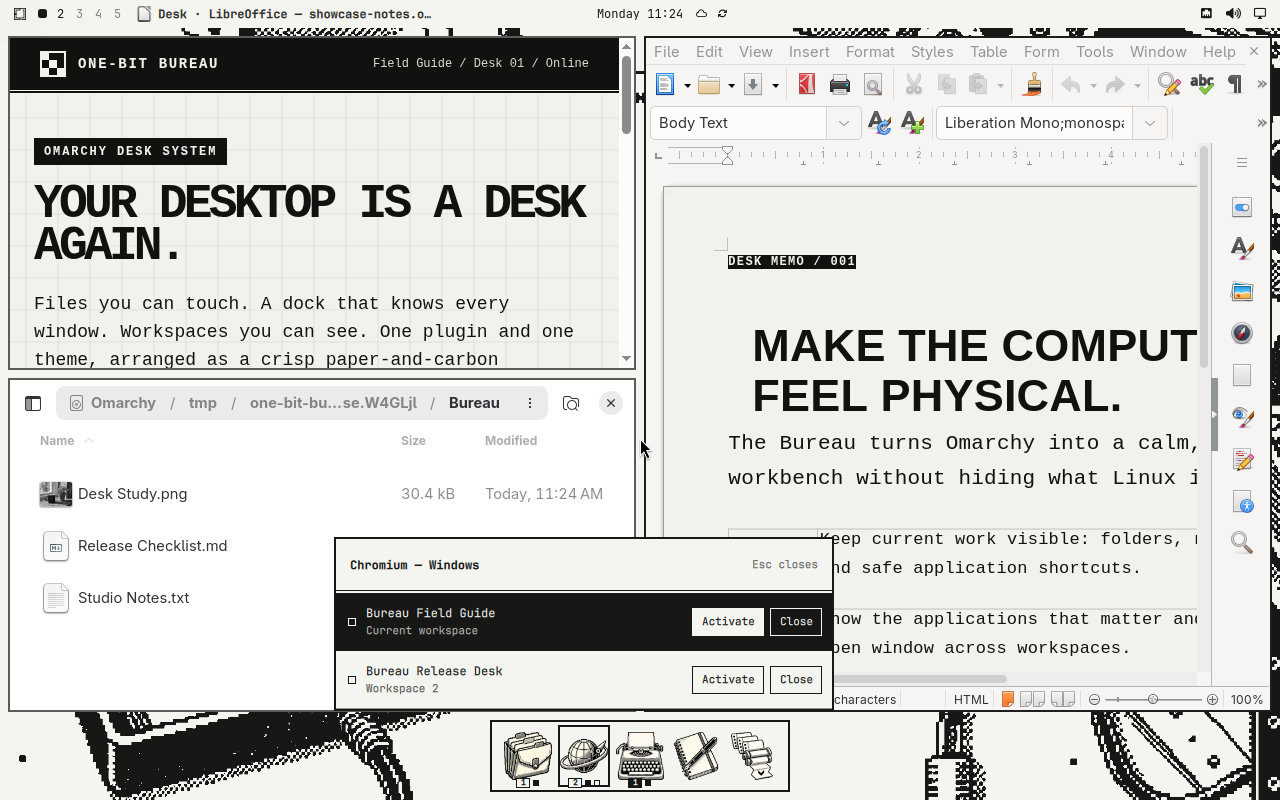
The bottom dock launches apps, focuses existing windows, shows running state, previews windows, and remembers pins and order. A fresh installation starts with Files, Chromium, and Foot.
Right-click an app for Get Info, Show Windows, pinning, icon choices, and dock settings. Get Info opens the shared Inspector. Show Windows opens a titled Window Ledger with explicit Activate and Close actions.
One icon remains the stable application identity. Its one, two, or three-plus mark and accessible description report active, current-workspace, and other-workspace window state. Primary activation focuses the most-recent surviving window and never launches a duplicate merely because a compositor address went stale.
Set a preferred monitor:
one-bit-bureau dock setScreen DP-1Inspect the current resolved monitor:
one-bit-bureau dock getScreenIf the preferred output disconnects, the dock falls back safely and returns when that output reconnects.
Move the pointer into the top-left hot corner or run:
one-bit-bureau overviewInside the overview:
| Key | Action |
|---|---|
| Arrow keys | Move between windows |
| Type | Filter windows |
| Space | Preview the selected window |
| Tab | Change workspace scope |
| I | Inspect the selected window |
| Control+Left / Control+Right | Choose an ordinary workspace on the rail |
| Control+Enter | Show the chosen workspace |
| Control+Shift+Enter | Move the selected window to the chosen workspace |
| Enter | Open the selected window |
| Shift+Q | Close the selected window |
| Escape | Close the overview |
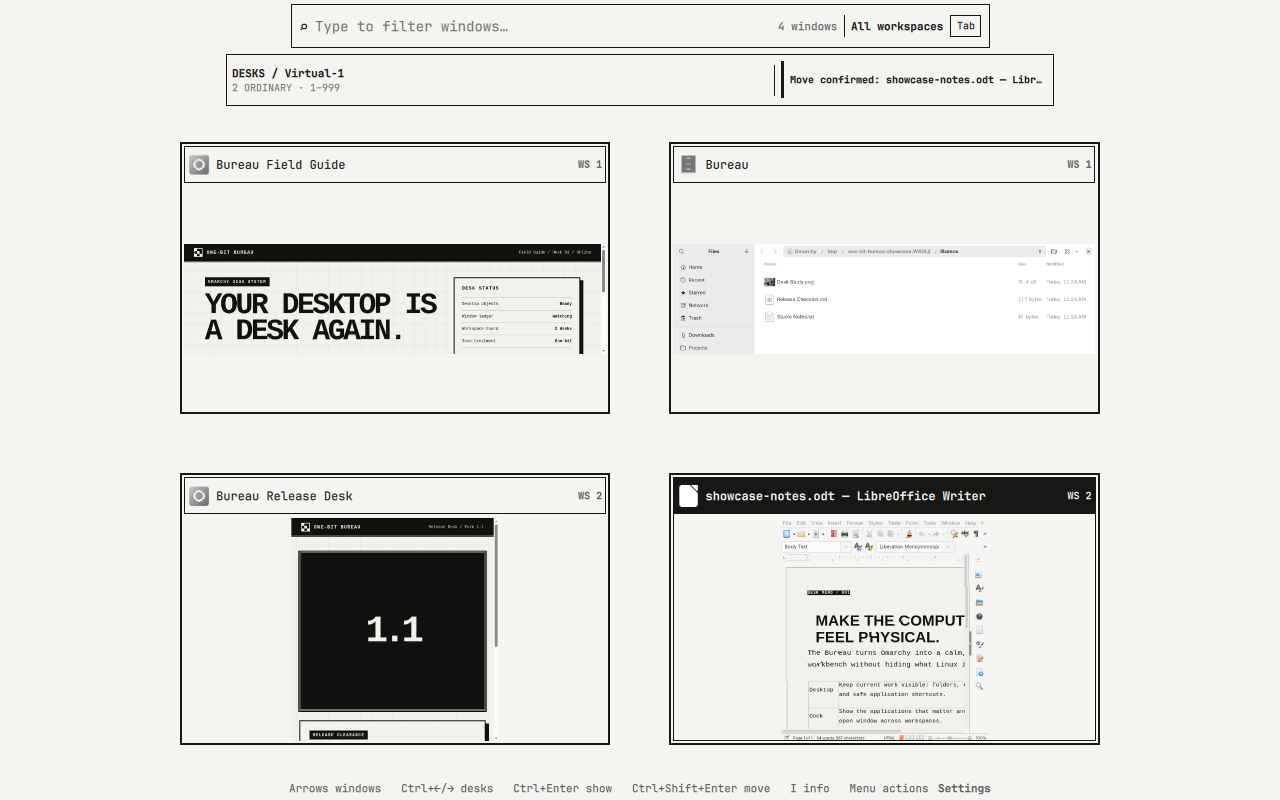
The overview keeps preview bodies visually stable while keyboard focus moves. The active window has its own double-rule marker.
The workspace board lists existing ordinary numeric workspaces in stable order with active, occupied, and window-count state. Moving a window keeps the overview open while the card re-homes.
Desktop icons and the dock live in separate layer-shell windows. A manual desktop-icon drag cannot reliably become a native drop in that other Wayland window, so One-Bit Bureau does not advertise desktop-to-dock internal dragging. Folder, Trash, external local-file, and overview workspace routes are supported because their ownership can be validated.
One-Bit Bureau places a permanent Desk menu beside the Omarchy menu. It provides selection-aware Quick Look, Get Info, Rename, Show in Files, Move to Trash, Select All, New Folder, Tidy Desk, Arrange By Name/Kind/Modified, exact layout Undo, and Open Desktop Folder commands. Unavailable commands stay in place and explain why they cannot run.
When an application is active, its name and a distinct document or window title appear in the same top-bar region. The rest of Omarchy’s top bar stays intact.
The widget can be adjusted through Omarchy’s plugin settings:
- Show or hide the window title
- Change icon size
- Change maximum title width
- Adjust icon saturation
- Enable reduced motion
one-bit-bureau motion reduce
one-bit-bureau motion status
one-bit-bureau motion full
Reduced mode removes nonessential transitions from One-Bit Bureau’s dock, overview, previews, and app-context surfaces. It is a One-Bit Bureau setting, not a claim to be a system-wide accessibility preference.
Run the read-only system check at any time:
one-bit-bureau doctorDoctor checks installation ownership, plugin discovery, theme alignment, Desktop configuration, shell IPC, helpers, icon assets, and the optional app-chrome state. It makes no changes. The only repair mode is the explicit ownership-safe one-bit-bureau doctor --repair app-chrome-off command.
One-Bit Bureau also includes an off-by-default GTK3 preview:
one-bit-bureau app-chrome preview
one-bit-bureau app-chrome on
one-bit-bureau app-chrome status
one-bit-bureau app-chrome off
This user-level option affects GTK3 applications only. It does not modify GTK4/libadwaita, Qt, Chromium profiles, LibreOffice profiles, packages, or system files, and off restores only settings One-Bit Bureau can still prove it owns.
one-bit-bureau font list
one-bit-bureau font use krypton
one-bit-bureau font use departure
Monaspace Krypton NF is recommended for whole-desktop use because it includes Nerd Font symbols used by Omarchy. Departure Mono has the sharper pixel character but lacks those symbols.
Setup installs both fonts but changes neither the selected font nor terminal configuration. A font changes only when you explicitly run font use.
Open Manage Icons from the dock to assign one of 32 One-Bit roles, use automatic matching, restore an app’s full-color native icon, or select a local custom image. Automatic covers all 36 launcher-visible fresh-install apps, keeps uncommon resolvable native icons in grayscale, and uses the authored Application mark instead of a blank when no native icon resolves.
See Icons and App Associations for the exact resolution order, CLI commands, state files, and fallback behavior.
One-Bit Bureau never replaces global Alt+Tab. To add its app-switcher HUD on the non-conflicting Alt+Grave chord, put this user-owned snippet in ~/.config/hypr/bindings.lua:
o.bind("ALT + GRAVE", "One-Bit Bureau app switcher next", "omarchy-shell -q regionallyfamous.one-bit-bureau.dock altTabNext")
o.bind("ALT + SHIFT + GRAVE", "One-Bit Bureau app switcher previous", "omarchy-shell -q regionallyfamous.one-bit-bureau.dock altTabPrev")
An optional overview binding can use Ctrl+Up without taking a Super chord:
o.bind("CTRL + UP", "One-Bit Bureau window overview", hl.dsp.event("regionallyfamous.one-bit-bureau.overview:toggle"))one-bit-bureau status
one-bit-bureau doctor [--repair app-chrome-off]
one-bit-bureau update [--yes]
one-bit-bureau remove
one-bit-bureau overview
one-bit-bureau dock <IPC-command> [arguments]
one-bit-bureau motion <reduce|full|status>
one-bit-bureau app-chrome <preview|on|off|status>
one-bit-bureau icon <command> [arguments]
one-bit-bureau font list
one-bit-bureau font use <krypton|departure>