Repository navigation
Web Tool
Design the stator and rotor boards of a sinusoidal inductive encoder in your browser, see them straight away, and download them as KiCad files. No installation and no account: everything runs on your own computer, and nothing is sent to a server. The web tool runs the Single and the Dual Coil Set Generator of the desktop version unchanged, so the same settings give the same files.
Open Quick Parameter Selection Guide
The Web Tool lives on the
WebUIbranch; this page follows its readme.
The tool adapts to both landscape and portrait monitors. Both pictures show the starting design of the Single generator.
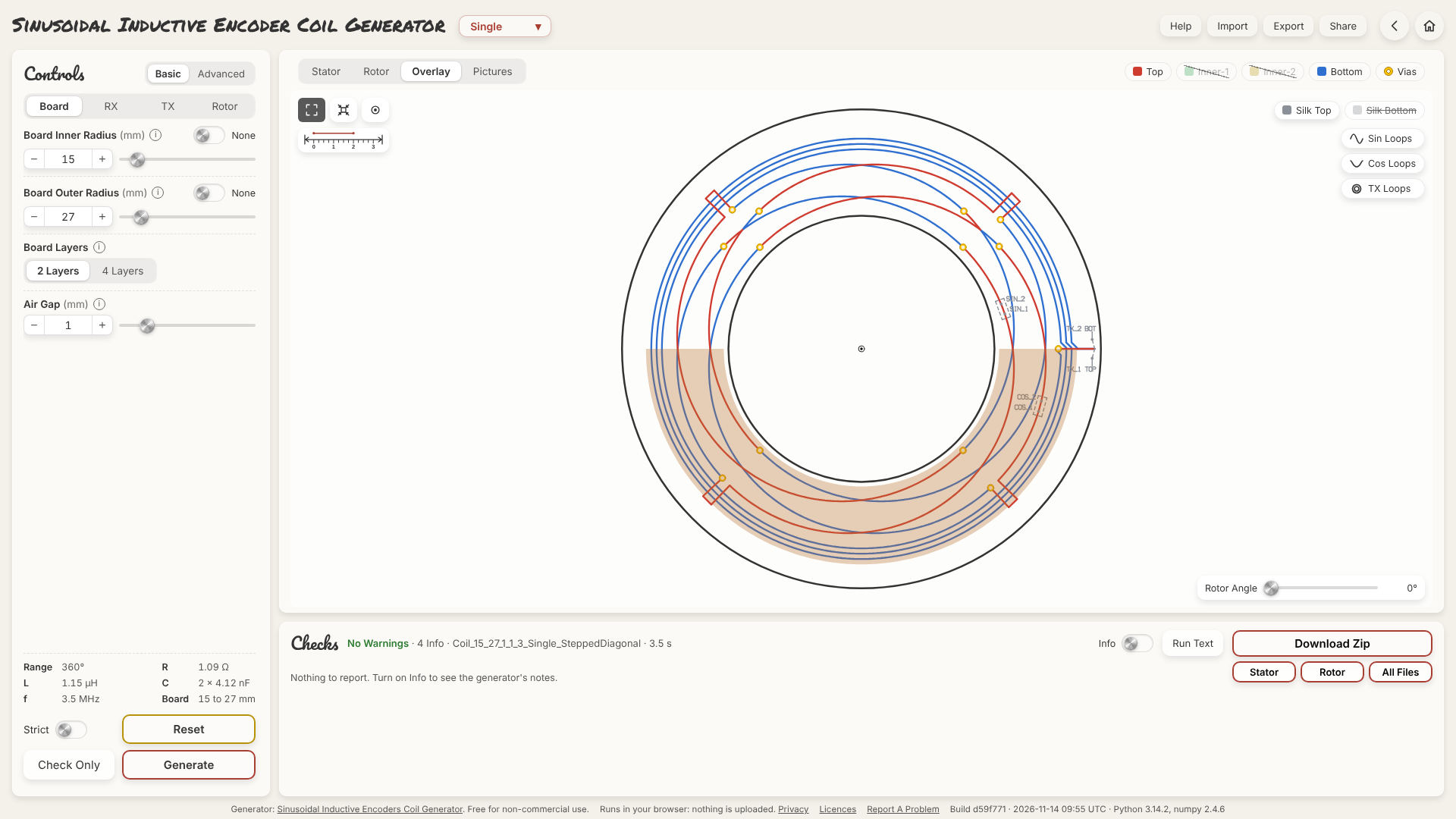
Web Tool 1. The Web Tool on a landscape monitor.
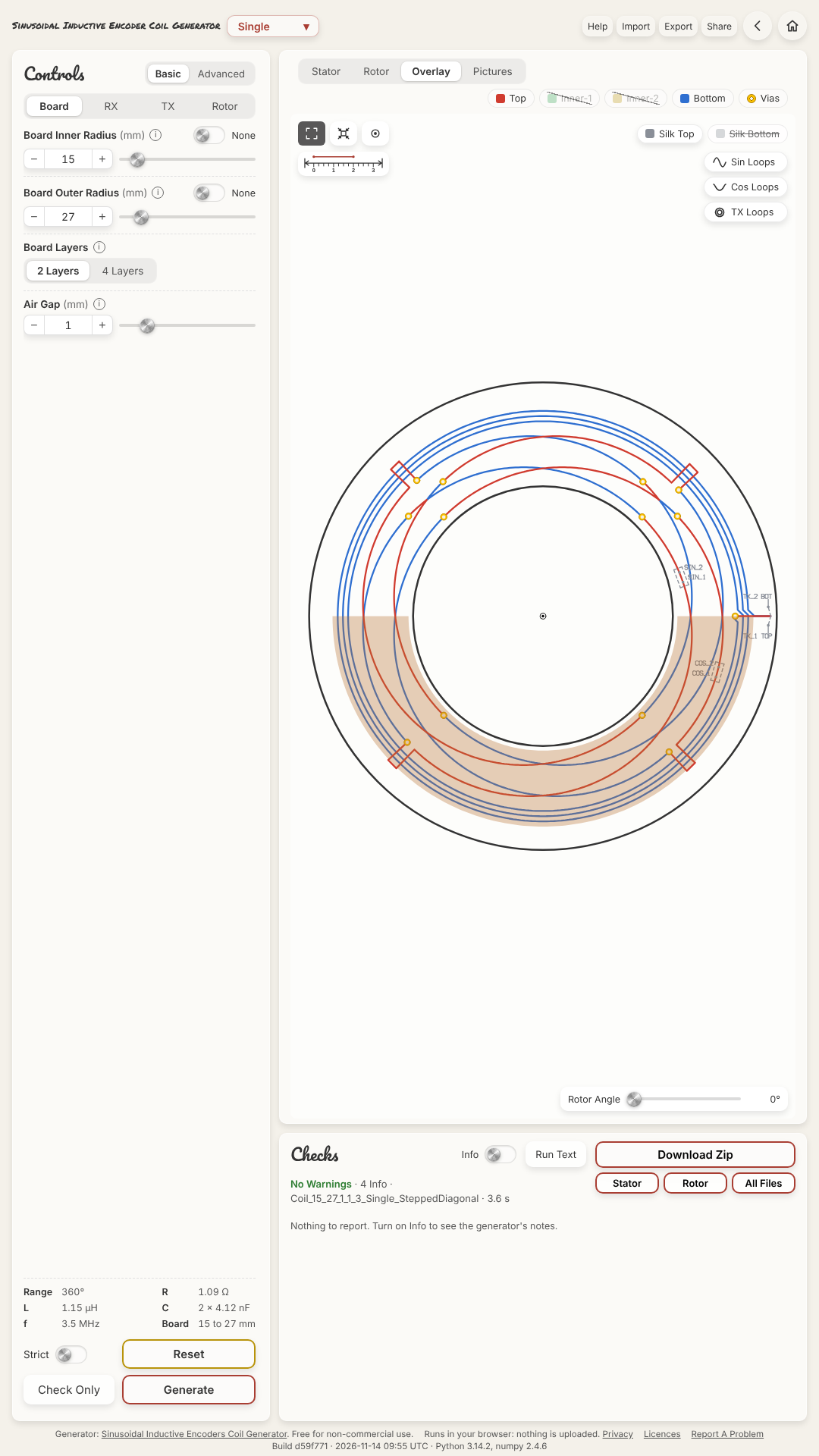
Web Tool 2. The Web Tool on a portrait monitor.
- Two generators. The menu beside the title chooses the Single or the Dual generator (two coil sets on one board). Each keeps its own settings and its own board while the other is open.
- The desktop program itself. The page runs the same Python files as a desktop run and writes the same files, byte for byte.
- Basic and Advanced. Basic has the main settings on four tabs: Board, RX, TX and Rotor. Advanced has every setting of every parameter file, in the order of the file, and a box to find a setting by name. A change in one shows in the other.
- Live board preview of the stator, the rotor, or both together, with each copper layer in its own colour (Top red, Bottom blue, Inner-1 green, Inner-2 dark yellow), and the pictures of the run.
- The run, step by step. While the generator works the page shows its steps, the line it is printing and the time, with a Cancel button.
- Design checks before every board is made: errors and warnings that say what is wrong, why it matters and which settings to change. A setting named in a message is a link to that setting.
- KiCad downloads: one zip with the folder a desktop run writes, the stator or the rotor alone, or any file of the run.
- Help on every setting and every button: rest the mouse on it, or press the i next to a name. Some settings show a picture.
- Save and share: export your settings, import them later (also from the desktop version), or copy a link that opens the page with your design.
- Measuring and inspection tools in the preview: zoom, highlight a layer or a coil, hide parts, measure distances, turn the rotor.
- Keyboard and screen reader: everything on the page can be reached and used without a mouse.
- Open the tool at ro-h-bots.blogspot.com. The first visit downloads the browser's Python engine (about 20 MB); later visits are quick.
- The page starts with the published design, already generated.
- Change settings in Basic, then press Generate (or Ctrl+Enter / Cmd+Enter).
- Check the result in the preview and the Checks panel.
- Press Download Zip to get your boards.
The tool needs a computer with a mouse or trackpad. Phones and tablets see a short message instead.
The menu beside the title switches between the two generators. Dual puts two coil sets on one board, an inner and an outer one: its RX, TX, Rotor and IC settings exist once for each set, and a Set 1 · Inner | Set 2 · Outer switch under the tabs says whose settings are shown. Arc and Linear are listed for later.
| Tab | Settings |
|---|---|
| Board | Board inner and outer radius, 2 or 4 copper layers, air gap to the rotor |
| RX | Loops (sine periods per turn), RX sub-coils, and the RX band |
| TX | TX turns per layer, and the TX layout, picked from picture cards |
| Rotor | Automatic (sized from the stator) or Custom, with the metal fraction and sectors |
Every Basic setting is also in Advanced, under the same name.
Every setting of the generator, one tab for each parameter file (Board, RX, TX, Rotor, IC and Silkscreen suggestion), in the order of the file. Each one shows its name in the file, and the ↺ button puts it back to its starting value. Settings the current design does not use are greyed out. A changed setting gets a dot before its name, and its tab gets a dot too. Find A Setting lists the matches of every file.
The RX band is the ring the receiver coils swing across. You can give it in one of three ways:
| How | Set | Leave None |
|---|---|---|
| By its radii | RX Inside Radius and RX Outside Radius | R Base and Swing A |
| By its centre and width | R Base and Swing A | RX Inside Radius and RX Outside Radius |
| From the board | Board Inner Radius and Board Outer Radius | all four RX band values |
- Turn a None switch on to leave that value to the generator.
- The two values of a pair always change together.
- While one pair has numbers, the other pair is locked at None. To switch from one way to the other, set the pair in use to None first; both pairs are then unlocked.
- A board edge set to None is worked out from the RX band. A board edge with a number is used exactly, and the checks tell you if it leaves too little room.
- Generate makes the boards and runs the checks. After you change a setting, the board on show is marked as old until you generate again; the downloads always match the last generated board.
- Check Only runs the generator's checks and makes no boards.
- Cancel, in the box that shows the run, stops it. Python starts again, which takes a few seconds.
-
Strict turns every warning about the finished boards into an error (
GENERATOR_MODE = "strict"on the desktop), so such a design is not generated. - Checks lists the errors and warnings. Turn on Info to also see the generator's notes.
- Run Text shows everything the generator printed in the run, as on the desktop.
- Under the settings the page shows the results of the board on show: range, inductance, resistance, frequency, capacitors and board size. For Dual, of both coil sets.
-
Download Zip gives the folder a desktop run writes: both boards, their
.kicad_profiles,Parameters.txtand the two pictures. Stator and Rotor give one.kicad_pcbeach, and All Files lists every file of the run.
The checks do more than say that something is wrong: each message tells you what to change to fix it.
- What is wrong, with the numbers. A message names the setting, its value and the limit it broke, for example that OUTER_EDGE_RADIUS_MM is too small, and the radius the board needs instead.
- Why it matters. It says what would go wrong on the board, such as vias overlapping, traces too close together, or no room left for the TX turns.
- What to change. It lists the settings that fix it and which way to move them, for example "raise OUTER_EDGE_RADIUS_MM, move the RX band in, or lower OUTER_EDGE_OFFSET_MM". The names are the parameter names shown in Advanced, so each one is easy to find.
- Where it came from. Each line is marked Error, Warning or Info, with the step that found it: the settings check, the stator or the rotor.
Errors stop the run. No board is made, the preview keeps the last board marked out of date, and the downloads stay off until a run works. Warnings still make the boards but point at something to look at, often a manufacturing limit such as a very fine trace or a small via ring. Turn on Strict to treat every warning about the finished boards as an error.
Some mistakes are blocked before they can happen: the RX band pairs lock each other, settings the design does not use are greyed out, and a pair that must change together always does.
- Stator, Rotor, Overlay, Pictures: choose what to show. Overlay puts the rotor over the stator, and the Rotor Angle slider turns it. Pictures shows the two pictures the generator drew.
- Layer buttons (Top, Inner-1, Inner-2, Bottom, Vias): hover to highlight, click to hide or show. Hovering Vias makes small vias easier to see. Silk Top and Silk Bottom do the same for the silkscreen.
- Sin Loops, Cos Loops, TX Loops: the same for each coil. Dual also has Set 1 and Set 2.
- Zoom and move: the mouse wheel zooms, dragging moves the board, and Fit (or a double-click) shows the whole board again. The centre marker button shows or hides the board centre.
- Full screen: the preview fills the screen; Esc leaves.
- Measure: click two points to see the distance. Press S to keep the line and draw another, Z to undo the last line or point.
- With the keyboard, on the drawing: the arrow keys move the board, + and - zoom, 0 fits it. While Measure is on the arrow keys move a cross instead (Shift for small steps) and Enter sets a point.
The preview tools only change what you see, never the boards.
- Export downloads the parameter files as a zip, ready for the desktop version.
- Help opens the Quick Guide To Parameters Selections on the project wiki in a new tab.
-
Import loads a
Parameters.txtfrom any run (web or desktop), your own parameter files, or a zip of them, several at once. Files of the other generator switch the page to it. Whatever is not taken is named with the reason: a setting this version no longer has, a value no setting can hold, a file that is too large. - Share copies a link that opens the tool with your design. Only your changes are in the link, and nothing is uploaded. Links made with the page before version 2.0 still open.
- Reset goes back to the published design, after asking.
Three settings of the Board file are not on the page, because a run in the browser has no folder of yours to
write to: OUTPUT_DIR, STATOR_FILE and ROTOR_FILE. The page names the zip after the run, and the boards in it
are Stator.kicad_pcb and Rotor.kicad_pcb. Everything else of the two generators is there, with the electrical
estimate, the receiver IC file, the silkscreen suggestion and blind vias.
The Web Tool is a static site, made from WebGUI/ on the WebUI branch by a build step
(WebGUI/tools/build_site.py) and published with GitHub Pages by GitHub Actions on every push to that branch.
There is no server. The browser loads Pyodide (Python and numpy compiled to WebAssembly), unpacks the generators'
own .py files, and runs them unchanged in a Web Worker. For the same settings every file of a run is the same,
byte for byte, as in a desktop run of the same generator copy: this is tested for all reference boards of
regression/. The generator is never modified for the web.
Pyodide is pinned to one version. It comes from the jsDelivr CDN, and from the site's own checked copy when the
CDN does not answer. The page is embedded in a page of the blog (WebGUI/BloggerPage.html).
python WebGUI/tools/build_site.py --out site --fetch-vendor     # build the site (downloads and checks Pyodide)
cd WebGUI && npm ci && npm run serve                            # the built site on http://localhost:4173/WebGUI/
The readme of the WebUI branch names the tests and the documents of the page.
- Slow first load. The first visit downloads about 20 MB (the Python engine); later visits are quick.
- Old version after an update. Hard-refresh the page (Ctrl+Shift+R / Cmd+Shift+R). The footer of the page shows the commit and the date it was built from.
- A message instead of the tool. Touch-only devices (phones, tablets) are not supported; use a computer with a mouse or trackpad.
- Something else. Report A Problem in the footer opens a new issue with the page's version filled in.
Everything runs in your browser. The page stores nothing on your computer, sets no cookies and sends nothing
anywhere. It loads Python (Pyodide) from the jsDelivr CDN and, when that does not answer, from its own copy; the
fonts are on the site. See the Privacy and Licences pages linked in the page's footer. Loading the page contacts two services, and each of them sees the
visitor's IP address, as with any web page: GitHub Pages, which hosts the tool, and jsDelivr
(cdn.jsdelivr.net), which serves the Python engine. The blog that embeds the tool is a third.
The web tool is under the PolyForm Strict License 1.0.0, separate from the generator's license: see WebGUI/LICENSE.md. It may be used for noncommercial purposes only, and may not be changed or redistributed. The core generator it runs stays under the repository's own LICENSE.md.

| Previous | Next |
|---|---|
| Getting Started | Project Capabilities |