Repository navigation
Visualizer
Published automatically on 2026-10-23 14:17 UTC. Edit the repository source; direct Wiki edits will be overwritten.
Inspect exported recordings, compare reference routes and replay app distance estimators. Use this tool to develop and tune distance estimators. Download from the Latest Release.
| System | Download suffix | Install and start |
|---|---|---|
| Linux x64 | linux-x64.tar.gz |
Use Ubuntu 24.04 or a compatible system with GTK 3, glibc and libstdc++. Extract fully and run ./six_mwt_visualizer. |
| Windows x64 | windows-x64.zip |
Use Windows 10/11; extract fully and run six_mwt_visualizer.exe. Install the Microsoft Visual C++ x64 runtime if DLLs are missing. |
| macOS Intel / Apple Silicon | macos-universal.zip |
The configured deployment target is macOS 10.15. Extract and open 6MWT Visualizer.app. If Gatekeeper blocks the first launch, use System Settings → Privacy & Security → Open Anyway for the downloaded project build. |
Names start with 6mwt-visualizer-VERSION-. Keep data/, lib/ and DLLs beside the executable where included. These runtime files are required. Archives contain no sample recordings; use your own JSON exports or recordings from the repository's data directory.
CI builds Linux on Ubuntu 24.04, Windows on Windows Server 2022, and macOS on macOS 15. These are build environments, not a verified end-user compatibility matrix.
The macOS bundle is ad-hoc signed, without notarization or Developer ID signing. Managed computers may restrict opening it. For updates, replace the extracted application bundle.
A desktop display and mouse/trackpad are sufficient; no live GPS, motion sensor or sensor permission is needed. Internet access is needed for satellite tiles; local data and estimator calculations work without it.
- Start the Visualizer. From a checkout it searches for repository data; a release needs your files.
- Use the folder/file buttons in the sidebar to select a recording folder or JSON export.
- Select a session. Use Recording for the map and distance/step chart, or Estimator Lab for algorithm comparisons.
- Reload after changing files on disk.

- Toggle app tracks, references, step markers and GPS accuracy circles independently. Use Center / fit tracks to fit the routes.
- Zoom in for GPS dots and segment labels. Distance and step deltas refer to consecutive raw samples even when crowded labels are skipped.
- Toggle chart signals with the legend; hover for interpolated values at a common time.
- The Recording chart converts steps to meters using an estimated median step length. This display calculation is distinct from the app's persisted distance and the Lab's causal estimators.
- The information panel shows recorded distance, profile, timing and reference comparisons.
In Recording, click Draw reference, then click the map in walking order. Pan and zoom as usual, use Undo last point for corrections, enter a name and choose Save reference. Cancel discards the draft. You can draw and save several alternative routes for the same recording.
Route distance is the sum of the geographic segments between clicked points. Manual routes have no measured timestamps: their timeline assumes constant speed over the recording's active window, with waypoint times proportional to distance. They are labeled accordingly in both charts and are comparison data only; they never enter the Estimator Lab's sensor replay.
Each reference has a name and the same color in the map, recording graph and Lab. The graph legends toggle individual reference curves; the Lab table includes meter and percentage differences for each reference over its own overlap. Select a reference in the recording's information panel for detailed metrics.
Existing reference.json files remain supported. Session folders also load
reference_*.json and every JSON recording in references/. New drawn routes
are saved as separate JSON files in references/; the original files are not
modified. Standalone or multi-session JSON exports use an adjacent
<export filename>.references/<encoded session id>/ directory. Keep these
sidecar directories with the recordings when moving them. Saved references
appear immediately and load again the next time the recording is opened.
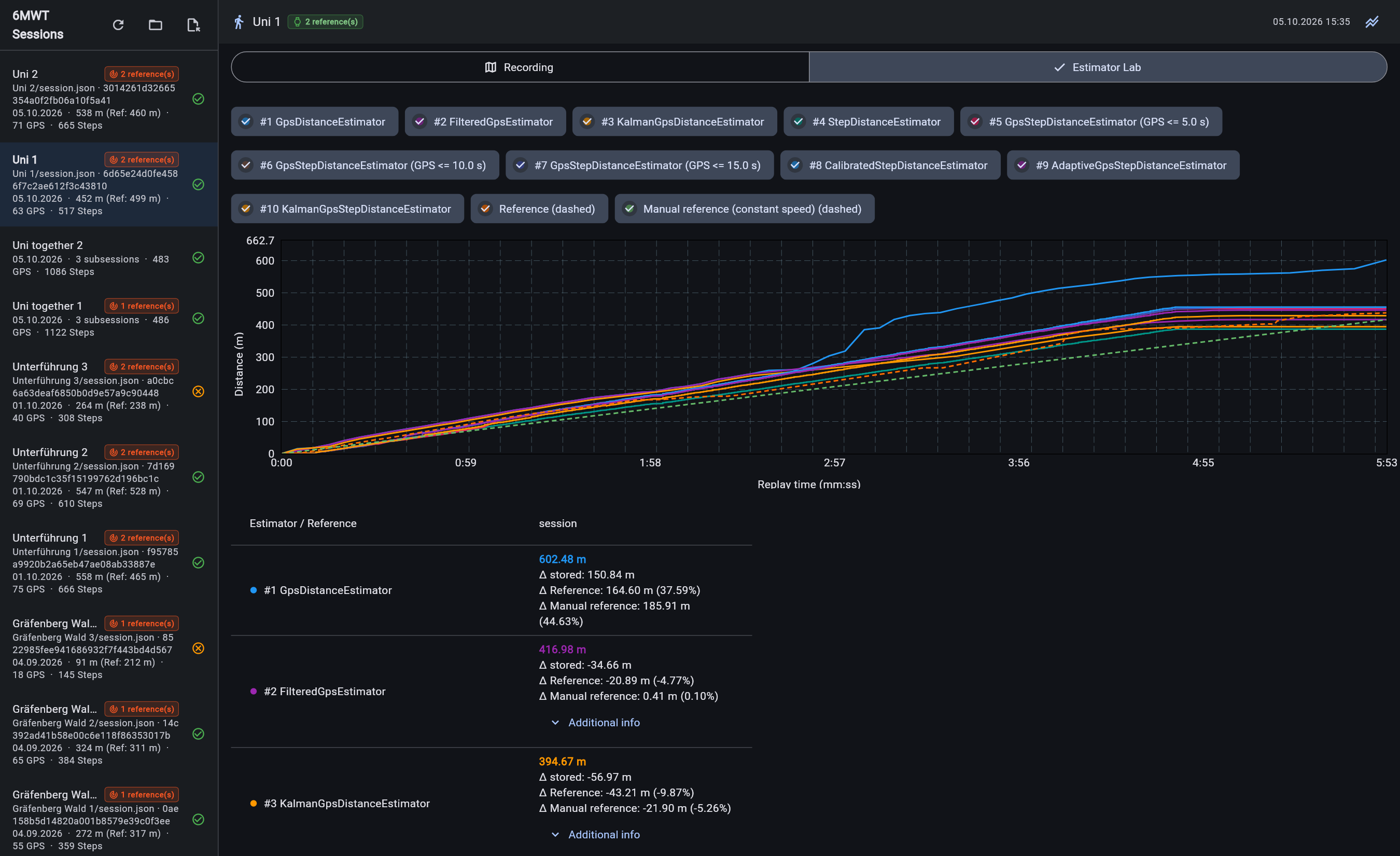
- Select a recorded session and open Estimator Lab above the map.
- All estimators configured in
estimators.dartrun automatically. Use the graph legend to toggle curves and the table to compare distances, each estimator's confidence for its final distance and additional diagnostics. - To test another algorithm or parameter variant, edit the list in
createEstimators()and hot restart the tool. Multiple instances of the same class with different parameters are allowed.
The replay feeds all recorded app sensor samples to each estimator, from the earliest to the latest recorded timestamp. It uses subsecond timing, preserves file order for timestamp ties, and does not run in real time. It does not use the reference recording or a whole-session step-length estimate to calibrate algorithms. The original estimator runs unchanged; replay totals can differ from the stored distance if historical app versions, sample arrival order, or incomplete recordings differ.
Reference distance uses the reference's cumulative distance values when available throughout the track, otherwise a GPS Haversine sum. The available overlap with the replay is displayed, interpolated at its boundaries and rebased to zero at the overlap start. A later start or earlier end does not hide the reference. Table reference deltas compare both distances over this shared interval only; hover the reference legend for its time range. A reference with no overlap or invalid/decreasing cumulative distance is unavailable. A zero reference distance has no percentage delta. Tooltips interpolate every visible curve at the same time in estimator order, with the reference last; times outside a curve's coverage show a dash rather than extrapolated values. The recording/map view retains its existing reference-window behavior.
A folder containing multiple session_*.json files (optionally also
session.json) appears as one session in the sidebar, named after the folder.
For example, open Uni together 1 or Uni together 2. Each file remains an
independent subsession, including its original timestamps and sensor samples.
Folder reference recordings are shared with all subsessions.
All subsession tracks appear on the existing map immediately. Use the device chips to hide or show individual tracks. The recording details selector chooses which subsession supplies the information panel and distance/steps chart.
In Estimator Lab, each estimator runs independently on every subsession. The table has one column per subsession, containing its distance, stored-distance delta and reference deltas (meters and percent over the shared time interval). Use Additional info within a cell to expand or collapse estimator diagnostics.
The graph selector supports all estimators and subsessions, all estimators of one subsession, or all subsessions of one estimator. Legend chips toggle individual curves. Graph time is relative to each subsession's first sensor sample; references are aligned and compared separately for each recording's actual UTC overlap.
Opening the Lab starts background replay and caches results for the loaded session. Reloading recordings or saving references invalidates the cache. See Distance Estimators for configuration, limits and benchmarks, and Development for source builds and optional map tokens.