Forest Wiki
Welcome to the Forest handling wiki!
Important note before you continue reading:
- Please always make sure you are working on or editing the correct product version. Most day-to-day actions need to be done using the "Created" product version
- Do not use the "Delete" option in any circumstances.
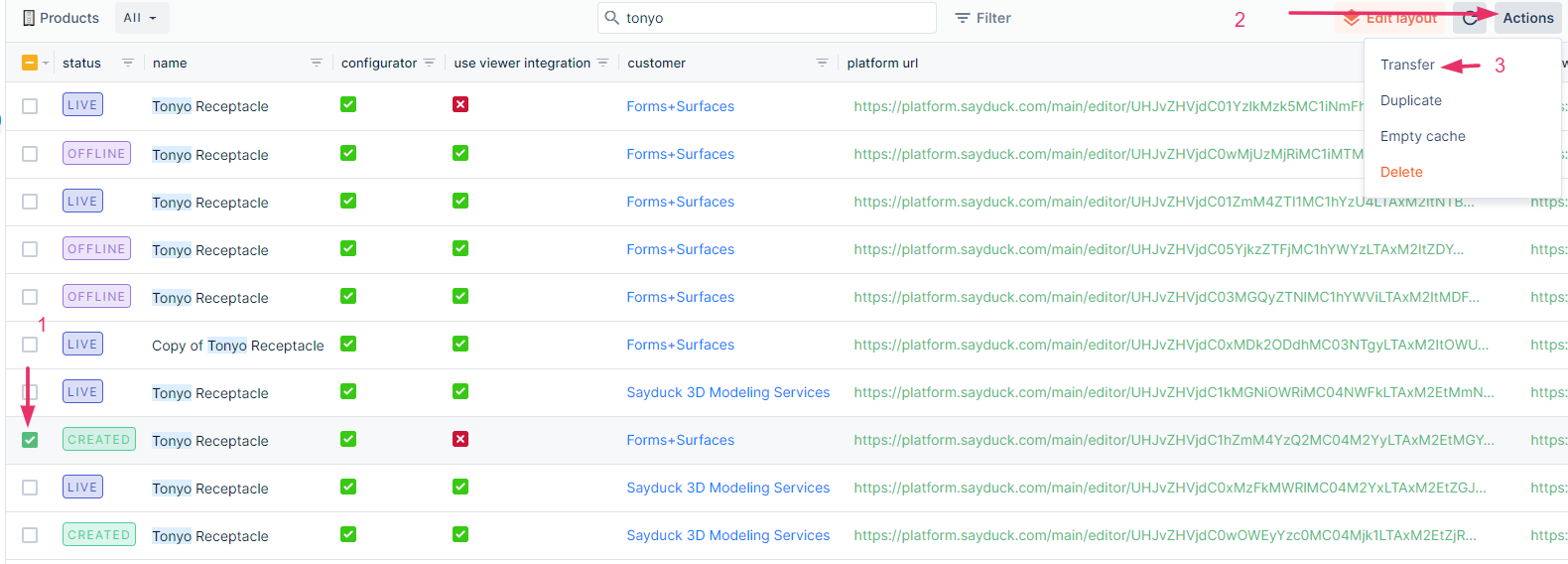
- Find the product you are looking for by typing in the search
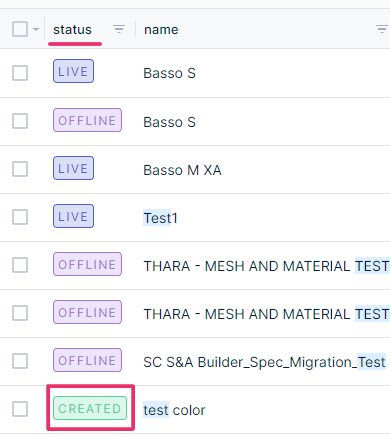
- You should find and work only with the "Created" version (status column)
- Find "Transfer" button (3rd step in the screenshot below)
- Select the customer you need it to be transferred to
Note:
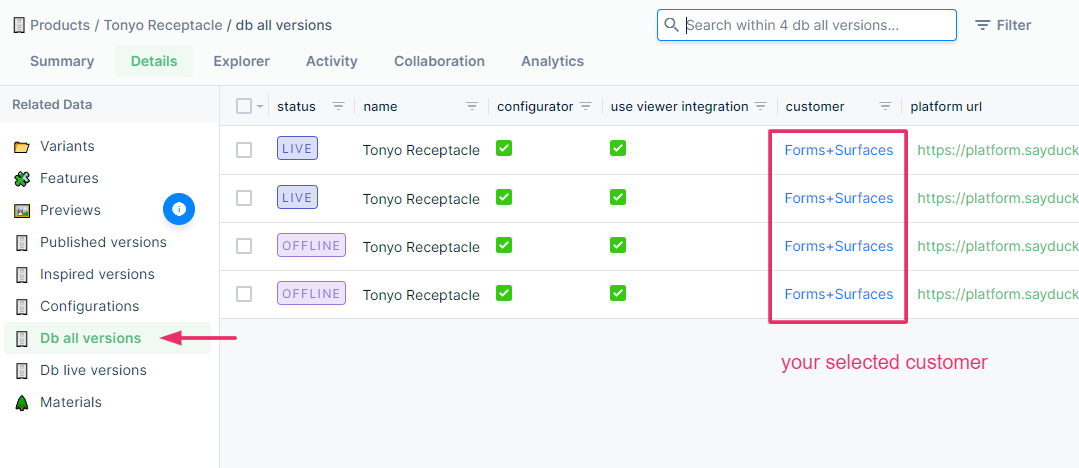
- Make sure all product versions that belong to this product moved correctly to the selected customer
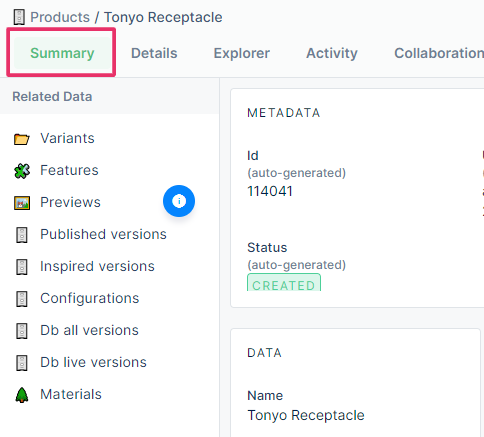
Click on your product and the summary tab is loaded automatically, then go to "Db all versions"
- Find "Customers" on your left hand side and find the customer by typing the name in the search

- All paying customers must have an active subscription (other accounts can be inactive already)

- Open the customer by clicking on its row (summary tab gets opened). Go to "Permissions.

- Check the existing permissions and search/add new ones by clicking on the "Plus" button

- By clicking on the search bar, the drop-down appears or you can type it in.
- Prior steps are described in the permissions adding page
- Select the permission you want to remove. Then go to "Actions". Attention: select "Dissociate the relationship"

- Go to Products
- Search and find the product you are looking for
- Select your product
- Go to "Actions" and Press "Duplicate"

- Go to Customers and search for the customer you need
- Select Users, then the "Plus" sign

-
Forest has a function "Export"
-
Elements to export: UUID, product names, Preview/Editor links and other available information stored
-
Go to Customers and select your customer
-
Without selecting any products, hit "Actions" and select "Export products":

-
If you wish to export only a specific product (or few), you have to use filters. Once filtered out, go to actions and select export.
-
Go to Customers and select the customer
-
Hover on the status of the product which you want to put Offline, use your right-click to call the Edit menu
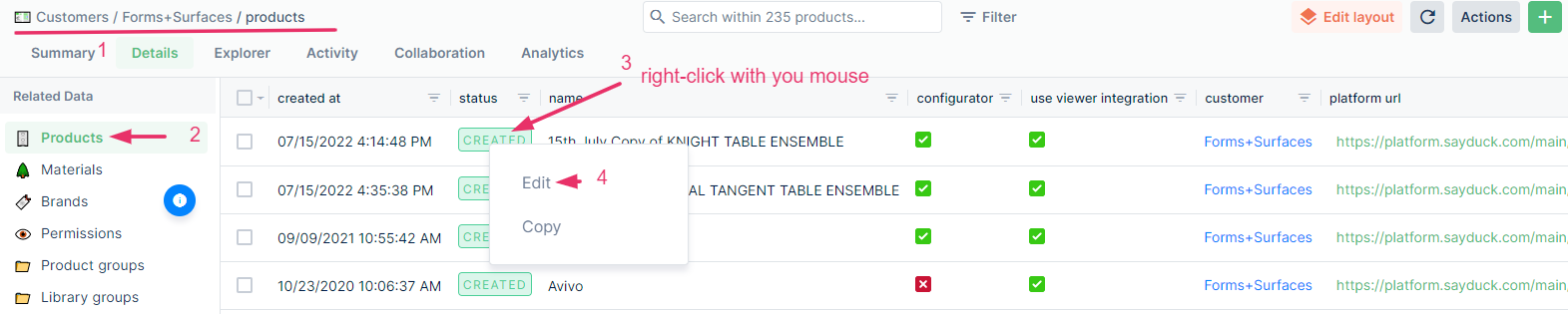
-
Select "Offline" and hit "Save"
