Repository navigation
Releases
0.10.1


New in 0.10.1
- Installing the audio driver no longer slows down your Mac's sound. On a Mac that hadn't been restarted for a while, installing, updating or removing the driver could keep macOS's audio busy for minutes, and choosing Sendspin speakers or Music Assistant seemed to do nothing until it was done. A macOS bug made each audio restart heavier than the one before; the installer now clears it first, so every install is quick.
- Upgrading: drag the new app to Applications (replace the old one) and open it. The audio driver hasn't changed, so no password is needed.
Full Changelog: v0.10.0...v0.10.1
0.10.0: We Hear You
New in 0.10.0
- Play a source on your speakers. A turntable, TV or microphone that speaks Sendspin appears under Source in the menu. Choose it, and it plays on your speakers instead of your Mac's sound.
- Full Sendspin v1.0.0-rc1 spec All MUST and SHOULD items from the spec implemented.
- Pair your speakers. A speaker that only plays for paired servers pairs when you check it: type the code it shows, scan the QR code printed on it or its leaflet with your Mac's camera, or paste its pairing token. A speaker that shows its code as a QR code on its screen is scanned too.
- Upgrade to pairing Settings lists the speakers on your network that aren't paired yet, each with Pair…. A paired speaker is sure to be yours: another device using its name can't take its place. Forget… unpairs a speaker, and it's a new speaker again.
- Identity changed. When a device shows up under the name of a speaker you paired or allowed, it gets no sound and its row says Identity changed. Click it if you trust it.
- Speakers with buttons and lights. A speaker's own buttons can change the volume and mute the whole group, and speakers with lights can follow the music.
- Tested with more speakers, including Sendspin's reference player, sendspin-cpp-cli, which runs the same code as ESPHome speakers.
- Upgrading: drag the new app to Applications (replace the old one) and open it. The audio driver hasn't changed, so no password is needed.
Full Changelog: v0.9.1...v0.10.0
0.9.1
New in 0.9.1
- The dot says more. The dot next to "Sendspin" now follows the same colours as the checks: blue, with a soft glow, while Sendspin is playing; grey while Sendspin is the Mac's output but nothing is going out, for example when every speaker in your group is unavailable; an empty ring while the Mac plays without Sendspin.
- The menu bar icon only fills when Sendspin plays. With only the Mac's own speakers left playing, it no longer shows playing.
- Settings shows "Open at login" as it is. After turning it on during setup, Settings could still show it as off until the app was restarted.
- Upgrading: drag the new app to Applications (replace the old one) and open it. The audio driver hasn't changed, so no password is needed.
Full Changelog: v0.9.0...v0.9.1
0.9.0: Every little thing she does is magic
Pre-release. This version changes how you choose speakers, and it's still being tested with more of them. Feedback is welcome.
New in 0.9.0
-
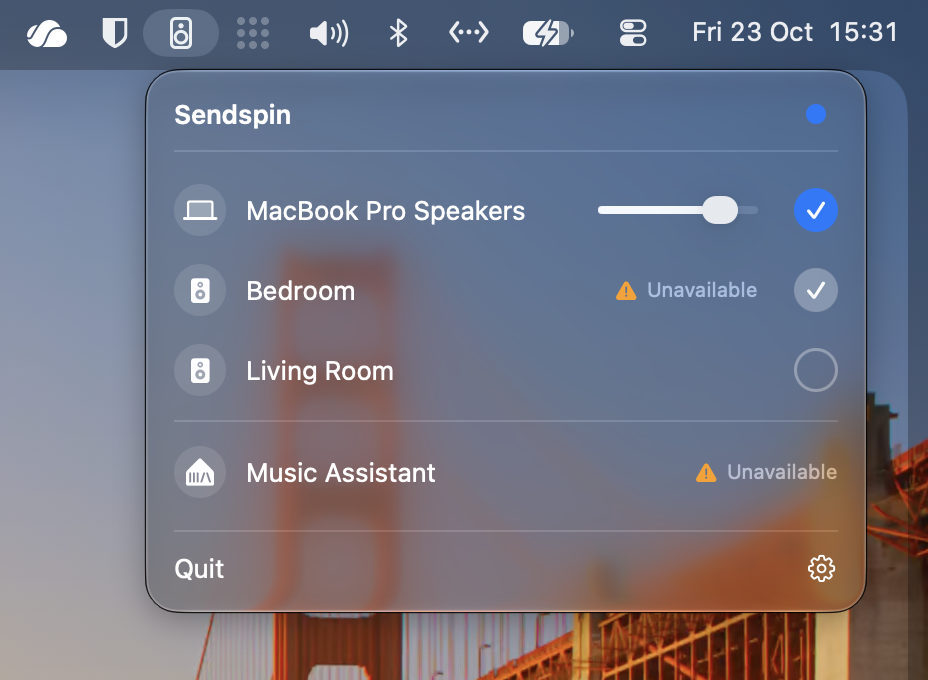
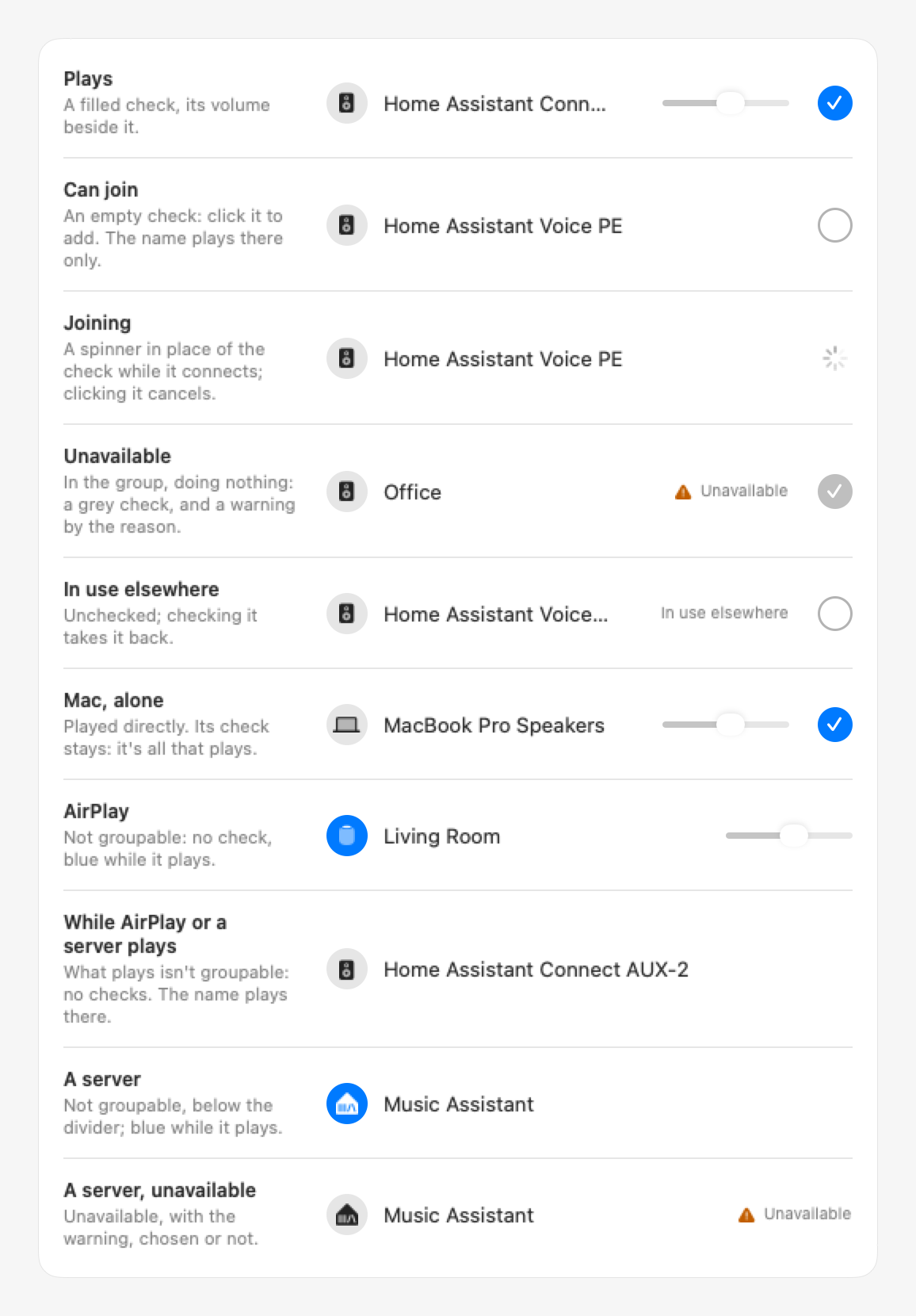
Group like AirPlay. Each speaker has a round check on the right, as in Apple's AirPlay picker: check it to add it to what's playing, uncheck it to take it out. Clicking a name still plays only there. Your Mac's own speakers always step in when nothing else is left.
-
See what's going on. A spinner while a speaker connects. A grey check, with a warning by its status, when a speaker you added is unavailable: it plays again by itself once it's back. Music Assistant shows the same warning when it can't be reached.
-
Only what can be grouped gets a check. Your Sendspin speakers and your Mac's own speakers or headphones play together. An AirPlay speaker and Music Assistant can't: choosing one ends the group, and while one plays, click a name to play there instead.
-
A slightly wider menu, so speaker names fit next to their volume slider.
-
Upgrading: drag the new app to Applications (replace the old one) and open it. The audio driver hasn't changed, so no password is needed.
Full Changelog: v0.8.0...v0.9.0
0.8.0: Come together, right now
New in 0.8.0
-
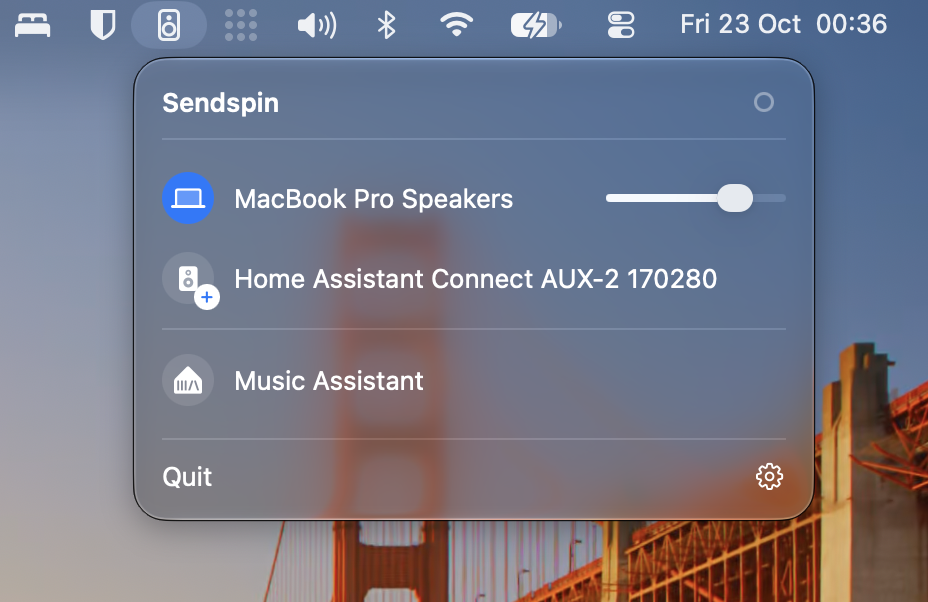
Your Mac plays along. Your MacBook's speakers, or the AirPods or headphones you use, now play together with your Sendspin speakers, in sync.
-
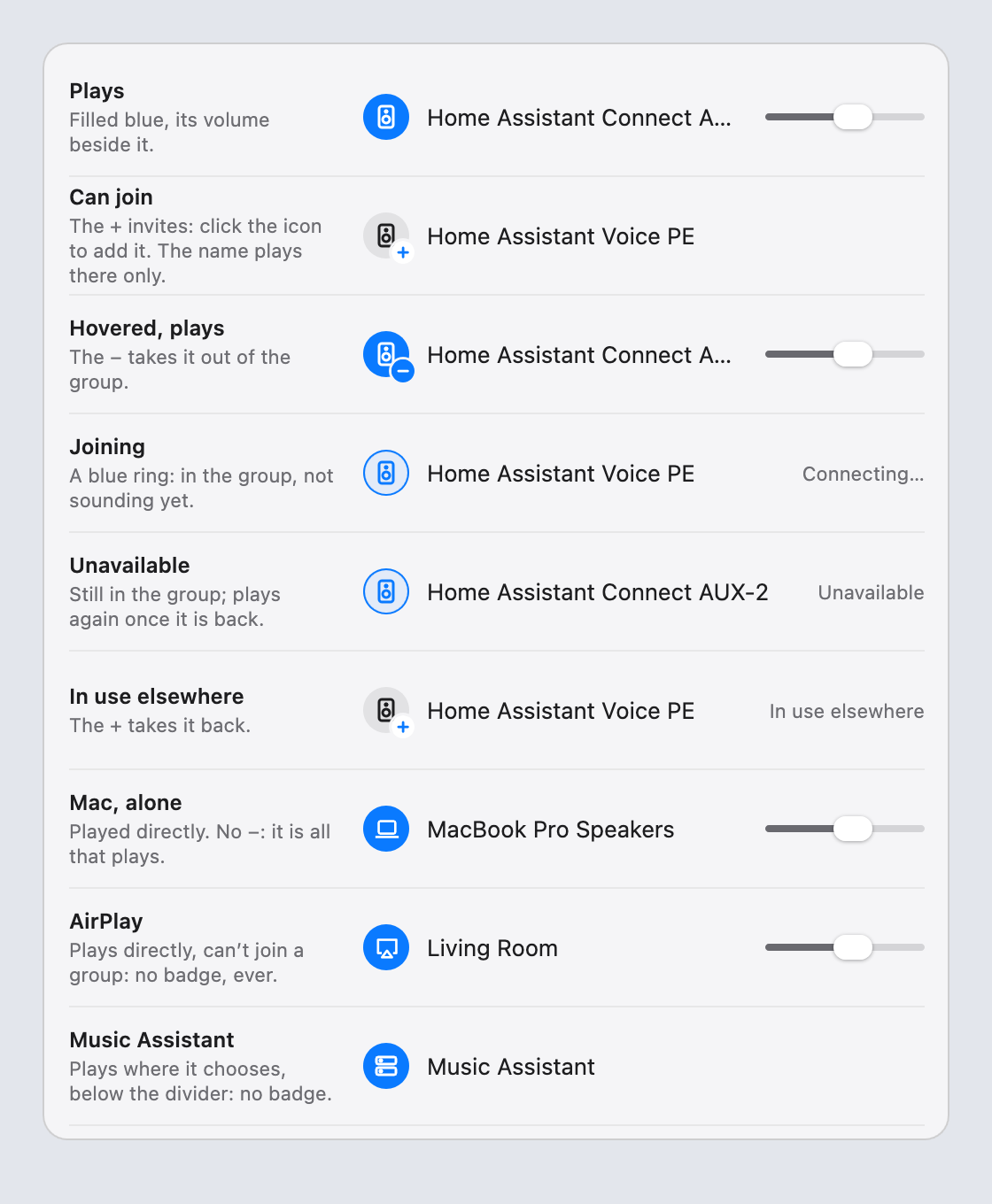
Choose by the icons. Every speaker shows its icon. Click its + to add it to what's playing; point at one that plays and click − to take it out; click a name to play only there. Music Assistant sits below a divider: it plays wherever it chooses, so speakers don't join it.
-
No delay on your Mac alone. With only your Mac's own speakers, it plays them directly, without Sendspin's delay. The dot next to Sendspin shows when Sendspin is in use.
-
Headphones take over. Plug in headphones and they play instead of the Mac's speakers, as macOS does.
-
AirPlay plays directly. It can't join your Sendspin speakers: macOS only keeps an AirPlay speaker while it's the Mac's output.
-
Upgrading: drag the new app to Applications (replace the old one) and open it. The audio driver hasn't changed, so no password is needed.
Full Changelog: v0.7.1...v0.8.0
0.7.1
New in 0.7.1
- Sample-rate switches are near-instant. Picking another sample rate in Settings now costs about 45 ms of audio, also while something plays. Changing only the bit depth doesn't interrupt the music at all.
- Keeps playing after audio hiccups. When macOS restarts its audio system (another app installing an audio driver, for instance), the app now picks the Sendspin device up again by itself, instead of going quiet until you untick your speakers.
- Tighter audio protection. The driver checks more strictly that only macOS Audio for Sendspin gets the sound played to Sendspin, even in unusual situations.
- Upgrading: drag the new app to Applications (replace the old one) and open it. The audio driver has changed again, so the app asks to update it: your password once, and your Mac's sound pauses for a moment.
Full Changelog: v0.7.0...v0.7.1
0.7.0: You don't have to put on the red light
New in 0.7.0
- No microphone permission. The app now reads the sound you send to Sendspin straight from its audio driver, instead of recording it. Sendspin is an output only, like a speaker: no microphone step on first launch, no orange microphone dot while you stream, and Sendspin no longer shows up as a microphone in other apps. After updating, the microphone permission earlier versions got is removed automatically.
- Only this app hears it. The driver hands what's played to Sendspin only to macOS Audio for Sendspin, so other apps can't record it.
- Smoother sample-rate switches. Picking another sample rate in Settings now restarts the stream once: a short gap (about 150 ms), no stutter after it. Changing only the bit depth is seamless.
- Identity changed? When a speaker comes back with another identity, click it, or its "Identity changed", to allow it again.
- Upgrading: drag the new app to Applications (replace the old one) and open it. The audio driver has changed, so the app asks to update it: your password once, and your Mac's sound pauses for a moment.
Full Changelog: v0.6.1...v0.7.0
0.6.1
New in 0.6.1
- Pairing uses dynamic pairing code only The menu no longer offers a pairing token: the token is for systems pairing each other automatically, never for typing, as Sendspin's implementation guide puts it. Before pairing, clicking Music Assistant in the menu opens its setup page.
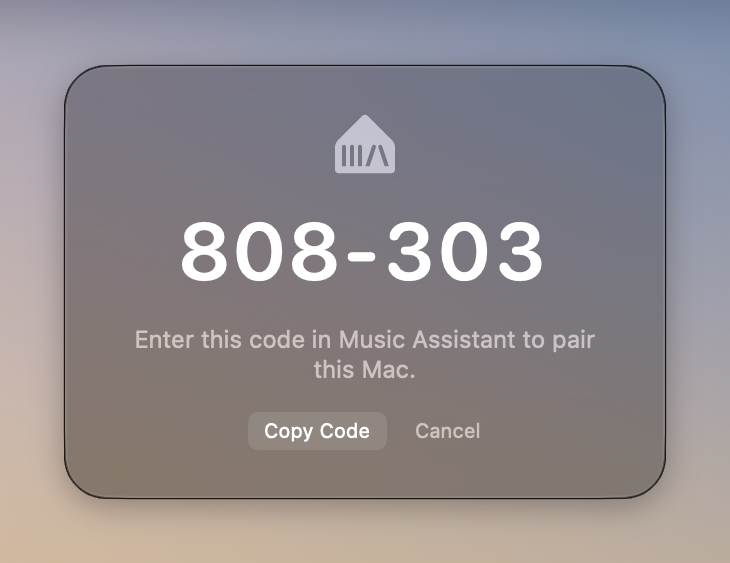
- The code copies itself. When the pairing window appears, the code is already on your clipboard: the digits lift for a moment and "Copied" appears. Paste it into Music Assistant and you're paired. Click the code to copy it again.
- Close in the pairing window just hides it: the code stays in the menu while Music Assistant waits for it.
- Upgrading: drag the new app to Applications (replace the old one) and open it. The audio driver hasn't changed, so no password is needed.
Full Changelog: v0.6.0...v0.6.1
0.6.0: Nothing pairs quite like an 808
New in 0.6.0
-
Pair with a code instead of a token. When you set this Mac up in Music Assistant, it now offers pairing with a PIN. Your Mac shows a six-digit code in a small window; type it into Music Assistant, and you're paired. The window doesn't take the keyboard away from where you're typing, and has a Copy Code button if you'd rather paste.
-
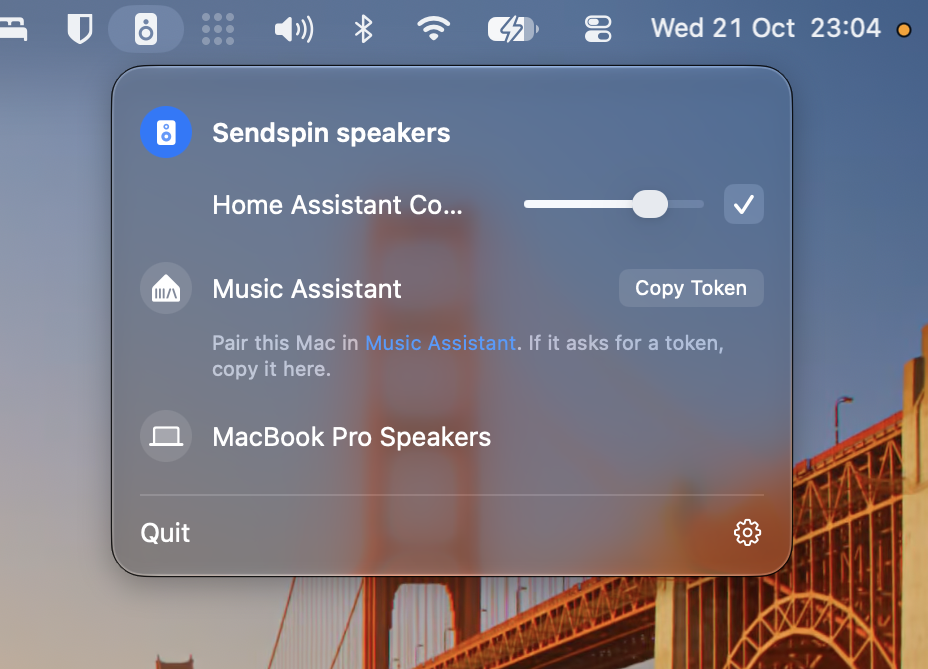
Clearer pairing instructions. The menu now starts with where pairing happens: "Pair this Mac in Music Assistant", linking to the right page. The token is still there, for servers that don't support codes yet: copy it only if they ask for it. Your Mac can't tell in advance which of the two a server will ask for; we've proposed a way for servers to say so in the Sendspin spec (Sendspin/spec#333), so the menu can show just the one that applies.
-
Other Sendspin servers pair the same way, and show their own name in the menu.
-
Upgrading: drag the new app to Applications (replace the old one) and open it. The audio driver hasn't changed, so no password is needed.
Full Changelog: v0.5.0...v0.6.0
0.5.0: I just checked in, to see what state your state was in.
New in 0.5.0
-
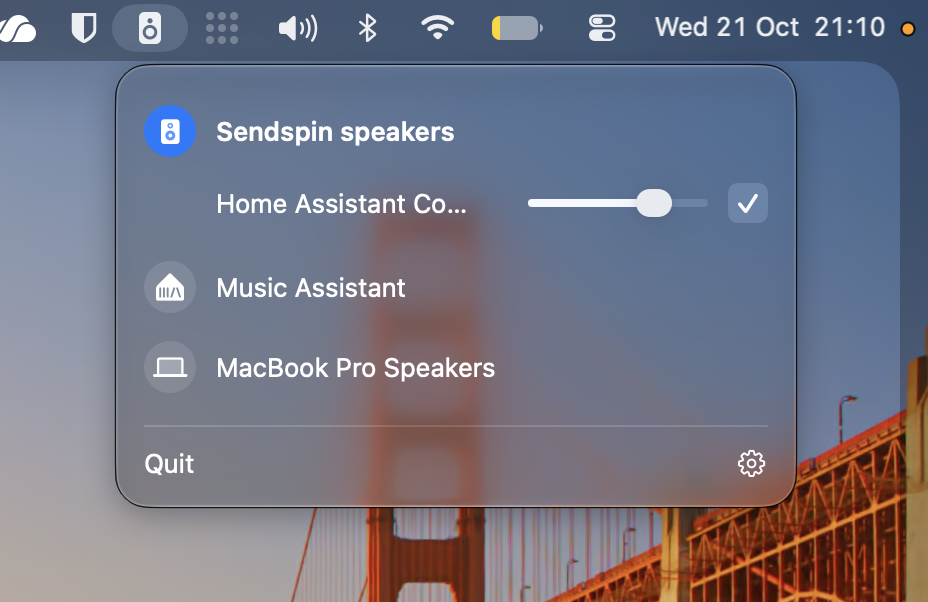
Playing shows on the menu bar icon. The speaker icon fills while your Mac's sound is playing, on your speakers or through Music Assistant. The menu itself only speaks up when something needs you: a speaker that's gone, or a step left to set up.
-
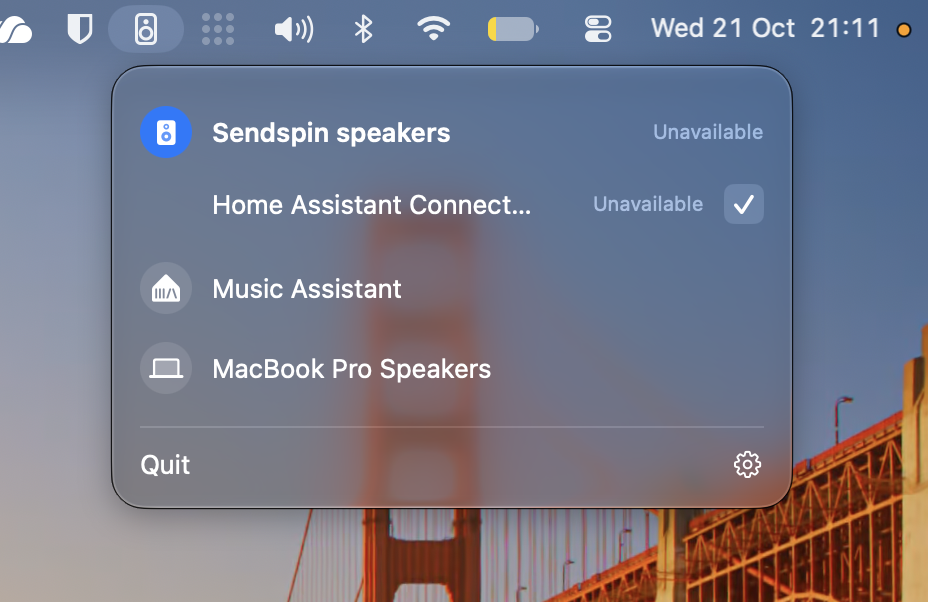
Speakers that drop off the network. A ticked speaker that loses power or Wi-Fi shows Unavailable within seconds, and plays again by itself when it's back, also after it was switched off properly. A speaker you didn't tick just leaves the list.
-
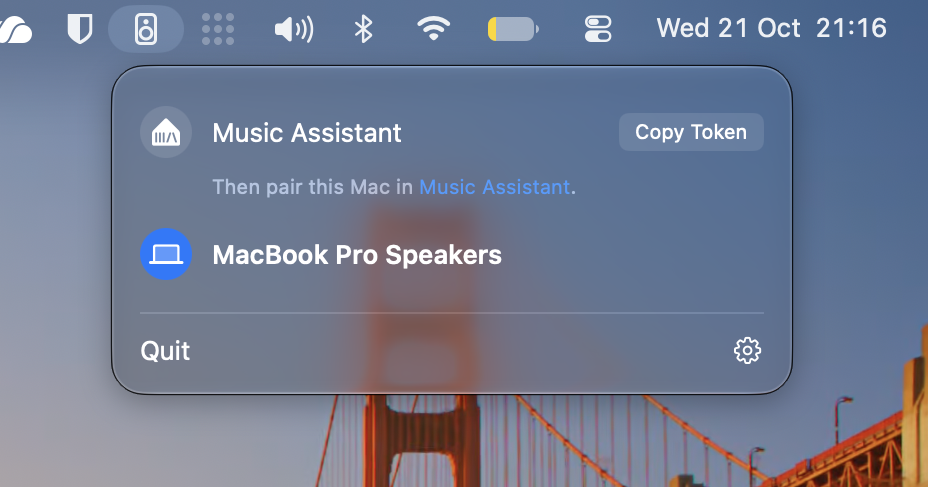
Easier pairing with Music Assistant. Its own logo, one line to follow, and a link straight to the page in Music Assistant where you paste the token. Clicking Copy Token again copies it again, with a little bounce to show it did. Once paired, the link under it takes you to where you select your Mac as an input source.
-
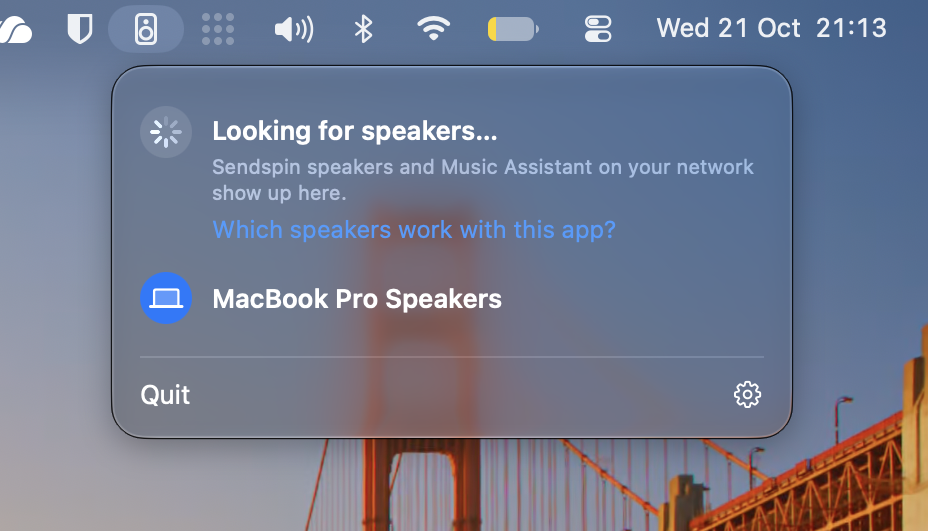
A friendlier first start. Until a speaker or Music Assistant is found, the menu says what it's looking for, with a link to which speakers work with the app. Sendspin speakers appears once there's a speaker, listing what it found; with only one, choosing Sendspin speakers ticks it for you. The welcome window no longer waits for a speaker to be found.
-
Speakers keep their full name while they're unticked or away.
-
Hovering a playing speaker's name shows the format it receives, without the row jumping.
-
Upgrading: drag the new app to Applications (replace the old one) and open it. The audio driver hasn't changed, so no password is needed.
Full Changelog: v0.4.2...v0.5.0