User Guide For States
This document will help guide you through the steps to get MyT1D running on the provided device.
When at the login screen, you will be provided with 3 accounts to select, select the Guest account.
If the app has not already been opened,
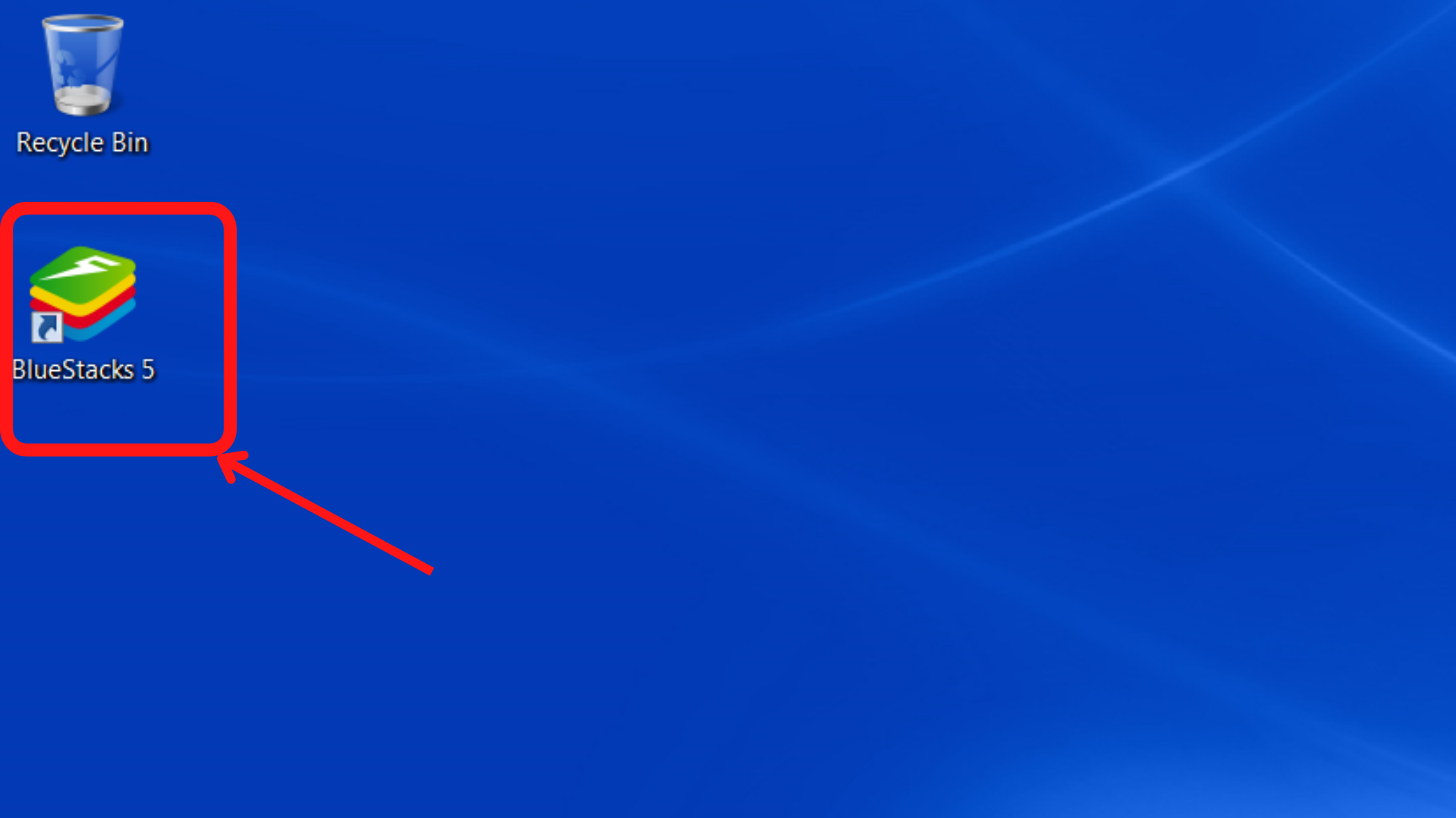
- first open the Android emulator by double clicking the icon labelled
BlueStacks 5on the desktop screen.
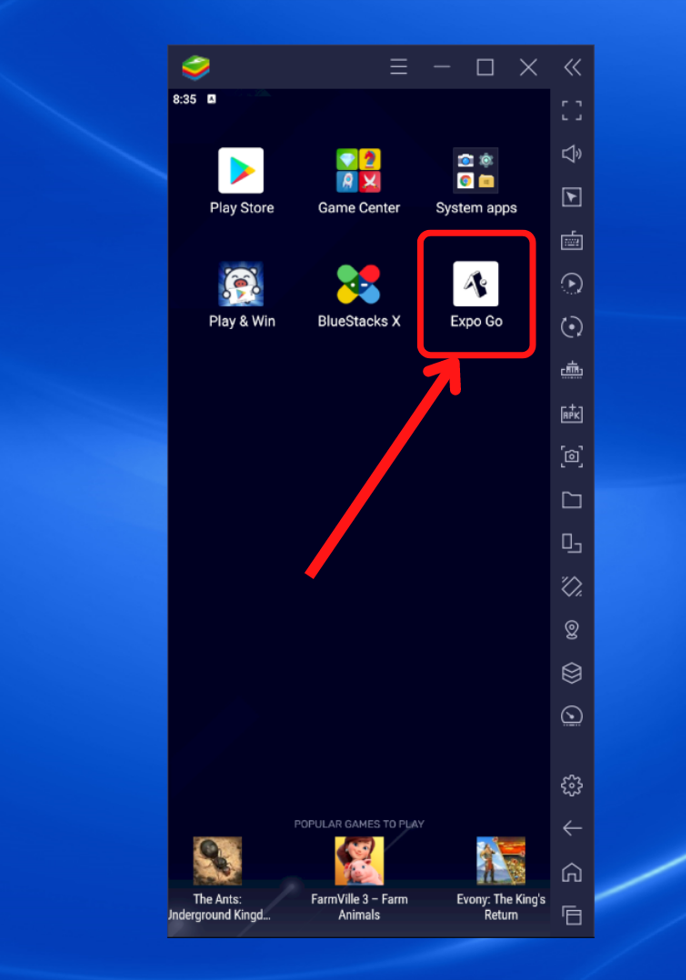
- Once BlueStacks has finished loading, click on the app labelled
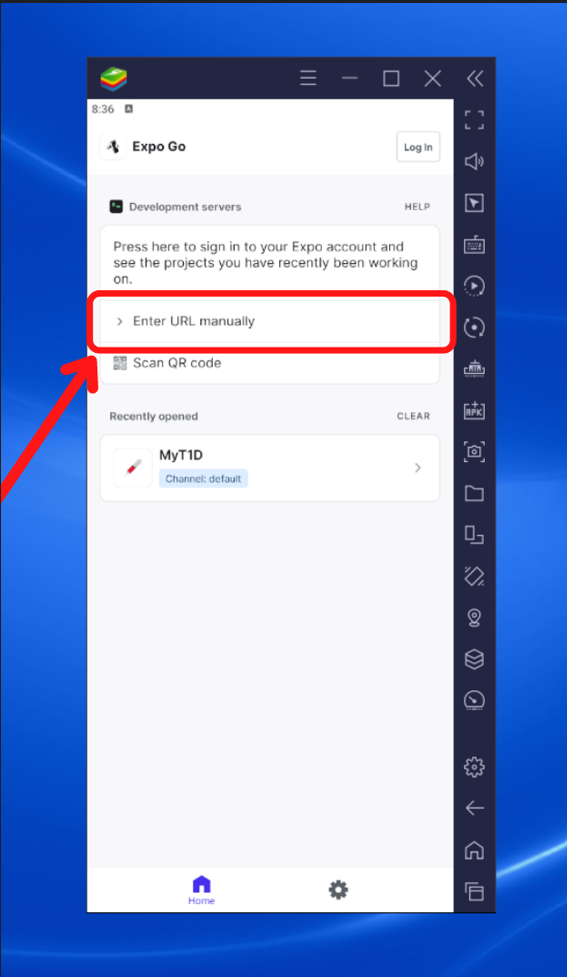
Expo Go.
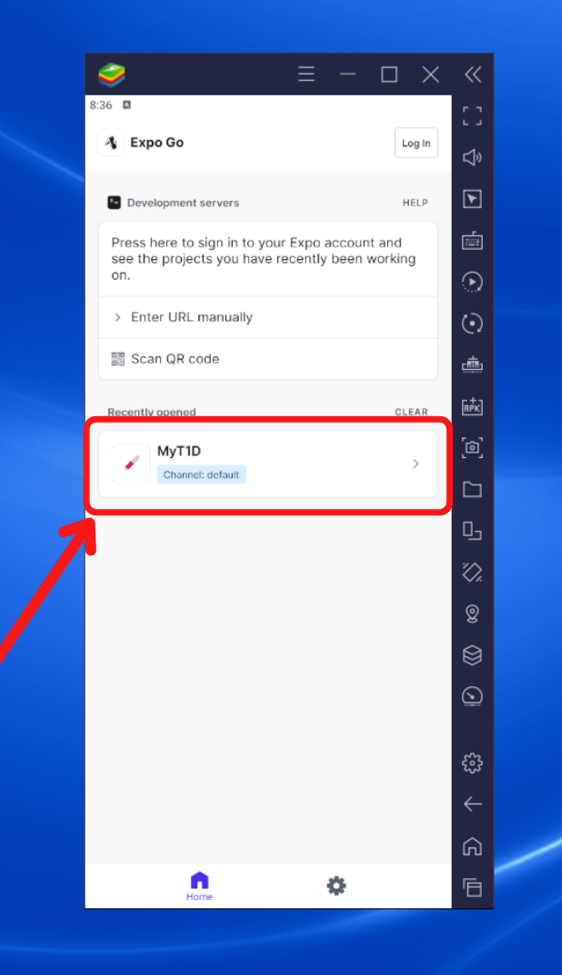
- Once the app has loaded, click on the
MyT1Dtab.
- If this tab does not appear, click on
Enter URL manuallyand type inexp://exp.host/@myt1d/MyT1D?release-channel=default, then click enter
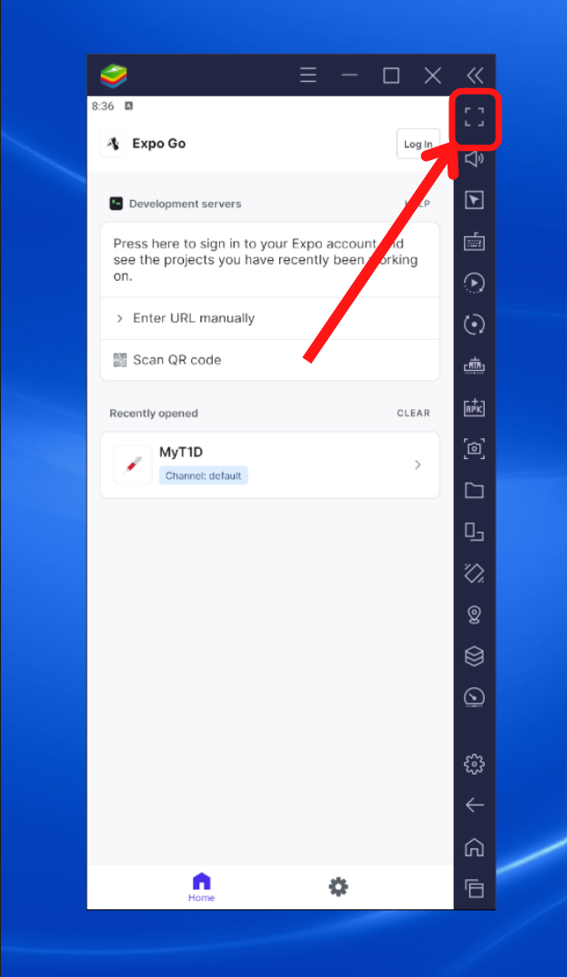
If you would like, you can also put the app in full screen mode by clicking the full screen button.