Repository navigation
Releases: SpaceSharpApp/SpaceSharp
Release list
SpaceSharp 2.1.0

The panel under the map became a view of its own. Insights takes the map's whole area when you want the numbers, the icons are a consistent set, drives show what kind of disk they are, and there are fourteen file types instead of eight.
The Insights view
- The panel under the map is gone; its three views moved into a view of their own and grew.
- Two buttons in the toolbar, Map and Insights, and one keeps the other's place: Insights takes the whole area the map had, so the scan can be read in full instead of in a strip. B switches between them, and the choice is remembered. It fills in when a scan finishes or a saved scan opens, and updates after a delete or a cleanup.
- A row of tiles across the top: what was scanned (files, folders, how it was read), free space on the drive with its kind (HDD, SSD, NVMe, USB), how much is safe to clear, how much has been untouched for a year, the biggest folder, and what changed since the last scan.
- By type is a donut with the whole scan in the middle and all fourteen types as rows: swatch, name, the three biggest extensions in grey, a share bar, size, files and share, with a sentence above saying where the biggest type mostly lives. Click a row and the map comes back filtered to that type.
- Largest folders, Largest files, Since last scan (what grew, shrank and appeared, with the biggest movers) and Extensions (the biggest extensions and the folder that holds most of each) fill the second row. Every row is a click back to the map, zoomed or filtered to it.
- Safe to clear lists places that are usually safe to empty, decided from names alone: Windows.old, the Recycle Bin, Temp folders, package caches (npm, pnpm, NuGet, pip, Cargo, Gradle, Composer, Go, Maven), browser caches, shader caches, Windows Update downloads, and Downloads not touched in a year. Each row has Show, which selects the items on the map and zooms there, and an action: Recycle sends them to the Recycle Bin after the usual confirmation, Empty empties the Recycle Bin through Windows (which asks first) and takes the freed space off the map, Review selects old downloads and sets the filter so you decide, and How to explains the hibernation and paging files SpaceSharp will not touch. Rows that can be recycled have a checkbox; the footer sums what is checked, says how much would be free afterwards, and one button recycles them all.
- When changed is a histogram of bytes by the month they were last written, 36 months, colored in the four age bands Inspect uses (this month, this year, 1 to 3 years, older), with the band totals and file counts as filter buttons under it, and a list of the oldest large files, each a click away on the map.
File types
- Fourteen file types instead of eight. Game data (.pak, .ba2, .uasset and the like), Installers (.msi, .msix, .appx), Disk images (.iso, .vhdx, .wim), Databases (.db, .sqlite, .mdf), Fonts and System (.sys, .mui, .etl, .dmp) come out of Other, which on a gaming PC used to be half the drive. Color by type, the filter drawer and the filter's type words ("game data", "installers", "iso", "fonts", "system") know the new ones; custom palettes can name a color for each, and a custom palette that names only the old eight keeps working, with the new types taking the file tints.
Palette creator
- Settings › Treemap › Custom palettes has New palette, and Edit or Start from the current one. The editor shows the twelve folder colors, the file tint (or twelve file colors of your own) and the fourteen file type colors as swatches; click one and set it by hex (any of #RRGGBB, RRGGBB, #RGB) or hue, saturation and lightness sliders. Generate fills the twelve from a base color in four spreads (Rainbow, Neighbors, Two-tone, One hue), and Random rolls a base and a spread for you. The sample drive is drawn beside it in Depth, Top folder or File type mode as you work, and the footer warns about folder colors whose labels would be hard to read and pairs too alike to tell apart. Save writes the JSON file to the palettes folder and switches the map to it; Copy JSON puts the file on the clipboard to share.
The scan card
- The card shown while a drive is read now shows the scan as three stages, each with its own bar: find the files (or read the file table), build the tree, draw the map. The first fills against the drive's used space, the second sweeps while a file table scan links its records, the third lights while the map is laid out. Under them the three numbers are big and in a row: found so far (of how much), files per second, and elapsed time with an estimate of what is left. The title line says what is being read: used space, the kind of drive, file table or folder walk.
Icons
- The interface icons are Lucide (https://lucide.dev, ISC license) instead of Windows' Segoe glyph font: one consistent set of 2-pixel round strokes, drawn as path geometry through a small
Iconcontrol, so they look the same on Windows 10 and 11, scale cleanly at any DPI, and take the color of whatever they sit in.tools/make-icons.pywritesThemes/Icons.xamlfrom the Lucide release it pins; the landing-page mockup uses the same set. - Drives show what they are. A fixed disk is asked, without elevation, whether it spins and which bus it is on, so the side panel and the start screen show a hard disk, a solid-state drive, a USB drive, a network share or an optical disc, each with its own picture and the kind named before the file system ("NVMe SSD · NTFS"). The first breadcrumb and the saved-scan list use the same picture.
Side panel
- The cards reflow with the window: four across on a wide window, three, two or one as it narrows, with the By type card keeping its width where there is room, and the tiles going from six to three to two across. The view scrolls when the cards no longer fit the height.
- The side panel is narrower (300 px instead of 360) now that Insights carries the long lists, and while Insights shows, its Largest items section is hidden and the drives get the whole height.
Releasing
- Releases are built by GitHub Actions when a version tag is pushed, code-signed through SignPath, and created as drafts.
installer\release.ps1runs in stages so the signing fits between them, and refuses to upload an unsigned build from a PC unless told to.
Website
- The project moved to github.com/SpaceSharpApp/SpaceSharp and the site to spacesharpapp.github.io/SpaceSharp; every link in the app, the README and the page follows, and the update check and What's new read from the new address.
- The landing page works on a phone: the live preview gives way to a gallery of screenshots, the download links step aside (the installers are for a PC), and the comparison table reads as stacked cards.
SpaceSharp 2.0.0

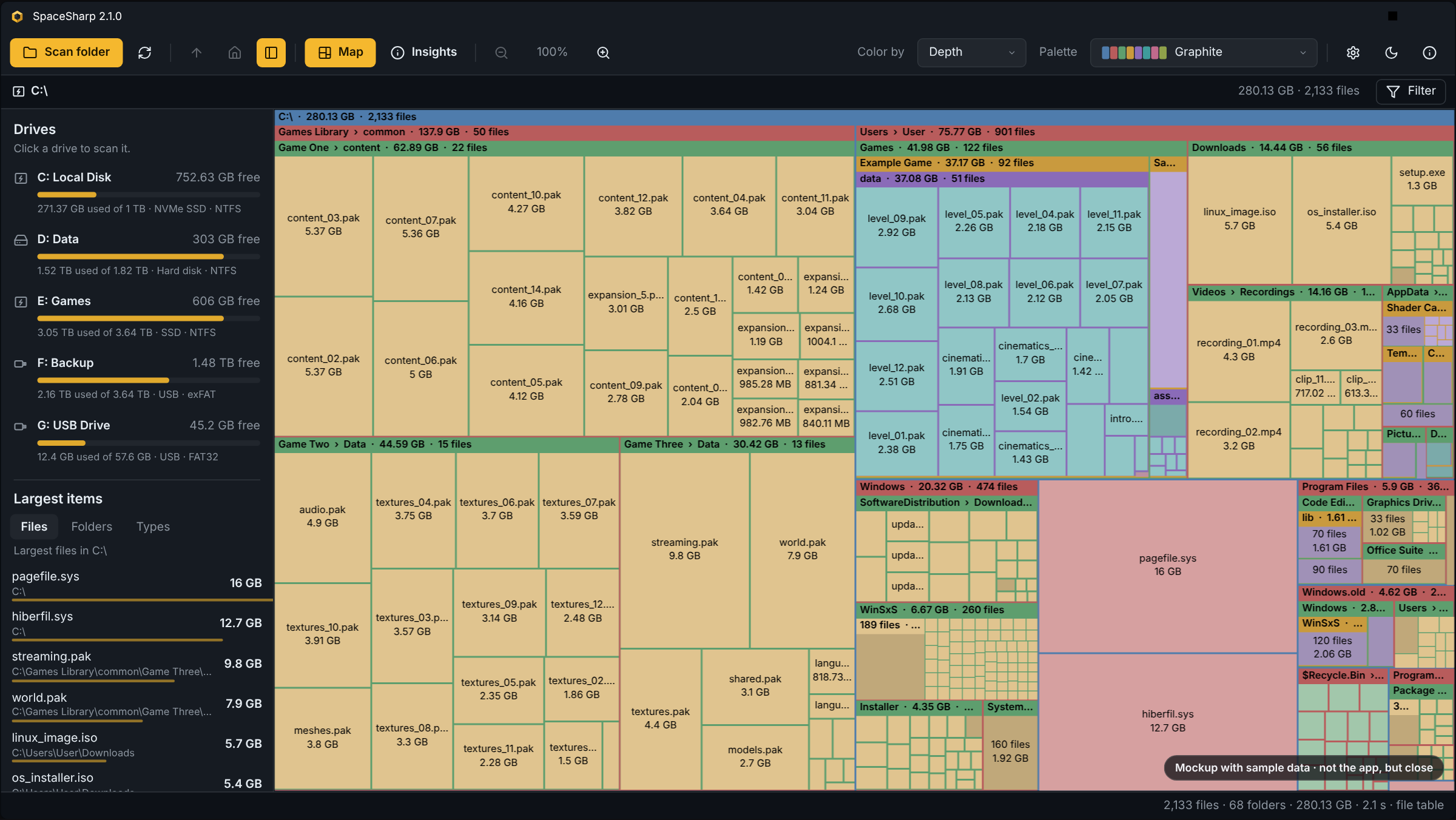
See where your disk space went. SpaceSharp maps every file and folder as a box sized by the space it uses, so the biggest ones stand out.
2.0 is a new map, a new filter and a new panel under the map, and the first release for 32-bit Windows. It is a major version because it takes things away: the six map styles are replaced by one look you shade yourself, the Neon palette is gone, and every palette was redrawn. Saved scans, custom palettes and the rest of your settings carry over.
| New | One shaded look with a live preview · filter drawer and filter rail · a panel under the map with By type, Safe to clear and When changed · five dark and five light UI looks · 32-bit builds |
| Redrawn | Every palette, now twelve hues each · the right-click menu · the update prompt · the Windows icon |
| Gone | The six map styles and the S key · the Neon palette (Aurora takes its place) |
Downloads
Most people want the first row. Windows 10 and 11; Windows on ARM runs the x64 build through emulation.
| 64-bit Windows (most PCs) | 32-bit Windows | |
|---|---|---|
| Installer · choose the folder, for you or everyone, updates itself | SpaceSharp-win-x64.msi | SpaceSharp-win-x86.msi |
| One-click setup · installs to your profile, no admin rights, updates itself | SpaceSharp-win-x64-Setup.exe | SpaceSharp-win-x86-Setup.exe |
| Single exe · nothing to install, no updates | SpaceSharp-win-x64.exe | SpaceSharp-win-x86.exe |
Tip
Not sure which Windows you have? Settings › System › About says "64-bit operating system" or "32-bit operating system" under System type. Almost everything made in the last ten years is 64-bit.
Note
The exe is not code-signed, so SmartScreen may show "Windows protected your PC" the first time. Click More info, then Run anyway.
The 32-bit build exists for PCs that cannot run anything else. A 32-bit process can address only a few gigabytes however much RAM the PC has, so a drive with several million files is better scanned with the x64 build; if the x86 build does run out, it says so.
Updating from 1.x
An installed 1.x copy (Setup or MSI) offers 2.0 from Help › Check for updates, or on its own at the next start, and installs it in place. A portable 1.x exe does not update itself; download the new one.
Important
Two settings do not carry over from 1.x:
- A saved map style (Classic, Flat, Tiles, Cards, Bands, Soft) is ignored. The map has one look now; shade it under Settings › Treemap › Shading.
- A saved Neon palette falls back to Graphite. Aurora is the closest replacement.
What changed
One look, shaded your way
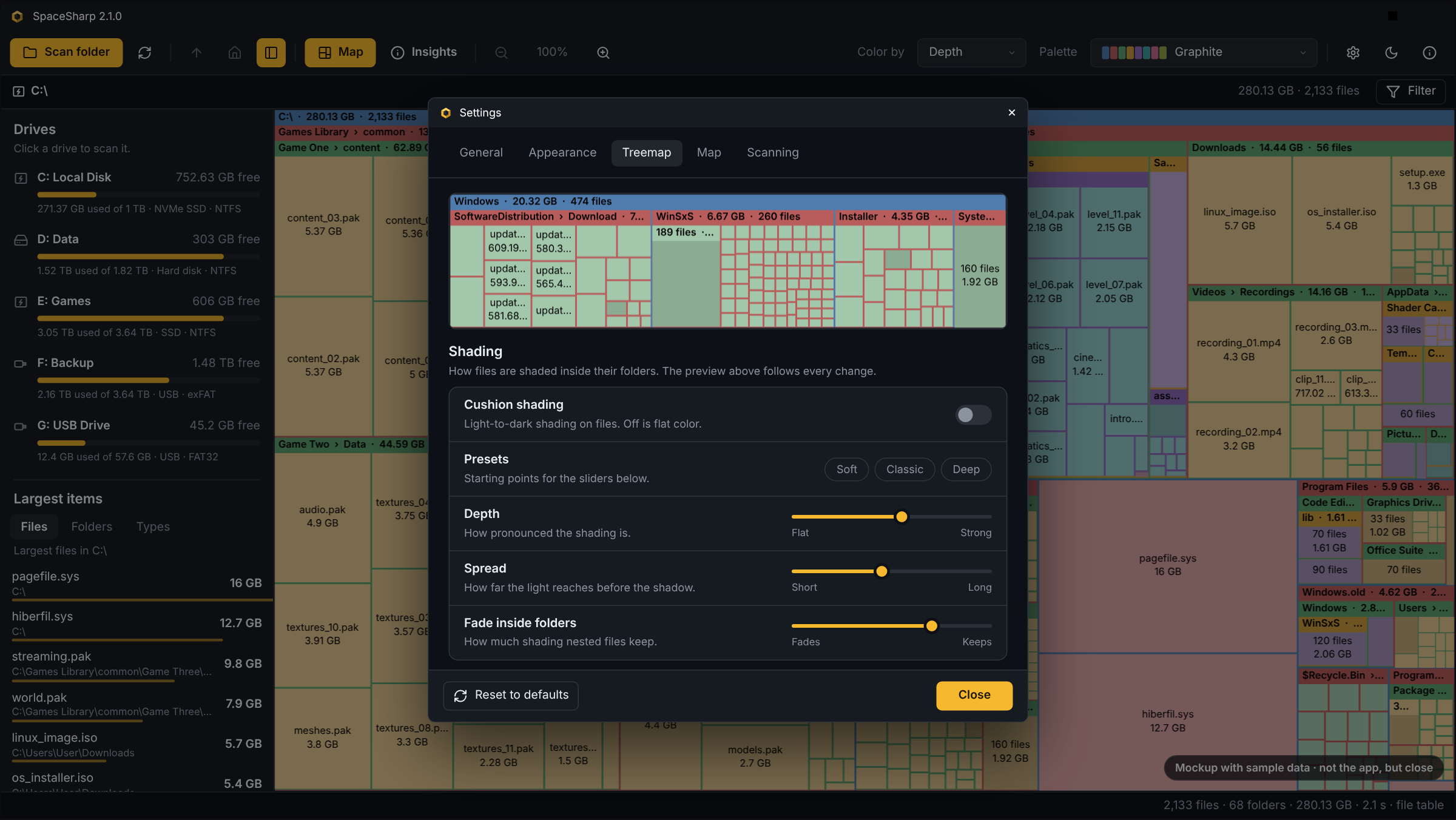
- The map draws one way, the way SpaceMonger drew it: folders are frames with a title bar, files are boxes inside them, and a one-pixel line or a small gap separates every box. The Style box has left the toolbar and S no longer cycles anything. What used to be a choice between Classic, Flat, Tiles, Cards, Bands and Soft is now a set of sliders, so the look is yours rather than one of six.
- A Shading card under Settings › Treemap takes its place. Cushion shading switches the light-to-dark shading on files on or off; off is flat color. Presets Soft, Classic and Deep are starting points for four sliders: Depth (how pronounced the shading is), Spread (how far the light reaches before the shadow), Tone (lighter or darker files overall; folders keep their color) and Fade inside folders (how much shading nested files keep). Light from is a square of nine buttons: a side, a corner, or the middle for light from straight ahead.
- A live preview of sample data is pinned above the Treemap page and follows every change, so you see the shading, the title bars, the grid and the text colors as you drag.
- Title bars are a shade of the folder's own color rather than a black overlay. On a pastel palette the overlay turned every nested bar into the same muddy strip; now each bar keeps its palette and its level. Title bar tint (0 to 40 %) sets how far the bar is shaded from the folder's color, Title bar padding (0 to 8 px) the space above and below the name.
- Text and title bars: the color of folder names and of file names and sizes is Auto (dark or light per box) or a fixed color from swatches or any #RRGGBB. Label size, font, outlined labels, and what file and folder labels show moved here from Appearance and Layout.
- Grid and highlight: grid lines on or off, their width (1 to 3 px) and color, and the color of the frame around selected boxes, amber by default.
- The grid is one line wide everywhere. Boxes used to stroke their own outlines on fractional coordinates, so seams came out two or three pixels dark. Boxes now snap to whole pixels and each leaves exactly one grid strip on its right and bottom.
- Padding puts a gap around every box: the map background at the top level and the folder's color inside it, scaled down on small boxes so a field of tiny files does not turn into dots.
- Small folders no longer dissolve into slivers. A folder is now also cut by the pixels it actually has on screen: children big enough to see (about 10 × 10 px) get their own box, the rest merge into one "312 files" block. The cut only moves when the folder's area doubles, so a smooth zoom does not shuffle boxes.
- Title bars stay down to 30 px wide, and appear a little earlier in height.
- Density, bias and padding sit under Layout on the same page; Palette and Color by moved from Appearance to a Colors card there. Appearance keeps the theme.
The filter, redone
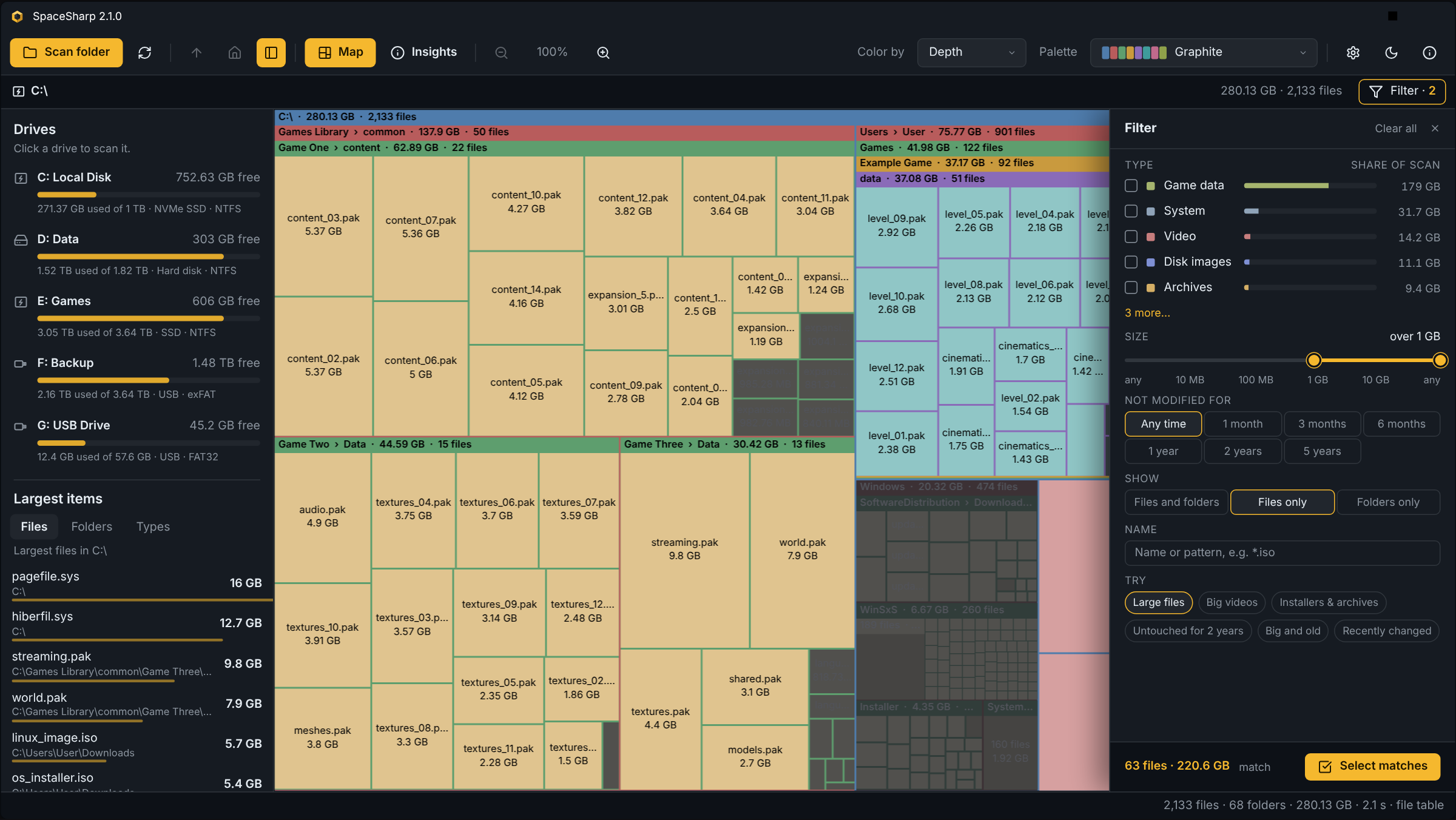
- The filter box and its popup are gone. In their place, by default, a filter drawer: a sheet over the right of the map with the file types as rows (checkbox, color, name, a share-of-scan bar and the size), a size range, Not modified for as a row of buttons, Show (files and folders, files only, folders only), a name box, the presets (Large files, Big videos, Installers & archives, Untouched for 2 years, Big and old, Recently changed), and a footer with the live match count and size and Select matches. The Filter button and Ctrl+F open and close it; Esc closes it. The button reads "Filter · 3" while three conditions are set.
- The name box still takes the full syntax ("type:video >500MB older than 1 year"), and anything typed there turns into checked rows and set controls, so the drawer teaches the syntax as well.
- Or a filter rail. Settings › Map › Filter layout switches to a row of pills under the path instead: one per condition (Type, Size, Age, Show), a name box, a Try pill with the presets, and the live count with Select matches and Clear.
- Underneath, nothing changed: both faces read and write the same filter text, so the panel under the map, the right-click menu's "Show only *.mp4 files", the presets and a typed filter all work with either, and Ctrl+A still selects every match.
A panel under the map
- Three views of the whole scan in a strip under the map. The toolbar button next to the side panel's, or B, shows and hides it; the chevron folds it down to its titles; Settings › Map › Show bottom panel sets whether it is there at all. It fills in when a scan finishes or a saved scan opens, and updates after a delete.
- By type is one stacked bar of the drive by file type in the palette's colors, with a legend. Hover a type and the map dims to its files; click and it becomes a filter.
- Safe to clear lists places that are usually safe to empty, decided from names alone: Windows.old, the Recycle Bin, Temp folders, package caches (npm, pnpm, NuGet, pip, Cargo, Gradle, Composer, Go, Maven), browser caches, shader caches, Windows Update downloads, and Downloads not touched in a year. Each row has Show, which selects the items on the map and zooms there, and an action: Recycle sends them to the Recycle Bin after the usual confirmation, Empty empties the Recycle Bin through Windows, Review selects old downloads and sets the filter so you decide, and How to explains the hibernation and paging files SpaceSharp will not touch.
- When changed is a histogram of bytes by the month they were last written, 36 months, colored in the four age bands Inspect uses, with the band totals as filter buttons under it. Hover a month to see it on the map, click to filter to it.
Palettes
- Twelve hues per palette, one per top-level folder before any repeats (they had seven, so the eighth folder on a drive wore the first one's color).
- Split by theme. Dark: Graphite (new, the default), Ocean, Sunset, Forest, Vivid (new), Aurora (new, in place of Neon), Monochrome and Color-blind safe. Light: Pastel (the default), Paper (new), Candy (new), Nordic (new), Earth (new), Retro and Color-blind safe ...
SpaceSharp 1.6.1
A new face, and a quieter update.
New icon
SpaceSharp has a new mark: an amber block with a cube carved out of its front corner, drawn in isometric with nothing behind it. It replaces the nine-cell tile everywhere: the window and taskbar icon, the start screen and About, the installer, the README, the website. The carve is shallower at small sizes so it stays legible at 16 px.
Setup.exe and Update.exe now show a proper splash while they work: a Graphite card with the mark, the wordmark and a moving amber sweep, instead of the bare icon on white.
Fixes
- Updates apply silently. No more stock Windows "Installing Update" box with a blue i. The app closes, the files are swapped, and the new version opens a few seconds later; the update dialog says "Restarting into 1.6.1" once the download is done. You will see the old box one last time on this update, since 1.6.0's code is doing the installing.
- What's new covers what you skipped. Updating from 1.4.0 used to show only the newest notes. The window is now "What's new since 1.4.0" and lists every release in between, and See all changes opens the full changelog.
- Installer pages read properly again. The welcome and finish pages have their paragraphs back, and the finish page now says the right thing: F1 opens About, where the keyboard shortcuts are; the gear button or Ctrl+, opens Settings.
Downloads
| File | For |
|---|---|
| SpaceSharp-win-x64.msi | A standard Windows installer. Choose the install folder, and whether to install for you or for everyone on the PC. Adds a Start menu entry. Updates itself. |
| SpaceSharp-win-Setup.exe | One-click install to your user profile. No questions, no admin rights. Updates itself. To pick a folder: SpaceSharp-win-Setup.exe --installto "D:\Apps\SpaceSharp" |
| SpaceSharp-win-Portable.zip | No install: unzip anywhere and run SpaceSharp.exe. Still updates itself. |
| SpaceSharp.exe | A single portable file. Nothing to install, nothing to update automatically; download the new version when you want it. |
SpaceSharp-1.6.1-full.nupkg, SpaceSharp-1.6.1-delta.nupkg and releases.win.json are the update packages that installed copies fetch on their own. You don't need to download them.
Windows SmartScreen may warn about the downloads because they aren't code-signed. Click More info, then Run anyway. Your settings and saved scans are kept.
Windows 10 and 11, x64. Free and open source, MIT.
Full changelog: CHANGELOG.md
SpaceSharp 1.6.0
See where your disk space went, and now also why.
Inspect, redrawn
Press Ctrl+I on anything and the window tells you about it instead of listing numbers:
- One big number, the size, with the path as clickable breadcrumbs that zoom the map.
- Three lines of context. "48% of Nexus Stuff, the largest of its 6 folders · 17% of F:". "Mostly images (61.2 GB) and archives (6.8 GB) · median file 2.3 MB". "Last changed 3 months ago, 78% untouched for over a year · unchanged since the last scan".
- Where the space is. The five largest things anywhere inside, not just direct children. A folder that is almost all one child is skipped in favor of that child, so you see
Google\Chrome\User Data, notGoogle. Click a row to zoom there. - By type and By age as donuts. Age is new: how much of a folder has not been touched in over a year is usually the best clue to what can go.
- A callout when one thing holds most of a folder: "65% of this folder is one thing: AppData at 93.15 GB."
- Resizable, remembers its size, header stays while the rest scrolls.
The tooltip, trimmed
Three lines on hover: name and size; what it is and its share of the folder you are looking at; what it mostly holds and when it changed, with the growth since the last scan in color when a comparison is loaded. Everything else moved to Inspect.
Fast scan without the restart
The fast NTFS scan no longer restarts SpaceSharp as administrator. Windows asks once, a small elevated helper reads the file table and hands the map back to the window you already have, then exits. Your zoom, filters and settings stay. Say no and the normal scan runs.
Smaller things
- Drag the side panel's right edge, or the line between Drives and Largest items, to resize them. Both are remembered.
- On Windows 11 the title bar is painted in the theme's colors, so the caption and toolbar are one surface.
- Tiles, Cards and Soft no longer turn a folder of hundreds of small files into a field of dots; gaps and corners shrink with the box, decided per folder so seams stay straight.
- Classic shades files only. Deep parts of the tree no longer go muddy from stacked frame shading.
- Cards now looks different from Tiles again: darker folders, lighter files.
- Only one SpaceSharp runs per session; launching it again hands the request to the open window.
Downloads
| File | For |
|---|---|
| SpaceSharp-win-x64.msi | A standard Windows installer. Choose the install folder, and whether to install for you or for everyone on the PC. Adds a Start menu entry. Updates itself. |
| SpaceSharp-win-Setup.exe | One-click install to your user profile. No questions, no admin rights. Updates itself. To pick a folder: SpaceSharp-win-Setup.exe --installto "D:\Apps\SpaceSharp" |
| SpaceSharp-win-Portable.zip | No install: unzip anywhere and run SpaceSharp.exe. Still updates itself. |
| SpaceSharp.exe | A single portable file. Nothing to install, nothing to update automatically; download the new version when you want it. |
SpaceSharp-1.6.0-full.nupkg, SpaceSharp-1.6.0-delta.nupkg and releases.win.json are the update packages that installed copies fetch on their own. You don't need to download them.
Windows SmartScreen may warn about the downloads because they aren't code-signed. Click More info, then Run anyway. Your settings and saved scans from earlier versions are kept.
Windows 10 and 11, x64. Free and open source, MIT.
Full changelog: CHANGELOG.md
SpaceSharp 1.5.1
A small release that fixes the thing you'd notice first after 1.5.0.
Fixes
Boxes stay put when you zoom. Whether a folder's small items are folded into one "312 files" box used to depend on how many pixels the folder had on screen, so zooming in changed the grouping and the folder was laid out again with its boxes in new places. Grouping is now decided from the data alone, and a group that gets room shows its members inside its own box without moving anything around it.
Softer Classic shading. The light-to-dark sweep across each box is gentler; dense areas no longer read as stripes.
Changes
One SpaceSharp at a time. Starting it again, from Explorer's "Scan with SpaceSharp", a shortcut or the command line, brings the open window forward and hands it the request instead of opening a second window.
Downloads
| File | What it is |
|---|---|
SpaceSharp.exe |
Portable. One file, no install, no admin. Does not update itself. |
SpaceSharp-win-Setup.exe |
Installer, one click. Installs per user and updates itself. |
SpaceSharp-win-x64.msi |
Installer, Windows Installer. Choose the folder and per-user or per-machine. Updates itself. |
SpaceSharp-win-Portable.zip |
The installed app as a folder; runs without setup and still receives updates. |
SpaceSharp-1.5.1-full.nupkg |
Update package. Used by installed copies; not for downloading. |
SpaceSharp-1.5.1-delta.nupkg |
Update package from 1.5.0. Used by installed copies; not for downloading. |
releases.win.json |
Update feed. Used by installed copies; not for downloading. |
Installed copies of 1.5.0 offer this update on their next start, and the release notes now travel inside the package, so What's new shows them without a network call.
SpaceSharp 1.5.0
Tune the map, find your way back faster, and read what's new without leaving the app.
The Treemap page
Settings has a new Treemap tab. Density decides how many small items are drawn before they group into one box, from Sparse to Everything (no grouping at all; G flips to it and back). Bias is a slider from Horizontal to Vertical that steers the layout toward wide or tall boxes. Padding, border width and the label font are yours to set, and you choose what file boxes and folder titles show: centered names, sizes, file counts.
Settings in tabs
General, Appearance, Treemap, Map and Scanning, one page at a time. New under Scanning: Keep saved scans for, a slider from a week to forever (3 months by default) with a button to delete them all, and Leave out as a list of chips with one-click entries for node_modules, $Recycle.Bin, *.tmp, .git and System Volume Information.
Pick up where you left off
The start screen lists your recent saved scans. One click reopens yesterday's map, compared with the scan before it. Scan a folder and Open a saved scan sit beneath the list; the administrator offer for the fast scan is a single line at the foot of the map instead of a card.
About, shortcuts, updates
About is a short list: version with a Check button, What's new, Keyboard shortcuts, Report a bug, Suggest a feature, Source on GitHub, Credits. The shortcuts have their own window, grouped into Navigate, Select and act, View and files. When an update is available you get a dialog with Install and restart, What's new and Later; What's new shows the release notes right there, with a link to the full changelog.
Downloads
| File | What it is |
|---|---|
SpaceSharp.exe |
Portable. One file, no install, no admin. Does not update itself. |
SpaceSharp-win-Setup.exe |
Installer, one click. Installs per user and updates itself. |
SpaceSharp-win-x64.msi |
Installer, Windows Installer. Choose the folder and per-user or per-machine. Updates itself. |
SpaceSharp-win-Portable.zip |
The installed app as a folder; runs without setup and still receives updates. |
SpaceSharp-1.5.0-full.nupkg |
Update package. Used by installed copies; not for downloading. |
SpaceSharp-1.5.0-delta.nupkg |
Update package from 1.4.0. Used by installed copies; not for downloading. |
releases.win.json |
Update feed. Used by installed copies; not for downloading. |
Installed copies of 1.3.0 and 1.4.0 offer this update on their next start. This is the first release whose notes travel inside the update package, so the 1.5.0 prompt itself still fetches them from GitHub; from here on they are included.
Found something? About (F1) › Report a bug opens an issue with your version and Windows details filled in.
SpaceSharp 1.4.0
SpaceSharp speaks Norwegian, wears a new coat of graphite, and fits into Windows.
Norwegian bokmål
Every word in the app can now be translated, and Norwegian bokmål is the first language in. Settings › Språk lists it next to English and "Same as Windows"; switching restarts the app. The filter grammar stays English on purpose, so "videos over 500MB" works the same everywhere. Adding another language is one file; see CONTRIBUTING.
A new graphite look
The dark theme now uses the same greys as GitHub's dark mode. The amber is unchanged and reads richer against the cooler surfaces; the icon, the installer and the website follow, so SpaceSharp looks the same in your taskbar, in its window and on its repository page. Every prompt and error dialog is drawn by the app itself instead of Windows.
Fits into Windows
SpaceSharp.exe D:\ scans a drive straight away, SpaceSharp.exe scan.sscan opens a saved scan, and --compare old.sscan D:\ scans and compares. Settings › Windows adds "Scan with SpaceSharp" to Explorer's right-click menu for folders, drives and the folder background, for your user only and with no administrator rights.
Also
- The offer to restart as administrator for the fast NTFS scan appears on every start without it; "Not now" hides it for the run, the Fast NTFS scan setting turns it off.
- A quieter README header, and the release MSI always carries the same file name.
- The test suite now checks that no text is missing in any language.
Downloads
| File | What it is |
|---|---|
SpaceSharp.exe |
Portable. One file, no install, no admin. Does not update itself. |
SpaceSharp-win-Setup.exe |
Installer, one click. Installs per user and updates itself. |
SpaceSharp-win-x64.msi |
Installer, Windows Installer. Choose the folder and per-user or per-machine. Updates itself. |
SpaceSharp-win-Portable.zip |
The installed app as a folder; runs without setup and still receives updates. |
SpaceSharp-1.4.0-full.nupkg |
Update package. Used by installed copies; not for downloading. |
SpaceSharp-1.4.0-delta.nupkg |
Update package from 1.3.0. Used by installed copies; not for downloading. |
releases.win.json |
Update feed. Used by installed copies; not for downloading. |
Installed copies of 1.2.x and 1.3.0 offer this update on their next start.
Found something? The About window (F1) has Report a bug, which opens an issue with your version and Windows details filled in.
SpaceSharp 1.3.0
Whole drives in seconds, and the map remembers. 1.3.0 reads the NTFS file table directly when run as administrator, saves every scan, and shows you what changed since last time.
Fast NTFS scan
Run as administrator and SpaceSharp reads the drive's Master File Table instead of walking every folder. A drive with a million files is mapped in a few seconds. The start screen offers to restart elevated once; without administrator rights, and for single folders or other file systems, the normal scan runs as before. Hard-linked files are counted once on the fast path.
Saved scans
Every scan is saved automatically. Open the app and yesterday's map is already on screen; press F5 to rescan. Ctrl+S saves a scan to a file and Ctrl+O opens one, so you can look at another machine's drive on yours. Settings › Scanning › Reopen the last scan on startup turns the reopening off.
What changed since last time
Each scan is compared with the previous one of the same place, provided both were made the same way. A new color mode, Change, paints what grew in warm shades, what shrank in cool ones, unchanged in grey and new items in amber. The side panel gets a Changes tab listing the biggest movers, Inspect shows "Since last scan", and the right-click menu can compare with any saved scan.
Also new
- Rescan this folder from the right-click menu; the rest of the map stays put.
- Export to CSV: largest files, a folder's contents, the filter matches, or the changes. A first, plain version with fixed columns.
- Leave out names such as
node_modulesor*.tmpfrom every scan (Settings › Scanning). - Custom palettes as JSON files. Settings › Appearance › Custom palettes › Open folder writes an example and a README; your palettes appear under their own header.
- Classic always has its soft shading; the Cushion setting and the C shortcut are gone.
- The version shows in the window title, the side panel button lights up while the panel is open, and hover frames follow the map style's rounded corners.
Downloads
| File | What it is |
|---|---|
SpaceSharp.exe |
Portable. One file, no install, no admin. Does not update itself. |
SpaceSharp-win-Setup.exe |
Installer, one click. Installs per user and updates itself. |
SpaceSharp-win-x64.msi |
Installer, Windows Installer. Choose the folder and per-user or per-machine. Updates itself. |
SpaceSharp-win-Portable.zip |
The installed app as a folder; runs without setup and still receives updates. |
SpaceSharp-1.3.0-full.nupkg |
Update package. Used by installed copies; not for downloading. |
SpaceSharp-1.3.0-delta.nupkg |
Update package from 1.2.2. Used by installed copies; not for downloading. |
releases.win.json |
Update feed. Used by installed copies; not for downloading. |
Installed copies of 1.2.x offer this update on their next start.
Found something? The About window (F1) has Report a bug, which opens an issue with your version and Windows details filled in.
SpaceSharp 1.2.2
Zooming no longer rearranges the map, the default coloring now shows the hierarchy, and every item has an Inspect window.
What's new
Stable zoom. Each folder's layout is computed once and only stretched as you zoom, so the box you are flying into stays where it is. Small items still split out as they get room.
Top folder coloring, the new default. Each top-level folder gets one hue, and everything inside it keeps that hue, a step lighter per level. Where you are in the tree reads at a glance. Depth and File type are still there; K cycles the three.
Inspect (Ctrl+I, or right-click). Size with exact bytes, size on disk, share of the parent folder and of the drive, file and folder counts, average file, newest change, and for folders the largest items inside and the space by file type, all with bars. Works on a multi-selection too. Copy details puts it all on the clipboard.
Right-click menu, reorganized: Inspect, Properties (the Windows dialog, also Alt+Enter), Copy name, "Show only *.ext files", "Select everything in this folder".
Flat style, plain fills and thin lines, replaces Terraces. Cards, Bands and Soft are reworked. Cushion shading is off by default; C turns it on.
Also: label sizes Smaller and Smallest; a tidier filter panel with a live match count and proper Clear and Done buttons; a calmer scanning card; the hover card shows share of drive and the largest item inside a folder; the app icon shows in Apps & features.
Downloads
| File | What it is |
|---|---|
SpaceSharp.exe |
Portable. One file, no install, no admin. Does not update itself. |
SpaceSharp-win-Setup.exe |
Installer, one click. Installs per user and updates itself. |
SpaceSharp-win-x64.msi |
Installer, Windows Installer. Choose the folder and per-user or per-machine. Updates itself. |
SpaceSharp-win-Portable.zip |
The installed app as a folder; runs without setup and still receives updates. |
SpaceSharp-1.2.2-full.nupkg |
Update package. Used by installed copies; not for downloading. |
SpaceSharp-1.2.2-delta.nupkg |
Update package from 1.2.0. Used by installed copies; not for downloading. |
releases.win.json |
Update feed. Used by installed copies; not for downloading. |
Installed copies of 1.2.0 and 1.2.1 offer this update on their next start.
Found something? The About window (F1) has Report a bug, which opens an issue with your version and Windows details filled in.
SpaceSharp 1.2.1
SpaceSharp has a new face. The map is now the logo: nine cells on a charcoal tile, the gutters forming the # in Sharp, the biggest cell the brightest. It's the same idea the app runs on: the largest thing is the one you notice first.
What's new
A new identity. New app icon at every size, from the taskbar to the Start menu, a new README and website look, and branded installer pages. One color, amber, instead of four, so the icon reads the same on a light or dark taskbar.
Filters that understand "a week." modified in the last week, older than a year and not opened in one month now work as the README always said they would. Before, the words without a number quietly became a name search, which matched nothing.
Under the hood
- Tests. The treemap layout, the filter parser, size formatting and the tree operations behind delete and free space are now covered by unit tests, so the map stays right as features are added.
- Continuous builds. Every change is built and tested on GitHub before it lands, and releases are built from a tag rather than by hand.
- Release tooling.
installer\release.ps1produces every asset in one run;brand-msi.ps1is in the repository, so the branded MSI is reproducible.
Downloads
| File | What it is |
|---|---|
SpaceSharp.exe |
Portable. One file, no install, no admin. Does not update itself. |
SpaceSharp-win-Setup.exe |
Installer, one click. Installs per user and updates itself. |
SpaceSharp-win-x64.msi |
Installer, Windows Installer. Lets you choose the folder and per-user or per-machine. Updates itself. |
SpaceSharp-win-Portable.zip |
The installed app as a folder, for running without setup while still receiving updates. |
SpaceSharp-1.2.1-full.nupkg |
Update package. Used by installed copies; not for downloading. |
SpaceSharp-1.2.1-delta.nupkg |
Update package from 1.2.0. Used by installed copies; not for downloading. |
releases.win.json |
Update feed. Used by installed copies; not for downloading. |
If you have 1.2.0 installed, it offers this update on its next start.
Found something? The About window (F1) has Report a bug, which opens an issue with your version and Windows details already filled in.