Repository navigation
SpaceSharp 2.0.0

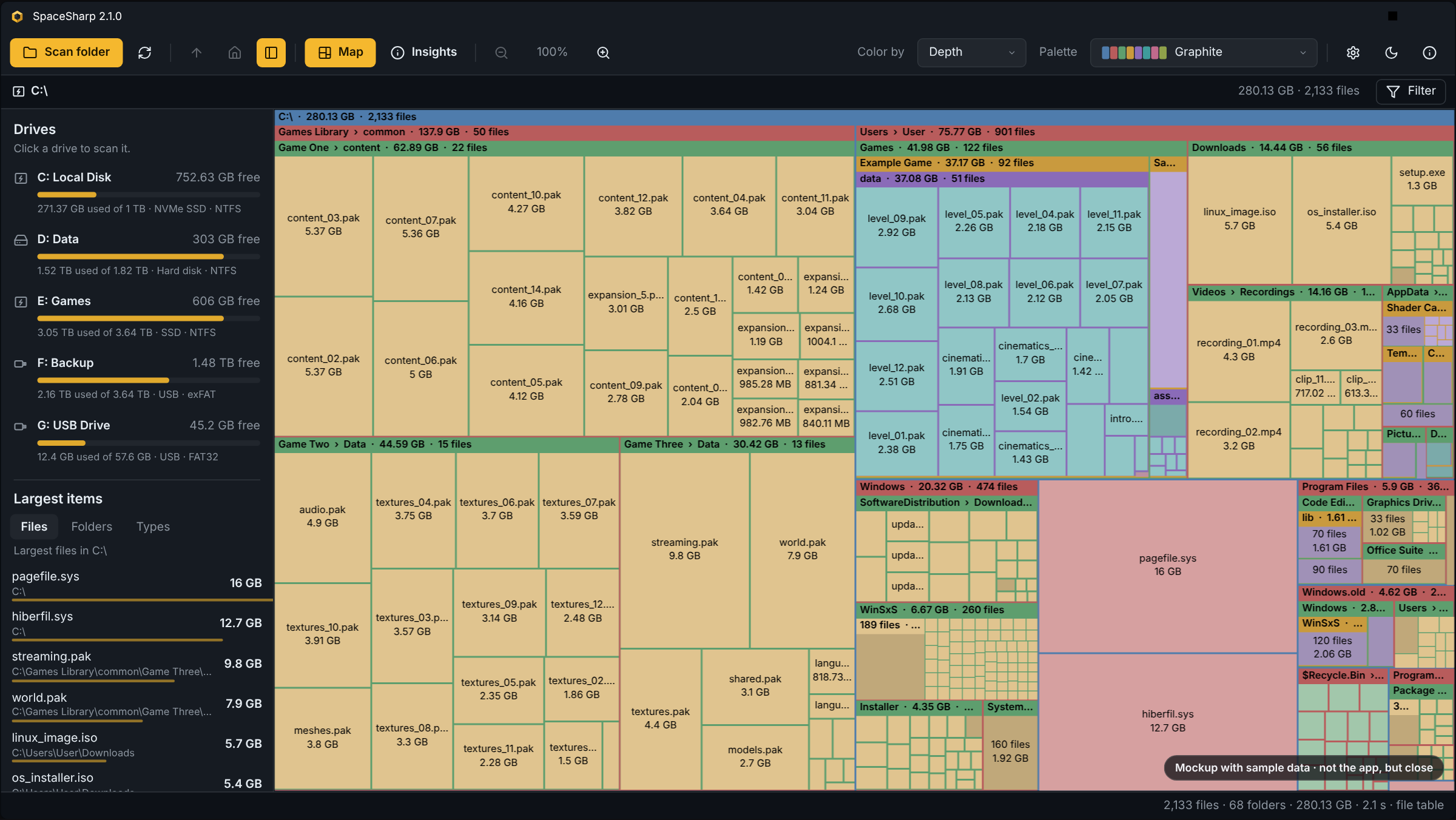
See where your disk space went. SpaceSharp maps every file and folder as a box sized by the space it uses, so the biggest ones stand out.
2.0 is a new map, a new filter and a new panel under the map, and the first release for 32-bit Windows. It is a major version because it takes things away: the six map styles are replaced by one look you shade yourself, the Neon palette is gone, and every palette was redrawn. Saved scans, custom palettes and the rest of your settings carry over.
| New | One shaded look with a live preview · filter drawer and filter rail · a panel under the map with By type, Safe to clear and When changed · five dark and five light UI looks · 32-bit builds |
| Redrawn | Every palette, now twelve hues each · the right-click menu · the update prompt · the Windows icon |
| Gone | The six map styles and the S key · the Neon palette (Aurora takes its place) |
Downloads
Most people want the first row. Windows 10 and 11; Windows on ARM runs the x64 build through emulation.
| 64-bit Windows (most PCs) | 32-bit Windows | |
|---|---|---|
| Installer · choose the folder, for you or everyone, updates itself | SpaceSharp-win-x64.msi | SpaceSharp-win-x86.msi |
| One-click setup · installs to your profile, no admin rights, updates itself | SpaceSharp-win-x64-Setup.exe | SpaceSharp-win-x86-Setup.exe |
| Single exe · nothing to install, no updates | SpaceSharp-win-x64.exe | SpaceSharp-win-x86.exe |
Tip
Not sure which Windows you have? Settings › System › About says "64-bit operating system" or "32-bit operating system" under System type. Almost everything made in the last ten years is 64-bit.
Note
The exe is not code-signed, so SmartScreen may show "Windows protected your PC" the first time. Click More info, then Run anyway.
The 32-bit build exists for PCs that cannot run anything else. A 32-bit process can address only a few gigabytes however much RAM the PC has, so a drive with several million files is better scanned with the x64 build; if the x86 build does run out, it says so.
Updating from 1.x
An installed 1.x copy (Setup or MSI) offers 2.0 from Help › Check for updates, or on its own at the next start, and installs it in place. A portable 1.x exe does not update itself; download the new one.
Important
Two settings do not carry over from 1.x:
- A saved map style (Classic, Flat, Tiles, Cards, Bands, Soft) is ignored. The map has one look now; shade it under Settings › Treemap › Shading.
- A saved Neon palette falls back to Graphite. Aurora is the closest replacement.
What changed
One look, shaded your way
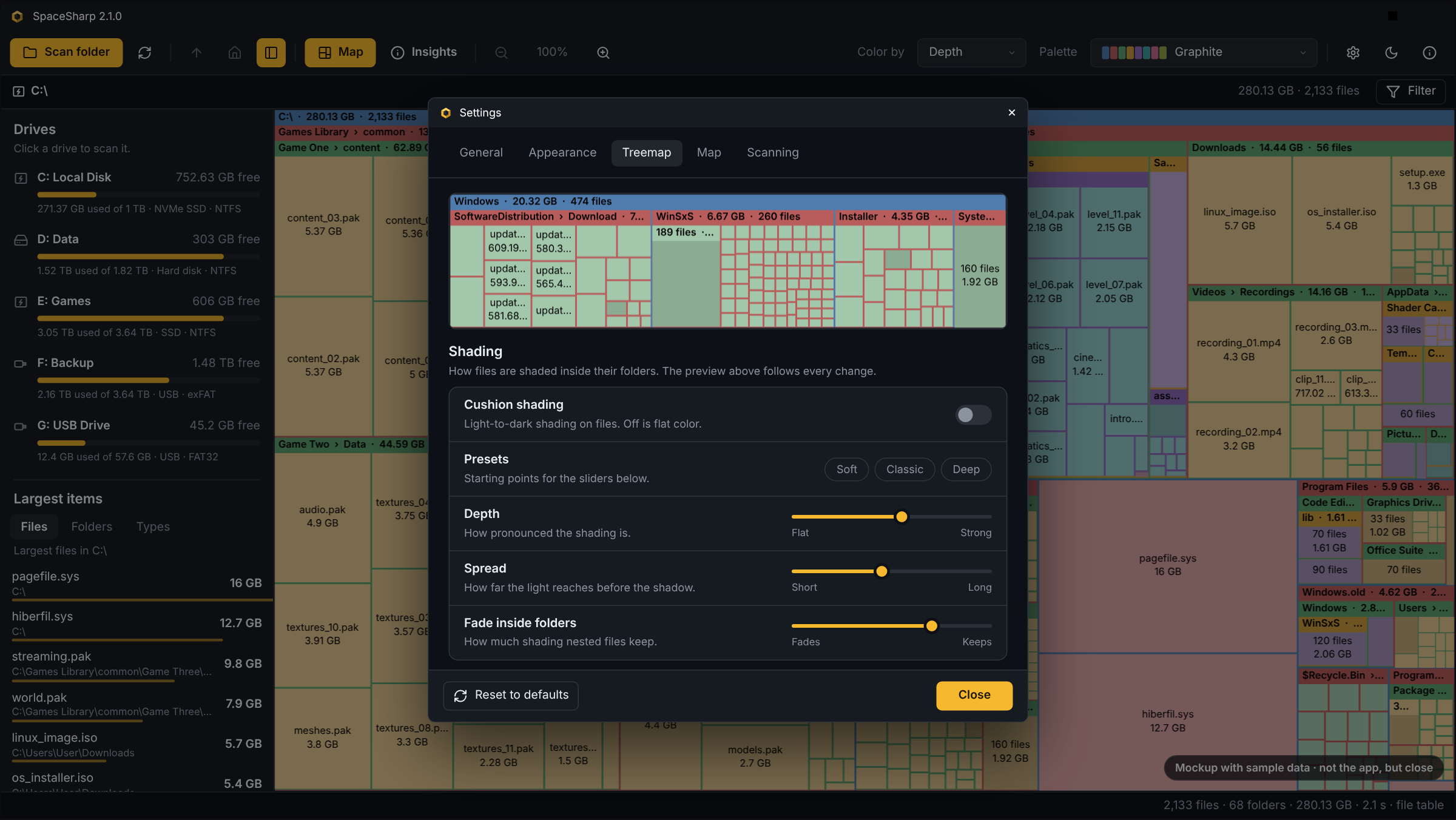
- The map draws one way, the way SpaceMonger drew it: folders are frames with a title bar, files are boxes inside them, and a one-pixel line or a small gap separates every box. The Style box has left the toolbar and S no longer cycles anything. What used to be a choice between Classic, Flat, Tiles, Cards, Bands and Soft is now a set of sliders, so the look is yours rather than one of six.
- A Shading card under Settings › Treemap takes its place. Cushion shading switches the light-to-dark shading on files on or off; off is flat color. Presets Soft, Classic and Deep are starting points for four sliders: Depth (how pronounced the shading is), Spread (how far the light reaches before the shadow), Tone (lighter or darker files overall; folders keep their color) and Fade inside folders (how much shading nested files keep). Light from is a square of nine buttons: a side, a corner, or the middle for light from straight ahead.
- A live preview of sample data is pinned above the Treemap page and follows every change, so you see the shading, the title bars, the grid and the text colors as you drag.
- Title bars are a shade of the folder's own color rather than a black overlay. On a pastel palette the overlay turned every nested bar into the same muddy strip; now each bar keeps its palette and its level. Title bar tint (0 to 40 %) sets how far the bar is shaded from the folder's color, Title bar padding (0 to 8 px) the space above and below the name.
- Text and title bars: the color of folder names and of file names and sizes is Auto (dark or light per box) or a fixed color from swatches or any #RRGGBB. Label size, font, outlined labels, and what file and folder labels show moved here from Appearance and Layout.
- Grid and highlight: grid lines on or off, their width (1 to 3 px) and color, and the color of the frame around selected boxes, amber by default.
- The grid is one line wide everywhere. Boxes used to stroke their own outlines on fractional coordinates, so seams came out two or three pixels dark. Boxes now snap to whole pixels and each leaves exactly one grid strip on its right and bottom.
- Padding puts a gap around every box: the map background at the top level and the folder's color inside it, scaled down on small boxes so a field of tiny files does not turn into dots.
- Small folders no longer dissolve into slivers. A folder is now also cut by the pixels it actually has on screen: children big enough to see (about 10 × 10 px) get their own box, the rest merge into one "312 files" block. The cut only moves when the folder's area doubles, so a smooth zoom does not shuffle boxes.
- Title bars stay down to 30 px wide, and appear a little earlier in height.
- Density, bias and padding sit under Layout on the same page; Palette and Color by moved from Appearance to a Colors card there. Appearance keeps the theme.
The filter, redone
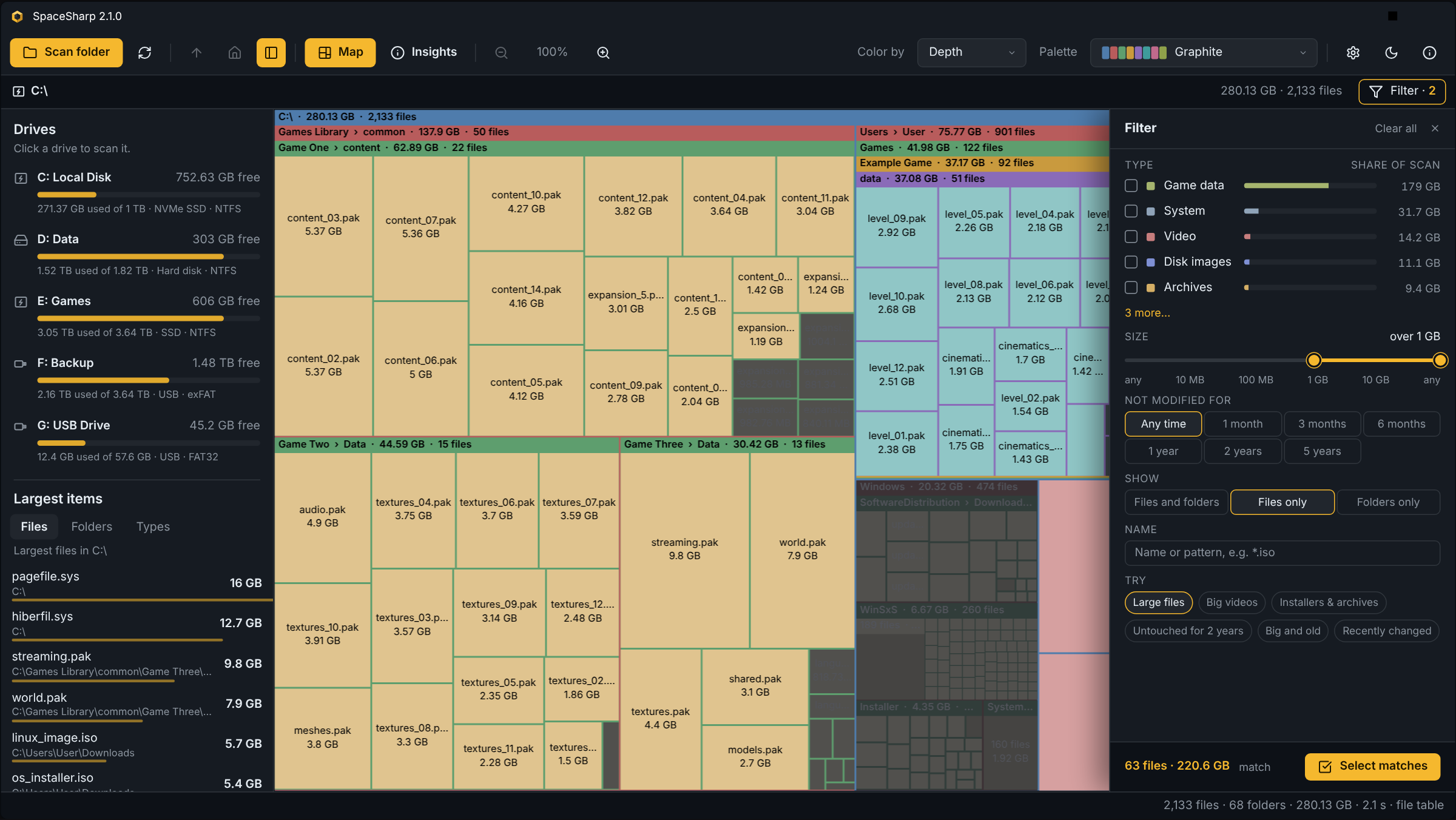
- The filter box and its popup are gone. In their place, by default, a filter drawer: a sheet over the right of the map with the file types as rows (checkbox, color, name, a share-of-scan bar and the size), a size range, Not modified for as a row of buttons, Show (files and folders, files only, folders only), a name box, the presets (Large files, Big videos, Installers & archives, Untouched for 2 years, Big and old, Recently changed), and a footer with the live match count and size and Select matches. The Filter button and Ctrl+F open and close it; Esc closes it. The button reads "Filter · 3" while three conditions are set.
- The name box still takes the full syntax ("type:video >500MB older than 1 year"), and anything typed there turns into checked rows and set controls, so the drawer teaches the syntax as well.
- Or a filter rail. Settings › Map › Filter layout switches to a row of pills under the path instead: one per condition (Type, Size, Age, Show), a name box, a Try pill with the presets, and the live count with Select matches and Clear.
- Underneath, nothing changed: both faces read and write the same filter text, so the panel under the map, the right-click menu's "Show only *.mp4 files", the presets and a typed filter all work with either, and Ctrl+A still selects every match.
A panel under the map
- Three views of the whole scan in a strip under the map. The toolbar button next to the side panel's, or B, shows and hides it; the chevron folds it down to its titles; Settings › Map › Show bottom panel sets whether it is there at all. It fills in when a scan finishes or a saved scan opens, and updates after a delete.
- By type is one stacked bar of the drive by file type in the palette's colors, with a legend. Hover a type and the map dims to its files; click and it becomes a filter.
- Safe to clear lists places that are usually safe to empty, decided from names alone: Windows.old, the Recycle Bin, Temp folders, package caches (npm, pnpm, NuGet, pip, Cargo, Gradle, Composer, Go, Maven), browser caches, shader caches, Windows Update downloads, and Downloads not touched in a year. Each row has Show, which selects the items on the map and zooms there, and an action: Recycle sends them to the Recycle Bin after the usual confirmation, Empty empties the Recycle Bin through Windows, Review selects old downloads and sets the filter so you decide, and How to explains the hibernation and paging files SpaceSharp will not touch.
- When changed is a histogram of bytes by the month they were last written, 36 months, colored in the four age bands Inspect uses, with the band totals as filter buttons under it. Hover a month to see it on the map, click to filter to it.
Palettes
- Twelve hues per palette, one per top-level folder before any repeats (they had seven, so the eighth folder on a drive wore the first one's color).
- Split by theme. Dark: Graphite (new, the default), Ocean, Sunset, Forest, Vivid (new), Aurora (new, in place of Neon), Monochrome and Color-blind safe. Light: Pastel (the default), Paper (new), Candy (new), Nordic (new), Earth (new), Retro and Color-blind safe (light). Each theme remembers its own choice, so switching the theme switches the palette too.
- A custom palette's JSON can say
"theme": "dark"or"light"; without it the palette is listed under both.
The right-click menu
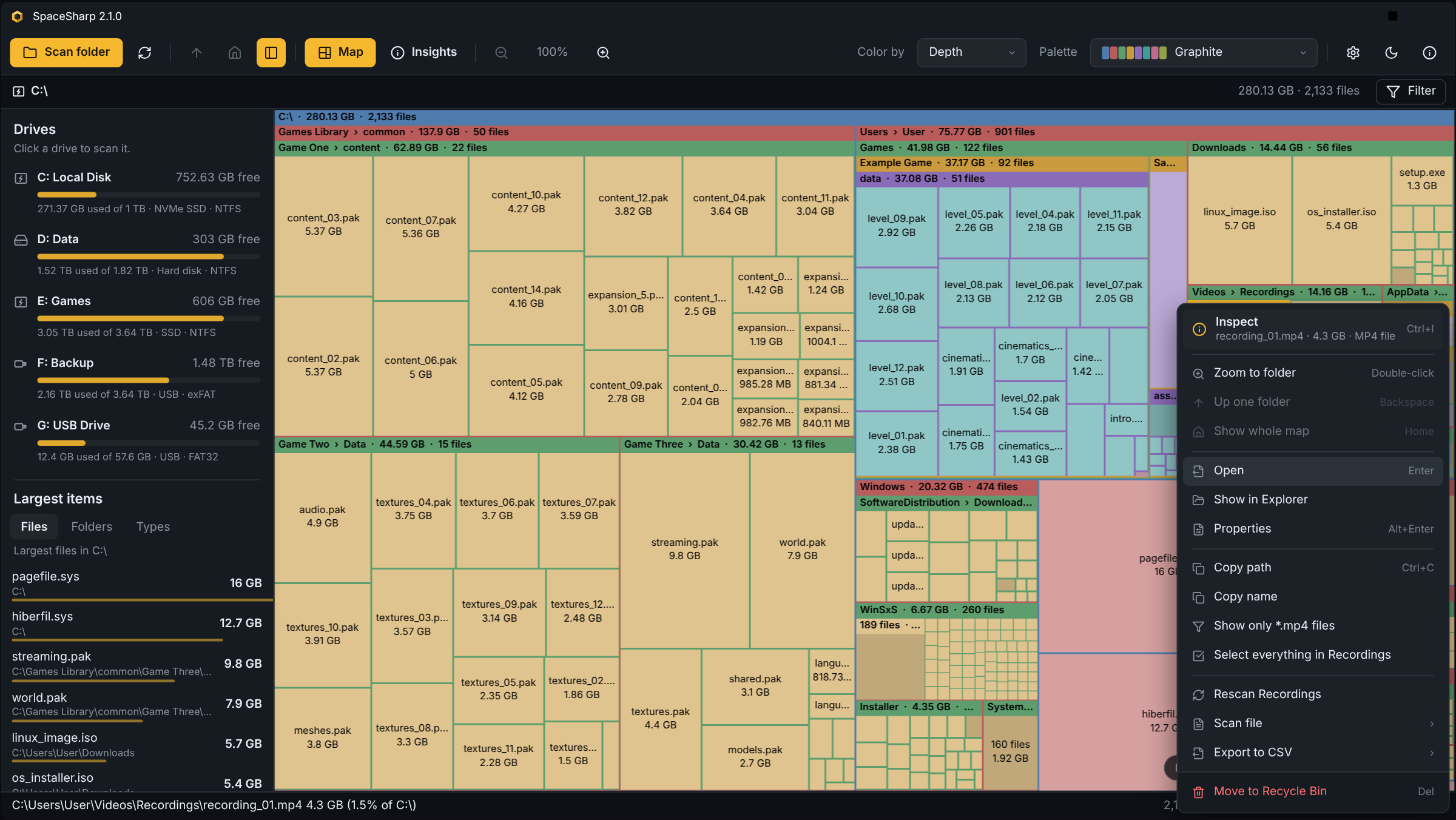
- The same list, drawn better. Inspect is a taller first row with the clicked item's name, size and kind as its sub-line (or the count and total size of a selection). Every row has an icon in a fixed column, the shortcuts are smaller and quieter, the rows have a rounded hover, and Move to Recycle Bin sits apart in a footer with a red-tinted hover.
The app's own colors
- Five dark and five light looks under Settings › Appearance: the colors of the window, panels, controls, menus and the map background. Dark: Graphite (as before), Slate (cooler), Mocha (warmer), Midnight (deeper blue), Carbon (neutral black). Light: Paper (as before), Linen (warm), Mist (cool), Sand (beige), Snow (white). The amber accent stays the same in every look; the map's palette is separate from it.
The update prompt
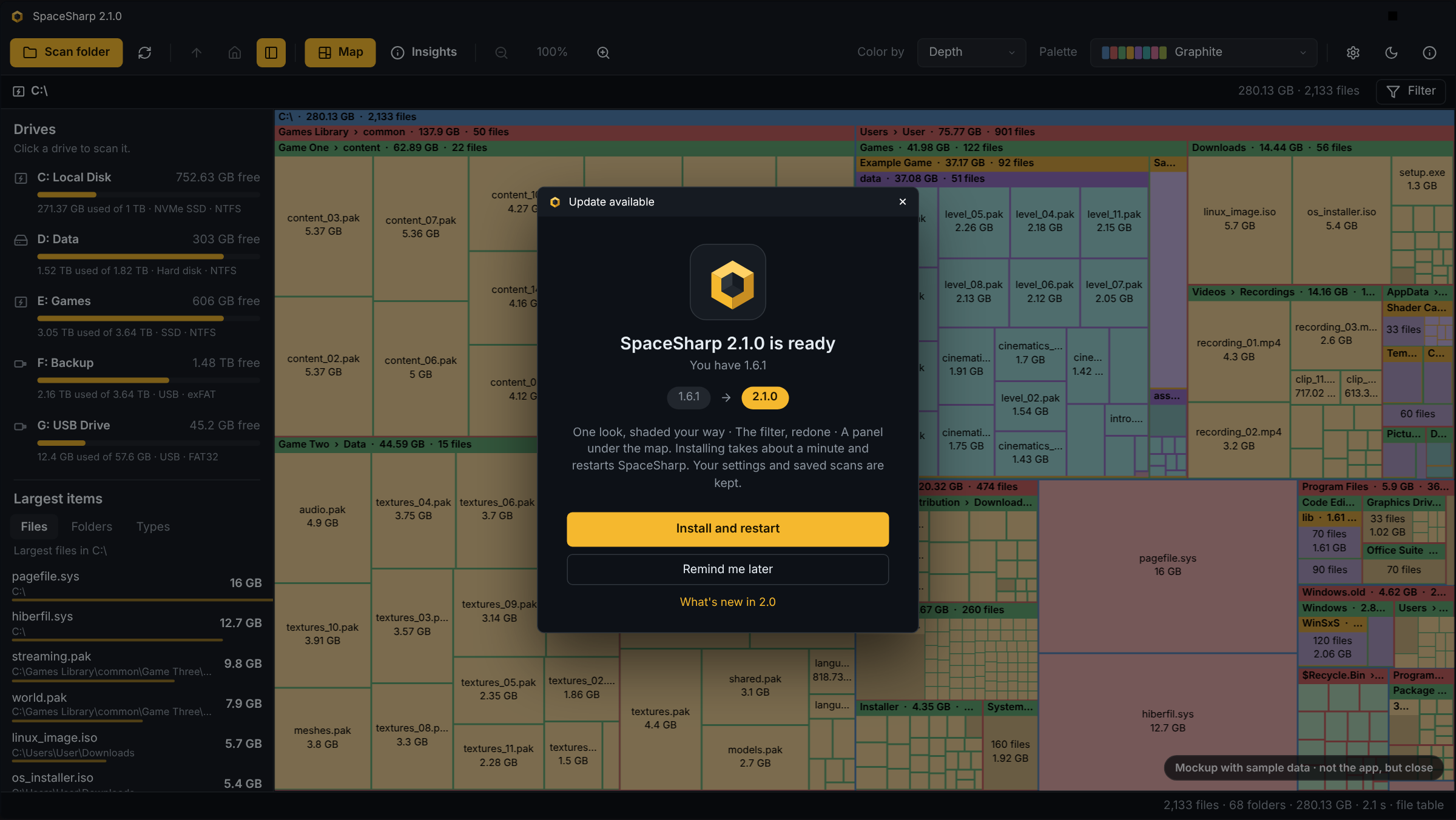
- One narrow column: the mark on its tile, "SpaceSharp 2.0.0 is ready" with your version under it, the jump as two pills, a short paragraph led by the release's section headings, then Install and restart, Remind me later, and a "What's new" link that opens the full notes. Someone two releases behind still gets every release in between.
New defaults
- A fresh install opens with Color by Depth, Dense grouping, a 2 px gap between boxes with the grid off, no cushion shading (the Soft preset is set, ready to switch on), flat title bars, black labels in Segoe UI Variable Text, and file counts in folder titles. Settings you have already saved are kept; Reset to defaults lands on this look.
Icon
- The Windows icon (taskbar, Explorer, title bars) sits on the rounded Graphite tile the 1.x icon had, so it reads as an app icon next to other apps' tiles. The mark itself is unchanged.
32-bit Windows
- Every release now also ships for 32-bit Windows, and all the release files follow one scheme, SpaceSharp-win-x64-* and SpaceSharp-win-x86-*. Each build is its own update channel, so an x86 install never pulls an x64 package. (SpaceSharp.exe and SpaceSharp-win-Setup.exe were the old names of the x64 files; a
releases.win.jsonin this release points 1.x installs at the new x64 package.) - The tree takes about a third of the memory it did: a node no longer stores its full path, files share one empty child list, and the comparison baseline is stored without boxing. A system drive with a couple of million files used to run the 32-bit build out of memory; when that still happens, the error says so and points to the 64-bit build.
Keyboard
- B shows and hides the panel under the map. S is gone with the styles. Ctrl+F opens the filter drawer or rail; Esc closes the drawer. The About window's shortcut list follows.
Fixes
- Inspect's By type and By age donuts were blank when one slice was the whole ring.
- The palette list no longer jumps when the mouse crosses the group headers.
- The panel under the map used to keep the previous scan's numbers until you switched tabs; it now refreshes when a scan ends, a saved scan opens, or a delete finishes.
- Brightness used to darken every folder as well as the files; it now only tilts the cushion shading, and the shading can be switched off altogether.
Under the hood
- Grouping moved into
Layout/Grouping.cswith tests of its own. The panel's numbers come fromServices/DriveInsights.cs, pure and tested. Color parsing is inUtil/ColorText.cs, tested. The update prompt's version shortening and highlight headings are tested too. - The changelog is split:
CHANGELOG.mdholds 2.0 onward,CHANGELOG-1.x.mdevery 1.x release. - The README was rewritten to be short; the long material is in
DEVELOPING.md. - The landing page was rebuilt around a live drawing of the 2.0 window;
docs/spacesharp-mock.jsis a mockup with sample data, not a build of the app, and says so in the image. The README screenshots and the social preview are generated fromtools/.
Files in this release
Pick one file from the first two groups. The third group is for installed copies and the update checker; you never need to download it.
64-bit Windows
| File | What it is |
|---|---|
SpaceSharp-win-x64.msi |
Windows Installer package. Choose the folder and whether it is for you or everyone; updates itself. |
SpaceSharp-win-x64-Setup.exe |
One-click installer. Installs to your profile without admin rights; updates itself. --installto "D:\Apps\SpaceSharp" picks another folder. |
SpaceSharp-win-x64.exe |
The app as one portable file. Nothing to install, nothing written outside its settings folder; does not update itself. |
SpaceSharp-win-x64-Portable.zip |
The installed layout as a zip, for running from a USB stick or a folder of your own. Updates itself in place. |
32-bit Windows
| File | What it is |
|---|---|
SpaceSharp-win-x86.msi |
Windows Installer package, 32-bit. |
SpaceSharp-win-x86-Setup.exe |
One-click installer, 32-bit. |
SpaceSharp-win-x86.exe |
One portable file, 32-bit. |
SpaceSharp-win-x86-Portable.zip |
The installed layout as a zip, 32-bit. |
Update packages and manifests
| File | What it is |
|---|---|
SpaceSharp-2.0.0-win-x64-full.nupkg |
The complete 2.0.0 x64 package the installers and updaters apply. |
SpaceSharp-2.0.0-win-x86-full.nupkg |
The same for x86. |
releases.win-x64.json |
The x64 update channel's manifest: which packages exist, their sizes and hashes. |
releases.win-x86.json |
The x86 channel's manifest. |
releases.win.json |
The manifest under the name 1.x installs look for, so they find 2.0 and move to the x64 channel. |
RELEASES-win-x64, RELEASES-win-x86, RELEASES |
The same manifests in the older plain-text format. |
Note
There is no delta package this time: 2.0.0 is the first release on the win-x64 and win-x86 channels, so every update is a full download. Deltas resume with the next release.
Feedback
Something off? Open an issue with the version from Help › About and, if a scan is involved, the saved .sscan file if you can share it. The full history is in CHANGELOG.md.