Desktop Dashboard
This page covers the Tkinter desktop experience including the main dashboard, admin UI, automation settings, console, and tray icon.
The main desktop dashboard (Host/dashboard.py) is a Tkinter-based GUI that provides full server management capabilities. It is approximately 1,000 lines of code (with UI logic split across dashboard_functions.py, dashboard_dialogs.py, dashboard_server_config.py, dashboard_server_ops.py, and dashboard_settings.py) and is the primary local management interface.
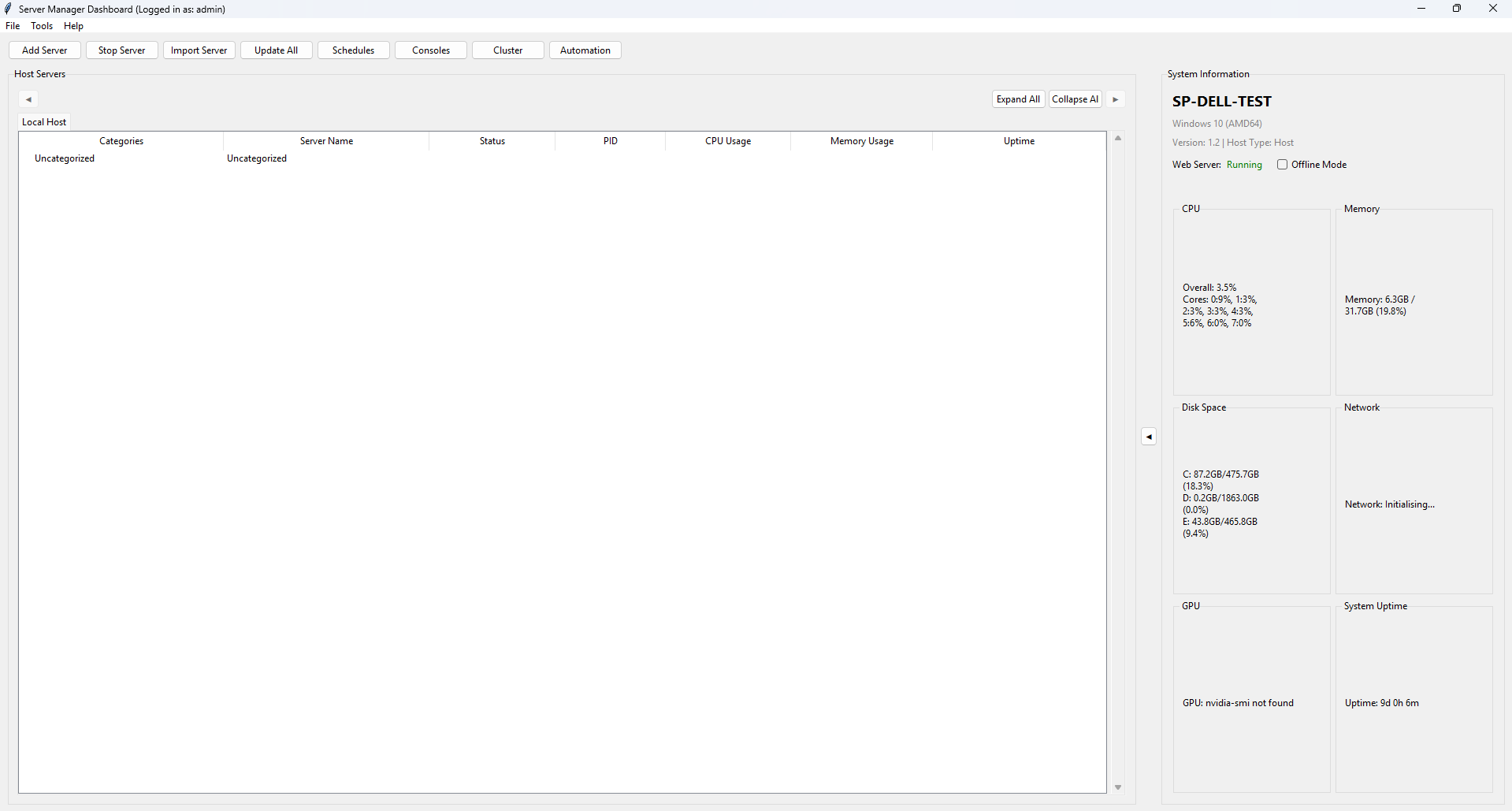
Launch: Right-click the system tray icon and select "Open Server Dashboard", or run Host/dashboard.py directly.
Authentication: On launch, the dashboard presents a login dialog. Users must authenticate with their username, password, and optionally a 2FA code if two-factor authentication is enabled on their account. Authentication is performed against the user database using bcrypt password hashing.
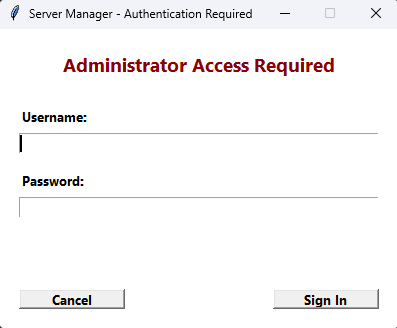
Initialisation Sequence: After successful login, the dashboard performs a 6-step asynchronous initialisation:
- Registry configuration loading
- Database connection verification
- UI construction
- Server list population from database
- System information collection
- Timer and monitoring initialisation
Main Interface Components:
-
Server List Panel — Displays all managed servers in a tree view, organised by category. Each server shows its name, type (Steam/Minecraft/Custom), status (Running/Stopped/Error), and CPU/memory usage. Memory is reported differently based on the server type: Java/Minecraft servers display JVM heap allocation (VMS) with a "(JVM)" suffix, while Steam and other native processes display RSS (Resident Set Size). Servers can be drag-and-drop reordered with a floating visual indicator. Right-clicking a server opens a context menu with 20+ options including Start, Stop, Restart, Console, Edit Config, View Process Details, Check for Updates, and more.
-
System Metrics Panel — Shows real-time system information with visual progress bars for CPU usage, RAM usage, and disk usage. Information is refreshed periodically by background timers.
-
Action Buttons Bar — Quick access buttons for common operations: Start All Servers, Stop All Servers, Restart All Servers, Add Server, Import/Export Configurations, Refresh.
-
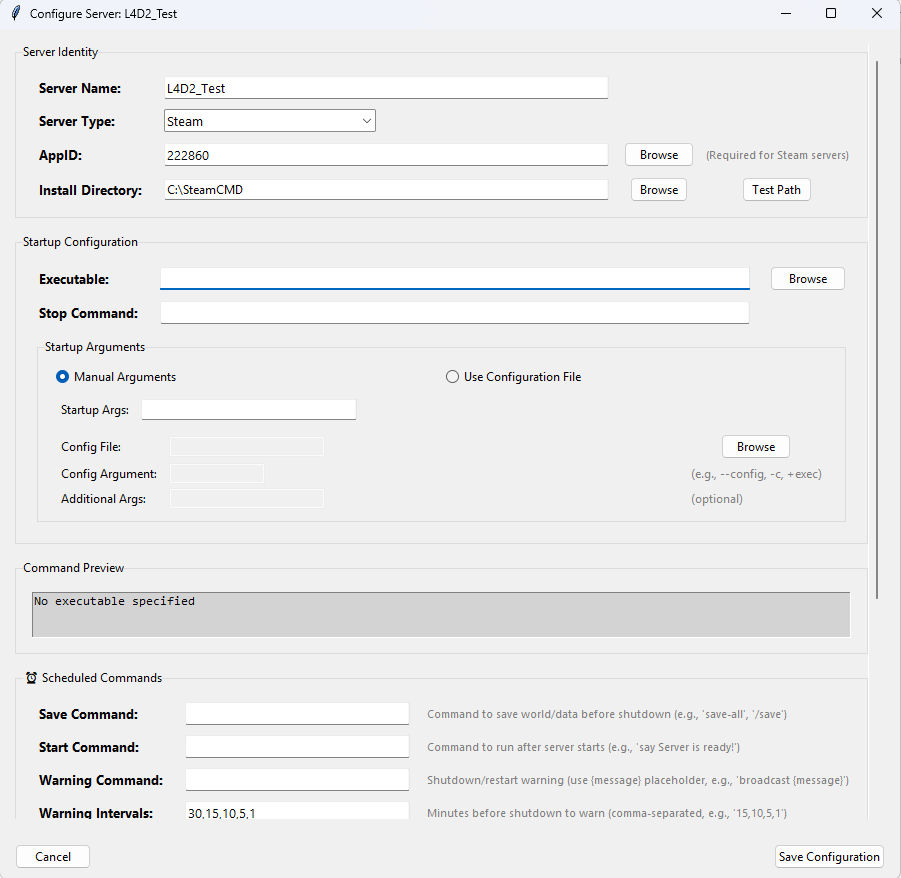
Server Configuration Dialog — A editor for each server's settings. Fields include server name, App ID, installation directory, executable path, launch arguments, stop command, MOTD configuration, update schedule, and automation settings.
-
Process Details View — For a running server, shows detailed process information including PID, CPU usage percentage, memory consumption, uptime, number of child processes, open file handles, and network connections. Memory is displayed according to process type: Java/Minecraft servers show JVM heap (VMS) with a "(JVM)" label, while Steam and other servers show RSS. The Resources tab shows both RSS and VMS values along with the detected process type.
-
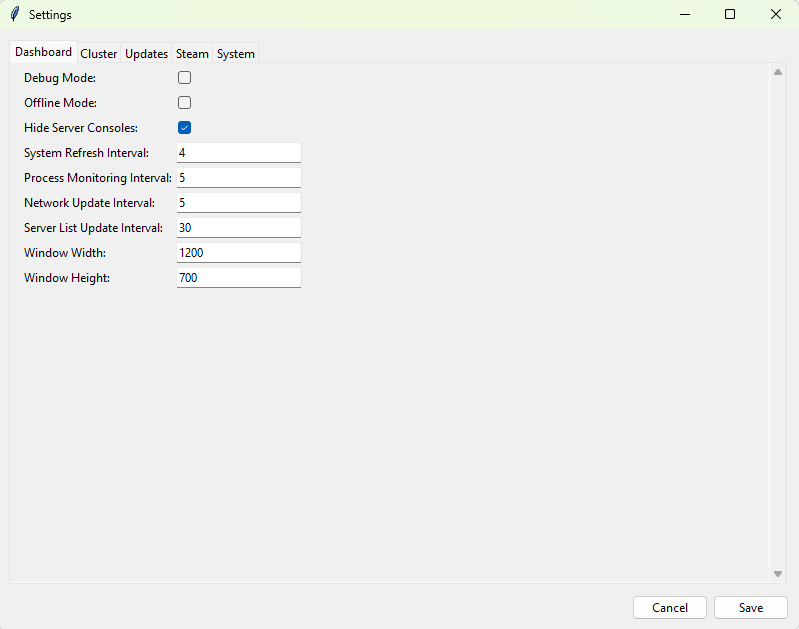
Settings Dialog — Application-wide settings organised into 5 tabs:
-
General — Application theme, log level, auto-start preferences.
-
Web Server — Port configuration, SSL toggle.
-
Database — Database backend selection and connection parameters.
-
Cluster — Cluster role configuration, node management.
-
Advanced — Debug mode, process creation flags, console visibility.
-
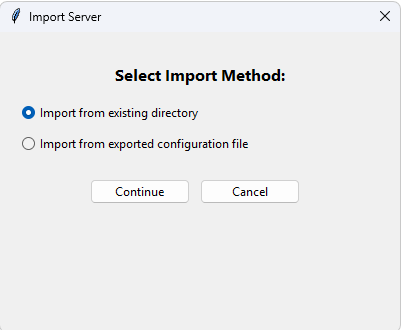
Import/Export — Server configurations can be exported to JSON files and imported on other installations for migration or backup purposes.
DPI Awareness: The dashboard is DPI-aware and adjusts its scaling for high-resolution displays on Windows 10/11. It uses ctypes.windll.shcore.SetProcessDpiAwareness(1) to enable per-monitor DPI awareness.
Singleton Enforcement: Only one instance of the dashboard can run at a time, enforced through a PID file lock in the temp/ directory.
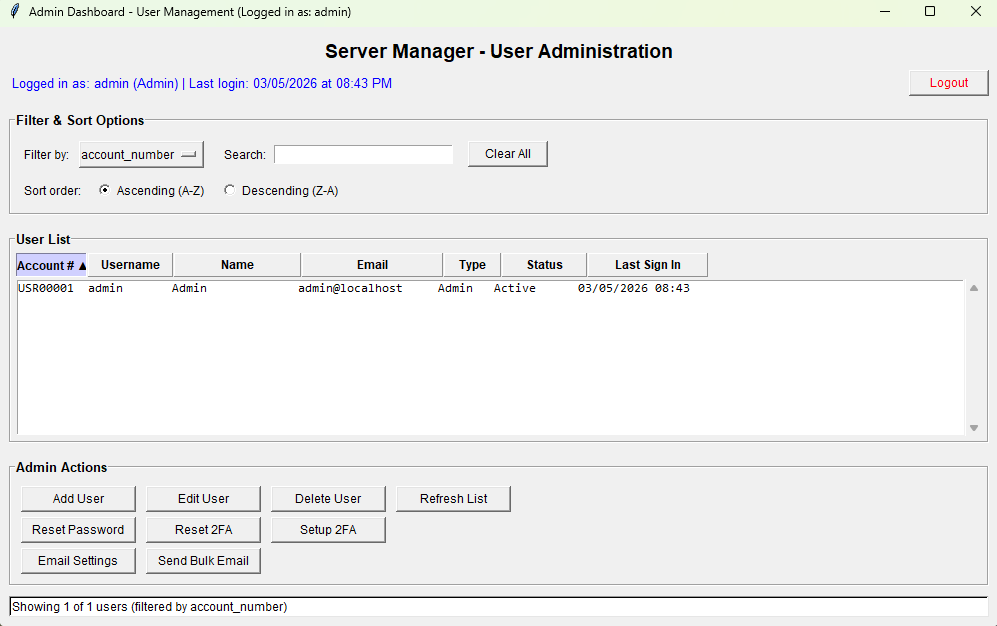
The Admin Dashboard (Host/admin_dashboard.py) provides user account management and email configuration. It is accessible from the system tray icon menu (Admin Dashboard option) or from within the main dashboard.
User Management Features:
- View all user accounts in a sortable, filterable table showing username, email, role (Admin/User), active status, last login date, and 2FA status.
- Add User — Create new user accounts with username, password, email, first name, last name, and role selection.
- Edit User — Modify user properties including role and active/inactive status.
- Delete User — Remove user accounts with confirmation dialog.
- Reset Password — Reset a user's password to a new value.
- Setup 2FA — Generate a TOTP secret for a user and display a QR code that can be scanned with an authenticator app (Google Authenticator, Microsoft Authenticator, etc.).
Email Management Features:
- SMTP Configuration — Configure SMTP settings with provider presets for Gmail, Outlook, Office365, Yahoo, and custom servers. Settings include server address, port, TLS/SSL mode, username, and password.
- Notification Toggles — Enable or disable specific notification types: welcome emails, password reset emails, account lockout notifications, server alerts, maintenance notifications, and admin-only alerts.
- Send Email — Send a test or custom email directly from the admin panel.
- Bulk Email — Send an email to all registered users simultaneously.
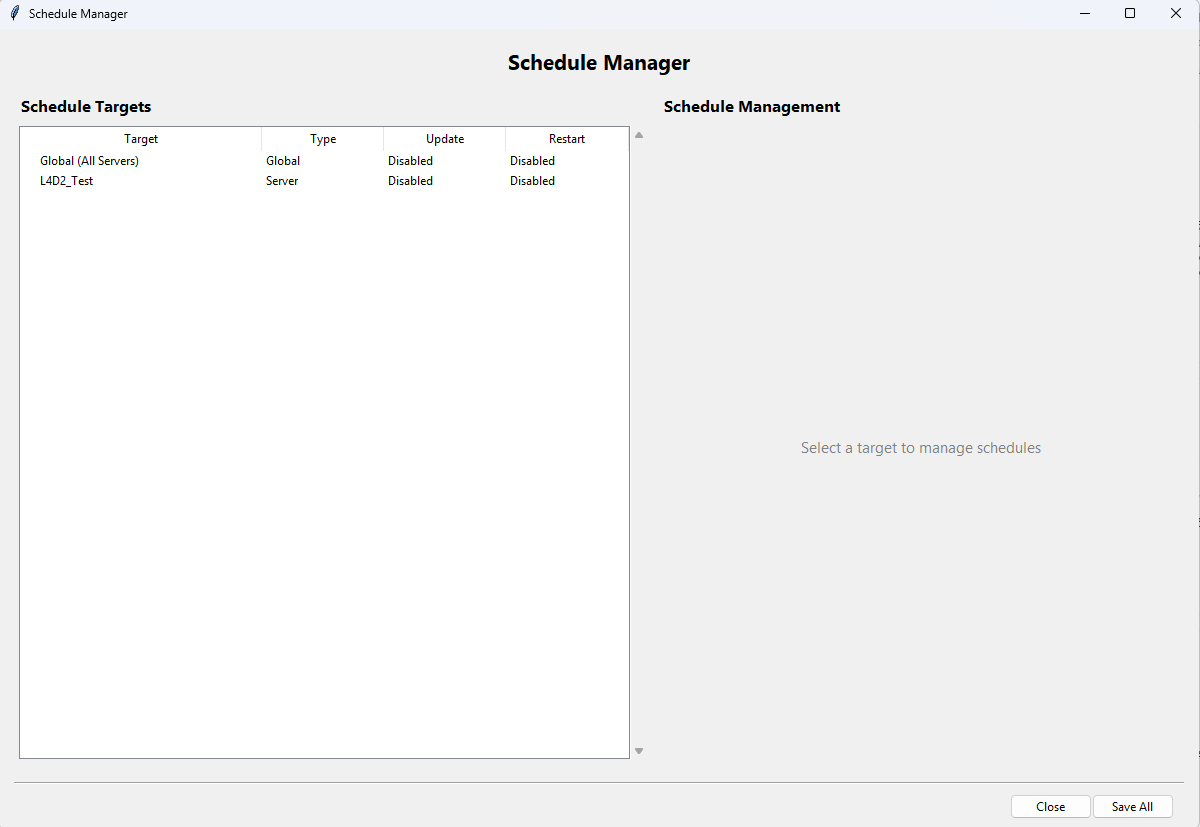
The Automation Settings Window (Modules/ui/automation_ui.py) provides a per-server configuration interface for automated operations. It can be opened from the tray icon menu or from the dashboard.
Configuration Fields:
- Server Selection — Dropdown to select which server to configure. Changing the server loads its current settings.
-
MOTD (Message of the Day):
-
MOTD Command — The command syntax to use for broadcasting messages (e.g.,
say,broadcast,/say). Must include{message}as a placeholder for the actual message text. - MOTD Message — The message text to broadcast.
- MOTD Interval — How often to broadcast the MOTD, in minutes. Set to 0 to disable.
-
MOTD Command — The command syntax to use for broadcasting messages (e.g.,
-
Server Commands:
- Start Command — Command to execute after the server process starts (e.g., initial setup commands).
-
Stop Command — The command to send to the server to initiate a graceful shutdown (e.g.,
stop,exit,quit). -
Save Command — Command to trigger a world/data save (e.g.,
save-all,/save).
-
Restart Warnings:
-
Warning Command — The command used to broadcast warning messages before a restart. Uses
{message}placeholder. -
Warning Intervals — Comma-separated list of minutes before restart at which to send warnings (default:
30,15,10,5,1). For example, "30,15,10,5,1" means warnings are sent at 30 minutes, 15 minutes, 10 minutes, 5 minutes, and 1 minute before the restart. -
Warning Message Template — The message template for warnings. Uses
{message}placeholder which is replaced with the countdown text (e.g., "Server restarting in {message}").
-
Warning Command — The command used to broadcast warning messages before a restart. Uses
Test Buttons:
- Test MOTD — Sends the configured MOTD message to the running server immediately.
- Test Warning — Sends a test warning message with a configurable countdown value.
- Test Save Command — Executes the save command on the running server.
Settings are persisted to the database via ServerConfigManager.
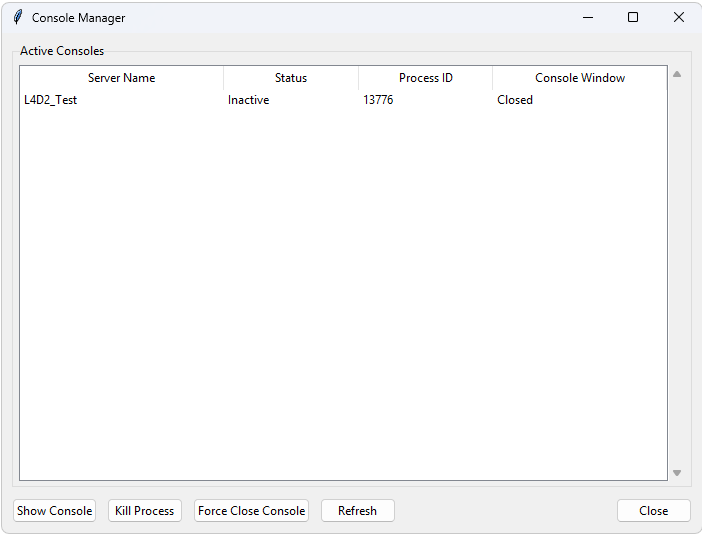
The Server Console (Modules/server/server_console.py) provides a real-time interactive terminal for communicating with running server processes. It is approximately 3,100 lines of code.
Two Main Classes:
-
RealTimeConsole— The backend that manages the connection to a server's subprocess. It creates monitoring threads for stdout and stderr, buffers output, writes to log files, and handles command input through multiple delivery methods. -
ConsoleManager— The Tkinter GUI window that provides the user interface. Features include:- Dark-themed terminal-style output display with colour-coded text.
- Command input field with history (up/down arrow to cycle through previous commands).
- Auto-scrolling with the option to scroll back and read previous output.
- Text search functionality within the console output.
- Adjustable font size.
- Console state persistence — the console output and input history can be saved to and loaded from the database, allowing you to close and reopen the console without losing context.
Five Command Input Methods: Server Manager implements five different methods for delivering commands to server process stdin. It tries them in order of reliability:
-
Console API (Direct) — Writes directly to the subprocess stdin pipe. This is the most reliable method but may not work if the subprocess has redirected or closed its stdin.
-
Named Pipes (stdin_relay.py) — Uses Windows Named Pipes (
\\.\pipe\ServerManager_stdin_{server_name}) to deliver commands. A background relay thread listens on the pipe and forwards received data to the subprocess stdin. This method works across process boundaries and provides JSON acknowledgment of command delivery. -
Persistent Stdin Pipes (persistent_stdin.py) — Creates a persistent duplex named pipe that is passed as the stdin handle when spawning the subprocess. This ensures stdin is always writable.
-
Command Queue Files (command_queue.py) — A file-based fallback. Commands are written to a text file (
temp/command_queues/{server_name}_commands.txt) with the formattimestamp:command. A polling thread reads the file every 100 milliseconds and delivers commands to stdin. The file is auto-cleaned after 100 processed commands. -
Stdin Relay with Acknowledgment — Similar to method 2 but with a full request-response cycle including delivery confirmation.
These methods are tried in sequence. If one fails, the next is attempted, ensuring maximum reliability for command delivery.
The system tray icon (Modules/services/trayicon.py) provides persistent background presence and quick access to all application features. It uses the pystray library with pillow for icon rendering.
Menu Items:
- Open Server Dashboard — Launches the main Tkinter dashboard as a detached process.
- Open Admin Dashboard — Launches the admin dashboard.
- Open Web Interface — Opens the default web browser to the web interface URL.
- Automation Settings — Opens the automation configuration window.
- Open Console — Opens the server console selector.
- Debug Center — Opens the diagnostics and debugging GUI.
- About — Shows version and system information.
- Exit — Calls the centralized shutdown utility and then exits, ensuring tray/launcher/debug/web processes are all closed consistently.
Tooltip: The tray icon tooltip dynamically displays the number of currently running servers.
Status Updates: A background timer updates the tray icon status every 10 seconds, checking process health and server counts.
Singleton Enforcement: Only one tray icon instance can run at a time, enforced via PID file.