You signed in with another tab or window. Reload to refresh your session.You signed out in another tab or window. Reload to refresh your session.You switched accounts on another tab or window. Reload to refresh your session.Dismiss alert
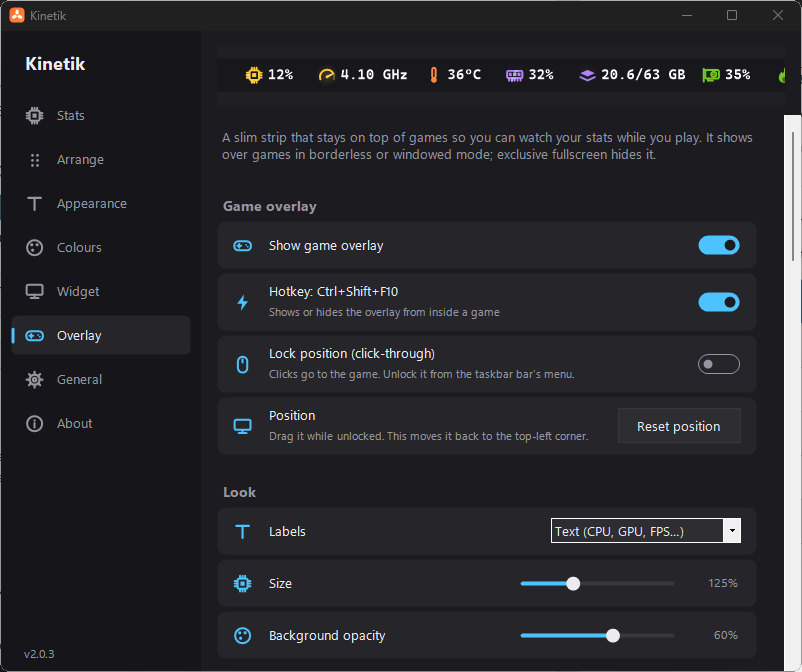
New: game overlay. A slim, always-on-top strip of stats you can keep on screen while you play.
Turn it on from the bar's right-click menu (Game overlay), in Settings → Overlay, or with Ctrl+Shift+F10. The hotkey also works from inside a game.
It has its own list of stats and order, with dividers, separate from the bar and the widget. Show them with text labels (CPU, GPU, FPS…) or icons, and adjust the size and background opacity.
Drag it anywhere. It snaps to the screen's edges and top centre. Lock position makes it click-through, so clicks go to the game.
It stays visible over fullscreen apps, unlike the bar and widget. It shows over games in borderless or windowed mode. Exclusive fullscreen owns the whole display, so no overlay can draw there.
New: FPS counter. Shows the frame rate of the app in front, on the overlay (on by default), the bar or the widget. It counts the frames Windows' graphics system reports for DirectX 9–12 games, and for OpenGL and Vulkan games. Like CPU temperature, it needs Kinetik to run as administrator.
Fix: CPU power and temperature on laptops. Some laptops showed neither, because they were only read through LibreHardwareMonitor, which needs the PawnIO driver.
CPU power now falls back to Windows' own power meter, which needs no driver or admin rights.
CPU temperature falls back to the ACPI thermal zone on PCs that report a believable one (most laptops). The tooltip marks this reading as approximate.
Clearer messages for CPU temperature. Settings → General says when the PawnIO driver is missing and has a Get PawnIO button. It no longer claims temperatures are available just because Kinetik is running as administrator. The bar's tooltip says what's missing.