Repository navigation
Quickstart
This walks through a first install from an empty folder to a working, backed-up stack. Every screenshot is from a real install. By the end you have:
- Radarr, Sonarr, Lidarr, Prowlarr and Bazarr on Postgres
- qBittorrent and SABnzbd saving into the same
/datafolder the arrs import from - every download client added to every arr, the arrs added to Prowlarr and Bazarr, all without typing a host name or API key
- nightly backups that still work if wranglarr is gone
It takes about 15 minutes, most of it waiting for images to download. The reference pages are Setup and Environment Variables; this page is the guided route through them.
You need:
- Docker with the compose plugin, or Podman with
podman composeand its API socket turned on (systemctl --user enable --now podman.socket; wranglarr uses it for restores and updates). - A drive or folder for downloads and media, for example
/mnt/data. Downloads and media must be on the same filesystem so imports can hardlink instead of copying. - Bash 4 or newer for
init.sh: any Linux, WSL on Windows, or macOS withbrew install bash(macOS ships Bash 3.2).
On TrueNAS SCALE, TrueNAS SCALE covers the datasets and permissions first, then follows these steps with sudo.
git clone https://github.com/Wranglarrr/Wranglarr arrs && cd arrswranglarr's image holds both the setup wizard and wranglarr itself; the
commands below pull the published one. To build it yourself, see
The wranglarr image. Podman users: replace
docker with podman here and below.
The wizard writes your .env. It runs from wranglarr's image, so it needs
nothing else installed:
docker run --rm -it -p 8788:8788 \
  -v "$PWD":/stack \
  -v /mnt/data:/data \
  ghcr.io/wranglarrr/wranglarr:latest wranglarr-setup
Mount your data drive as /data so the wizard can check it. It prints a
link like http://localhost:8788/?t=Xy3kQ9pL2aM: open that one. The code
in it keeps other people on your network out of the wizard while it runs.
From another computer, put the server's address in place of localhost.
Rootless Podman: add
--userns=keep-id. Otherwise the wizard sees your files as owned by root and reports them as not writable.
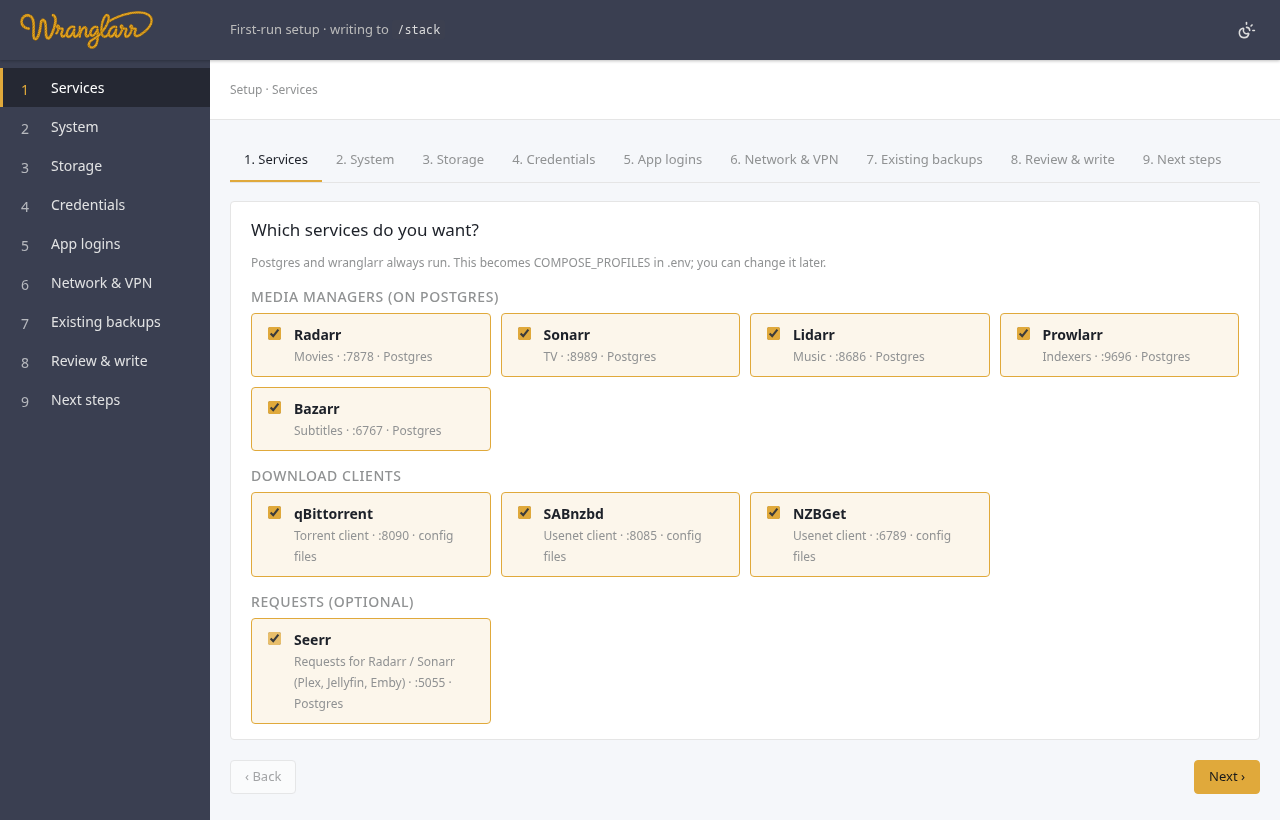
Tick what you want. Postgres and wranglarr always run. Prowlarr is worth ticking: you add trackers to it once and it hands them to every arr.
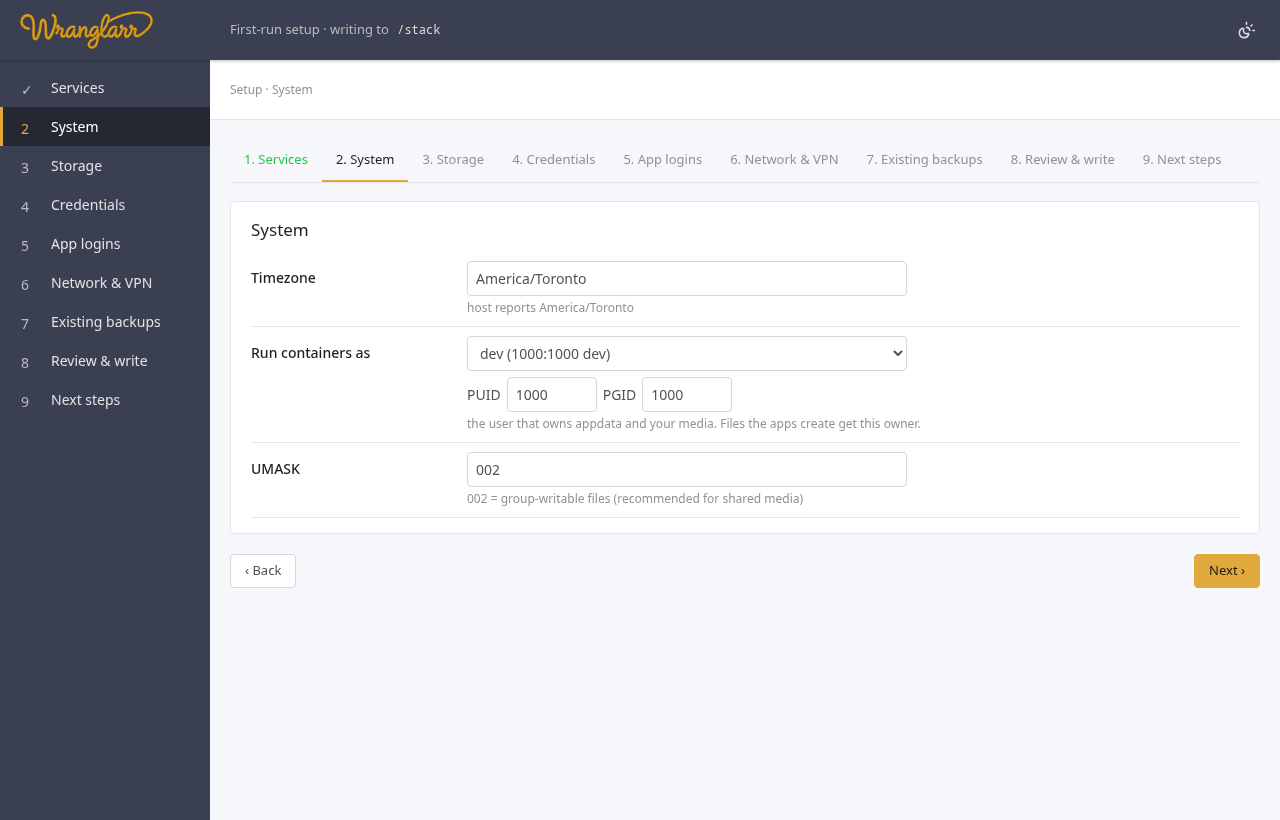
The timezone and the user the containers run as. On Linux, id prints your
PUID and PGID. They should own your data drive; the next step shows you who
does.
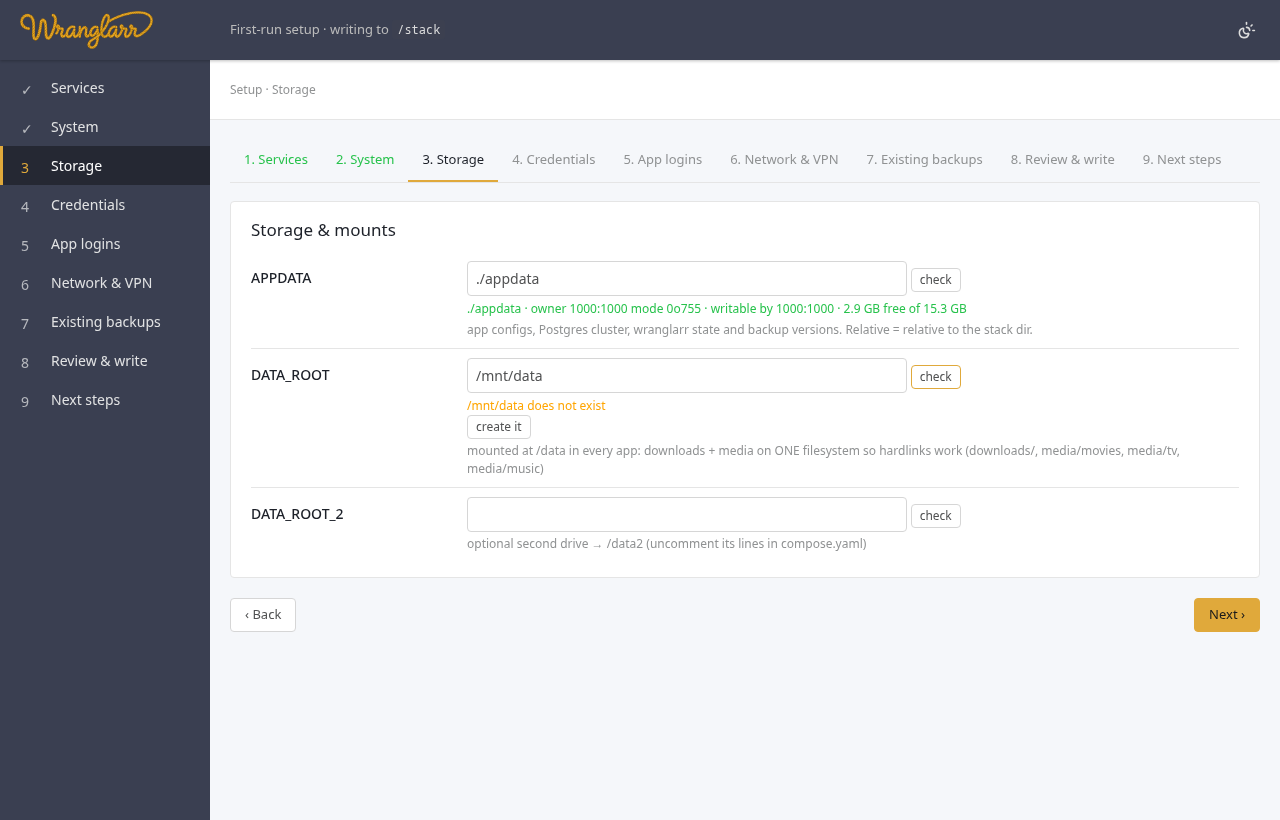
Type host paths. They go into .env exactly as typed. Each one is checked
through its mount: owner, permissions, whether PUID/PGID can write it, and
free space. Green means it's fine.
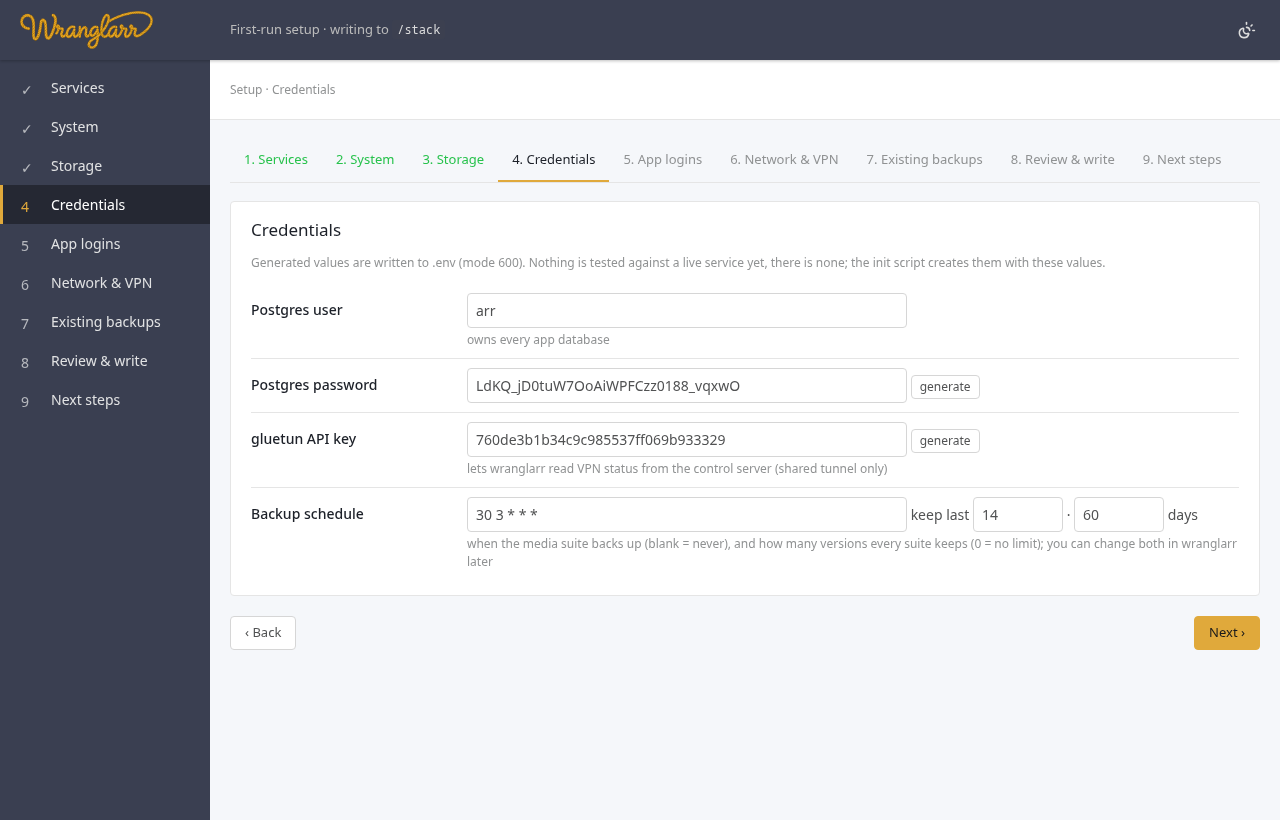
The Postgres password and gluetun key are generated for you. The backup schedule is when the media suite (the arrs) backs up; the download clients and Seerr keep their own times (04:00 and 04:15), and a blank schedule turns automatic backups off for all of them. Retention applies to every suite. You can change both in wranglarr later.
How you sign in to the apps themselves (wranglarr has its own login either way):
- One login for every app (the default): init sets the same username and password in each app. Generate the password; better not your wranglarr one.
-
AuthTunnel: the apps get no login of their own, and you sign in once, to
wranglarr. If you'll reach the apps through a reverse proxy at names like
radarr.example.com, say so and give the domain. - Leave them to me: each app asks you on first visit, as without wranglarr.
App logins has the details. You can change it later without redoing the rest.
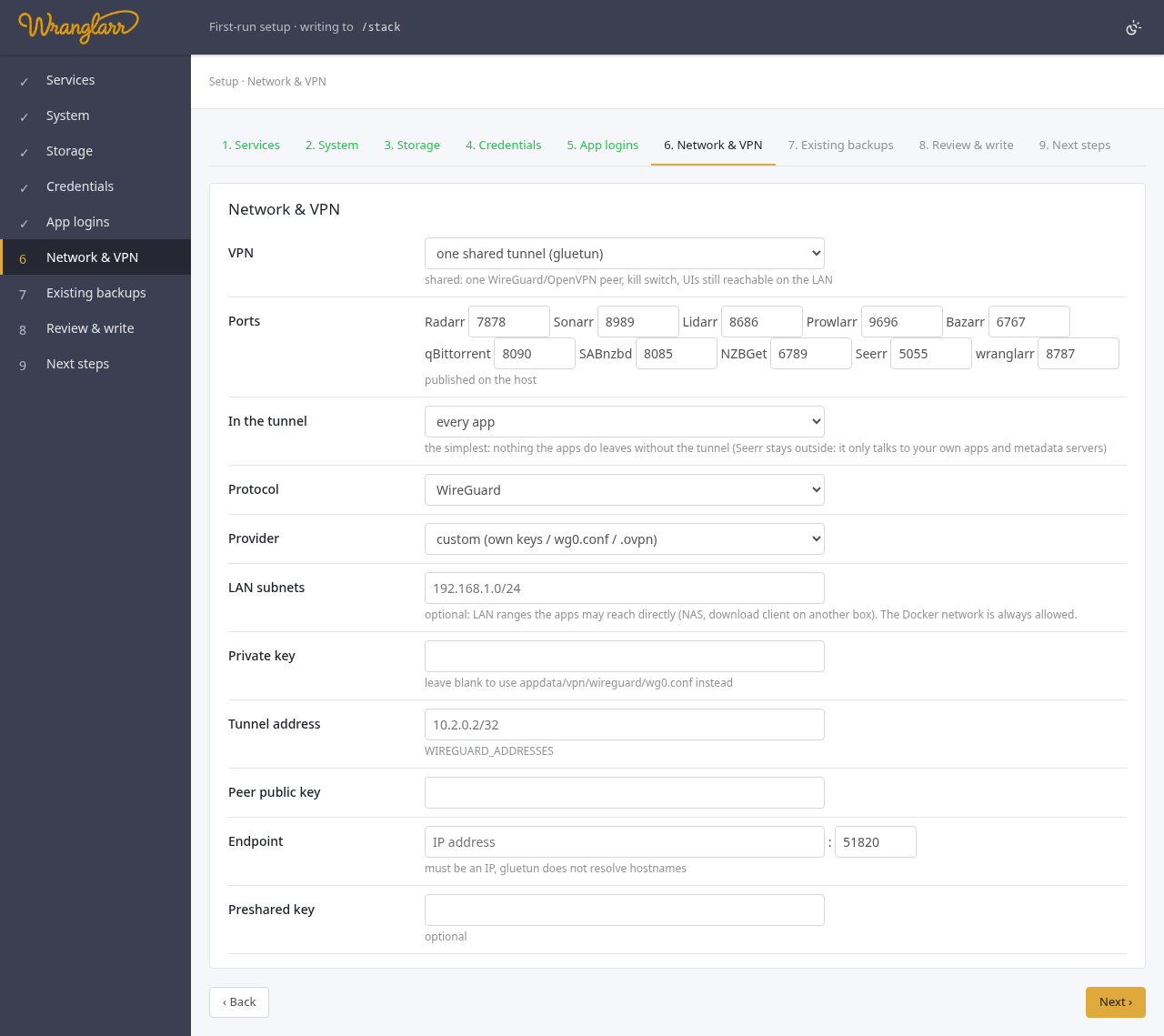
The ports published on the host, and whether to route the apps through a VPN. "One shared tunnel" puts the apps behind a single WireGuard or OpenVPN connection; In the tunnel says which: every app (the simplest), the download clients and Prowlarr, or the download clients only (see VPN: Shared Tunnel). If you pick it, this step asks for the provider and keys.
On a brand-new install this step is empty. If your appdata/backups already
holds wranglarr versions, from another machine or before a reinstall, tick
the apps to bring back. wranglarr then offers a one-click restore once
everything is running.
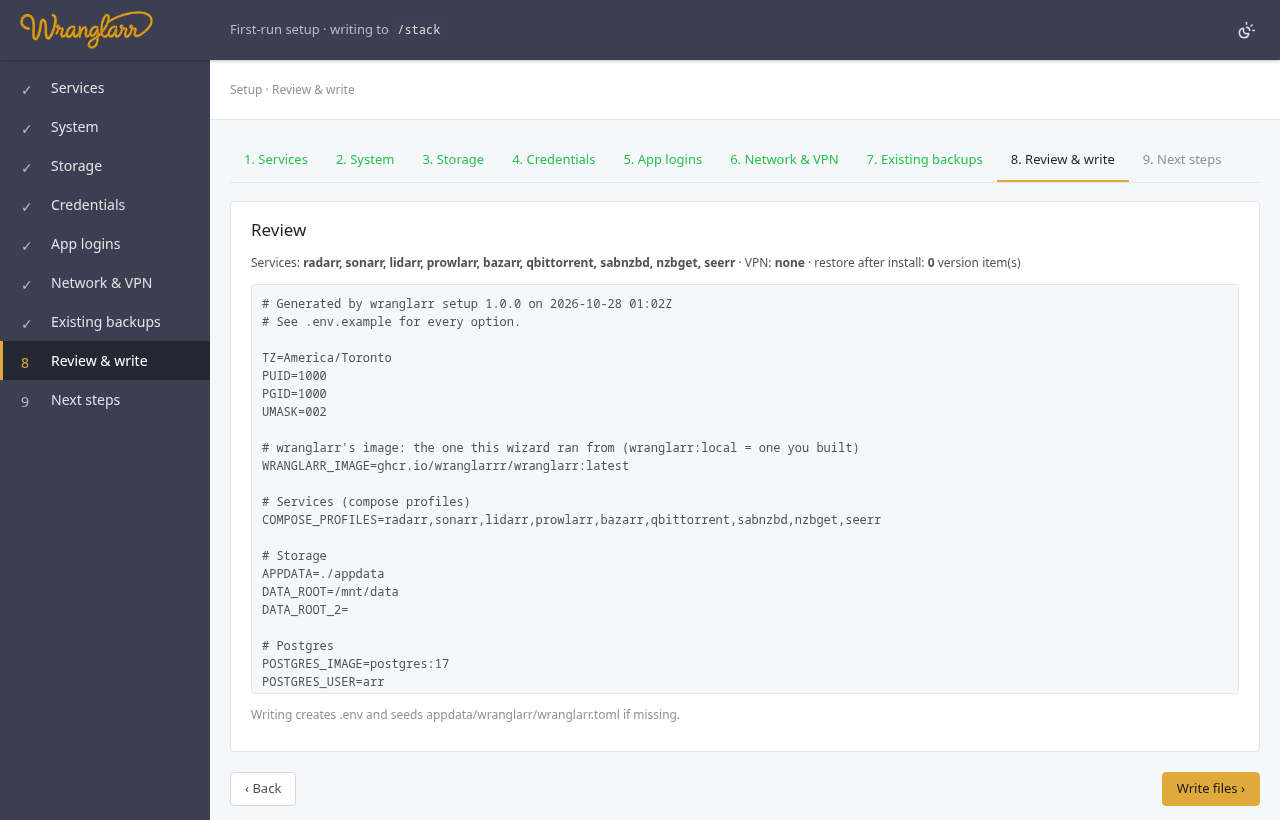
The .env that will be written, with secrets masked. Write files saves
it with mode 600. An existing .env is kept as .env.bak-<time>.
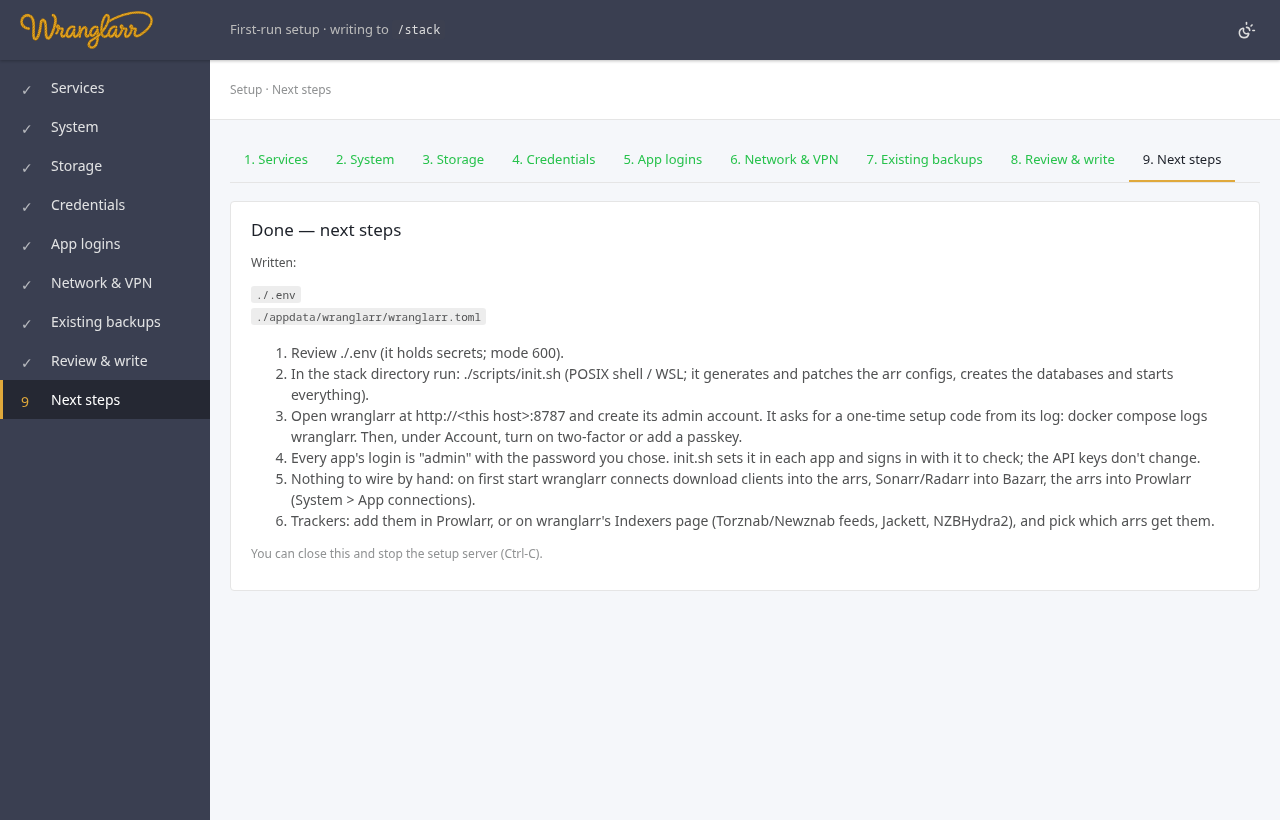
The wizard lists what's left for your choices. Stop it with Ctrl-C.
./scripts/init.shOn first run it:
- Starts each arr once without Postgres so it writes its own
config.xml(API key, port), then stops it. - Points each
config.xmlat Postgres. Postgres creates one database per app on its first start. - Starts each download client once to generate its default config, then points its save folders at the shared mount: qBittorrent at
/data/torrents, SABnzbd at/data/usenet/incompleteand/data/usenet/complete. It also addssabnzbdto SAB's host whitelist and turns on SAB's NZB copies, so backups can bring queued jobs back. - Creates the download folders, one per arr and Prowlarr (
/data/torrents/radarr,/data/usenet/complete/sonarr, …). - Writes qBittorrent's login into its config, if you picked one login for every app or AuthTunnel.
- Starts the whole stack.
- Sets the apps' logins the way you picked, and signs in to each one to check (AuthTunnel: starts wranglarr-gate in front of them).
The end of a successful run looks like this:
init: patching configs (Postgres: radarr sonarr lidarr prowlarr; download paths: qbittorrent sabnzbd)
[radarr] patched: +PostgresHost +PostgresPort +PostgresUser +PostgresPassword +PostgresMainDb +PostgresLogDb
...
patch_downloads: sabnzbd: download_dir: Downloads/incomplete -> /data/usenet/incomplete; complete_dir: Downloads/complete -> /data/usenet/complete; ...
init: starting the full stack (profiles: radarr,sonarr,lidarr,prowlarr,bazarr,qbittorrent,sabnzbd)

Done.  wranglarr: http://localhost:8787
Running it again later is safe. Apps that are already set up are not
regenerated, the Postgres settings are re-applied, and download folders are
only changed while they are still at the clients' defaults. To change the
Postgres password, follow Changing the Postgres password:
editing .env alone isn't enough.
With one login for every app, or AuthTunnel, init did this: skip to 5. Open wranglarr.
qBittorrent starts with a temporary admin password and prints it in its log:
docker compose logs qbittorrent | grep -i passwordLog in at http://localhost:8090 and set a permanent password under
Options → Web UI. Put it in .env, then restart wranglarr so it can log in
and add qBittorrent to the arrs:
# .env
QBITTORRENT_USER=admin
QBITTORRENT_PASSWORD=your-new-password
docker compose up -d wranglarrThe first time you open Radarr, Sonarr, Lidarr or Prowlarr, it insists on a login. Pick Forms (Login Page). Setting "Authentication Required" to Disabled for Local Addresses keeps your own network password-free.
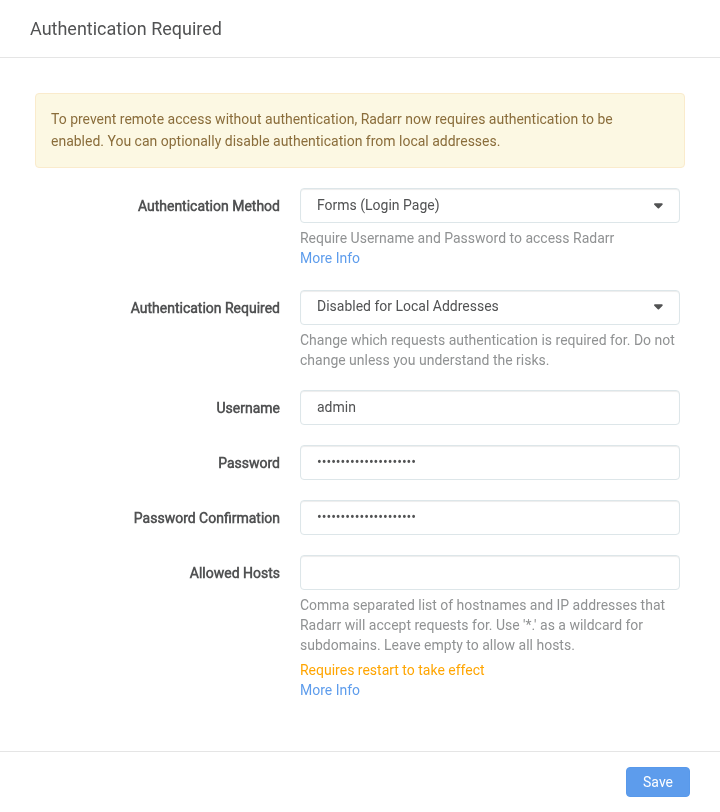
Leave Allowed Hosts empty. If you fill it, include the app's container
name as well, for example radarr or 127.0.0.1,radarr. Otherwise the app
refuses every request addressed to radarr:7878: wranglarr, Prowlarr, Bazarr
and the other arrs all get "400 Bad Request". wranglarr's error then names
this setting. The fix is in Troubleshooting.
http://localhost:8787. The first visit asks you to create wranglarr's admin account:
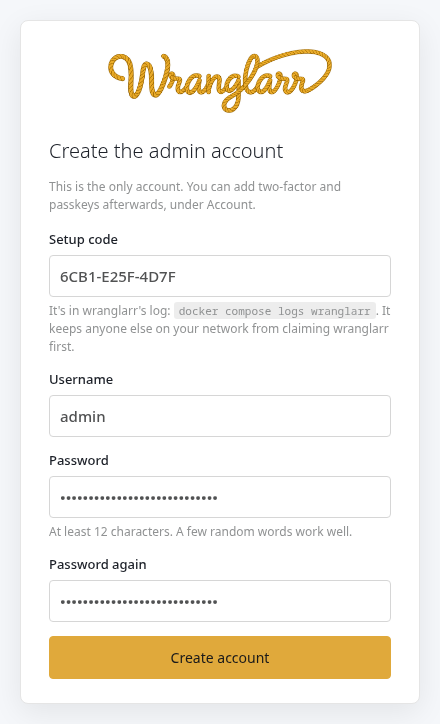
The setup code is in wranglarr's log, in an amber box. It makes sure the person creating the account is someone who can read the log:
docker compose logs wranglarrPick a password of at least 12 characters. You land on Account, where you can turn on two-factor (an authenticator app) or add a passkey. Passkeys need HTTPS on a host name; see Login.
Then click Dashboard in the sidebar: a poster per app with its stats underneath. Click a poster to open that app (Dashboard).
Suites shows each suite: every app's version, database, collection size and health, plus the latest backups.
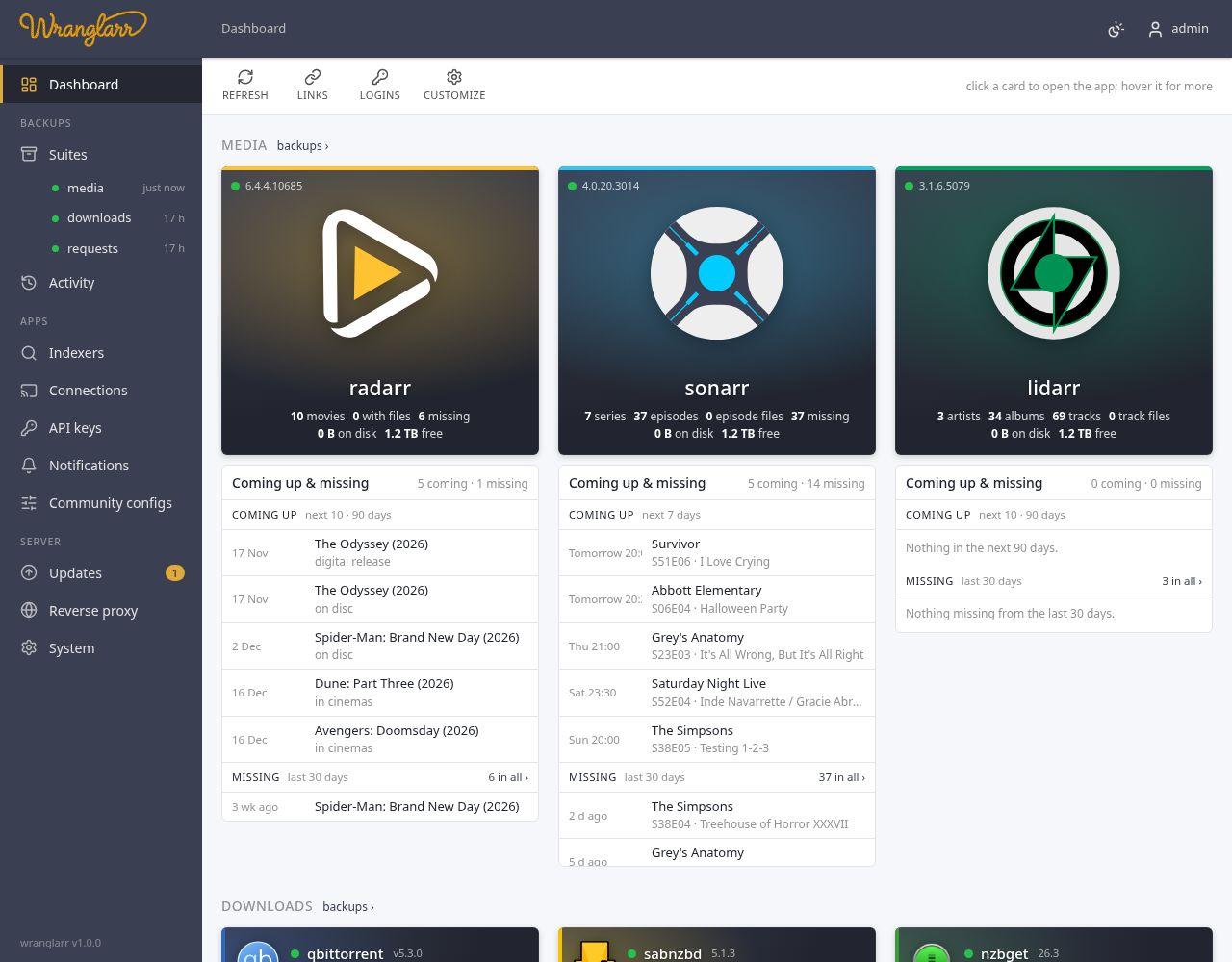
The screenshot is from after the steps below. On a brand-new install the cards also show the apps' own health warnings in orange, so you don't have to open each app: they say what's still missing (no indexers yet, no root folder). The next steps clear them.
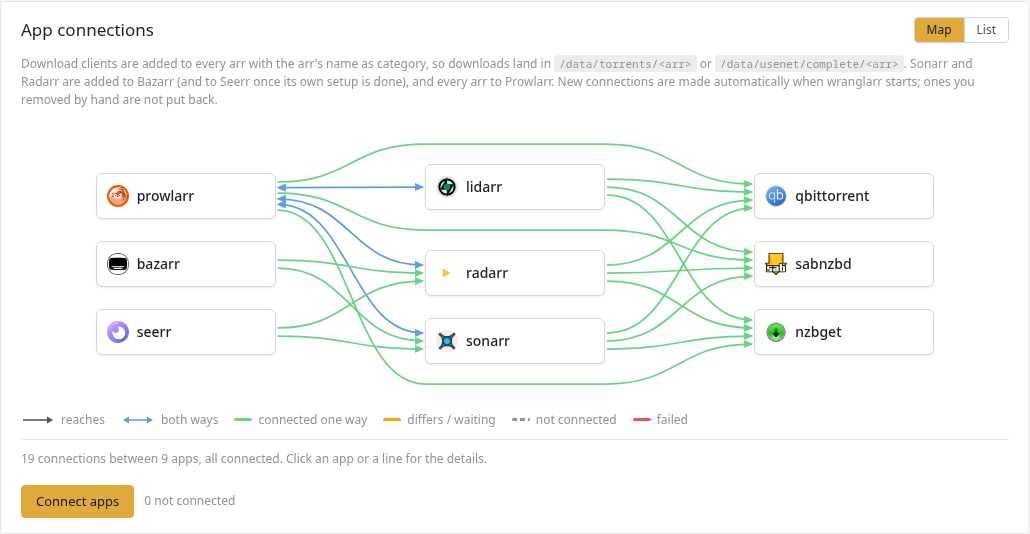
On its first start wranglarr connects everything that can talk to everything else. The result is under System → App connections, drawn as a map: an arrow from each app to the one it reaches, with heads at both ends (in blue) where the two reach each other. List switches to a table.
-
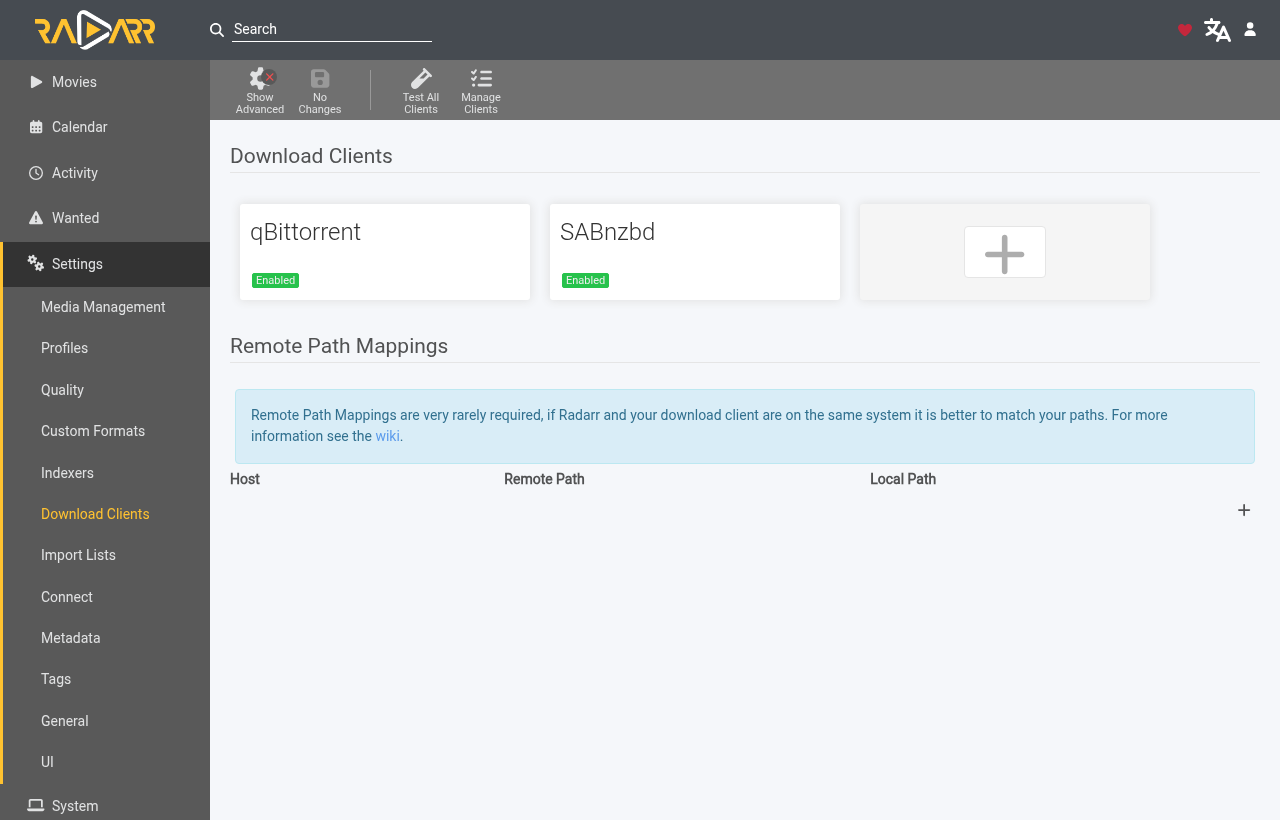
Every download client into every arr. Each arr's category is its own name, so finished downloads land in
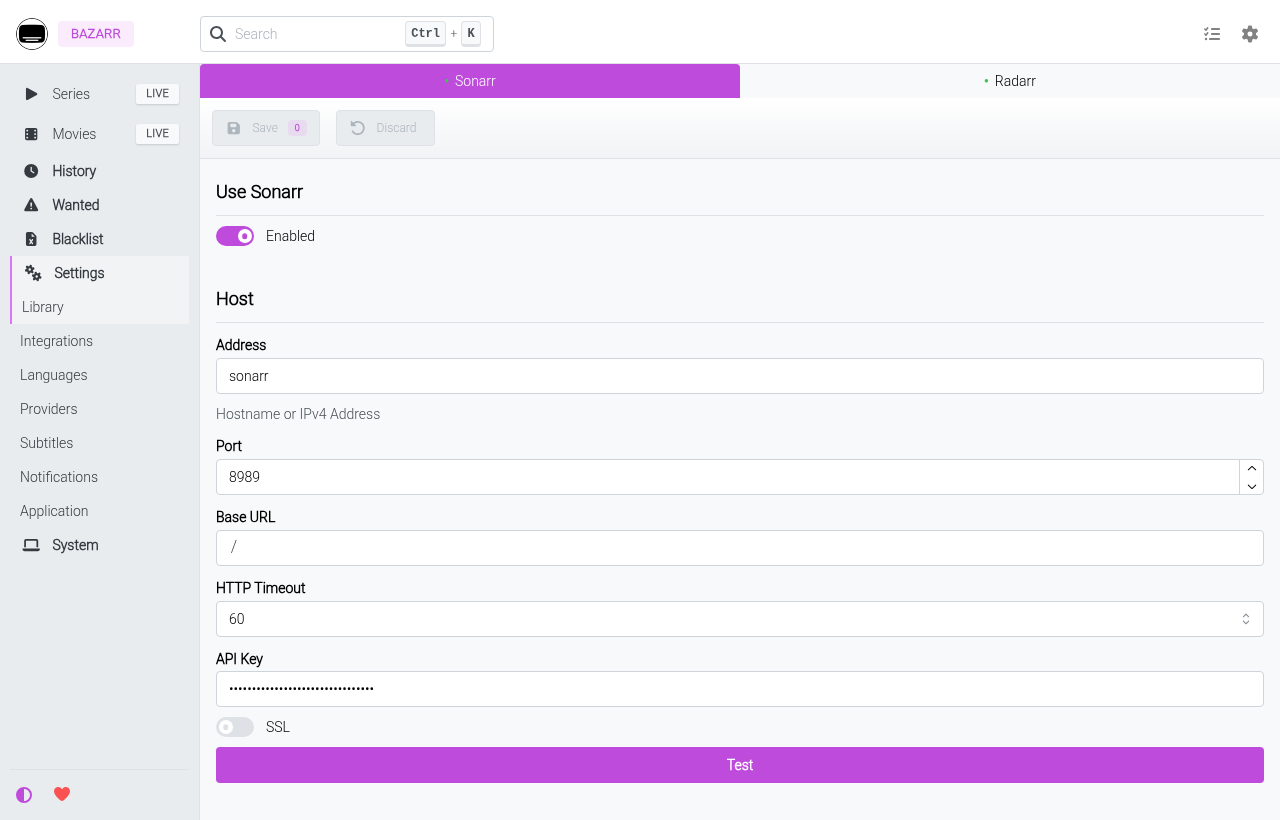
/data/torrents/radarr,/data/usenet/complete/sonarrand so on. That's the same path the arr sees, so no remote path mapping is needed. - Sonarr and Radarr into Bazarr.
- Every arr into Prowlarr, so trackers you add there reach all of them.
A connection that fails, for example qBittorrent before you've set its password, is tried again the next time wranglarr starts. You can also press Connect apps. wranglarr never re-adds a connection you deleted by hand.
Here is the result inside Radarr (Settings → Download Clients):
And inside Bazarr (Settings → Sonarr):
wranglarr's Indexers page shows both ways to do it.
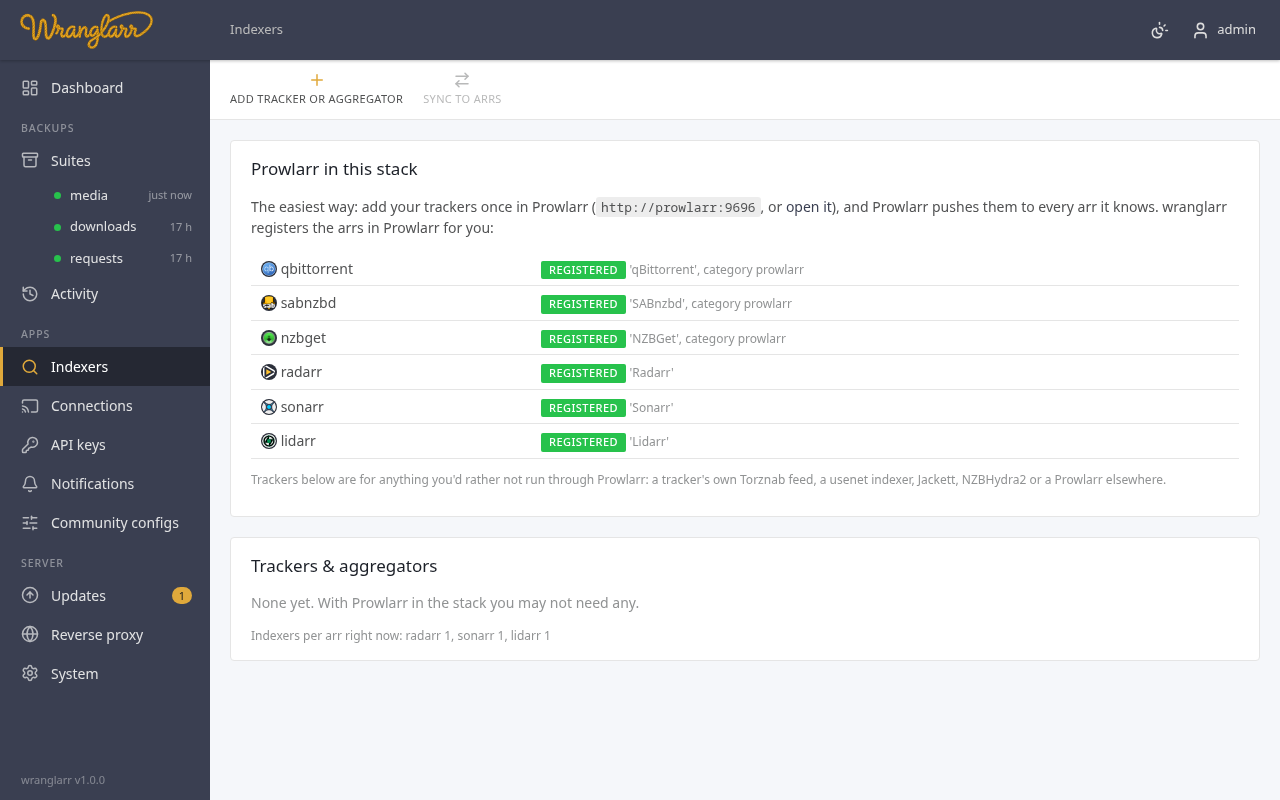
With Prowlarr (recommended). Open Prowlarr (http://localhost:9696), go to Indexers → Add Indexer and add your trackers. Prowlarr pushes them to Radarr, Sonarr and Lidarr on its own; the top panel shows they are registered.
Directly from wranglarr. For a tracker's own Torznab feed, a usenet indexer, Jackett, NZBHydra2 or a Prowlarr on another machine, press Add tracker or aggregator. Choose which arrs get it under Push to:
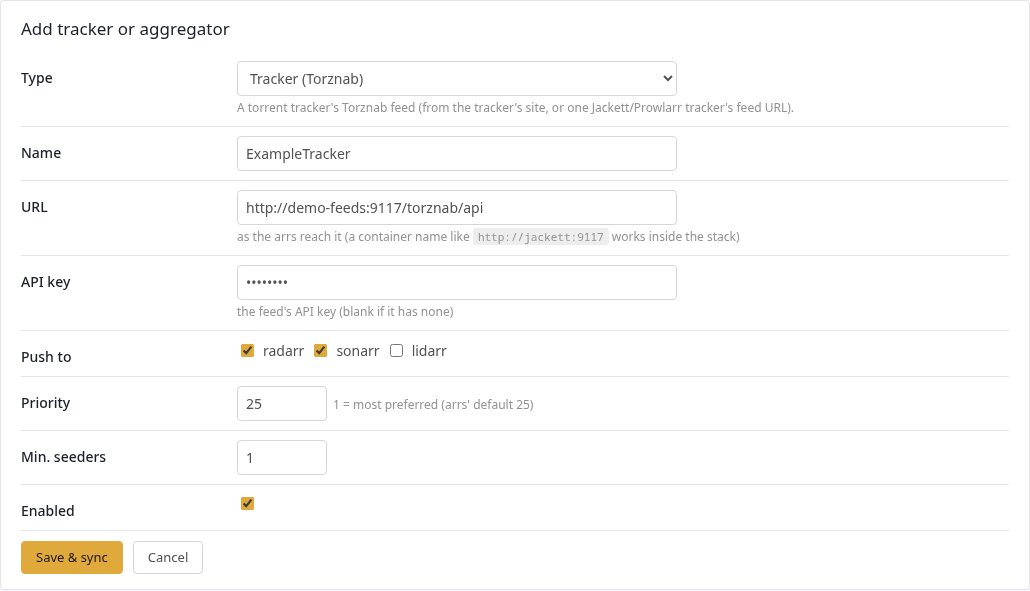
Save & sync adds it to the arrs you picked. Each arr tests the feed before saving, and the run log shows what happened:
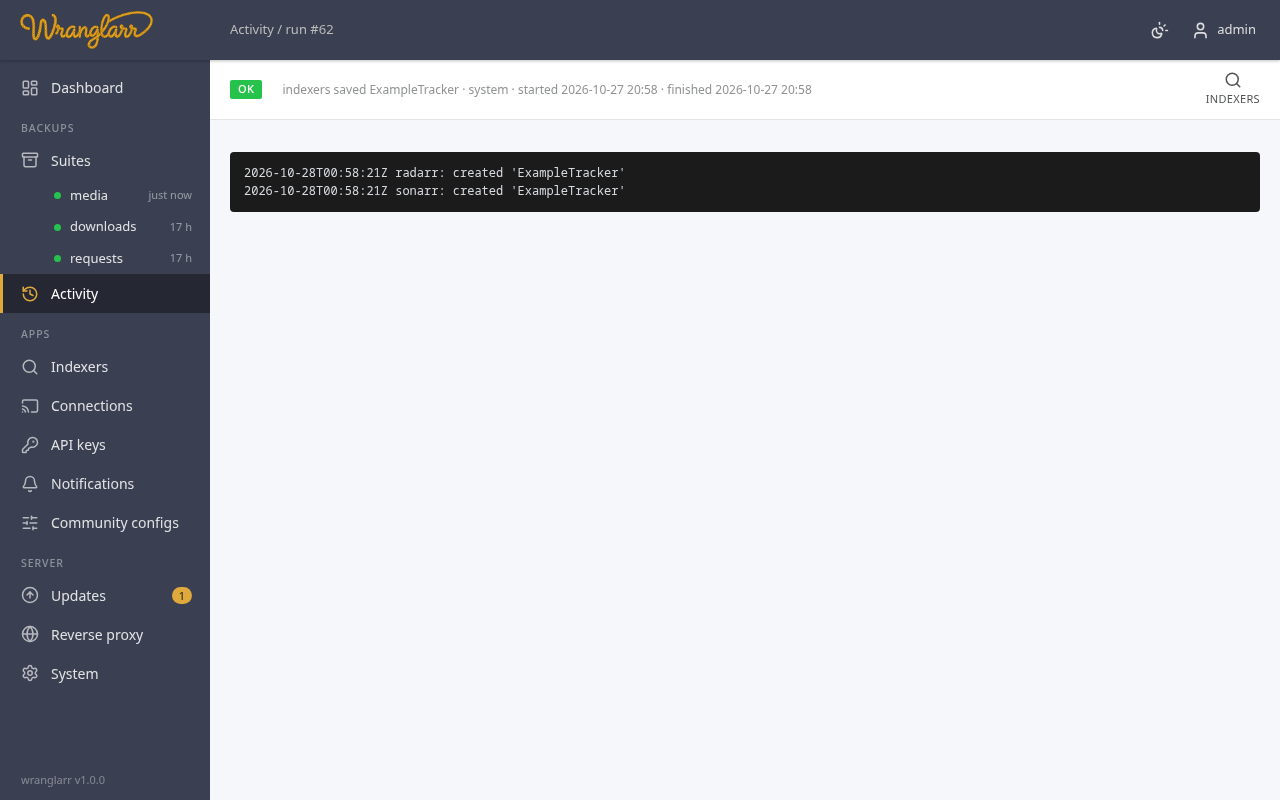
The table shows which arr has which source:
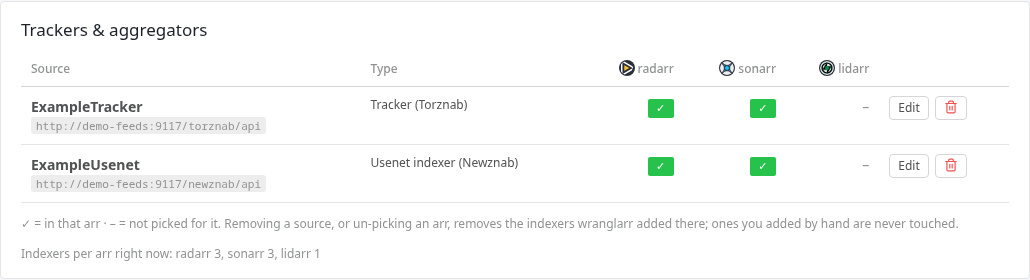
Unticking an arr, or deleting a source, removes what wranglarr added. Indexers you added in an arr by hand are never touched. Jackett is expanded: every tracker configured in it becomes its own indexer, "Tracker (Jackett)". More in Indexers.
wranglarr wires the apps together but doesn't choose your library. In each app:
-
Radarr / Sonarr / Lidarr → Settings → Media Management → Root Folders:
/data/media/movies,/data/media/tv,/data/media/music. They're on the same/datamount as the downloads, so imports are instant hardlinks. - Bazarr → Settings → Languages: create a language profile and set it as the default for series and movies. Then add subtitle providers under Settings → Providers.
- Quality profiles, custom formats and so on are up to you.
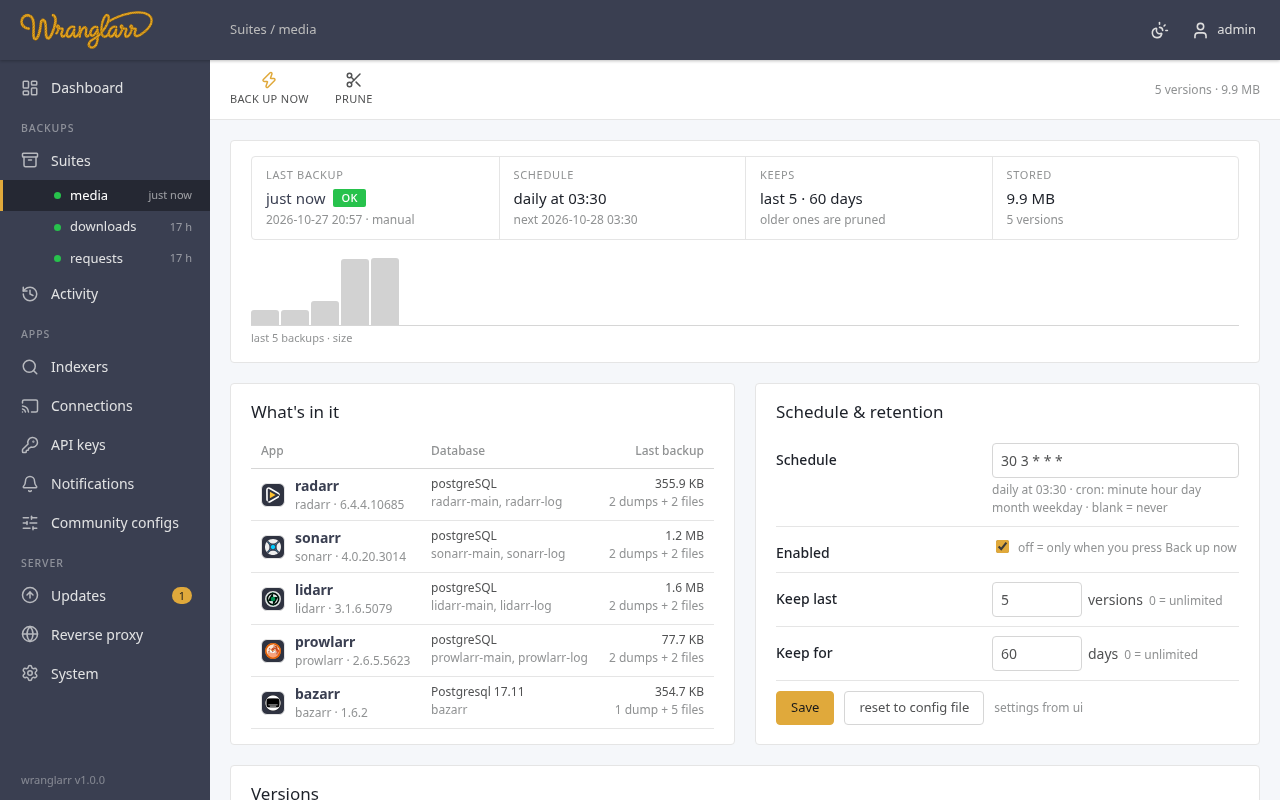
Open a suite (sidebar → media) and press Backup now. The suite page also holds its schedule and retention:
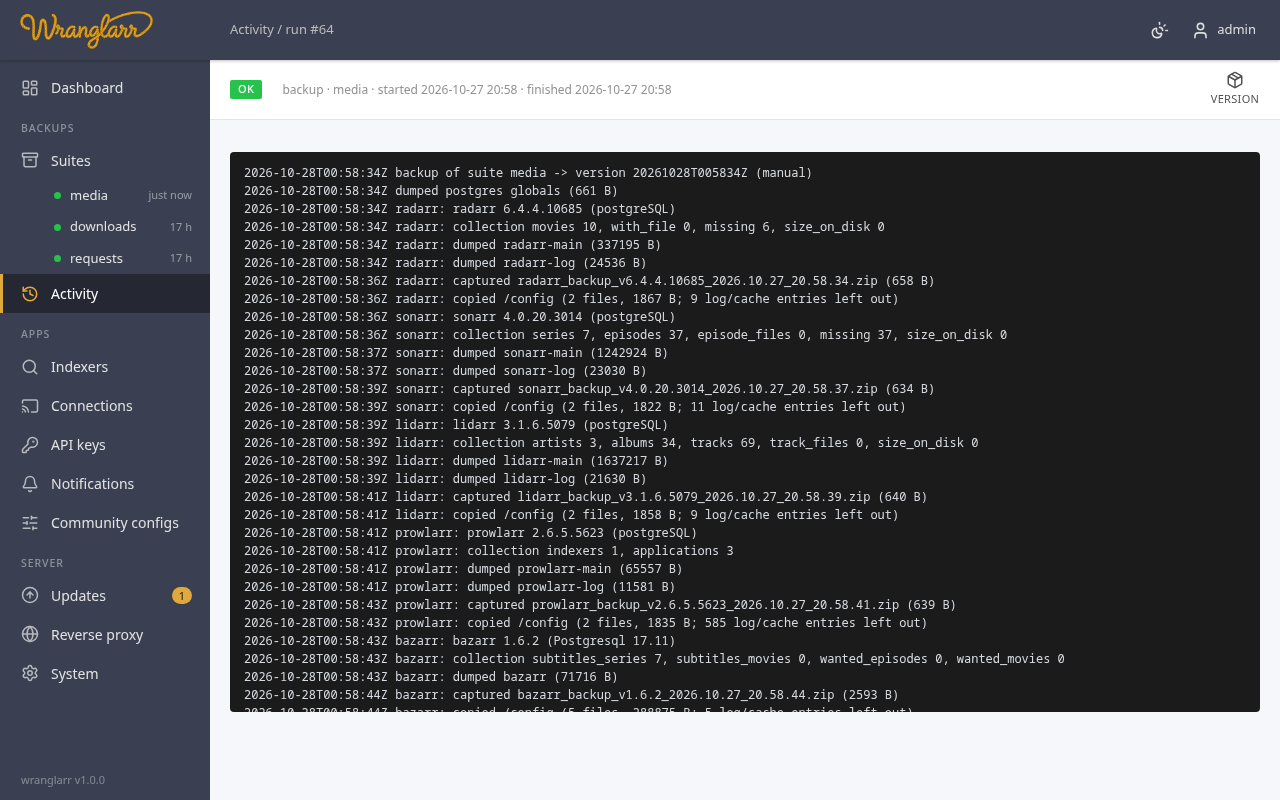
The run log shows each step. For each app: database dumps, the app's own
backup zip, and a plain copy of its /config:
Each version page lists what it holds. It has Restore buttons per app: databases only, config only, or both.
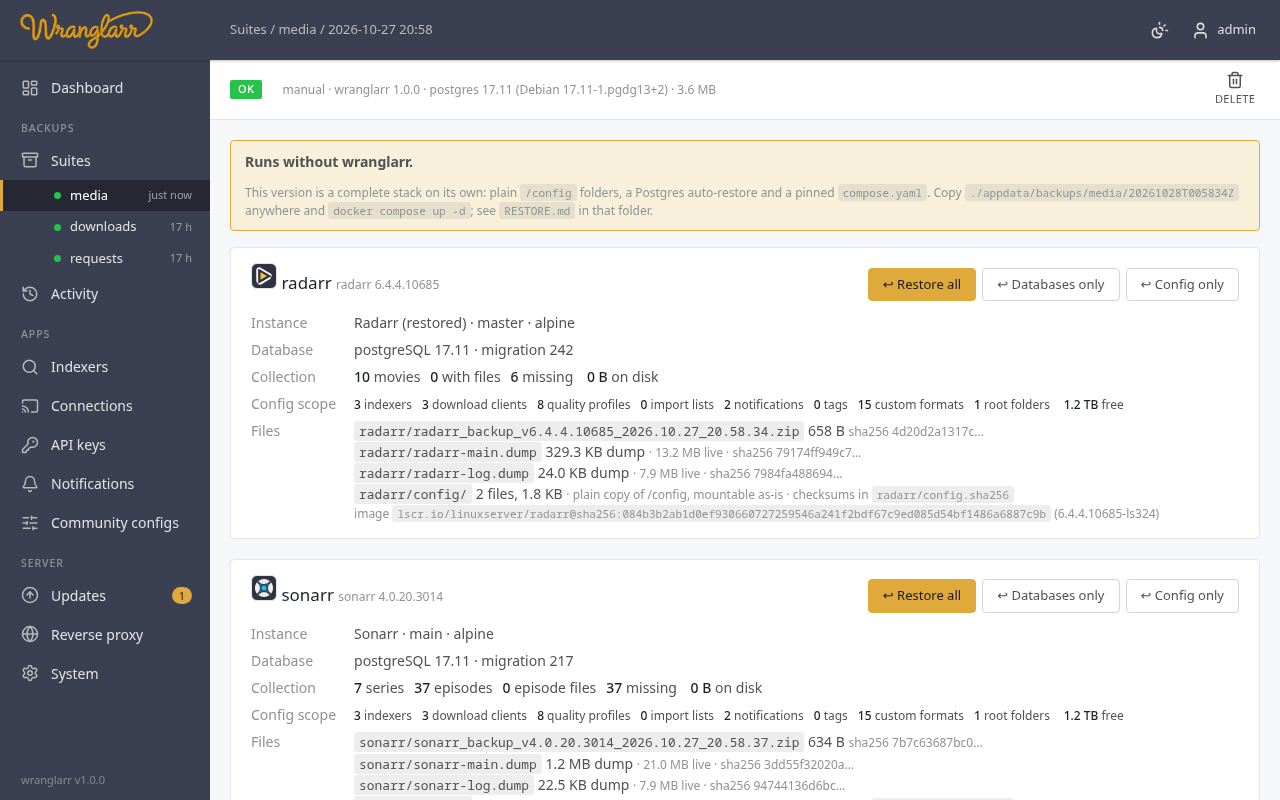
The yellow banner matters: a version runs without wranglarr. Every folder
under appdata/backups/<suite>/<version>/ has a compose.yaml pinned to the
exact images that were running, and a Postgres script that restores the dumps
on first start. If wranglarr ever disappears, copy the folder and run
docker compose up -d in it. See
Backups and Restore.
The downloads suite backs up the torrents and NZBs themselves (.torrent
files with resume data, SAB's queue and NZB copies), not the downloaded files:
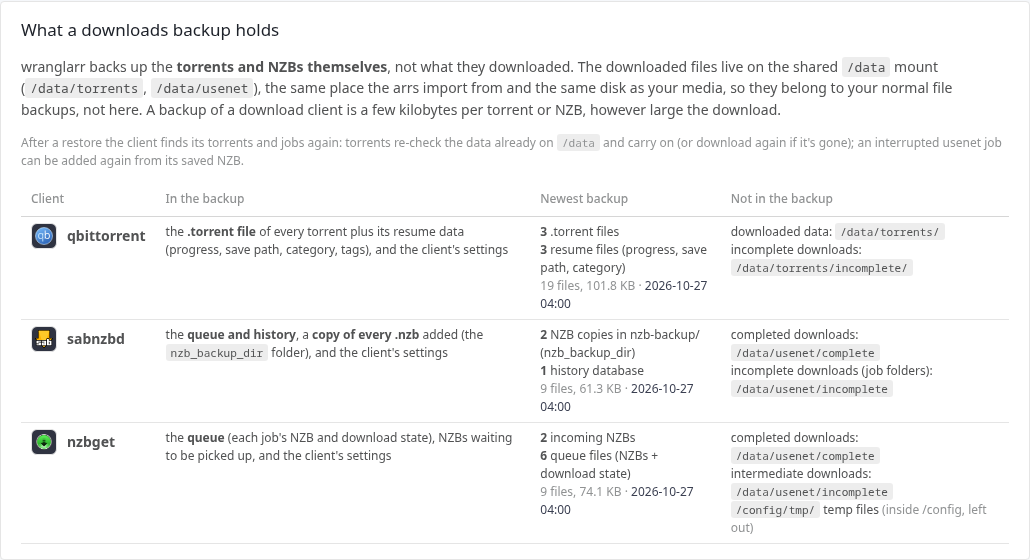
The downloaded files live on /data next to your media. They belong in your
normal file backups.
Updates checks every container's image against its registry every six hours. Update backs up the affected suite, pulls the new image and recreates the container with the same settings. If the new container doesn't come up healthy, wranglarr puts the old one back. Roll back goes to the previous image and holds it there.
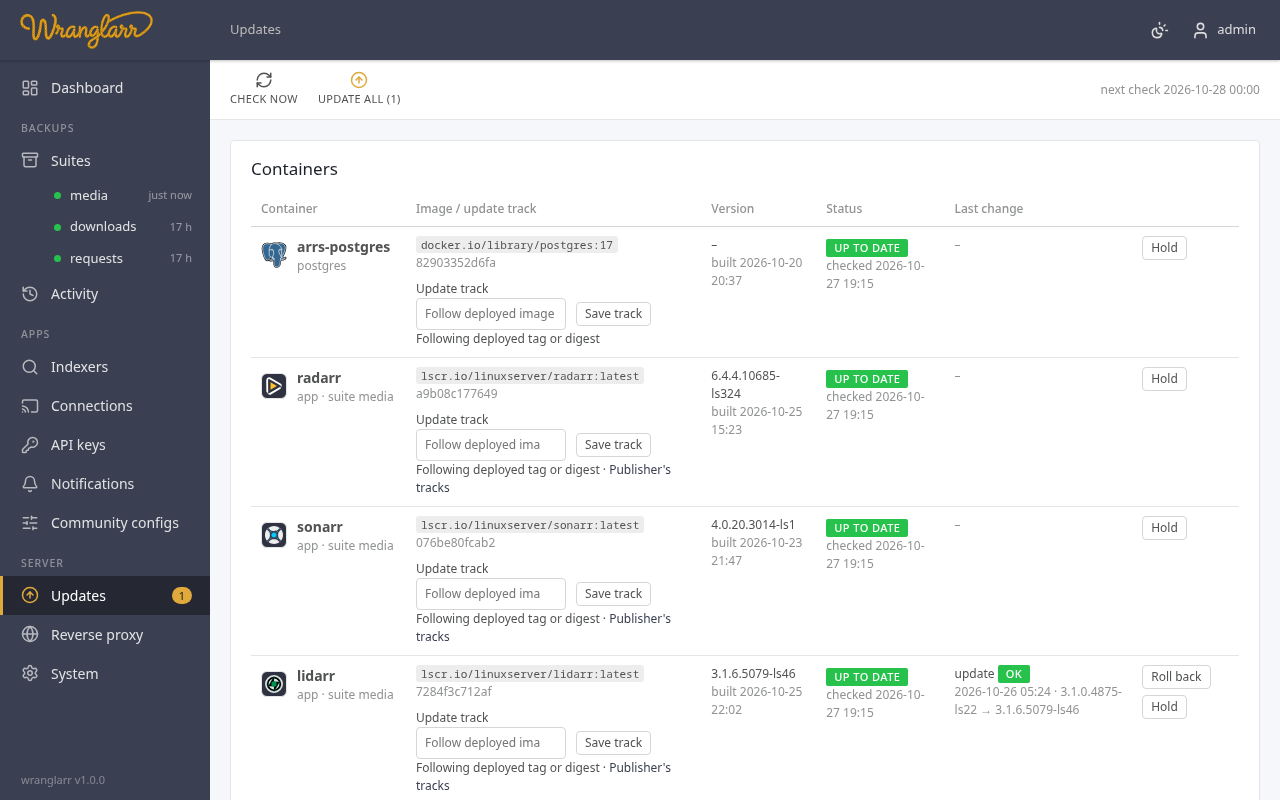
Automatic updates are off by default. Turn them on, and set when they run, under Automation further down the page. Details in Container Updates.
- App Connections: exactly what gets wired, and how the VPN changes the addresses
- Indexers: every source type, and how removal works
- VPN: Shared Tunnel: route the apps through WireGuard
- Remote access: reach the stack from outside with Tailscale or Cloudflare
- Troubleshooting: the known gotchas, each with its fix