Repository navigation
Getting started
Nushi is a Mac and Linux app that runs the coding agents you already use as chats in one window. You see the conversation next to the agent's changes, your pull requests and a terminal, and you can keep several chats going at once.
On a Mac (Apple silicon, macOS 13 or later), either:
- install it with Homebrew:
brew install --cask afrase/tap/nushi, or - download
Nushi-X.Y.Z.zipfrom the Releases page, unzip it, and move Nushi.app to Applications. The first time you open it, macOS refuses. Go to System Settings › Privacy & Security and click Open Anyway.
On Linux (x86_64 or arm64), download nushi-X.Y.Z-linux-amd64.tar.gz (or -arm64) from the same Releases page, then run:
tar -xzf nushi-X.Y.Z-linux-amd64.tar.gz
nushi/install.sh
It installs into your home folder, no root needed. Open Nushi from your applications menu.
A beta is a version you can try before it's released. With Homebrew on a Mac, swap Nushi for the beta one:
brew uninstall --cask nushi && brew install --cask afrase/tap/nushi@betaYour chats and settings stay. From then on Nushi tells you about each new beta like any update.
To go back to releases only:
brew uninstall --cask nushi@beta && brew install --cask afrase/tap/nushiWithout Homebrew, or on Linux, download a beta from the Releases page and install it as you installed Nushi. It tells you about newer betas too.
When a newer version is out, a small card appears in the bottom right corner of the window.
- Click Update. The card says "Updating to Nushi…" while Homebrew downloads and installs it.
- Nushi closes and opens again as the new version. Your chats keep running.
If the card shows an error instead, click Retry. A release can take a few minutes to reach Homebrew. Copy puts the Homebrew command on the clipboard if you'd rather run it in a terminal.
If macOS asks whether Nushi Daemon may update other apps, allow it. If the card says the new version is installed, quit Nushi and open it again.
Update shows when you installed Nushi with Homebrew. Otherwise the card has Download, which opens the release's page: install it as you installed Nushi.
A coding agent you already use in the terminal, installed and signed in. Nushi works with Claude, Codex, Ante, oh-my-pi, OpenCode, Pi and PiG.
Nushi runs your own copy, with your login, settings and history.
- Open Settings (⌘, or Settings at the bottom of the sidebar).
- Click Agents.
- Find your agent. Ready means you're set.
If it says Not installed, Nushi couldn't find the command. Check that it runs in a new terminal window, then come back and click Reload (under Shell environment at the bottom). If it says Not signed in, sign in to the agent in a terminal.
Codex needs one extra piece: click Set up next to it. That needs Node and npm.
Click New chat at the top of the sidebar, or press ⌘N. A list of your agents opens, with the one you used last already picked. Click an agent, or press Enter.
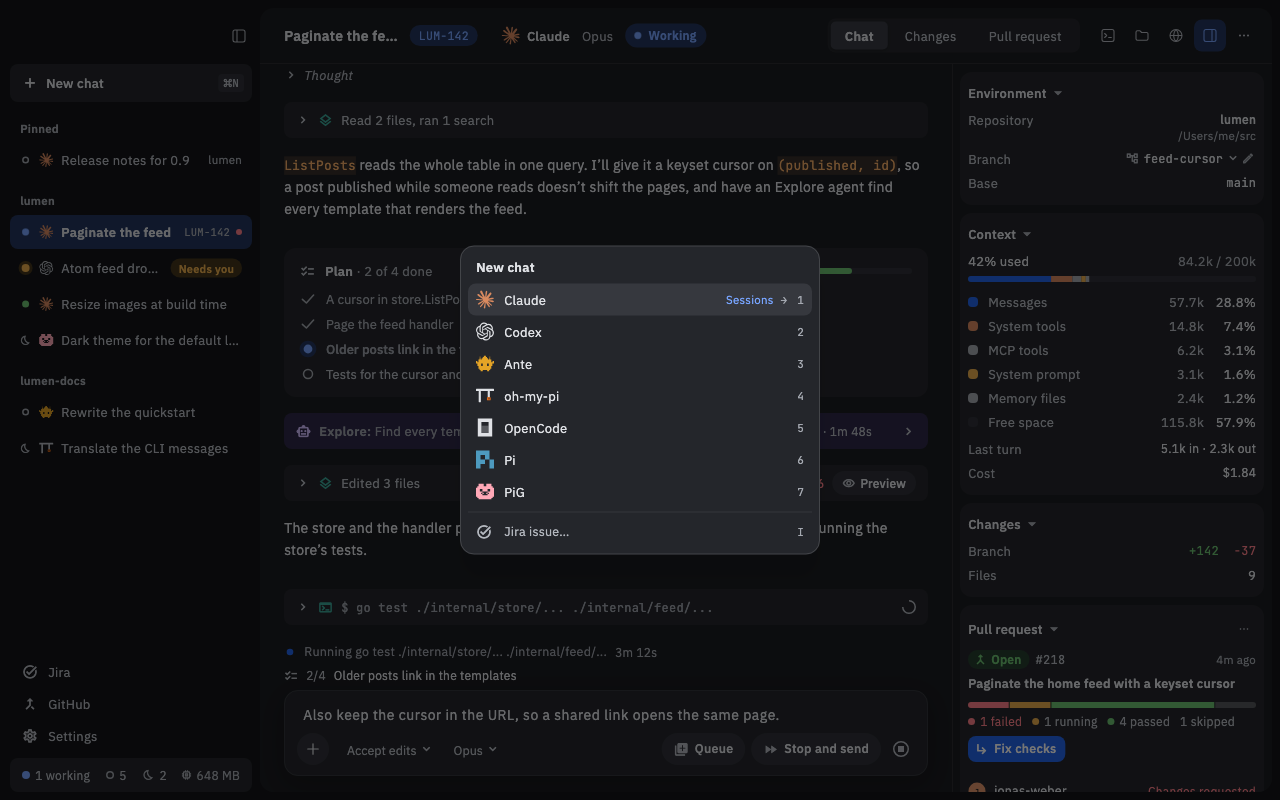
The agent works in a folder, usually your project. A chat from New chat starts in No folder. To work in your project, pick it before your first message:
- Under the message box, click the folder name (No folder).
- Pick a recent folder, or Choose folder….
In a git repository you'll also see a New worktree chip. Turn it on and the chat works on its own branch, in a separate copy of the repository, so your checkout stays untouched.
Other ways in: on an empty window, Open a folder… and the Recent folders start a chat right in that folder. Later, hover a project in the sidebar and click its + (New chat here).
Type in the box at the bottom and press ⏎. ⇧⏎ starts a new line.
Each step the agent takes, like reading a file or running a command, shows as a row you can click to open. The agent's own pickers, such as its model and mode, sit under the box.
When the agent wants to do something it needs your OK for, like editing a file or running a command, it stops and asks. A Permission card appears with what it wants to do and the agent's own choices as buttons (for example, allow once, allow always, or reject).
Click one. The card shrinks to a line saying what you answered, and the agent carries on.
The prompts are the agent's own, and Nushi never answers them for you. To be asked less or more, change the agent's mode under the box.
Click the stop button (a square in a circle) at the right of the message box, or press Esc. If the agent hadn't answered yet, your message goes back into the box so you can change it.
While the agent works you can still type: ⏎ queues your message for when it's done, and ⌘⏎ stops it and sends yours now.
- On Linux, press Ctrl wherever this guide says ⌘.
- Nushi runs your agents in a background helper (the daemon). It keeps running after you quit the app, so a long task keeps going.
- A chat is the agent's own session, so you can resume it in a terminal with the agent's usual resume command. The other way works too: pick an agent in the New chat list and click Sessions (or press →) to open a session you started in a terminal.
- Agents get the same environment as a new terminal. After you change your shell's setup, click Reload in Settings › Agents.
- Before an agent starts in a folder that brings code of its own (hooks, MCP servers, extensions), Nushi lists that code on a trust card. Click Start anyway only if you trust it.
- Pi and PiG have no permission prompts: their tools run without asking.
- Chats: the window, the sidebar, keys and the command palette.
- Reviewing changes: see the agent's diff and leave comments for it.
- Previews and terminals: files the agent writes, and shells under each chat.
- GitHub and Jira: pull requests and issues inside Nushi.
- Phone: follow chats and answer prompts from your phone.
- Skills and MCP servers: give your agents more tools.