Repository navigation
GitHub
Nushi shows your pull requests next to the chats working on them. Read checks, reviews and comments, hand them to the agent, and merge, without a browser.
On Linux, use Ctrl wherever this page says ⌘.
If you already use the gh command-line tool and are signed in (gh auth login), you're done. Nushi uses the same login.
To check, or to use a token instead:
- Open Settings › GitHub. Under Hosts you see who you're signed in as.
- To add a token, click Add a token, fill in Host (for example
github.com) and Token, then click Add.
A classic token with the repo and read:org scopes covers everything. Nushi keeps it in your system keychain and sends it only to its own host.
Press ⌘G, choose View › GitHub, or click GitHub at the bottom of the sidebar. You get an inbox with three lists:
- Review requested: pull requests waiting on your review. Switch between Only me and Me and my teams.
- My pull requests
- Assigned issues
Click a row (or press ⏎) to see its details. Press Esc to go back.
- In the inbox, hover a row and click Start work (or select it and press ⌘⏎).
- Pick a folder. Clones of that repository are listed first.
- The New chat dialog opens. Pick an agent and start.
For a pull request, the chat works on its branch, so the agent's pushes go to that pull request. For an issue, Nushi makes a branch named after it.
A pull request or issue link in a message, yours or the agent's, shows as a chip: its state's icon, owner/repo#123 and its title. Hold the pointer on it to see its state, author, age and size.
- Click a chip to open it on GitHub.
- Right-click it for Copy link, Show in GitHub view and, for a pull request, Link to this chat.
A link with words of its own stays words, with the same card. Links in code and in tool output stay as written, and a link to a host Nushi has no token for stays a plain link.
There's no "create pull request" button. Ask the agent ("push this and open a PR"). When its gh pr create finishes, the chat links the new pull request, a card for it shows in the chat (its state, title, size and checks; click it to open the tab), and a Pull request tab appears. A merge the agent runs gets the same card. The card is only there while you stay on the chat. A pull request for the chat's branch is found by itself too.
A chat can hold up to 10 pull requests, such as a stack the agent opened branch by branch. To add one by hand, use Link another pull request… in the Pull requests widget's ⋯ (or Chat › Link Pull Request…), and paste its link, owner/repo#123 or number.
The details panel lists the chat's pull requests, a row each: its state's icon, title, checks (8/11) and one thing to know, such as 2 threads or Ready to merge. A stack lists its base first.
- Click a row to open its Pull request tab.
- Click the checks to see them, or Fix checks to send the failures to the agent.
- Use a row's ⋯ for Merge…, Send open threads to agent, Clean up… or Unlink.
The chip next to the chat's title shows the first pull request and +2 for the others; hold the pointer on it to see them all. With several, the tab has a menu at the top to pick which one it shows.
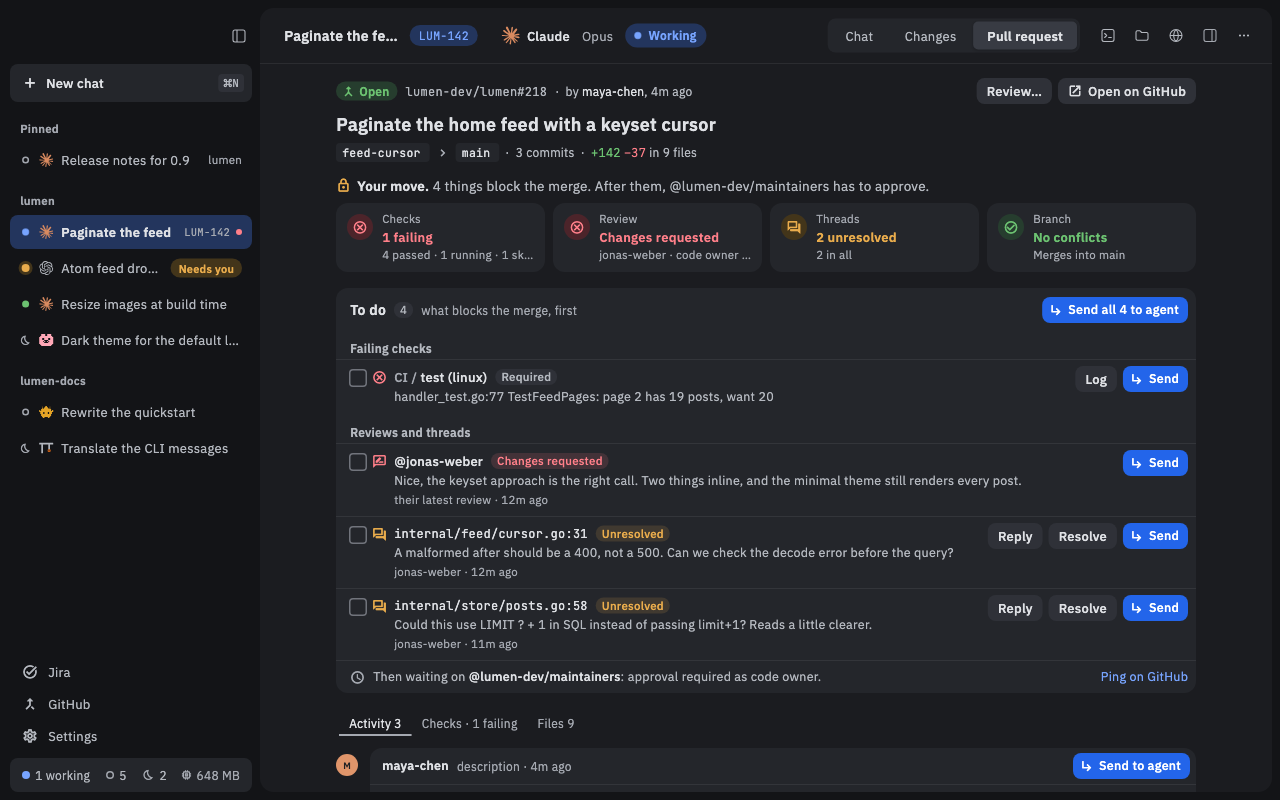
Click Pull request next to Chat and Changes at the top of the chat, or press ⌃⌘3 (Ctrl+Alt+3 on Linux). From top to bottom:
- The header says whose move it is, such as "Your move.", "Waiting on checks." or "Ready to merge."
- Four status lights: Checks, Review, Threads and Branch (conflicts, or behind its base). Click one to jump to the details.
- To do: everything blocking the merge. Each failing check (Log shows the failing part), each open review thread (Reply, Resolve), and findings that review bots list.
- Three tabs, each with a count: Activity (the conversation), Checks (every check, with Re-run failed) and Files (the diff, with review threads at their lines).
- In To do, click Send on one item, or tick a few and click Send N picked, or click Send all N to agent.
- Each item lands in the chat's message box as a card, quoting the comment or the failing log.
- Add anything you want to say, and send.
Comments and threads elsewhere in the tab have Send to agent, and Fix checks sends every failed check at once.
By default, review cards tell the agent not to reply on GitHub, and failed-check cards tell it not to commit or push. Change what each kind of card asks in Settings › GitHub › What reply cards ask.
- In a thread, use Reply, Resolve or Unresolve.
- In Files, select lines to write an inline comment.
- Click Review… to send your review: Comment, Approve or Request changes, then Submit review.
When the pull request can merge, the merge box says Ready to merge. If it can't, it says exactly why (failing checks, a review needed, conflicts, and so on).
- Pick a method from the merge button's ▾: Create a merge commit, Squash and merge or Rebase and merge. Nushi remembers your choice for each repository.
- Click the button. A dialog shows what will merge. For a merge commit or a squash, you can edit the commit message.
- Confirm with the dialog's button, named for the method. Merging can't be undone.
If the repository allows it, Enable auto-merge lets GitHub merge it by itself once it's ready. If the base branch uses a merge queue, you'll see Add to queue or Merge when ready instead.
After the merge, Clean up… offers to delete the worktree and branches and archive the chat. If another of the chat's pull requests is still open on its branch, it only deletes the merged one's branch on GitHub, and says which pull request keeps the rest.
- Nushi never gets around your repository's merge rules.
- A chat's row in the sidebar gets a red dot while its checks fail, and an amber one while they run.
- For a pull request from a fork, the chat's branch isn't linked to the fork, so a push doesn't reach the pull request.
- A fine-grained token works, but sees only one owner's repositories and can't show checks.
- Nushi only checks GitHub while the GitHub view or a chat with a pull request is open, and only writes what you send.
- Text you're writing in a reply or review waits for you if you switch to another chat, but is lost if you quit Nushi.
- The Phone shows a one-line pull request summary in the chat (
+2for the others) and the link chips, but has no Pull request tab.