Repository navigation
Reviewing changes
Every chat has a Changes tab that shows what the agent changed in your code. You can read the diff, leave comments on lines for the agent to fix, and commit when you're happy.
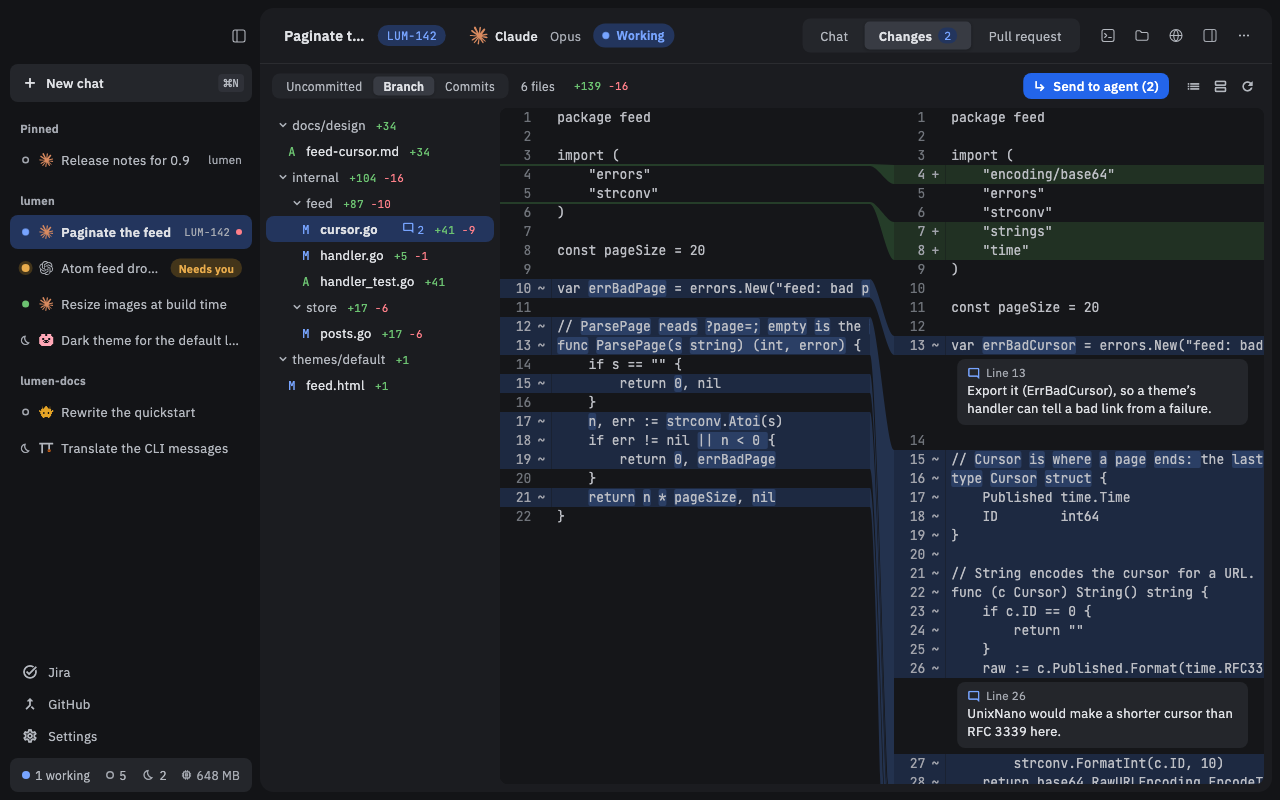
- Open a chat.
- Click Changes in the chat's header, beside Chat (or press ⌃⌘2).
- Pick a file in the list on the left to see its diff.
The tabs in the bar at the top pick what you see:
- Uncommitted: changes not yet committed.
- Branch: everything on the chat's branch since it left its base branch.
- Commits: the branch's commits, one at a time.
The view refreshes each time the agent finishes a turn. The reload button in the bar refreshes it any time.
The button in the bar switches between two views:
- Side by side: old code on the left, new code on the right.
- Unified: one column, removed lines above the added ones.
You can also use View › Show Diffs Unified. Your choice applies to every diff in Nushi and is remembered.
You can leave comments for the agent, like a code review.
- Click a line number in the diff, or drag across several.
- Type your comment and click Comment.
- Add as many comments as you like, across any files.
Unsent comments show as a count on the tab (Changes 2). Hover a comment to edit it (pencil) or remove it (✕).
- Click Send to agent in the Changes bar. It shows how many comments you have, like Send to agent (2).
- Nushi takes you back to the chat. Your comments are now in the message box as cards.
- Add a note if you want, then send. The agent gets all your comments in one message.
If you go back to the chat before sending, a line above the message box reminds you that comments aren't sent yet, with Send to agent and Show links.
In Uncommitted, you can commit right from the Changes tab:
- Tick the checkbox beside each file or folder you want to commit (this stages it).
- Write a message in the Commit message box under the list. With some agents, the ✨ button writes the message for you, and you can edit it.
- Click the commit button, which counts what you staged (Commit 2 files), or press ⌘⏎ in the message box.
Commits use your own git setup: your name, signing and hooks. Nushi never pushes. Push from a terminal, or ask the agent to.
A worktree is a separate copy of your repository on its own branch, so the agent's work doesn't mix with yours.
To start a chat in one:
- Start a new chat in a git repository (Your first chat).
- Before you send the first message, turn on New worktree under the message box.
Nushi makes a new branch for the chat and, after the first turn, names it after the chat's title. For a worktree chat, Branch shows all of the chat's work, committed or not.
To move a chat that already has messages into a new worktree, open the Worktree row in the details panel's Environment widget and pick New worktree…. Uncommitted changes stay where they were.
When you're done with a worktree chat, pick Clean up… from the chat's ⋯ menu (or Chat › Clean Up… in the menu bar). A dialog lists what it can remove, each with a checkbox:
- Delete the worktree
- Delete the local branch
- Delete the branch on GitHub (when the chat has a pull request)
- Archive this chat
Anything that would lose work, like uncommitted files, starts unticked. If you tick it, the button says what you'll lose before you confirm.
When a chat's pull request is merged or closed, the details panel's Pull request widget offers Clean up… too. See GitHub for pull requests.
- Press ⌘F in the Changes tab to find text across the changed files and diffs.
- If the agent is still working when you commit, Nushi warns you that files may change.
- If something else staged files after you looked (the agent, for example), Commit refuses so you can check them first.
- If you remove a comment's card from the message box before sending, the comment is gone for good.
- When the agent's helpers (subagents) work in their own worktrees, a menu at the left of the bar lets you look at those too. You can comment there, but not commit.
- On Linux, use Ctrl where the Mac uses ⌘. ⌃⌘2 is Ctrl+Alt+2.