Repository navigation
Phone
The phone app lets you keep an agent going while you're away from your desk. You can follow your chats, answer the agent's questions and permission prompts, and send it a message, all from your phone. It's for checking in, not for reading big diffs.
The phone reaches your computer through a relay: a small server program that passes messages between the two. It can't read them, because they're end-to-end encrypted, and it keeps nothing.
Nushi doesn't run a relay for you. You or your team run one on a server that your phone and your computer can both reach, with an address like wss://relay.example.com. The same server also hosts the phone app. The relay setup guide covers this.
- Open Settings › Remote access in Nushi on your computer.
- Type your relay's address (
wss://…) in the box. - Turn on the Remote access switch.
The line under the box should say Connected. While remote access is on, Nushi stops your computer from going to sleep on its own, so the phone can reach it.
The phone app is a web app that you add to your Home Screen. On an iPhone (iOS 16.4 or later):
- Open your relay's address in Safari, as
https://relay.example.com/. - Tap Share, then Add to Home Screen.
- Open Nushi from the Home Screen.
Always pair and use Nushi from the Home Screen icon, not from Safari. The Home Screen app keeps its own storage, and only it can show notifications.
- On your computer: Settings › Remote access › Pair a phone. A QR code appears.
- In Nushi on your phone, check the device name. Your computer lists the phone by this name.
- Tap Scan QR code, allow the camera, and point it at the code.
- Your phone shows a six-digit code. Your computer asks Pair iPhone? (with your device's name) and shows a code too.
- If the two codes match, click Allow on your computer. If they don't, click Deny.
Can't scan? Click Copy link on your computer and get the link to your phone (Universal Clipboard or AirDrop). Paste it into Pairing link on the phone and tap Pair.
Don't scan the code with the iPhone's own Camera app. That opens Safari, and pairing only works inside Nushi on the Home Screen.
- On your phone, tap Settings (the gear on the Chats screen).
- Turn on Notifications, and tap Allow when iOS asks.
You get a notification when a chat finishes, when its turn fails, when the agent has a question, or when it needs your permission. It says only what happened, such as "Claude finished" or "Codex needs you", never what's in the chat. Tap it to open that chat. You don't get one for the chat you have open.
To check notifications work, click Send a test notification next to your phone in Settings › Remote access on your computer.
The Chats screen lists your chats. Those waiting on you come first, under Needs you, then your Pinned chats, then the rest by folder.
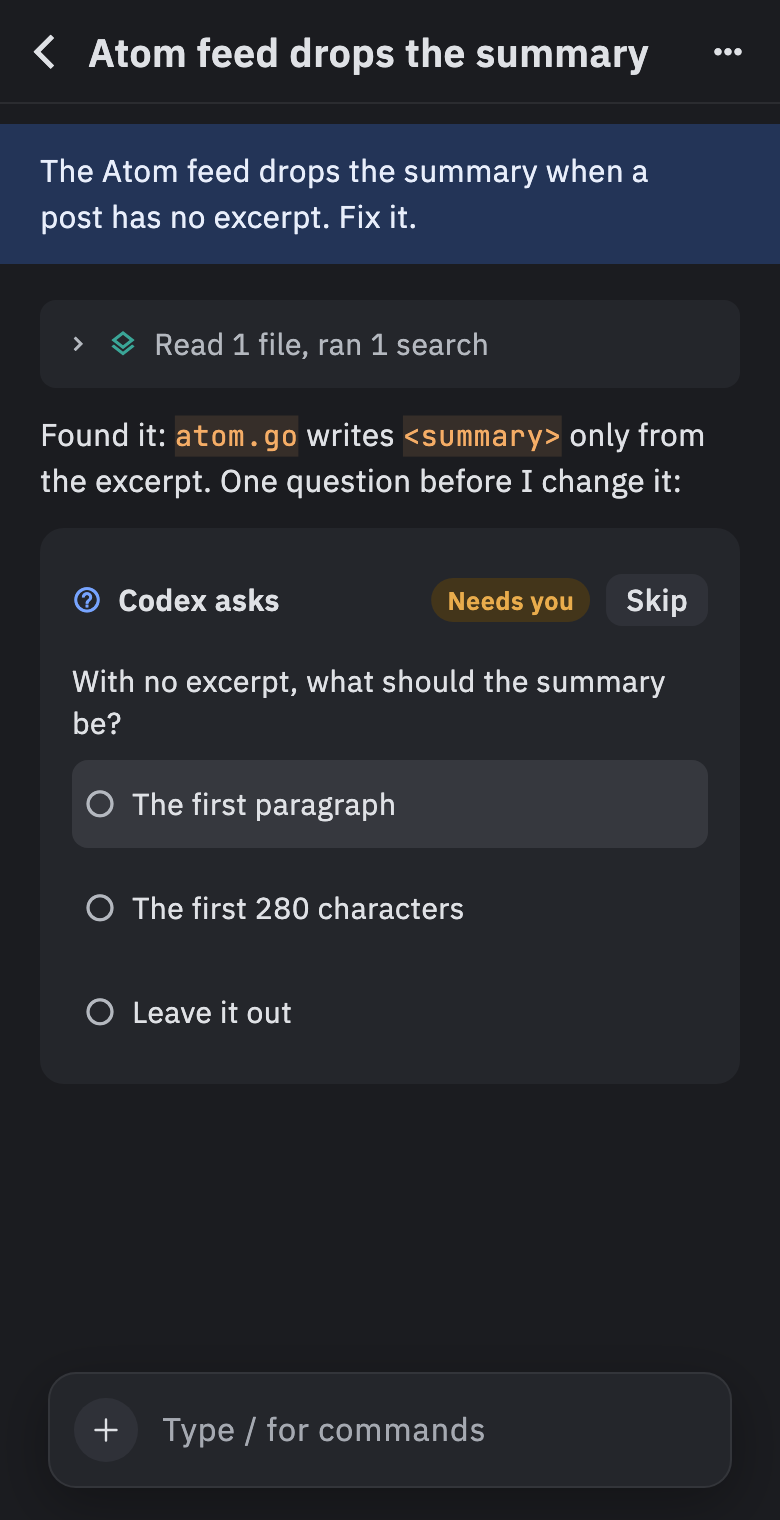
Tap a chat to see its transcript. When the agent asks a question or asks for permission, answer it with a tap.
The buttons beside the message box are icons. Press and hold one to see its name.
- Send a message: type in the box at the bottom and tap the return arrow (↵).
- While the agent is working: type your message, then pick one of two buttons. Queue (a stack of squares) sends it after the current turn ends. Stop and send (fast-forward, ⏩) stops the turn and sends yours right away.
- Stop the agent: tap Stop (a square in a circle).
To start a new chat, tap + on the Chats screen, pick a folder and an agent, and tap Start.
- On your phone: Settings › Forget this Mac (on Linux it says Forget this computer). The phone forgets the pairing and its key.
- On your computer: click Revoke next to the phone in Settings › Remote access. Do this too, or your computer keeps listing the phone.
If a phone is lost or stolen, revoke it on your computer right away. A paired phone can read your files and run commands on your computer as you.
- If your computer is asleep, offline, or has remote access turned off, the phone first shows Reconnecting… with a spinner, then Can't reach your Mac (or computer) and why. It keeps trying on its own. Tap Try again to retry now.
- When the phone app has a new version, it shows Nushi was updated. Tap Reload.
- A chat's ⋯ menu shows its folder, branch, model and agent, with actions such as Rename…, Files, Fork, Pin, Sleep and Archive.
- Files the agent wrote open full screen from Artifacts at the top of the chat. More on these in Previews and terminals.
- The phone app also works in a desktop browser. Chrome on a Mac gets notifications too.
- Closing a laptop's lid can still put it to sleep, even with remote access on.