Run your favorite AI coding agents comfortably in Docker.
Agents need deep access (read code, run shells, install deps). Their built-in safety checks are naturally limited.
Running agents in containers gives a hard boundary - while the experience stays the same. See Why cage agents? for the full rationale.
Install:
pipx install aicageIn your project directory, run:
aicage <agent>For a first useful run, you can usually just press Enter or select OK when prompted.
-
Built-in agent examples:
aicage agy
aicage claude
aicage codex
aicage copilot
aicage crush
aicage droid
aicage gemini
aicage goose
aicage opencode
aicage qwen
Your existing CLI config for each agent is mounted inside the container so you can keep using your preferences and credentials.
After aicage <agent> starts, you will see this setup overview:
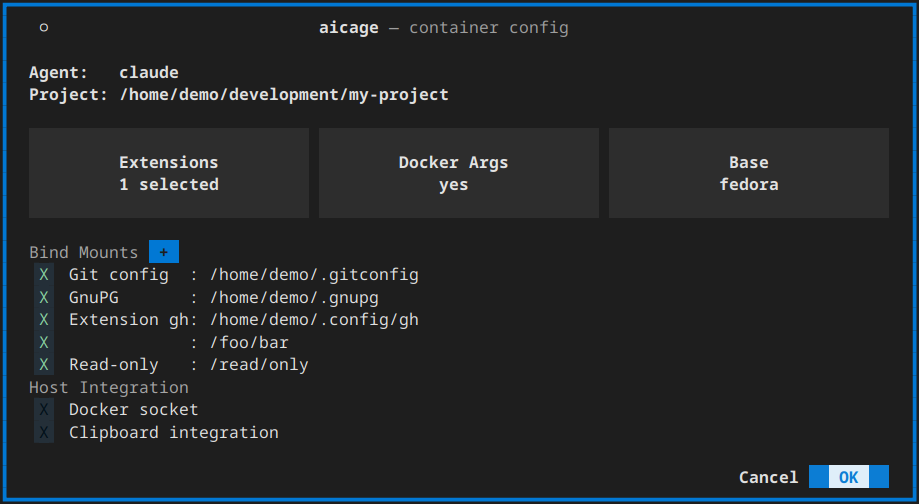
The overview brings the most common choices together in one place:
Agent: the built-in or custom agent you want to run.Bind Mounts: extra host files and directories the container should be able to access.Base: the base image used for the agent image. The suggested default is best for most users.Extensions: optional local additions that install tools or request extra host shares.Docker Args: extradocker runarguments such as-e,-p, or--network.Docker socket: lets the agent use Docker on the host when you explicitly enable it.OK: saves the current project config for that agent and starts the container.
Use Bind Mounts when the agent needs access to files or directories outside the project.
If you want to adjust how the container starts, open Docker Args in the setup screen.
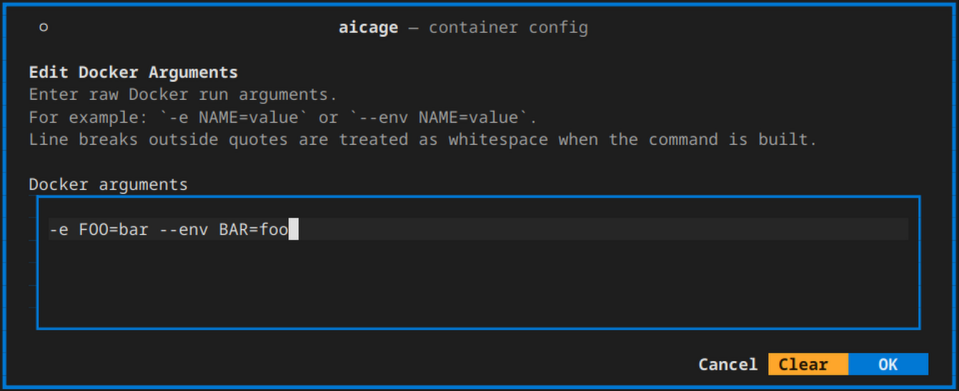
Use it for normal docker run arguments such as:
-e FOO=bar
-p 3000:3000
--network my-net
See Docker run pass-through args.
Extensions let you add tools on top of an existing agent image. Quick start:
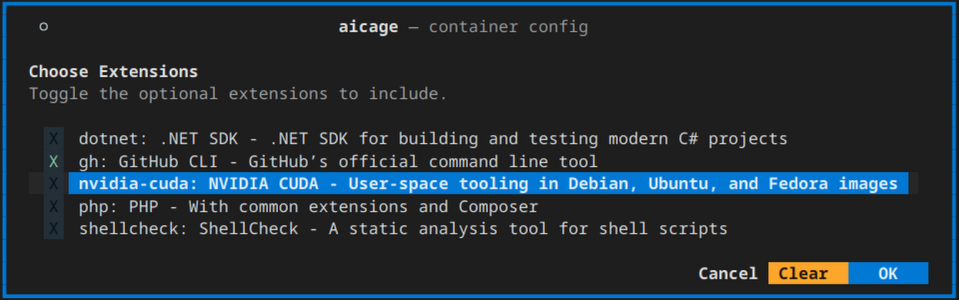
git clone https://github.com/aicage/aicage-custom-samples.git $HOME/.aicage-customThen rerun aicage <agent> and select the extension in the setup screen.
See Extensions.
If you want the agent to run Docker commands, enable Docker socket in the setup screen.
The complete user documentation lives in the wiki: aicage.wiki
To use aicage from a JetBrains agent plugin, see Use aicage from IDE plugins.
- Pass arguments to the agent:
aicage <agent> resume <session-id>
- Share additional host folders:
- Use
Sharesor extension-provided shares in the setup UI.
- Use
- Use proxies:
aicageforwardsHTTP_PROXY,HTTPS_PROXY,ALL_PROXY, andNO_PROXY.- See CLI options.
- Use host networking or custom networks:
- See Host networking.
- On Windows:
- set
git config --global core.autocrlf trueon the Windows host to avoid line-ending diffs.
- set
- On macOS with native Docker:
- See Known hiccups for the current support caveat.
- Run into first-use setup issues:
- See Known hiccups.
- Add custom tools/agents/base images:
| CLI | Agent | Homepage |
|---|---|---|
| agy | Antigravity CLI | https://antigravity.google/docs/cli-overview |
| claude | Claude Code | https://claude.com/product/claude-code |
| codex | Codex CLI | https://developers.openai.com/codex/cli |
| copilot | GitHub Copilot CLI | https://github.com/features/copilot/cli |
| crush | Crush | https://github.com/charmbracelet/crush |
| droid | Factory CLI | https://factory.ai/product/cli |
| gemini | Gemini CLI | https://geminicli.com |
| goose | Goose CLI | https://goose-docs.ai |
| opencode | OpenCode | https://opencode.ai |
| qwen | Qwen Code | https://qwenlm.github.io/qwen-code-docs |
aicage lets you customize images at three levels: extensions, agents, and base images. The sample repo is a fast
way to see working examples and copy a template.
Quick start:
git clone https://github.com/aicage/aicage-custom-samples.git $HOME/.aicage-customThen run any agent:
aicage <agent>These are only samples. Use them to learn the structure, then replace or edit them with your own definitions.
aicage detects whatever you place under ~/.aicage-custom and offers it during selection.
Extensions can install tools and request additional host mounts.
After adding or changing custom definitions, restart aicage.
- Extensions: Customization-Extensions
- Custom agents: Customization-Agents
- Custom base images: Customization-Base-Images
Image updates are handled automatically; see Updates.
AI coding agents read your code, run shells, install packages, and edit files. That power is useful, but granting it directly on the host expands your risk surface.
Where built-in safety is limited:
- Allow/deny lists only cover known patterns; unexpected commands or attack paths can slip through.
- Some agents work fully only after relaxing their own safety modes, broadening what they can touch.
- “Read-only project” features are software rules. Other projects and files still sit alongside them on the same host.
How aicage mitigates this:
- Containers create a practical boundary: the agent can access only what you explicitly mount or share. Day-to-day use stays familiar while files you do not mount stay out of reach.