Getting Started
TODO Getting the plugin from the Marketplace
TODO Add the plugin using Launcher
TODO Copy the plugin into a project
First we need a light source we can track. In essence this is just any actor implementing the Star Map Interface so the system can obtain info about Sun's location and color.
In the Planetesimal plugin Content directory there is a template for the Star Map actor named BP_StarMap_Template (/Planetesimal/Blueprint_Templates/BP_StarMap_Template) which you can just place in your level right away.
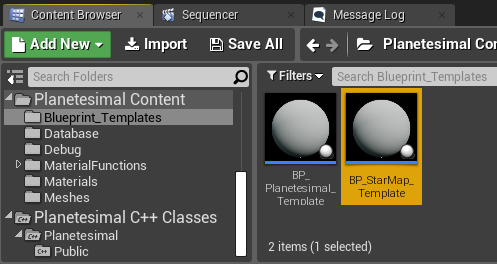
(NOTE: You might need to enable Show Plugin Content in Content Browser's View Options.)
Alternatively, you can implement the interface yourself by following the steps in Implementing Star Map Interface.
Next, we add the core of the system to an actor class blueprint, i.e. the Planetesimal Component.
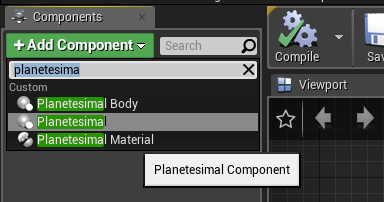
Set up the geometric, physical and atmospheric properties to match the desired effect, but most importantly set up the correct scaling in the World section of the Planetesimal Component properties.

Once the actor is instanced in the level, set the Star Map reference to the correct actor in the level (i.e. the actor implementing the Star Map Interface, can be the same actor).
All objects within the atmospheric cloud effect need to have a material which implements atmospheric scattering effect. The easiest way to implement this is by adding a single material function mixin node into the material. For opaque objects inside of the atmospheric cloud MF_PlanetesimalSurfaceMixin should be used, and the MF_PlanetesimalSkyMixin for rendering the effect on the translucent sky mesh. Depending on your existing materials you can use one of the provided functions, here are some examples of how this is achieved:
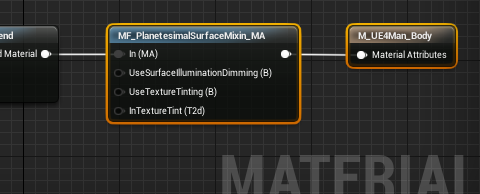
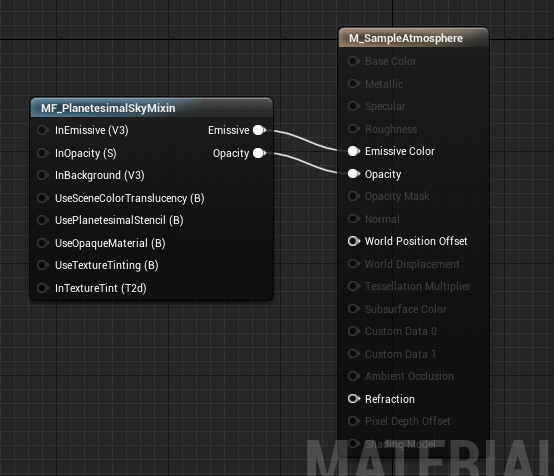
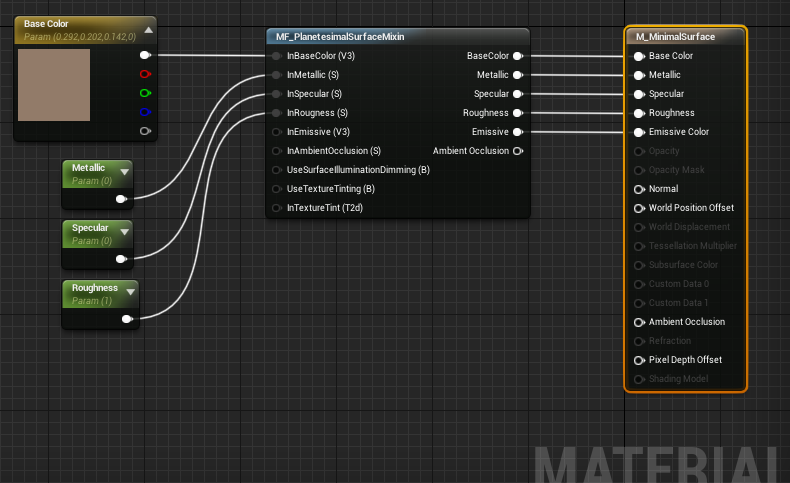
The system is already set up by now. The only thing left is to propagate material parameters from the core Planetesimal Component to the materials using them. There are several approaches available for that but the easiest one is via the Planetesimal Material Component which is in essence an utility for dispatching material parameters to dynamic material instances which need them.
Just add the Planetesimal Material Component to an actor blueprint and instantiate the actor in your level as you normaly would. Then select the actor containing the core Planetesimal Component in the Planetesimal Actor reference variable of the Planetesimal Material Component and switch the Material Registration Method to "Register All".
Atmospheric effect should now be visible in editor, while playing in editor, and in packaged project as well.