Repository navigation
Install Guide
This page takes you from "a Luckfox Pico in a box" to "live video in my browser". Allow about 20 minutes the first time. If something does not match what you see, jump to Troubleshooting or the FAQ.
What you need
| A Luckfox Pico board | Pico, Pico Mini, Pico Plus, Pico Pro, Pico Max, Pico Ultra and similar (RV1103 / RV1106). See Boards |
| A camera module | The one that came with, or fits, your board (for example the 3 MP SC3336). Connected before you power the board |
| A USB-C (or micro-USB) data cable | Some cables only charge. If the board never shows up on your PC, try another cable |
| A PC | Windows 10/11, Linux, or WSL. A Mac works for the second half (see the USB note) |
| Optional: a microSD card | For recordings and permanent event history. A good 16-128 GB Class 10 / U1 card |
| Optional: a network cable | On boards with Ethernet (Plus, Pro, Max, Ultra). Easiest way to connect |
The whole install has three steps:
- Put the standard Luckfox image on the board (skip if your board already runs it)
- Connect the board to your PC
- Install PicoCam and open the web page
PicoCam does not replace the whole operating system. It sits on top of the Buildroot image that Luckfox provides (the
small Linux that comes with the camera demo app rkipc). It needs that image for the camera drivers.
Already works? Boards often ship with it. Connect to the board (step 2) and run
ls /oem/usr/bin/rkipc. If the file exists, you have the right image: skip to step 2.Ubuntu image? If you flashed the Ubuntu image, PicoCam will refuse to install (it tells you). Flash the Buildroot image instead; the steps below are the same.
Luckfox publishes one image per board family on their wiki: https://wiki.luckfox.com/ (open your board, look for Burn image / Firmware download). Pick the Buildroot image for your exact board, and match the storage:
| Your board boots from | Choose | Notes |
|---|---|---|
| SPI NAND flash (built into the board) | the SPI NAND image | Flashed over USB with the Luckfox tool. This is the normal case for Pico Mini, Plus and Pro |
| eMMC (built in, boards such as Max/Ultra) | the eMMC image | Flashed over USB the same way |
| microSD card | the SD card image | Written to the card with an imaging tool. The board then boots from the card |
Why does the storage matter? SPI NAND is small and wears out if written constantly. PicoCam knows this and protects it (see Boards), but you still want the matching image so the partitions have the right sizes.
Luckfox's own guide for your board is the authority here (tool versions change). This is the same procedure in plain words:
- Install the Rockchip USB driver (called DriverAssistant, it is part of Luckfox's download). Windows only; Linux needs none.
-
Get the flashing tool from the Luckfox wiki: SocToolKit on Windows, or the
upgrade_tool/rkdeveloptoolcommand-line tools on Linux. - Put the board in download mode. Unplug the board. Hold the BOOT button, plug in USB, then release the button after a second. The tool should now say that a Loader or Maskrom device was found.
- In the tool choose your chip (RV1103 or RV1106), select the firmware file (
update.img, or the set of partition files that comes with the image) and press Download / Upgrade. - Wait for "done" and the board reboots by itself (30-60 seconds the first time).
If the tool never sees the board: try another USB port and cable, make sure the driver is installed (Device Manager shows Rockchip device), and repeat step 3 holding the button a little longer.
- Write the SD card image to the card. On Windows use balenaEtcher or Luckfox's SD tool; on Linux/macOS
balenaEtcherordd. This erases the card. - Put the card in the board's slot before powering it, then power the board.
- With an SD-booted board the card is also the system disk. The Luckfox image uses only the first ~7 GB of it; PicoCam turns the rest into a separate partition for recordings and makes the system partition read-only, so a power cut cannot damage it. This happens by itself during the install (one automatic restart): see Power-cut safe SD card. Use a card of 8 GB or more, ideally a "High Endurance" one made for dashcams and cameras.
Pick one way to reach the board.
Plug the board into your router and power it by USB. After about 30 seconds it has an address from your router (DHCP). Find it in
your router's list of connected devices (look for luckfox), or run arp -a on your PC. Use that address wherever this guide
says <board-ip>.
The board appears to your PC as a small USB network adapter and has the fixed address 172.32.0.93.
Your PC needs an address in the same network. Set a fixed one on the new adapter:
| Setting | Value |
|---|---|
| IP address | 172.32.0.100 |
| Subnet mask | 255.255.255.0 |
| Gateway / DNS | leave empty |
Windows 10/11
- Plug in the board and wait 20-30 seconds. A new adapter appears (Settings > Network & Internet > Ethernet; its name often mentions RNDIS or USB Ethernet).
- If it appears as "Unknown device" or "USB Serial Device (COM)" in Device Manager: right-click it > Update driver > Browse my computer > Let me pick > Network adapters > Microsoft > Remote NDIS Compatible Device.
- Open the adapter's properties > Internet Protocol Version 4 > Use the following IP address and enter the table above.
Linux - the adapter appears automatically (often named enx... or usb0). Give it the address:
ip -br link                                     # find the new interface, e.g. enxa2b3c4d5e6f7
sudo ip addr add 172.32.0.100/24 dev <interface>
sudo ip link set <interface> up
macOS - macOS has no built-in driver for this kind of USB network adapter (RNDIS). Use a board with Ethernet (option A), or do the install from a Windows or Linux PC. After PicoCam is installed on an Ethernet board you can use it from a Mac normally.
Check it works (any OS): ping 172.32.0.93 should answer.
No answer? See Can't reach 172.32.0.93. The most common causes are a charge-only cable, no fixed address on the PC side, or the adapter not yet installed.
Open a terminal in the folder where you downloaded or cloned this project. You do not need Docker or a compiler: the installer downloads a ready-made release.
Windows (PowerShell)
.\picocam\tools\deploy.ps1                         # USB cable (172.32.0.93)
.\picocam\tools\deploy.ps1 -Board 192.168.1.64     # network cable: use your board's address
If PowerShell says scripts are disabled: run
powershell -ExecutionPolicy Bypass -File .\picocam\tools\deploy.ps1.
Linux, macOS, WSL, Git Bash
picocam/tools/deploy.sh                            # USB cable
picocam/tools/deploy.sh -b 192.168.1.64            # network cable
You are asked for the board's password once. For a fresh Luckfox image it is luckfox (user root).
What happens: the script downloads the newest release, sends it to the board, and runs the installer there. The installer checks your board and the free space first, then installs, hooks into the boot process, and starts PicoCam. It ends by printing the web addresses. It is safe to run again at any time (that is also how you update).
SD card boot: the first install ends with "restarting in 5 s". That restart creates the recordings partition and switches
the system partition to read-only; the camera is back after about a minute. Add --no-reboot to the installer to restart later
yourself.
Board with little flash? Add --lite (-Lite on Windows). That skips the 12 MB of demo AI models; add them later in the
web UI or with --models (Models). The installer also does this by itself when there is not enough room.
Prefer to do it by hand? See the manual install.
-
Open
http://<board-ip>/in your browser (http://172.32.0.93/over USB). The first start takes up to a minute. -
Choose the admin password (at least 8 characters with letters and digits).
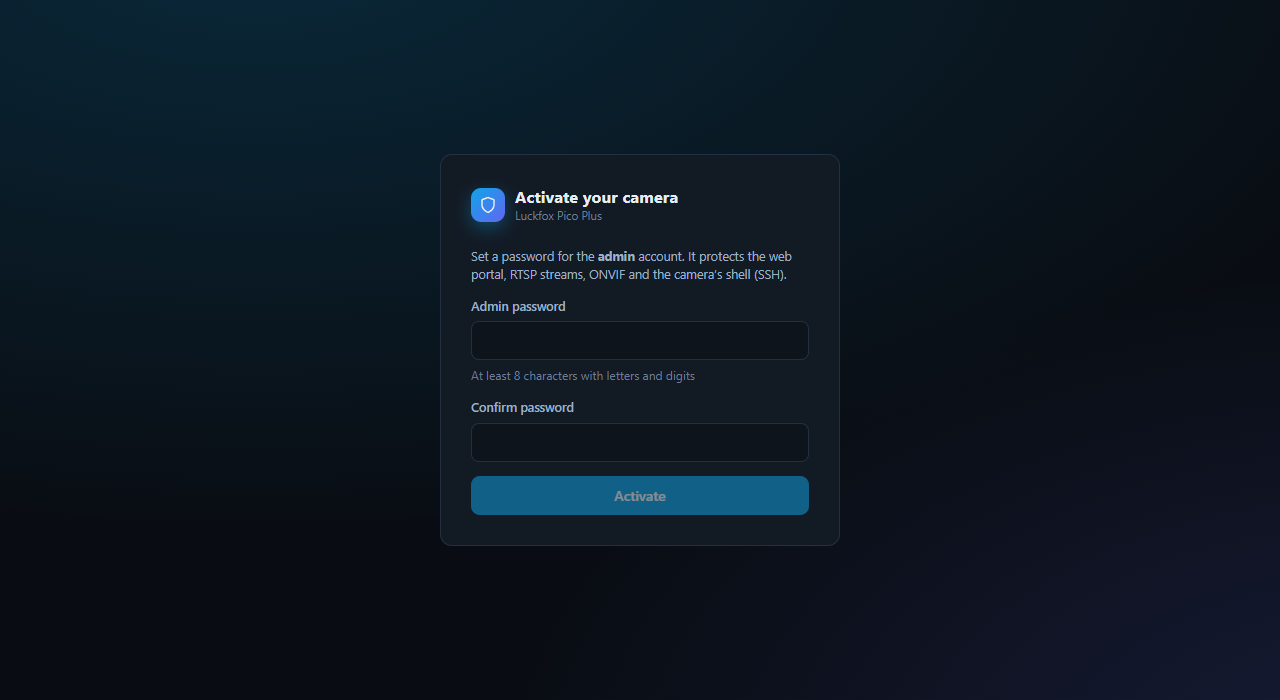
This password also becomes the board's
rootpassword, so the defaultluckfoxstops working. (You can turn that off in System > Security.) -
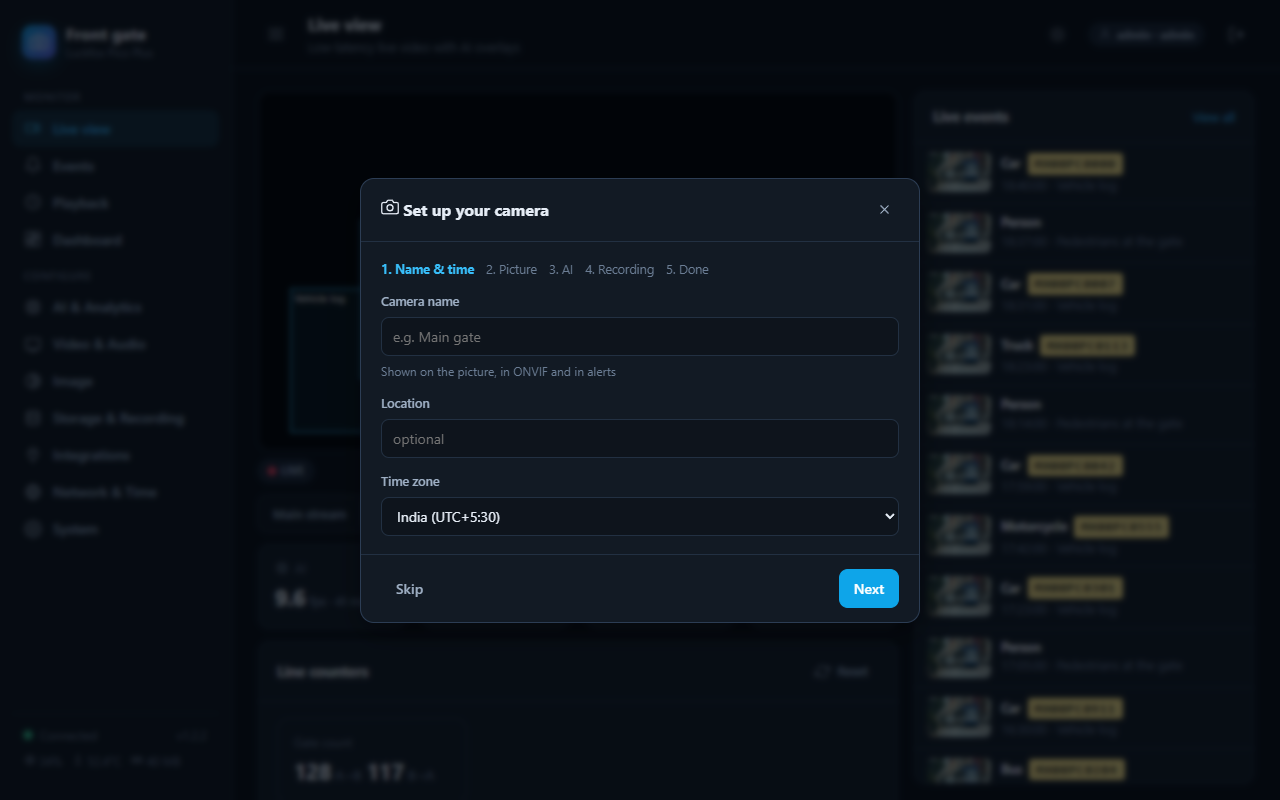
The setup wizard has four short steps: the camera's name and time zone, what the camera watches (this sets exposure for the scene), which AI template you want, and whether to record. Skip what you do not need; everything can be changed later.
-
Open Live view. You should see your camera.
Your browser will warn that HTTPS uses a self-signed certificate; that is expected on a private device. Plain http:// works too (a
little more delay in the live view). See the FAQ.
You are done. Next: the User guide shows every page, and Connecting shows how to use the camera with VLC, Home Assistant, Frigate, an NVR or your own software.
-
From the web: System > Maintenance > Update firmware, choose
picocam.tar.gzfrom the latest release. The package is checked, the old version is kept, and if the new one keeps crashing the camera goes back to the old one by itself. -
From your PC: run
deploy.sh/deploy.ps1again. Settings, users and recordings are kept.
On boards that boot from a microSD card PicoCam sets the card up like this:
| Partition | Size | Mounted | Written |
|---|---|---|---|
| system (rootfs) | 6 GB |
/, read-only
|
never (only for a moment when you change the hostname, time zone or password) |
| oem | 512 MB | /oem |
only by firmware updates and model uploads |
| userdata | 256 MB | /userdata |
when you save settings (small files, written atomically) |
| media | the rest of the card | /mnt/sdcard |
recordings and event pictures |
- A power cut cannot damage the system: nothing writes to it, and logs live in RAM.
- Recordings survive a power cut: they are written as fragmented MP4, so at most the last few seconds are lost. The media partition is checked and repaired at every start. If it still cannot be used, it is formatted again so the camera keeps recording; the event is logged.
- The card lasts longer: with recording off the card sees no writes at all. Recording is what wears a card. Use a "High Endurance" card, and record on events or the sub stream to write 5-20 times less.
-
Switch: System > Maintenance > Power-cut protection turns the read-only system partition off and on (no restart needed).
For a manual change on the board, open it for a moment with
mount -o remount,rw /. It goes back to read-only at the next restart or when you runsh /oem/picocam/service.sh rootmode.
How it works:
- PicoCam adds
-(media)to the partition list (blkdevparts) in the U-Boot environment. The checksum is verified, a backup is kept in/userdata/picocam/env.backup, and the result is read back. If anything is unexpected, nothing is changed. - A one-line hook in
/etc/inittabskips the vendor "remount the system writable" step while/etc/picocam.roexists. - The vendor rule that mounts every partition of the card at
/mnt/sdcardis switched off, because PicoCam mounts the card itself.uninstall.shputs all of this back.
The Storage page says "the system partition fills the whole card"? That card was set up by an earlier PicoCam test build or a custom image. It works, but recordings share the system partition, so it cannot be read-only. To change it:
- System > Maintenance > Download backup (settings; passwords are not included).
- Flash the Luckfox SD image to the card again (Booting from a microSD card).
- Install PicoCam again (Step 3). It restarts once by itself.
- Set the admin password, then System > Maintenance > Restore from file.
On the board (ssh root@<board-ip>):
sh /oem/picocam/uninstall.sh && reboot # add --purge to also delete PicoCam's settings# on your PC, in the folder with picocam.tar.gz (from the Releases page)
ssh root@172.32.0.93 'mkdir -p /userdata/pcinst && gunzip -c | tar -x -C /userdata/pcinst' < picocam.tar.gz
ssh root@172.32.0.93 'sh /userdata/pcinst/install.sh && rm -rf /userdata/pcinst'Options for install.sh: --no-models (skip demo models). To check the download, compare it with SHA256SUMS from the release page.