Text
Draw text starting from the given x and y coordinates using the text command.
//   TEXT            X    Y
text("Hello World!", 100, 100);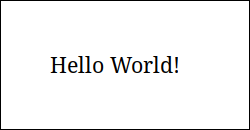
(Source)
Set the font family, size, and color by calling the respective commands before the text command.
font("American Typewriter", 20);
// Same as above
// font("American Typewriter");
// fontSize(20);
fill("blue");
text("Hello World!", 50, 50);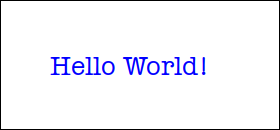
(Source)
Named font sizes are supported. Like font("Quicksand", XXLARGE). Supported font sizes are: XXSMALL, XSMALL, SMALL, MEDIUM, LARGE, XLARGE, XXLARGE, SMALLER, LARGER.
Draw highlighted text using the textBackground command.
font("Cooper Hewitt", 50);
fill("black");
text("Focus", 50, 50);
textBackground("red");
fill("white");
text("ONE", 50, 100);
noTextBackground;
fill("black");
text("Thing", 50, 150);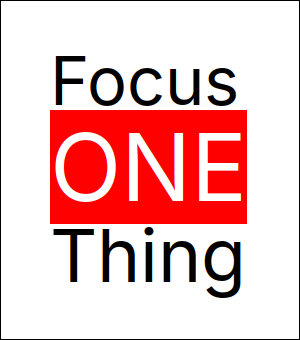
(Source)
Specify the width and height while drawing the text to draw the text in the given bounding box. For example, to draw the text in a 500x400 box.
import std.file : readText;
text(readText("article.txt"), 50, 50, 500, 400);
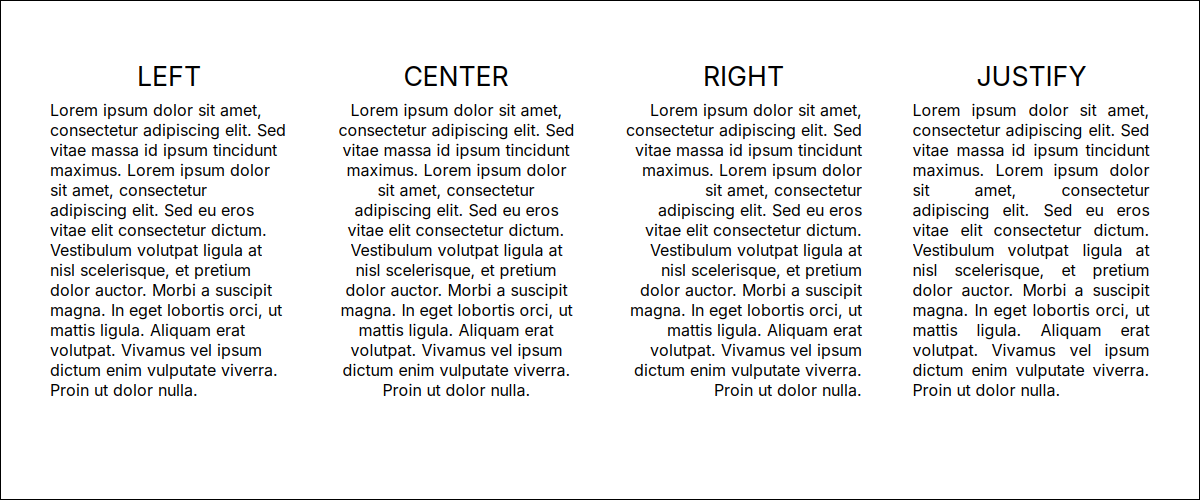
Align text to left, center, right or justify.
textAlign(JUSTIFY);
text(readText("article.txt"), 50, 50, 500, 400);
(Source)
Disable the fill and use the stroke to draw the text outlines
noFill;
stroke("blue");
text("Hello World!", 50, 50);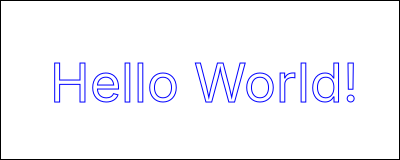
(Source)
When the width and height are specified, the full text may not fit the bounding box. Chitra remembers the extra text and can retrieve it using the overflowText command.
auto frame1 = Box(50, 50, 400, 400);
auto frame2 = Box(500, 50, 400, 400);
ctx.text(readText("article.txt"), frame1);
ctx.text(ctx.overflowText, frame2);Sometimes, we need to know the width and height of the text to arrange it or align it. Use the textSize command to know the width and height of text before drawing. The following example shows how to centre the text in the box. Make sure to apply the text properties and styles needed before calling the textSize command.
auto s = textSize("A");
//   TEXT X                          Y
text("A", (ctx.width - s.width) / 2, (ctx.height - s.height) / 2);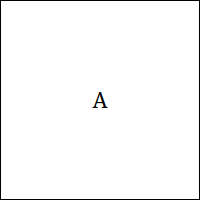
(Source)
Chitra uses Pango markup, and all text customizations are converted to it. The rendering fails if it contains these symbols. Escape < to < and > to >. For example, a > b to write a > b.
Chitra supports rendering the Unicode text.
font("Gubbi", 20);
text("ಚಿತ್ರ ಕ್ಕೆ ಕನ್ನಡದಲ್ಲಿ ಬರೆಯೋದಕ್ಕೆ ಬರುತ್ತದೆ.", 50, 50, 200, 200);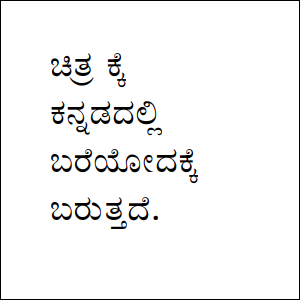
(Source)
Internally, Chitra uses the Pygments library (Python) to convert code to Pango markup. Install Pygments (pip install pygments) if it is not already installed. Make sure the pygmentize command is available in the system path.
Enable syntax highlighting before calling the text command. It supports GitHub Markdown syntax.
string content = q"[
Hello Code

```d
import std.stdio;

void main()
{
    writeln("Hello World");
}
```

Text after the code.
]";
syntaxHighlight(true, theme: EMACS);
text(content, 50, 50, 500, 400);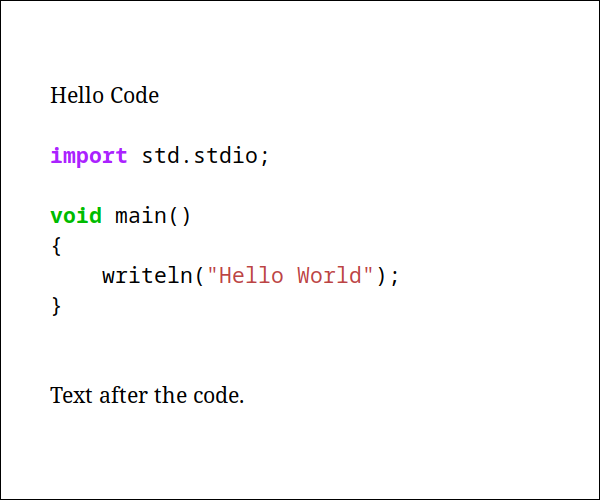
(Source)
Chitra supports creating reusable styles using the newTextStyle command. By default, Chitra provides the following text styles. More styles can be added as needed.
- Bold
<b> - Italics
<i> - Superscript
<sup> - Subscript
<sub> - Strikethrough
<s> - Underline
<u>
For example, the following code creates the error style.
Create the default style by passing "default" as the style name, or call the newTextStyle command without any arguments.