Repository navigation
Getting Started
This page takes you from installing Alert Redux to your first working alert, on your phone and on a dashboard, in about fifteen minutes. Along the way it sets up the three notifier groups that the rest of the wiki's recipes use.
- In HACS, add
https://github.com/arkane-systems/ha-alert-reduxas a custom repository of type Integration, install Alert Redux, and restart Home Assistant. - Go to Settings → Devices & services → Add integration and add Alert Redux. There's nothing to fill in.
The integration page now has three buttons you'll use: Add alert, Add generator, and Add notifier group, and Configure sets the defaults.
The cards are installed with it. If a dashboard says "Custom element not found" after installing or upgrading, refresh the browser page.
Alerts don't name phones or speakers directly. They send to notifier groups, which you define once. Then "who hears about what" is decided by a group, and changing your phone means changing one group, not every alert.
The recipes in this wiki use three groups. Create them with Add notifier group (you can change what's in them later; the names are what the recipes refer to).
Your phones, through the Home Assistant companion app.
| Field | Value |
|---|---|
| Name | Phone |
| Legacy notify actions | Add one per phone: Action notify.mobile_app_<your_phone>, everything else as it is. |
Mobile app actions get the best treatment: each alert's notifications replace the previous one, they're cleared when someone acknowledges the alert, and they carry Acknowledge and Snooze Alert buttons.
Something that makes a noise: smart speaker announcements, or TTS. This group is loud, so it can be kept quiet at night.
| Field | Value |
|---|---|
| Name | Speakers |
| Notify entities, or Legacy notify actions | Your speakers' notify entity or action (an Alexa Media Player notify.alexa_media_* action, say, or a TTS notify entity). |
| Loud | On |
| During quiet hours | Hold (send when quiet hours end) |
A notification in Home Assistant's own notification panel: the place to look when your phone was off.
| Field | Value |
|---|---|
| Name | Persistent |
| Persistent notification | On |
| Clear the persistent notification when acknowledged | On (the default) |
Now open Configure on the integration page. Most settings can stay as they are; set these:
| Setting | Value | Why |
|---|---|---|
| Default notifier groups | Phone, Persistent | Every alert that doesn't choose its own groups uses these. Speakers are kept for the alerts that need them. |
| Default reminder schedule |
10, 20, 30, 60 (the default) |
Reminders 10, 30, and 60 minutes after an alert starts, then hourly, until someone acknowledges it. |
| Quiet hours → Quiet-hours entity | A Schedule helper, e.g. schedule.quiet_hours from 22:30 to 07:00 |
While it's on, loud groups (Speakers) hold back alerts below the threshold. Create the helper first under Settings → Devices & services → Helpers. |
| Quiet hours → Priority threshold | Warning (the default) | Notice and Informational alerts wait until morning; Warning and above get through. |
If you leave Default notifier groups empty, alerts that rely on them go to the fallback group (a persistent notification), and a Repairs issue reminds you to choose some.
The classic: the garage door has been open for ten minutes, and probably shouldn't be.
Click Add alert, choose State: an entity is in a given state, and fill in:
| Field | Value |
|---|---|
| Name | Garage Door Left Open |
| Priority | Warning |
| Icon | mdi:garage-open |
| Entity | your garage door, e.g. cover.garage_door
|
| State |
open (the entity's real state, as shown in Developer tools → States, not the translated "Open") |
| Delay before firing | 10 minutes |
| Notifications and messages → On message | The garage door has been open for 10 minutes. |
| Notifications and messages → Done message | The garage door is closed. |
| Notifications and messages → Notification buttons |
Label Close door, Action cover.close_cover on cover.garage_door
|
Leave the rest as it is, and submit. You now have alert_redux.garage_door_left_open.
Ten minutes after the door opens, it fires. Your phone gets "The garage door has been open for 10 minutes." with three buttons: Close door, Acknowledge, and Snooze Alert. If nobody does anything, reminders follow at 10, 30, and 60 minutes. When the door closes, "The garage door is closed." replaces it, and the alert is idle again.
To test it without waiting, set the delay to a few seconds first, or point it at
an input_boolean you can switch by hand.
Edit a dashboard, Add card, and choose Alert Redux (or in YAML,
type: custom:alert-redux-card). It shows every firing alert, most important first,
with buttons to acknowledge, snooze, and run the alert's own buttons. When nothing
is firing, it says so.
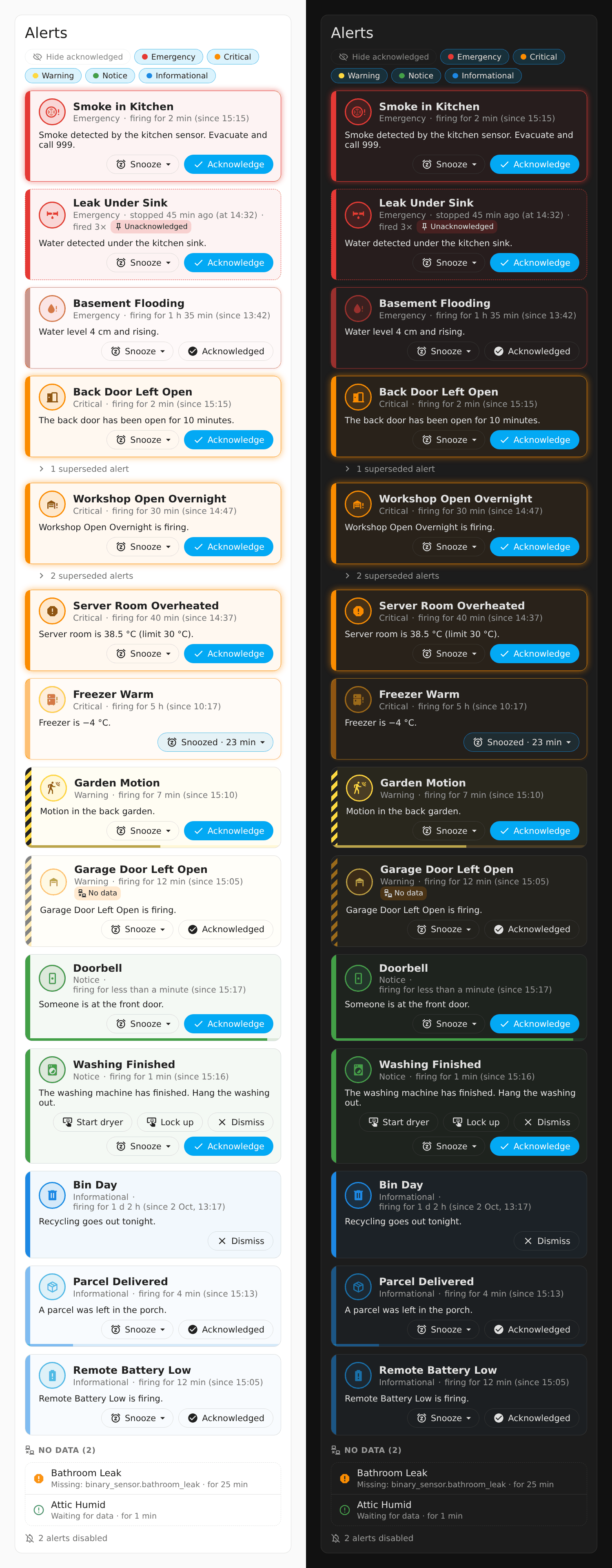
For an admin view, also add Alert Redux admin (type: custom:alert-redux-admin-card).
It lists every alert, firing or not, and has Add alert, Edit, Export,
and Import buttons: often quicker than the integration page.
Each recipe in this wiki has:
- The problem, and why this kind: the reasoning, which is the part to borrow when your situation is a little different.
- In the UI: the fields to fill in, in a table like the one above. Fields not mentioned stay as they are. Fields in a section (Notifications and messages, Supersession, and so on) are marked with it.
- To import: the same alert as an import file.
- What you'll see, and variations.
Entity IDs in the recipes are examples: change them to yours.
Each recipe's import file can be pasted straight into Home Assistant:
- On the admin card, click Import and paste the file (or choose it as a file).
- Change the entity IDs to yours.
- Click Check. This is a dry run: it says what would be created, or lists every problem (a misspelt group, a missing field), and changes nothing.
- When it's clean, click Import.
Or use Developer tools → Actions, in YAML mode:
action: alert_redux.import
data:
  dry_run: true  # remove to import for real
  definitions:
    format: alert_redux
    version: 1
    alerts:
      - name: Garage Door Left Open
        # ... the rest of the recipe's file, indented to match
Import files name notifier groups by name, so create Phone, Speakers, and
Persistent first (or change the names in the file to your own groups). An alert
without notifier_groups uses the default groups. Durations can be written as
"HH:MM:SS". Importing the same file twice is harmless: an identical alert is left
as it is. To replace an alert you've already imported, turn on overwrite.
Here is the first alert as an import file:
format: alert_redux
version: 1
alerts:
  - name: Garage Door Left Open
    kind: state
    priority: warning
    icon: mdi:garage-open
    entity_id: cover.garage_door
    target_state: open
    delay_on: "00:10:00"
    message: The garage door has been open for 10 minutes.
    done_message: The garage door is closed.
    buttons:
      - label: Close door
        action:
          - action: cover.close_cover
            target:
entity_id: cover.garage_door- Choosing an Alert Kind for your next alert.
- The learning path, for a tour of what Alert Redux can do.
- Designing Your Notifications when you want to fine-tune who's told what, and when.