Installation and Setup
The LIFX Controller plugin controls LIFX devices. LIFX devices must be running the version 2+ firmware. All newer LIFX device models will be running this or greater firmware and will be OK for use by the plugin The first and most essential installation pre-requisite is that you have some LIFX devices that you currently control via the iOS LIFX App. This Plugin needs some lamps to control!
The plugin requires Indigo 7.x.
The latest version of the plugin has been developed and tested on OS X El Capitan (10.11.6) and also tested on macOS Sierra (10.12.2). It is not yet tested on macOS High Sierra (10.13).
IMPORTANT - If you are using a n early version of the plugin (versions 1.x, 2.x, or 3.x), then you need to perform the following steps if you are using your existing LIFX lamps in Control Pages or Action Groups:
-
Edit existing LIFX lamp device settings Edit the device settings for each of your existing LIFX bulbs, make sure that the field Use Indigo Name is unchecked and if not, uncheck it and Save. The next step will rename the Indigo devices and we don't want the actual LIFX lamps to have their names changed!
-
Rename existing Indigo LIFX devices In order to avoid naming problems when the new plugin is installed, rename your existing Indigo LIFX devices by prefixing the name with say LIFX3_ or some such name. This will leave any actions or control pages you have that use these LIFX lamps pointing at the renamed LIFX lamp.
-
Disable Existing plugin Now disable the exsting plugin so that it can't intefere with the installation step (see next section).
If you aren't using your existing LIFX lamps in any Control Pages or Action Groups, you can just disable the existing LIFX plugin and then delete the LIFX devices prior to following the Installation steps in the next section.
Download and install the plugin as normal for an Indigo plugin.
When the plugin starts for the first time, the Configuration dialogue will be displayed. This dialogue is also available via the main Indigo menu Plugins > LIFX > Configure....

The plugin configuration dialogue has a number of options:
-
Polling & Polling Interval Tick to enable polling of the LIFX lamps and select the Polling Interval from the pull down. Polling is used to detect external changes to the lamps from for example, the LIFX iOS App. Typical values might be Every 30 Seconds or Every Minute.
-
Discovery Minutes Discovery is used to find LIFX devices on the network. Repeated discoveries may be required if LIFX devices aren't initially found. Specify the number of minutes between discoveries. It must be a positive integer e.g 1, 2, 5 etc.
-
Default Durations Specifies separate default durations to be used if not otherwise specified (See the description of these duration settings in the Device Configuration section)
-
Update Check Use Update Check to check for a new release of the LIFX plugin on Github. Use plugin menu (see later) to update plugin. Check tick box to enable checks for updates and select frequency (daily or weekly).
-
Monitoring / debugging These options are to support monitoring and debugging. All logging is now done to Indigo 7 standards and to a separate file that can be accessed by clicking on the Show Events Logs Folder button in the Indigo Event Log window. The log file is plugin.log in the com.autologplugin.indigoplugin.lifxcontroller folder. This folder also contains date stamped logs from the previous five days. Monitoring and debugging is not normally required but can be useful for fault finding and debugging.
-
LIFX Lamp Filter IP Address (es) Used to filter the processing to one or more lamps (mainly for testing and debugging purposes). If a LIFX lamp's IP address is specified, any messages sent to or received from other lamps not in the list will be ignored. If you send a command (e.g. Turn On) to another lamp while the filter is active, then this will cause an error warning message to be displayed in the Indigo Event log.
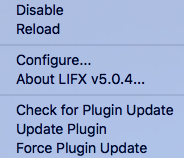
The plugin menu, in addition to the standard items, has additional items for update checking:
-
Check for Plugin Update
Select this item to perform an immediate check for a plugin update
-
Update Plugin
Select this item to perform a plugin update. The update will only proceed if there is a newer version available.
-
Force Plugin
Select this item to force a plugin update. The update will effectively refresh the current version if there isn't a newer one available or update to a newer one if there is.
All LIFX devices on the local network are discovered automatically by the plugin. Discovery can take a number of iterations before all LIFX devices are discovered.
On starting the plugin for the first time, the plugin will:
-
Create 'LIFX' folders in the Devices Home Window and Variables Window which will contain the LIFX lamp devices and LIFX Preset variables used by the Plugin.
-
Start discovery to detect LIFX lamps on the local network.
-
It will create one device for each LIFX device that has been discovered
Once a LIFX Lamp device has been created, you can Edit Device Settings…

The configuration options are:
-
Turn On if Off
If this option is ticked then the Plugin will turn on a device when altering values through the Indigo UI. This is on by default. By leaving unticked it is possible to change the LIFX lamp settings while the LIFX lamp is off which can be useful if you want to setup the LIFX device prior to turning it on.
-
Use Indigo Name
If this option is ticked then the Plugin will update the LIFX Lamp label (as shown in the LIFX iOS App) from the Indigo device Name. So typically to use this, you would first change the Indigo LIFX Lamp device name to your preferred choice and then Edit the device settings, tick this box and then Save. The LIFX Lamp’s lable (name) will then be updated with the Indigo device name and this name will now be shown in the iOS LIFX App. This option is useful if you haven’t Claimed the LIFX lamp and associated it with your online LIFX account as you can’t normally rename the lamp otherwise. With this option ticked, whenever you change the Indigo LIFX device name, the LIFX Lamp label will be changed.
-
Override Default Plugin Durations
If this option is ticked then it reveals a list of durations to set for this individual LIFX lamp that will override the default global plugin durations. You can set durations (measured in seconds) for:
-
Dim / Brighten Duration
How long the LIFX lamp will take to dim or brighten when you alter the brightness
-
Turn On Duration
How long the LIFX lamp will take to reach the target brightness when you turn it on
-
Turn Off Duration
How long the LIFX lamp will take to turn off
-
Color / White Duration
How long the LIFX lamp will take to reach the target Color/White settings when you use the plugin’s Set Color / White action
-
-
No Ack
If this option is ticked then the Plugin will ignore any 'no ack's for the LIFX device and set the Indigo device state to 'off instead.
