usage
When Indigo is restarted or the plugin is reloaded, the plugin will run a Discovery of LIFX Lamps on the local network, creating newly discovered LIFX lamps as previously noted (in section above).
The UI Status of Indigo LIFX devices will initially be shown as 'Starting ...'.
The Discovery process will search for LIFX devices on the local network. For each discovered LIFX device, the LIFX devices are queried to provide up-to-date information. The results of the discovery process are shown in the Indigo Event Log, e.g.:
LIFX device discovery starting (this can take up to 60 seconds) . . . . . . LIFX device discovery has completed and 4 LIFX device(s) have been successfully discovered.
LIFX Device 1: 'Lamp One' [d0:73:d5:aa:bb:cc] discovered at address 192.168.1.10 on port 56700. LIFX Device 2: 'Lamp Two' [d0:73:d5:bb:cc:dd] discovered at address 192.168.1.11 on port 56700. LIFX Device 3: 'Lamp Three' [d0:73:d5:cc:dd:ee] discovered at address 192.168.1.12 on port 56700. LIFX Device 4: 'Lamp Four' [d0:73:d5:dd:ee:ff] discovered at address 192.168.1.13 on port 56700.
All known and enabled LIFX devices have been discovered. No further discoveries will be scheduled. If a further discovery is required, reload the plugin or run the LIFX Control Action: 'Discover LIFX Devices'.
If previously discovered LIF devices aren't discovered, then discovery wll repeat on a regular basis (as defined by the setting in the plugin configuration). It will be reported in the Indigo Event Log, e.g.:
LIFX device discovery starting (this can take up to 60 seconds) . . . . . . LIFX device discovery has completed and 3 LIFX device(s) have been successfully discovered. The number of previously known LIFX devices awaiting discovery is 1.
LIFX Device 1: 'Lamp One' [d0:73:d5:aa:bb:cc] discovered at address 192.168.1.10 on port 56700. LIFX Device 2: 'Lamp Two' [d0:73:d5:bb:cc:dd] discovered at address 192.168.1.11 on port 56700. LIFX Device 3: 'Lamp Three' [d0:73:d5:cc:dd:ee] discovered at address 192.168.1.12 on port 56700. LIFX Device 4: 'Lamp Four' [d0:73:d5:dd:ee:ff] is not yet visible on the network and therefore a further discovery is required.
As one or more LIFX devices are still awaiting discovery, another discovery has been scheduled for 3 minutes time. Disable undiscovered device(s) if further discoveries are not required.
Once a status update has been received, the standard lamp on or lamp off symbols will be shown or No Ack if the LIFX device can't be accessed in which a message will be output to the Indigo Event Log e.g.:
LIFX Error No acknowledgement received from 'Lamp Four' when attempting a 'get_color' command: MAC='d0:73:d5:dd:ee:ff', IP='192.168.1.13'
The discovered LIFX devices reside in the LIFX folder within the Indigo Home Window (that lists devices). The relevant Device info listed in the Window is as follows:
-
State
Shows LIFX lamp state, normally an on or off icon and dimming state from 0 to 100. Can also be a red dot with No Ack (No Acknowledgement) indicating communication has been lost with the LIFX device. Will also show Timer On on startup and until completion of the discovery process.
-
Device Name
The name of the LIFX lamp received from the Physical LIFX Lamp device. This can be edited and the update applied to the LIFX lamp (see later).
-
Address
The MAC address of the physical LIFX lamp.
-
Notes
Pre-filled at Indigo LIFX lamp device creation with LIFX Device. Can be subsequently modified by user as the plugin will not apply any further updates to this field.
-
Folder
Discovered LIFX lamps are always created in the Indigo devices LIFX folder. Once created, the Indigo LIFX device can be moved to another folder with no ill effects.
-
Model
These are the LIFX device models known by the plugin (as at version 5.0.4):
- Original 1000
- Color 650
- White 800 (Low Voltage)
- White 800 (High Voltage)
- White 900 BR30 (Low Voltage)
- Color 1000 BR30
- Color 1000
- LIFX A19 (first model)
- LIFX BR30
- LIFX + A19
- LIFX + BR30
- LIFX Z
- LIFX Downlight
- LIFX Downlight
- LIFX A19 (second model)
- LIFX BR30
- LIFX+ A19
- LIFX+ BR30
- LIFX Mini
- LIFX Mini White
- LIFX Mini Day and Dusk
- LIFX GU10
Note that just because the plugin knows about a LIFX device, it doesn't neccesarily mean it is fully supported. As of version 5.0.4 of the plugin, it has only been tested with two models: Original 1000, Color 1000, LIFX + A19 and LIFX Z.
-
Protocol
LIFX :)
-
Firmware
Shows the LIFX lamp firmware for Host and Wi-fi. If there is only one value (e.g. 2.1) then this is the firmware version for both Host and Wi-fi. If there are two values separated by a vertical separator (e.g. 1.1|101.62) then the first value is the Host firmware version and the second is the Wi-fi firmware version.
The plugin is implemented as an Indigo Dimmer Device, so the built-in Indigo controls can be be used to control the LIFX lamp(s):

One of the many features of LIFX lamps is that commands (e.g. Turn On/Off, Dim/Brighten etc) can be requested to run for a specific duration such as 5 seconds (or shorter or longer) - so that the actions are done gradually. As the state of the lamp is changing dynamicaly over the duration period, the plugin will do a status update every second until the action is completed.
So for example, if in the main UI you drag a White Level slider (see built-in controls in next section) from 100% to 0% and then release the mouse button and the Dim / Brighten Duration has been pre-defined as 5 seconds, then the following will happen: The slider will be reset to 100% and then updated every second to ~80%, ~60%, ~40%, 20% as the LIFX lamp dims down, to finally 0%. The percentage values will vary as the timing won't be an exact multiple of one second taking into account other activity on the Mac and Wi-Fi speeds.
If while this dimming is taking place, you re-adjust the slider, then the process is reset and the new slider action takes over.
You will also see this occurring when you use the color controls (see built-in controls in next section).
The various built-in controls are described below:
-
Turn Off Will turn off the LIFX lamp whilst remembering it's brightness level prior to turning off
-
Turn ON Will turn on the LIFX lamp to the previously remembered brightness level
-
Brightness Level The field next to the Turn On button contains the overall LIFX lamp brightness level which is a value worked out using the LIFX lamp's brightness and saturation values
-
RGB The color swatch represents the current colour of the LIFX lamp. Clicking on the color swatch launches the Color Picker. You can choose different color modes e.g. RGB Sliders, HSB Sliders etc. The plugin handles the translation of the LIFX lamp color model (HSBK) to and from the Indigo color model (RGBW). Whilst there is for the most part a vey good correlation between the two models, there can at times be slight deviations. Adjusting the sliders will alter the color of the LIFX lamp and put the lamp into Color mode.
-
W W represents White Level and adjusting this alters the brightness of the LIFX lamp and puts the LIFX Lamp into White mode. You can also directly enter the White level required in the adjacent field.
-
Temp This is the White Temperature (kelvin) of the LIFX lamp. When altering the slider, the plugin will set the Kelvin level to the nearest value to the equivalent settings used in the iOS LIFX App, according to the following table:
- 2500K Ultra Warm
- 2750K Incandescent
- 3000K Warm
- 3200K Neutral Warm
- 3500K Neutral
- 4000K Cool
- 4500K Cool Daylight
- 5000K Soft Daylight
- 5500K Daylight
- 6000K Noon Daylight
- 6500K Bright Daylight
- 7000K Cloudy Daylight
- 7500K Blue Daylight
- 8000K Blue Overcast
- 8500K Blue Water
- 9000K Blue Ice You can also directly enter the White Temperature (Kelvin) required in the adjacent field. This will also be adjusted according to the above table
The LIFX lamps can be controlled using the built-in standard Indigo Device Actions > Light/Appliance Controls:
- All Off
- All Lights On
- All Lights Off
- Turn On
- Turn Off
- Toggle On/Off
- Set Brightness
- Brighten by % and Dim by %
The plugin fully enables support for the above Device Actions > Light/Appliance Controls > Brighten by % | Dim by %
This means you can use another device to control the brightening and dimming of the LIFX device.
Also see Brighten / Dim By Timer for dimming using switches that don't transmit button held down messages e.g. Insteon switches.
This has been tested using a Z-Wave Remotec Scene Master ZRC-90 You will need two triggers. The first to do the brightening/dimming while the button is held down and the second to request a LIFX status when the button is released As an example, to brighten you need to set-up an Indigo Trigger(s) as follows:
- Trigger + Type: Z-Wave Command Received + Event: Incoming Command Received from Device + Edit Event Settings... : - From: ZRC-90 Device, - Received: Button 1 Held Down
- Condition: As required - not used?
- Actions:
- Type: Brighten by % (Light/Appliance Controls)
- Device: LIFX device
- Amount: 2% (or value as required)
The state in the Indigo UI gets updated continuously, but if you want to ensure that the LIFX device is totally consistent with Indigo then when you release the button, it is best to trigger a LIFX Status request, as follows (using example above):
- Trigger + Type: Z-Wave Command Received + Event: Incoming Command Received from Device + Edit Event Settings... : - From: ZRC-90 Device, - Received: Button 1 Released
-
Condition: As required - not used?
-
Actions:
- Type: Request Full Status Update (Universal Controls)
- Device: LIFX device
-
Amount: 2% (or value as required)
-
Match Brightness
-
Set RGBW Levels Note: Pending a further required Indigo update (to be available post version 7.1) to resolve an issue with how the plugin can understand the user input, it is recommended to use the more comprehensive Set Color / White (see next section)
The Plugin provides six additional actions accessible via Device Actions > LIFX Controls:
- Apply Preset
- Brighten / Dim By Timer
- Discover LIFX Devices
- Set Color / White
- Set Infrared Brightness
- Turn On Infrared
- Turn Off Infrared
This action executes a predefined Preset.

Select the required Preset and optionally, specify a required duration (in seconds). Note that Duration will only be used if the Preset is executing a Standard action, it is ignored for Waveform actions. If not specified then the default duration will be used.
Click the Save button to save the settings and then OK to save the Action.
This action enables you to brighten or dim a LIFX device using a push switch that only tells indigo when it has been pushed on and when it has been released (e.g. Insteon). This isn't normally required for Z-Wave switches as they tell Indigo not only when they have been pushed and released but also that they are being held down. Edit Action Settings to configure the options (the illustrations are self explanatory):
-
Start Brighten

-
Start Dim

-
Toggle Start Brighten/Dim
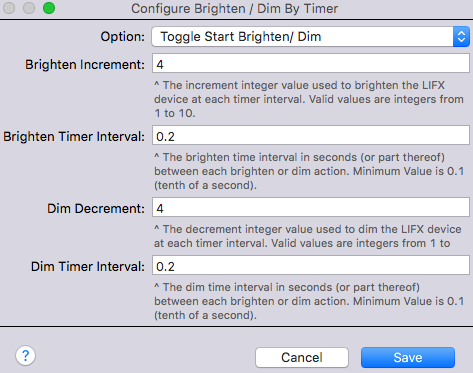
-
Stop Brighten/Dim

Running this action will cause the plugin to try and discover LIFX devices on the local network. When new LIFX devices are found, the plugin will create a new Indigo LIFX device in the LIFX folder. Once a device has been discovered it doesn't need to be re-discovered even if a LIFX device goes No Ack. Typically you would use this action to discover a newly installed LIFX device.
When you select the Set Color / White LIFX action and select a LIFX lamp, the following configuration dialogue is displayed:

You can select Standard which enables you to alter the lamp settings or Waveform which enables you to flash the lamp with specific settings.

Selecting Standard then requests whether you want to set a Color or White setting.

Selecting Color opens up the dialogue for a Standard Color setting.

-
Turn On if Off Tick this checkbox if you want the LIFX lamp to be turned on if it is currently off. If ticked and the LIFX lamp is off, when the action is executed, the settings will be applied and then the LIFX lamp is turned on. By leaving unticked it is possible to change the LIFX lamp settings while the LIFX lamp is off.
-
Color or White Selecting Color will display the Color settings as described here, selecting White will display the White settings as described in the next section.
-
Color (Swatch) The Color Swatch gives an indication of the lamp color derived from the Hue, Saturation and Brightness fields below. If the values in the fields below are inconsistent or not present, the the Color Swatch will be shown as black. Clicking on the Color Swatch launches the Color Picker. You can choose different color modes e.g. RGB Sliders, HSB Sliders etc. The plugin handles the translation of the LIFX lamp color model (HSBK) to and from the Indigo color model (RGBW). As noted previously, whilst there is for the most part a vey good correlation between the two models, there can at times be slight deviations. Adjusting the Color Picker sliders wil alter the color and update the Hue, Saturation and Brightness fields.
-
Hue A number from 0.0 to 360.0 representing the hue of the LIFX lamp color according to the standard 360 degree color wheel as used in the iOS LIFX App.
-
saturation A number from 0.0 to 100.0 representing the saturation of the color of the LIFX lamp where 100 is fully saturated and 0 (zero) is no saturation i.e white color.
-
Brightness A number from 0.0 to 100.0 representing the brightness of the LIFX lamp. Note this isn't the same as the Brightness Level shown by Indigo as that is derived from a combination of the LIFX lamp's brightness and saturation i.e. a brightness of 100 and saturation of 100 will give an Indigo Brightness Level of 50.
-
Duration The number of seconds for the action to be executed over. Allows slow dimming and brightening. This overides plugin and device specified durations which will be used if this field is left blank.
Click the Save button to save your settings and then OK to save the Action.

-
Turn On if Off Tick this checkbox if you want the LIFX lamp to be turned on if it is currently off. If ticked and the LIFX lamp is off, when the action is executed, the settings will be applied and then the LIFX lamp is turned on. By leaving unticked it is possible to change the LIFX lamp settings while the LIFX lamp is off.
-
Color or White Selecting White will display the White settings as described here, selecting Color will display the Color settings as described in the previous section.
-
Kelvin Select the Kelvin (White Temperature) value from the pull-down list:
- 2500K Ultra Warm
- 2750K Incandescent
- 3000K Warm
- 3200K Neutral Warm
- 3500K Neutral
- 4000K Cool
- 4500K Cool Daylight
- 5000K Soft Daylight
- 5500K Daylight
- 6000K Noon Daylight
- 6500K Bright Daylight
- 7000K Cloudy Daylight
- 7500K Blue Daylight
- 8000K Blue Overcast
- 8500K Blue Water
- 9000K Blue Ice
-
Brightness A number from 0.0 to 100.0 representing the White Level brightness of the LIFX lamp. In this case there is a 1:1 relationship between the White Level brightness and the Brightness Level shown by Indigo.
-
Duration The number of seconds for the action to be executed over. Allows slow dimming and brightening. This overides plugin and device specified durations which will be used if this field is left blank.
Click the Save button to save your settings and then OK to save the Action.

-
Color or White Selecting Color will display the Color settings as described here, selecting White will display the White settings as described in the next section.
-
Color (Swatch) The Color Swatch gives an indication of the lamp color derived from the Hue, Saturation and Brightness fields below. If the values in the fields below are inconsistent or not present, the the Color Swatch will be shown as black. Clicking on the Color Swatch launches the Color Picker. You can choose different color modes e.g. RGB Sliders, HSB Sliders etc. The plugin handles the translation of the LIFX lamp color model (HSBK) to and from the Indigo color model (RGBW). As noted previously, whilst there is for the most part a vey good correlation between the two models, there can at times be slight deviations. Adjusting the Color Picker sliders wil alter the color and update the Hue, Saturation and Brightness fields.
-
Hue A number from 0.0 to 360.0 representing the hue of the LIFX lamp color according to the standard 360 degree color wheel as used in the iOS LIFX App.
-
saturation A number from 0.0 to 100.0 representing the saturation of the color of the LIFX lamp where 100 is fully saturated and 0 (zero) is no saturation i.e white color.
-
Brightness A number from 0.0 to 100.0 representing the brightness of the LIFX lamp. Note this isn't the same as the Brightness Level shown by Indigo as that is derived from a combination of the LIFX lamp's brightness and saturation i.e. a brightness of 100 and saturation of 100 will give an Indigo Brightness Level of 50.
-
Transient Tick this checkbox if you want the LIFX lamp to be returned to its original settings when the waveform completes or not ticked to leave the lamp as is i.e. left at the settings at the end of the waveform.
-
Period The length of one waveform cycle in milliseconds
-
Cycles The number of cycles to repeat the waveform
-
Duty Cycle Select whether more time is spent on the original color, the new color or both the same:
- Equal Time on Both
- More Time on Original
- More Time on New
-
Waveform Select type of flashing pattern to be used in waveform:
- Saw
- Sine
- half-sine
- Triangle
- Pulse
Probably best to experiment as to the setting that looks best for your requirement.
Click the Save button to save your settings and then OK to save the Action.

-
Color or White Selecting White will display the White settings as described here, selecting Color will display the Color settings as described in the previous section.
-
Kelvin Select the Kelvin (White Temperature) value from the pull-down list:
- 2500K Ultra Warm
- 2750K Incandescent
- 3000K Warm
- 3200K Neutral Warm
- 3500K Neutral
- 4000K Cool
- 4500K Cool Daylight
- 5000K Soft Daylight
- 5500K Daylight
- 6000K Noon Daylight
- 6500K Bright Daylight
- 7000K Cloudy Daylight
- 7500K Blue Daylight
- 8000K Blue Overcast
- 8500K Blue Water
- 9000K Blue Ice
-
Brightness A number from 0.0 to 100.0 representing the White Level brightness of the LIFX lamp. In this case there is a 1:1 relationship between the White Level brightness and the Brightness Level shown by Indigo.
-
Transient Tick this checkbox if you want the LIFX lamp to be returned to its original settings when the waveform completes or not ticked to leave the lamp as is i.e. left at the settings at the end of the waveform.
-
Period The length of one waveform cycle in milliseconds
-
Cycles The number of cycles to repeat the waveform
-
Duty Cycle Select whether more time is spent on the original color, the new color or both the same:
- Equal Time on Both
- More Time on Original
- More Time on New
-
Waveform Select type of flashing pattern to be used in waveform:
- Saw
- Sine
- half-sine
- Triangle
- Pulse
Probably best to experiment as to the setting that looks best for your requirement.
Click the Save button to save your settings and then OK to save the Action.
Presets are stored as variables in the LIFX folder (Variables window). The basic idea of a Preset is to define it using the values from the main dialogue values panel which you may have derived from a LIFX Lamp, another Preset or entered manually.
To save a preset, select Save New Preset. Enter the Preset name which has to consist of alphanumeric and underscore characters only. Click the Save New Preset button (not the main SAVE button - if you do click SAVE by mistake a message will be displayed with a warning):

Once the preset has been saved a message SUCCESS: Preset successfully saved will be displayed.
A similar process is followed to update an existing Preset by selecting Update existing Preset, selecting the Preset to update and clicking the Update Existing Preset button:

Once the Preset has been updated, the message SUCCESS: Preset successfully updated will be displayed.
Note that at this point you have only saved the Preset, you will most likely still want to save your settings. So remember to SAVE even if you have already saved a new Preset or updated an existing Preset using Preset Options above, otherwise your settings won't get saved into the Action Group!
To avoid the situation where you may not have completed the saving or updating of a Preset, the Preset Options must be set to No Action before you can Save. This is a safety check in case you meant to save/update a Preset and forgot to do so ;-)
Pre-Filling enables you to select existing values from another LIFX lamp or an existing Preset.

Choose whether to pre-fill from anoter LIFX lamp or a Preset.
Select the LIFX lamp you wish to pre-fill the values from and in this Waveform example, the following dialogue is displayed:

In this case ony the Hue, Saturation and Brightness settings will be applied. If the LIFX lamp being copied was in White mode then only the Kelvin and Brightness would be copied. Click Apply LIFX device values to copy the fields into the values above.
Select the Preset you wish to pre-fill the values from and in this Waveform example, the following dialogue is displayed:

In this case, the Preset being selected is an existing Waveform Preset. Clicking Apply Waveform Preset values will update the main dialogue values.
Note if the Preset selected was a Standard Preset (rather than Waveform), the main dialogue above would be changed from Waveform input fileds to Standard input fields.
Finally, the whole object of the exercise is to save the Action Group. So click Save to do this. Remember to Save even if you have already saved a new Preset or updated an existing Preset using the Preset Options, otherwise your settings won't get saved into the Action Group.
This action enables you to specify a value between 0.0 and 100.0 for the maximum brightness the LIFX device will use for infrared when it decides to turn it on. See note below on Turn On Infrared.
This action sets the maximum infrared brightness to 100%. Note that this only tells the LIFX device what the maximum infrared brightness is to be used when it decides to turn on the infrared. From the LIFX Documentation: "When the brightness of the primary channels drops below a certain threshold the LIFX device will turn on the Infrared channel. In the future other metrics such as ambient light levels and the overall temperature of the LIFX device may also be used to adjust the Infrared channel.".
This action sets the maximum infrared brightness to 0% (zero). This effectively disables infrared on the LIFX device.
The plugin provides the following states (in alpahabetical order):
-
connected
True when LIFX device connected to plugin else False
-
discovered
True when LIFX device discovered by plugin else False
-
duration
The number of seconds for actions (e.g. on, off, brighten, dim etc) to be performed (unless overriden).
-
durationColorWhite
The number of seconds for a Set Color / White action to be performed.
-
durationDimBrighten
The number of seconds for a brighten or dim actions to be performed.
-
durationOff
The number of seconds for an off (turn off) to be performed.
-
durationOn
The number of seconds for an on (turn on) to be performed.
-
groupLabel
The name of the group (if any) that the LIFX device belongs to. This isn't currently supported by the plugin (as at v5.0.4)
-
hsbkBrightness
The brightness of the LIFX device - a value between 0 and 65355 (as used by the LIFX device)
-
hsbkHue
The hue of the LIFX device - a value between 0 and 65355 (as used by the LIFX device)
-
hsbkKelvin
The kelvin (colour temperature) of the LIFX device - a value between 2500 (warm) and 9000 (cool) (as used by the LIFX device)
-
hsbkSaturation
The saturation of the LIFX device - a value between 0 and 65355 (as used by the LIFX device)
-
indigoBrightness
The brightness of the LIFX device - a value between 0 and 100 (as used by Indigo)
-
indigoHue
The hue of the LIFX device - a value between 0 and 100 (as used by Indigo)
-
indigoInfraredBrightness
The infrared brightenss of the LIFX device - a value between 0 and 100 (as used by Indigo) - see infraredBrightness below for a fuller explanation.
-
indigoKelvin
The kelvin (colour temperature) of the LIFX device - a value between 2500 (warm) and 9000 (cool) (as used by Indigo)
-
indigoPowerLevel
0 = off, 100 = on (as used by Indigo)
-
indigoSaturation
The saturation of the LIFX device - a value between 0 and 100 (as used by Indigo)
-
infraredBrightness
From the LIFX documentation:
"The infrared channel works differently to the other LIFX color channels (Hue, Saturation, Brightness and Kelvin). When the brightness of the primary channels drops below a certain threshold the bulb will turn on the Infrared channel. In the future other metrics such as ambient light levels and the overall temperature of the bulb may also be used to adjust the Infrared channel.
A brightness value of zero indicates that the infrared LEDs will not be used, and a value of 65535 indicates that the bulb should set the infrared channel to the maximum possible value given the other sensor information. Retrieving and setting the maximum brightness of the Infrared channel is done with GetInfrared and SetInfrared with StateInfrared representing the current state.""
-
ipAddress
The IP address of the LIFX device e.g. 192.168.1.10
-
lifxOnOffState
'on' or 'off'
-
lifxOnState
True if on else False
-
locationLabel
The name of the location (if any) that the LIFX device belongs to. This isn't currently supported by the plugin (as at v5.0.4)
-
noAckState
True when LIFX device s in a 'No Ack' state else False
-
port
The port being used when communicating with the LIFX device e.g. 56700
-
powerLevel
0 = off, 65535 = on (as used by the LIFX device)
-
whenLastOnHsbkBrightness
The value of hsbkBrightness when the LIFX device was last on
-
whenLastOnHsbkHue
The value of hsbkHue when the LIFX device was last on
-
whenLastOnHsbkKelvin
The value of hsbkKelvin when the LIFX device was last on
-
hsbkSaturation
The value of hsbkHue when the LIFX device was last on
-
whenLastOnPowerLevel
The value of powerLevel when the LIFX device was last on
-
wifiRx
The LIFX device's number of bytes received
-
wifiSignal
The LIFX device's Wi-Fi signal strength
-
wifiTx
The LIFX device's number of bytes transmitted
The LIFX plugin's ID is 'com.autologplugin.indigoplugin.lifxcontroller'.
Scripting example to follow
