
Mularr is a powerful integration for aMule that provides a functional web interface with a nostalgia-infused retro touch. It bridges the gap between classic P2P and modern automation tools by offering qBittorrent-compatible APIs and Torznab indexers, making it seamless to use aMule with apps like Sonarr and Radarr.
It also includes an extension to use the Telegram Network as a download provider. This requires a real account (not a bot) to access groups/channels with media files.
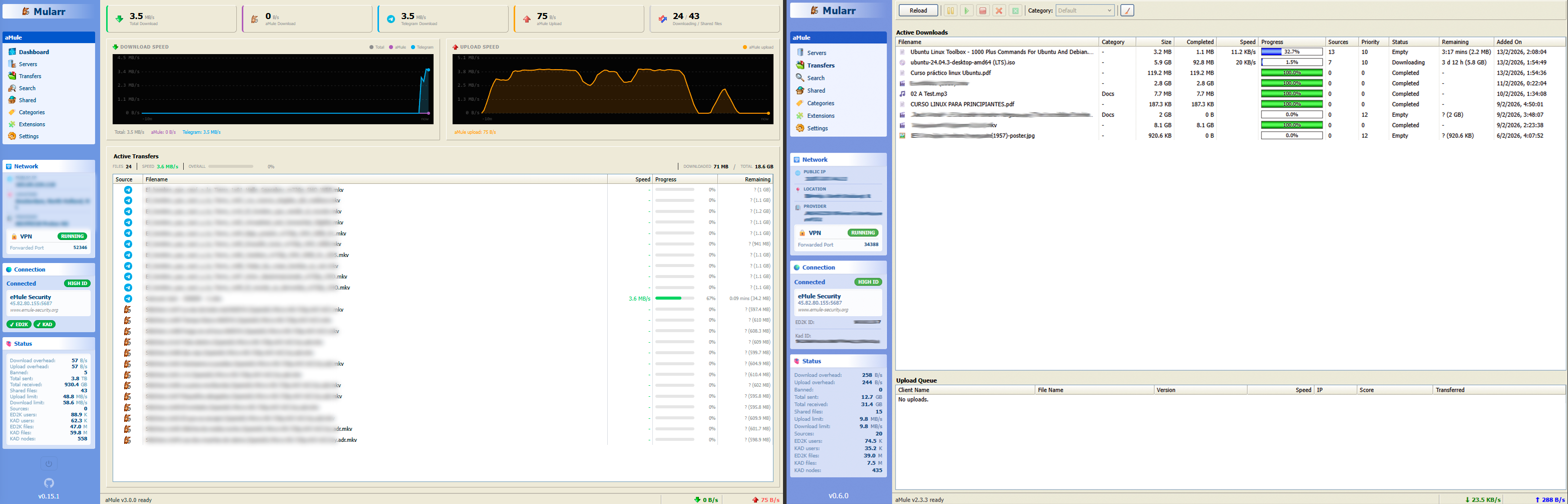
- *Arr Integration: Native support for Sonarr/Radarr via qBittorrent & Torznab API compatibility.
- Docker Ready: Easy deployment using Docker and Docker Compose.
- Telegram Integration:
- Notifications: Get notified of your downloads via a Telegram bot.
- Provider: Use the Telegram network for searching and downloading files.
- 🛡️ VPN Ready: Built-in support for Gluetun health checks and automatic port updates.
- Retro-Style Web Interface: A fully responsive UI with a nostalgic Windows XP feel. Includes multiple themes like Classic and Windows 11 (Experimental). Built with Chispa.
The easiest way to get Mularr running is using Docker Compose:
services:
    mularr:
        image: ghcr.io/joecarl/mularr
        container_name: mularr
        restart: unless-stopped
        ports:
            - '8940:8940'
        volumes:
            - ./data:/app/data

    # Check docker-compose.example.yml for a full configuration guide
Run it with:
docker-compose up -dAccess the web UI at http://localhost:8940.
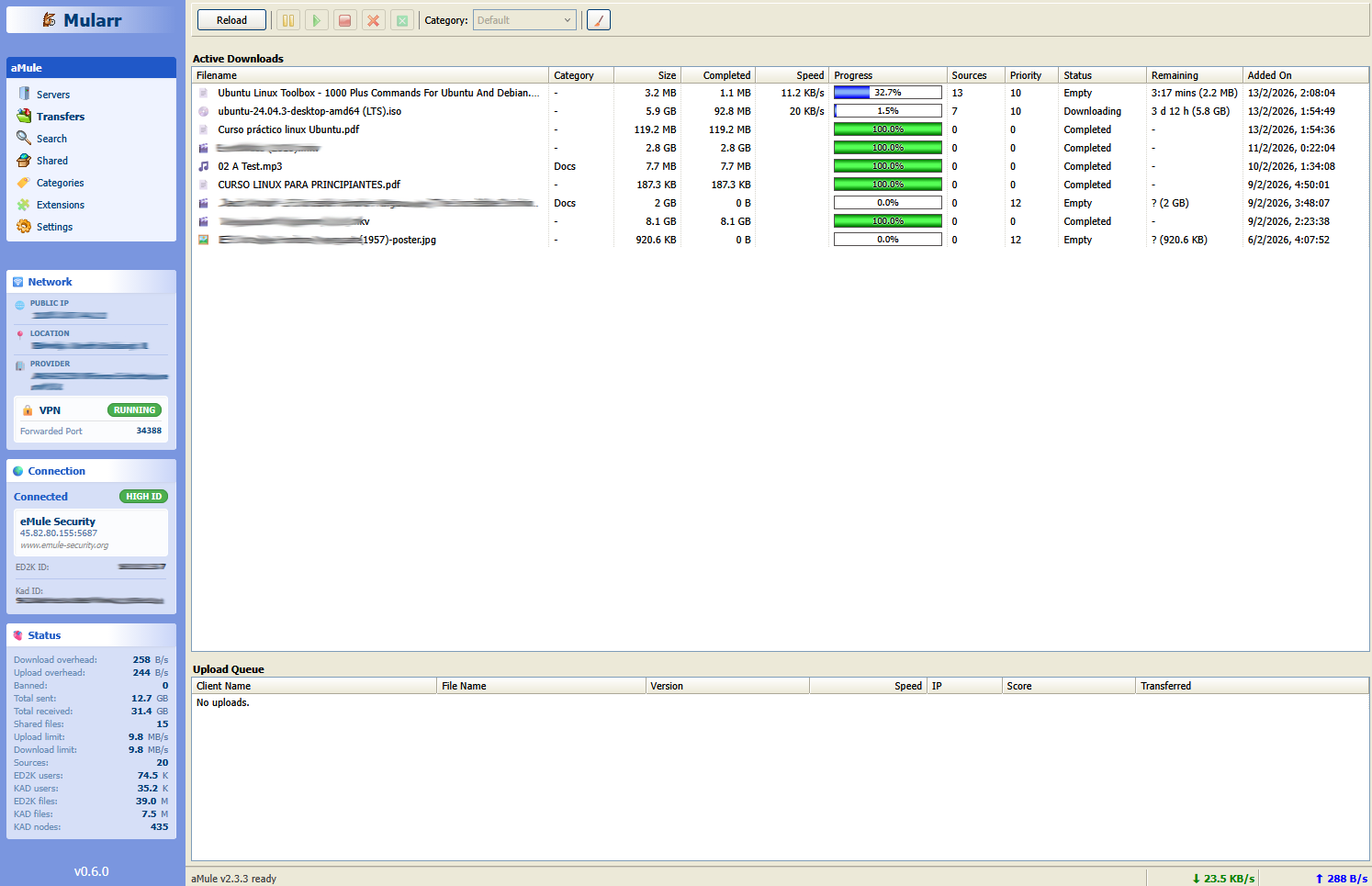
You can configure Mularr as both an indexer and a download client.
Tip
In Sonarr/Radarr's configuration forms, click Show Advanced to reveal all required fields.
To configure as indexer use the following settings:
- Type: Torznab
- API Path:
/api/as-torznab-indexer
To configure as download client use the following settings:
- Type: qBittorrent
- URL Base:
/api/as-qbittorrent
Mularr separates interactive login (the web UI's own login page) from API_KEY (machine-to-machine) auth used by the Torznab indexer and the qBittorrent-compatible client. The two are controlled independently:
| Variable | Purpose |
|---|---|
AUTH_USERNAME |
Username for the web UI login page. Interactive login is enabled only when both AUTH_USERNAME and AUTH_PASSWORD are set (non-empty). |
AUTH_PASSWORD |
Password for the web UI login page. Also accepted as the qBittorrent API password. |
API_KEY |
Machine-to-machine key for /api/as-torznab-indexer* and /api/as-qbittorrent*. Enforced whenever it is set, independently of interactive login. Also usable as the qBittorrent API password (with any username). |
JWT_SECRET |
Secret used to sign session JWTs. If unset, a random secret is generated on startup (existing sessions are invalidated on restart). |
AUTH_USERNAME + AUTH_PASSWORD |
API_KEY |
Web UI login page | Web UI / admin API | /api/as-* (M2M) |
|---|---|---|---|---|
| set | set | shown | requires login session | requires API_KEY/session |
| set | unset | shown | requires login session | requires login session |
| unset | set | hidden | open (no app-level gate) | requires API_KEY |
| unset | unset | hidden | open | open |
M2M column detail: the two M2M surfaces differ in what they accept. The Torznab indexer (
/api/as-torznab-indexer*) is API-key only — it rejects login-session cookies/JWTs (per the Newznab/Torznab contract). The qBittorrent client (/api/as-qbittorrent*) accepts either theAPI_KEYor a login session. In both cases, whenAPI_KEYis set it is enforced.
When AUTH_USERNAME/AUTH_PASSWORD are unset, Mularr serves the web UI with no
login page or session gate, so it can run behind an external authenticating
reverse proxy / SSO (e.g. Traefik + Authelia) without a double login — while
API_KEY keeps the Torznab and qBittorrent endpoints protected for Sonarr/Radarr.
Warning
Disabling interactive login leaves the web UI and admin API unauthenticated at the application level. Anyone who can reach the port directly has full UI/admin access. Only run in this mode when the container port is NOT published to any host and all access is forced through a trusted authenticating reverse proxy. Do not expose the port directly to a network when interactive login is disabled.
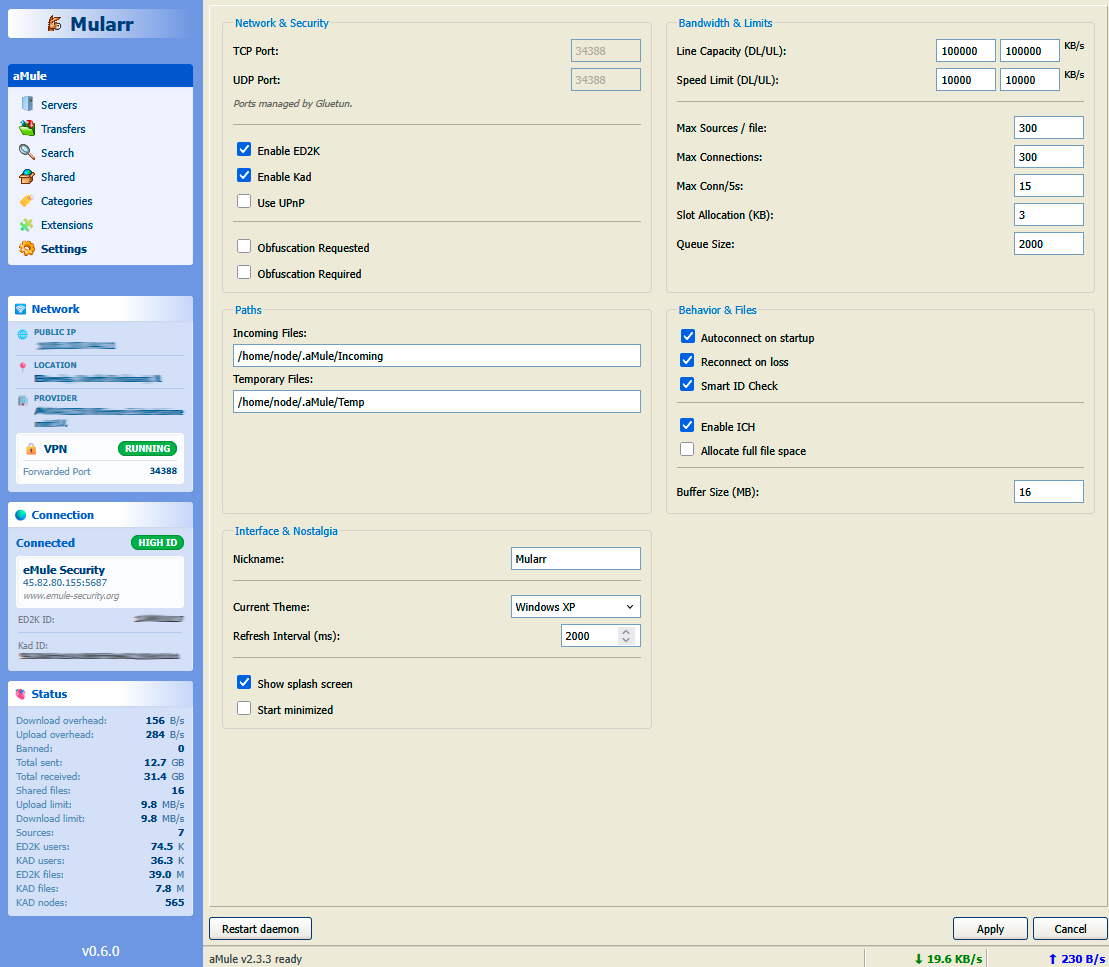
All of these settings live in the Settings view (written to amule.conf and
applied on save — no image rebuild needed). The defaults are conservative; adjust
them to your line and connection type.
Important
Your connection ID is the single biggest factor in performance — more so than your bandwidth.
- HighID — aMule's TCP port is reachable from the internet. Peers can connect to you and you can use every source. This is what you want.
- LowID — the port is not reachable (firewall/NAT/CGNAT, or a VPN without port forwarding). You can only connect to HighID peers and cannot accept incoming connections, which shrinks your source pool and speed regardless of how fast your line is.
To get HighID, make the aMule TCP port reachable:
- Direct: forward the TCP (and UDP) port on your router to the container/host.
- Behind Gluetun/VPN: you need a provider that supports port forwarding (e.g. AirVPN, ProtonVPN, PIA) mapped to aMule's port. Providers without port forwarding (e.g. Mullvad, NordVPN) will always leave you on LowID.
If HighID isn't possible, see Optimizing for LowID.
Set Line Capacity to your real measured speed in KB/s (divide your Mbit/s by 8 — e.g. 750/650 Mbit ≈ 90000/80000 KB/s). It drives aMule's internal heuristics and graph scaling; it is not a hard cap.
| Setting | Guidance |
|---|---|
| Line Capacity DL/UL | Your real line speed in KB/s. |
| Speed Limit — Download | 0 (unlimited) unless you need to reserve bandwidth for other devices. |
| Speed Limit — Upload | On a slow uplink, cap to ~80% of real upload — a saturated uplink starves TCP ACKs and slows your downloads. On a fast uplink (where eMule can't saturate it), leave 0: the credit system rewards uploading freely. |
| Max Sources / file | 300 is fine on HighID; raise to 800–1000 on LowID to widen the source pool. |
| Max Connections | 500 is ample for most setups. |
| Max Conn / 5s | 20 is router-safe; raise toward 30–50 to find sources faster if your router's NAT table can handle it. |
| Slot Allocation | ~10 KB gives a reasonable per-peer spread. |
| Queue Size | 50 is small; raise to 200–500 if you have upload headroom, to serve more peers and build credits faster. |
If you're stuck on LowID, your line is rarely the bottleneck — your source pool is. To make the best of it:
- Enable Kad (alongside ED2K). LowID clients depend on Kad to find sources beyond what servers hand out.
- Enable protocol obfuscation — recovers connections with peers/ISPs that throttle or block plain eMule traffic.
- Raise Max Sources / file (800–1000) and Queue Size (200–500) to scrape and serve as much as possible.
- Leave upload unlimited if your line allows — more upload means more credits, your best lever for download priority.
Note
Even fully tuned, LowID throughput is modest: you're source-limited, not bandwidth-limited. A reachable port (HighID) is the only structural fix.
Mularr is built primarily with TypeScript.
| Component | Technology |
|---|---|
| Frontend | Chispa + Vite |
| Backend | Node.js + Express |
| Database | SQLite (better-sqlite3) |
If you want to contribute or run Mularr you need docker & VS Code devcontainers. Open the project in the devcontainer and it automatically installs the needed dependencies.
Then you can start the application in dev mode:
cd backend
npm run devcd frontend
npm run devWarning
Do not run npm install in the root folder. Install dependencies separately in backend/ and frontend/.
The included Dockerfile handles everything for you. It builds the frontend and bundles it with the backend for a single-image deployment.
docker build -t mularr .To contribute, follow the standard process:
- Fork the Project
- Create your feature branch & Commit your changes
- Open a Pull Request
Any contributions you make are greatly appreciated.
MIT
Made with ❤️ for the P2P Community