Repository navigation
WaveEngine_ParticleSystem_AsierAniolSauc

🌊 Wave Engine 🌊:Wizard Engine vers.
This project is a custom 3D game engine developed in C++ using OpenGL as the main graphics API. It integrates several external libraries such as Assimp (for 3D model loading), DevIL (for texture management), and ImGui (for the user interface).
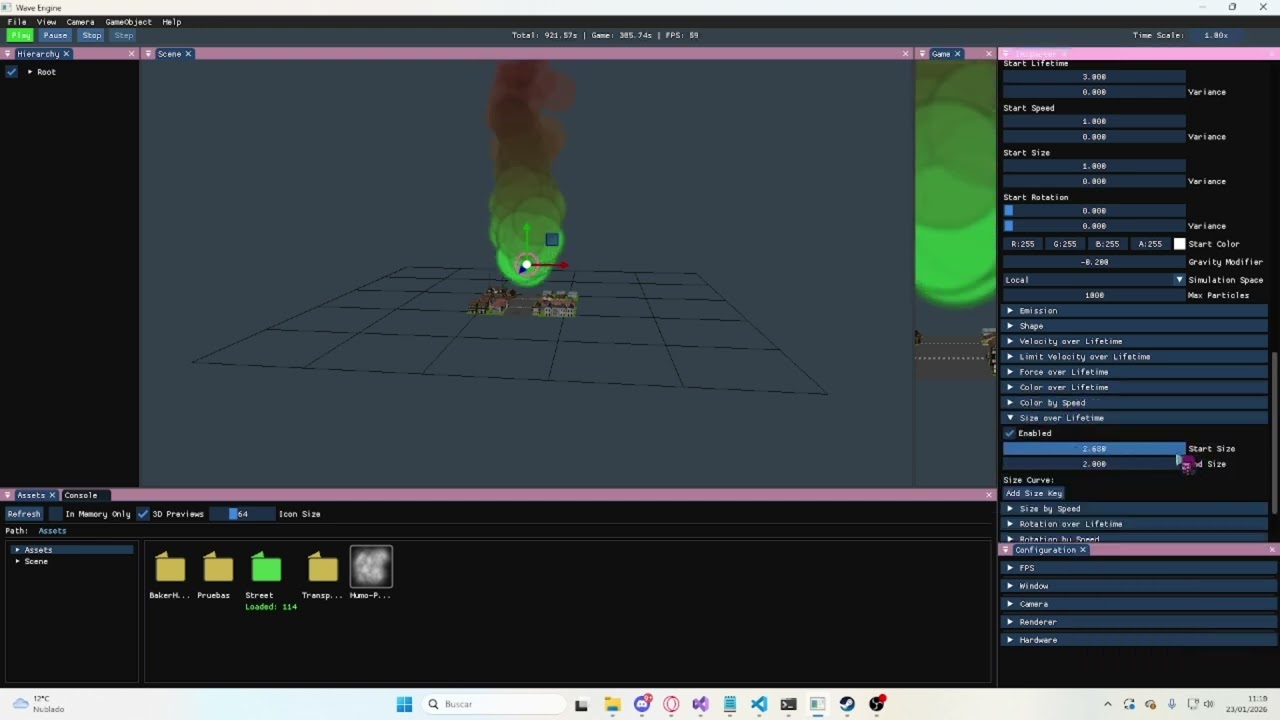
In version 3.1, we developed a particle system for the engine, in it, you can change the texture, colors, speed, direction and some more parameters, we also added that when you press the 1 key, a firework goes up to the sky.
🧙♂️ Team Members
- Asier Ulloa — GitHub: AsiGamer29
- Aniol López — GitHub: Aniolobolo
- Saüc Pellejero — GitHub: ZReiNa
Work division
Particle system implementation:
- Asier Ulloa: Created the particle editor and particle class.
- Aniol López: Testing and bugfixing.
Demo:
- Saüc Pellejero: Added fireworks and smoke particles on some chimneys.
🦀 Controls
| Action | Key 1 | Key 2 |
|---|---|---|
| Up | Space | |
| Down | Left Ctrl | |
| Zoom | Mouse wheel | |
| Velocity ×2 | Hold Shift | |
| Free movement | Right Mouse Button | WASD |
| Orbit | Left Alt | Left Mouse Button |
| Focus | F | |
| Select | Left Mouse Button | |
| Multiple select | Shift | Left Mouse Button |
| Delete object | Backspace | |
| Create Fireworks | 1 | |
| Gizmo Action | Key 2 | |
| ------------ | ------------ | ------------ |
| Move | W | |
| Rotate | E | |
| Scale | R | |
| Toggle Coordinate System | T |
✨ New Core Features
- A particle system with a lot of features that you can customize.

- Default particles to add directly to the scene.

- Fireworks that you can create when you press 1 while playing the current scene.

This particle system works like the other game engines' particle systems. You can add a particle system to any game object and edit a lot of values, such as the scale of the particles, their velocity, rotation, texture, and a lot more for you to experiment. You can also edit some of their values based on the velocity or lifetime of the particles, making it a very versatile particle editor for users to experiment and create particles for their games.
🐠 User Interface
Console
The console logs all engine events and processes, such as:
- Loading geometry (via ASSIMP)
- Loading textures (via DevIL)
- Resource management operations
- Initialization of external libraries
- Application flow and error messages
Additionally, it includes several interactive options:
- Clear: Erases all current console messages
- Log filters: Enable or disable the display of specific types of logs (info, warnings, errors)
Configuration
This window is divided into five tabs:
- FPS: Displays the current frame rate and performance data.
- Window: Allows full customization of the application window:
- Adjust size and resolution
- Toggle fullscreen or borderless mode
- Enable/disable resizable window
- Camera:
- Adjust camera settings
- Reset camera settings
- View current camera position
- Displays a summary of camera controls
- Change current active camera
- Displays current active camera
- Renderer:
- Enable or disable face culling and choose its mode
- Toggle wireframe mode
- Change the background color of the scene
- Toggle debug visualization for AABBs, octree,raycast, zBuffer
- Hardware:
- Displays detailed information about the system hardware in use
Assets Window
A dedicated panel to manage all project resources:
- Browse assets organized
- Import new assets via drag-and-drop
- Delete assets (automatically removes associated files in Library folder)
- Visualize reference
- View asset and import settings
Hierarchy
Displays all GameObjects in the current scene, allowing:
- Selection of scene objects
- Reparenting objects (drag to change hierarchy)
- Renaming (double click)
Inspector
Provides detailed information and transformation options for the selected GameObject:
- Gameobject:
- Set active camera (only camera)
- Reparenting objects (list)
- Creating empty GameObjects
- Deleting objects
- Gizmo:
- Change gizmo mode
- World/Local
- Transform: Modify position, rotation, and scale directly.
Includes a reset option to restore default values. - Mesh:
- Displays mesh data and allows normal visualization (per-triangle / per-face)
- Select any imported mesh from the Assets window
- Material:
- Shows texture path and dimensions
- Preview textures with optional checker pattern
- Select textures from the Assets window
- Camera Component (when selected):
- Active frustum culling
- Toggle debug visualization for frustum culling
Toolbar
Includes the following menu options:
- File:
- Save scene
- Load scene
- Exit the program
- View: Show or hide any of the editor windows
- Layout (Save, load, auto save)
- Cameras:
- Create camera
- Gameobjects:
- Create primitves
- Add rotate component
- Add Particle System
- Create Particle system(smoke,fire,explosion, sparkle effects)
- Help:
- GitHub documentation: Opens the official documentation
- Report a bug: Opens
[Link to repo]/issues - Download latest: Opens
[Link to repo]/releases - About: Displays engine name, version, authors, libraries used, and MIT License
Extra features
- Transparente textures
- zBuffer
- Assets icons
- Asset Deletion: Delete assets directly from the explorer with automatic cleanup of associated Library files
- Import Settings: Basic implementation of import options for different asset types:
- Textures: Control filtering modes, max texture size, and flip options (X/Y axes)
- Meshes: Configure global scaling, axis configuration, Post-processing options: generate normals, flip uv, optimize meshes
- Metadata: All import settings are saved in .meta files to ensure proper regeneration of the Library folder
Resource Management System
- Complete asset pipeline with automatic conversion to custom file formats
- Assets stored in a structured "Assets" folder, with optimized versions cached in "Library"
- Reference counting ensures resources are loaded only once regardless of usage count
- Automatic regeneration of Library folder from Assets and metadata files
- Support for importing new assets at runtime
Performance Optimizations
- Frustum Culling: Objects outside the camera view are not rendered
- Octree Spatial Partitioning: Accelerates both rendering culling and object selection
- Debug Visualizations: Toggle visual representations of AABBs, octree nodes, and frustum
Scene Management
- Scene serialization to custom file format
- Automatic loading of default scene ("StreetEnvironment")
- Complete GameObject hierarchy support with parent-child relationships
- Runtime transformation of objects (position, rotation, scale)
Camera System
- Configurable camera component with adjustable parameters
- Selection system using raycasting with octree
- Visual feedback for selection operations
Custom File Formats
- Proprietary formats for models, textures and scenes
- Metadata files storing import settings and dependencies
© 2025 Wave Engine — Developed by Haosheng Li & Ana Alcaraz, Particle system by Asier Ulloa, Aniol López & Saüc pellejero — MIT License