Repository navigation
Releases: bottzo/Motor2025
Release list
Motors 2025- Shader_System (Edu-Pau)

Delivery for the E3 assignment featuring a complete Shader Pipeline with real-time editor and hot-reloading. Includes Blinn-Phong lighting, transparency sorting, and a procedural water shader with Gerstner waves. All shader parameters are fully editable via the Inspector.
Engine Enjoyers

Motor 2025 - UI

Improve formatting of team members section in README

Reformatted team member descriptions and images for better readability.
Motor2025 – Shader System (Ao Yunqian & Pau)

This release contains the executable build of the engine with the Shader module implemented.
Features:
- Custom .vert and .frag shader loading
- Material → Shader assignment in Inspector
- Animated water shader demo
- Test scene with water plane
How to test:
- Download the zip
- Extract it
- Run Engine.exe
- Load the test scene
- Observe the animated water shader
Full Changelog: Scripting2...Shader_Ao_Pau
Motor 2025 - Scripting_AJJ

In this version, the engine adds a Lua scripting system that allows developers to define custom behaviors, control GameObjects, and handle input directly from within the editor. This feature removes the need for external IDEs and enables rapid iteration through live script editing and debugging.
Developed by:
Joel Vicente « Github: Jowy02
Arthur Cordoba « Github: 000Arthur
Jana Puig « Github: JanaPuig
WaveEngine_Physics_Group3

Wave Engine 🌊
Wave Engine es un motor de videojuegos en desarrollo creado como proyecto para la asignatura de Motores de Videojuegos en el CITM - UPC (Terrassa). El motor está diseñado para ofrecer un flujo de trabajo intuitivo integrando un sistema de físicas avanzado basado en la industria.
👥 El Equipo
| Miembro | Contribuciones principales |
|---|---|
| Toni Llovera Roca | Implementación del Vehicle Controller (física de ruedas y chasis) y sistema de asignación automática de RigidBodies y Colliders para primitivas y modelos 3D. |
| Javier Gómez González | Desarrollo del sistema de Cámara, arquitectura de clases de física, Module Physics y el componente base Collider. |
| Oscar Alonso Camenforte | Integración de la librería Bullet Physics y desarrollo del sistema de Point-to-Point Constraints configurable desde el editor. |
🛠️ Core Systems (Sistemas Base)
Aunque el enfoque de esta entrega son las físicas, el Wave Engine se sustenta sobre los siguientes pilares:
- Render Engine: Basado en OpenGL, permite la visualización de geometrías complejas, texturas y el "Debug Draw" de las físicas.
- Physics Core (Bullet): Integración profunda de la librería Bullet para la gestión de la simulación, detección de colisiones y resolución de restricciones.
- Input System (SDL): Gestión de estados de teclado y ratón para el control del vehículo y la cámara.
- Editor UI (ImGui): Suite de herramientas que incluye el Inspector de componentes, explorador de archivos y consola de logs.
🚀 High-Level System: Advanced Physics & Vehicle Simulation
Siguiendo los requerimientos de la asignatura, hemos implementado un sistema de alto nivel que permite crear gameplay basado en físicas de forma modular.
Características detalladas:
- Vehicle Physics: Un controlador de vehículo que utiliza mallas gráficas para las ruedas y el chasis, con parámetros de suspensión y motor ajustables.
- Point-to-Point Constraints: En el Nivel 2, se encuentran dos primitivas enlazadas. Este sistema permite crear uniones físicas tipo "péndulo" o articulaciones configurables directamente desde el Inspector.
- Automatic Physics Assignment: Al importar un asset o crear una primitiva, el motor genera automáticamente su contraparte física (RigidBody + Collider) ajustando el volumen inicial al tamaño del objeto.
💡 Guía de Testing: Cámara y Colliders
Para verificar el Collider de la Cámara y su comportamiento físico:
- Pulsa el botón Play en la parte superior del editor.
- Una vez en juego, cambia manualmente de la pestaña Game a la pestaña Scene.
- Utiliza la combinación WASD + Click Derecho mantenido para moverte. Verás cómo la cámara interactúa con el mundo físico.
📽️ Scene Creation Timelapse
En el siguiente vídeo se muestra el proceso de diseño de una escena, configurando los componentes físicos y los constraints desde cero:
🔗 Enlaces de Interés
- Repositorio: Wave Engine - Physics_Group3
- Última Release: Descargar Wave Engine v1.0
WaveEngine_ParticleSystem_AsierAniolSauc

🌊 Wave Engine 🌊:Wizard Engine vers.
This project is a custom 3D game engine developed in C++ using OpenGL as the main graphics API. It integrates several external libraries such as Assimp (for 3D model loading), DevIL (for texture management), and ImGui (for the user interface).
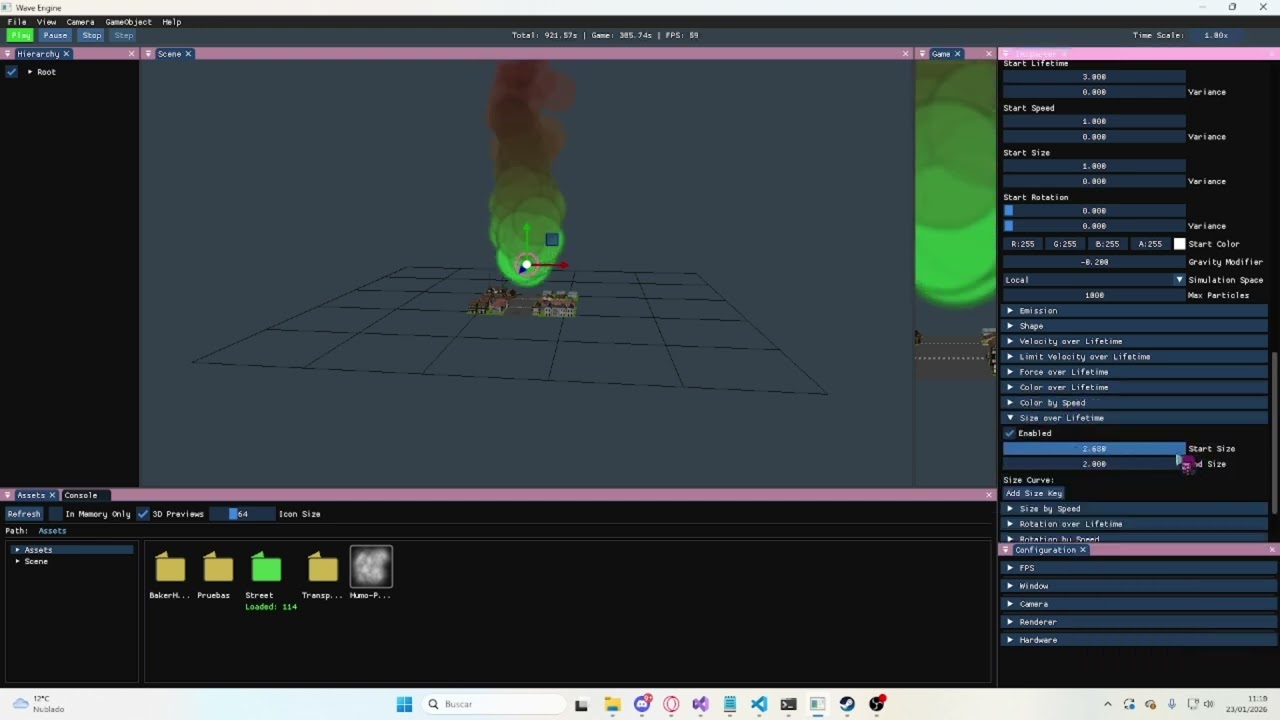
In version 3.1, we developed a particle system for the engine, in it, you can change the texture, colors, speed, direction and some more parameters, we also added that when you press the 1 key, a firework goes up to the sky.
🧙♂️ Team Members
- Asier Ulloa — GitHub: AsiGamer29
- Aniol López — GitHub: Aniolobolo
- Saüc Pellejero — GitHub: ZReiNa
Work division
Particle system implementation:
- Asier Ulloa: Created the particle editor and particle class.
- Aniol López: Testing and bugfixing.
Demo:
- Saüc Pellejero: Added fireworks and smoke particles on some chimneys.
🦀 Controls
| Action | Key 1 | Key 2 |
|---|---|---|
| Up | Space | |
| Down | Left Ctrl | |
| Zoom | Mouse wheel | |
| Velocity ×2 | Hold Shift | |
| Free movement | Right Mouse Button | WASD |
| Orbit | Left Alt | Left Mouse Button |
| Focus | F | |
| Select | Left Mouse Button | |
| Multiple select | Shift | Left Mouse Button |
| Delete object | Backspace | |
| Create Fireworks | 1 | |
| Gizmo Action | Key 2 | |
| ------------ | ------------ | ------------ |
| Move | W | |
| Rotate | E | |
| Scale | R | |
| Toggle Coordinate System | T |
✨ New Core Features
- A particle system with a lot of features that you can customize.

- Default particles to add directly to the scene.

- Fireworks that you can create when you press 1 while playing the current scene.

This particle system works like the other game engines' particle systems. You can add a particle system to any game object and edit a lot of values, such as the scale of the particles, their velocity, rotation, texture, and a lot more for you to experiment. You can also edit some of their values based on the velocity or lifetime of the particles, making it a very versatile particle editor for users to experiment and create particles for their games.
🐠 User Interface
Console
The console logs all engine events and processes, such as:
- Loading geometry (via ASSIMP)
- Loading textures (via DevIL)
- Resource management operations
- Initialization of external libraries
- Application flow and error messages
Additionally, it includes several interactive options:
- Clear: Erases all current console messages
- Log filters: Enable or disable the display of specific types of logs (info, warnings, errors)
Configuration
This window is divided into five tabs:
- FPS: Displays the current frame rate and performance data.
- Window: Allows full customization of the application window:
- Adjust size and resolution
- Toggle fullscreen or borderless mode
- Enable/disable resizable window
- Camera:
- Adjust camera settings
- Reset camera settings
- View current camera position
- Displays a summary of camera controls
- Change current active camera
- Displays current active camera
- Renderer:
- Enable or disable face culling and choose its mode
- Toggle wireframe mode
- Change the background color of the scene
- Toggle debug visualization for AABBs, octree,raycast, zBuffer
- Hardware:
- Displays detailed information about the system hardware in use
Assets Window
A dedicated panel to manage all project resources:
- Browse assets organized
- Import new assets via drag-and-drop
- Delete assets (automatically removes associated files in Library folder)
- Visualize reference
- View asset and import settings
Hierarchy
Displays all GameObjects in the current scene, allowing:
- Selection of scene objects
- Reparenting objects (drag to change hierarchy)
- Renaming (double click)
Inspector
Provides detailed information and transformation options for the selected GameObject:
- Gameobject:
- Set active camera (only camera)
- Reparenting objects (list)
- Creating empty GameObjects
- Deleting objects
- Gizmo:
- Change gizmo mode
- World/Local
- Transform: Modify position, rotation, and scale directly.
Includes a reset option to restore default values. - Mesh:
- Displays mesh data and allows normal visualization (per-triangle / per-face)
- Select any imported mesh from the Assets window
- Material:
- Shows texture path and dimensions
- Preview textures with optional checker pattern
- Select textures from the Assets window
- Camera Component (when selected):
- Active frustum culling
- Toggle debug visualization for frustum culling
Toolbar
Includes the following menu options:
- File:
- Save scene
- Load scene
- Exit the program
- View: Show or hide any of the editor windows
- Layout (Save, load, auto save)
- Cameras:
- Create camera
- Gameobjects:
- Create primitves
- Add rotate component
- Add Particle System
- Create Particle system(smoke,fire,explosion, sparkle effects)
- Help:
- GitHub documentation: Opens the official documentation
- Report a bug: Opens
[Link to repo]/issues - Download latest: Opens
[Link to repo]/releases - About: Displays engine name, version, authors, libraries used, and MIT License
Extra features
- Transparente textures
- zBuffer
- Assets icons
- Asset Deletion: Delete assets directly from the explorer with automatic cleanup of associated Library files
- Import Settings: Basic implementation of import options for different asset types:
- Textures: Control filtering modes, max texture size, and flip options (X/Y axes)
- Meshes: Configure global scaling, axis configuration, Post-processing options: generate normals, flip uv, optimize meshes
- Metadata: All import settings are saved in .meta files to ensure proper regeneration of the Library folder
Resource Management System
- Complete asset pipeline with automatic conversion to custom file formats
- Assets stored in a structured "Assets" folder, with optimized versions cached in "Library"
- Reference counting ensures resources are loaded only once regardless of usage count
- Automatic regeneration of Library folder from Assets and metadata files
- Support for importing new assets at runtime
Performance Optimizations
- Frustum Culling: Objects outside the camera view are not rendered
- Octree Spatial Partitioning: Accelerates both rendering culling and object selection
- Debug Visualizations: Toggle visual representations of AABBs, octree nodes, and frustum
Scene Management
- Scene serialization to custom file format
- Automatic loading of default scene ("StreetEnvironment")
- Complete GameObject hierarchy support with parent-child relationships
- Runtime transformation of objects (position, rotation, scale)
Camera System
- Configurable camera component with adjustable parameters
- Selection system using raycasting with octree
- Visual feedback for selection operations
Custom File Formats
- Proprietary formats for models, textures and scenes
- Metadata files storing import settings and dependencies
© 2025 Wave Engine — Developed by Haosheng Li & Ana Alcaraz, Particle system by Asier Ulloa, Aniol López & Saüc pellejero — MIT License
WaveEngine_ParticleSystem_RGSEngine

In this latest release (Assignment 3), we have implemented a high-level Particle System. This advanced, modular, CPU-based simulation system is fully integrated into the engine's Entity-Component-System (ECS) architecture, designed to create complex visual effects such as fire, smoke, and explosions through a completely data-driven workflow.
Developed by:
- Pablo Sanjose — XXPabloS
- Víctor González — TheWolfG145
- Claudia Ruiz — Claurm12
Motor 2025 - Audio System 1 (LuisArnauRoger)

🎮 Motor de Videojuegos - Sistema de Audio
📖 Introducción
Este proyecto es un motor de videojuegos 3D personalizado desarrollado en C++ utilizando OpenGL como API gráfica principal. Integra varias librerías externas como Assimp (para la carga de modelos 3D), DevIL (para la gestión de texturas) e ImGui (para la interfaz de usuario).
En la versión 2.0, hemos evolucionado más allá de la simple dependencia de FBX, implementando un sistema completo de gestión de recursos con formatos de archivo personalizados y optimizaciones significativas de renderizado. El motor ahora cuenta con una interfaz de editor avanzada con serialización de escenas, gestión de recursos y estructuras de aceleración para un rendimiento óptimo.
Además, nuestro grupo ha desarrollado e integrado un sistema de audio 3D completo utilizando Wwise de Audiokinetic, que permite audio espacial, mezcla de música en loop y efectos de sonido dinámicos como el efecto túnel.
👥 Equipo de Desarrollo
 Arnau Pascual Delgado Pascra |
 Luis Fernández Díaz Ludef26 |
 Roger Miralles Pellicero Roster247 |
🔧 Sistemas Core del Motor
El motor está compuesto por los siguientes sistemas principales:
| Sistema | Descripción |
|---|---|
| Renderer | Sistema de renderizado basado en OpenGL para gráficos 3D |
| Scene Manager | Gestión de escenas, GameObjects y jerarquía de entidades |
| Transform | Sistema de transformaciones (posición, rotación, escala) |
| Physics | Simulación física y detección de colisiones |
| Input | Gestión de entrada de teclado, ratón y gamepad |
| Audio | Sistema de audio 3D integrado con Wwise (nuestro sistema) |
🎮 Controles
Controles Generales
| Acción | Tecla 1 | Tecla 2 |
|---|---|---|
| Subir | Space | |
| Bajar | Left Ctrl | |
| Zoom | Rueda del ratón | |
| Velocidad ×2 | Mantener Shift | |
| Movimiento libre | Botón derecho del ratón | WASD |
| Orbitar | Left Alt | Botón izquierdo del ratón |
| Enfocar | F | |
| Seleccionar | Botón izquierdo del ratón | |
| Selección múltiple | Shift | Botón izquierdo del ratón |
| Eliminar objeto | Backspace |
Controles de Gizmo
| Acción | Tecla |
|---|---|
| Mover | W |
| Rotar | E |
| Escalar | R |
| Cambiar Sistema de Coordenadas | T |
🔊 Controles de Audio
| Acción | Tecla |
|---|---|
| Activar efecto de sonido envolvente | M |
| Activar sonido de túnel | T |
| Intensidad del túnel - Normal | 1 |
| Intensidad del túnel - Máxima | 2 |
🔊 Sistema de Audio - Implementación Detallada
Arquitectura del Sistema
Nuestro sistema de audio está basado en la integración del motor de audio profesional Wwise de Audiokinetic. La arquitectura se compone de tres módulos principales:
┌─────────────────────────────────────────────────────────┐
│                      ModuleAudio                        │
│  - Inicialización/Terminación de Wwise                  │
│  - Gestión de Sound Banks                               │
│  - Control de GameObjects de audio                      │
│  - Parámetros RTPC (Real-Time Parameter Control)        │
└─────────────────────────────────────────────────────────┘
                           │
           ┌───────────────┴───────────────┐
           ▼                               ▼
┌─────────────────────┐         ┌─────────────────────┐
│ ComponentAudioSource│         │ComponentAudioListener│
│  - Emisor de sonido │         │  - Receptor de audio │
│  - Posición 3D      │         │  - Posición del      │
│  - Eventos de Wwise │         │    oyente            │
└─────────────────────┘         └─────────────────────┘
Componentes Implementados
1. ModuleAudio (ModuleAudio.h / ModuleAudio.cpp)
El módulo principal que gestiona toda la comunicación con Wwise:
// Funcionalidades principales
- InitWwise()           // Inicialización del motor de audio
- RegisterAudioGameObject()  // Registro de objetos de audio
- SetGameObjectTransform()   // Posicionamiento 3D
- PostEvent()           // Reproducción de eventos de sonido
- SetRTPC()             // Control de parámetros en tiempo real
- SetListener()         // Configuración del listener
Características:
- Carga de Sound Banks desde memoria
- Gestión de múltiples GameObjects de audio
- Sistema de caché para parámetros RTPC
- Soporte para audio espacial 3D
2. ComponentAudioSource (ComponentAudioSource.h / ComponentAudioSource.cpp)
Componente que permite a cualquier GameObject emitir sonido:
// Uso básico
ComponentAudioSource(GameObject* owner, unsigned int eventId, bool playOnEnable);
Características:
- Registro automático en Wwise al habilitarse
- Actualización de posición 3D cada frame
- Reproducción automática al activarse (configurable)
- Limpieza automática al deshabilitarse
3. ComponentAudioListener (ComponentAudioListener.h / ComponentAudioListener.cpp)
Componente que representa los "oídos" del jugador:
Características:
- Se sincroniza con la posición del GameObject padre
- Configura automáticamente el listener de Wwise
- Orientación del listener para audio direccional
Funcionalidades Implementadas
1. Sistema de Música con Mezcla
Implementación de dos pistas musicales que se mezclan en loop:
- Reproducción continua de música de fondo
- Transiciones suaves entre pistas
- Control de Play/Pause/Stop
- Gestión mediante eventos de Wwise (
MUSICSTARTA)
// Ejemplo de control de música
void ModuleAudio::OnPlay() {
    AK::SoundEngine::PostEvent(AK::EVENTS::MUSICSTARTA, MUSIC_GO);
}
2. Audio Espacial 3D
GameObjects con audio posicional:
GameObject Estático:
- Posición fija en el mundo
- Sonido que se atenúa con la distancia
- Ejemplo: Sonido ambiental de una fuente
GameObject Dinámico:
- Movimiento automático o controlado por teclas (WASD)
- Audio que sigue la posición del objeto
- Demostración de efecto Doppler y atenuación espacial
3. Tunnel Effect (En desarrollo)
Sistema de distorsión de audio por zonas:
- Definición de áreas mediante triggers
- Modificación de parámetros RTPC al entrar en zonas
- Efecto de reverberación/distorsión tipo túnel
// Sistema preparado para RTPC
void SetRTPC(unsigned int rtpcId, float value, AkGameObjectID gameObjectId);
void SetRTPCByName(const char* rtpcName, float value, AkGameObjectID gameObjectId);- Al parecer no se escucha en la escena a pesar de que todo el codigo y el sonido esta implementado en el wwise, no sabemos por qué ocurre esto.
✨ Extra Features
- Hemos añadido una slider en la interfaz del editor que permite controlar el volumen general de la música y los efectos de sonido en tiempo real.
🎬 Demostración
Funcionamiento botones escena

Funcionamiento slider volumen

🎥 Video de Demostración

📥 Descarga y Enlaces
| Recurso | Enlace |
|---|---|
| 📂 Repositorio | GitHub - Rama del proyecto |
| 📦 Última Release | Descargar v1.0 |
📦 Estructura del Proyecto (Audio)
Motor2025/
├── Source/
│   ├── ModuleAudio.h
│   ├── ModuleAudio.cpp
│   ├── ComponentAudioSource.h
│   ├── ComponentAudioSource.cpp
│   ├── ComponentAudioListener.h
│   └── ComponentAudioListener.cpp
│
└── Audio/
    └── WwiseProject/
        └── MusicEngine/
            └── GeneratedSoundBanks/
                └── Windows/
                    ├── Init.bnk
                    └── Main.bnk
📄 Licencia
Este proyecto está licenciado bajo la MITLicense.
MIT License

Copyright (c) [year] [fullname]

Permission is hereby granted, free of charge, to any person obtaining a copy
of this software and associated documentation files (the "Software"), to deal
in the Software without restriction, including without limitation the rights
to use, copy, modify, merge, publish, distribute, sublicense, and/or sell
copies of the Software, and to permit persons to whom the Software is
furnished to do so, subject to the following conditions:

The above copyright notice and this permission notice shall be included in all
copies or substantial portions of the Software.

THE SOFTWARE IS PROVIDED "AS IS", WITHOUT WARRANTY OF ANY KIND, EXPRESS OR
IMPLIED, INCLUDING BUT NOT LIMITED TO THE WARRANTIES OF MERCHANTABILITY,
FITNESS FOR A PARTICULAR PURPOSE AND NONINFRINGEMENT. IN NO EVENT SHALL THE
AUTHORS OR COPYRIGHT HOLDERS BE LIABLE FOR ANY CLAIM, DAMAGES OR OTHER
LIABILITY, WHETHER IN AN ACTION OF CONTRACT, TORT OR OTHERWISE, ARISING FROM,
OUT OF OR IN CONNECTION WITH THE SOFTWARE OR...
Motor2025 - AudioSystem (VroomTeam)

🌊 Wave Engine 🌊 Audio System 🌊
This project is a custom 3D game engine developed in C++ using OpenGL as the main graphics API. It integrates several external libraries such as Assimp (for 3D model loading), DevIL (for texture management), and ImGui (for the user interface). This project was created as an assignement for the Video Game Engines class for Bachelor's degrees in Video Game Design and Development.
In this version, a functioning audio system has been implemented through the intergration of Wwise.
🔗 GitHub Repository: https://github.com/bottzo/Motor2025/tree/Audio-System_VroomTeam
🔗 Latest Release: https://github.com/bottzo/Motor2025/releases
🐚 Audio System Team Members
- Kai Caire — GitHub: KaiCaire
- Wwise Low Level Integration
- Wwise Events & Buses Setup
- Interactive Music Implementation
- Reverb Effect Configuration
- Reverb Zone Preset GUI implementation

- Lara Guevara — GitHub: LaraGuevara
- Audio Listener and Audio Source components
- Spatial Audio Implementation
- Audio Components (Source & Listener) Serialization
- Audio Components (Source & Listener) Inspector GUI
- Move Component (for Spatial Audio test)

- Marti Mach — GitHub: 0psycada
- Audio Effect Implementation
- Reverb Zone component
- Reverb Zone Serialization
- Reverb Zone component Inspector GUI

🎏 Core Engine Team Members
- Haosheng Li — GitHub: HaosLii
- Ana Alcaraz — GitHub: Audra0000
🦀 Controls
| Action | Key 1 | Key 2 |
|---|---|---|
| Up | Space | |
| Down | Left Ctrl | |
| Zoom | Mouse wheel | |
| Velocity ×2 | Hold Shift | |
| Free movement | Right Mouse Button | WASD |
| Orbit | Left Alt | Left Mouse Button |
| Focus | F | |
| Select | Left Mouse Button | |
| Multiple select | Shift | Left Mouse Button |
| Delete object | Backspace |
| Gizmo Action | Key 1 | Key 2 |
|---|---|---|
| Move | W | |
| Rotate | E | |
| Scale | R | |
| Toggle Coordinate System | T |
🐠 User Interface
Console
The console logs all engine events and processes, such as:
- Loading geometry (via ASSIMP)
- Loading textures (via DevIL)
- Resource management operations
- Initialization of external libraries
- Application flow and error messages
Additionally, it includes several interactive options:
- Clear: Erases all current console messages
- Log filters: Enable or disable the display of specific types of logs (info, warnings, errors)
Configuration
This window is divided into five tabs:
- FPS: Displays the current frame rate and performance data.
- Window: Allows full customization of the application window:
- Adjust size and resolution
- Toggle fullscreen or borderless mode
- Enable/disable resizable window
- Camera:
- Adjust camera settings
- Reset camera settings
- View current camera position
- Displays a summary of camera controls
- Change current active camera
- Displays current active camera
- Renderer:
- Enable or disable face culling and choose its mode
- Toggle wireframe mode
- Change the background color of the scene
- Toggle debug visualization for AABBs, octree,raycast, zBuffer
- Hardware:
- Displays detailed information about the system hardware in use
Assets Window
A dedicated panel to manage all project resources:
- Browse assets organized
- Import new assets via drag-and-drop
- Delete assets (automatically removes associated files in Library folder)
- Visualize reference
- View asset and import settings
Hierarchy
Displays all GameObjects in the current scene, allowing:
- Selection of scene objects
- Reparenting objects (drag to change hierarchy)
- Renaming (double click)
Inspector
Provides detailed information and transformation options for the selected GameObject:
- Gameobject:
- Set active camera (only camera)
- Reparenting objects (list)
- Creating empty GameObjects
- Deleting objects
- Gizmo:
- Change gizmo mode
- World/Local
- Transform: Modify position, rotation, and scale directly.
Includes a reset option to restore default values. - Mesh:
- Displays mesh data and allows normal visualization (per-triangle / per-face)
- Select any imported mesh from the Assets window
- Material:
- Shows texture path and dimensions
- Preview textures with optional checker pattern
- Select textures from the Assets window
- Camera Component (when selected):
- Active frustum culling
- Toggle debug visualization for frustum culling
- Audio Source (when selected):
- Select Wwise Event from drop-down
- Adjust Volume of the source
- Play on Awake toggle
- Audio Listener (when selected):
- Set as Default Listener
- Reverb Zone (when selected):
- Change Zone Shape from drop-down selection
- Change the Reverb Preset from drop-down selection
- Set the Zone's...
- If Zone Shape is Box ➡️ Half Extents
- If Zone Shape is Sphere ➡️ Radius
- Set the Aux Bus Name
- Change the Wet Level
- Set Priority
- Enable/Disable Toggle
- Move Component (when selected):
- Adjust Speed
- Adjust Maximum Distance
- Adjust movement Direction
Toolbar
Includes the following menu options:
- File:
- Save scene
- Load scene
- Exit the program
- View: Show or hide any of the editor windows
- Layout (Save, load, auto save)
- Cameras:
- Create camera
- Gameobjects:
- Create primitves
- Add rotate component
- Help:
- GitHub documentation: Opens the official documentation
- Report a bug: Opens
[Link to repo]/issues - Download latest: Opens
[Link to repo]/releases - About: Displays engine name, version, authors, libraries used, and MIT License
🎶 Audio System Implementation
- Wwise Integration
- Wwise was intergrated into the Engine in order to implement the Audio System
- Audio Components
- Audio Listener
- Implemented Audio Listener component that can be added to Game Objects
- Creating an Audio Listener will be set as the Main/Default Listener upon creation
- Aditionally, an Audio Listener can be set as the Main/Default from the Inspector Window
- Audio Source
- Implemented Audio Source component that can be added to Game Objects
- Inspector settings for Audio Source:
- Can set Wwise Project's Event from a drop down
- Volume can be changed
- Set on Awake toggle
- When Play mode is active, Event immediately plays
- Audio Listener

- Spatial Audio
- Both Audio Listener(s) and Audio Source(s) position are set for Wwise, allowing Spatial Audio adjusted to the Game Object positions
- Music Mixing
- Audio Sources can be set to play Music Playlist Events, allowing music mixing and fades
- Audio Effects
- A Reverb Zone component for Game Objects has been implemented, allowing to apply a Reverb Effect inside a set Zone in the Scene
- Reverb Zones interact with the Main Audio Listener to apply the audio effect
- It is important to note that audio effects are not applied to background music elements
- Inspector Settings for Reverb Zone:
- Change Reverb Zone Shape (Box and Sphere options)
- Depending on the selected shape radius (for Sphere) or half extents (for Box) can be changed
- Reverb Preset drop-down
- See current Aux Bus Name
- Change Wet Level
- Set Priority
- Toggle to set as Enable/Disabled
- Change Reverb Zone Shape (Box and Sphere options)

- Audio Component Serialization
- When a scene is saved, Audio Source and Audio Listener components are saved
- For Audio Listeners ➡️ The Default Listener variable is saved
- For Audio Sources ➡️ The Wwise Event, Volume and Play on Awake variables are saved
- For Reverb Zone ➡️ Shape, Radius, Extents, Aux Bus Name, Wet Level, Priority and Enabled variables are saved
- When a scene is saved, Audio Source and Audio Listener components are saved
- Additional Implementations
- Move Component
- To test the Spatial Audio intergration, a simple Move Component was created to move a Game Object along one direction back and forth
- Can be customized from the Inspector
- The component variables are also serialized when a scene is saved
- "Add Component" in Inspector
- Added a button in the Inspector when a Game Object is selected
- Can add:
- Audio Source
- Audio Listener
- Reverb Zone
- Move Component
- Configurable an...
- Move Component