Repository navigation
Releases: breezy89757/Harness.WinUI
Release list
Harness.WinUI 1.1.1

Conversation width. Settings → General → Appearance lets you choose how wide the conversation gets: narrow, standard, wide or the whole window. It is wide by default (it used to be a fixed 900 px), so a big window has less empty space at the sides; a small window looks the same as before. Choose "Narrow" for about the old width.
Ask the agent to change how the app looks. "Make the conversation wider", "bigger text", "hide the usage button": it can change the text size, the conversation width and which toolbar buttons show. It asks you every time and can't change anything else (not your connection, keys or permissions).
Tips. A short tip on an empty conversation about what Harness.WinUI can do for you, one at a time. Close each one, or turn them off in Settings → General → Appearance.
Download
| File | For |
|---|---|
Harness.WinUI-1.1.1-win-x64.zip |
Most Intel / AMD PCs |
Harness.WinUI-1.1.1-win-arm64.zip |
ARM PCs (e.g. Snapdragon Copilot+ PCs) |
Unzip to any folder and run Harness.WinUI.exe. Requires Windows 10 1809+ and the WebView2 Runtime (built into Windows 11). The executable is not code-signed, so SmartScreen may warn the first time: choose More info → Run anyway. Verify downloads with SHA256SUMS.txt.
對話欄寬度。 設定 → 一般 → 外觀,可以選對話欄要多寬:窄、標準、寬或整個視窗。預設是寬(以前是固定 900 px),大視窗兩側的空白變少了;小視窗看起來跟以前一樣。想要接近舊的寬度請選「窄」。
請 agent 調整外觀。 「把對話欄放寬一點」、「字大一點」、「把用量按鈕藏起來」:它可以改文字大小、對話欄寬度和工具列要顯示哪些按鈕。每次都先問你,而且不能改其他東西(連線、金鑰、權限都不行)。
小提示。 空白的新對話裡會有一則簡短的小提示,說明 Harness.WinUI 還能怎麼幫你,一次一則。可以關掉單則,或到設定 → 一般 → 外觀整個關掉。
下載後解壓縮,執行 Harness.WinUI.exe 即可。
Harness.WinUI 1.1.0
Long-term memory (Settings → Memory, off by default). The agent can save short notes about you and your work, find them again, update or forget them. Every note is approved by you first, and nothing that looks like a key or a password is ever saved. Notes are plain Markdown files in a memory folder that you can read and edit. At the start of a conversation the most relevant ones are put in front of the model, chosen once so the prompt cache keeps working. Notes unused for 90 days stop being used until you bring them back.
Memory window. Your memories as a list, a timeline and a connection graph, with search over memories and past conversations. Click a memory to edit it, forget it (with undo) or open the conversation it came from. Under a conversation's first reply, "Used N memories" shows which ones the agent was given.
Tidy up. Your model looks at the notes and recent conversations and suggests what to add, merge, rewrite, drop or confirm. You see how much will be sent first and pick which suggestions to apply; replaced and dropped notes are kept so they can be restored.
Search past conversations (Settings → General, off by default). The agent can look through your saved conversations to answer "when did I work on this?". Each search asks for your approval, and the answer links to the message.
Download
| File | For |
|---|---|
Harness.WinUI-1.1.0-win-x64.zip |
Most Intel / AMD PCs |
Harness.WinUI-1.1.0-win-arm64.zip |
ARM PCs (e.g. Snapdragon Copilot+ PCs) |
Unzip to any folder and run Harness.WinUI.exe. Requires Windows 10 1809+ and the WebView2 Runtime (built into Windows 11). The executable is not code-signed, so SmartScreen may warn the first time: choose More info → Run anyway. Verify downloads with SHA256SUMS.txt.
長期記憶(設定 → 記憶,預設關閉)。agent 可以把關於你和你工作的短筆記存下來、找出來、更新或忘記。每則都先經你核准,看起來像金鑰或密碼的內容一律不會存。筆記是放在 memory 資料夾裡的 Markdown 檔,你可以直接閱讀、編輯。對話開始時,會把最相關的幾則放到模型面前(只選一次,所以提示快取仍然有效)。超過 90 天沒用到的筆記會暫停使用,直到你把它找回來。
記憶視窗。 用清單、時間軸、關聯圖檢視你的記憶,搜尋涵蓋記憶與過去的對話。點一則記憶可以編輯、忘記(可復原)或打開它來自的對話。對話第一則回覆下面的「用到 N 則記憶」會告訴你 agent 拿到了哪些。
整理記憶。 你的模型看過筆記與最近的對話後,建議哪些該新增、合併、改寫、刪除或確認。送出前會先告訴你要送多少內容,由你挑要套用哪些;被取代或刪除的筆記會保留,可以還原。
搜尋過去的對話(設定 → 一般,預設關閉)。agent 可以翻你存下來的對話,回答「我是什麼時候做這件事的?」。每次搜尋都先經你核准,答案會附上連到那則訊息的連結。
下載後解壓縮,執行 Harness.WinUI.exe 即可。
Harness.WinUI 1.0.11
Several model connections. Settings now keeps a list of connections, for example a cloud service and a local Ollama, with Add and Delete. The one showing when you press Save is the one in use. Your existing connection is the first entry. A local OpenAI-compatible server such as Ollama works as a connection too; Ollama's default context length (4096 tokens) is too small for tools, so start it with OLLAMA_CONTEXT_LENGTH=16384.
Your own instructions. A box in Settings that is added to the built-in instructions in every conversation, and an AGENTS.md at the root of the sandbox folder for work in that folder. Both are read on every message, so a change applies right away. The agent can't change AGENTS.md itself.
Statistics, day by day. Observability → Statistics shows a bar per day for the cost (or the tokens, when no prices are set) and for the model calls, with the busiest day named.
Settings in pages. Connection, Pricing, General and Permissions, instead of one long scroll.
Removed. The About entry in the More menu.
Download
| File | For |
|---|---|
Harness.WinUI-1.0.11-win-x64.zip |
Most Intel / AMD PCs |
Harness.WinUI-1.0.11-win-arm64.zip |
ARM PCs (e.g. Snapdragon Copilot+ PCs) |
Unzip to any folder and run Harness.WinUI.exe. Requires Windows 10 1809+ and the WebView2 Runtime (built into Windows 11). The executable is not code-signed, so SmartScreen may warn the first time: choose More info → Run anyway. Verify downloads with SHA256SUMS.txt.
多組模型連線。 設定裡現在可以存多組連線(例如雲端服務和本機 Ollama),有新增與刪除。按儲存時畫面上顯示的那一組就是使用中的。你原本的連線會是清單的第一筆。本機的 OpenAI 相容伺服器(例如 Ollama)也能當一組連線;Ollama 預設的 context 長度(4096 token)放不下工具,請用 OLLAMA_CONTEXT_LENGTH=16384 啟動。
自訂指示。 設定裡的一個輸入框,內容會加在內建指示後面,套用到每個對話;沙盒資料夾最上層的 AGENTS.md 則只對那個資料夾有效。兩者每則訊息都會重新讀取,改了馬上生效。agent 本身無法修改 AGENTS.md。
逐日統計。 可觀測性 → 統計新增每日的長條圖:費用(沒設價格時改顯示 token 數)和模型呼叫次數,並標出最忙的那天。
設定分頁。 分成連線、費用、一般、權限,不用再捲一長串。
移除。 「⋯」選單裡的「關於」。
下載後解壓縮,執行 Harness.WinUI.exe 即可。
Harness.WinUI 1.0.10
Read-only mode. A lock button in the toolbar. While it's on, the agent can read and search, but anything that changes files or runs commands is refused, whatever you had allowed before (this includes tools an MCP App calls). The agent is told when you switch it. It isn't remembered across launches, so the app never starts locked.
Allow for this chat. The approval card has a new option: the same action runs without asking until you start a new chat or open another one. It isn't saved; "Always allow" still is.
Retry. When a reply fails or you stop it, a Retry button under it sends the same message again, with the agent back where it was before that message.
Shortcuts. Ctrl+N starts a new chat and Ctrl+H opens the history.
About. More menu → About Harness.WinUI shows the version, that the app is open source (MIT), and links to the source code, where to report an issue, the privacy policy and the third-party notices.
Download
| File | For |
|---|---|
Harness.WinUI-1.0.10-win-x64.zip |
Most Intel / AMD PCs |
Harness.WinUI-1.0.10-win-arm64.zip |
ARM PCs (e.g. Snapdragon Copilot+ PCs) |
Unzip to any folder and run Harness.WinUI.exe. Requires Windows 10 1809+ and the WebView2 Runtime (built into Windows 11). The executable is not code-signed, so SmartScreen may warn the first time: choose More info → Run anyway. Verify downloads with SHA256SUMS.txt.
唯讀模式。 工具列新增鎖頭按鈕。開啟後,agent 只能讀取與搜尋,任何會修改檔案或執行指令的動作都會被拒絕,即使你之前設過允許也一樣(MCP App 發起的工具呼叫也包含在內)。切換時 agent 會被告知。唯讀模式不會被記住,所以 app 不會在啟動時就處於鎖定狀態。
本次對話都允許。 核准卡片多了一個選項:同一個動作在你開新對話或切換到別的對話之前,不會再詢問。這個選擇不會被儲存,「永遠允許」則照舊會。
重試。 回覆失敗或被你停止後,下方會出現「重試」按鈕,用同一句話再送一次,並讓 agent 回到那則訊息之前的狀態。
快速鍵。 Ctrl+N 開新對話,Ctrl+H 開對話紀錄。
關於。 「⋯」選單 → 關於 Harness.WinUI,可以看到版本、開源(MIT)說明,以及原始碼、回報問題、隱私權政策與第三方元件聲明的連結。
下載後解壓縮,執行 Harness.WinUI.exe 即可。
Harness.WinUI 1.0.9
Copy buttons. Every finished code block has a copy button that copies just the code, and each reply has one in its footer that copies the reply's text. They appear when you point at them, and the layout of the conversation doesn't change.
Skills from the message box. Type / at the start of a message to list your skills, filtered as you type. Pick one with the arrow keys and Enter or Tab (or a click), then write your request: the agent is told to load and follow that skill. The conversation shows just what you typed.
History.
- A search box finds a conversation by its title or anything said in it.
- Each conversation has a "⋯" menu to rename it or export it as a Markdown file.
Observability.
- Statistics shows the prompt-cache hit rate, overall and per model. A provider that doesn't report cached tokens shows a dash instead of 0%.
- The labels now explain themselves: hover a card to see what it counts, and each table has a short note on its columns. The AI analysis also looks at the cache hit rate.
Download
| File | For |
|---|---|
Harness.WinUI-1.0.9-win-x64.zip |
Most Intel / AMD PCs |
Harness.WinUI-1.0.9-win-arm64.zip |
ARM PCs (e.g. Snapdragon Copilot+ PCs) |
Unzip to any folder and run Harness.WinUI.exe. Requires Windows 10 1809+ and the WebView2 Runtime (built into Windows 11). The executable is not code-signed, so SmartScreen may warn the first time: choose More info → Run anyway. Verify downloads with SHA256SUMS.txt.
複製按鈕。 每個完成的程式碼區塊都有複製按鈕(只複製程式碼),每則回覆的頁尾也有一個(複製回覆的文字)。滑鼠移上去才會出現,不會改變對話的版面。
在訊息框用 / 選技能。 訊息一開頭輸入 / 會列出你的技能,並隨著輸入篩選。用方向鍵加 Enter 或 Tab(或直接點選)選好後再寫需求,agent 會被告知載入並照著這個技能做。對話裡只會顯示你打的字。
對話紀錄。
- 新增搜尋框,可以用標題或對話中說過的內容找對話。
- 每個對話旁有「⋯」選單,可以重新命名,或匯出成 Markdown 檔。
觀測。
- 統計頁新增提示快取命中率(整體與各模型)。供應商沒有回報快取 token 時會顯示「—」,不會誤顯示成 0%。
- 說明文字更清楚:滑鼠停在卡片上會說明它統計什麼,每張表格上方有各欄位的簡短說明。AI 分析也會看快取命中率。
下載後解壓縮,執行 Harness.WinUI.exe 即可。
Harness.WinUI 1.0.8
Store package languages. The Microsoft Store package now declares English and Traditional Chinese, the languages Harness.WinUI's interface is in. Before, it declared every language the bundled WinUI components have text for, so the Store page listed 86 supported languages.
- WinUI's own text, such as context menus and tooltips, is in Chinese on a Traditional Chinese system and in English otherwise.
- The portable ZIPs work exactly as in 1.0.7, apart from the version number.
Download
| File | For |
|---|---|
Harness.WinUI-1.0.8-win-x64.zip |
Most Intel / AMD PCs |
Harness.WinUI-1.0.8-win-arm64.zip |
ARM PCs (e.g. Snapdragon Copilot+ PCs) |
Unzip to any folder and run Harness.WinUI.exe. Requires Windows 10 1809+ and the WebView2 Runtime (built into Windows 11). The executable is not code-signed, so SmartScreen may warn the first time: choose More info → Run anyway. Verify downloads with SHA256SUMS.txt.
Store 套件的語言。 Microsoft Store 套件現在只宣告英文與繁體中文,也就是 Harness.WinUI 介面實際支援的語言。之前會宣告內建 WinUI 元件帶有文字的所有語言,Store 頁面因此列出 86 種支援語言。
- WinUI 內建的文字(右鍵選單、提示等)在繁體中文系統上顯示中文,其他系統顯示英文。
- 免安裝版 ZIP 除了版本號,與 1.0.7 完全相同。
下載後解壓縮,執行 Harness.WinUI.exe 即可。
Harness.WinUI 1.0.7
Run commands. Harness.WinUI can now run the programs and scripts it writes for you: a Python script, a build, a test run. Each command is shown in full and runs only after you approve it, and you can see and remove everything you've chosen to always allow in Settings.
What's new
run_command: the agent runs PowerShell commands in the sandbox folder (PowerShell 7 when it's installed), on your PC with your permissions, like a terminal you open yourself.- Every command is shown in full on an approval card, with where and how it will run.
- Input is closed, so a program can't hang waiting for typing; the agent passes inputs as arguments instead.
- Output is UTF-8 (Python included) and, when long, keeps its start and end.
- Commands stop after 2 minutes by default (up to 10), and the whole process tree is stopped on timeout or when you press Stop.
- Always allow by how a command starts: "Always allow" on a command covers the same program and subcommand, e.g.
uv run,git status,python. Commands that chain, pipe, redirect or use$, and ones that start a shell, delete files or start detached programs, are asked every time. - Settings → Always allowed: every action that runs without asking (file tools, MCP tools, command prefixes) is listed with a Remove button.
Download
| File | For |
|---|---|
Harness.WinUI-1.0.7-win-x64.zip |
Most Intel / AMD PCs |
Harness.WinUI-1.0.7-win-arm64.zip |
ARM PCs (e.g. Snapdragon Copilot+ PCs) |
Unzip to any folder and run Harness.WinUI.exe. Requires Windows 10 1809+ and the WebView2 Runtime (built into Windows 11). The executable is not code-signed, so SmartScreen may warn the first time: choose More info → Run anyway. Verify downloads with SHA256SUMS.txt.
執行指令。 Harness.WinUI 現在可以執行它幫你寫的程式和腳本:Python 腳本、建置、跑測試。每個指令都會完整顯示,經你核准後才會執行;你選擇永遠允許的項目,都可以在設定中查看及移除。
run_command:agent 在沙盒資料夾中執行 PowerShell 指令(有安裝 PowerShell 7 就用 7),在你的電腦上以你的權限執行,就像你自己開的終端機。- 每個指令都會完整顯示在核准卡上,並註明在哪裡、以什麼方式執行。
- 輸入是關閉的,程式不會卡在等待鍵盤輸入;agent 會改用參數傳入。
- 輸出為 UTF-8(Python 也是),太長時保留開頭和結尾。
- 指令預設 2 分鐘後停止(最多 10 分鐘);逾時或按下停止時,整個行程樹都會被結束。
- 依指令開頭永遠允許:對指令選「永遠允許」,涵蓋的是同一個程式加子指令,例如
uv run、git status、python。串接、管線、重新導向或使用$的指令,以及啟動 shell、刪除檔案或背景啟動程式的指令,一律每次詢問。 - 設定 → 永遠允許的動作:列出所有不經詢問就會執行的動作(檔案工具、MCP 工具、指令開頭),每項都可以移除。
下載後解壓縮,執行 Harness.WinUI.exe 即可。
Harness.WinUI 1.0.6
Web: read pages and search. Harness.WinUI can now read the web pages you give it, and, if you turn it on, search the web through your model provider. It also tells you what it's doing while it works, and it's built on .NET 10 (LTS).
What's new
- Read web pages (
fetch_url): give the agent a link and it reads the page's main content as Markdown (navigation and ads removed, via Mozilla Readability), or a PDF or Office file at that URL. Long pages come in parts.- Public sites need no approval. Addresses on your PC or internal network ask every time. The check is made on the address actually connected to, so a redirect or DNS trick can't reach an internal address unapproved.
- Web search (optional, off by default): turn it on in the Response quality menu. It uses your OpenAI or Azure OpenAI provider's built-in search, and the pages it used are listed under the reply.
- On Azure OpenAI this is Grounding with Bing: billed separately, outside Azure's data boundary, and it can be blocked by your admin.
- A working line that says what's happening: searching the web, reading a page (with its site), running a tool, waiting for the model, instead of always "Thinking".
- Customize toolbar: tick several buttons and apply them at once.
- .NET 10 (LTS): the app now runs on .NET 10, supported until November 2028 (.NET 9 support ends November 2026).
Download
| File | For |
|---|---|
Harness.WinUI-1.0.6-win-x64.zip |
Most Intel / AMD PCs |
Harness.WinUI-1.0.6-win-arm64.zip |
ARM PCs (e.g. Snapdragon Copilot+ PCs) |
Unzip to any folder and run Harness.WinUI.exe. Requires Windows 10 1809+ and the WebView2 Runtime (built into Windows 11). The executable is not code-signed, so SmartScreen may warn the first time: choose More info → Run anyway. Verify downloads with SHA256SUMS.txt.
網路:讀網頁、搜尋。 Harness.WinUI 現在可以讀你給的網頁;開啟後,也能透過你的模型供應商搜尋網路。工作時會顯示它正在做什麼,並改用 .NET 10(LTS)。
- 讀取網頁(
fetch_url):給 agent 一個連結,它會擷取網頁正文轉成 Markdown(去掉導覽列和廣告),網址指向 PDF、Office 檔也能讀;長網頁分段讀取。公開網站不需核准;本機或內網位址每次都會先詢問,而且檢查的是實際連線的位址,轉址或 DNS 手法都繞不過。 - 網路搜尋(選用,預設關閉):在「回應品質」選單中開啟,使用 OpenAI 或 Azure OpenAI 內建的搜尋,回覆下方會列出參考的網頁。Azure OpenAI 使用的是 Grounding with Bing:另外計費、在 Azure 資料邊界之外,也可能被管理員停用。
- 狀態列會說明正在做什麼:搜尋網路、讀取某個網站、執行工具、等待模型回應,不再一律顯示「思考中」。
- 自訂工具列:可以一次勾選多個按鈕再套用。
- .NET 10(LTS):支援到 2028 年 11 月(.NET 9 於 2026 年 11 月停止支援)。
下載後解壓縮,執行 Harness.WinUI.exe 即可。
Harness.WinUI 1.0.5
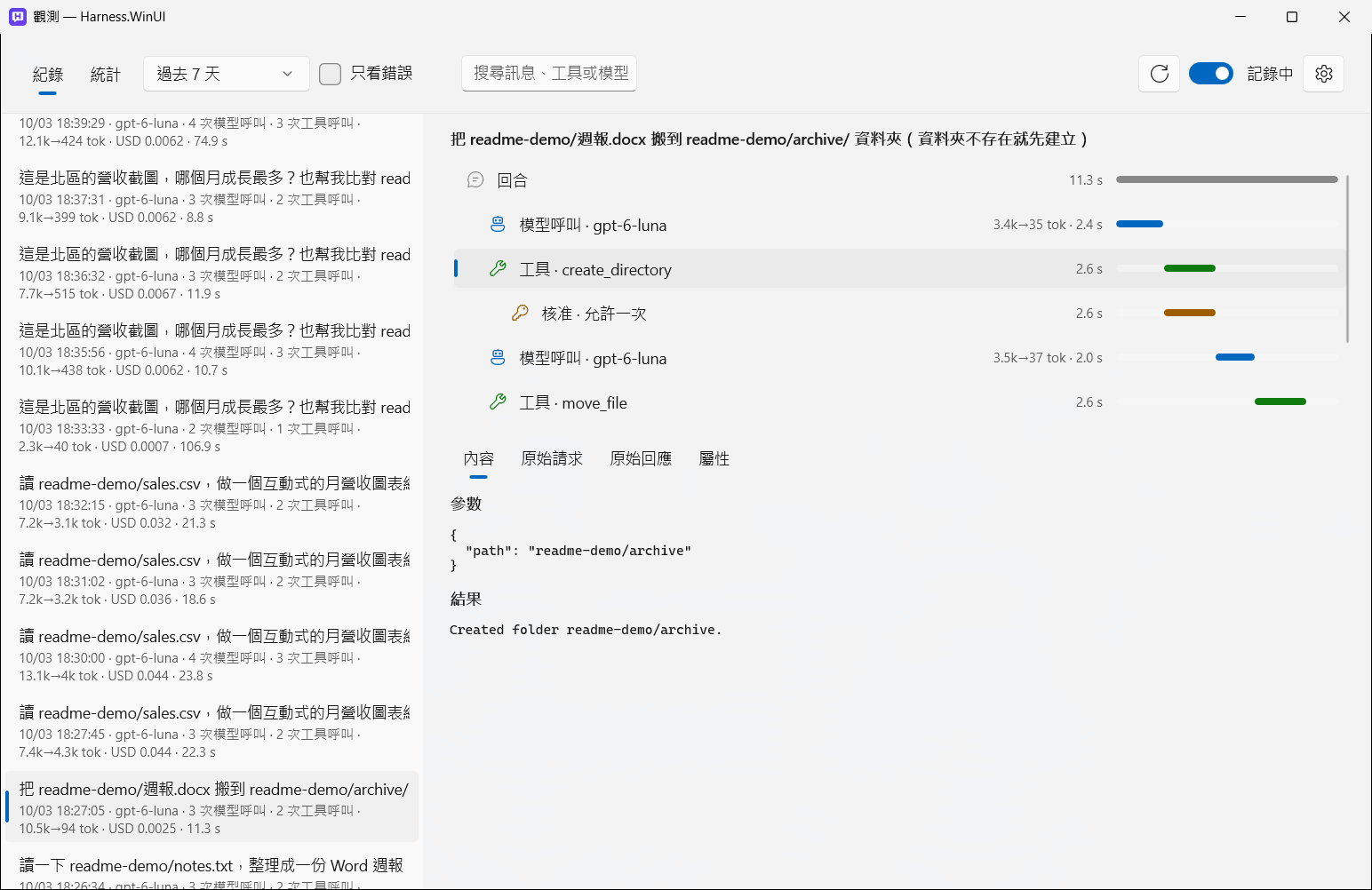
Observability: see exactly what goes to the model and what comes back. Harness.WinUI can now record every turn — the model calls, tool calls and approval waits, the exact request and response sent to your provider, tokens, cost and timing — show it in a native window, total it up, and let your own model analyze it. Recording is off until you turn it on; everything stays on your PC unless you set up an export.
What's new
- Observability window (toolbar). Turn on Recording there; records are kept in
trace.dbfor 30 days by default (adjustable, or delete them all).- Log: every turn with its model, number of model and tool calls, tokens, cost and duration. Each turn as a timeline (model calls, tool calls, approval waits). For each step: the messages as the model saw them, the raw HTTP request and response, and every attribute. Click a recorded reply's footer to jump to its turn.
- Statistics: per model (median and P95 duration, time to first token, tokens, cost, size of the tool definitions sent each call), per tool (offered vs. called, failures, time, result size — tools never used stand out), per skill, MCP server and approval decision.
- AI analysis: ask your model about the records ("Which step is slowest? Which tools could I turn off?"). It reads them through read-only tools; its own calls aren't recorded.
- OTLP export (optional): send the records to Aspire Dashboard, Langfuse, an OpenTelemetry Collector and the like. Off until you set the endpoint (headers are kept encrypted). Raw HTTP exchanges never leave the PC.
- Built on Microsoft.Extensions.AI's own OpenTelemetry instrumentation (GenAI semantic conventions). With recording off it adds no work; with it on, about 1.6 ms per model call on a long conversation.
- "Record message content" can be turned off to keep only timing, tokens and status — for local records and export alike.
Fixes
- With the artifact panel open (or a narrow window), the toolbar squeezed the message box to a sliver. Buttons that don't fit now move into the More (…) menu until there's room.
- Tables in replies now have a frame, header divider, row lines and shading.
Download
| File | For |
|---|---|
Harness.WinUI-1.0.5-win-x64.zip |
Most Intel / AMD PCs |
Harness.WinUI-1.0.5-win-arm64.zip |
ARM PCs (e.g. Snapdragon Copilot+ PCs) |
Unzip to any folder and run Harness.WinUI.exe. Requires Windows 10 1809+ and the WebView2 Runtime (built into Windows 11). The executable is not code-signed, so SmartScreen may warn the first time: choose More info → Run anyway. Verify downloads with SHA256SUMS.txt.
可觀測性:看清楚送給模型的是什麼、回來的又是什麼。 Harness.WinUI 現在可以記錄每個回合:模型呼叫、工具呼叫、核准等待、送給供應商的原始請求與回應、token、費用與時間,並在原生視窗中呈現、統計,還能請你自己的模型分析。記錄預設關閉;除非你設定匯出,所有資料都留在本機。
- 觀測視窗(工具列):在視窗中開啟「記錄」,紀錄存在
trace.db,預設保留 30 天(可調整或全部刪除)。- 紀錄:每個回合的模型、呼叫次數、token、費用與耗時;每個回合以時間軸呈現;每一步可看模型實際看到的訊息、原始 HTTP 請求與回應及所有屬性。點回覆下方的用量資訊可直接跳到該回合。
- 統計:各模型的耗時中位數與 P95、首字時間、token、費用、每次附帶的工具定義大小;各工具的提供與呼叫次數、失敗、耗時、結果大小(從沒用過的工具一目了然);以及技能、MCP server、核准決定的統計。
- AI 分析:直接問模型「哪一步最慢?哪些工具可以關掉?」,它透過唯讀工具讀取紀錄,分析本身不會被記錄。
- OTLP 匯出(選用):送到 Aspire Dashboard、Langfuse、OpenTelemetry Collector 等;沒設定端點就不會送出,headers 加密保存,原始 HTTP 內容只留在本機。
- 以 Microsoft.Extensions.AI 內建的 OpenTelemetry instrumentation 為基礎;關閉記錄時沒有額外負擔,開啟時長對話每次模型呼叫約多 1.6 ms。
- 修正:成品面板打開或視窗較窄時,工具列會把輸入框擠扁,現在放不下的按鈕會自動收進「⋯」;回覆中的表格加上框線與斑馬紋。
下載後解壓縮,執行 Harness.WinUI.exe 即可。
Harness.WinUI 1.0.4
Attachments, cost tracking, notifications and Agent Skills. A round of everyday-use improvements: paste a screenshot straight into the chat, see what each reply costs, get notified when the agent is done, and teach it your own workflows with skills.
What's new
- Paste and drop attachments: press Ctrl+V in the message box to attach a screenshot or files copied in File Explorer, or drag files onto the window. Images go to the model as images; text, Office and PDF files as text. Up to 10 per message. (Copying cells from Excel or Word still pastes text.)
- Cost tracking: every reply shows its tokens and cost. The usage button (next to the toolbar) totals this conversation, today, this month and all time. Set prices per 1M tokens and the currency in Settings; usage is kept locally in
usage.db. - Notifications: when Harness.WinUI is in the background, a Windows notification and a flashing taskbar button tell you a reply finished or a tool call is waiting for your approval. Click the notification to bring the window back.
- Agent Skills: folders with a
SKILL.mdteach the agent a kind of task. Harness.WinUI reads its own skills folder,~/.agents/skills,~/.claude/skillsand the sandbox's.agents/skills, and loads a skill when a request matches. Turn skills on or off in the MCP & tools dialog. - Text size: Ctrl + plus / minus / 0, or Ctrl + mouse wheel, for the conversation and the message box. Remembered across launches.
- Customizable toolbar: right-click the toolbar to choose which buttons show; the rest move into the More (…) menu.
Fixes
- Turning an MCP server off or on in the dialog didn't take effect.
- The reply timer kept running while a tool call waited for your approval.
- Opening a second dialog while one was open could close the app.
Download
| File | For |
|---|---|
Harness.WinUI-1.0.4-win-x64.zip |
Most Intel / AMD PCs |
Harness.WinUI-1.0.4-win-arm64.zip |
ARM PCs (e.g. Snapdragon Copilot+ PCs) |
Unzip to any folder and run Harness.WinUI.exe. Requires Windows 10 1809+ and the WebView2 Runtime (built into Windows 11). The executable is not code-signed, so SmartScreen may warn the first time: choose More info → Run anyway. Verify downloads with SHA256SUMS.txt.
附件、費用、通知與 Agent Skills。 這一版著重日常使用體驗:截圖直接貼進對話、看得到每則回覆花多少錢、agent 做完會通知你,還能用技能教它你自己的工作流程。
- 貼上、拖曳附件:在輸入框按 Ctrl+V 可附加截圖或在檔案總管複製的檔案,也可以直接把檔案拖進視窗。圖片以圖片送給模型,文字、Office、PDF 檔轉成文字,每則訊息最多 10 個。(從 Excel、Word 複製儲存格仍會貼成文字。)
- 費用統計:每則回覆都顯示 token 數和費用;用量按鈕可看本次對話、今天、本月和全部的累計。每 100 萬 token 的價格和幣別在設定中填入,用量只存在本機的
usage.db。 - 通知:Harness.WinUI 在背景時,回覆完成或工具呼叫等你核准,會跳出 Windows 通知並閃爍工作列按鈕;點通知即可回到視窗。
- Agent Skills:含
SKILL.md的資料夾可以教 agent 做某一類工作。會讀取 Harness.WinUI 的技能資料夾、~/.agents/skills、~/.claude/skills與沙盒的.agents/skills,請求符合時自動載入;可在「MCP 與工具」對話框中開關。 - 字型大小:Ctrl + 加號 / 減號 / 0,或 Ctrl + 滾輪,調整對話與輸入框的字型大小,下次開啟仍會保留。
- 自訂工具列:在工具列按右鍵選擇要顯示哪些按鈕,其餘收進「⋯ 更多」選單。
- 修正:MCP server 在對話框中開關沒有作用;等待核准時回覆計時不會暫停;已開啟對話框時再開第二個可能導致閃退。
下載後解壓縮,執行 Harness.WinUI.exe 即可。