Repository navigation
Backup and Restore
Everything Boltarr knows lives in two files in its data/ folder: the database (boltarr.db) and the settings (config.yaml). A backup is one zip with both. You can restore it later on the same machine, or on a new one, without restarting Boltarr.
All of it is in ⚙ Settings → Data:
- ⬇ Backup — download a backup, with an optional password.
- ⬆ Restore — check a backup, then put it back.
- ↺ Reset all uptime — start every uptime history fresh.
- ↺ Factory reset — wipe all network data.
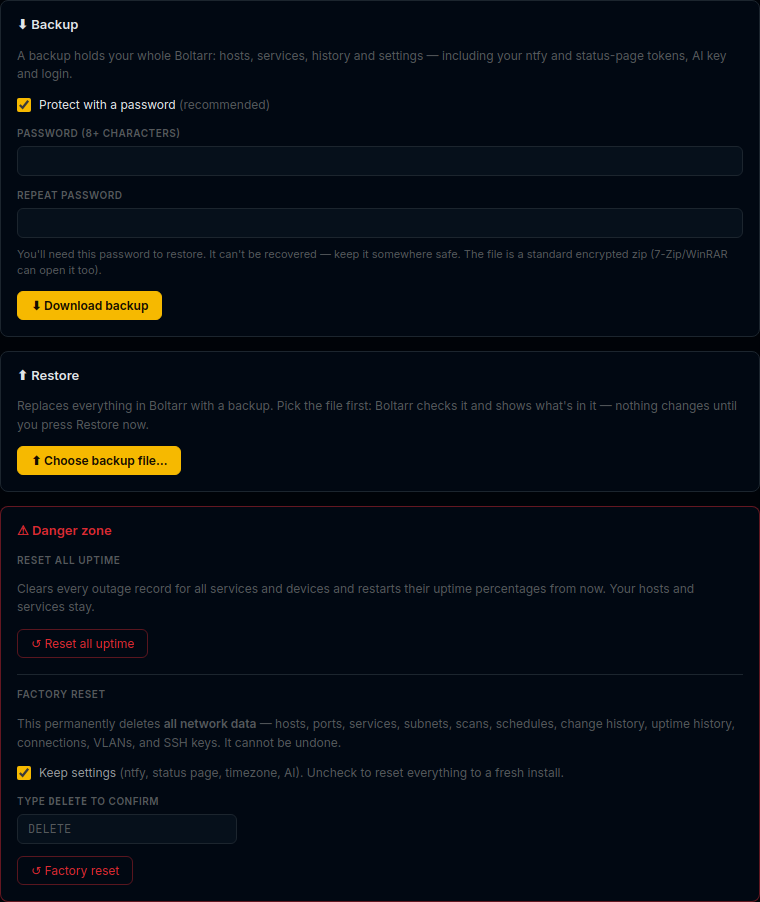
Click ⬇ Backup. The ⬇ Download backup window opens.
A backup holds your whole Boltarr: hosts, services, history and settings. That includes your ntfy and status page tokens, your AI key and your login. So Protect with a password is ticked by default, and we recommend you leave it on.
- Enter a Password (8+ characters) and repeat it.
- Click Download.
You get a file like boltarr-backup-2026-11-15-protected.zip (without a password: boltarr-backup-2026-11-15.zip).
Good to know:
- Keep the password safe. You need it to restore, and it can't be recovered.
- A protected backup is a standard AES-encrypted zip, so 7-Zip or WinRAR can open it too.
- Untick Protect with a password and Boltarr warns you: anyone who gets the file can read your tokens and keys. Keep it private.
- Inside the zip:
boltarr.db,config.yaml, and a smallmanifest.jsonthat records when the backup was made and by which Boltarr version.

A restore replaces everything in Boltarr with the backup. So it happens in two steps: first Boltarr checks the file and shows you what's in it, then you confirm.
Click ⬆ Restore and pick the backup .zip.
- Boltarr uploads and checks it. Nothing is changed yet.
- A password-protected backup asks for its Backup password. Click Unlock.
Then you see what's in it:
- Backup made, Boltarr version, Includes settings, Password-protected.
- A Now / After restore table with the number of hosts, services, subnets and links, so you can see you picked the right file.
- A note when the versions differ:
- Made by an older Boltarr: it's upgraded automatically while restoring.
- Made by a newer Boltarr: it usually works, but update Boltarr first if you can.
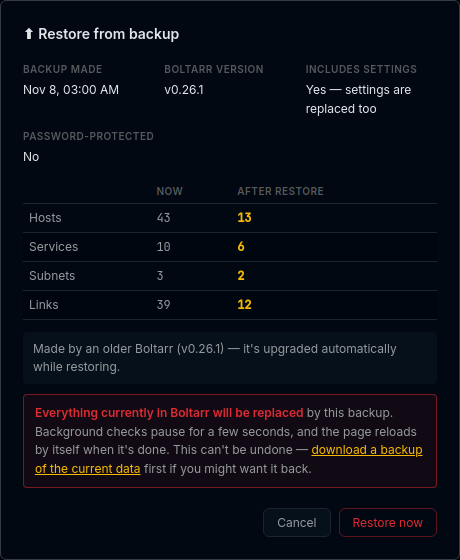
Click Restore now. A progress screen shows the steps. Background checks pause for a few seconds, the backup is copied in, and the page reloads by itself when it's done. No restart is needed.
If notifications are set up, ntfy gets a message: Boltarr was restored from a backup, with the backup's date and how many hosts and services it has.
Want to keep what's there now as well? The restore window has a link to download a backup of the current data first.
- The database is always restored.
- Settings are restored only if the backup includes settings (normal backups do). If it doesn't, your current settings are kept.
- Restored settings include the login. After restoring, log in with the password that was set when the backup was made. Forgot it? See Forgot the password? on Login and Security.
Boltarr checks the backup before it touches anything. In all of these cases nothing is changed:
| You see | Why |
|---|---|
| A scan is running — wait for it to finish (or cancel it), then restore | A restore can't run during a scan, including a scan waiting in the queue. If a scan is running when you pick the file, Restore now is greyed out; try again when the scan is done. |
| This file is bigger than 500 MB — not a Boltarr backup | Uploads are capped at 500 MB. Normal backups are a few MB. |
| This backup unpacks to more than 1 GB — not a Boltarr backup | The files inside are capped at 1 GB. |
| This backup can't be upgraded to this Boltarr version: … | Boltarr first upgrades a throwaway copy of the backup. If that fails, the backup is refused before anything is restored. |
| Not a valid ZIP file, ZIP does not contain boltarr.db, Database file is corrupt, This doesn't look like a Boltarr database, config.yaml in the backup is not valid | The file isn't a usable Boltarr backup. |
| Wrong password for this backup | Try the password again. |
| This upload has expired — please choose the backup file again | A checked backup waits up to 30 minutes for you to click Restore now. |
In Settings → Data → ⚠ Danger zone, ↺ Factory reset permanently deletes all network data: hosts, ports, services, subnets, scans, schedules, change history, uptime history, connections, VLANs and SSH keys. It can't be undone, so take a backup first.
- Choose Keep settings (ticked by default). That keeps your settings: ntfy, status page, timezone, AI and so on. Untick it to reset everything to a fresh install.
- Type
DELETEto confirm. - Click ↺ Factory reset.
The built-in scan profiles come back on their own. No restart is needed. Like a restore, a factory reset is refused while a scan is running.
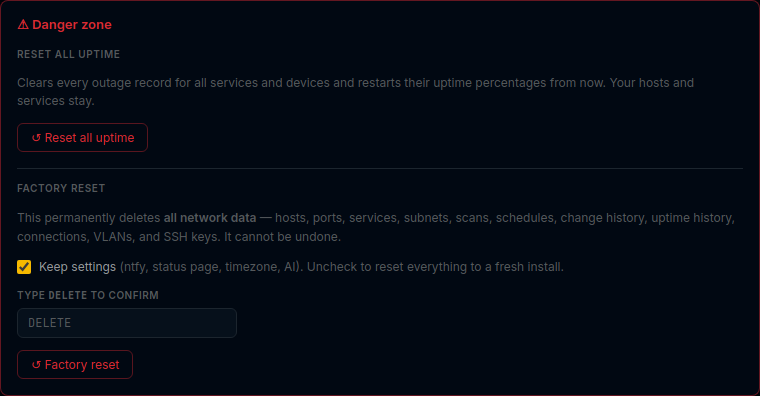
👁 View level: the Danger zone is Advanced only. Search for "danger" to open it at any level. See View Levels.
For automatic backups you can call the API directly:
# Backup without a password (keep this file private: it holds your tokens and keys)
curl -o boltarr-backup.zip http://192.168.1.10:12100/api/backup

# Restore in one step (check + apply)
curl -X POST -H "X-Boltarr: 1" -F "file=@boltarr-backup.zip" http://192.168.1.10:12100/api/restore
Changes need the X-Boltarr: 1 header, and with login on a script must log in first. See Login and Security.
You can also stop Boltarr and copy the data/ folder (the ./data volume in Docker). Copy both boltarr.db and config.yaml. Treat the copy like a backup without a password: it holds your keys and tokens.