Repository navigation
View Levels
Boltarr can show a little or a lot. Pick a view level:
| Level | What you see |
|---|---|
| Basic | The essentials: what's on my network, and is it working? |
| Intermediate | Adds tools for running a homelab: schedules, hierarchy, status page. |
| Advanced | Everything, with every option. This is how Boltarr looked before levels. |
The level only changes what you see. Everything keeps working the same: scans, checks, alerts and schedules run whatever level you are on. Nothing is turned off or deleted when you pick a lower level.
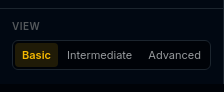
- View at the bottom of the side menu (☰ on a phone): click Basic, Intermediate or Advanced.
- Or ⚙ Settings → General → 👁 View level.
It applies straight away, with no Save. Each browser keeps its own level, so your phone can be on Basic while your desktop is on Advanced.
Which level do I start on?
- New install: Basic.
- Upgraded from an older version: Advanced, so everything looks as before. A one-time note at the top tells you levels exist. Got it hides it.
A few examples (not the full list):
| Hidden at Basic, shown from Intermediate | Advanced only |
|---|---|
| Hierarchy view, Scan schedules, Service dependencies (Services → Topology) | SSH Keys page, IP History (also at Intermediate once a subnet has a DHCP range) |
| 🗓 Maintenance and ⊕ Bulk on Services | ◈ VLANs and ⊕ Multi-Link on Topology |
| Ports, Options and Timing in Scans → Run | Time limit per host, NSE scripts, the command preview, saving a scan profile |
| ⟳ Probe and Reset uptime on a device's panel | ⇌ Merge and the SSH tab on a device's panel |
| Delete one scan in the Scan Log, Clear all changes | Selecting several scans to delete |
| Settings: IP History, Login service in front, Allowed dashboards, Strict mode, Danger zone |
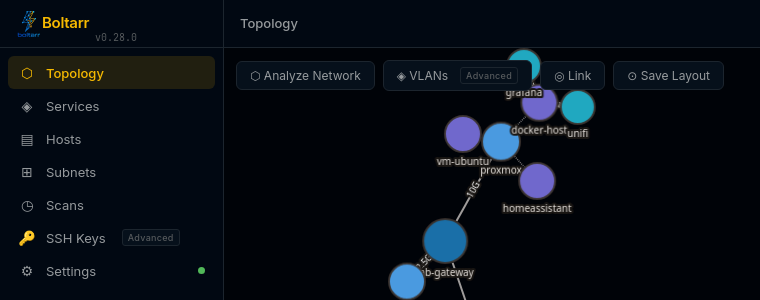
If you already use something, it stays on screen at every level. For example: you have VLANs, schedules, SSH keys or planned maintenance, or you turned on the login service in front. It gets a small grey tag with the level it belongs to (Intermediate or Advanced). Hover the tag: Shown because you use it.
Delete the last one and it hides again at your level.
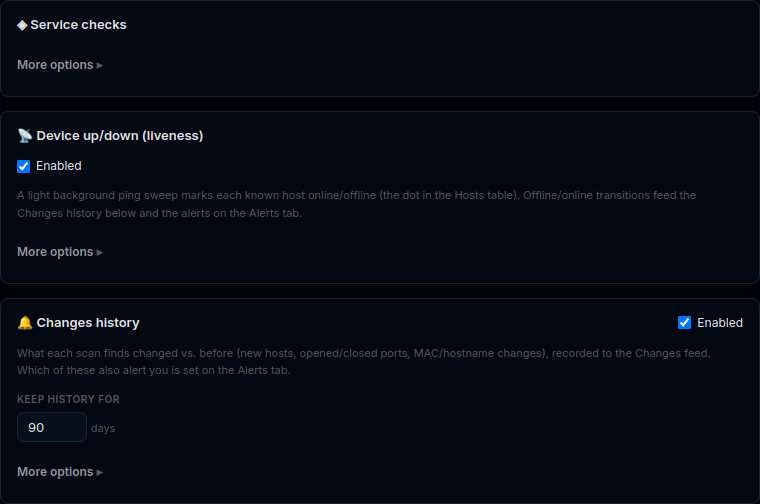
Some longer forms keep the common fields on top and put the rest in a More options fold at the bottom. Examples: Edit Host, the Service window, and several Settings cards (Device & network alerts, Service checks, Device up/down, Changes history). Click More options to open it.
- If something inside is already set (not the default), the fold opens by itself, so you never miss a setting you made.
- At Advanced there are no folds: every field shows as before.
At Basic and Intermediate a few rarely used buttons move into a ⋯ menu on their toolbar, for example Export and Delete host. They still work the same. At Advanced they're back on the toolbar.
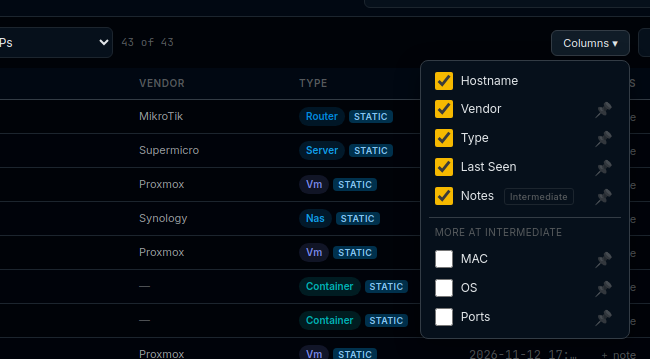
At Basic the Hosts table starts without MAC, OS, Ports and Notes, and the Services table without Description and Public.
- Columns ▾ lists them under More at Intermediate. Tick one to show it. Your choice is kept.
- A column that holds your data stays, with the grey tag (for example Notes when a host has a note, or Public when a service is public).
At Basic, buttons for a feature you haven't set up are hidden, so you don't see buttons that can't work yet:
- AI not set up: 💬 Chat, Analyze Network, a device's Analyze and Analysis tab, and the AI summary in the daily digest.
- Public status page off: Public in Edit Host, Show publicly in the Service window, and the Services Public column.
Set the feature up (Settings → AI or Settings → Status page) and they show straight away, with no tag. Something of yours keeps showing even without the feature, for example a device's earlier AI results.
At Intermediate and Advanced they always show.
Search finds hidden features
Type at least 2 letters in the search box. Anything your level hides right now is listed under Features, with its grey tag. Pick one and Boltarr opens it for you for this visit: the page, tab, setting or button shows and is pointed out. It hides again when you go to another page.
- A feature that isn't set up shows Set up AI or Set up status page and takes you to where you set it up.
- A device panel's buttons (Merge, Probe, SSH) need a device open first.
- At Advanced nothing is hidden, so there's no Features group.
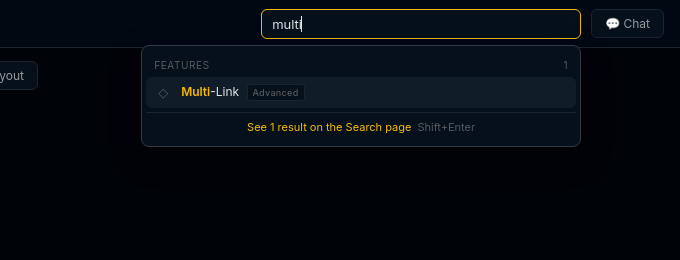
Pick Advanced. Nothing was lost: every setting, schedule and record is still there.