Repository navigation
Subnets and IP History
A subnet is a network range Boltarr scans, like 192.168.1.0/24. Boltarr needs at least one before it can scan anything. If you also tell it the subnet's DHCP pool (the range your router hands out automatically), it can tell fixed devices from roaming ones, warn you about addresses that look wrong, and show which fixed addresses are free.
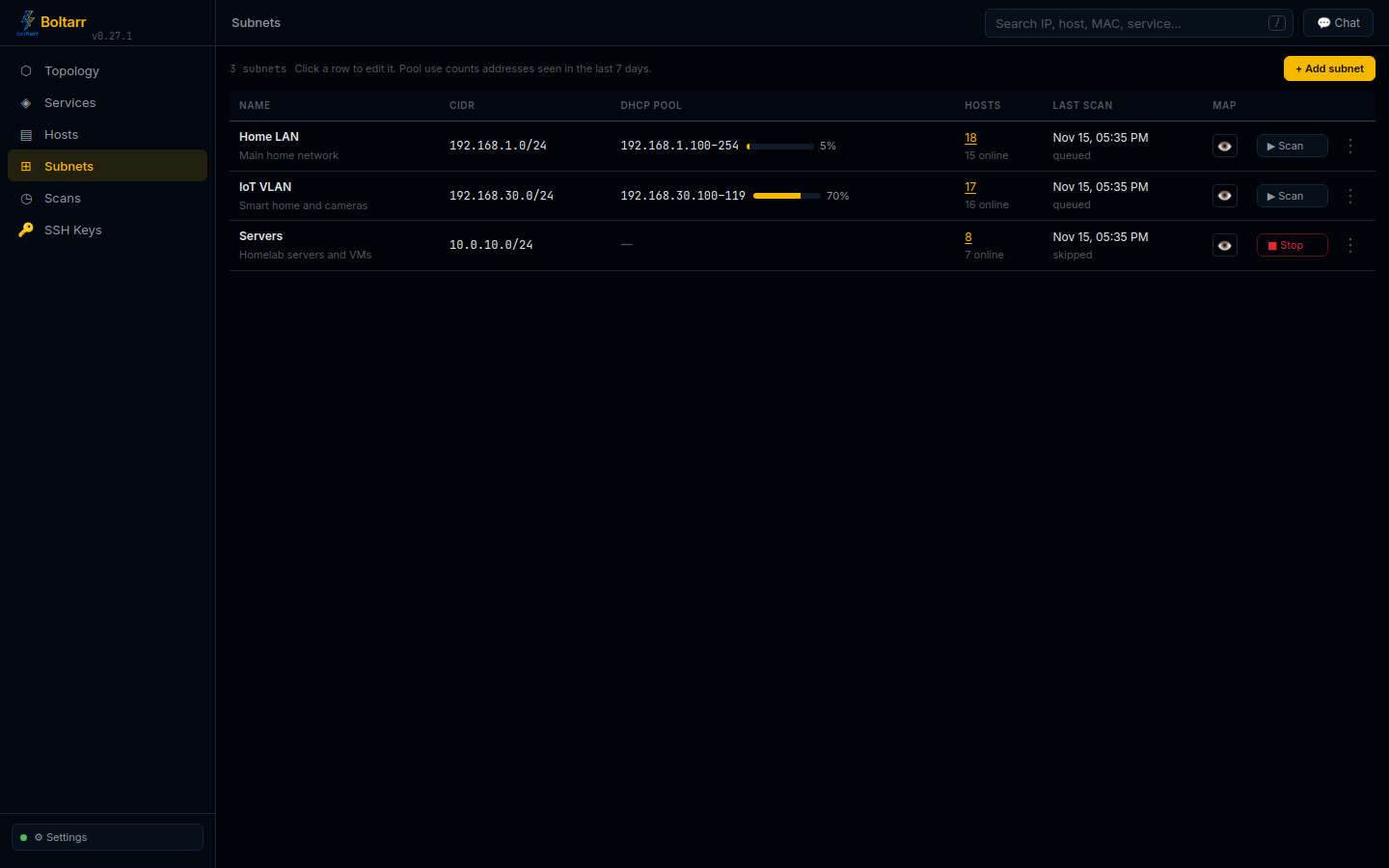
Open ⊞ Subnets in the sidebar (or in the bar at the bottom on a phone). There's one row per subnet:
- Name and CIDR — with the description under the name, if you gave one.
- DHCP pool — the pool's range and a bar showing how full it is. It counts the pool addresses seen in the last 7 days. The bar turns amber from 75% and red from 90%.
- Hosts — how many hosts are in the subnet, and how many are online. Click the number to open the Hosts page showing only those hosts (a Subnet: … chip there clears the filter).
- Last scan — when the last scan ran and how many hosts it found (or "never").
- Map — 👁 hides the subnet's devices from the Topology map; ⊘ shows them again. This is remembered after a reload.
- ▶ Scan — scans the subnet right away with the standard settings (top 1000 ports, service + version, OS detection). While it runs, the button turns into ■ Stop with the progress. This also happens for scans started by a schedule. Want other options? Use Scans → Run (see Scanning).
- ⋮ menu — ✎ Edit, ⬡ Show on map (jumps to the map with the subnet's devices selected), ◷ IP History (see below) and ✕ Delete subnet.
Click anywhere else on a row to edit the subnet.
Deleting a subnet asks first and names what goes with it. Its hosts stay in Boltarr; the subnet entry, its scan history and any scan schedules for it are deleted.
Click + Add subnet (or click a row to edit). Fill in:
-
Name — for example
Home LAN. -
CIDR — for example
192.168.1.0/24. -
Description (optional) — for example
Main home network. -
DHCP range (optional) — the first and last address of the pool, for example
192.168.1.100to192.168.1.254. Copy it from your router's DHCP settings.
Once a subnet has a DHCP range, every host in it gets a class:
- dynamic — its IP is inside the pool, so the router gave it out and it may change.
- static — its IP is outside the pool, so it was set by hand and should stay the same.
- unknown — the host isn't in any subnet, or its subnet has no DHCP range.
You can override this for one host in Edit Host → Classification (Force static / Force dynamic), or with the type pen in the Hosts table.
Why it matters: change alerts can be limited to static devices (see Change Tracking and Alerts), schedules can scan just one class (see Scheduled Scans), and the checks below rely on it.
Boltarr uses each subnet's DHCP pool to spot addresses that look wrong. It only reads and reports; it never changes anything. There are three warnings:
- Static but inside the pool — a host you forced to static whose IP is inside the DHCP pool. The DHCP server could give the same address to another device.
- Important device on a pool address — a router, gateway, switch, firewall, access point, server, NAS, printer, a DNS/DHCP server, or a host with monitored services that got a pool address. Its IP can change, so it's a hint to give it a DHCP reservation or a static IP outside the pool. Hosts you've set to Force dynamic are left alone.
- Pool almost full — 90% or more of a pool's addresses were seen in the last 7 days. New devices may not get an address.
Where you see them:
- A ⚠ next to the host's type in the Hosts table (hover for the reason), and a warning box at the top of the host's Info tab.
- An amber ⚠ DHCP pool N% full chip on the Hosts toolbar (hover for details).
- ⚠ DHCP warnings in the Hosts IP filter shows only the flagged hosts.
- The daily digest gets a "DHCP warnings" section. Each warning is sent once, and again only if it clears and comes back, so it won't repeat every morning. See Change Tracking and Alerts.
Has a DHCP reservation inside the pool? Then the warning doesn't apply. Click Don't warn about this host in the warning box of its panel, or tick Don't show DHCP warnings for this host in Edit Host. Untick it there to turn warnings back on.

👁 View level: Hosts → IP History and its settings are Advanced only, and also show at Intermediate once a subnet has a DHCP range. See View Levels.
Hosts → IP History answers "which fixed address can I use for a new device?". It lists every address in a subnet's static range (the subnet minus its DHCP pool) and how long since each one last answered.
Pick the subnet at the top left. Then:
- The chips filter by status, with a count on each: All seen · In use · Recent · Stale · Gone · Never seen.
- In use — online now (or seen today).
- Recent — seen within the "stale" limit.
- Stale — not seen for a while; probably free.
- Gone — not seen for a long time; safe to reuse.
- Never seen — no device has used it since Boltarr started tracking. These are hidden under All seen; click Never seen to list them.
- The table shows Status, IP, Last seen, Hostname, MAC, Vendor, First seen and Notes. Notes say when an address is an alias of another host, or when a different device (a new MAC) has used it since a date.
- Filter by IP, hostname, MAC… narrows the list. Click IP or Last seen to sort.
- Click a row to open that host's panel.
- ⤓ Export ▾ downloads the rows you see as CSV or JSON (see Search and Export).
The note above the table says which range is shown, the current limits, and since when Boltarr has been tracking. If a subnet has no DHCP pool, every address in it is shown. IP History works for subnets up to 4,096 addresses.
You can also open it from a subnet's ⋮ → ◷ IP History on the Subnets page.
Change the limits in Settings → Monitoring → 🕓 IP History: Stale after (default 30 days) and gone after (default 60 days).
