Repository navigation
Login and Security
Boltarr holds your network map, your SSH key list and the keys for your AI and alerts. Anyone who can open it can also change things: start scans, edit hosts, pause monitoring. This page covers how to lock it down.
- Optional login — one admin password.
- Login service in front — let Authelia, Authentik or similar sign you in.
- Forgot the password? — a reset command inside the image.
-
Scripts and the API — the
X-Boltarrheader. - Browser security — strict mode and Settings → Login & Security.
- Saved secrets — keys and tokens aren't sent to a new address on their own.
Login is optional, with one admin account (username + password).
- New install: the first time you open Boltarr it asks you to create a login (Welcome — create your admin login). You can pick Skip for now — set it later in Settings.
- Upgraded from an older version: login stays off, so nothing changes by itself. Turn it on in Settings → Login & Security.
- While login is off, a bar at the top says 🔓 Boltarr has no password — anyone on your network can change it. Set a password opens the Login settings. Not now hides the bar for 30 days in that browser.
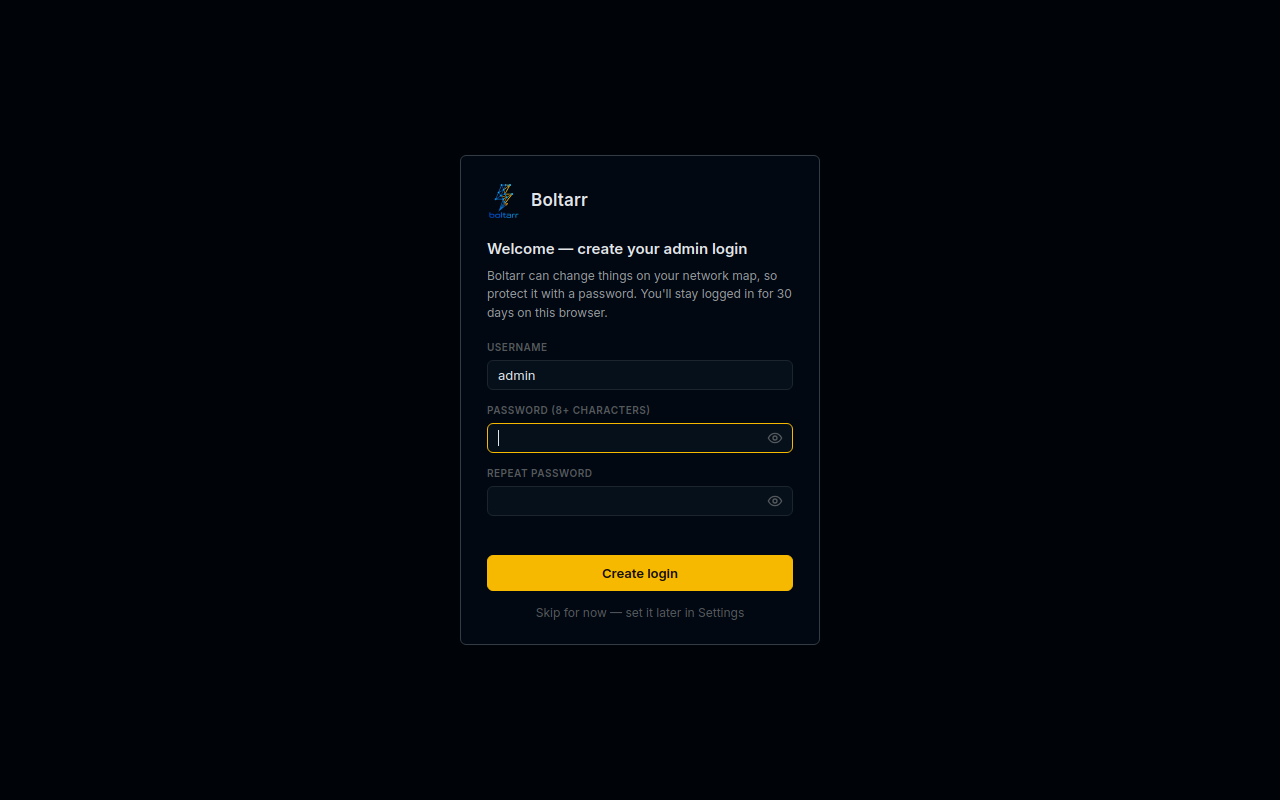
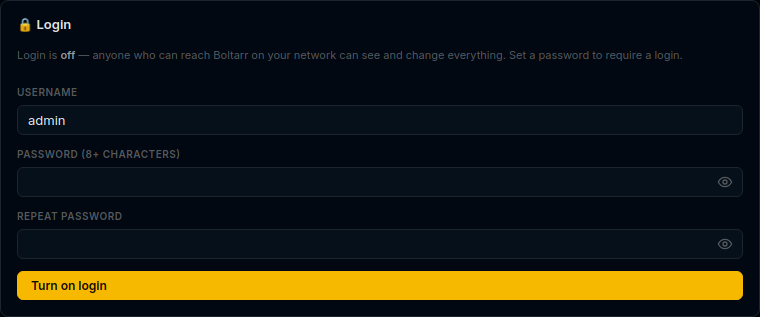
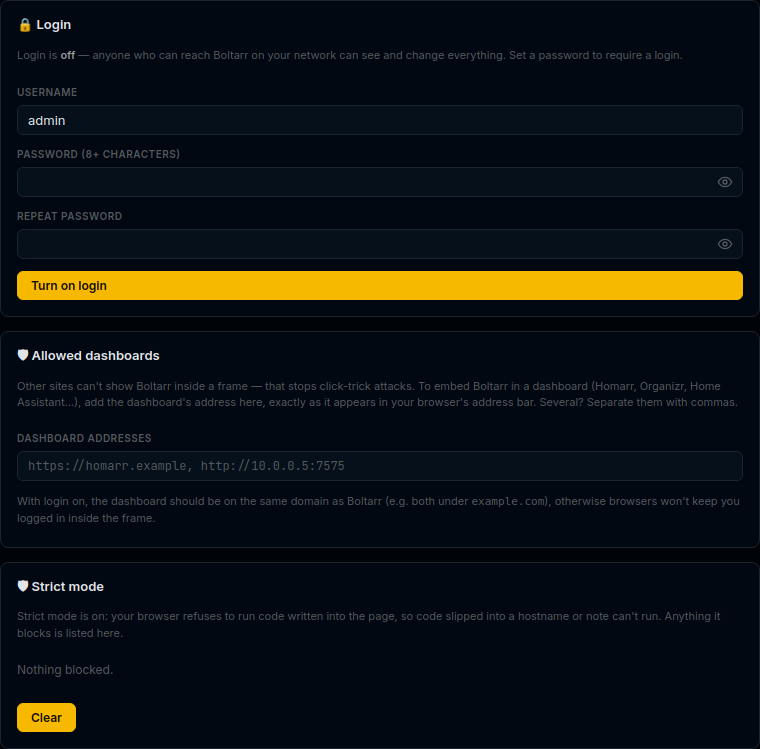
⚙ Settings → Login & Security: enter a Username (default admin) and a Password (8+ characters) twice, then click Turn on login.
How it works:
- A browser stays logged in for 30 days.
- After 5 wrong passwords from one address, each new try has to wait. The wait starts at 15 seconds, doubles each time, and stops at 5 minutes. A correct login clears it.
- ⎋ Log out in the top bar logs that browser out.
- Change password (current password + new one twice) logs out every other browser. The one you're using stays in.
- Turn off login needs the current password.
👁 View level: Login service in front is Advanced only. At Basic and Intermediate it's hidden, unless you already use it. See View Levels.
Does Boltarr sit behind a login service like Authelia or Authentik? Boltarr can trust it, so you only sign in once.
The login service checks who you are, then passes your username to Boltarr in a header (usually Remote-User). Boltarr only believes that header when the request comes from an address you listed. Anyone else who sends it is ignored.
In Settings → Login & Security → 🔒 Login → Login service in front (optional) (login must be on first):
-
Its IP address(es) — the address of the login service or reverse proxy as Boltarr sees it, e.g.
172.18.0.5. Several? Separate them with commas. -
User header — the header with the username. Default
Remote-User. - Tick Trust the login service and click Save.
⚠️ Use the login service's own address. A whole range (like172.18.0.0/16) trusts every device or container in it to say who is logged in. Boltarr shows a warning under the box when you enter a range.
When you're signed in through the login service, the ⎋ Log out button is hidden: log out in the login service instead.
Run the reset command on the machine Boltarr runs on. It turns login off and logs out every browser. Then open Boltarr (no password needed) and set a new one in Settings → Login & Security.
| Setup | Command |
|---|---|
| Docker |
docker exec boltarr reset-password (use your container's name if it isn't boltarr) |
| Unraid |
Docker tab → Boltarr icon → Console → type reset-password
|
| Without Docker | in the Boltarr folder: venv/bin/python -m backend.reset_password
|
The login page has the same help under Forgot your password?. The reset also turns off Trust the login service, so set that up again afterwards.
Boltarr blocks forged requests from other websites. Without this, a page you visit could tell your browser to send a change to Boltarr behind your back.
So every change to Boltarr's API (POST, PUT, PATCH, DELETE on /api/…) must carry the header X-Boltarr: 1. The Boltarr page always sends it. Other websites can't add it. Reading (GET) doesn't need it.
This applies with login on and with login off (since v0.26.2). If you have scripts that call the API, add the header:
curl -X POST -H "X-Boltarr: 1" http://192.168.1.10:12100/api/…Without it, the request is refused with 403 Missing X-Boltarr header. With login on, a script also needs to log in first (or come through your trusted login service).
👁 View level: Allowed dashboards and Strict mode are Advanced only. See View Levels.
Every Boltarr page tells your browser exactly what it may load (a Content Security Policy):
- Scripts, styles, fonts and data come only from Boltarr itself. Nothing loads from outside, so Boltarr works fully offline.
- Strict mode (on by default since v0.23.5): the browser refuses any code written into the page. If code were ever slipped into a hostname, a note or a scan result, the browser won't run it.
- Other sites can't show Boltarr inside a frame, which stops click-trick attacks.
-
Allowed dashboards — want to show Boltarr inside a dashboard like Homarr, Organizr or Home Assistant? Add the dashboard's address to Dashboard addresses, exactly as it appears in your browser's address bar (e.g.
https://homarr.example,http://10.0.0.5:7575). Separate several with commas. With login on, the dashboard should be on the same domain as Boltarr (e.g. both underexample.com); otherwise the browser won't keep you logged in inside the frame. - Strict mode — shows whether it's on, and lists anything the browser blocked. Show details opens the list; Clear empties it. An empty list is what you want.
If something stops working after an update and 🛡 Security lists blocked items, you can switch strict mode off. Set this in the container's environment and restart:
    environment:
      BOLTARR_ALLOW_INLINE_SCRIPTS: "1"
This goes back to the older, looser rule. Please also open an issue so it can be fixed.
Your AI key, ntfy token and status page token are hidden in Settings (shown as dots). Since v0.26.2, Boltarr won't send a hidden secret to a new address on its own. That stops someone who can reach your Settings from changing the address to their own server and catching your key.
So if you change one of these addresses:
| Secret | Address it belongs to |
|---|---|
| AI key | Settings → AI → Base URL (or the provider) |
| ntfy token | Settings → Alerts → Server |
| Status page token | Settings → Status page → Status app URL |
…you have two choices:
- Type the key or token again, or
- tick the box that appears under it, e.g. Send my saved AI key to this new address. (also …saved ntfy token… and …saved status page token…).
Either way the secret stays saved. If you do neither, Save is refused with a message telling you what to do.
- Turn login on, especially if other people or devices share your network.
- Don't put Boltarr on the internet directly. If you need it from outside, put it behind a VPN or a login service.
- Run Boltarr on its own box, apart from internet-facing services such as the public status page. See Public Status Page.
- Protect backups with a password: they hold your keys and tokens. See Backup and Restore.