Repository navigation

QuickAdd 2.32.0
Note pickers now show your notes' file names, so notes that share a heading like "Background" no longer look alike. Tokens with options, such as {{FILE:Clients|label:Client}}, work inside a table, and the one-page form titles a list of options by its options. QuickAdd also no longer holds up Obsidian every time you close a window. And apps like Raycast can tell QuickAdd which note a choice should use.
To update, open Settings → Community plugins, click Check for updates, and then Update next to QuickAdd. The examples below come from the vault of a small pottery studio. Swap in your own notes and names as you go.
Note pickers show file names
When QuickAdd asks you to pick a note, such as for a Capture whose Capture to is a folder or for a {{FILE:...}} token, it showed each note's first top-level heading (a # Heading line) instead of its name. That helps if you name notes with IDs like 202610061432. But if your file names are the titles and your headings are sections, every note showed up as its first section:
| Before | 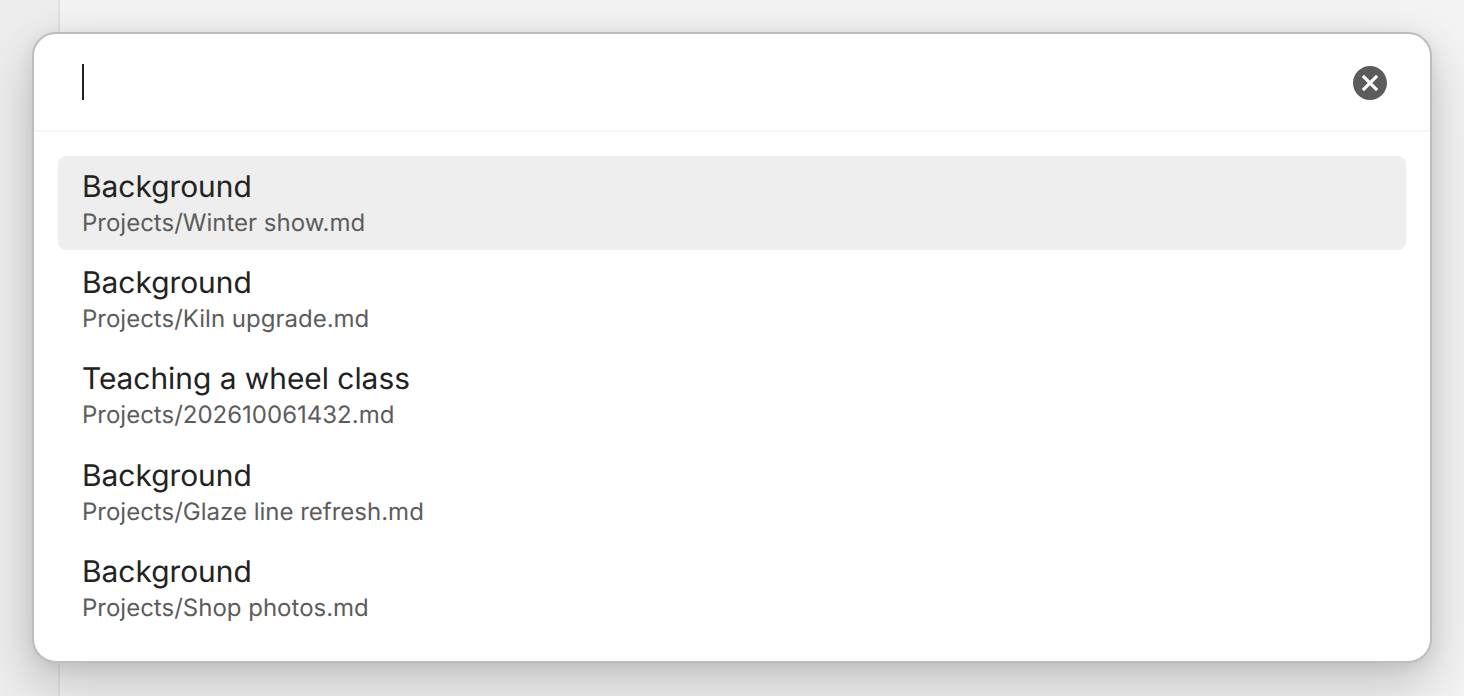 |
|---|---|
| After | 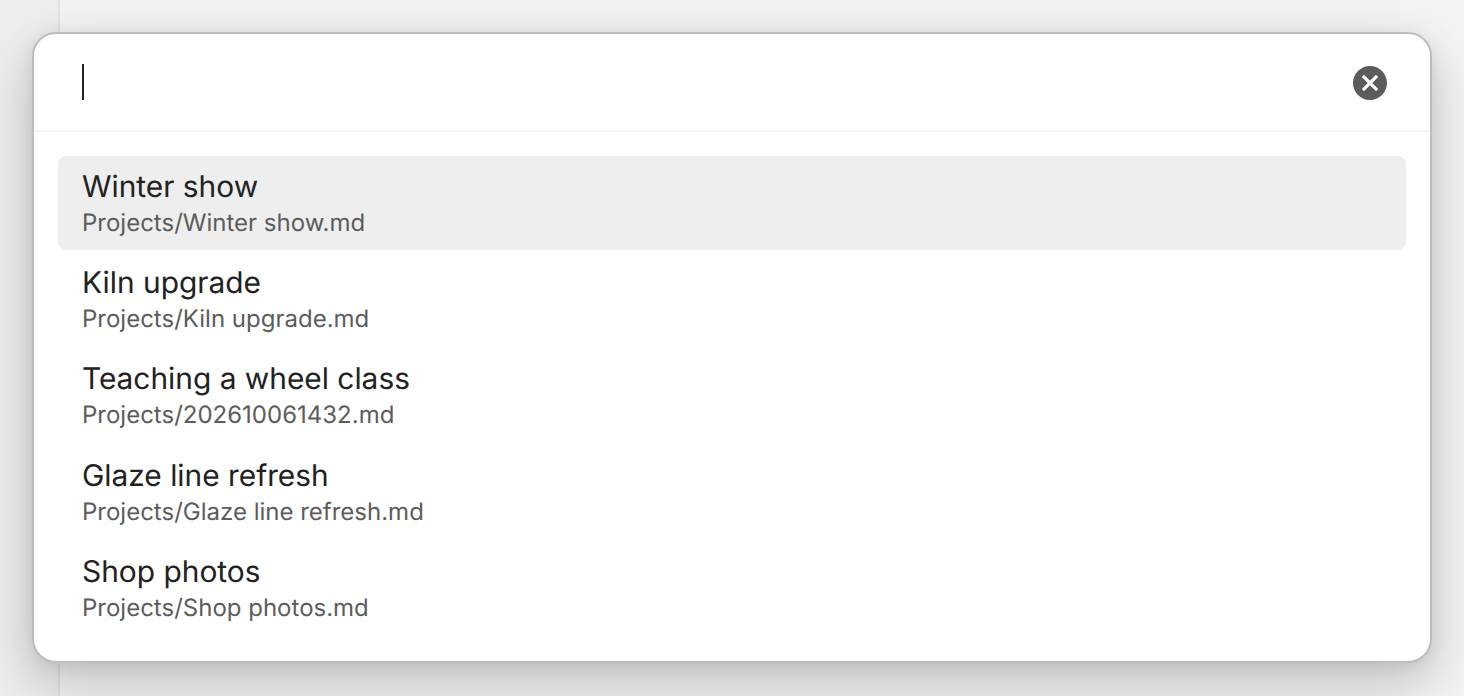 |
Now the picker shows the file name. A note named with an ID still shows its first heading, like Teaching a wheel class above, and a frontmatter title still wins for any note. There's nothing to set up.
Here's a Capture that adds a dated line to a project's log from anywhere in your vault:
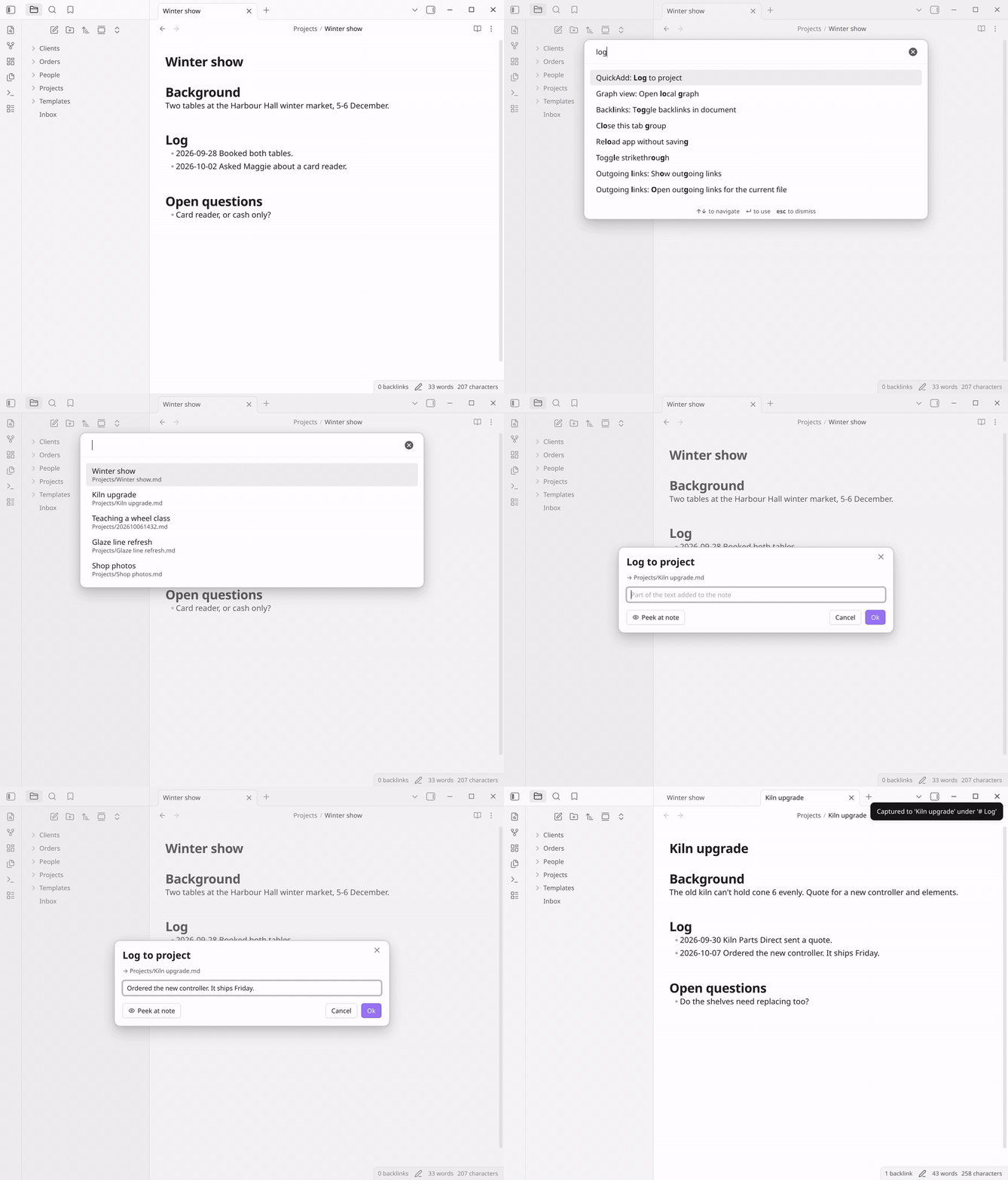
To build it:
-
Keep your projects in a
Projectsfolder, each with a# Logheading. For example,Projects/Kiln upgrade.md:# Background The old kiln can't hold cone 6 evenly. Quote for a new controller and elements. # Log - 2026-09-30 Kiln Parts Direct sent a quote. # Open questions - Do the shelves need replacing too?
The Teaching a wheel class row in the pictures is
Projects/202610061432.md, a note named with an ID whose first line is# Teaching a wheel class. -
Open Settings → QuickAdd, click New choice, and choose Capture. The choice's settings open.
-
In Name, enter
Log to project. -
In Capture to, enter
Projects/. The/at the end makes QuickAdd ask which note in that folder to use each time. -
Set Write position to After line… and enter
# Login Insert after. Insert at end of section is already on. -
In Capture format, enter:
- {{DATE:YYYY-MM-DD}} {{VALUE}} -
Turn on Open if you want to see the note after the capture.
-
Turn on Add to command palette and click the back arrow at the top.
Run QuickAdd: Log to project, type kiln, and press Enter to pick Kiln upgrade. Type the entry and press Enter. On October 7, 2026, the note's log reads:
# Log
- 2026-09-30 Kiln Parts Direct sent a quote.
- 2026-10-07 Ordered the new controller. It ships Friday.
A few things to know:
- An ID is a name that is only a timestamp of 12 or more digits, such as
202610061432, a UUID, or a ULID. A daily note such as2026-10-07isn't an ID, so it shows its name. - Typing searches the file name and the folder, so typing a note's name finds it either way.
- The list starts with the notes you opened recently, then the rest by file name.
Docs: Friendlier names in the picker. Thanks to @zambonic for discussion #1885 (#2193).
Use tokens with options inside a table
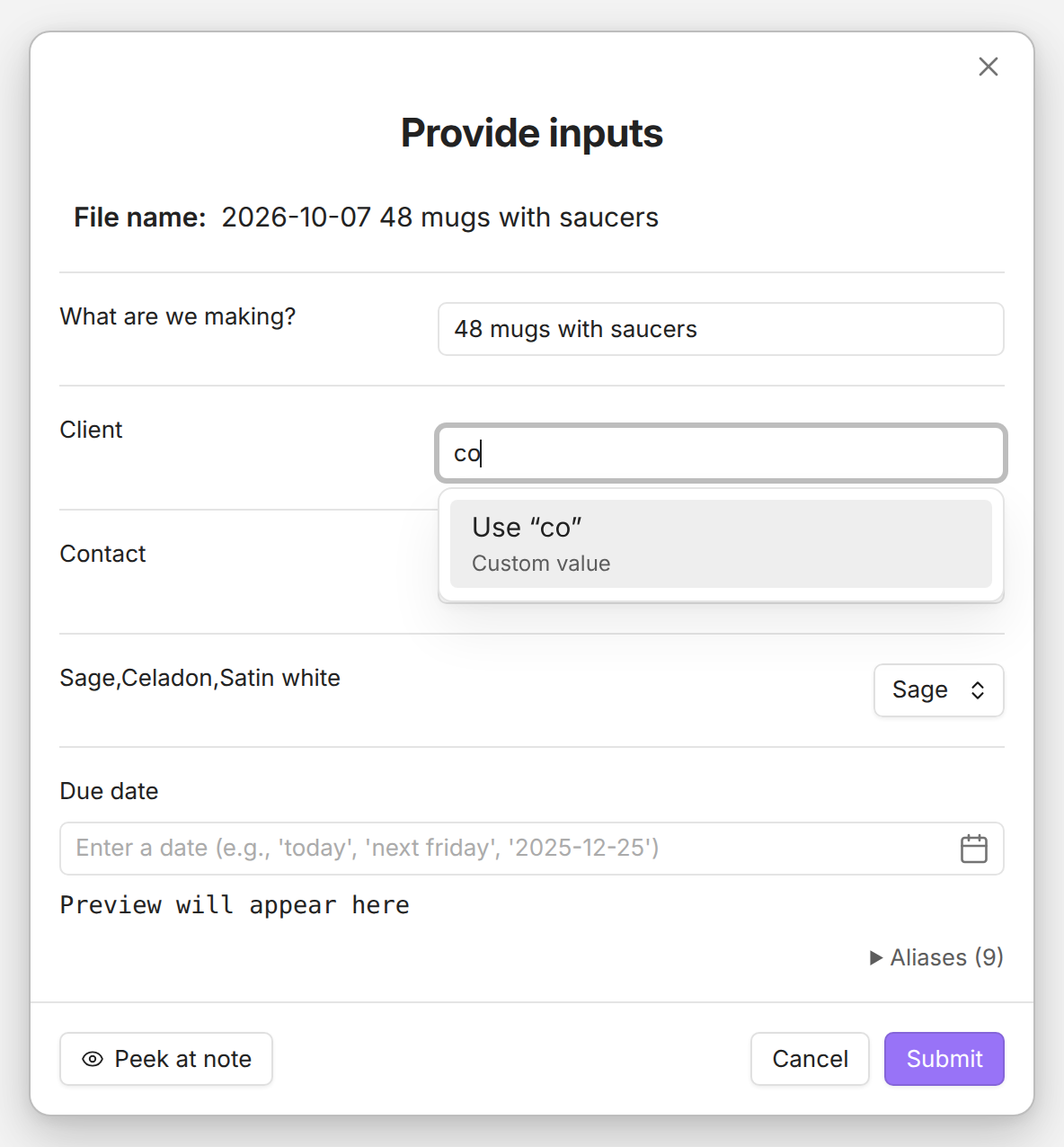
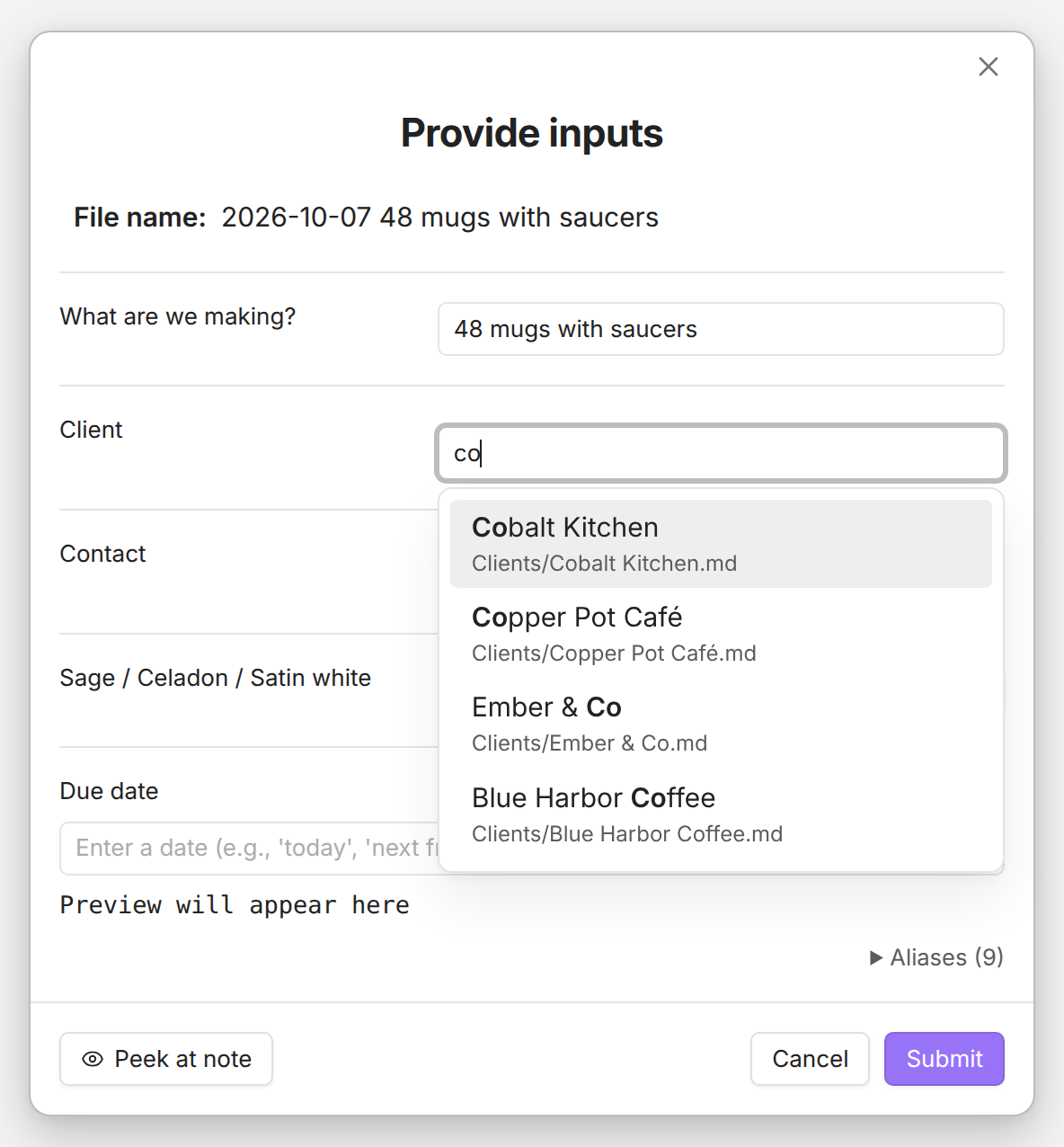
Markdown starts a new table cell at every |, so inside a table, the | between a token's options has to be written as \|: {{FILE:Clients\|label:Client}}. QuickAdd didn't know about that \|. It looked for notes in a folder called Clients\, found none, and the picker came up empty. Now QuickAdd reads \| inside a token as |, and the table stays a table:
| Before | After |
|---|---|
 |
 |
Here's a template that keeps each order's details in a table:
To build it:
-
Keep a note for each client in a
Clientsfolder, and one for each person you work with in aPeoplefolder. -
Create a note called
Templates/Order.md:## Order | Field | Value | | --- | --- | | Client | {{FILE:Clients\|link\|label:Client}} | | Contact | {{FILE:People\|link\|label:Contact}} | | Glaze | {{VALUE:Sage,Celadon,Satin white}} | | Due | {{VDATE:due,YYYY-MM-DD\|label:Due date}} | ## Pieces - {{VALUE:pieces|label:What are we making?}}
|linkinserts a link to the note you pick. The last line isn't in the table, so its|stays as it is. -
Open Settings → QuickAdd, click New choice, and choose Template. In Name, enter
New order. -
In Template path, enter
Templates/Order.md. -
In File name, enter:
{{DATE:YYYY-MM-DD}} {{VALUE:pieces|label:What are we making?}} -
Set New note location to In a specific folder, type
Ordersin the folder box below it, and click Add. -
Turn on Open.
-
Set One-page input override to Always, so all the questions come in one form.
-
Turn on Add to command palette and click the back arrow at the top.
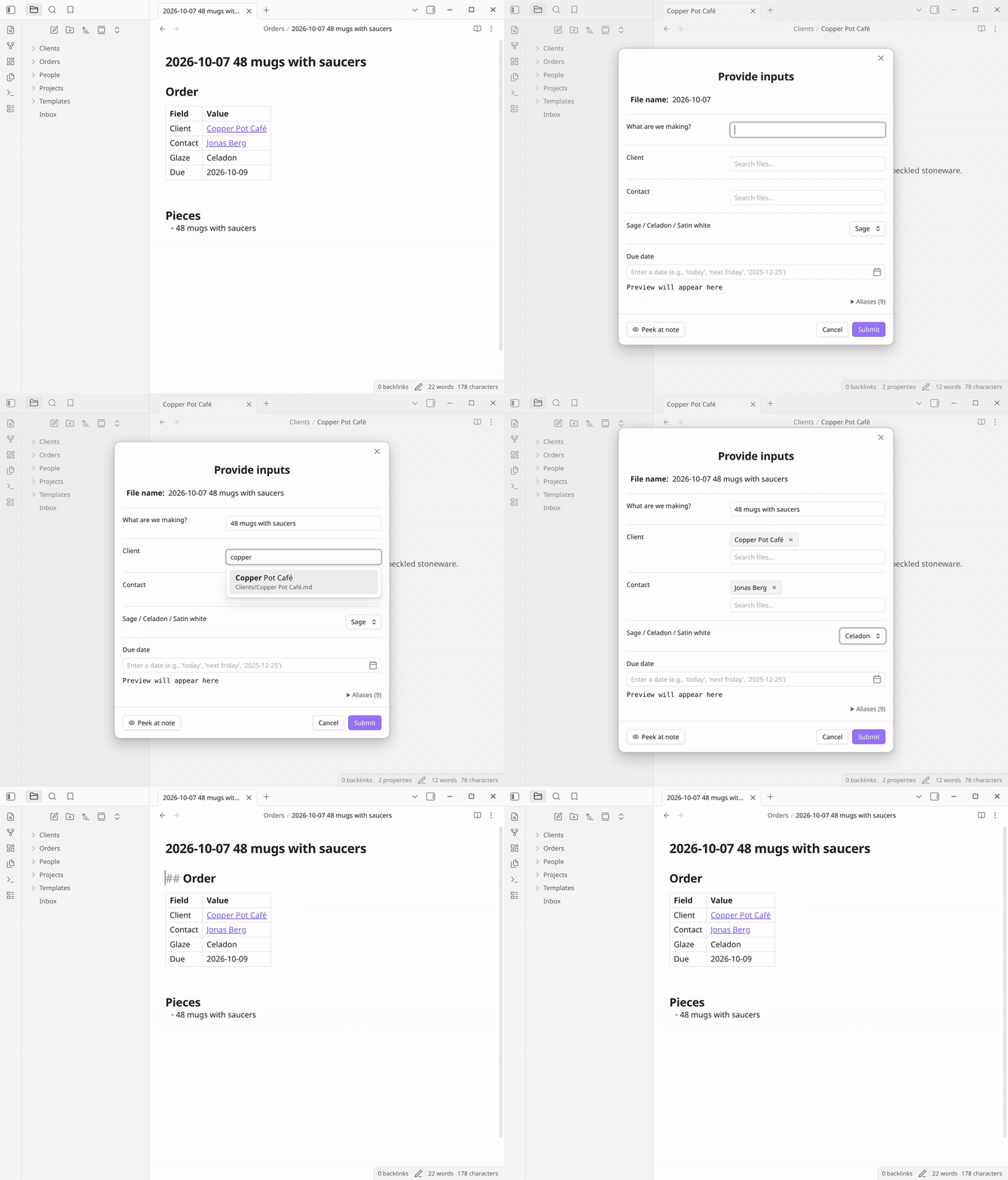
Run QuickAdd: New order. Type 48 mugs with saucers, pick Copper Pot Café under Client and Jonas Berg under Contact, choose Celadon, type friday under Due date, and click Submit. (The pictures have the date calendar hidden. The calendar button at the right of Due date hides and shows it.) On Wednesday, October 7, 2026, QuickAdd creates Orders/2026-10-07 48 mugs with saucers.md:
## Order
| Field | Value |
| --- | --- |
| Client | [[Copper Pot Café]] |
| Contact | [[Jonas Berg]] |
| Glaze | Celadon |
| Due | 2026-10-09 |

## Pieces
- 48 mugs with saucers
Look at the glaze field in the form, too. A list of options without a |label: used to be titled with its raw text, Sage,Celadon,Satin white. Now it's titled Sage / Celadon / Satin white. A list with a |name: is titled by its name, and a title longer than 30 characters stops after a whole option and ends with "…". The Raycast extension's form shows the same titles (#2189).
A few things to know:
\|works in every token with options, such as{{VALUE}},{{FIELD}}, and{{VDATE}}, in the one-page form and in prompts that come one at a time. A\|outside a token is left as it is.- If a table already had a token like
{{VALUE:status\|label:Status}}, it only looked like it worked. QuickAdd stored the answer asstatus\, so a{{VALUE:status}}elsewhere in the template asked again. Now both use the same answer. - QuickAdd doesn't escape what it writes into a cell. An answer that contains a
|, such as a link with display text ([[Note|Shown text]]), still starts a new cell.
Docs: In a table cell. Thanks to @JustinCragg for #2197 and the screenshots that pointed to the table (#2198).
Closing a window no longer waits for QuickAdd
QuickAdd saves a settings change about a second after you make it, and once more when Obsidian closes, in case a change hasn't been written yet. In 2.31.0, it asked Obsidian to wait for that last save every time, even when there was nothing to save. When a plugin asks to wait, Obsidian cancels the close, waits, and then closes again. In a test on Linux, Obsidian took about 3 seconds to shut down after its window closed with QuickAdd 2.31.0, and about 0.1 seconds with 2.32.0, the same as with QuickAdd turned off.
Now QuickAdd asks Obsidian to wait only when a change from the last second hasn't been saved. A change you make right before closing is still saved.
@vibe-lab-goodspecialists reported this in #2194, along with vault windows that didn't come back the next time Obsidian started. Closing no longer goes through the cancel and retry, but the missing windows didn't reproduce in testing. Obsidian doesn't reopen a vault window you closed while another one was still open, and that happens with QuickAdd turned off, too. If a window still goes missing after you update, please comment on #2194 (#2195).
For apps that drive QuickAdd
Some choices work with the note you're in: Capture to active file, Link to captured file, {{LINKCURRENT}}, {{SELECTED}}, and a Template set to Same folder as current file. A run started from outside Obsidian, such as from Raycast, used whichever tab happened to be open in Obsidian, so a link could land in a random note. Now the app can say which note it means.
-
The Raycast extension asks for the note. Before it runs a choice that uses the current note, it shows a searchable list of your notes, with No current note first when the choice can do without one. The extension isn't in the Raycast Store yet, so install it from source.
-
current=on the command line.quickadd:run,quickadd:run-template,quickadd:check, andquickadd:interactivetakecurrent=with a note's path, orcurrent=none. Say a Capture namedAdd to inboxhas Capture to set to an existingInbox.md, Write position set to Bottom of file, and the Capture format- {{VALUE}} (from {{LINKCURRENT}}). Thenobsidian vault=Pottery quickadd:run choice="Add to inbox" value-value="Ask the hall about extension cords" current="Projects/Kiln upgrade" verify=true
adds
- Ask the hall about extension cords (from [[Kiln upgrade]])to the bottom of the inbox, whichever note is open in Obsidian, and answers"ok":truewith"effect":"changed".value-value=answers{{VALUE}}, andverify=truemakes QuickAdd check what it wrote, so a choice that needs a current note answers"ok":falsewithcurrent=none. Withoutcurrent=, QuickAdd uses the active tab, as before. A path with no note returns an error before anything runs. Theobsidiancommand needs Settings → General → Command line interface turned on in Obsidian. -
currentNoteinquickadd:list. Every choice says whether it uses the current note:required,optional, ornone. An app can ask for a note only when it matters.
When the named note isn't the one in the active editor, QuickAdd writes to the file directly. A capture set to At cursor, New line above cursor, or New line below cursor goes to the top of the note instead, and a link goes on a new last line.
Docs: current=, currentNote. Thanks to @ievlevpn, who built a note picker into their own Raycast extension and offered it (#2196).
Also in this release
Fixes
- Create line if not found set to Cursor now needs the note you capture into to be open in the active editor. Before, when you captured into another note, QuickAdd took the line number of your cursor in the note you had open and created the missing line at that line number in the other note. Now the capture stops and says which note to open, for example
'Inbox.md' isn't open in the active editor. Choose Top or Bottom to capture into a note that isn't open (#2196, #2199).
New in the docs
- A page for the Raycast extension: installing it, running choices, the capture commands, and Quicklinks (#2190, #2192).
- How to get the day before or after a date you pick.
{{VDATE}}takes no+1, so set the choice's Which day to Ask each time and use{{DATE+1}}instead. Thanks to @BaccanoMob for #2186 (#2188).
Full changelog: 2.31.0...2.32.0


