Installation
English · 한국어
- Obsidian Desktop on Windows with Bluetooth LE support (for scale features)
- Acaia Pearl S scale
- Mobile installs work too, but only the record-keeping features are available — see Home
macOS/Linux support depends on @stoprocent/noble platform compatibility and is not tested yet.
Download the cubicj-brewing-x.y.z.zip asset from the latest release. Keep the folder structure inside the zip intact.
Extract the cubicj-brewing folder into <your-vault>/.obsidian/plugins/. Make sure main.js, manifest.json, styles.css, and noble/ sit together inside it.
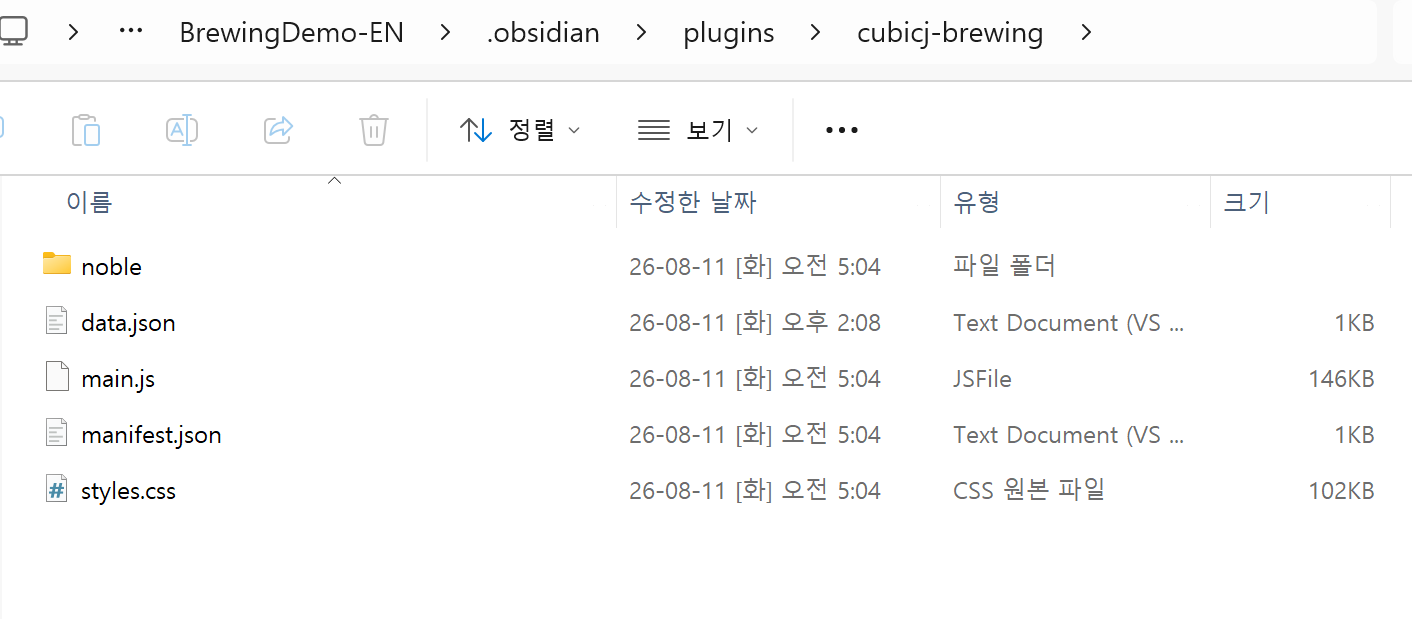
Keep every file and the noble folder together inside the extracted plugin folder.
The noble/ folder contains the native BLE addon. Do not omit it: the plugin can load without it, but scale connection will be unavailable.
Restart Obsidian. Open Settings → Community plugins, find CubicJ Brewing, and switch it on.
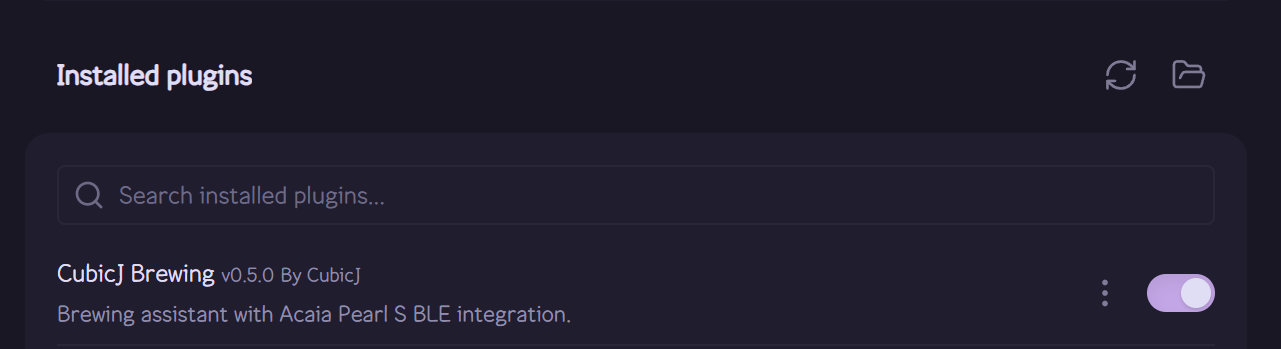
Enable CubicJ Brewing from the Community plugins list.
Open the command palette and run Open Brewing View. The brewing panel should appear in the right sidebar. If your ribbon is visible, you can also select its coffee icon.
Continue with Getting Started to connect your scale and make your first brew.