Repository navigation
Pentaho Data Integration
- Last Update
1/31/2022 - This article was originally written by Erick Ramirez on Community.datastax.com

Pentaho Data Integration (PDI) provides the Extract, Transform, and Load (ETL) capabilities that facilitate the process of capturing, cleansing, and storing data using a uniform and consistent format that is accessible and relevant to end users and IoT technologies.
- ℹ️ Introduction to PDI
- 📥 PDI Download Link
- 📘 Installation Guide on Linux
- 📘 Installation Guide on Windows
- Create an Astra Database
- Create an Astra Token
- Download your secure connect bundle ZIP
- Download and install PDI
This article was written for version 9.1 on MacOS but it should also work for the Windows version.
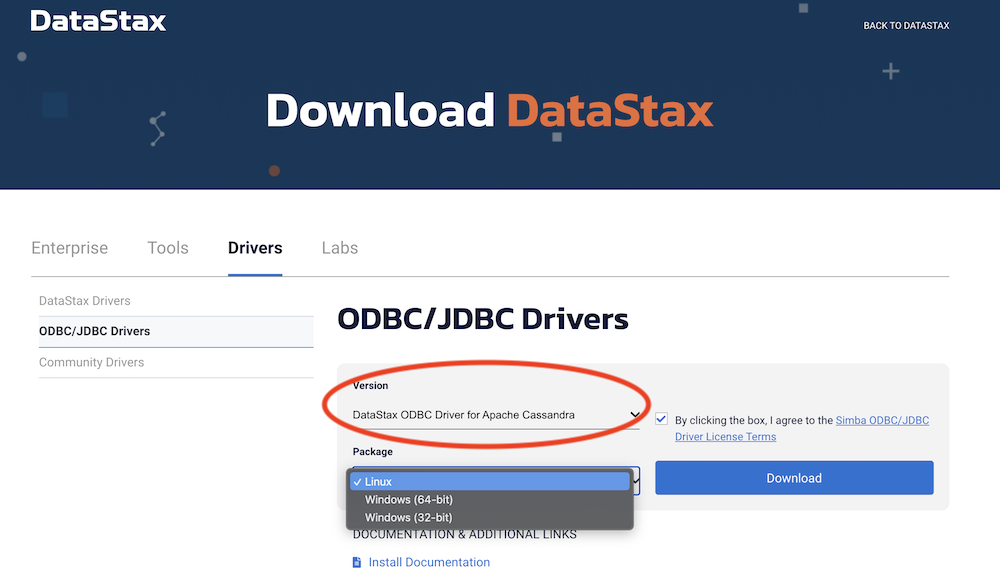
Download the JDBC driver from the DataStax website:
- Go to https://downloads.datastax.com/#odbc-jdbc-drivers.
- Select Simba JDBC Driver for Apache Cassandra.
- Select JDBC 4.2.
- Read the license terms and accept it (click the checkbox).
- Hit the blue Download button.
- Once the download completes, unzip the downloaded file.
Deploy the Simba driver to Pentaho servers using the distribution tool:
- On your laptop or PC, copy the Simba JAR to the JDBC distribution directory:
$ cp CassandraJDBC42.jar pentaho/jdbc-distribution/- Run the distribution tool (
distribute-files.baton Windows)
$ cd /Applications/Pentaho/jdbc-distribution
$ ./distribute-files.sh CassandraJDBC42.jar- Verify that the JAR has been copied to the PDI library:
$ cd /Applications/Pentaho
$ ls -lh design-tools/data-integration/lib/CassandraJDBC42.jar- Expected output:
-rw-r--r-- 1 erick vaxxed 16M 14 Sep 22:18 design-tools/data-integration/lib/CassandraJDBC42.jar
$ file design-tools/data-integration/lib/CassandraJDBC42.jar- Expected output:
design-tools/data-integration/lib/CassandraJDBC42.jar: Java archive data (JAR)
- Restart Pentaho on your workstation for the Simba driver to be loaded.
In this section we assume that your database in Astra is called
pentahoand as such the download secure bundle is calledsecure-connect-pentaho.zip
- Create a new Transformation.
- Open a new Database Connection dialog box.
- In the Connection name field, give your DB connection a name.
- Under Connection type, select Generic database.
- Set the Custom connection URL. (Note that you will need to specify the full path to your secure bundle and adapt to your database name)
jdbc:cassandra://;AuthMech=2;TunableConsistency=6;SecureConnectionBundlePath=/path/to/secure-connect-pentaho.zip
-
Set the Custom driver class name field to
com.simba.cassandra.jdbc42.Driver. -
In the Username field, enter the string
token. -
In the Password field, paste the value of the token you created in the Prerequisites section above. The token looks like
AstraCS:AbC...XYz:123...edf0
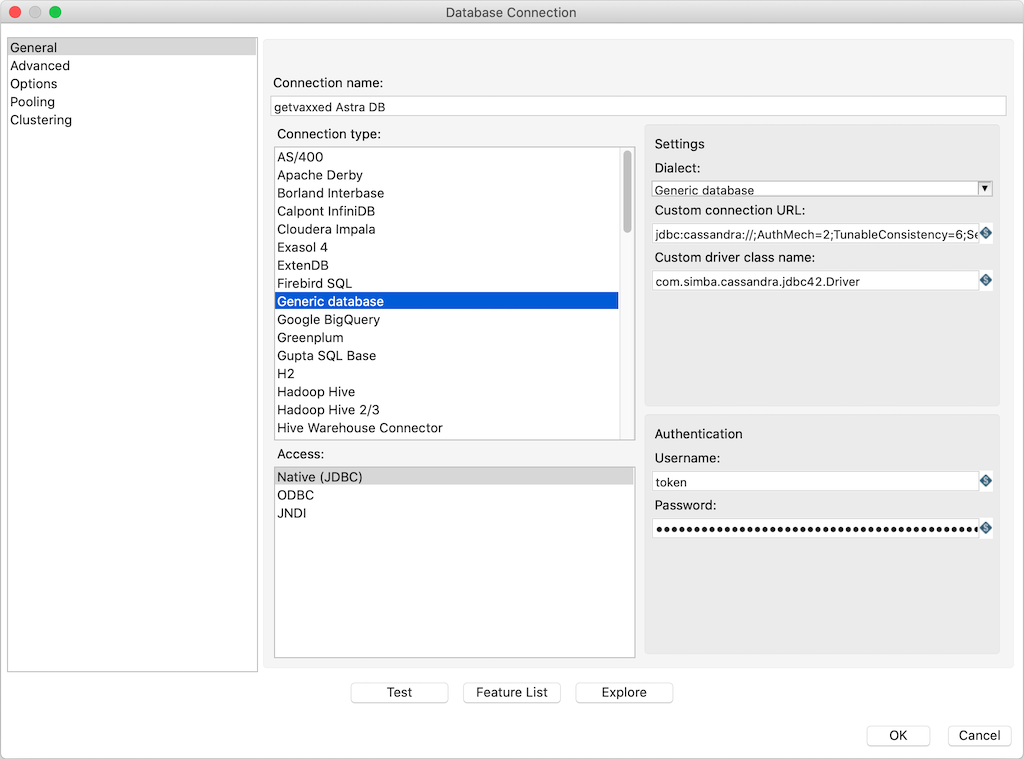
- Click on the Test Connection button to confirm that the driver configuration is working:

- Click on the OK button to save the connection settings.
Connect to your Astra DB by launching the SQL Editor in Pentaho and run a simple CQL statement. For example:
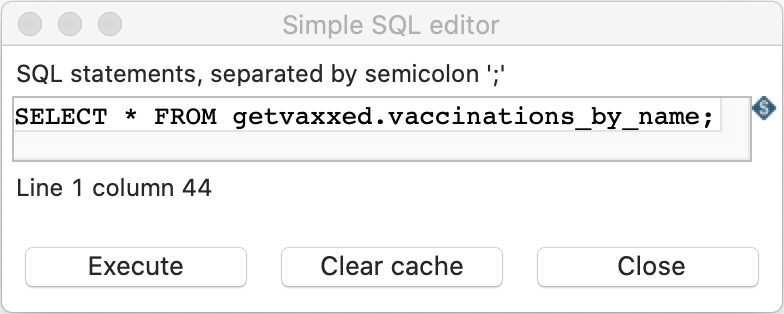
Here's an example output:
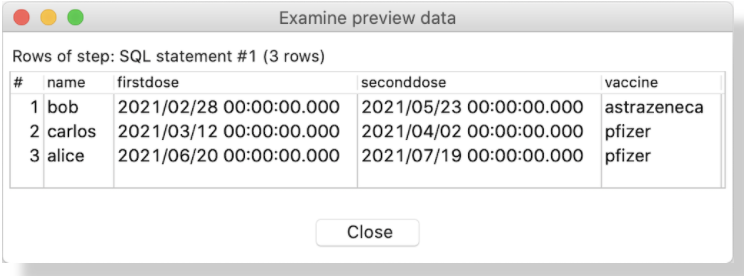
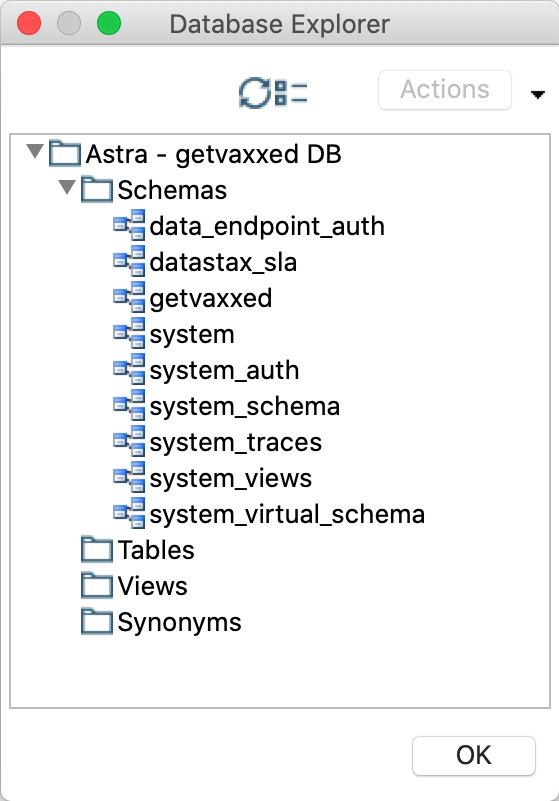
You should also be able to browse the keyspaces in your Astra DB using the DataBase Explorer. Here's an example output: